> ## Documentation Index
> Fetch the complete documentation index at: https://docs.pickcel.com/llms.txt
> Use this file to discover all available pages before exploring further.
# Account, login, and on-screen messages FAQs
> Pickcel account help, Account Cancelled, Trial expired, Deactivated, Unauthorized user, and Storage limit messages, plus changing your registered email and account ownership.
What common account, login, and on-screen status messages mean, how to clear them, and how to manage your account credentials.
### Why do I see "Account Cancelled" when I log in?
The **"Account Cancelled"** message usually appears after your trial ends or when a payment is overdue. To restore access, renew or upgrade your subscription from the **My Plan** page.
For the full walkthrough, see [How to upgrade your account from the trial plan](/plans-and-pricing/how-to-upgrade-from-trial-plan). If problems persist, contact [support](mailto:support@pickcel.com).
### Why do I see "Trial period expired" as soon as I log in?
This pop-up means your **14-day trial** has ended. Click **Proceed for payment** and complete the payment to continue using your account. See [how to upgrade from the trial plan](/plans-and-pricing/how-to-upgrade-from-trial-plan) for the full walkthrough, or the [pricing page](https://www.pickcel.com/pricing.html) for all options.
### Why does my screen show a "Deactivated" message?
A *Deactivated* message appears when the screen has been deactivated, the trial period is over, or a payment is pending.
**If your trial expired or payment is pending:** log in to the console; you'll see a payment prompt. Click **Proceed for payment** and complete it. The screen reactivates automatically and resumes the default composition you'd set.
**If you deactivated the screen:** confirm in the console by opening the **Screens** module, clicking the **filter** icon at the top-right, selecting **Deactivated screens**, and clicking **Apply**. If your screen is in that list, you can bring it back.
For the full walkthrough, see [Re-activate Screen](/faqs/reactivate-screen).
### What should I do about an "Unauthorized user" error in my menu app?
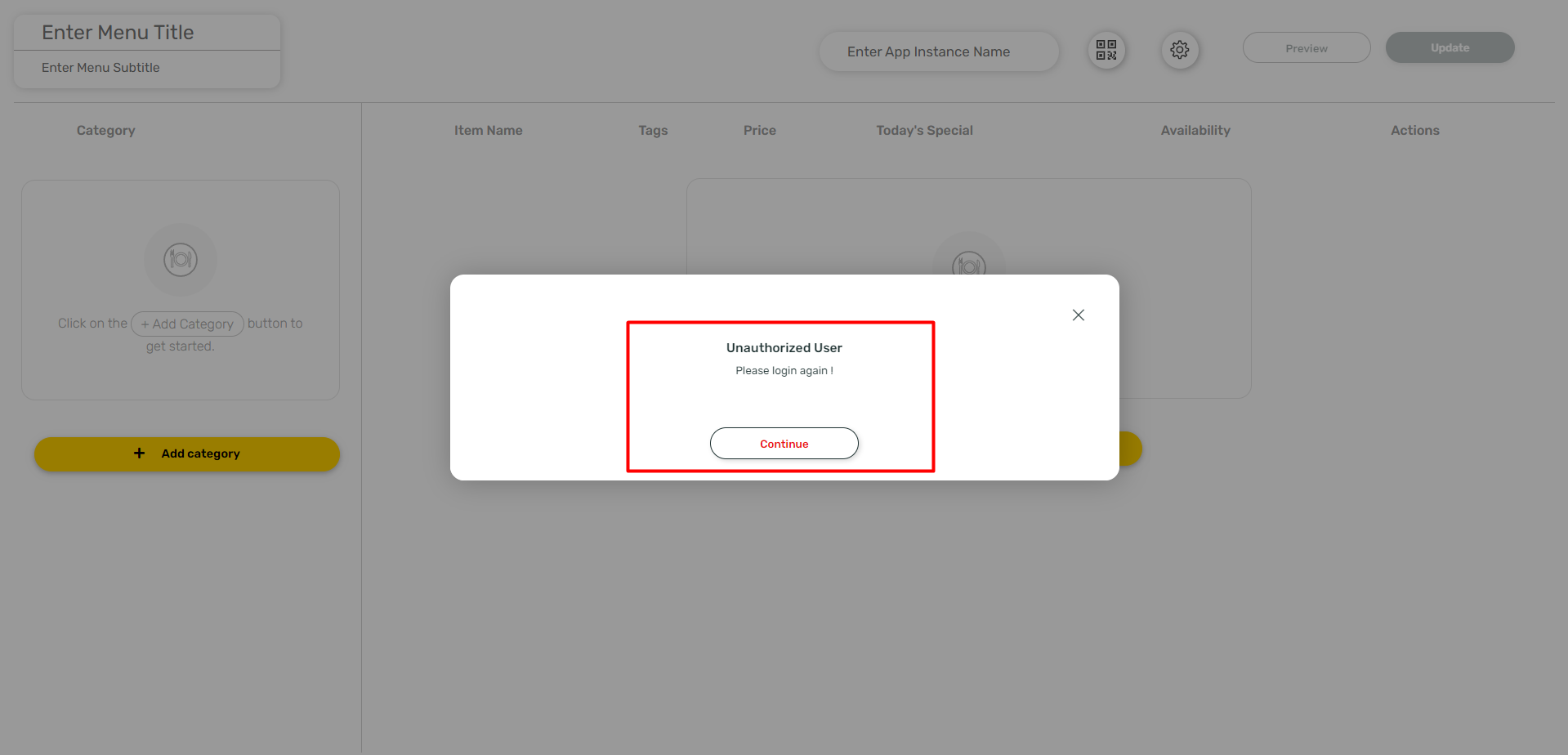 This happens when an app created by **one user** is accessed by a **different user**. Click **Continue** and log in with the account that originally created the app. If problems remain, contact [support](mailto:support@pickcel.com).
### What should I do about a "Storage limit exceeded" error when adding media?
The "Storage limit exceeded" message appears when you surpass your allocated storage capacity, typically during media uploads. To check your storage limit based on your plan, see [how much cloud storage you get, and how to increase it](/faqs/connectivity-and-offline#how-much-cloud-storage-do-i-get,-and-can-i-increase-it).
If your storage is exhausted, you can either **upgrade your account** or **delete unused or old media files** to create space for new uploads.
Still need more storage? Get in touch with our [sales team](https://www.pickcel.com/company/contact) to discuss increasing the limit. If you continue to experience problems, reach out to our [support team](mailto:support@pickcel.com) for further assistance.
## Managing your account
### How do I change my registered email ID?
There's no option to change your registered email from the dashboard. Contact [support](mailto:support@pickcel.com) with the new email and the team will update it for you.
### How do I transfer account ownership to another user?
To change account ownership to another user in Pickcel, you'll need to request assistance from the Pickcel team, as this process can't be performed independently. Reach out to our [Support team](mailto:support@pickcel.com) and they'll guide you through the steps to transfer ownership. This added layer of security ensures important account ownership changes are handled with care, preventing unauthorized access and maintaining the integrity of your account data. Rest assured, our Support team will be readily available to assist you with this procedure.
## Related guides
Bring a deactivated screen back to active status.
Move from the free trial to a paid plan.
Billing cycle, payment methods, and cancellation.
Browse all Pickcel FAQ articles.
This happens when an app created by **one user** is accessed by a **different user**. Click **Continue** and log in with the account that originally created the app. If problems remain, contact [support](mailto:support@pickcel.com).
### What should I do about a "Storage limit exceeded" error when adding media?
The "Storage limit exceeded" message appears when you surpass your allocated storage capacity, typically during media uploads. To check your storage limit based on your plan, see [how much cloud storage you get, and how to increase it](/faqs/connectivity-and-offline#how-much-cloud-storage-do-i-get,-and-can-i-increase-it).
If your storage is exhausted, you can either **upgrade your account** or **delete unused or old media files** to create space for new uploads.
Still need more storage? Get in touch with our [sales team](https://www.pickcel.com/company/contact) to discuss increasing the limit. If you continue to experience problems, reach out to our [support team](mailto:support@pickcel.com) for further assistance.
## Managing your account
### How do I change my registered email ID?
There's no option to change your registered email from the dashboard. Contact [support](mailto:support@pickcel.com) with the new email and the team will update it for you.
### How do I transfer account ownership to another user?
To change account ownership to another user in Pickcel, you'll need to request assistance from the Pickcel team, as this process can't be performed independently. Reach out to our [Support team](mailto:support@pickcel.com) and they'll guide you through the steps to transfer ownership. This added layer of security ensures important account ownership changes are handled with care, preventing unauthorized access and maintaining the integrity of your account data. Rest assured, our Support team will be readily available to assist you with this procedure.
## Related guides
Bring a deactivated screen back to active status.
Move from the free trial to a paid plan.
Billing cycle, payment methods, and cancellation.
Browse all Pickcel FAQ articles.