> ## Documentation Index
> Fetch the complete documentation index at: https://docs.pickcel.com/llms.txt
> Use this file to discover all available pages before exploring further.
# Understanding the Pickcel Dashboard
> Learn what each Pickcel Dashboard widget shows: screen health, schedule coverage, content download status, media by type, and file-size distribution.
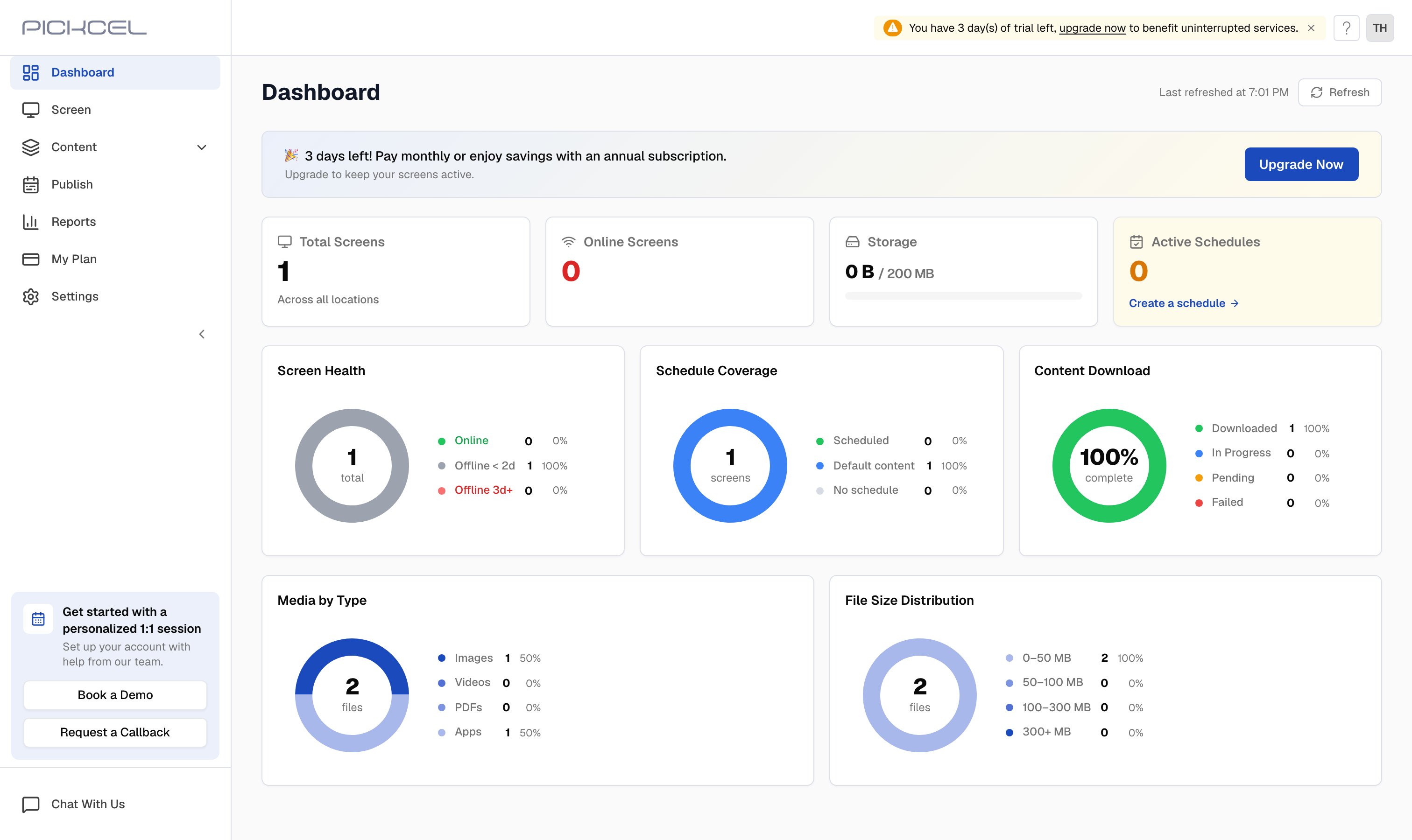
The Dashboard is the first screen you see after logging in to the [Pickcel console](https://console.pickcel.com). It gives you a live overview of your screens, content, and storage on a single screen. The data refreshes automatically; you can also force a refresh using the **Refresh** button in the top-right corner, which also shows when the dashboard was last refreshed.
 ## Key Metrics
Four summary cards across the top give you an instant pulse on your account:
| Metric | What it shows |
| :------------------- | :------------------------------------------------------------------------------------------------------------------ |
| **Total Screens** | Total number of screens registered in your console, across all locations |
| **Online Screens** | Screens currently connected and actively displaying content |
| **Storage** | Storage used against your subscription limit (for example, 0 B / 200 MB) |
| **Active Schedules** | Content schedules currently live and playing on your screens. A **Create a schedule** link lets you start a new one |
## Screen Health
A donut chart that breaks down the operational status of all your screens, each with a count and percentage:
* **Online**: Screens connected and functioning normally
* **Offline 2d**: Screens that lost connection less than 2 days ago; these usually reconnect on their own
* **Offline 3d+**: Screens offline for 3 days or more; these need attention, so check power, network, and player status
## Schedule Coverage
Shows how many screens are in each playback mode right now:
* **Scheduled**: Playing content from an active schedule
* **Default content**: Playing the default composition because no schedule is active
* **No schedule**: Screens with no schedule and no default content assigned
## Content Download
Tracks how well your screens have received the latest content:
* **Downloaded**: Content fully received and ready to play
* **In Progress**: Content currently downloading to the screen
* **Pending**: Content queued but not yet started
* **Failed**: Content that could not be delivered; check network connectivity on affected screens
## Media by Type
A breakdown of your media library by file type, with a count and percentage for each category: **Images**, **Videos**, **PDFs**, and **Apps**.
## File Size Distribution
Shows how your media library is distributed across file-size ranges, giving you a clear picture of your storage at a glance:
* **0–50 MB**
* **50–100 MB**
* **100–300 MB**
* **300+ MB**
## Related guides
Pair a display with the Pickcel console using a registration code.
Set the fallback content that plays when no schedule is active.
Generate playback, uptime, and audit reports for your screens.
Schedule and publish compositions to your screens.
## Key Metrics
Four summary cards across the top give you an instant pulse on your account:
| Metric | What it shows |
| :------------------- | :------------------------------------------------------------------------------------------------------------------ |
| **Total Screens** | Total number of screens registered in your console, across all locations |
| **Online Screens** | Screens currently connected and actively displaying content |
| **Storage** | Storage used against your subscription limit (for example, 0 B / 200 MB) |
| **Active Schedules** | Content schedules currently live and playing on your screens. A **Create a schedule** link lets you start a new one |
## Screen Health
A donut chart that breaks down the operational status of all your screens, each with a count and percentage:
* **Online**: Screens connected and functioning normally
* **Offline 2d**: Screens that lost connection less than 2 days ago; these usually reconnect on their own
* **Offline 3d+**: Screens offline for 3 days or more; these need attention, so check power, network, and player status
## Schedule Coverage
Shows how many screens are in each playback mode right now:
* **Scheduled**: Playing content from an active schedule
* **Default content**: Playing the default composition because no schedule is active
* **No schedule**: Screens with no schedule and no default content assigned
## Content Download
Tracks how well your screens have received the latest content:
* **Downloaded**: Content fully received and ready to play
* **In Progress**: Content currently downloading to the screen
* **Pending**: Content queued but not yet started
* **Failed**: Content that could not be delivered; check network connectivity on affected screens
## Media by Type
A breakdown of your media library by file type, with a count and percentage for each category: **Images**, **Videos**, **PDFs**, and **Apps**.
## File Size Distribution
Shows how your media library is distributed across file-size ranges, giving you a clear picture of your storage at a glance:
* **0–50 MB**
* **50–100 MB**
* **100–300 MB**
* **300+ MB**
## Related guides
Pair a display with the Pickcel console using a registration code.
Set the fallback content that plays when no schedule is active.
Generate playback, uptime, and audit reports for your screens.
Schedule and publish compositions to your screens.