> ## Documentation Index
> Fetch the complete documentation index at: https://docs.pickcel.com/llms.txt
> Use this file to discover all available pages before exploring further.
# How do I create a Pickcel account?
> Sign up for Pickcel in minutes, create your account with email or Google/Microsoft, verify with a 6-digit code, and start your free trial.
Signing up starts a **free trial**, no credit card required.
Go to [console.pickcel.com/register](https://console.pickcel.com/register). You can register with your **email**, or use **Continue with Google** or **Continue with Microsoft** for one-click sign-up.
Fill in your **Name**, **business email address**, and a **secure password**. Tick the box to agree to the [**T\&C**](https://www.pickcel.com/terms) and [**Privacy Policy**](https://www.pickcel.com/privacy), then click **Sign Up**.
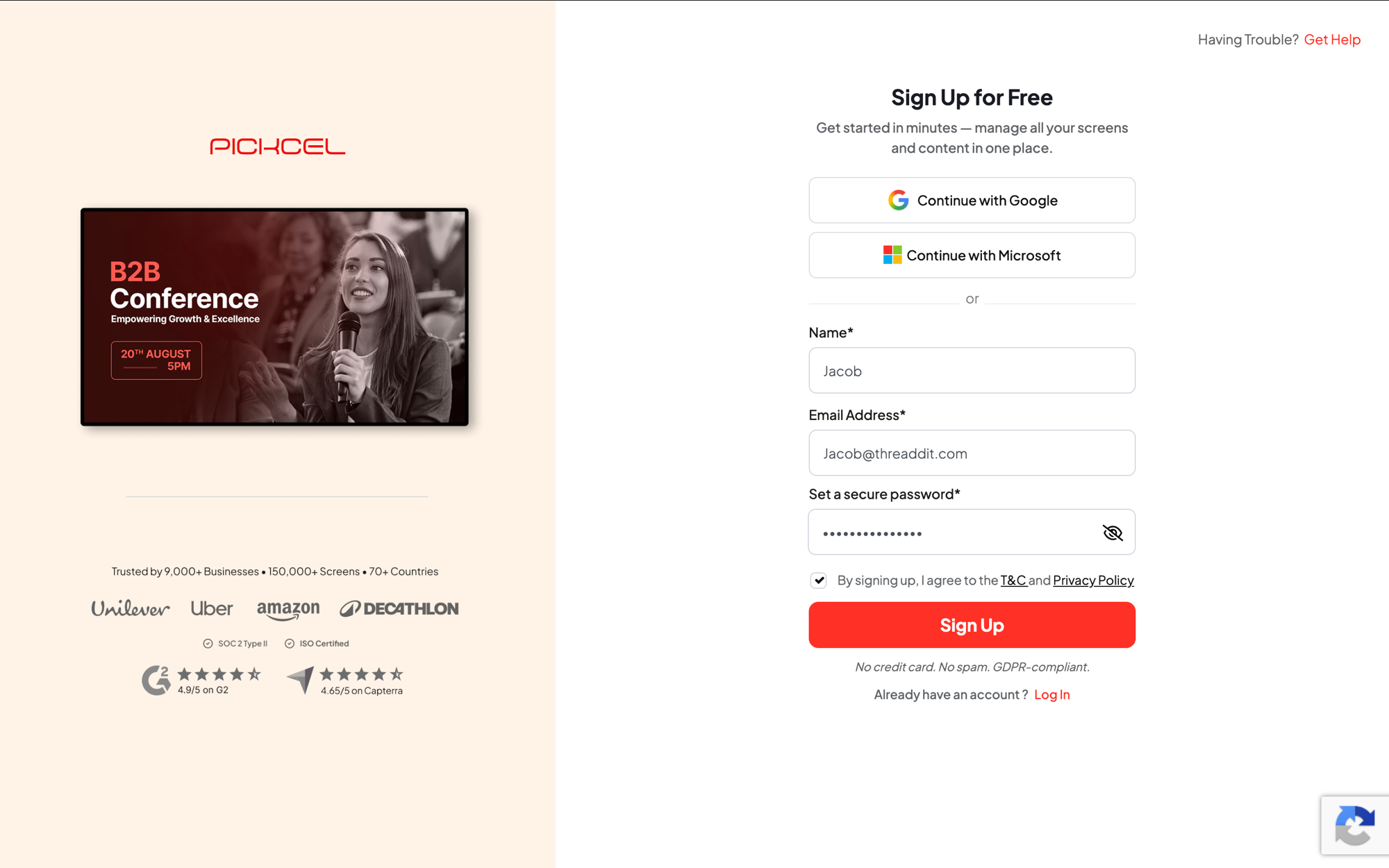 Prefer single sign-on? Click **Continue with Google** or **Continue with Microsoft** instead; you'll skip the password step and go straight to verification.
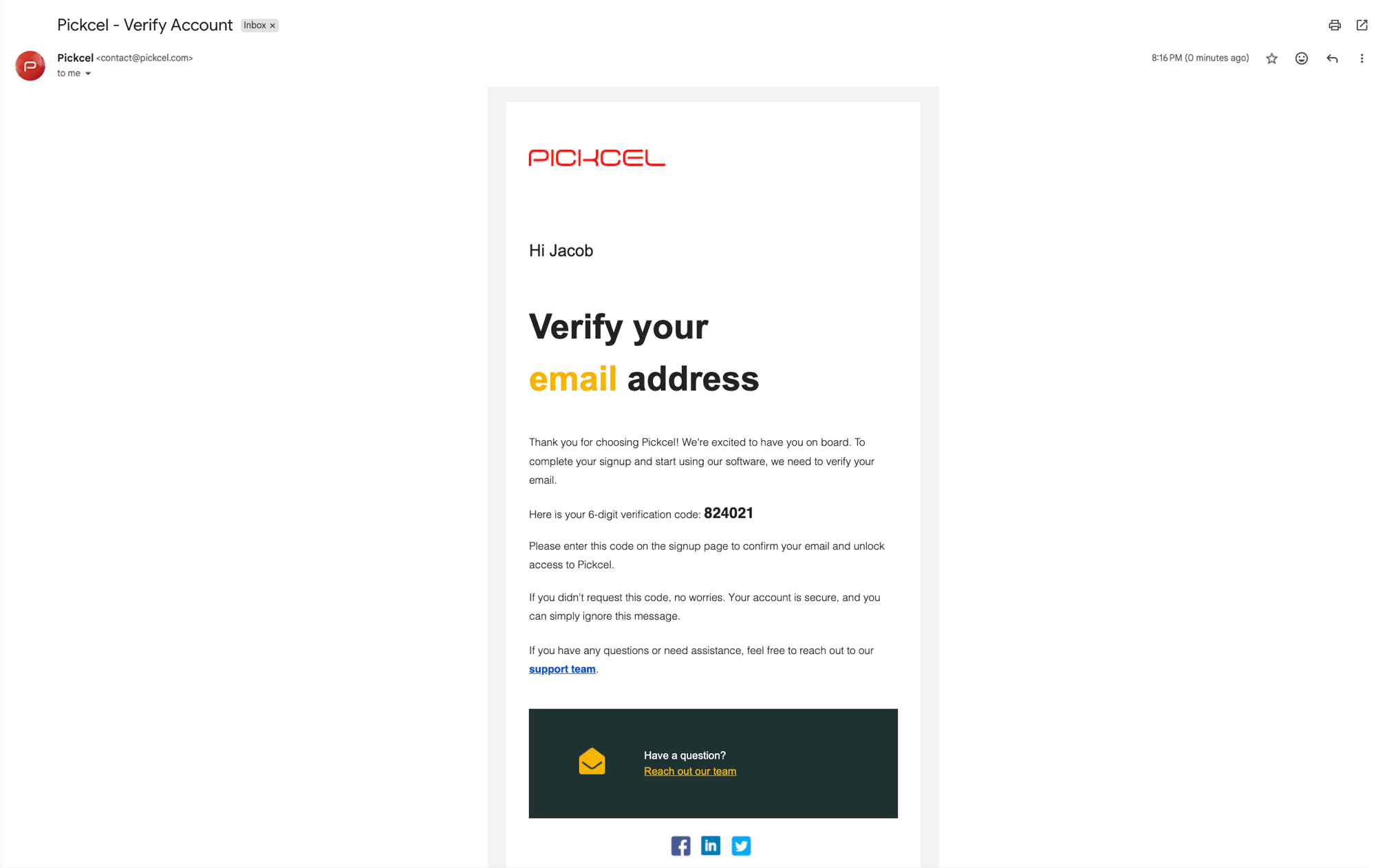
Pickcel sends a **6-digit verification code** to the email address you signed up with. Open the email titled **"Pickcel – Verify Account"** to find your code.
Prefer single sign-on? Click **Continue with Google** or **Continue with Microsoft** instead; you'll skip the password step and go straight to verification.
Pickcel sends a **6-digit verification code** to the email address you signed up with. Open the email titled **"Pickcel – Verify Account"** to find your code.
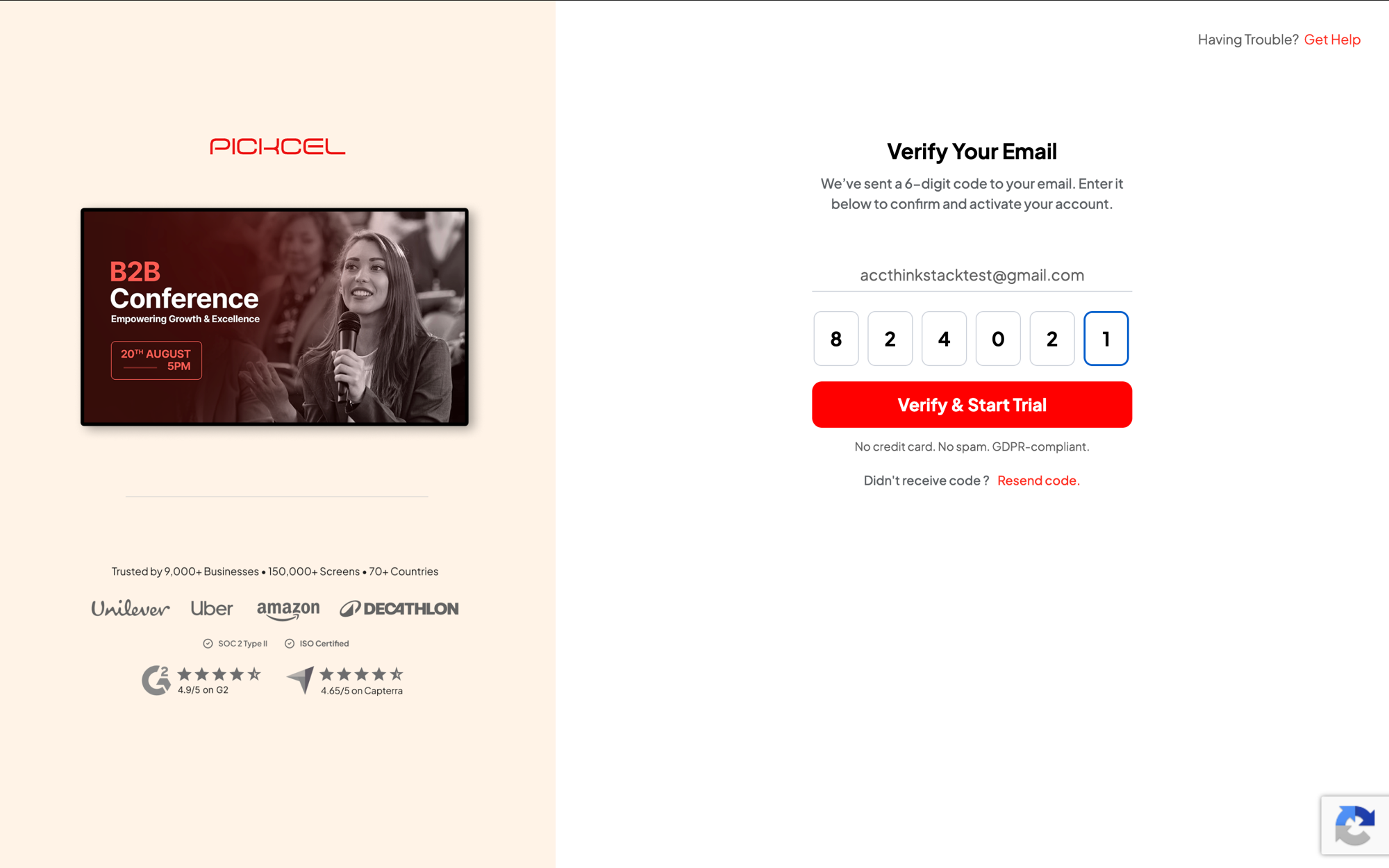
 Back on the **Verify Your Email** screen, enter the 6-digit code and click **Verify & Start Trial**. If the code doesn't arrive, use **Resend code**.
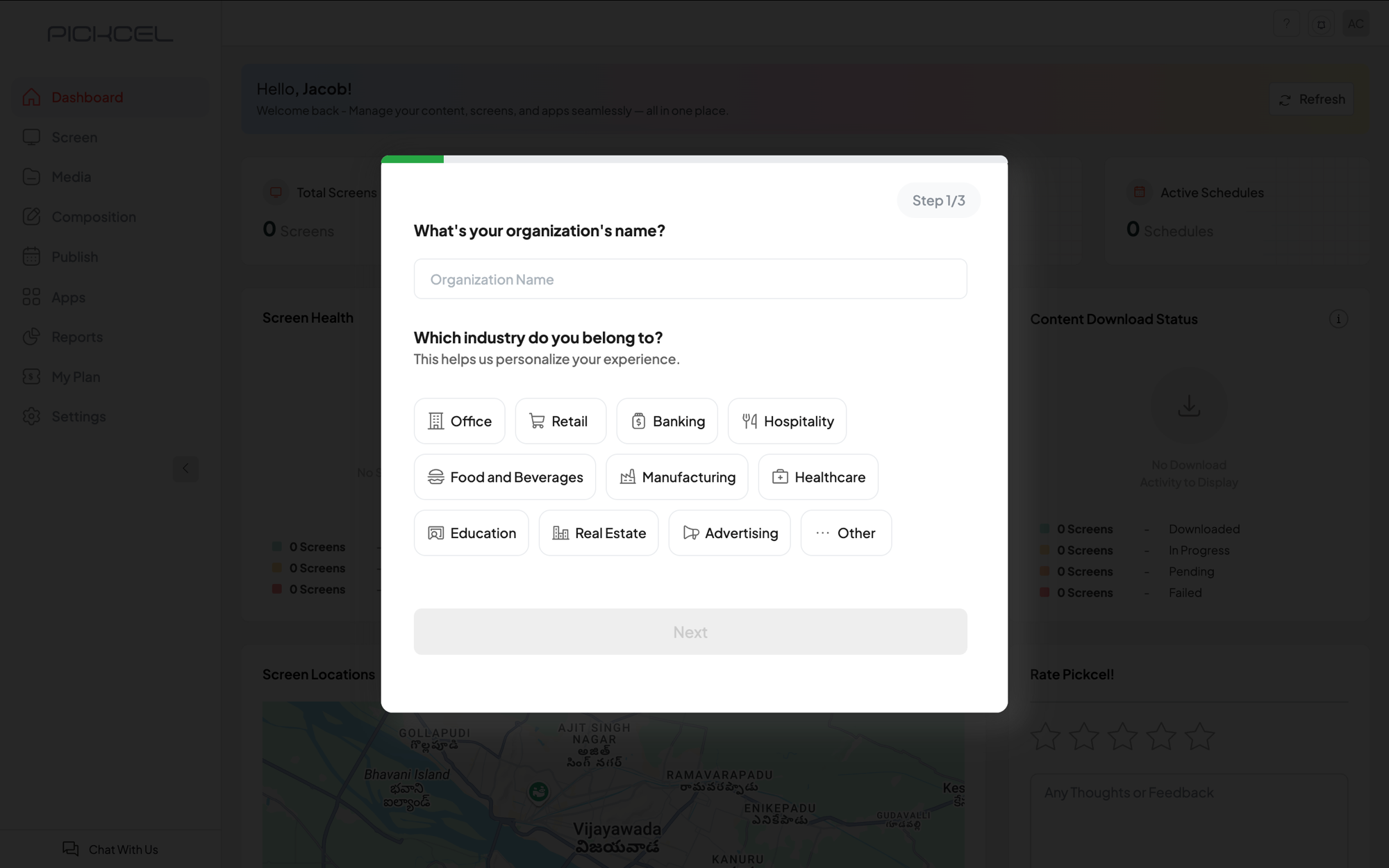
 Tell Pickcel a little about yourself, your **organization name** and **industry**, so it can personalize your experience. This takes a few short steps.
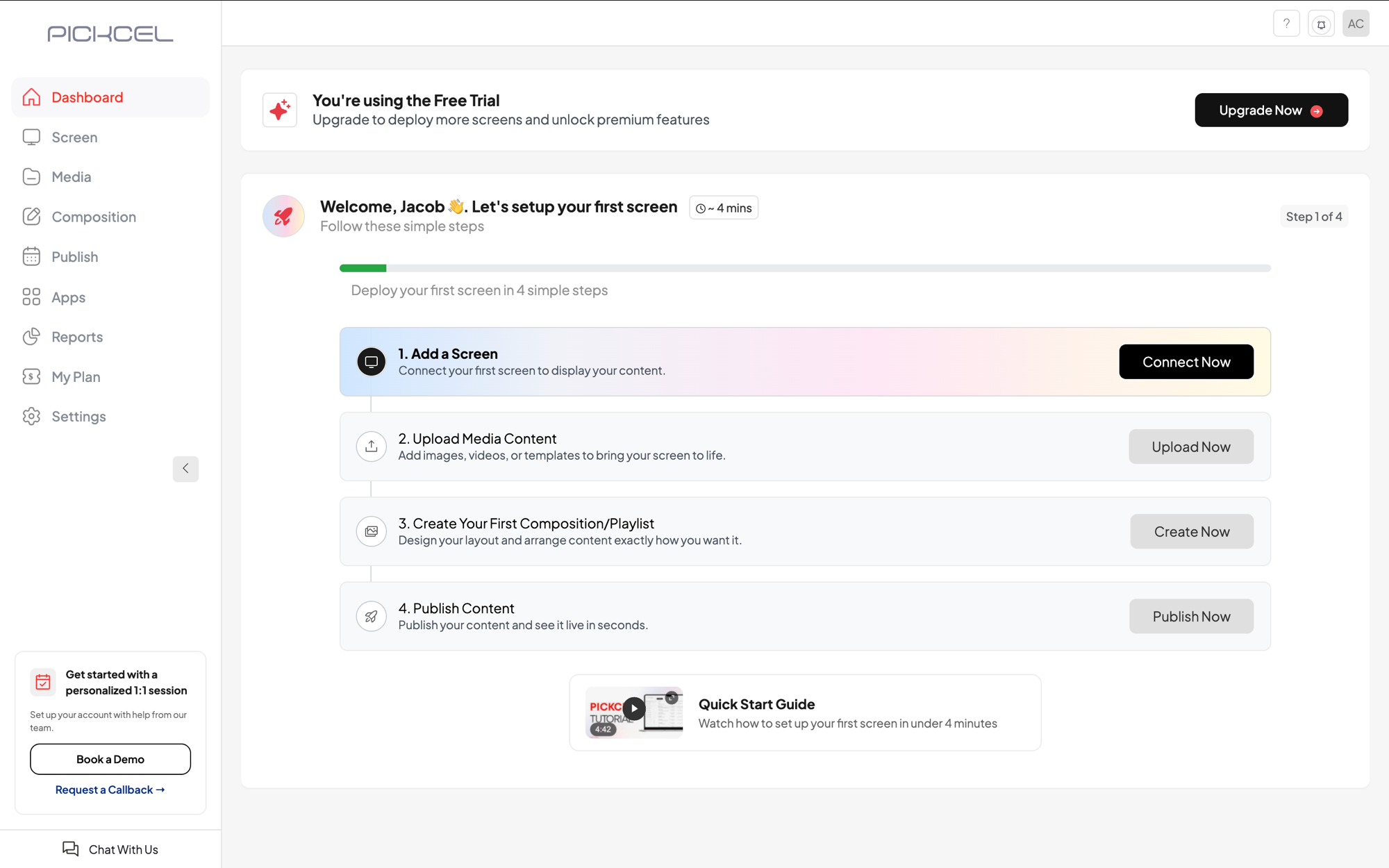
 You'll land on your **dashboard**, where a guided checklist helps you set up your first screen, add a screen, upload media, create a composition, and publish.
 ## What's next
Pair your first display with the Pickcel console using a registration code.
Set up the Pickcel player app on your device, Windows, Android, Fire TV, and more.
Upload images, videos, and other content to your media library.
Design a multi-zone layout to display your content.
## What's next
Pair your first display with the Pickcel console using a registration code.
Set up the Pickcel player app on your device, Windows, Android, Fire TV, and more.
Upload images, videos, and other content to your media library.
Design a multi-zone layout to display your content.