> ## Documentation Index
> Fetch the complete documentation index at: https://docs.pickcel.com/llms.txt
> Use this file to discover all available pages before exploring further.
# What is Zone in Pickcel?
> Learn about zones, designated screen partitions where you run content or playlists independently, including limits, reordering, and fit options
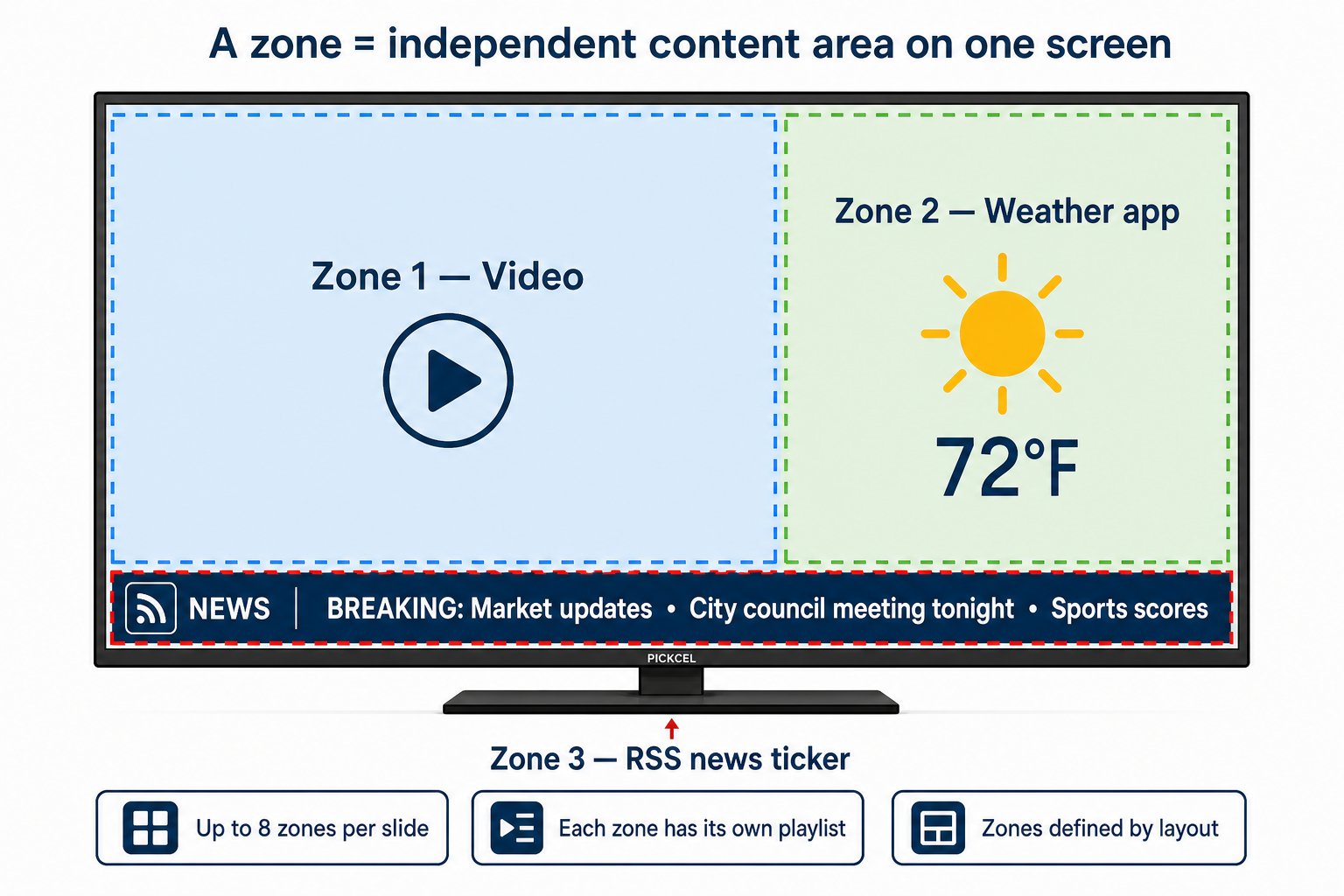
A **zone** is a designated segment of your display, a rectangular partition on the screen where content plays independently from other zones. Think of zones as windows on a single TV: each one can show its own image, video, app, or playlist at the same time.
 ## How zones fit together
Zones do not exist on their own, they are defined inside a **layout**, and you fill them with content when you build a **composition**.
| Concept | Role |
| :-------------- | :-------------------------------------------------------------------------------------- |
| **Layout** | Defines how many zones exist and where they sit on the screen (size, position, overlap) |
| **Zone** | One partition inside the layout, each zone gets its own content playlist |
| **Composition** | The finished design: a layout plus the media and apps assigned to every zone |
New to layouts or compositions? Start with [Create a layout](/compositions/layouts), then [Create a composition](/compositions/compositions).
## What can run inside a zone?
Within each zone you can display distinct content to meet your requirements:
* **Images** and **videos** from your media library
* **Apps** from the Pickcel App Store, YouTube, RSS feeds, tickers, text, clocks, weather, web URLs, slides, maps, and more
* **Multiple items** in one zone as a playlist, each with its own play duration
This lets one screen run several pieces of content side by side, for example, a promotion video in Zone 1, live weather in Zone 2, and a news ticker in Zone 3.
## Zone limits
| Limit | Detail |
| :------------------ | :------------------------------------------------------------------------------------------------------------------------------- |
| **Maximum zones** | Up to **8 zones** per slide |
| **Multiple videos** | You can add a separate video to each zone; all videos play simultaneously |
| **Audio** | By default, audio from **Zone 1** plays while videos in other zones run muted |
| **Multi-slide** | Each slide in a [multi-slide composition](/compositions/multi-slide) can have its own zone arrangement (up to 8 zones per slide) |
Pickcel does not generally recommend spreading multiple videos across different zones, playback can vary by device. The safer pattern is to keep videos in a single zone as a playlist. See the [Compositions & Zones FAQ](/faqs/composition-zones) for player-specific notes.
## Design zones in the layout editor
Zones are created when you design a layout. Open **Composition** → **Add Composition** → **+ Create Custom Layout**, then use **+ Add zone** to place partitions on the canvas.
## How zones fit together
Zones do not exist on their own, they are defined inside a **layout**, and you fill them with content when you build a **composition**.
| Concept | Role |
| :-------------- | :-------------------------------------------------------------------------------------- |
| **Layout** | Defines how many zones exist and where they sit on the screen (size, position, overlap) |
| **Zone** | One partition inside the layout, each zone gets its own content playlist |
| **Composition** | The finished design: a layout plus the media and apps assigned to every zone |
New to layouts or compositions? Start with [Create a layout](/compositions/layouts), then [Create a composition](/compositions/compositions).
## What can run inside a zone?
Within each zone you can display distinct content to meet your requirements:
* **Images** and **videos** from your media library
* **Apps** from the Pickcel App Store, YouTube, RSS feeds, tickers, text, clocks, weather, web URLs, slides, maps, and more
* **Multiple items** in one zone as a playlist, each with its own play duration
This lets one screen run several pieces of content side by side, for example, a promotion video in Zone 1, live weather in Zone 2, and a news ticker in Zone 3.
## Zone limits
| Limit | Detail |
| :------------------ | :------------------------------------------------------------------------------------------------------------------------------- |
| **Maximum zones** | Up to **8 zones** per slide |
| **Multiple videos** | You can add a separate video to each zone; all videos play simultaneously |
| **Audio** | By default, audio from **Zone 1** plays while videos in other zones run muted |
| **Multi-slide** | Each slide in a [multi-slide composition](/compositions/multi-slide) can have its own zone arrangement (up to 8 zones per slide) |
Pickcel does not generally recommend spreading multiple videos across different zones, playback can vary by device. The safer pattern is to keep videos in a single zone as a playlist. See the [Compositions & Zones FAQ](/faqs/composition-zones) for player-specific notes.
## Design zones in the layout editor
Zones are created when you design a layout. Open **Composition** → **Add Composition** → **+ Create Custom Layout**, then use **+ Add zone** to place partitions on the canvas.
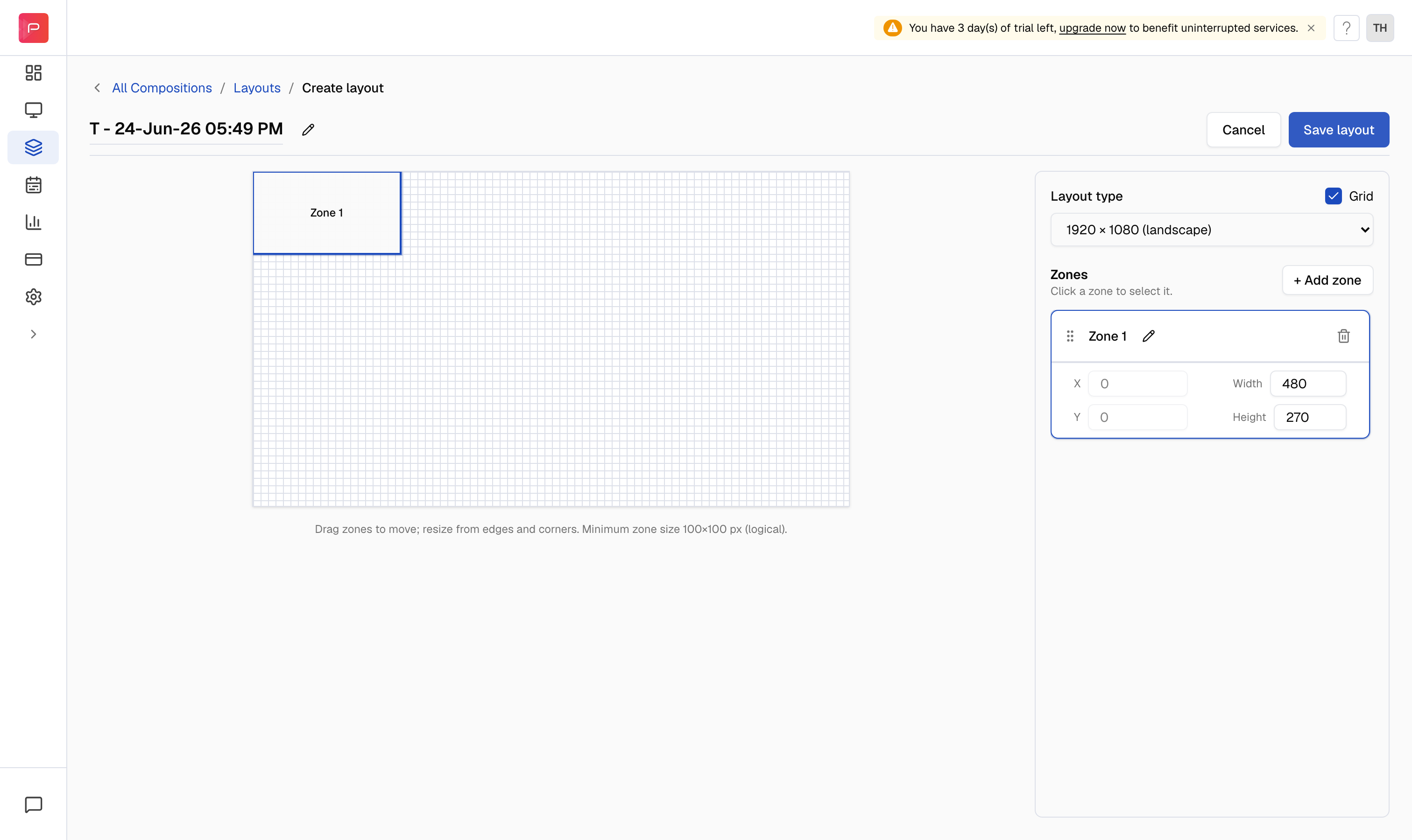 After adding a zone, drag its edges or corners, or enter **Width** and **Height** values to resize it. Click **+ Add zone** again to create more partitions, and you can overlap zones when your design calls for layered content.
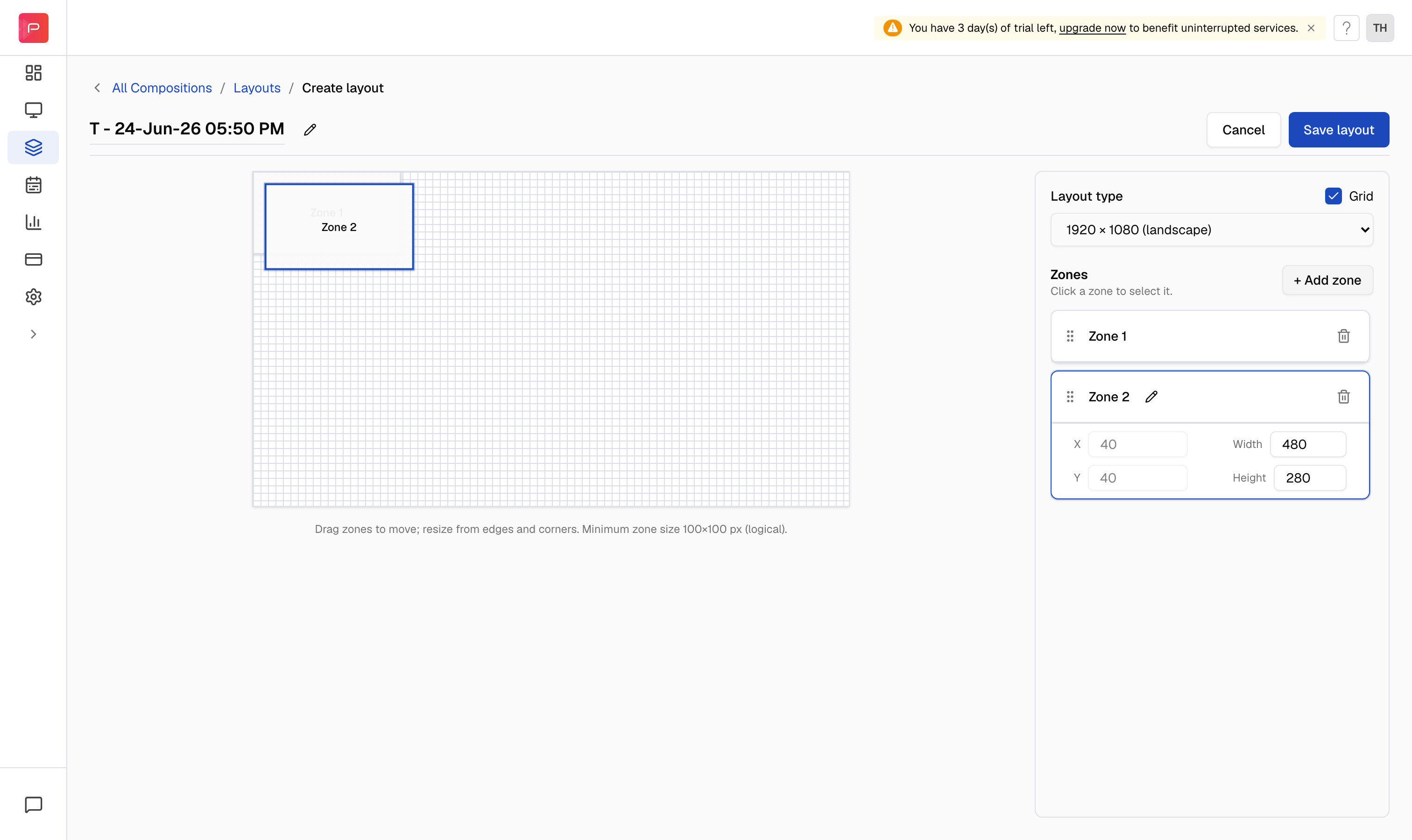 When you are done, click **Save layout** to save it. The layout then appears under the **Custom** tab on the layout selection page.
## Add content to zones in the composition editor
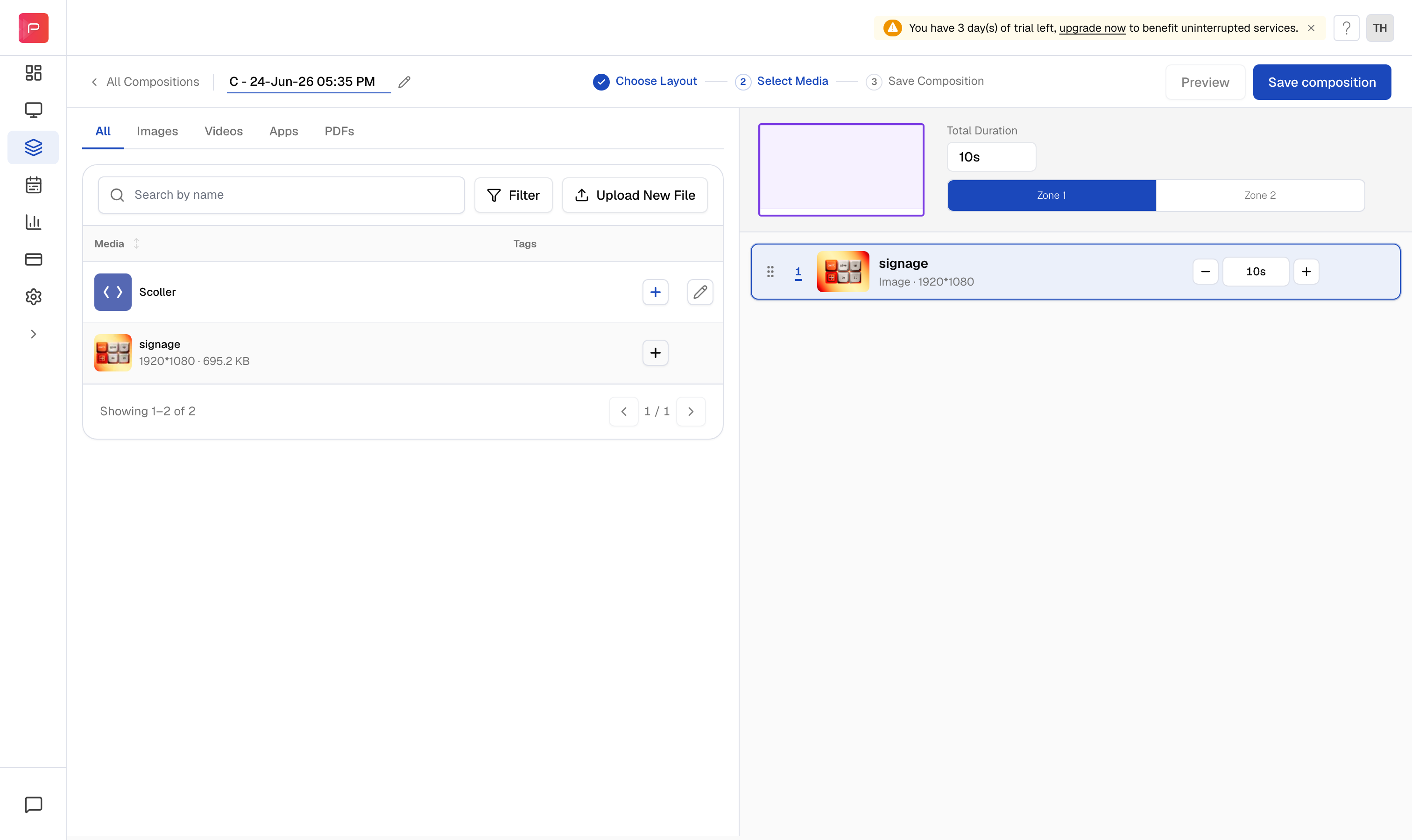
After you choose a layout, the composition editor opens. Zones are listed on the right (**Zone 1**, **Zone 2**, and so on). Click a zone, then click the **+** on a media row on the left to add it to that zone's playlist.
When you are done, click **Save layout** to save it. The layout then appears under the **Custom** tab on the layout selection page.
## Add content to zones in the composition editor
After you choose a layout, the composition editor opens. Zones are listed on the right (**Zone 1**, **Zone 2**, and so on). Click a zone, then click the **+** on a media row on the left to add it to that zone's playlist.
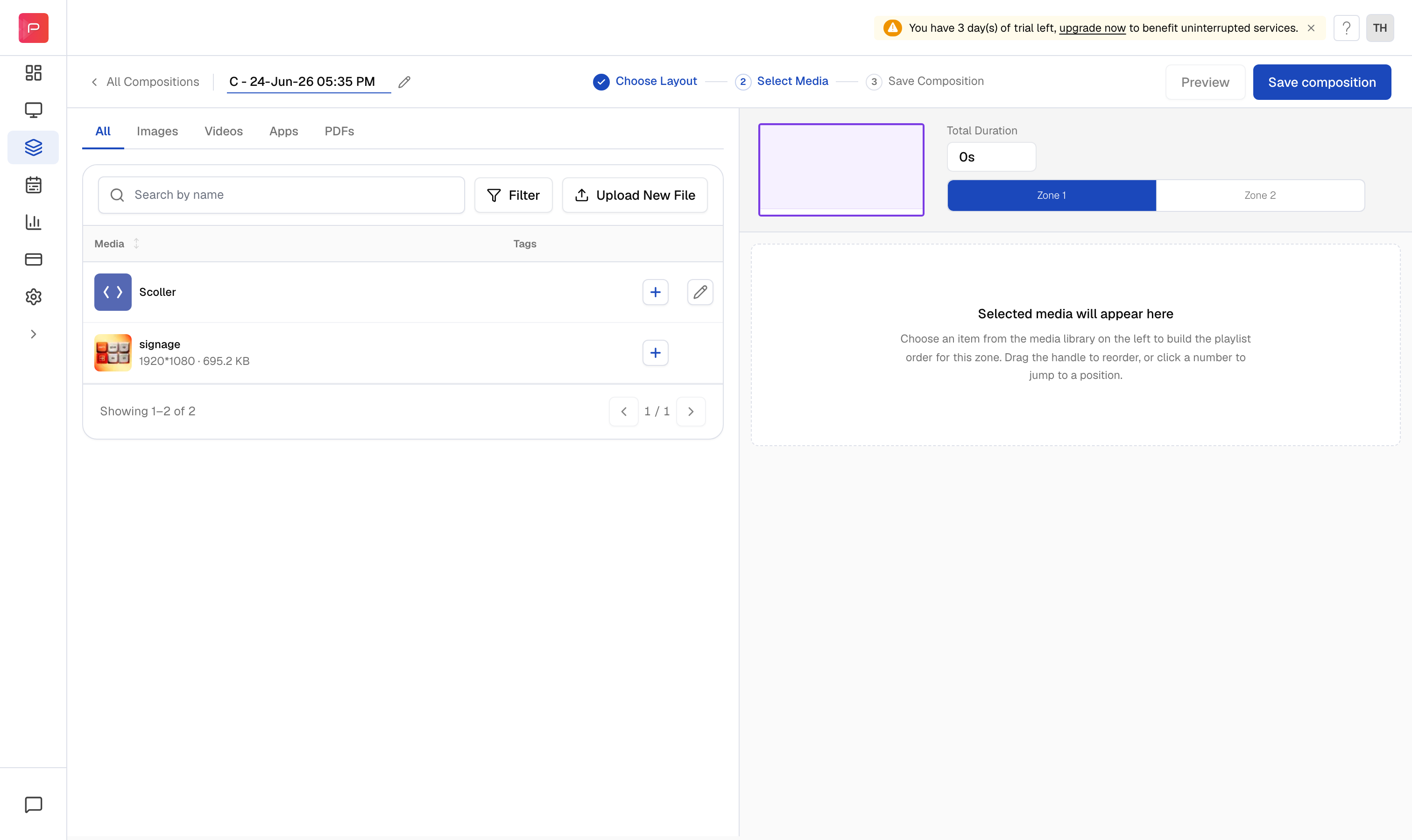 For each item in a zone you can:
* Set **play duration** with the inline **−** and **+** controls (the zone total is shown under **Total Duration**). Duration applies to images; videos always play for their full length.
* Reorder items by dragging the handle on each row
* Remove an item by hovering over it and clicking the remove icon
Switch between zones to build each playlist, then click **Preview** to check the final look before saving.
For each item in a zone you can:
* Set **play duration** with the inline **−** and **+** controls (the zone total is shown under **Total Duration**). Duration applies to images; videos always play for their full length.
* Reorder items by dragging the handle on each row
* Remove an item by hovering over it and clicking the remove icon
Switch between zones to build each playlist, then click **Preview** to check the final look before saving.
 ## Reorder overlapping zones
If your layout has **overlapping zones**, one zone placed on top of another, you can control which zone appears in front using **zone reordering**. Reordering adjusts the stacking order (z-index) so the correct content is visible on top.
This is useful for designs where a smaller zone sits over a full-screen background zone, or when transparent areas in one zone should reveal content behind it.
Open your custom layout from the **Custom** tab of the layout picker to reopen it in the layout designer.
Click the zone you want to bring forward or send backward. Overlapping zones highlight on the canvas.
Use the reorder controls in the layout designer to move the selected zone up or down in the stack. Zones higher in the list render on top of zones below them.
Click **Save layout** to save the new stacking order.
Zone reordering applies to **custom layouts** with overlapping zones. Standard built-in templates cannot be edited, [duplicate a template](/compositions/layouts) first if you need to change zone stacking.
## How images and videos fit inside a zone
When you add an image or video to a zone, choose how it fills the partition:
| Option | Behavior |
| :------------------------ | :----------------------------------------------- |
| **Fit to zone** | Stretches to fill the entire zone |
| **Maintain aspect ratio** | Keeps the original proportions; may letterbox |
| **Crop** | Manually select the visible area inside the zone |
**Player and version notes**
* Fit, aspect ratio, and crop require **Pickcel player v3.4 or above**.
* Aspect ratio cannot be set differently on multiple copies of the same image in one composition.
* Cropping works poorly on low-resolution images and videos.
* **Samsung Tizen**, only one video plays at a time in multi-zone layouts; use **Fit to zone** for video (aspect ratio does not work across zones).
* **Android (v3.4+)**, video aspect ratio does not work across multiple zones; use **Fit to zone** instead.
See the [player comparison chart](https://www.pickcel.com/digital-signage-player/comparison-chart.html) and [Compositions & Zones FAQ](/faqs/composition-zones) for full details.
## Common zone layouts
| Layout style | Typical use |
| :-------------- | :------------------------------------------------------------ |
| **Single zone** | Full-screen promotions, menus, or slideshows |
| **Two zones** | Main content + sidebar (weather, logo, ticker) |
| **Three zones** | Video + weather + RSS, or product catalog with framed images |
| **Four+ zones** | Dashboard-style screens with logo, menu, playlist, and ticker |
Pickcel also ships **standard layouts** (single-zone landscape/portrait, two-zone landscape, and more) if you do not want to design from scratch.
## Related guides
Choose a layout and assign media to each zone.
Design custom layouts and place zones on the canvas.
Use different zone arrangements on each slide in one composition.
Zone limits, cropping, editing layouts, and player-specific behavior.
## Reorder overlapping zones
If your layout has **overlapping zones**, one zone placed on top of another, you can control which zone appears in front using **zone reordering**. Reordering adjusts the stacking order (z-index) so the correct content is visible on top.
This is useful for designs where a smaller zone sits over a full-screen background zone, or when transparent areas in one zone should reveal content behind it.
Open your custom layout from the **Custom** tab of the layout picker to reopen it in the layout designer.
Click the zone you want to bring forward or send backward. Overlapping zones highlight on the canvas.
Use the reorder controls in the layout designer to move the selected zone up or down in the stack. Zones higher in the list render on top of zones below them.
Click **Save layout** to save the new stacking order.
Zone reordering applies to **custom layouts** with overlapping zones. Standard built-in templates cannot be edited, [duplicate a template](/compositions/layouts) first if you need to change zone stacking.
## How images and videos fit inside a zone
When you add an image or video to a zone, choose how it fills the partition:
| Option | Behavior |
| :------------------------ | :----------------------------------------------- |
| **Fit to zone** | Stretches to fill the entire zone |
| **Maintain aspect ratio** | Keeps the original proportions; may letterbox |
| **Crop** | Manually select the visible area inside the zone |
**Player and version notes**
* Fit, aspect ratio, and crop require **Pickcel player v3.4 or above**.
* Aspect ratio cannot be set differently on multiple copies of the same image in one composition.
* Cropping works poorly on low-resolution images and videos.
* **Samsung Tizen**, only one video plays at a time in multi-zone layouts; use **Fit to zone** for video (aspect ratio does not work across zones).
* **Android (v3.4+)**, video aspect ratio does not work across multiple zones; use **Fit to zone** instead.
See the [player comparison chart](https://www.pickcel.com/digital-signage-player/comparison-chart.html) and [Compositions & Zones FAQ](/faqs/composition-zones) for full details.
## Common zone layouts
| Layout style | Typical use |
| :-------------- | :------------------------------------------------------------ |
| **Single zone** | Full-screen promotions, menus, or slideshows |
| **Two zones** | Main content + sidebar (weather, logo, ticker) |
| **Three zones** | Video + weather + RSS, or product catalog with framed images |
| **Four+ zones** | Dashboard-style screens with logo, menu, playlist, and ticker |
Pickcel also ships **standard layouts** (single-zone landscape/portrait, two-zone landscape, and more) if you do not want to design from scratch.
## Related guides
Choose a layout and assign media to each zone.
Design custom layouts and place zones on the canvas.
Use different zone arrangements on each slide in one composition.
Zone limits, cropping, editing layouts, and player-specific behavior.