> ## Documentation Index
> Fetch the complete documentation index at: https://docs.pickcel.com/llms.txt
> Use this file to discover all available pages before exploring further.
# How to use Sync feature in Pickcel?
> Learn how to enable content synchronization across multiple screens using the Sync feature in Pickcel
The Sync feature plays the same content on multiple screens at exactly the same time, useful for video walls or any layout where screens need to stay in lockstep. Here's how to enable it in the Pickcel console.
* This feature is available only on our Business plan
* Before you enable the sync option, the content has to be pre-downloaded on your Device. In order to do that, you can run quickplay with the same content. [Click here](/schedule-and-publish/quick-play) to know how to run a quickplay.
## Enable Sync in Composition
Log in to your account and add the media you want to play in Sync.
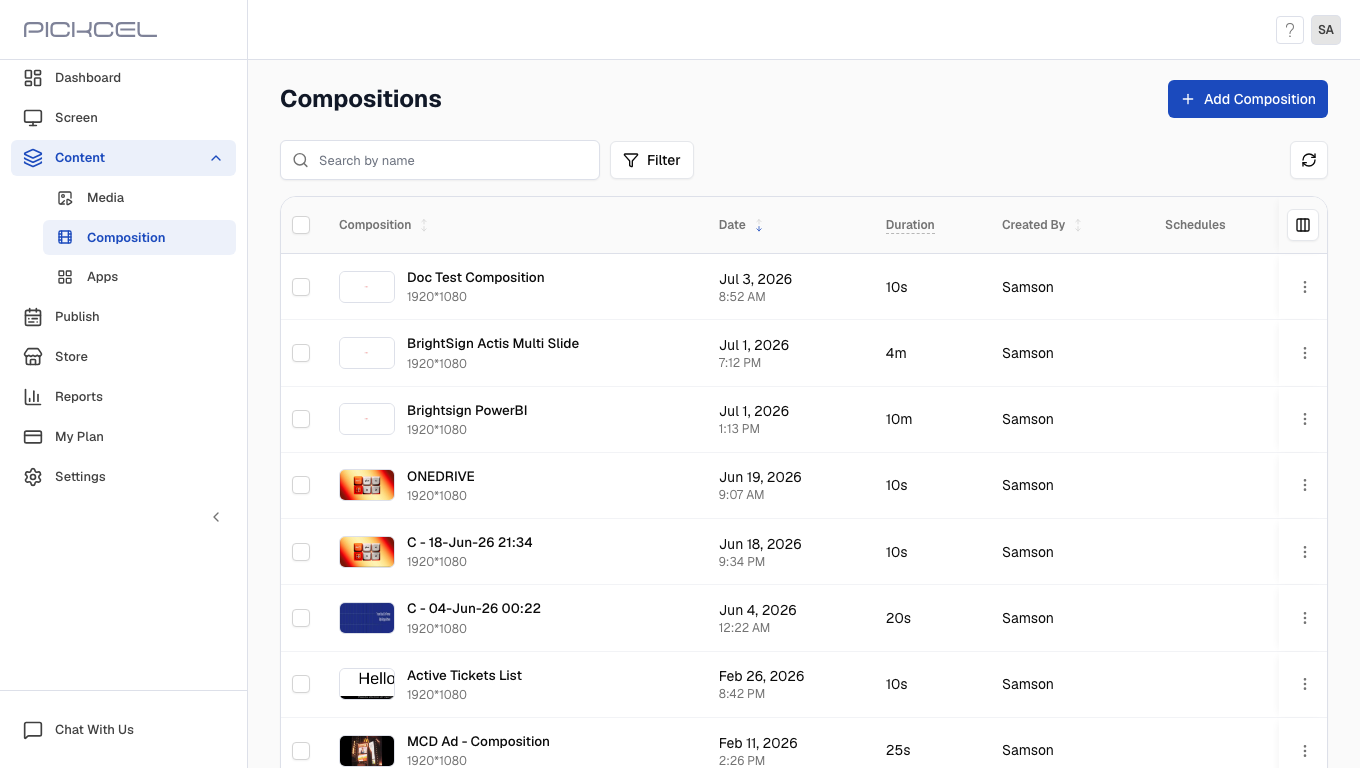
In the Pickcel console, click the **Composition** module in the left navigation to open the composition list. Open the composition where you want to enable Sync, or click **+ Add Composition** to create a new one.
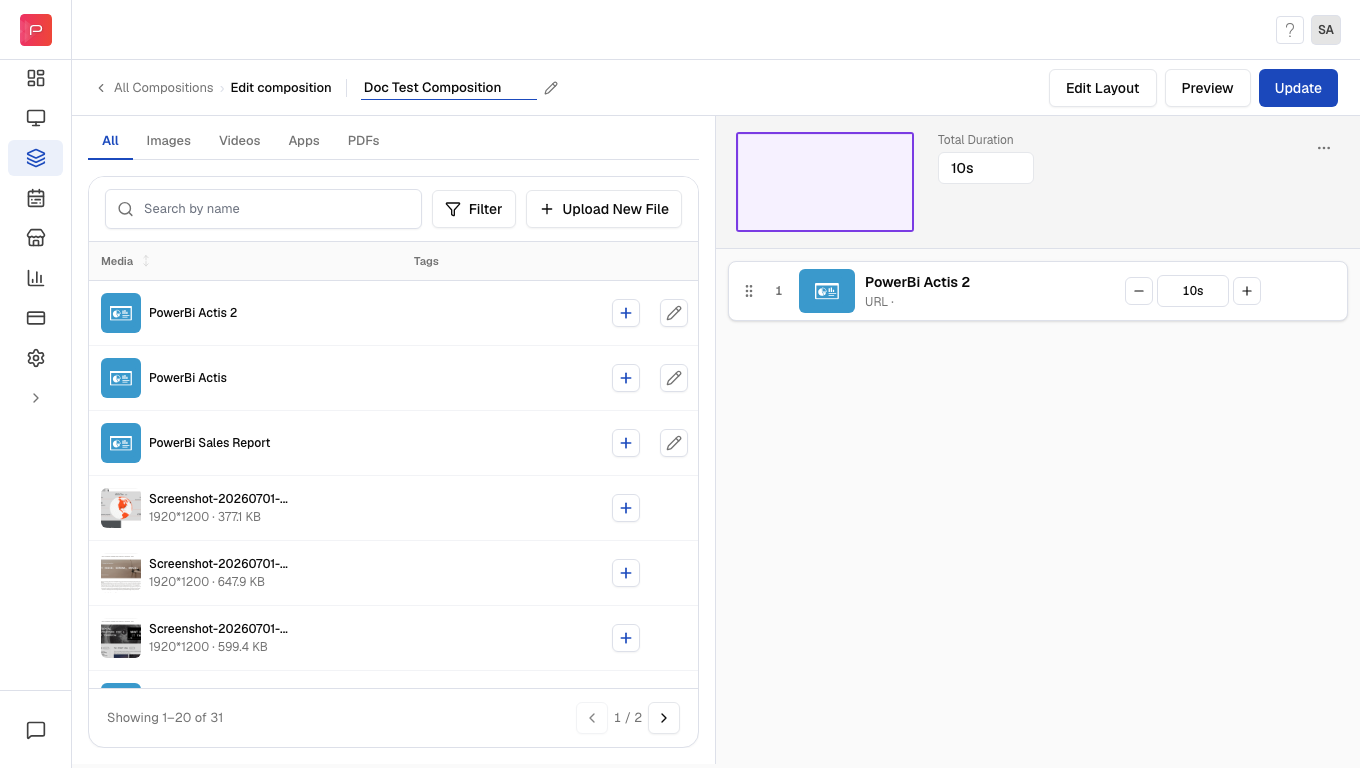
 Inside the composition editor, add media to your zones and then click the **Zone options** button (three dots in the top right of the canvas).
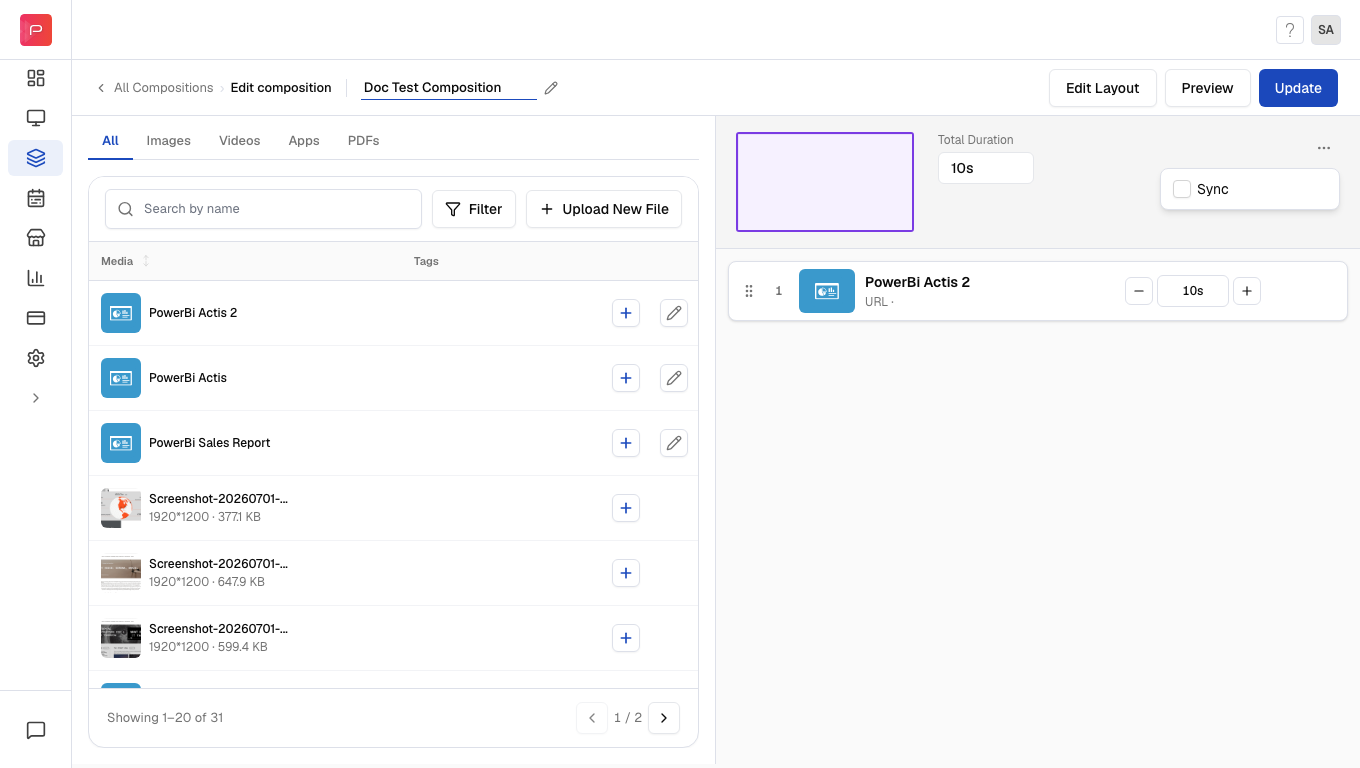
 Enable the **Sync** toggle in the menu, then click **Update** (or **Save composition** if you are creating a new composition) to apply your changes.
 ## Configure NTP and GPS Clock App
In order for us to use the Sync feature, we have to add an application on the device called "NTP and GPS Clock". Here's how to configure this app:
It is preferred to use a rooted device in order to use this app.
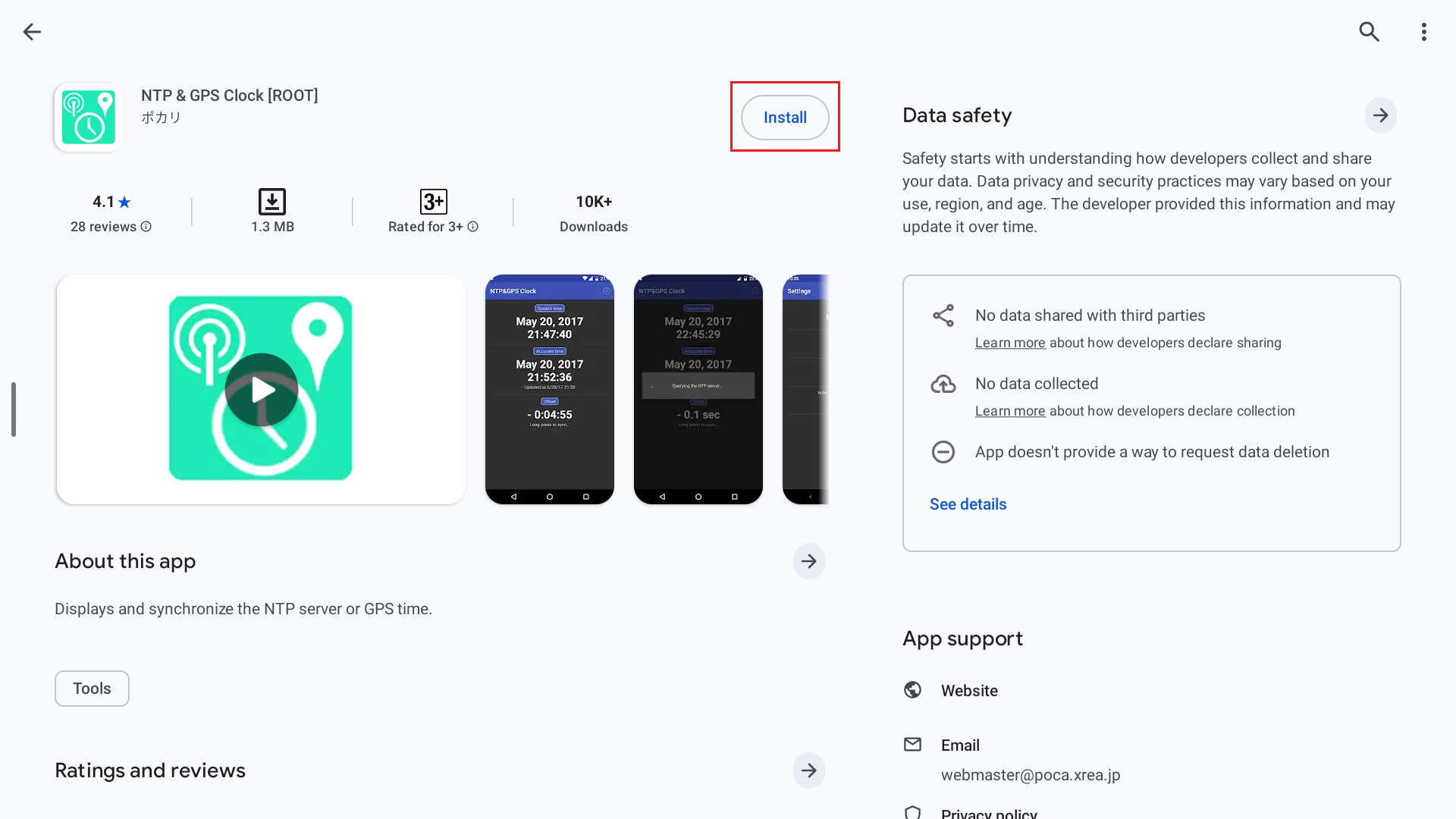
Install the app from **Playstore.**
## Configure NTP and GPS Clock App
In order for us to use the Sync feature, we have to add an application on the device called "NTP and GPS Clock". Here's how to configure this app:
It is preferred to use a rooted device in order to use this app.
Install the app from **Playstore.**
 Open the app, and go to the **Settings** of the app (The app should be in default settings):
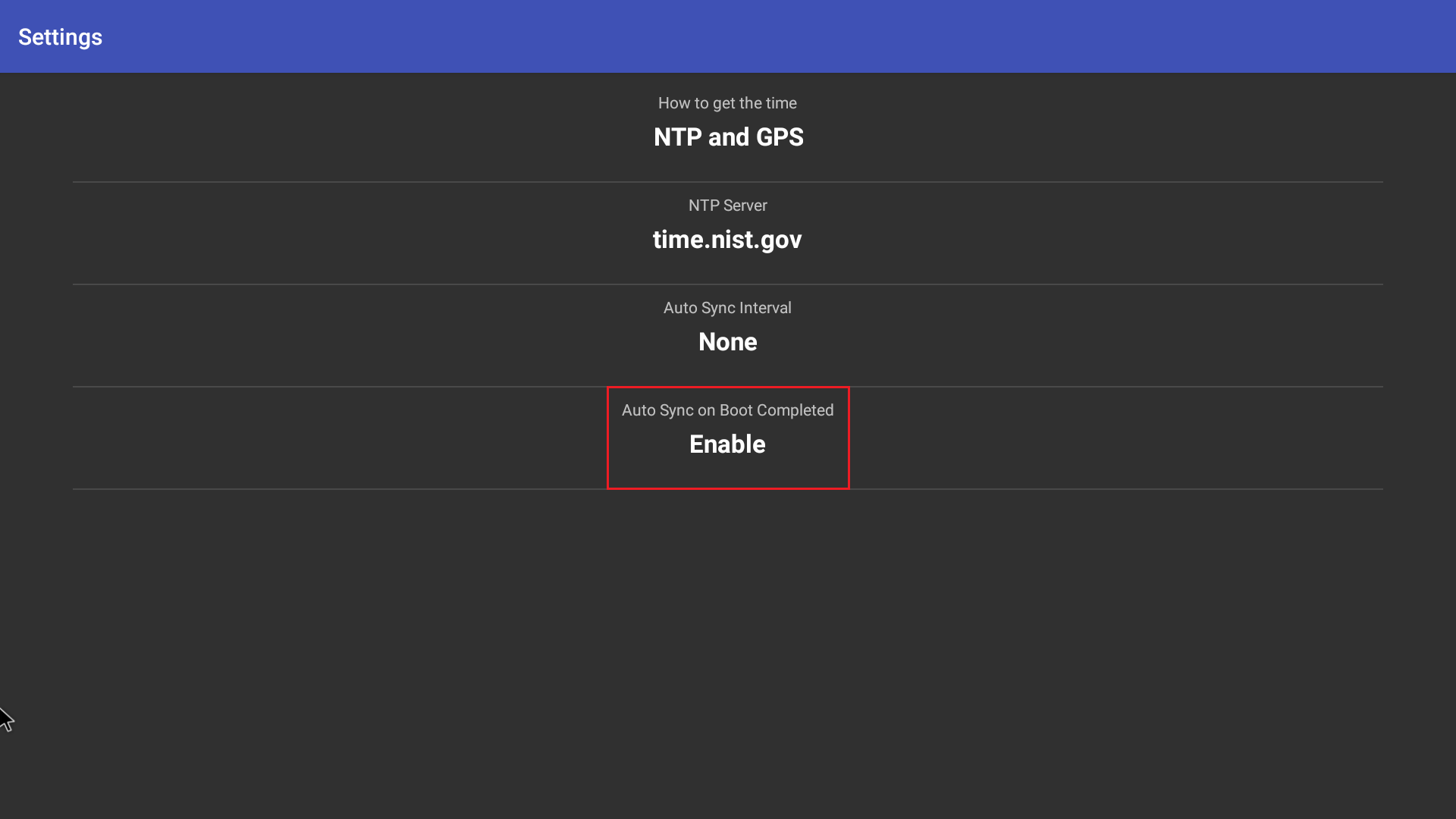
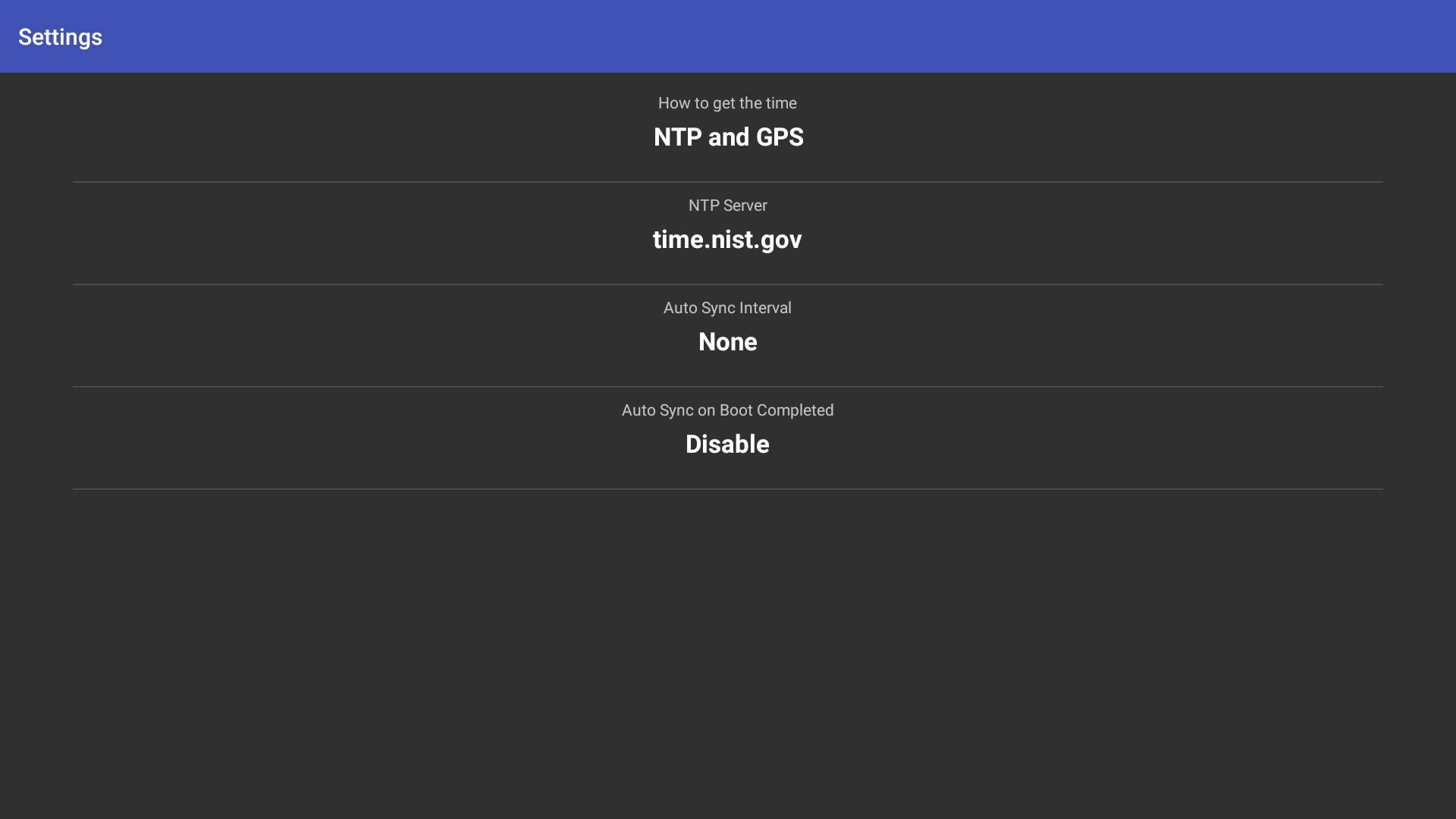 Change the **Auto sync interval** to Every hour and **Auto Sync on Boot completed** to Enable.
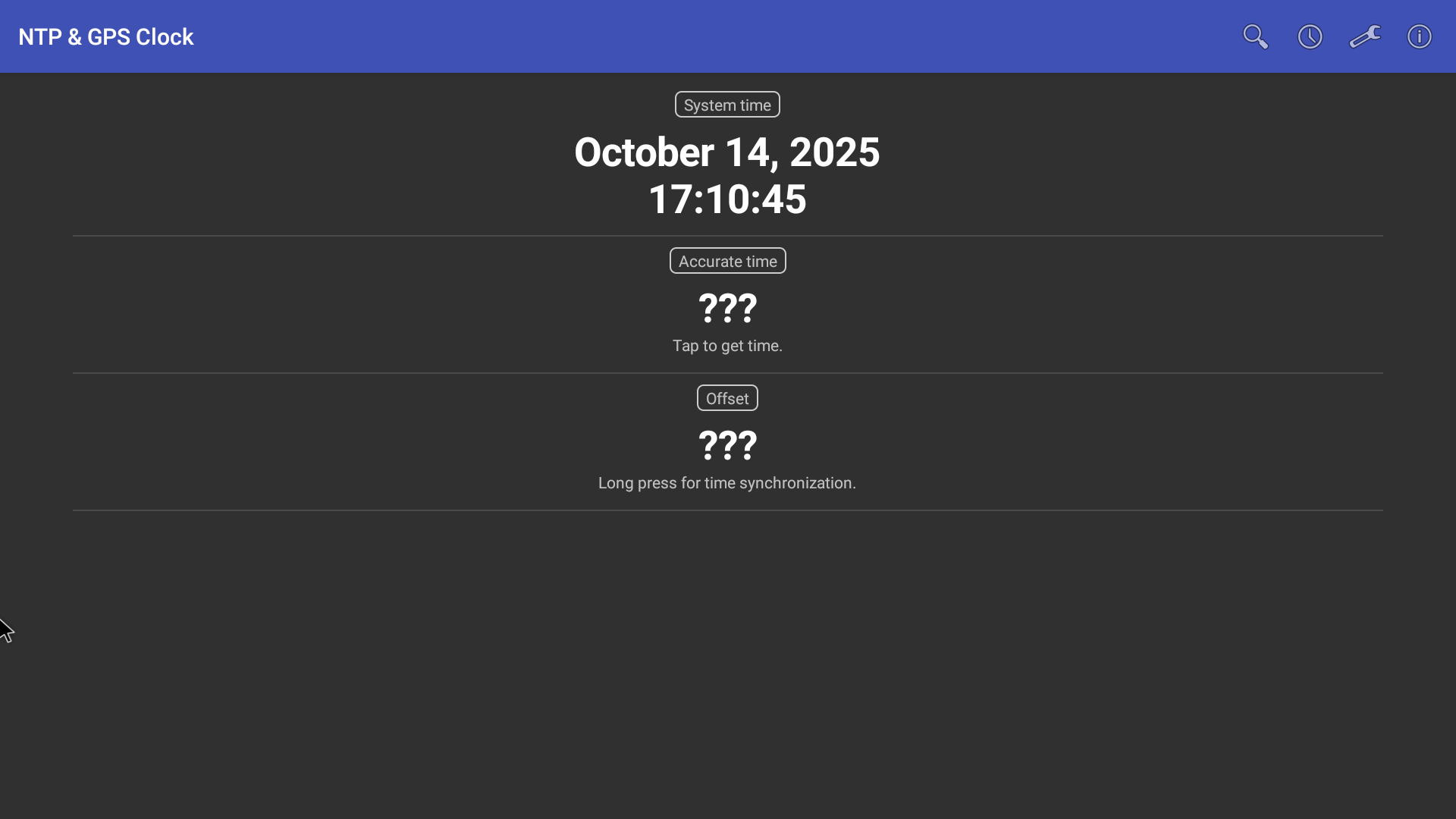
 Go to the main page (This should also be in the default settings)
 Click on the **accurate time**:
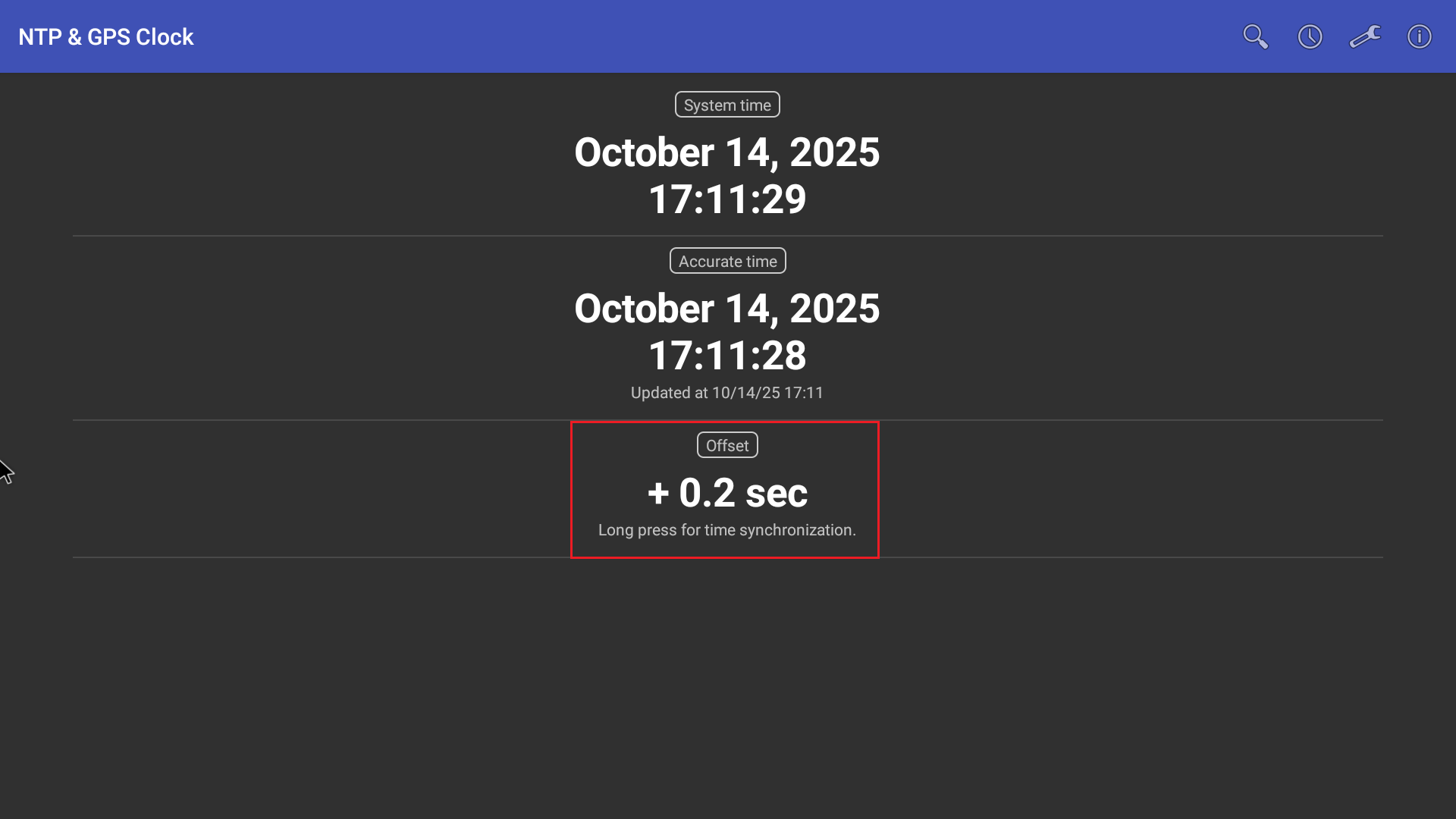
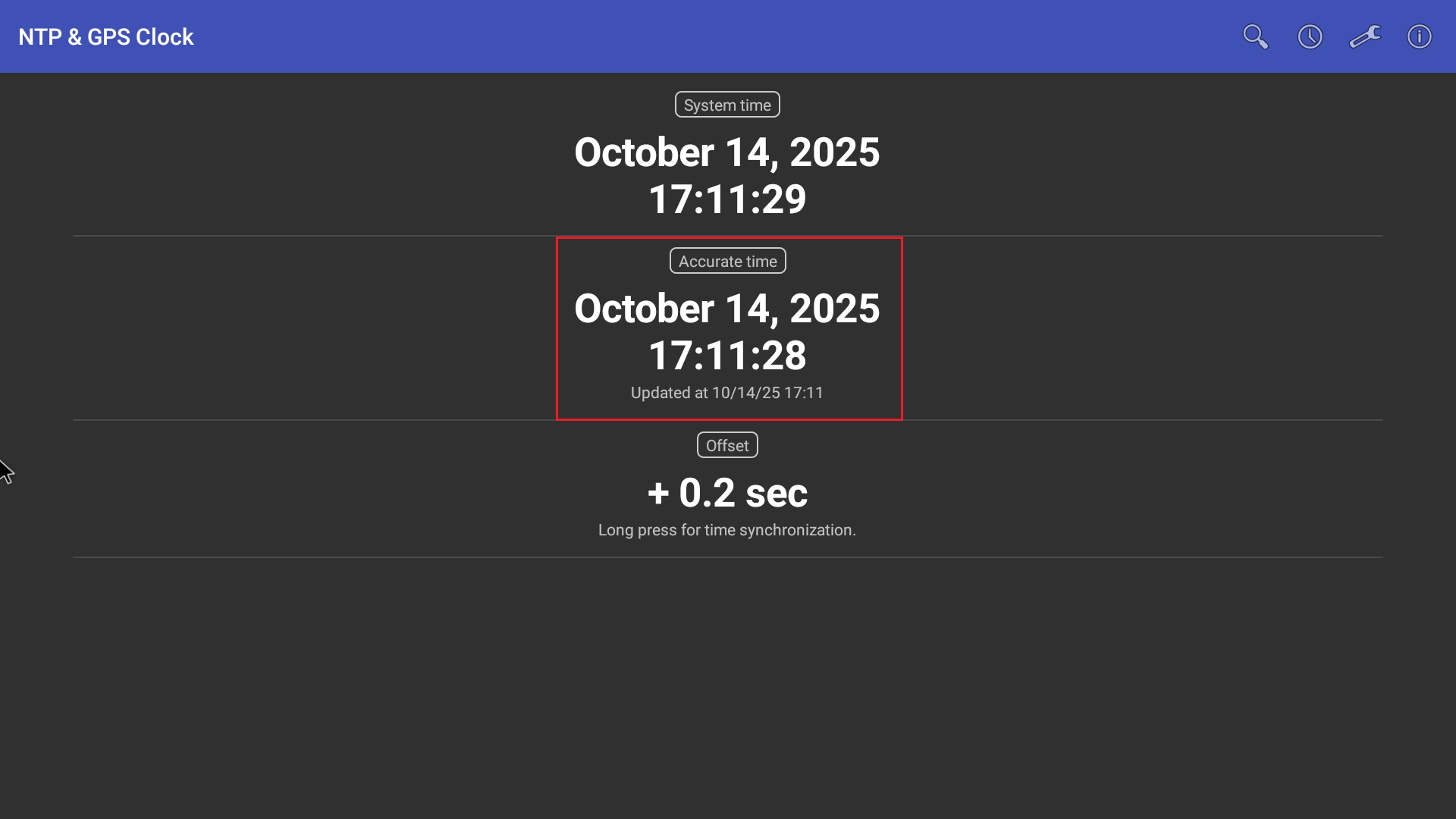 Long press on the offset to synchronise, and the screen's clock will sync to the accurate time.
 ## Limitations
* Sync feature is only supported for Android devices.
* All devices must have the same configuration.
* All devices must be in the same network.
* NTP and GPS clock app will work only for Rooted devices.
## Limitations
* Sync feature is only supported for Android devices.
* All devices must have the same configuration.
* All devices must be in the same network.
* NTP and GPS clock app will work only for Rooted devices.