> ## Documentation Index
> Fetch the complete documentation index at: https://docs.pickcel.com/llms.txt
> Use this file to discover all available pages before exploring further.
# How to Use the Multi-slide Option in Pickcel?
> Learn how to add multiple slides with different layouts and zones inside a single composition in Pickcel
## What is Multi-slide?
The Multi-slide option in Pickcel lets you add more than one slide inside the same composition. Each slide can have its own layout and zones, allowing you to show different types of content in one composition without creating separate layouts.
## Why use Multi-slide?
Use Multi-slide when you want to:
* Show different layouts in one composition
* Add different content on each slide
* Manage everything from one place
For example, Slide 1 can show promotions while Slide 2 displays announcements.
## How to add multiple slides
Go to **Composition** → **+ Add Composition** → **Create Custom Layout** to open the layout designer.
Choose the **Layout type** (orientation) and add zones for your first slide using the **+ Add zone** button on the right panel. The first slide is created automatically and shown as the **Slide 1** badge.
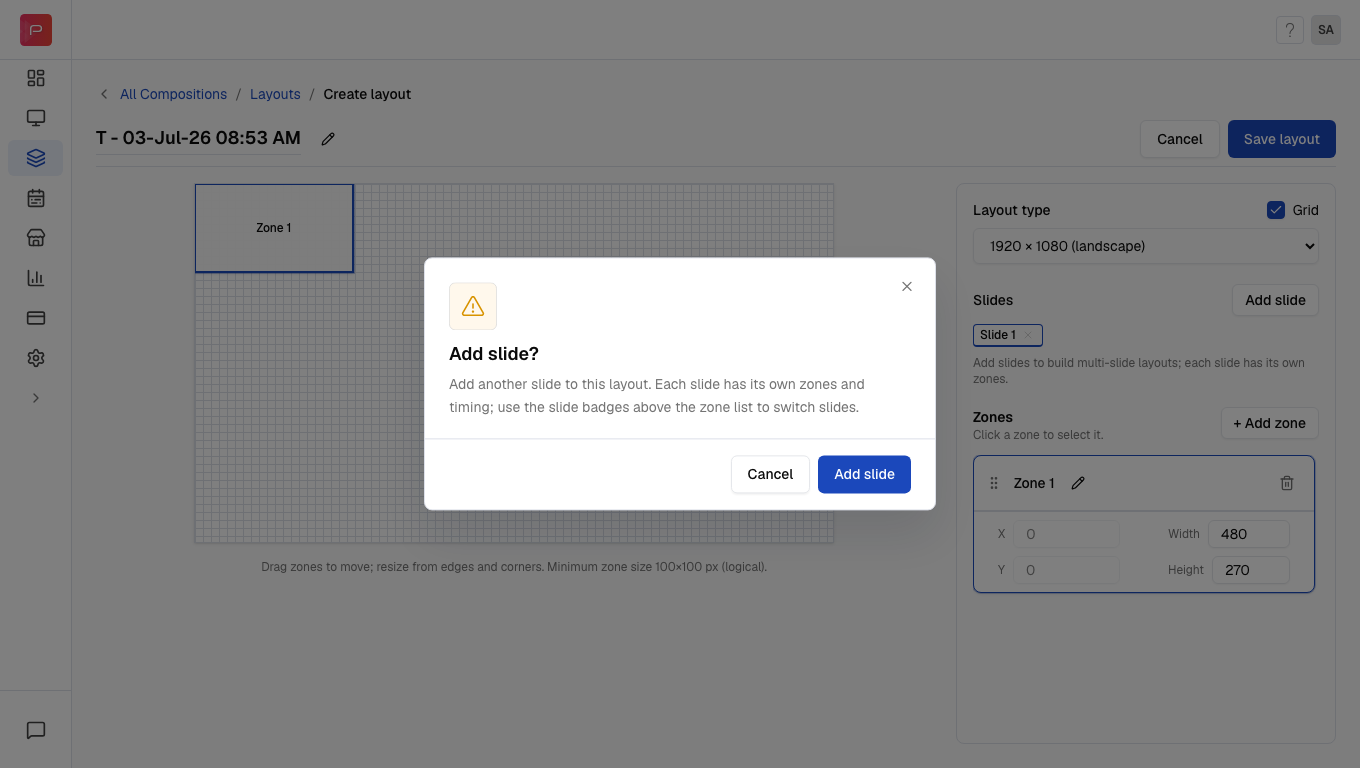
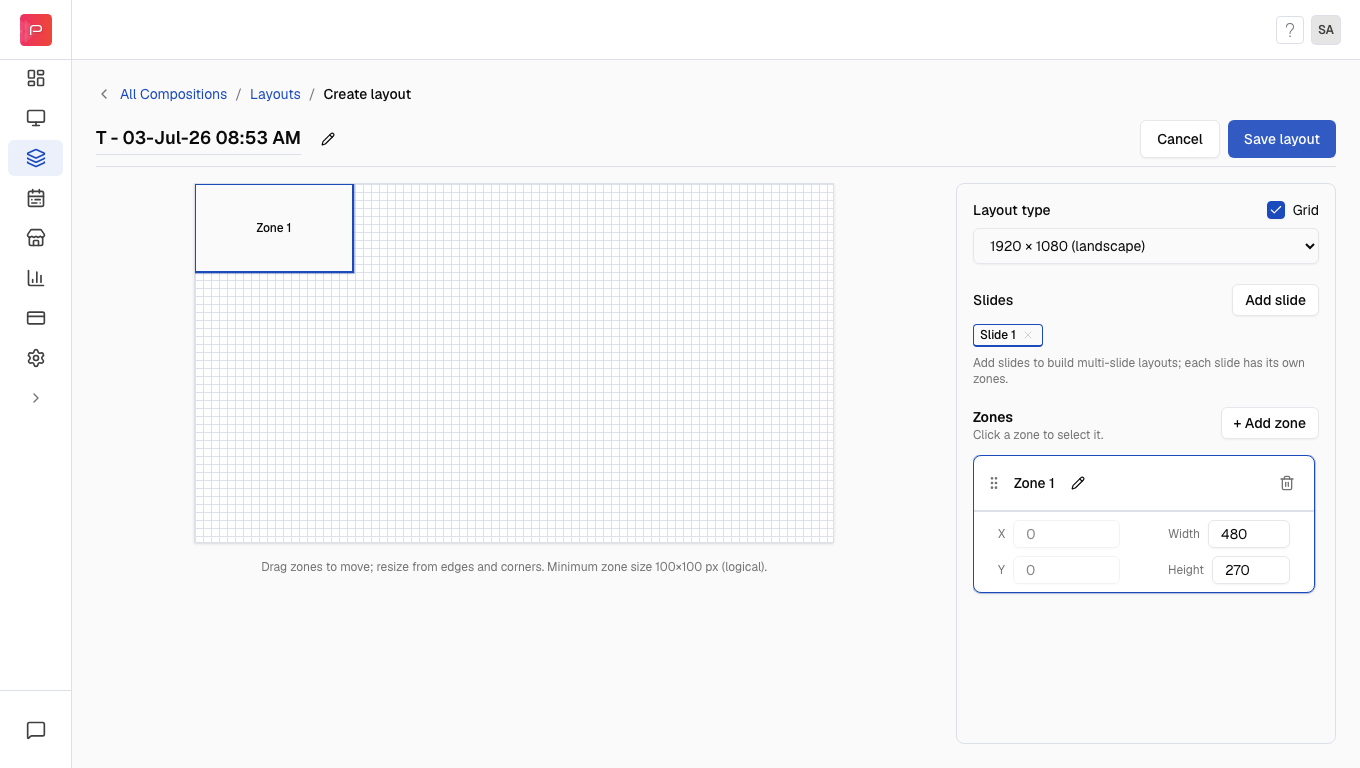 Click **Add slide** in the right panel. A confirmation pop-up appears; click **Add slide** to confirm.
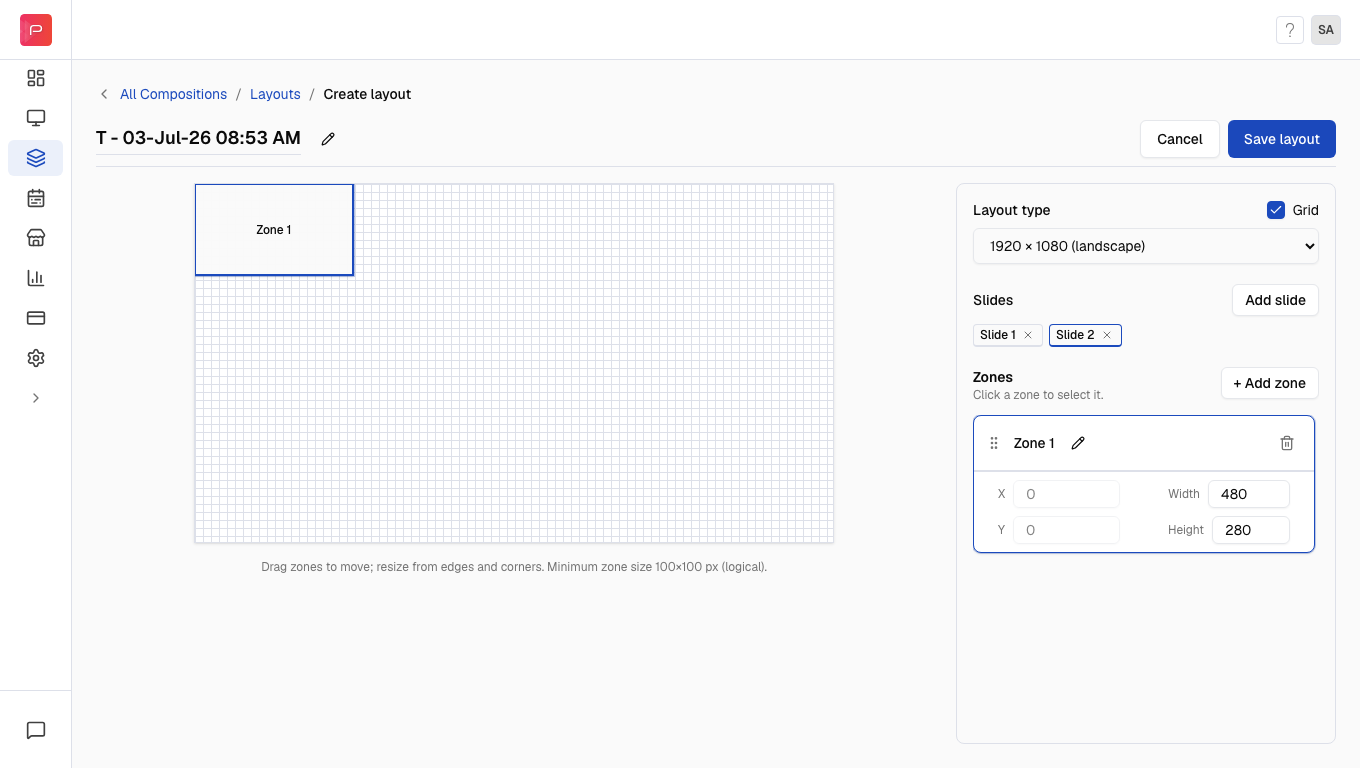
 After confirming, a second slide is added and the **Slide 1** and **Slide 2** badges appear side by side. Click a slide badge to switch between slides, then add zones for each slide using **+ Add zone**.
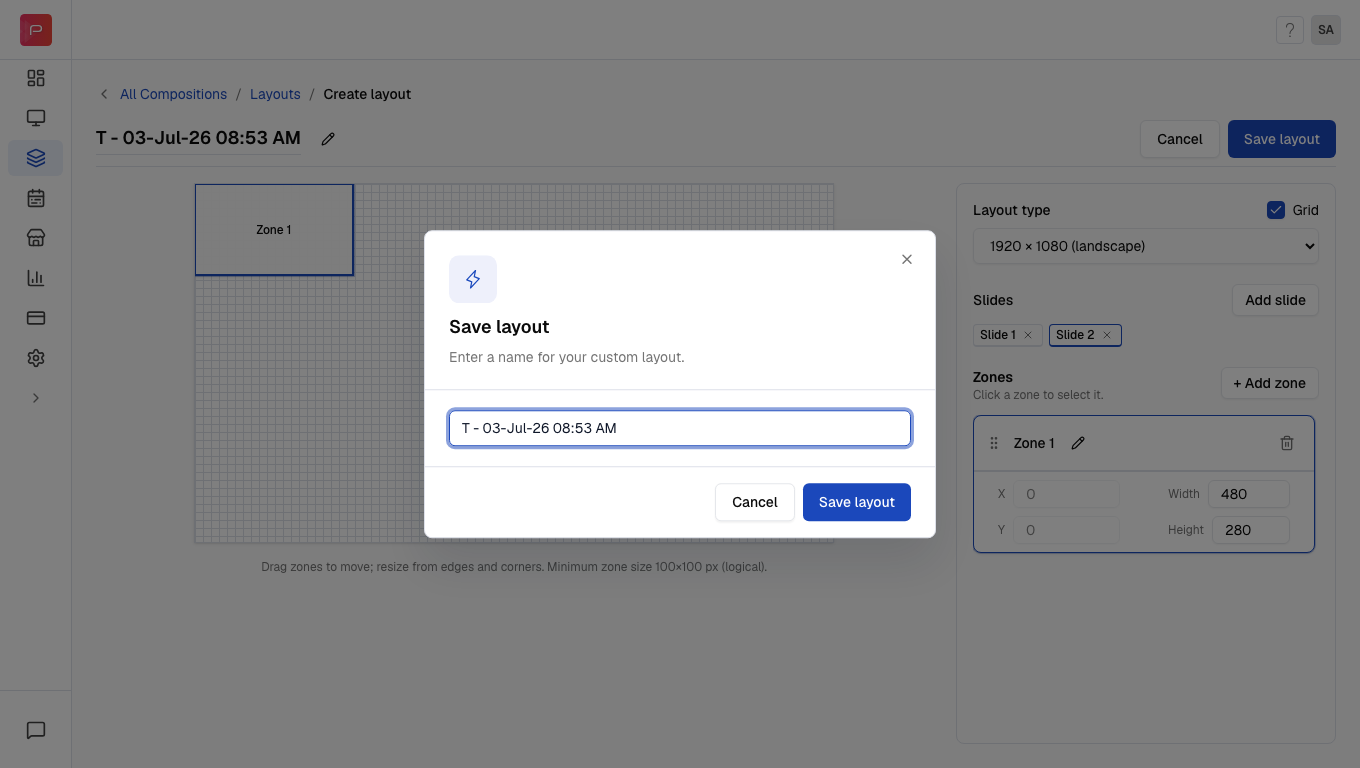
 Click **Save layout** in the top right. In the **Save layout** dialog, enter a name for your custom layout and click **Save layout** to confirm.
 ## Layout editor controls
| Control | Description |
| ---------------------------- | --------------------------------------------------------------------- |
| **Add slide** | Opens a confirmation prompt to add a new slide to the layout |
| **Slide 1 / Slide 2** badges | Click a badge to switch between slides |
| **+ Add zone** | Adds a zone to the currently selected slide |
| **Layout type** | Sets the screen orientation and size (landscape, portrait, or custom) |
| **Save layout** | Saves the complete multi-slide layout |
**Important points to remember:**
* Each slide can have its own zones with different arrangements
* You must add content to the zones in each slide before using the composition
* A single slide can have a maximum of **8 zones**
## Example
Let's say you want one screen to show two different layouts:
* **Slide 1:** One large video zone for promotions
* **Slide 2:** One image zone and one text zone for announcements
This way, both layouts stay inside one composition and can be scheduled together.
## Common issues
A confirmation pop-up appears first when you click **Add slide**. Click **Add slide** again in the pop-up to create the new slide.
A single slide can have a maximum of 8 zones. If you need more zones, consider adding another slide to your composition.
After saving the layout, you still need to add content to the zones in each slide. Go to your composition and assign media to each zone on every slide.
## Related articles
Learn how to create custom layouts with multiple zones
Understand what compositions are and how to create them
Learn about zones and how to configure them
Learn how to edit existing compositions
## Layout editor controls
| Control | Description |
| ---------------------------- | --------------------------------------------------------------------- |
| **Add slide** | Opens a confirmation prompt to add a new slide to the layout |
| **Slide 1 / Slide 2** badges | Click a badge to switch between slides |
| **+ Add zone** | Adds a zone to the currently selected slide |
| **Layout type** | Sets the screen orientation and size (landscape, portrait, or custom) |
| **Save layout** | Saves the complete multi-slide layout |
**Important points to remember:**
* Each slide can have its own zones with different arrangements
* You must add content to the zones in each slide before using the composition
* A single slide can have a maximum of **8 zones**
## Example
Let's say you want one screen to show two different layouts:
* **Slide 1:** One large video zone for promotions
* **Slide 2:** One image zone and one text zone for announcements
This way, both layouts stay inside one composition and can be scheduled together.
## Common issues
A confirmation pop-up appears first when you click **Add slide**. Click **Add slide** again in the pop-up to create the new slide.
A single slide can have a maximum of 8 zones. If you need more zones, consider adding another slide to your composition.
After saving the layout, you still need to add content to the zones in each slide. Go to your composition and assign media to each zone on every slide.
## Related articles
Learn how to create custom layouts with multiple zones
Understand what compositions are and how to create them
Learn about zones and how to configure them
Learn how to edit existing compositions