> ## Documentation Index
> Fetch the complete documentation index at: https://docs.pickcel.com/llms.txt
> Use this file to discover all available pages before exploring further.
# What is a layout? How to create a new layout?
> Learn about layouts and how to create custom layouts with multiple zones for your digital signage compositions
## What is a Layout?
A layout is the arrangement and positioning of zones within a composition on a screen. It decides which content goes where. Pickcel ships with standard layouts (single zone, two zones, and so on), and you can also build your own **custom layout** when none of the standard ones fit your screen.
## How to create a custom layout
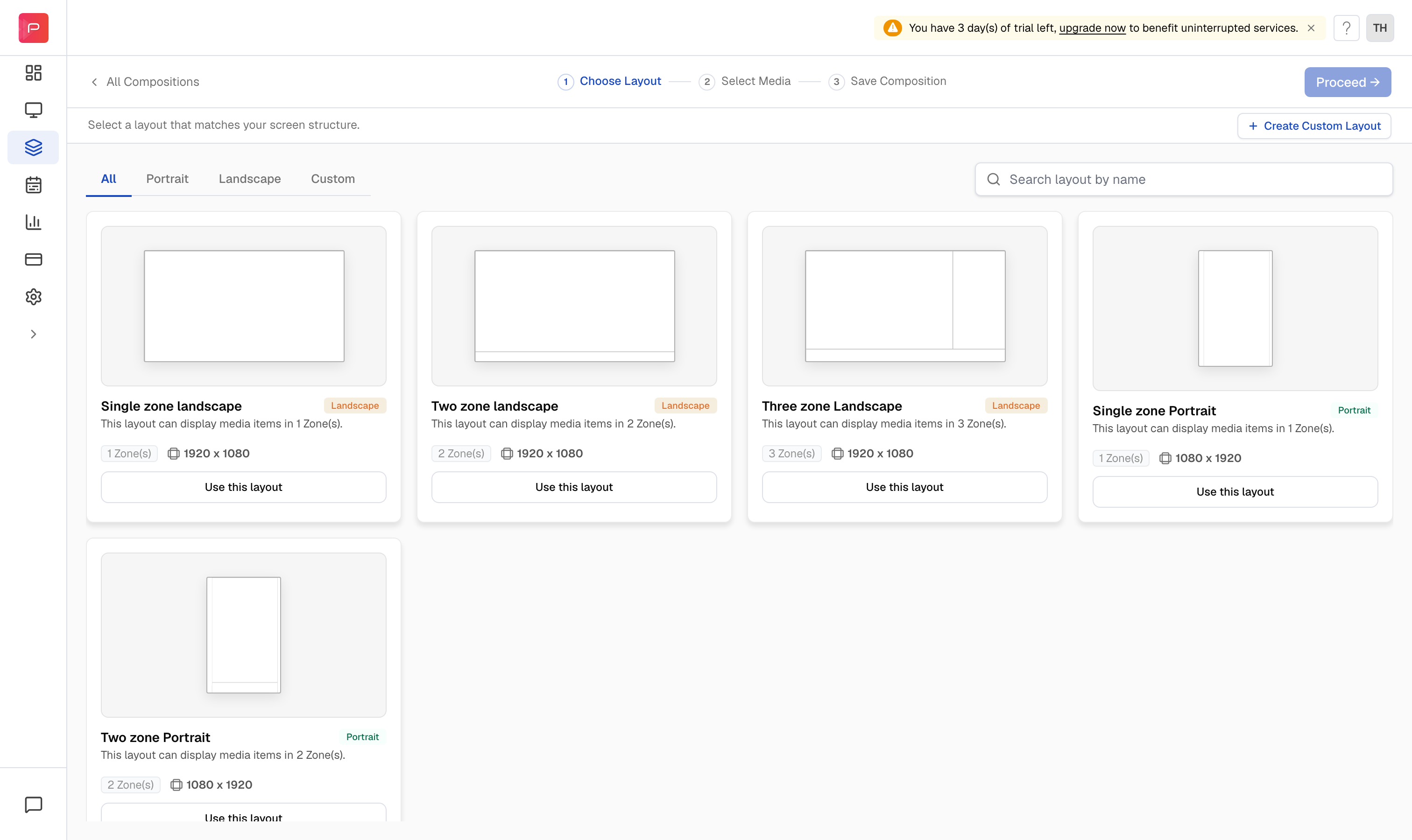
In [Pickcel console](https://console.pickcel.com/), go to **Composition** and click **Add Composition** to reach the **Choose Layout** picker, then click **+ Create Custom Layout** in the top-right corner.
 In the right panel, open **Layout type** and choose the size and orientation: **1920 × 1080 (landscape)**, **1080 × 1920 (portrait)**, or a **Custom** size. Use the **Grid** checkbox to turn the alignment grid on or off.
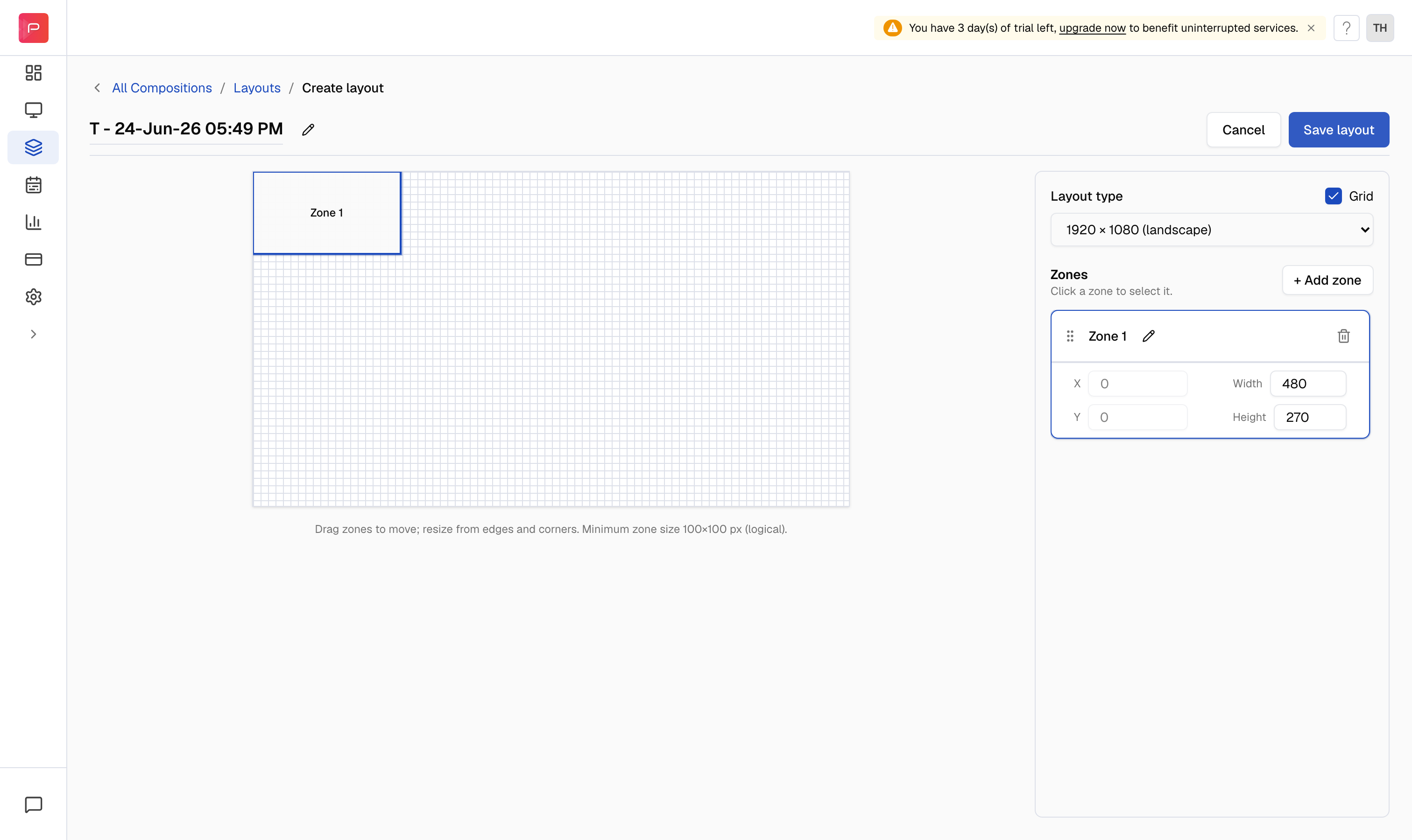 A first zone is added for you. Click **+ Add zone** to create more. Select a zone to move and resize it: drag it on the canvas, pull its edges or corners, or type exact **X**, **Y**, **Width**, and **Height** values. Rename a zone with its **pencil** icon, and remove one with the **trash** icon.
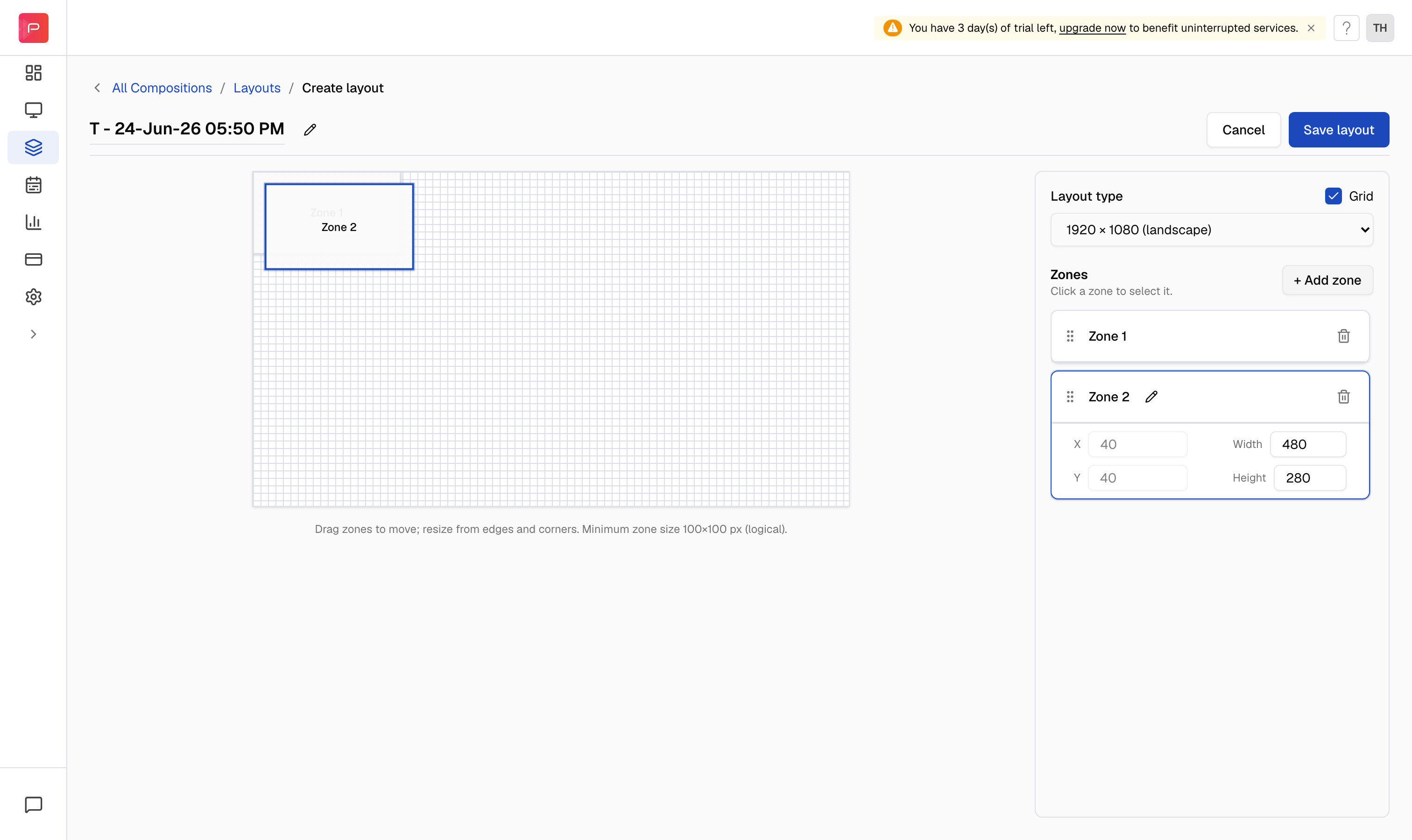 The minimum size for a zone is 100 × 100 px. Zones can overlap if you want one layer to sit on top of another.
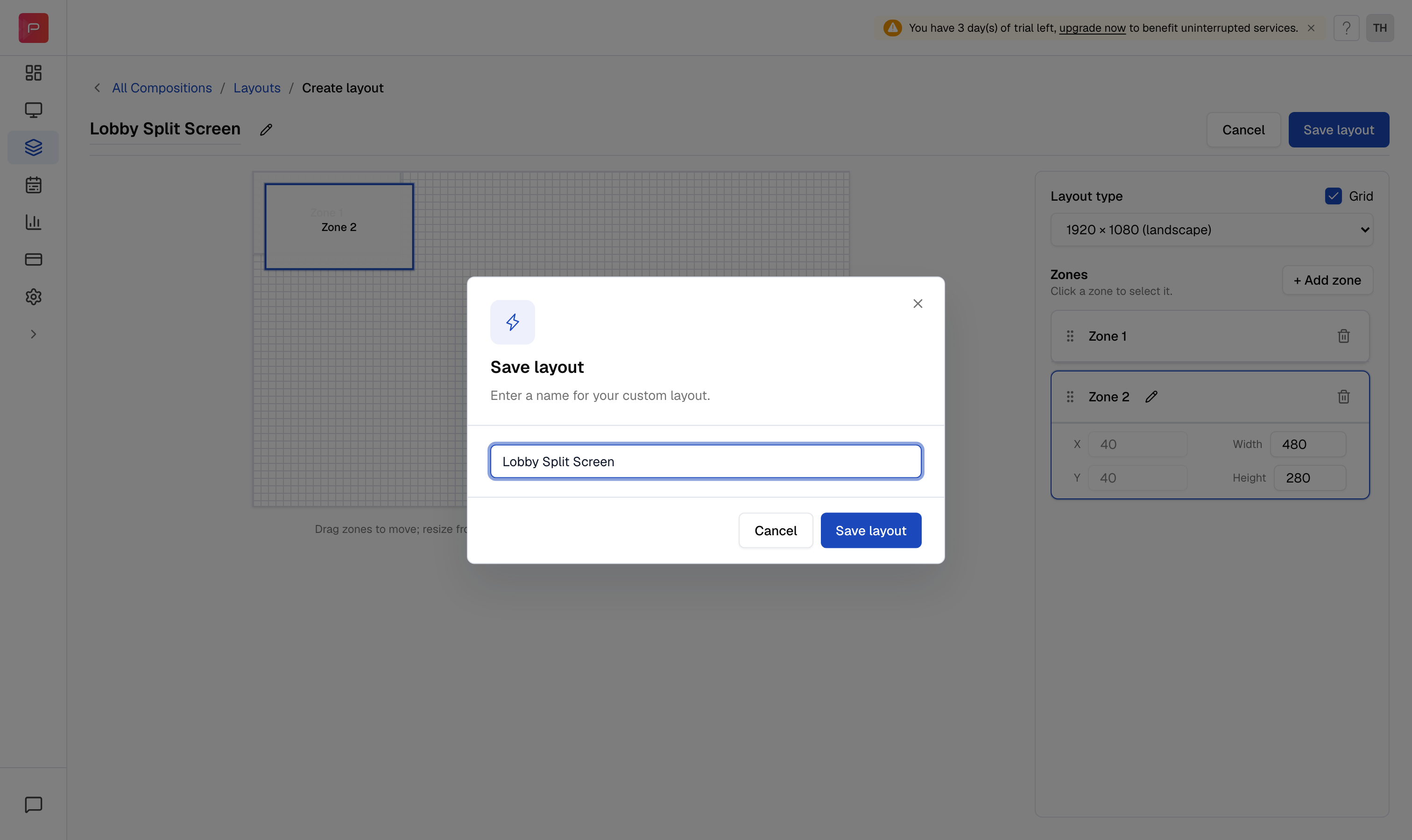
Click **Save layout**. In the **Save layout** dialog, enter a name for your custom layout, then click **Save layout** again to confirm.
The minimum size for a zone is 100 × 100 px. Zones can overlap if you want one layer to sit on top of another.
Click **Save layout**. In the **Save layout** dialog, enter a name for your custom layout, then click **Save layout** again to confirm.
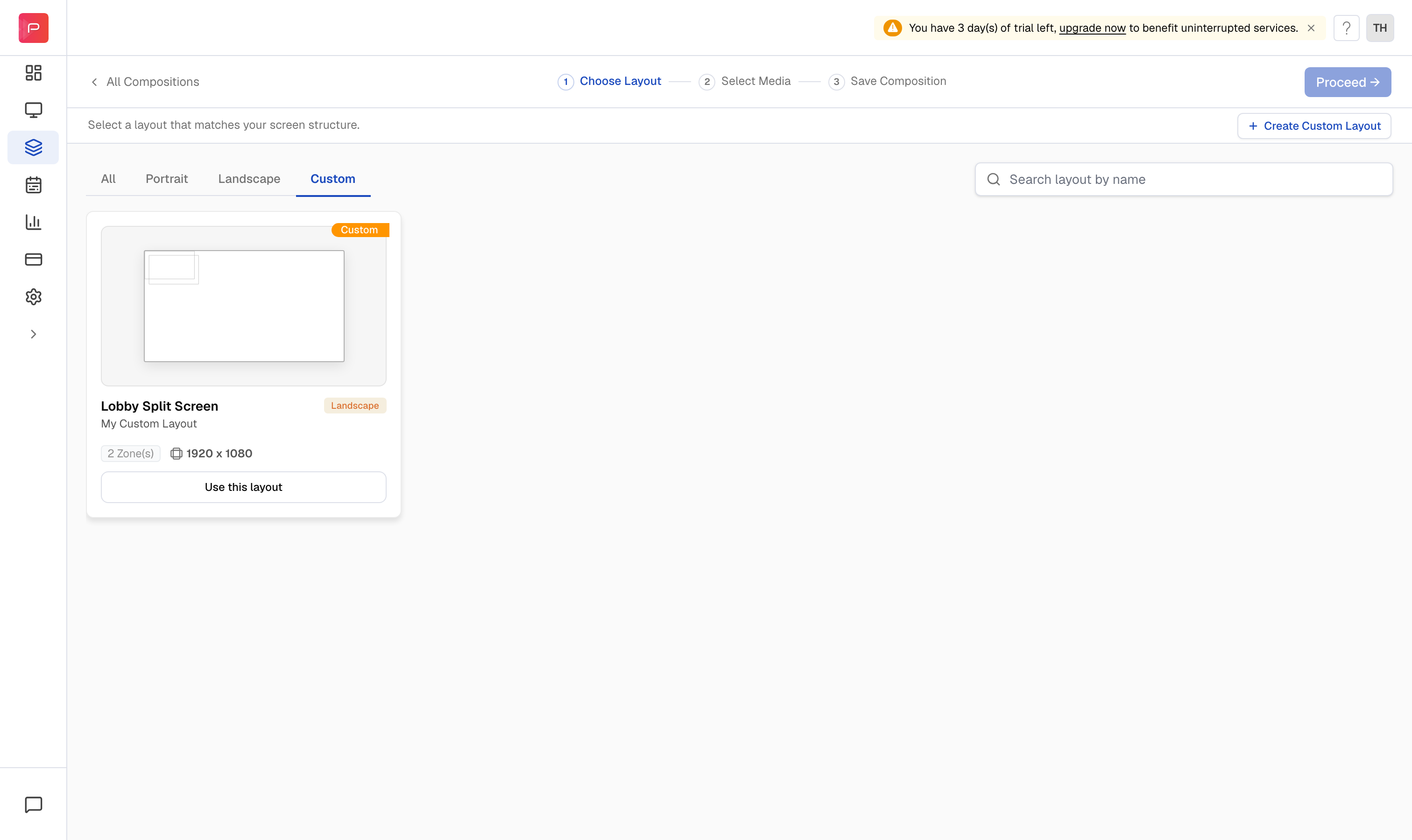
 Your layout now appears on the **Custom** tab of the layout picker, with its zone count and resolution. Click **Use this layout** to build a composition on it.
 **Related article:** [What is a Composition? How to create a Composition?](/compositions/compositions)