> ## Documentation Index
> Fetch the complete documentation index at: https://docs.pickcel.com/llms.txt
> Use this file to discover all available pages before exploring further.
# How to delete a composition in Pickcel?
> Learn how to delete a composition in Pickcel, and what to do when a composition cannot be deleted
Remove a composition you no longer need from the **Composition** module. If something on your account still uses it, Pickcel blocks the delete and tells you exactly what to clear first.
Deleting a composition is permanent, there's no undo and no trash to restore it from. If you only need to change what it plays, [edit the composition](/compositions/edit-composition) instead, your changes reach every screen using it automatically.
## Delete a composition
Log in to [Pickcel console](https://console.pickcel.com) and go to **Content → Composition**.
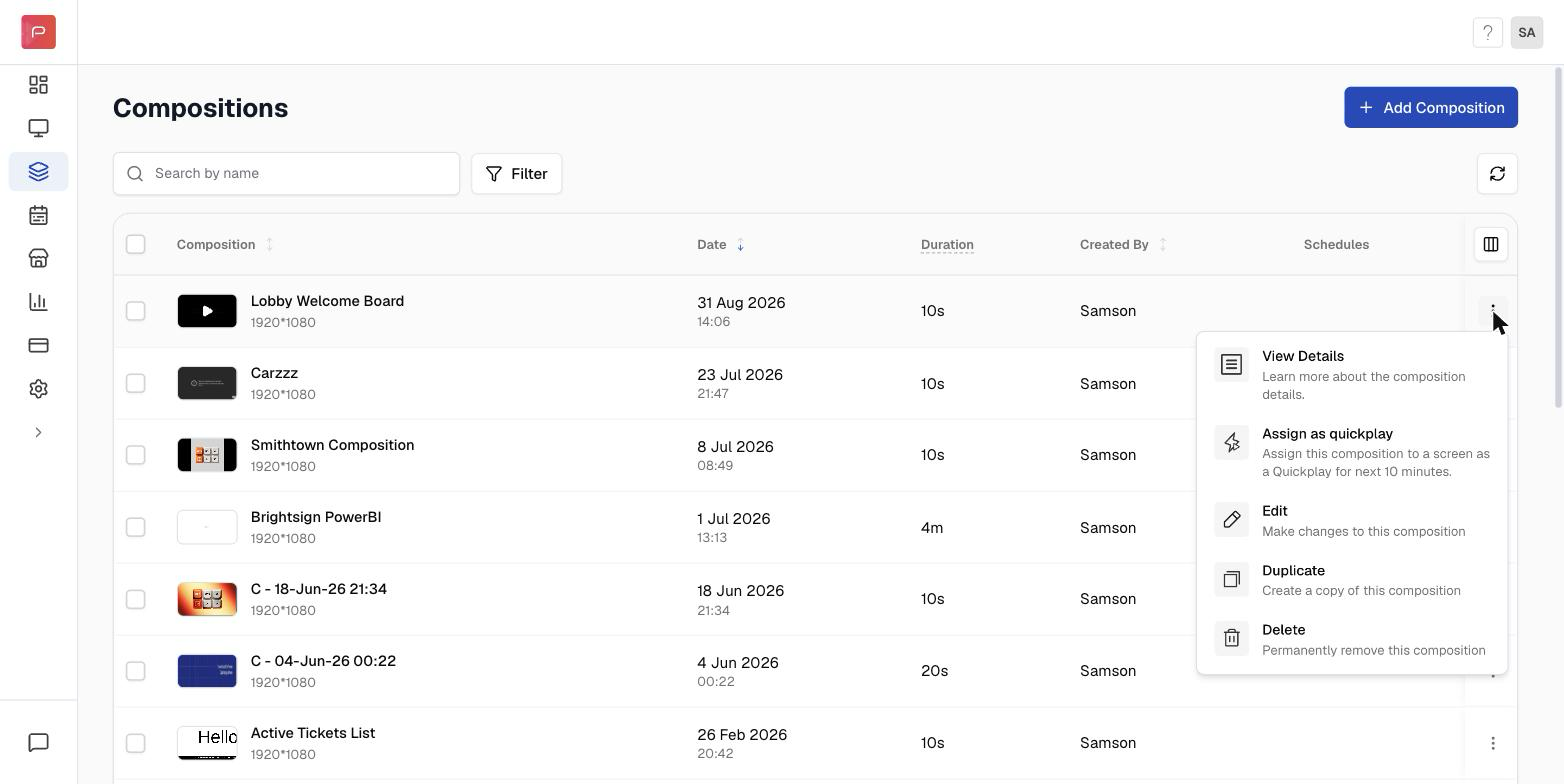
Find the composition, click the **⋯** menu at the end of its row, then choose **Delete**.
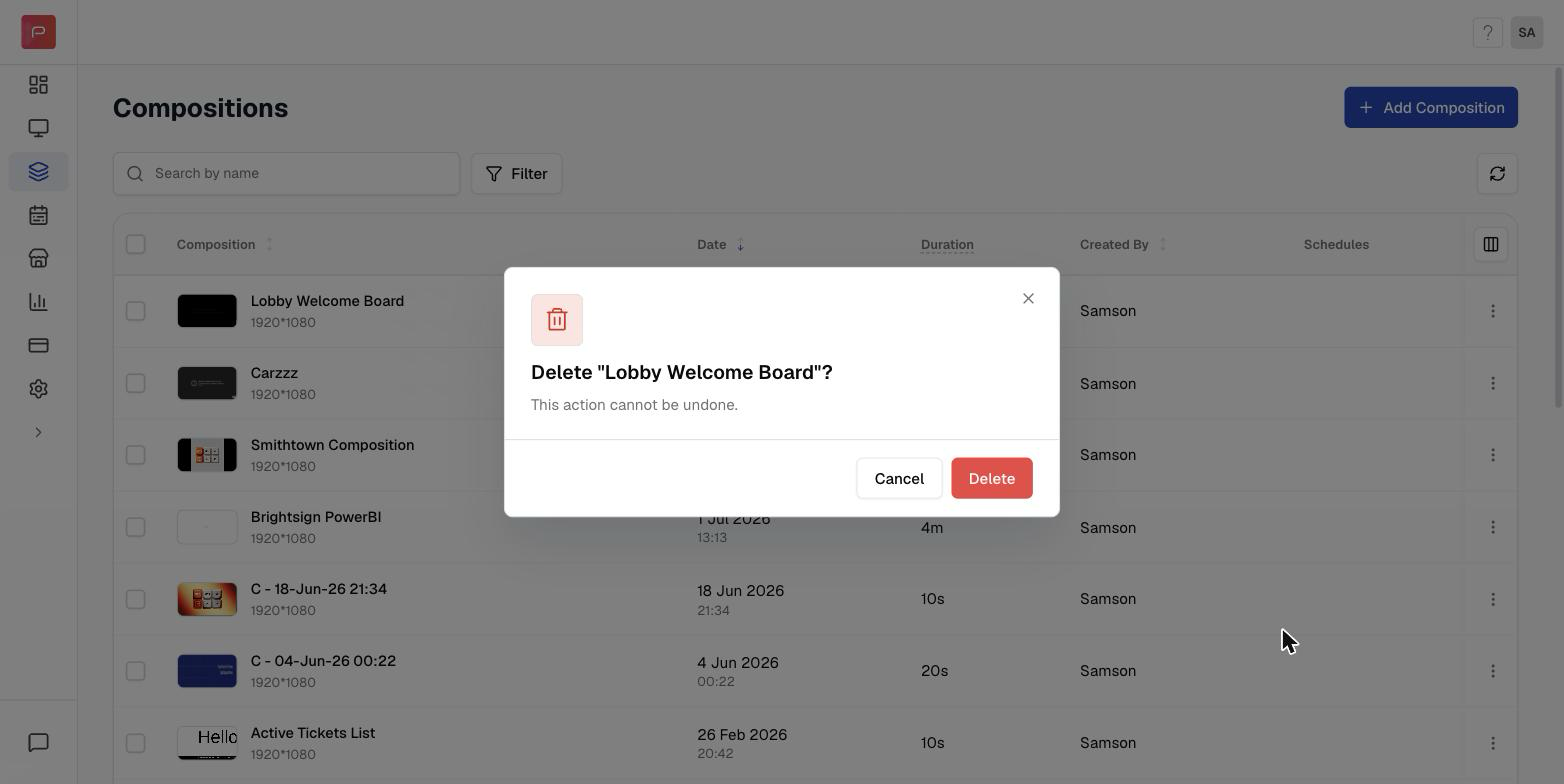
 In the **Delete "composition name"?** dialog, click **Delete**.
 If nothing is using the composition, it disappears from the list right away. If something is, you'll see a **Cannot delete composition** message instead, see below.
## Why can't I delete my composition?
A composition can't be deleted while it is still referenced somewhere. Pickcel checks three things, and the error message names the exact items blocking you:
| What's blocking it | Message you'll see | Where to clear it |
| :---------------------------------------------------- | :--------------------------------------------------------------------------------- | :------------------------------- |
| A **schedule** includes the composition | *This composition is referenced by a schedule and cannot be deleted.* | **Publish → Schedules** |
| A **Quickplay** is using the composition | *This composition has active quickplay references and cannot be deleted.* | **Publish → Quickplay** |
| The composition is a screen's **default composition** | *This composition is set as default on one or more screens and cannot be deleted.* | **Screen → \ → Content** |
Pickcel also names the exact schedules, Quickplays, or screens still using the composition, so you know where to go next.
If nothing is using the composition, it disappears from the list right away. If something is, you'll see a **Cannot delete composition** message instead, see below.
## Why can't I delete my composition?
A composition can't be deleted while it is still referenced somewhere. Pickcel checks three things, and the error message names the exact items blocking you:
| What's blocking it | Message you'll see | Where to clear it |
| :---------------------------------------------------- | :--------------------------------------------------------------------------------- | :------------------------------- |
| A **schedule** includes the composition | *This composition is referenced by a schedule and cannot be deleted.* | **Publish → Schedules** |
| A **Quickplay** is using the composition | *This composition has active quickplay references and cannot be deleted.* | **Publish → Quickplay** |
| The composition is a screen's **default composition** | *This composition is set as default on one or more screens and cannot be deleted.* | **Screen → \ → Content** |
Pickcel also names the exact schedules, Quickplays, or screens still using the composition, so you know where to go next.
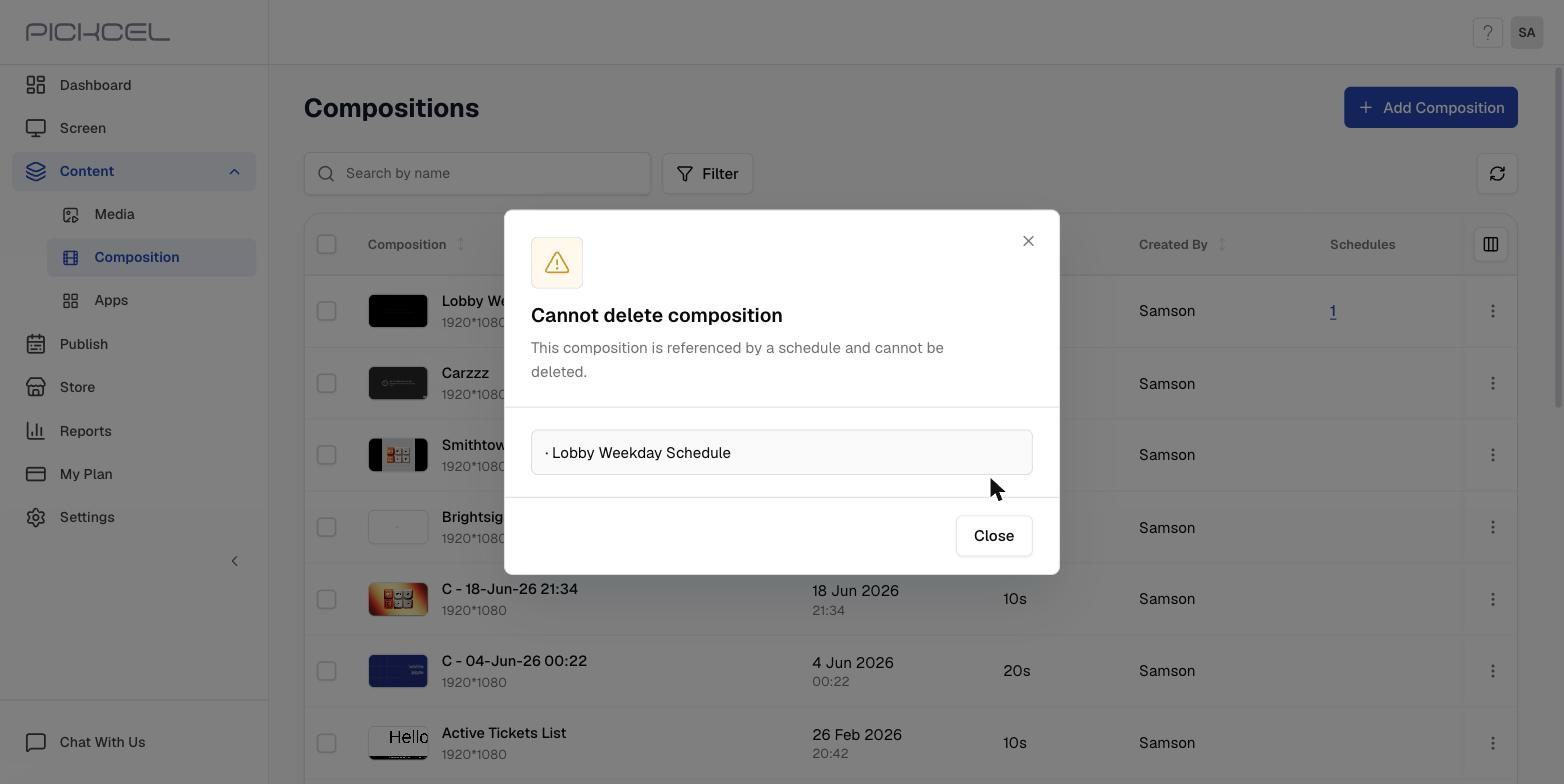
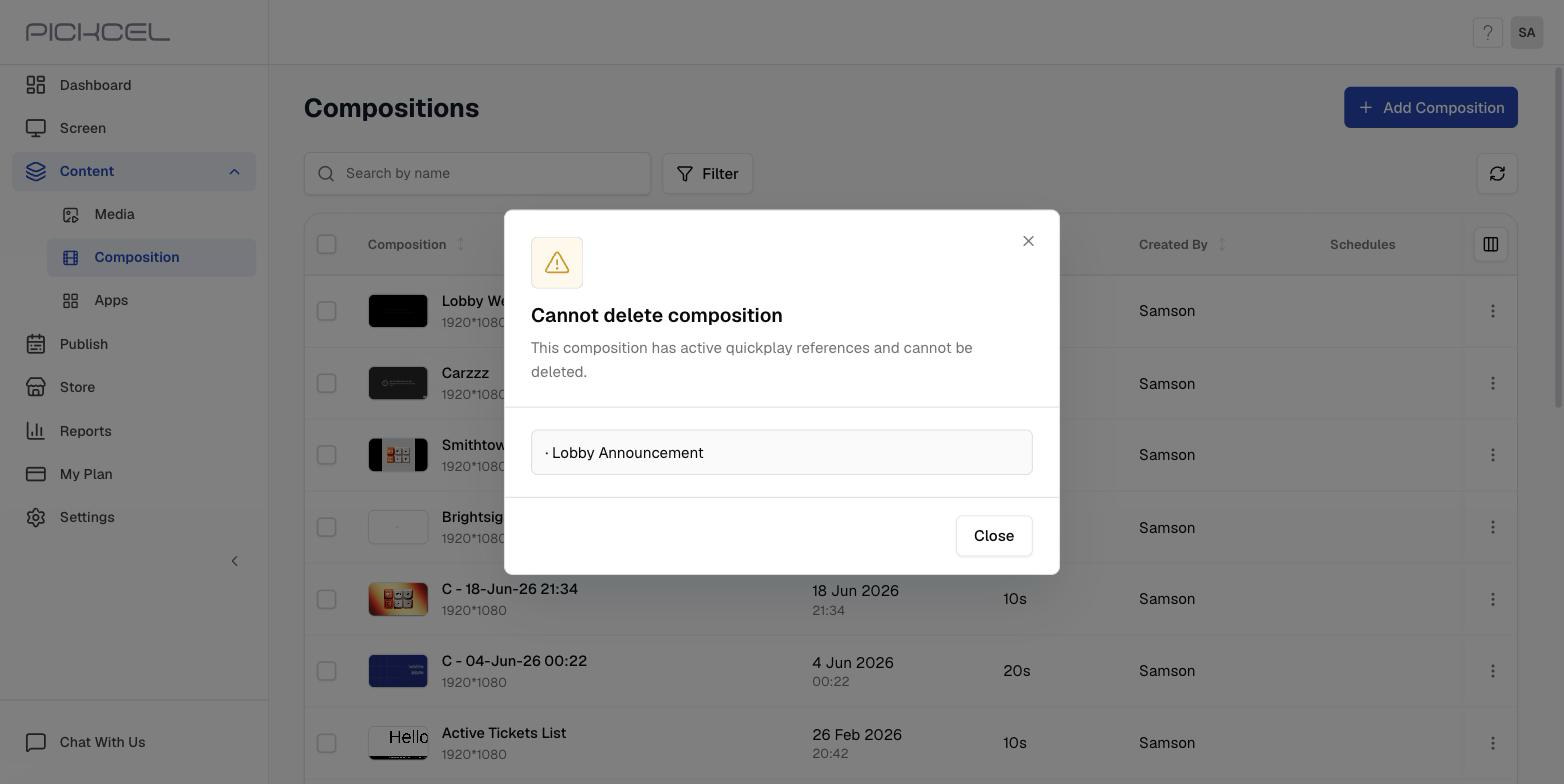
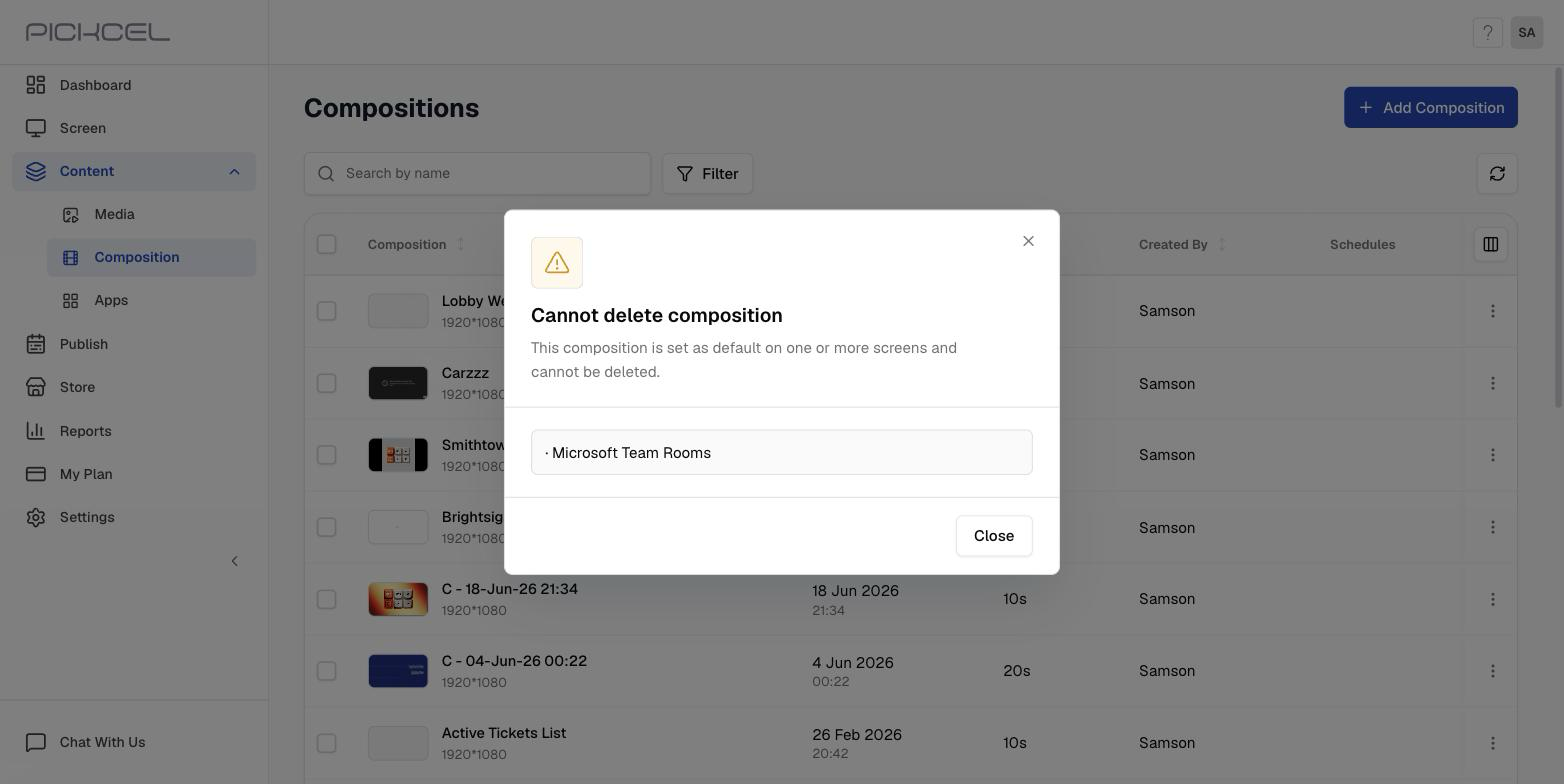 Pickcel reports one blocker at a time. Clear the schedules first, retry the delete, and if a Quickplay or a default composition is also using it, the next message tells you.
## Find out what's using a composition
The **Composition** list has a **Schedules** column. Any composition that's part of a schedule shows a linked count.
Pickcel reports one blocker at a time. Clear the schedules first, retry the delete, and if a Quickplay or a default composition is also using it, the next message tells you.
## Find out what's using a composition
The **Composition** list has a **Schedules** column. Any composition that's part of a schedule shows a linked count.
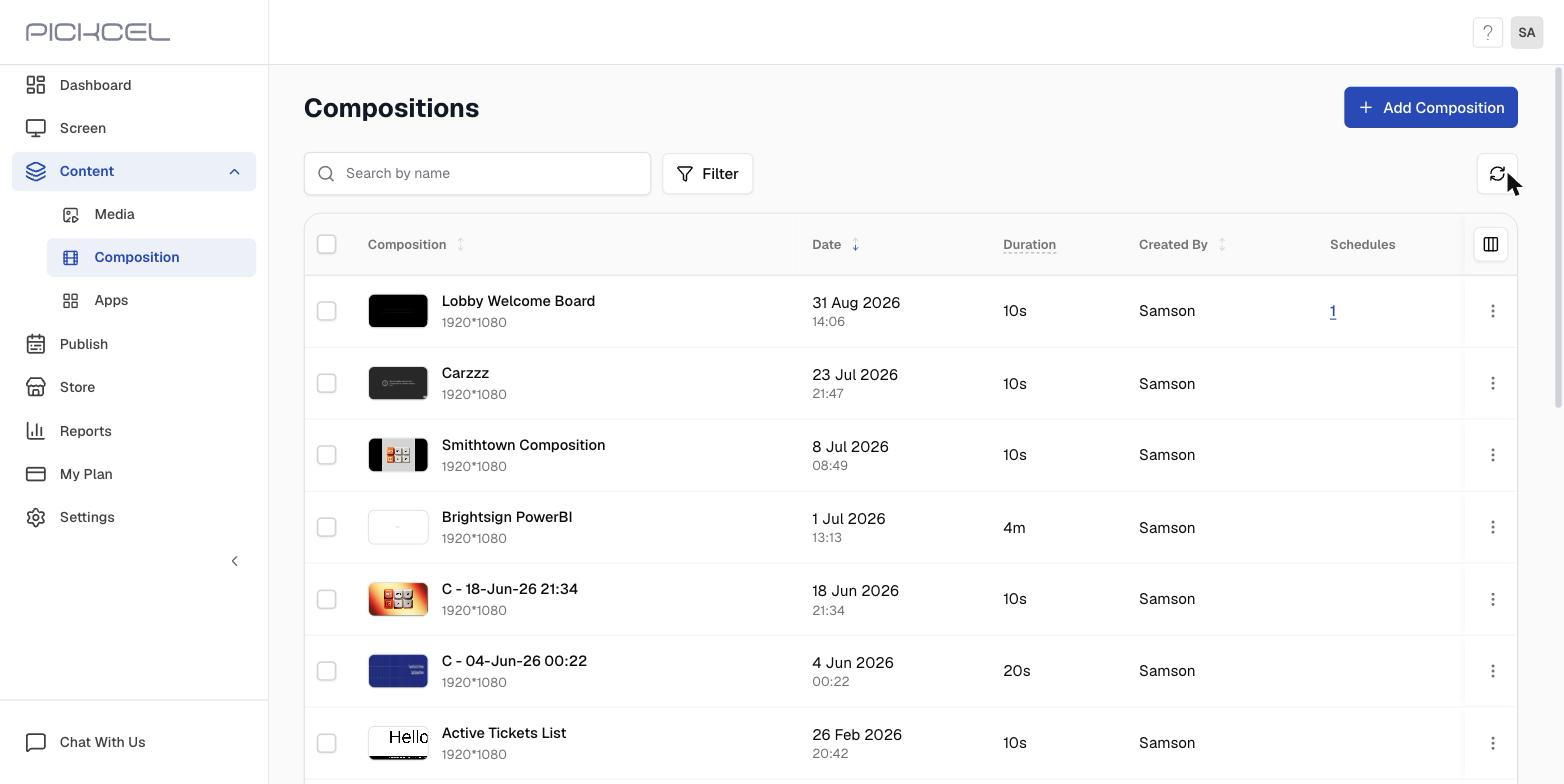 Click the number to jump straight to **Publish → Schedules**, filtered to just the schedules using that composition.
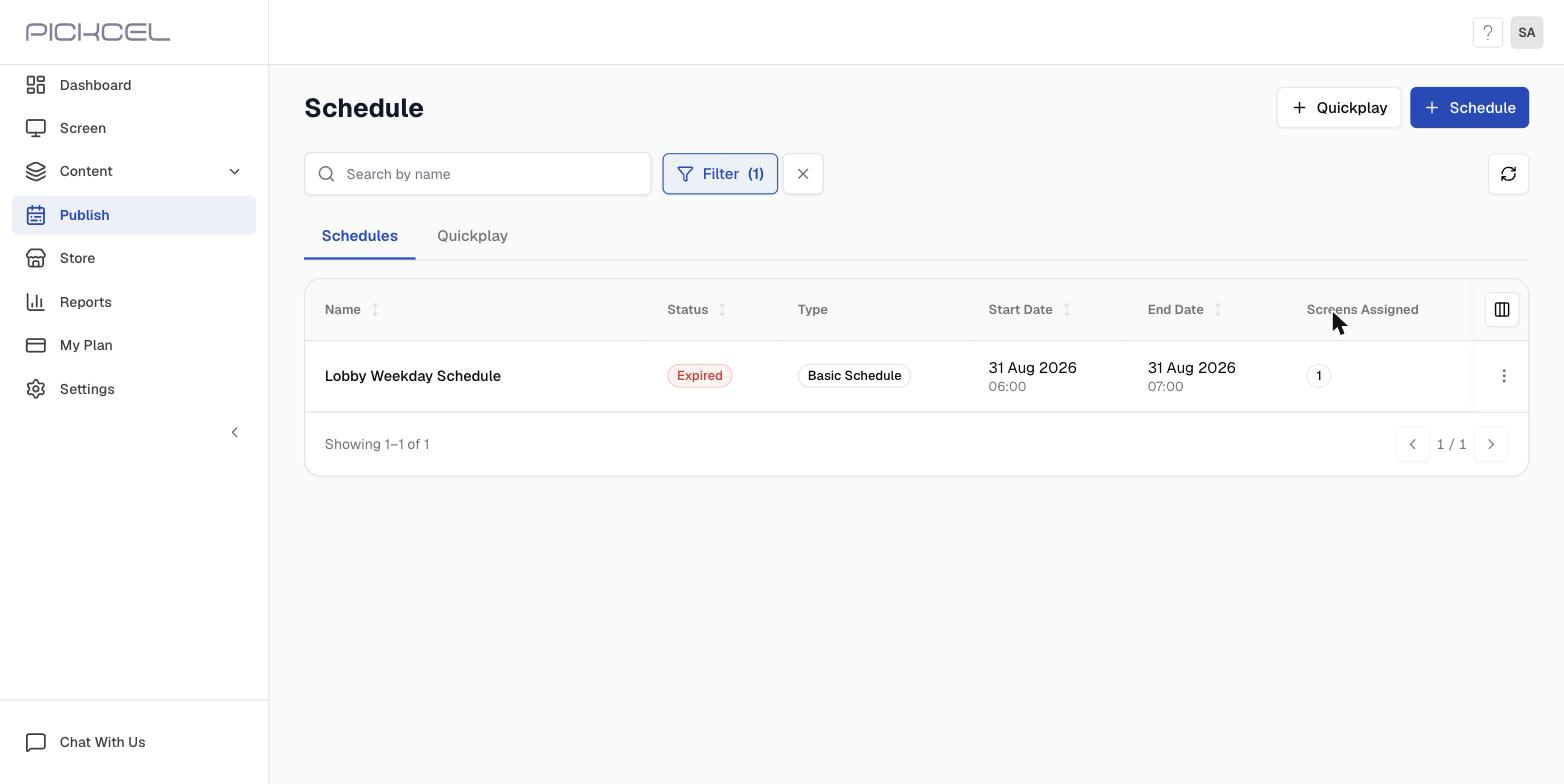 The **Schedules** column only counts schedules. Quickplays and default-composition assignments don't appear there, you'll find those from the error message when you attempt the delete.
## Remove the references, then delete
Go to **Publish**, open the **Schedules** tab, click the **⋯** menu on the schedule, and choose **Delete**. Confirm in the **Delete schedule?** dialog.
The **Schedules** column only counts schedules. Quickplays and default-composition assignments don't appear there, you'll find those from the error message when you attempt the delete.
## Remove the references, then delete
Go to **Publish**, open the **Schedules** tab, click the **⋯** menu on the schedule, and choose **Delete**. Confirm in the **Delete schedule?** dialog.
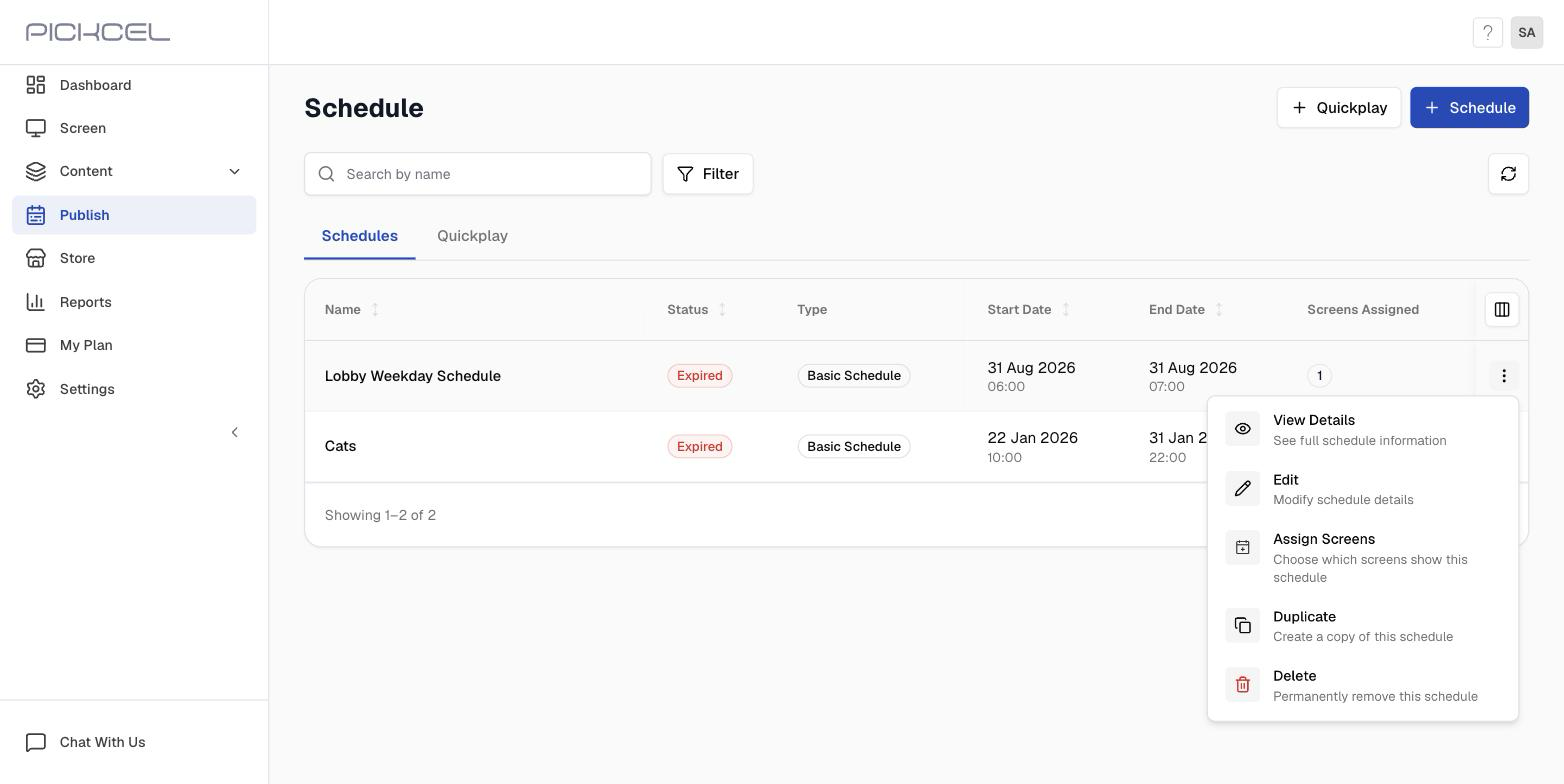
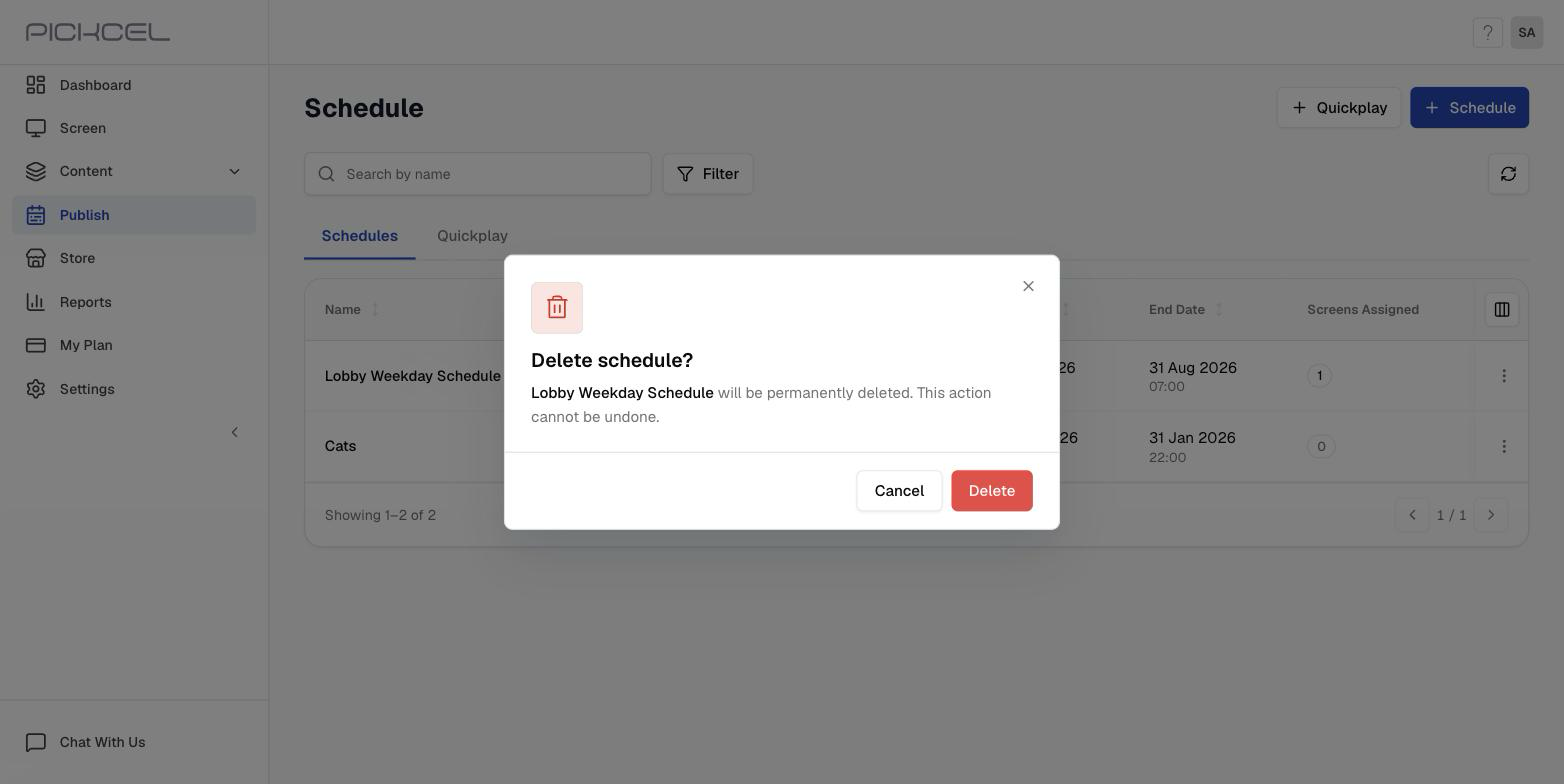 Deleting a schedule removes it from every screen it was assigned to. If you want to keep the schedule and only drop this one composition, use **Edit** instead and remove the composition from its day sequence. See [Schedule](/schedule-and-publish/v5/schedule).
Still in **Publish**, open the **Quickplay** tab, click the **⋯** menu, and choose **Delete**. Confirm in the **Delete quick play?** dialog. This removes it from every screen it was pushed to.
Deleting a schedule removes it from every screen it was assigned to. If you want to keep the schedule and only drop this one composition, use **Edit** instead and remove the composition from its day sequence. See [Schedule](/schedule-and-publish/v5/schedule).
Still in **Publish**, open the **Quickplay** tab, click the **⋯** menu, and choose **Delete**. Confirm in the **Delete quick play?** dialog. This removes it from every screen it was pushed to.
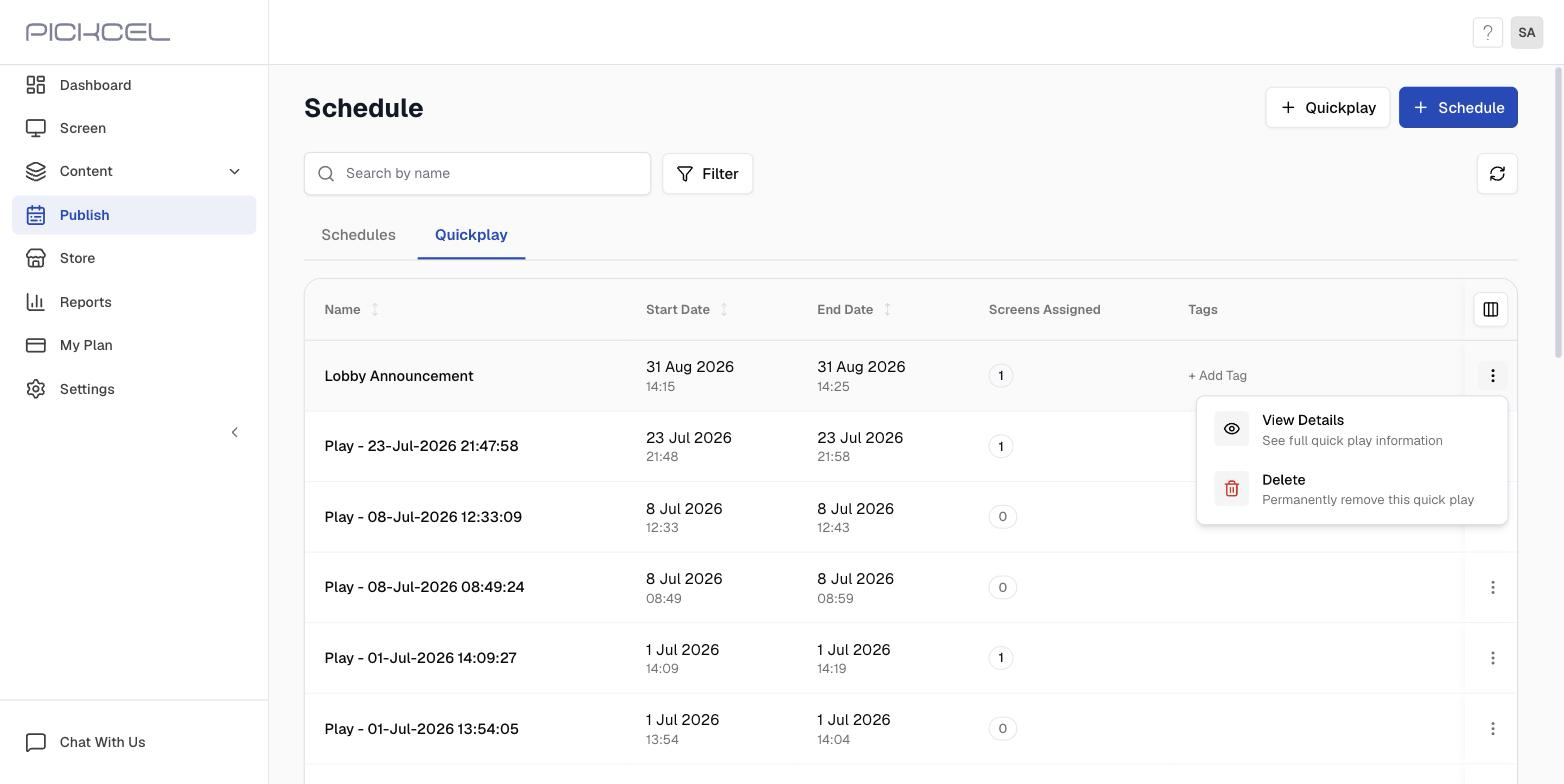 See [Quickplay](/schedule-and-publish/v5/quick-play) for the full walkthrough.
Open **Screen**, click the screen named in the error, and switch to the **Content** tab. On the **Default Composition** card, click **Change**.
See [Quickplay](/schedule-and-publish/v5/quick-play) for the full walkthrough.
Open **Screen**, click the screen named in the error, and switch to the **Content** tab. On the **Default Composition** card, click **Change**.
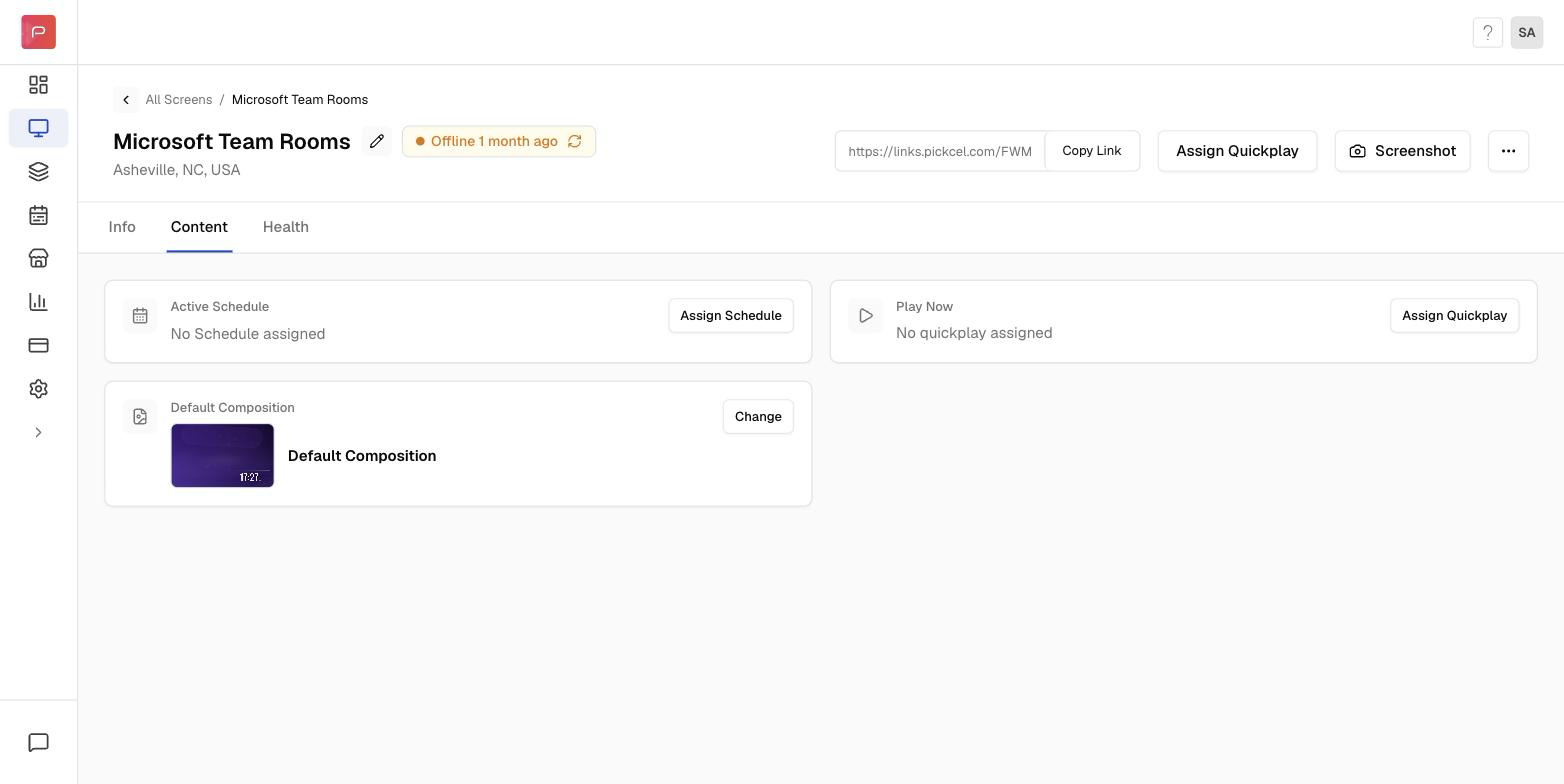 Pick a different composition and click **Set Default**. Repeat for every screen listed in the error.
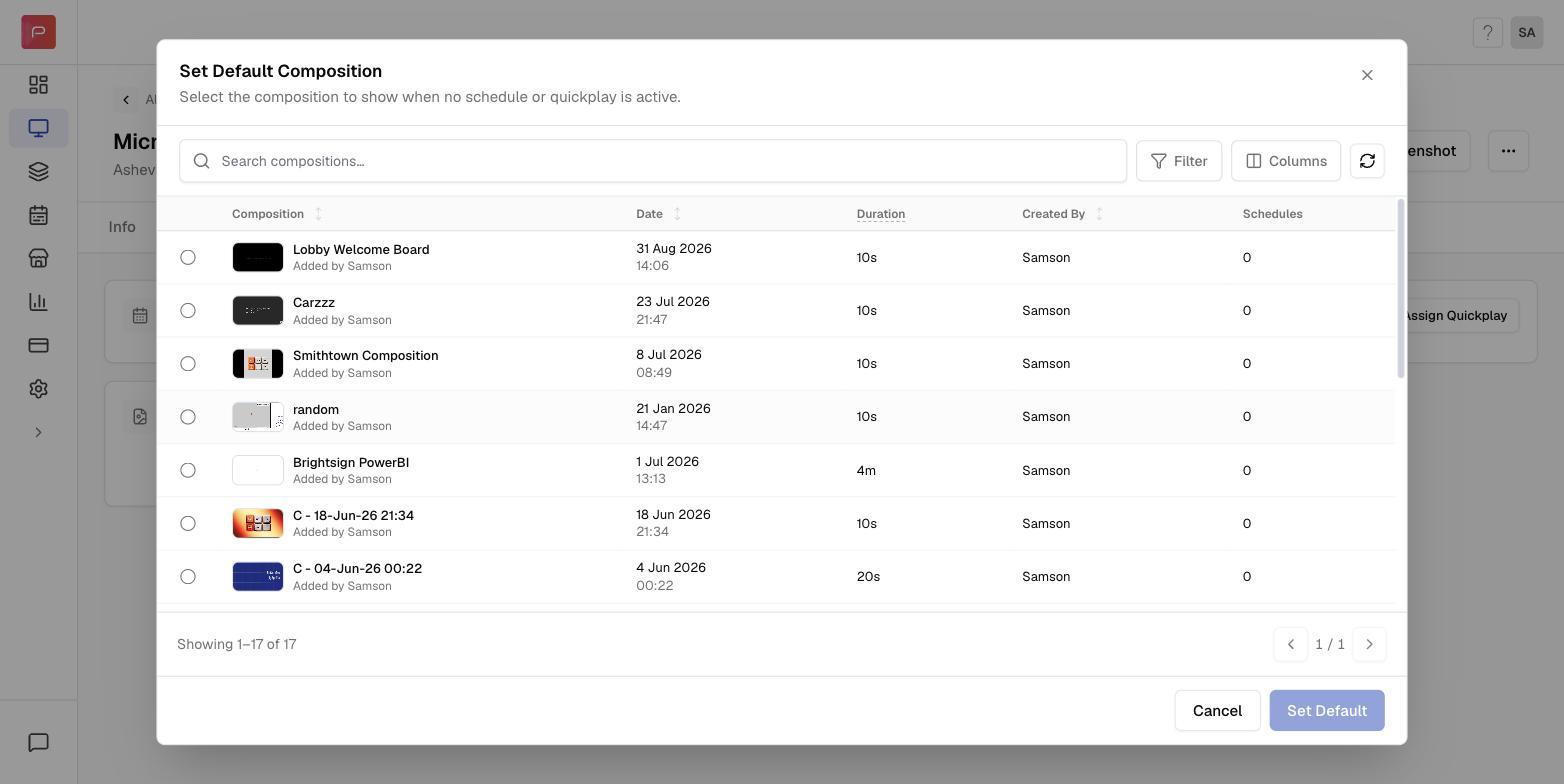 This picker only lists compositions from your **Composition** module. The **Organisation Default Composition** (**Settings → Default Content**) isn't in the list, so once you point a screen at a specific composition you can't switch it back to the organisation default from this screen. Pick the composition you actually want that screen to fall back to.
Go back to **Content → Composition** and repeat the delete. With every reference cleared, the composition is removed.
**Using the earlier console (v4)?** The steps are the same, only the labels differ, **Quick Play** is two words, the menus are reached from the **three dots** rather than **⋯**, and you confirm with **Yes, Delete**. See the [v4 publish guide](/schedule-and-publish/publish-v4).
## Related
* [Edit a Composition](/compositions/edit-composition), change a composition instead of deleting it
* [Schedule](/schedule-and-publish/v5/schedule), edit or delete a schedule
* [Quickplay](/schedule-and-publish/v5/quick-play), stop content pushed instantly to a screen
* [Default Composition](/schedule-and-publish/default-composition), set what a screen plays when nothing is scheduled
This picker only lists compositions from your **Composition** module. The **Organisation Default Composition** (**Settings → Default Content**) isn't in the list, so once you point a screen at a specific composition you can't switch it back to the organisation default from this screen. Pick the composition you actually want that screen to fall back to.
Go back to **Content → Composition** and repeat the delete. With every reference cleared, the composition is removed.
**Using the earlier console (v4)?** The steps are the same, only the labels differ, **Quick Play** is two words, the menus are reached from the **three dots** rather than **⋯**, and you confirm with **Yes, Delete**. See the [v4 publish guide](/schedule-and-publish/publish-v4).
## Related
* [Edit a Composition](/compositions/edit-composition), change a composition instead of deleting it
* [Schedule](/schedule-and-publish/v5/schedule), edit or delete a schedule
* [Quickplay](/schedule-and-publish/v5/quick-play), stop content pushed instantly to a screen
* [Default Composition](/schedule-and-publish/default-composition), set what a screen plays when nothing is scheduled