> ## Documentation Index
> Fetch the complete documentation index at: https://docs.pickcel.com/llms.txt
> Use this file to discover all available pages before exploring further.
# What is Composition? How to create a Composition?
> Learn about compositions and how to create them in Pickcel to arrange and present content on your digital signage screens
## What is Composition?
A **composition** is the final screen output you publish. It combines a layout, the media you add, and one or more zones, so you can decide exactly what plays and where on the display for your digital signage screens.
Learn [what a layout is and how to create a custom layout](/compositions/layouts) in Pickcel.
## How to create a Composition in Pickcel console
Log in to your [Pickcel Console](https://console.pickcel.com/). In the left menu, expand **Content** and select **Composition**, then click **Add Composition** in the top-right corner.
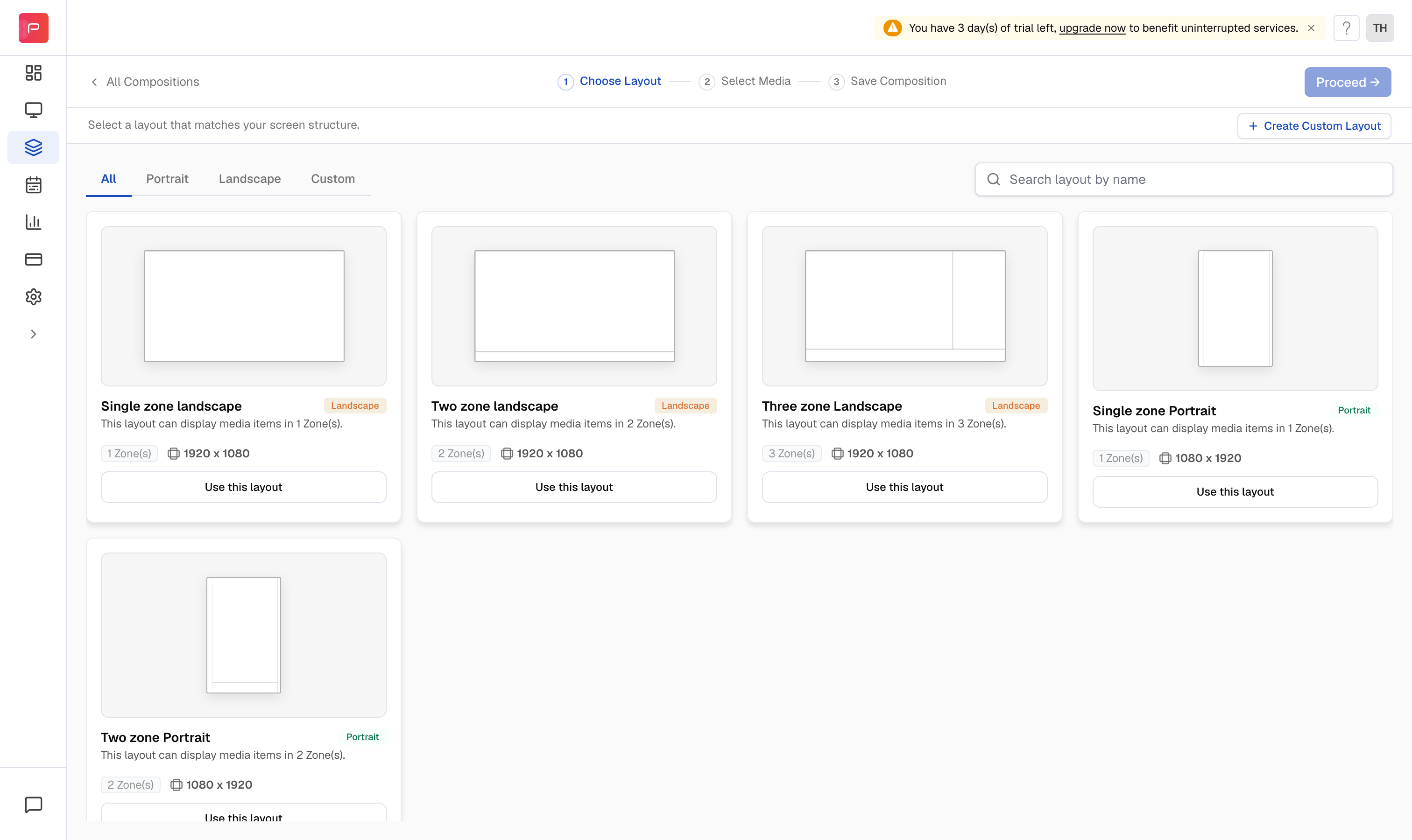
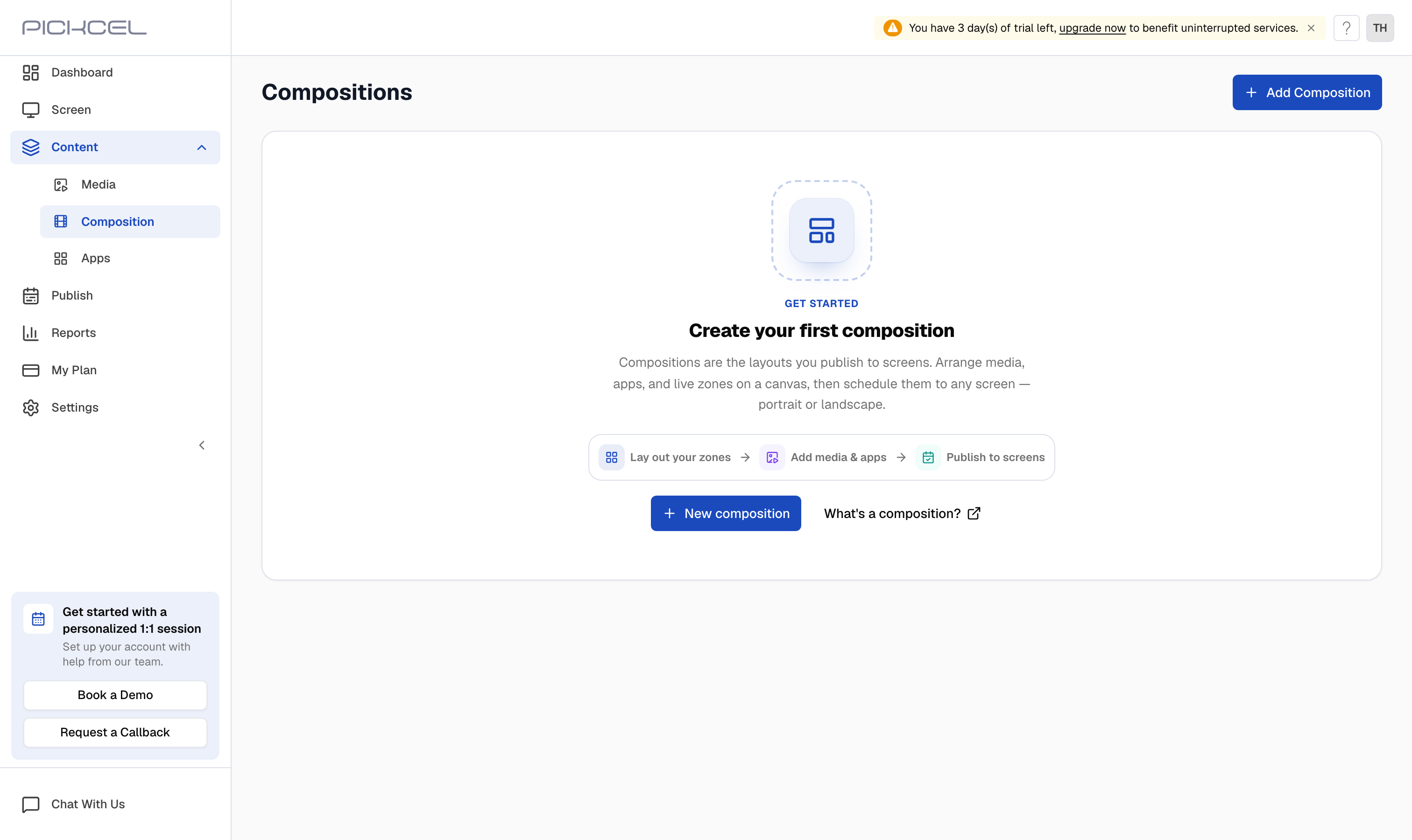 On **Choose Layout**, pick the structure that matches your screen. Use the **All**, **Portrait**, **Landscape**, and **Custom** tabs, or **Search layout by name**, to find one, then click **Use this layout**.
Need a structure that isn't listed? Click **+ Create Custom Layout** and follow the [Layouts](/compositions/layouts) guide to build your own.
On **Choose Layout**, pick the structure that matches your screen. Use the **All**, **Portrait**, **Landscape**, and **Custom** tabs, or **Search layout by name**, to find one, then click **Use this layout**.
Need a structure that isn't listed? Click **+ Create Custom Layout** and follow the [Layouts](/compositions/layouts) guide to build your own.
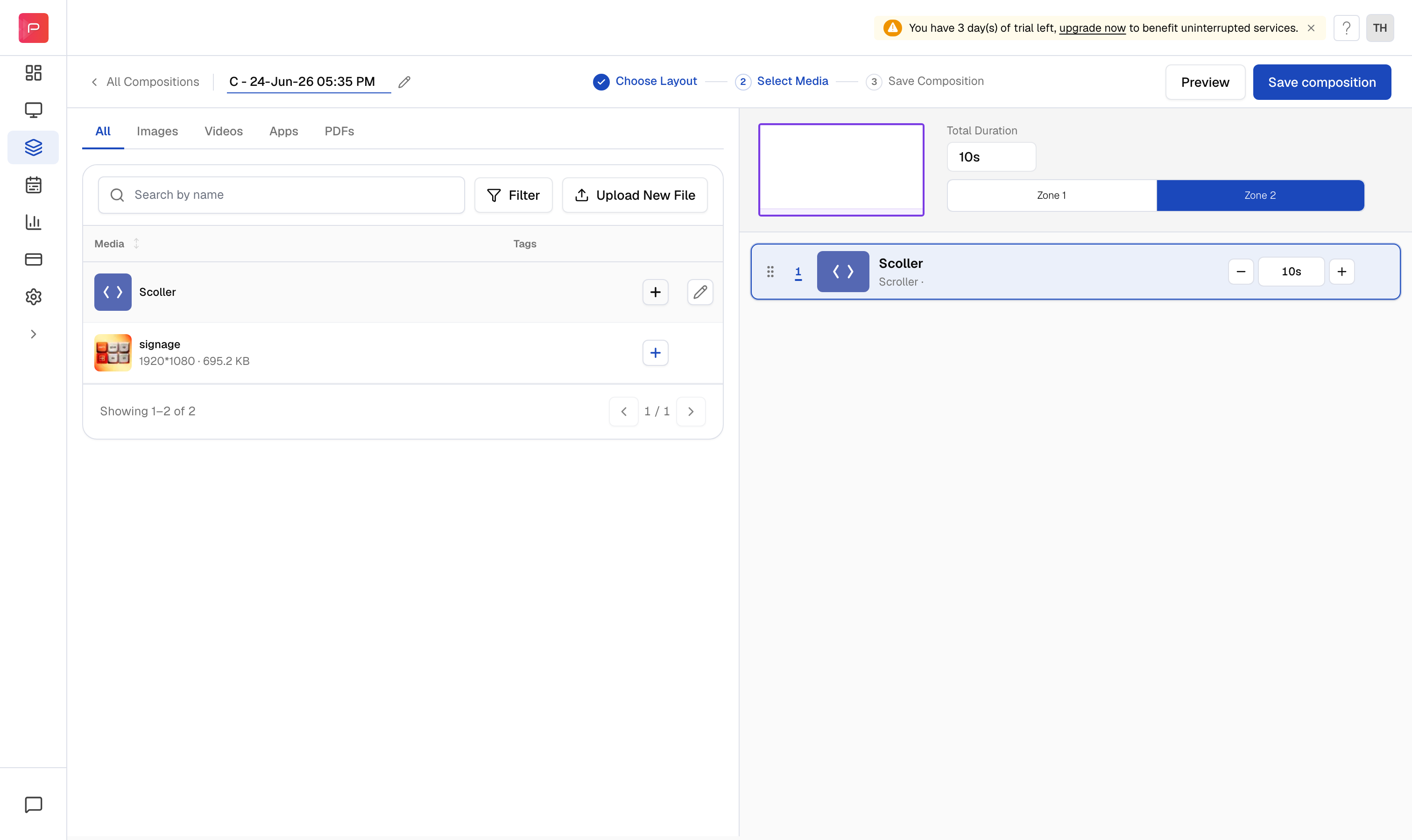
 The editor opens on the **Select Media** step. Your **media library** sits on the left, and the **zones** for your chosen layout are on the right, each with its own **Zone** tab (Zone 1, Zone 2, and so on). The **Total Duration** for the selected zone is shown above the tabs.
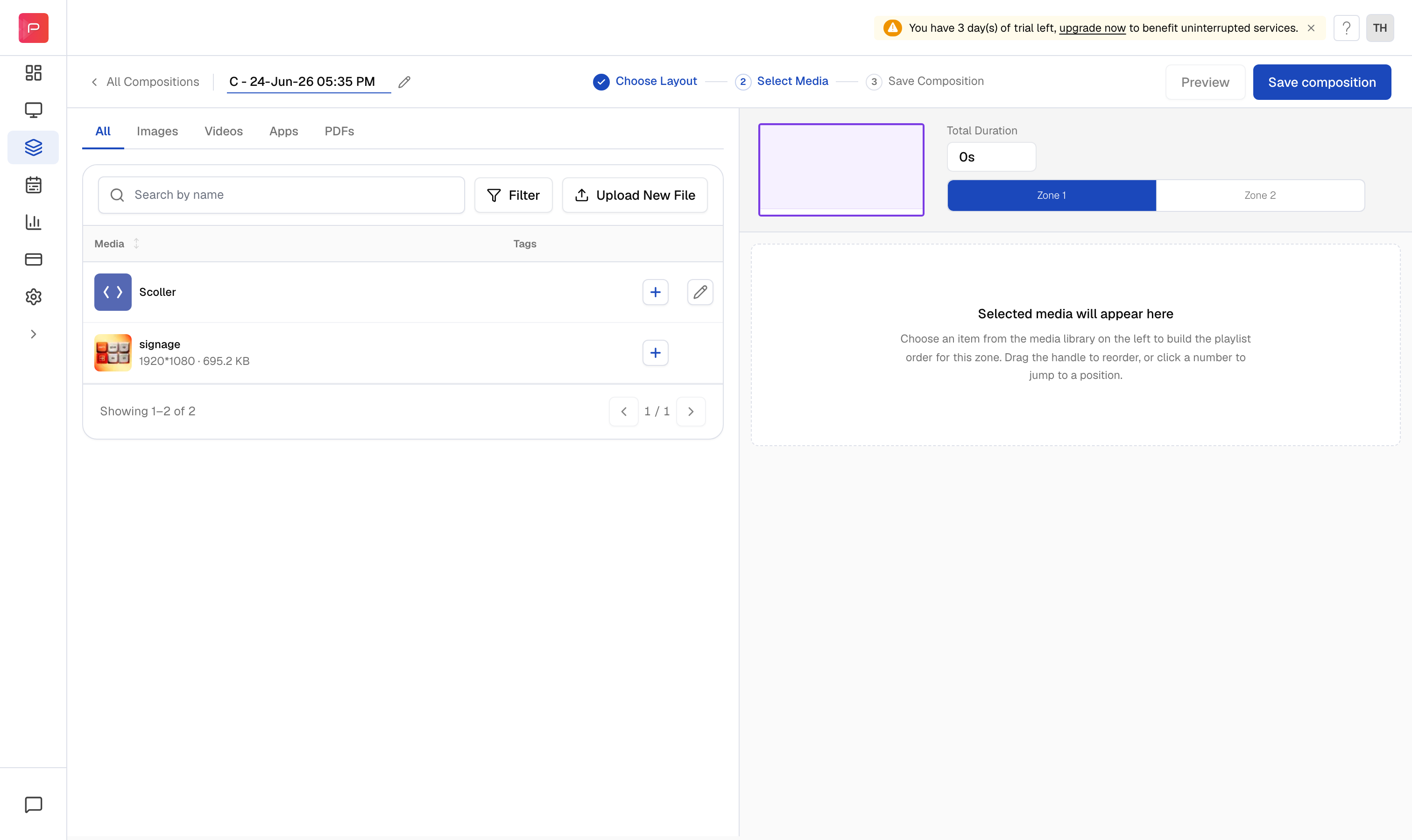 Filter the media library with the **All**, **Images**, **Videos**, **Apps**, and **PDFs** tabs, or click **Upload New File** to add something new without leaving the editor.
Make sure the zone you want is selected, then click the **+** button on any media row to add it to that zone's playlist. Each item shows inline **−**, duration, and **+** controls, so you can set how many seconds it plays. The zone's **Total Duration** updates as you go.
Filter the media library with the **All**, **Images**, **Videos**, **Apps**, and **PDFs** tabs, or click **Upload New File** to add something new without leaving the editor.
Make sure the zone you want is selected, then click the **+** button on any media row to add it to that zone's playlist. Each item shows inline **−**, duration, and **+** controls, so you can set how many seconds it plays. The zone's **Total Duration** updates as you go.
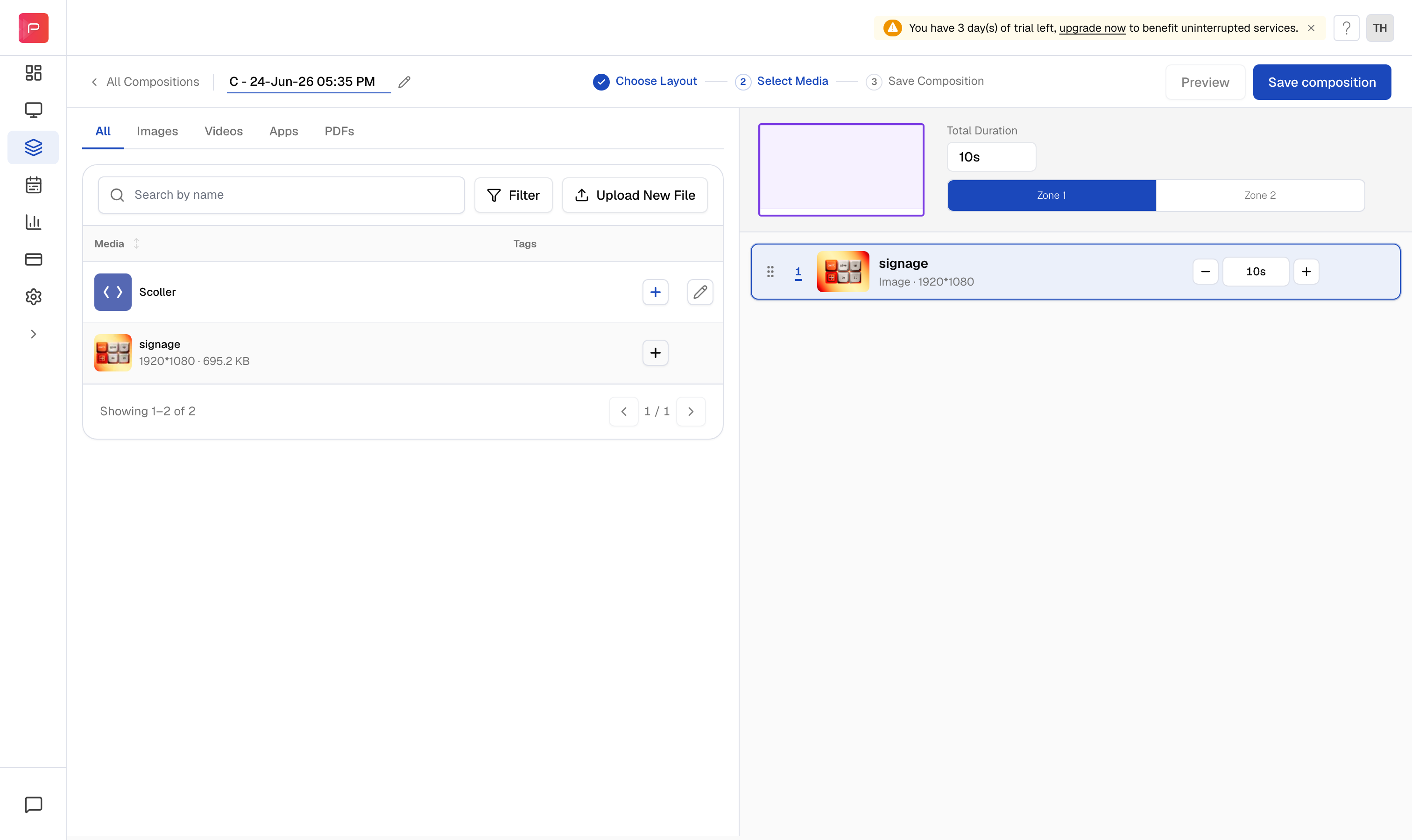 Drag the handle on a playlist item to reorder it, or hover over an item to remove it from the zone.
You can set the duration for images, but not for videos. A video always plays for its full length, so its playback isn't cut off mid-stream.
Select the next **Zone** tab and repeat the previous step until every zone has the media you want.
Drag the handle on a playlist item to reorder it, or hover over an item to remove it from the zone.
You can set the duration for images, but not for videos. A video always plays for its full length, so its playback isn't cut off mid-stream.
Select the next **Zone** tab and repeat the previous step until every zone has the media you want.
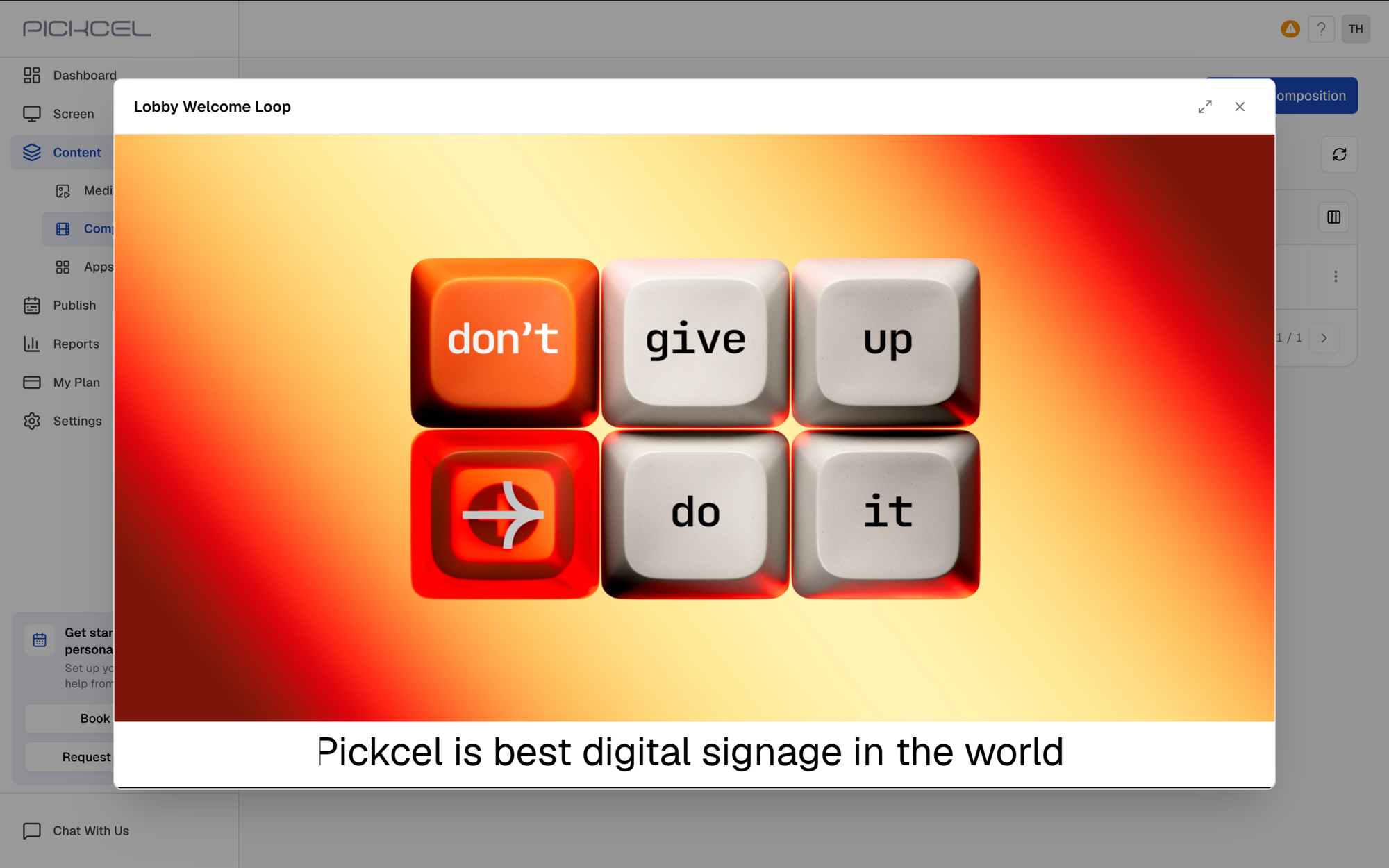
 Once your zones are filled, click **Preview** to see exactly how the composition will look on screen before you save it.
 Rename the composition using the field (and **pencil** icon) at the top-left. When you're ready, click **Save composition**. In the **Save composition** dialog, confirm the name and click **Save & exit**.
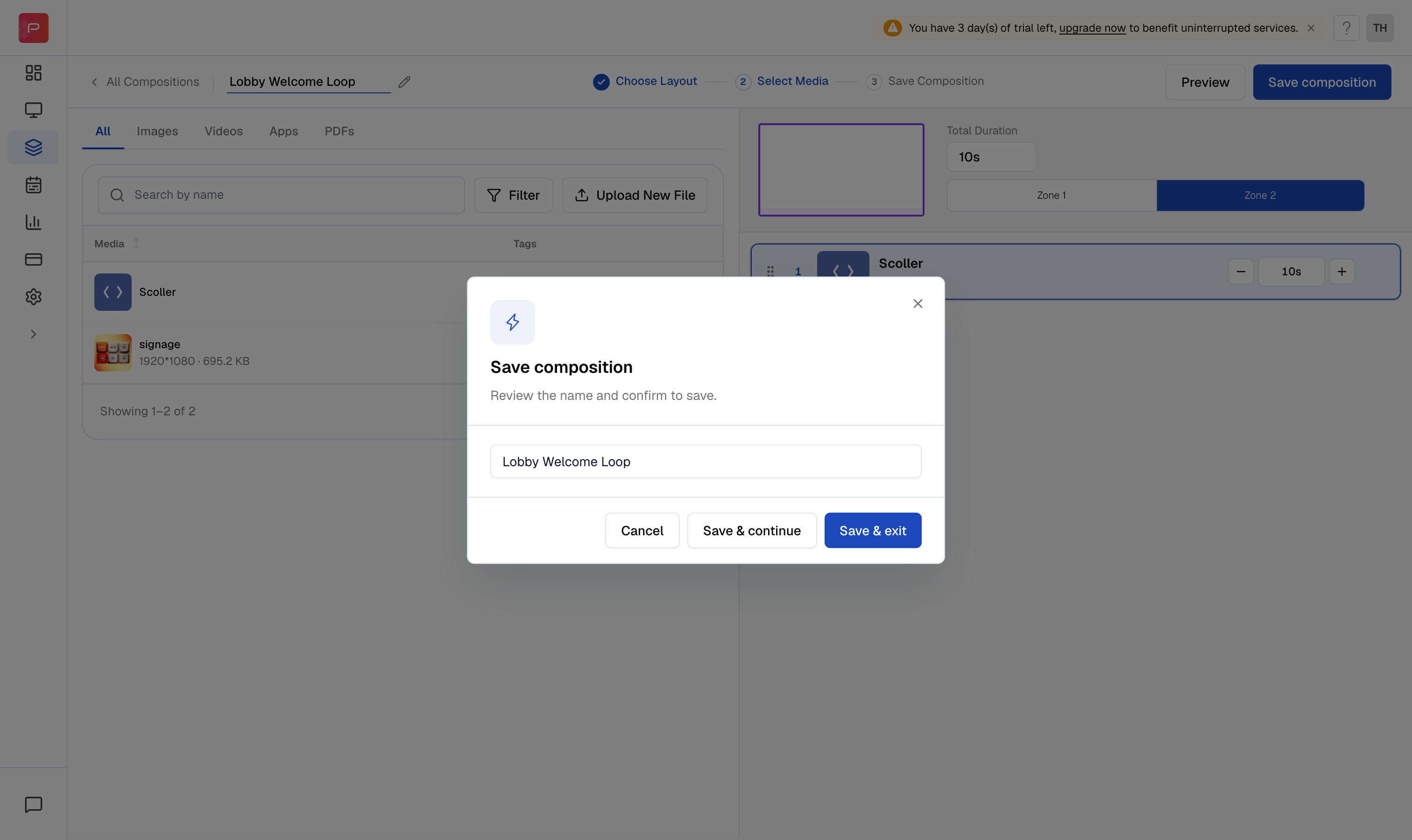 Choose **Save & continue** instead if you want to keep editing after saving.
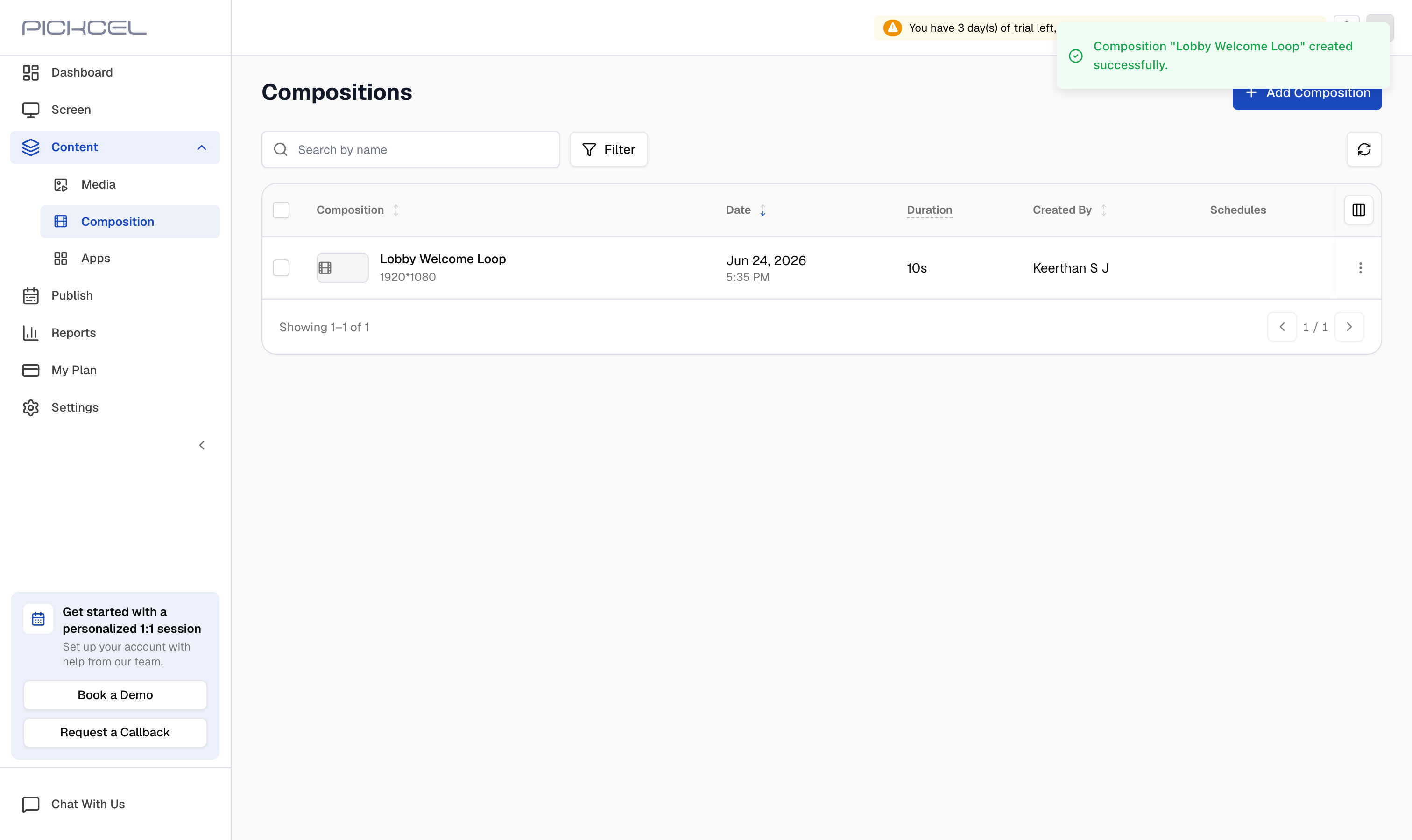
Your saved composition appears in the **Compositions** list, with its **Date**, **Duration**, **Created By**, and any linked **Schedules**.
Choose **Save & continue** instead if you want to keep editing after saving.
Your saved composition appears in the **Compositions** list, with its **Date**, **Duration**, **Created By**, and any linked **Schedules**.
 **What's Next?**
* Build a [**custom layout**](/compositions/layouts) for zone arrangements the standard templates don't cover.
* [**Schedule and publish**](/schedule-and-publish/publish-overview) your composition to your screens.
* Set a [**default composition**](/settings/default-composition) so screens always have something to play.
**What's Next?**
* Build a [**custom layout**](/compositions/layouts) for zone arrangements the standard templates don't cover.
* [**Schedule and publish**](/schedule-and-publish/publish-overview) your composition to your screens.
* Set a [**default composition**](/settings/default-composition) so screens always have something to play.