> ## Documentation Index
> Fetch the complete documentation index at: https://docs.pickcel.com/llms.txt
> Use this file to discover all available pages before exploring further.
# How to add the YouTube app from the Pickcel app store?
> Learn how to display YouTube videos and live streams on your digital signage screens
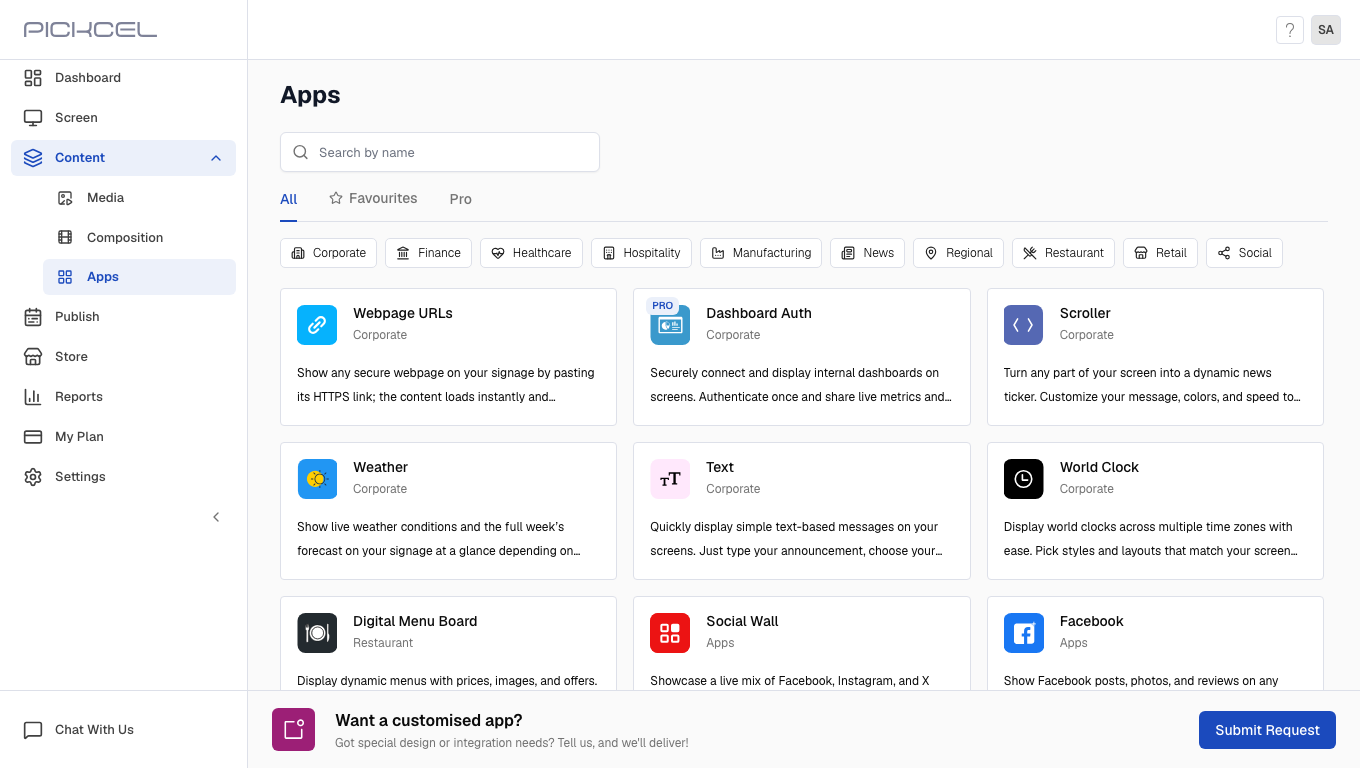
 [Login to your Pickcel account](https://console.pickcel.com/). Go to the **Apps** module.
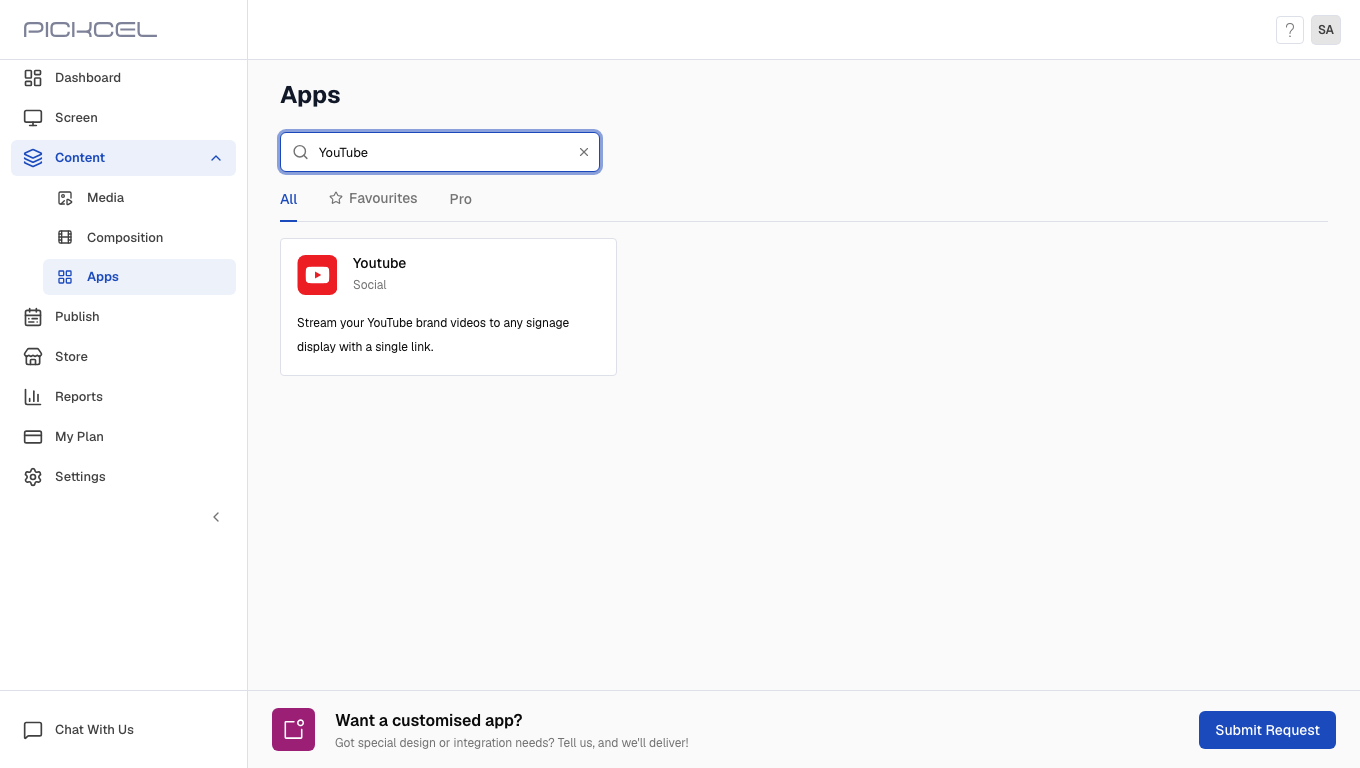
 Search for the **YouTube** app using the search field.
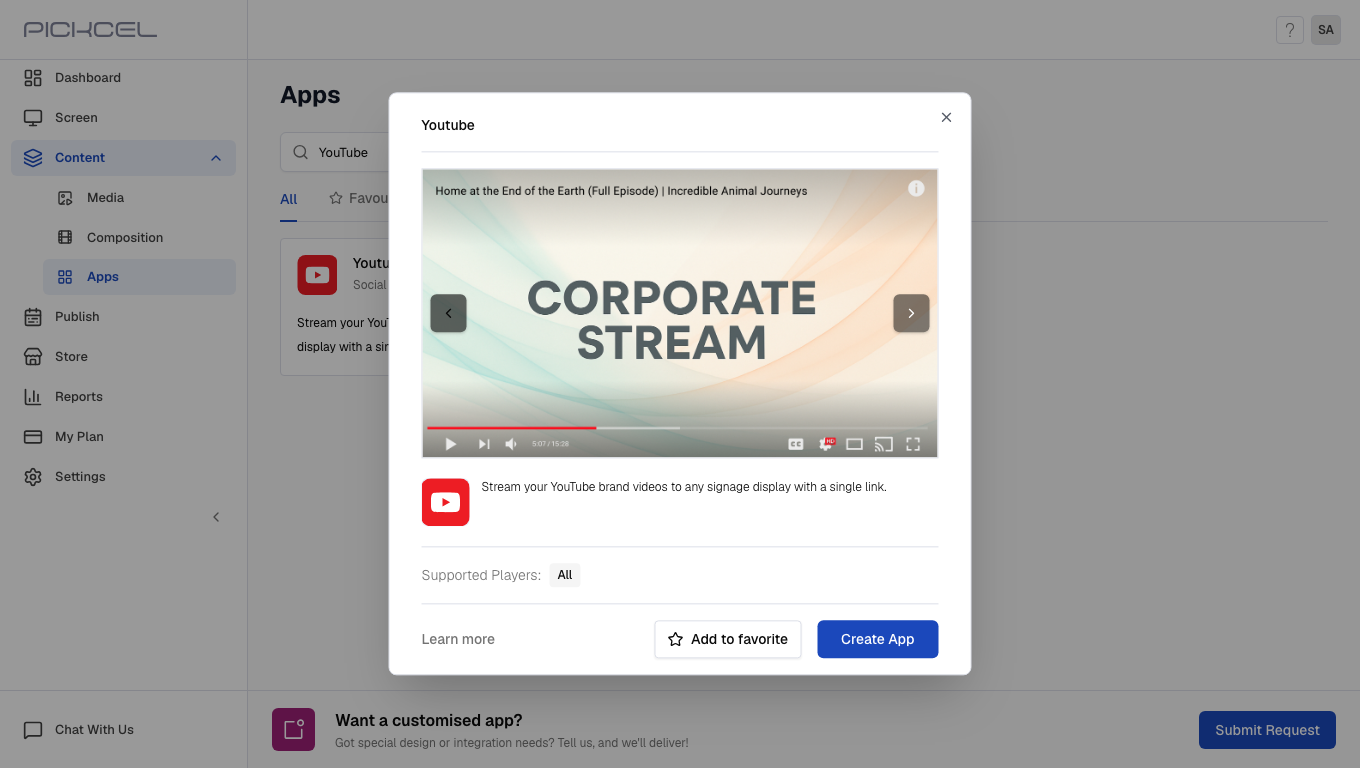
 Click the **YouTube** app card, then click **Create App** in the app details panel.
Enter a **Name** for the app.
Click the **YouTube** app card, then click **Create App** in the app details panel.
Enter a **Name** for the app.
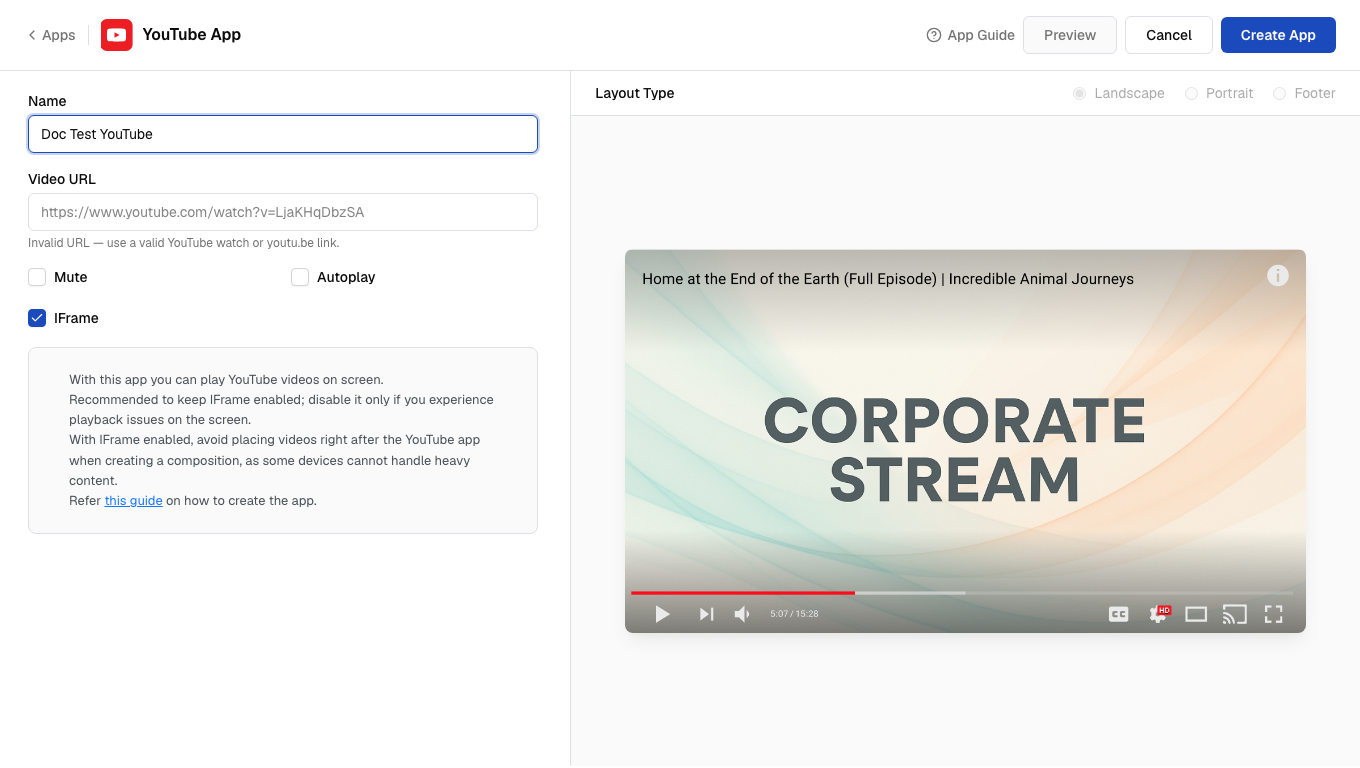 Paste the **Video URL** of the YouTube video you want to play.
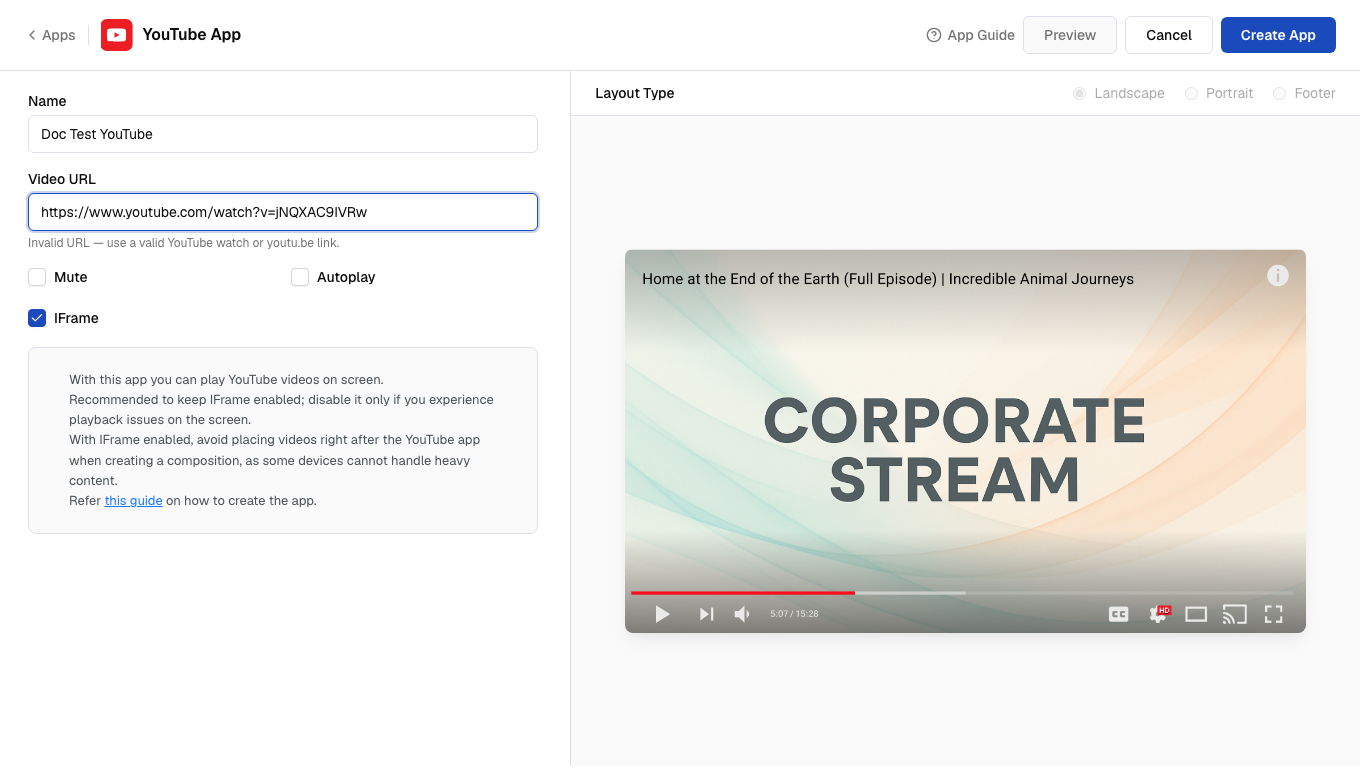 To get the video URL, open the YouTube video in your browser and copy the link from the address bar. Live-stream links work the same way.
Toggle **Mute**, **Autoplay**, and **IFrame** as needed.
To get the video URL, open the YouTube video in your browser and copy the link from the address bar. Live-stream links work the same way.
Toggle **Mute**, **Autoplay**, and **IFrame** as needed.
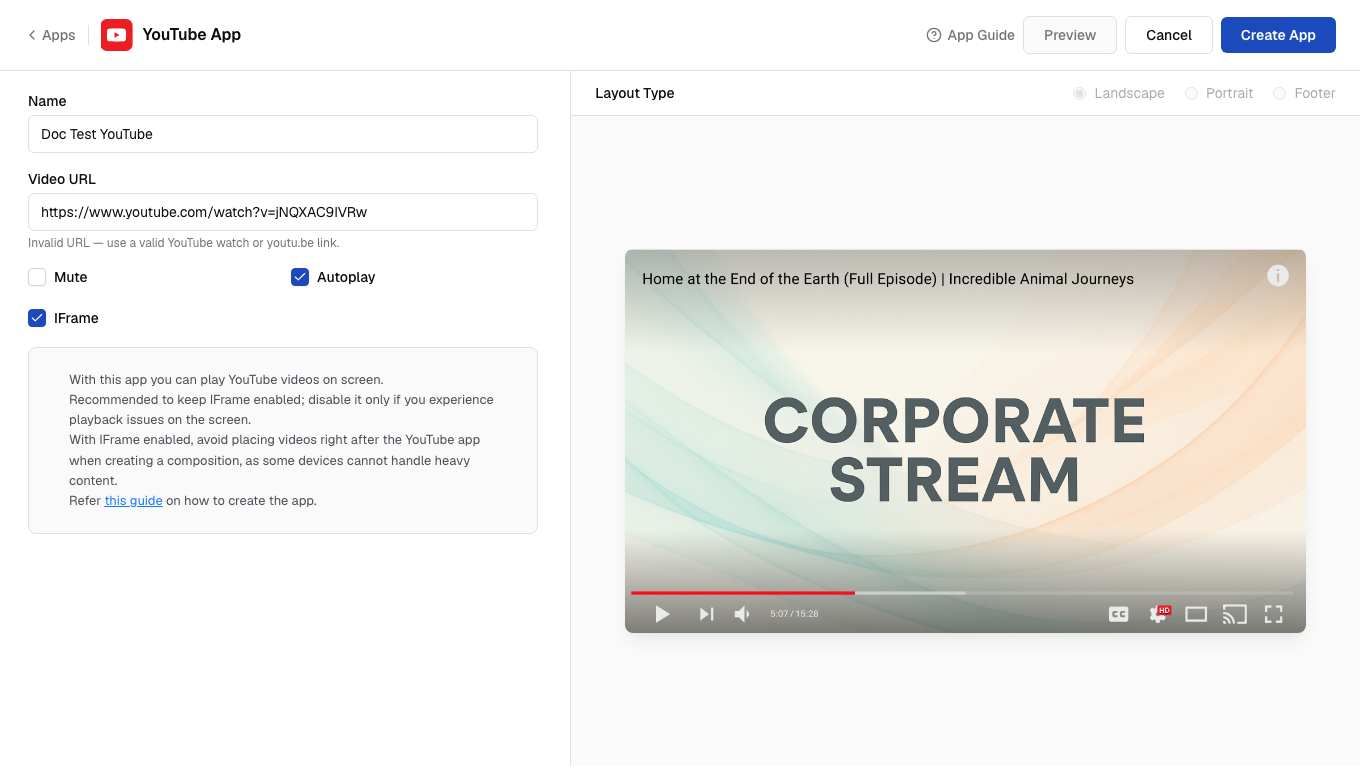 Autoplay is mainly for devices that do not automatically play videos. Keep **IFrame** enabled unless you experience playback issues.
Click **Preview** to check how the video plays, then click **Create App** to save.
Autoplay is mainly for devices that do not automatically play videos. Keep **IFrame** enabled unless you experience playback issues.
Click **Preview** to check how the video plays, then click **Create App** to save.
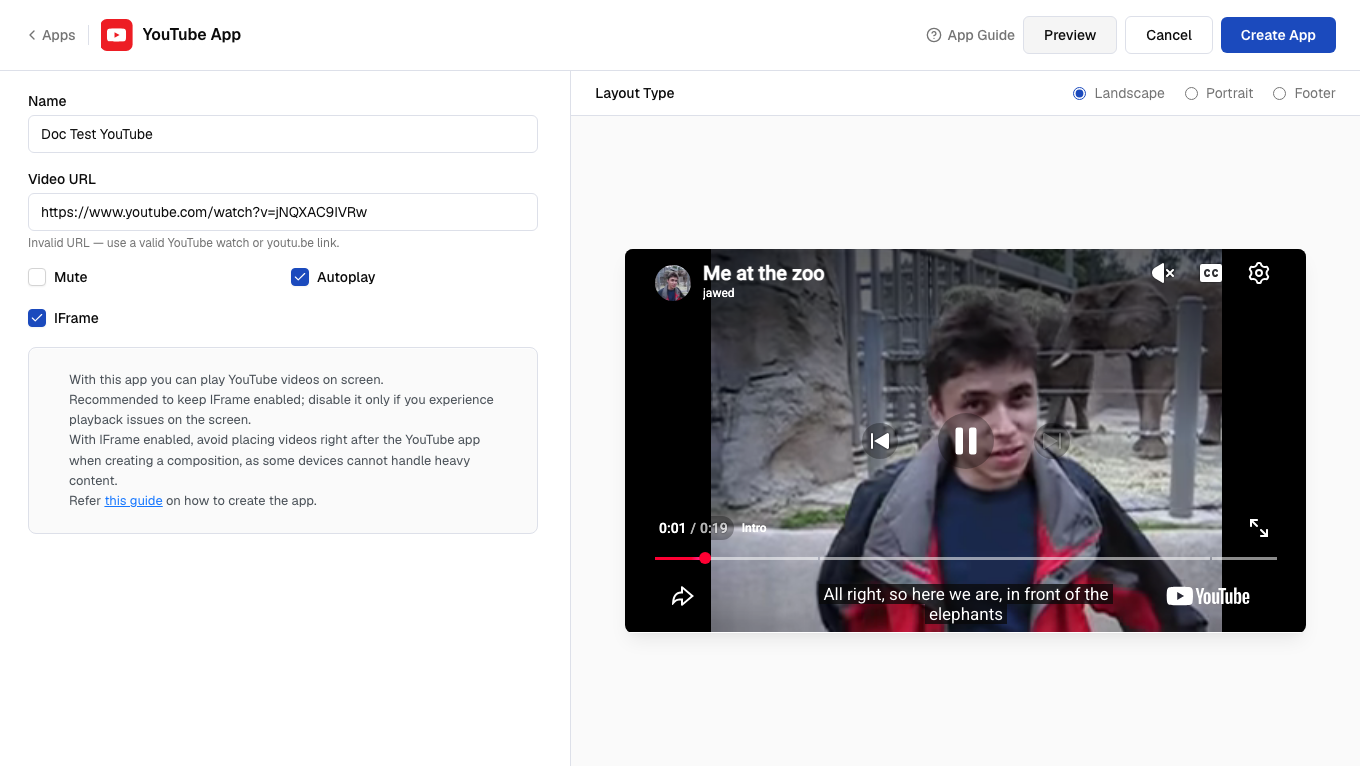 Your YouTube app is now ready to use.