> ## Documentation Index
> Fetch the complete documentation index at: https://docs.pickcel.com/llms.txt
> Use this file to discover all available pages before exploring further.
# How to add the Webpage URLs app from the Pickcel App Store?
> Display any secure webpage on your digital signage screens by pasting its HTTPS link, with cache, zoom, and desktop mode options.
The Webpage URLs app shows any secure webpage directly on a screen. Paste an HTTPS link and it loads instantly and keeps refreshing automatically, no separate integration needed.
In this guide we set up a **Lobby Announcements Page** pointing at a live website.
## Prerequisites
* A [Pickcel account](https://console.pickcel.com/) with access to the **Content** module
* An **HTTPS** link to the page you want to display; HTTP links aren't supported
In the Pickcel console, expand **Content** in the left menu and select **Apps**. Search for **Webpage** using the search field.
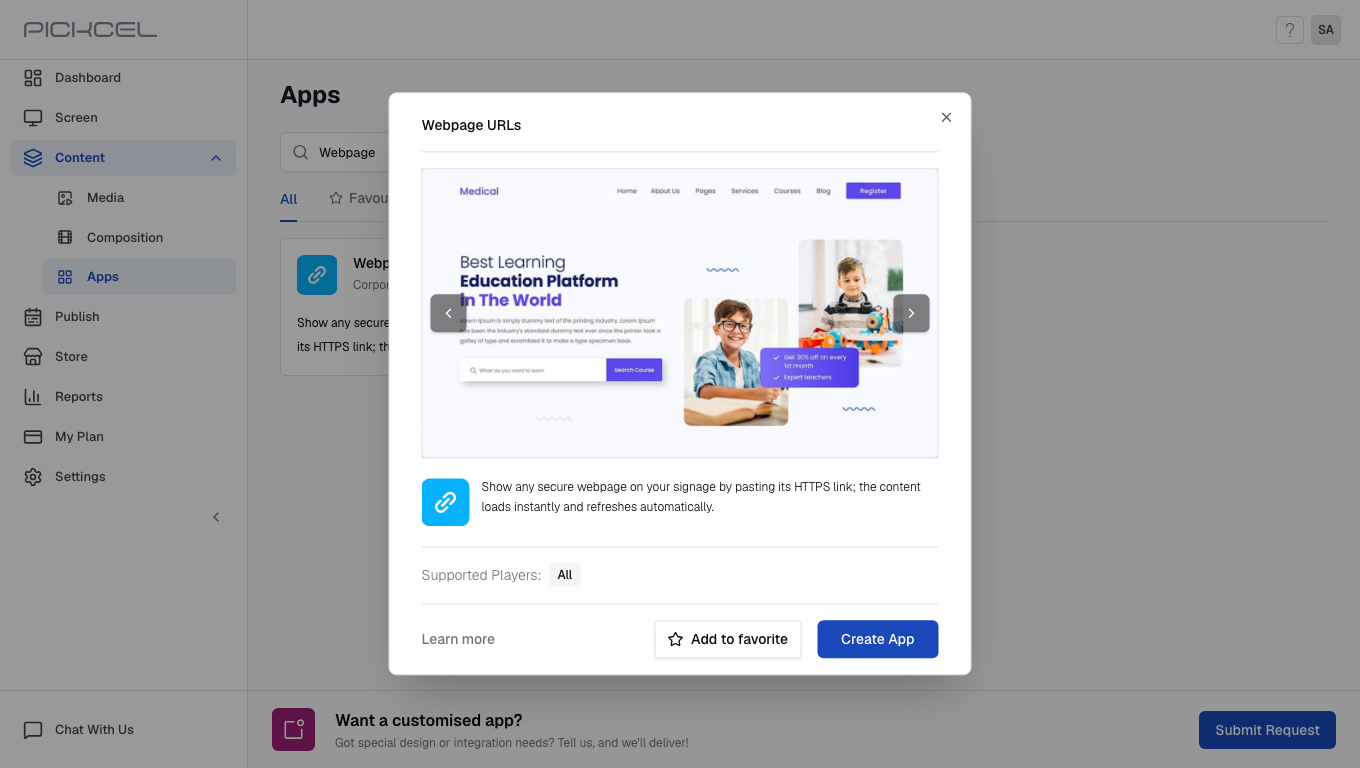
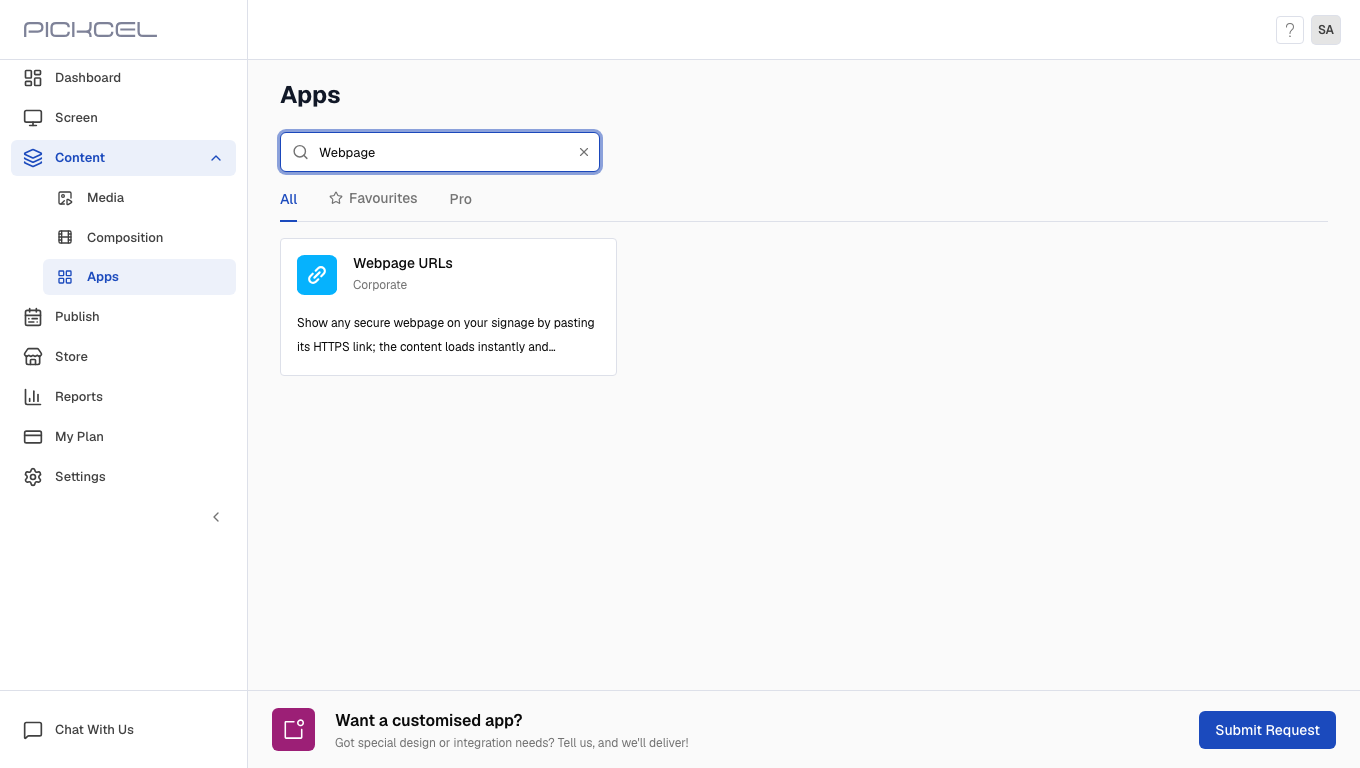 Click the **Webpage URLs** card. A details panel opens with a preview of the app. Click **Create App** to open the editor.
 Enter a **Name** for the app and paste the page's **URL**. Set **Cache** to **Enable** so the page keeps working briefly if the screen loses its connection, or **Disable** to always fetch the latest version.
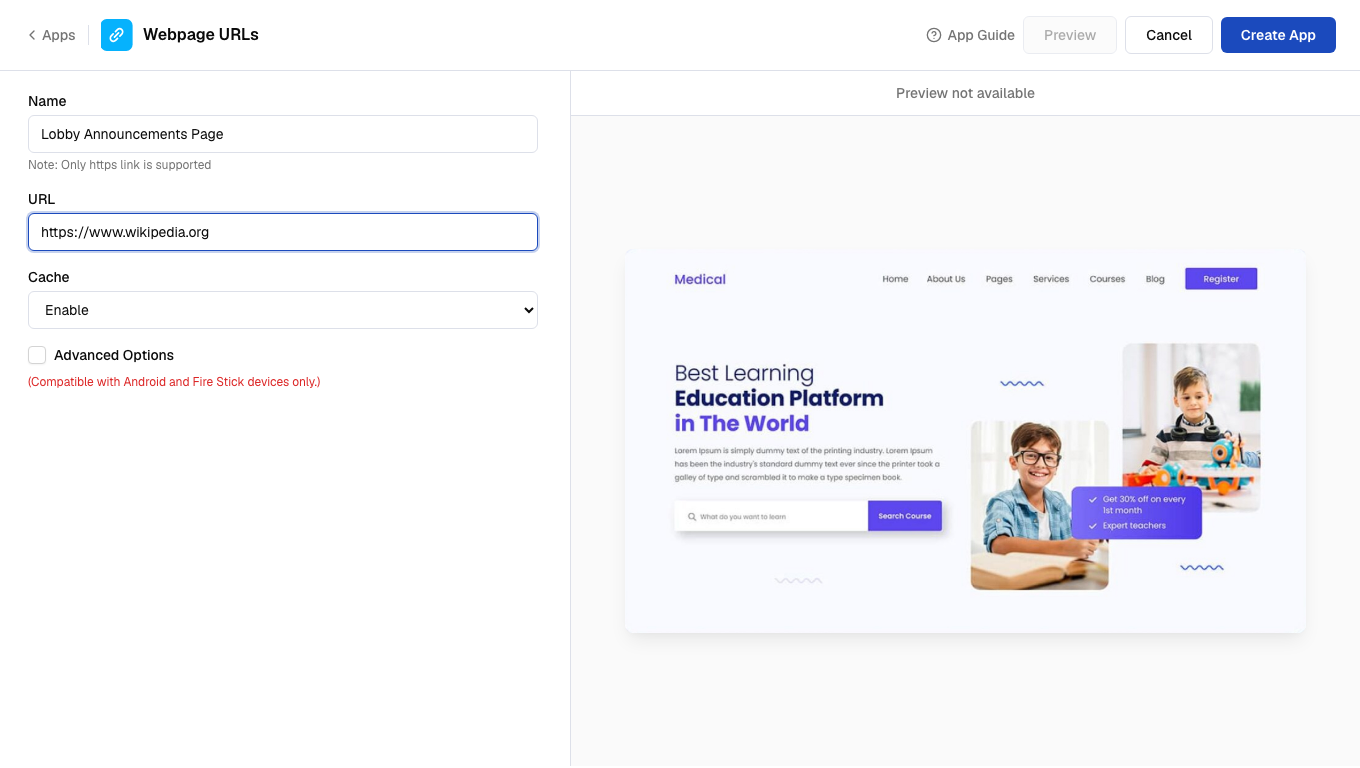 Only **HTTPS** links are supported. Some sites block embedding entirely (via their own security headers), so it's worth checking the live screen after publishing.
Check **Advanced Options** to reveal **Desktop Mode**, **Website Zoom**, and **Text Zoom**. Desktop Mode requests the full desktop layout instead of a mobile one; the zoom fields scale the page and its text independently.
Only **HTTPS** links are supported. Some sites block embedding entirely (via their own security headers), so it's worth checking the live screen after publishing.
Check **Advanced Options** to reveal **Desktop Mode**, **Website Zoom**, and **Text Zoom**. Desktop Mode requests the full desktop layout instead of a mobile one; the zoom fields scale the page and its text independently.
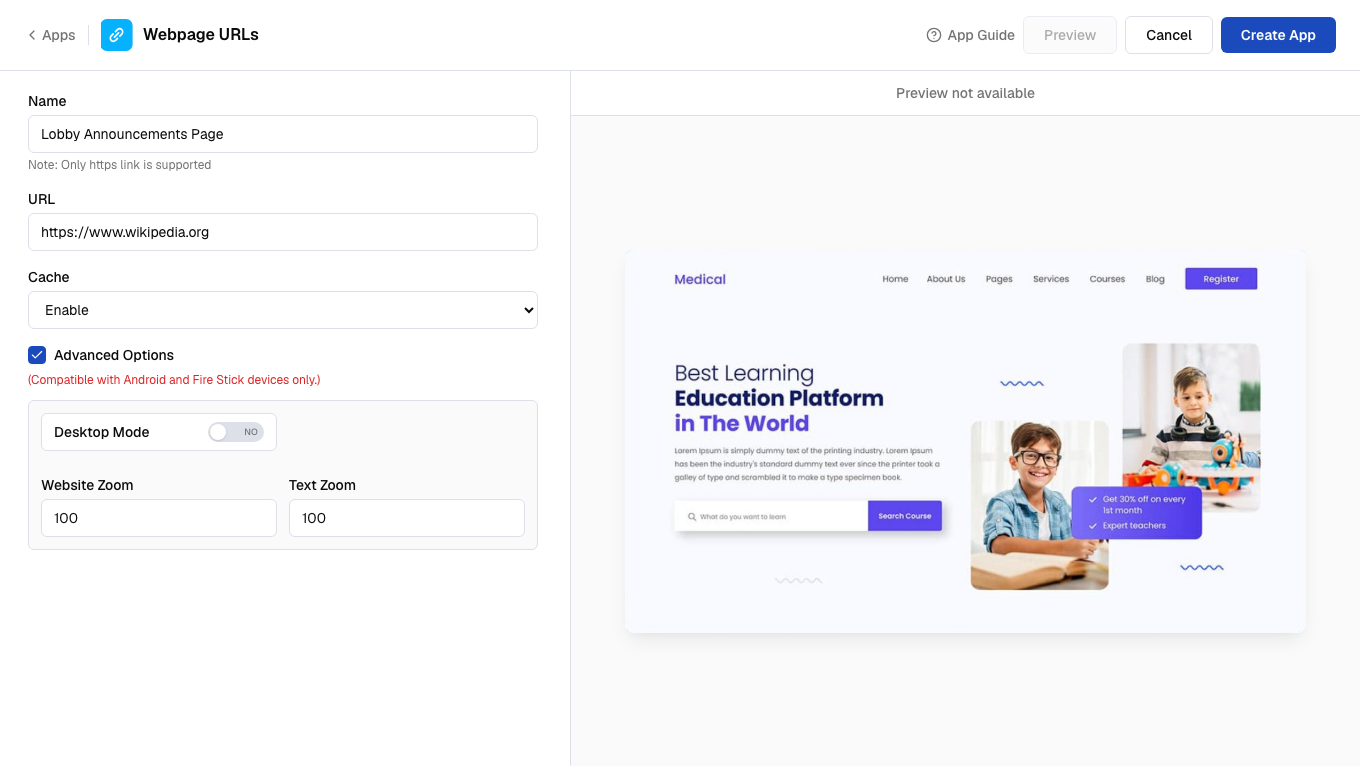 Advanced Options only take effect on Android and Fire Stick players.
Click **Create App**. A success dialog confirms the app was created and offers to walk you through adding it to a composition.
Advanced Options only take effect on Android and Fire Stick players.
Click **Create App**. A success dialog confirms the app was created and offers to walk you through adding it to a composition.
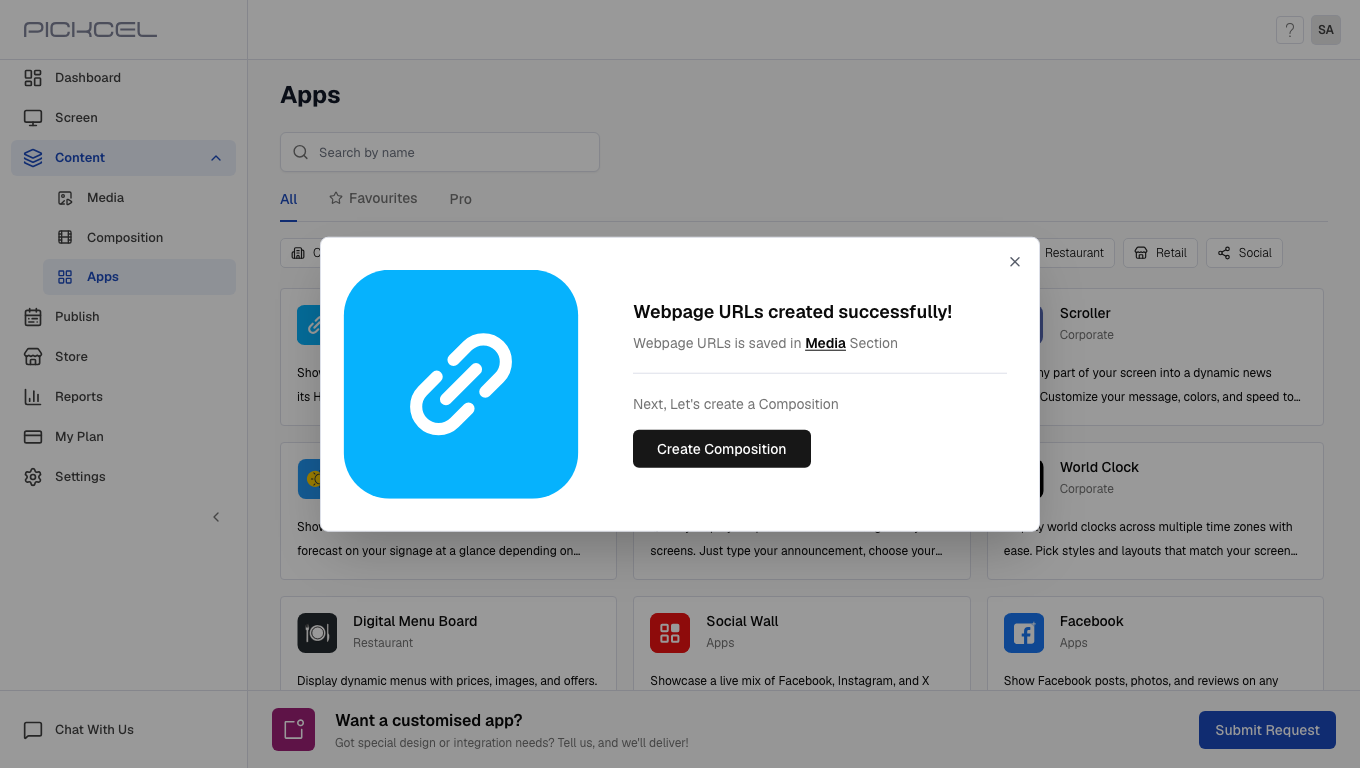 The app is stored in **Content > Media** under the name you gave it, with type **App**.
## What's Next?
* Add the page to a multi-zone layout: [Compositions](/compositions/compositions)
* Send it to your screens: [Publish or Schedule Content](/schedule-and-publish/publish-overview)
The app is stored in **Content > Media** under the name you gave it, with type **App**.
## What's Next?
* Add the page to a multi-zone layout: [Compositions](/compositions/compositions)
* Send it to your screens: [Publish or Schedule Content](/schedule-and-publish/publish-overview)