> ## Documentation Index
> Fetch the complete documentation index at: https://docs.pickcel.com/llms.txt
> Use this file to discover all available pages before exploring further.
# How to add the Weather app from the Pickcel App Store?
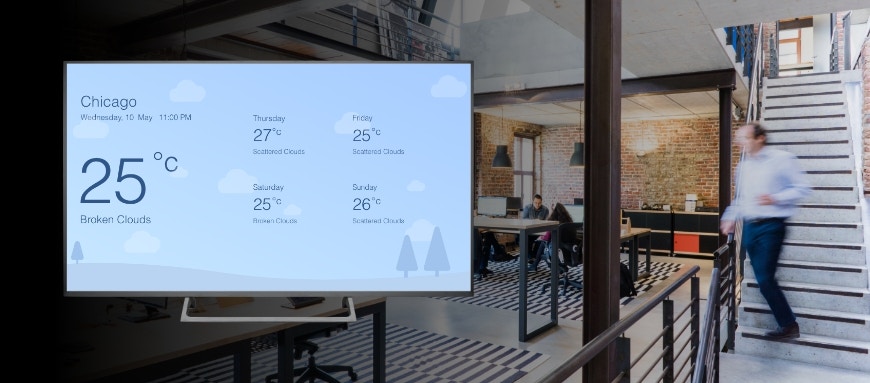
> Learn how to add and configure the Weather app to display real-time weather information on your digital signage screens
 [Login to your Pickcel account.](https://console.pickcel.com/) Go to the **Apps** module.
.9ErZc0DzhfgJ.png) Search for the **Weather** app using the search field.
Search for the **Weather** app using the search field.
.DYFMbtCSclDv.png) Hover over the weather app and click on the **Create App** button.
Hover over the weather app and click on the **Create App** button.
.JRgL9_Vaw4uk.png) Enter a **Name** for the app.
Enter a **Name** for the app.
.9JyjZMP29LTv.png) Enable the option to get the device location (**Device location**: Google Location given while adding the screen)
Enable the option to get the device location (**Device location**: Google Location given while adding the screen)
.LIaLdGe47Rbg.png) Enter the **Location** of the place whose weather you want to show.
Enter the **Location** of the place whose weather you want to show.
.ZT29ppEvomwt.png) Select the Weather **Theme** of your interest from the list.
Select the Weather **Theme** of your interest from the list.
.nRPfw5o7j1VR.png) Select the **Temperature unit** (Celsius/Fahrenheit).
Select the **Temperature unit** (Celsius/Fahrenheit).
.BPc6V4o2_yMv.png) Depending on your preference, either **Show** or **Hide** the options.
Depending on your preference, either **Show** or **Hide** the options.
.tmaaHfBYC0nC.png) Select a **Language** of your preference.
Select a **Language** of your preference.
.yJAbndP8lRia.png) Click on the **Preview** button to watch how the weather data will be displayed on your screen.
Click on the **Preview** button to watch how the weather data will be displayed on your screen.
.sJQQNUmYHOCk.png) Click on the **Create App** button.
Click on the **Create App** button.
.gdRKG6x8_Qbc.png) Your weather app is now ready to use.
Your weather app is now ready to use.