> ## Documentation Index
> Fetch the complete documentation index at: https://docs.pickcel.com/llms.txt
> Use this file to discover all available pages before exploring further.
# How to create Video Wall content with Wall Craft App?
> Learn how to set up a synchronized video wall display across multiple screens without needing a dedicated video wall controller
With Pickcel's Wall Craft app and signage players, you can set up a digital signage video wall or synchronize content across multiple screens seamlessly.
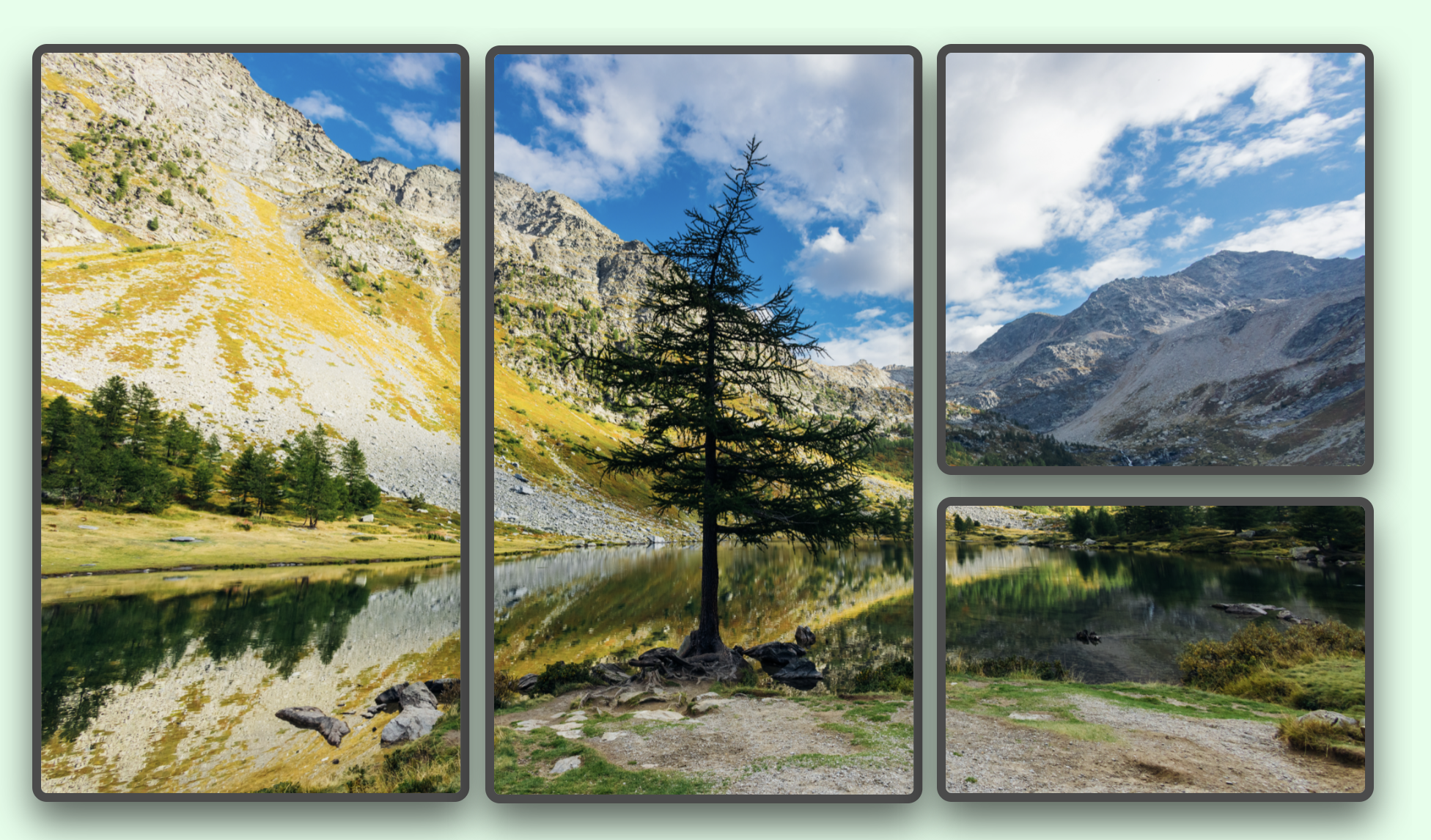 Follow these steps to configure your video wall without needing a video wall controller.
## Hardware Setup
1. Connect all your displays to individual signage players
2. Ensure all players are connected to the same network
3. Register all screens in your Pickcel account
4. Note down the IP addresses of all players
5. Designate one player as the "Master" device
6. Configure the remaining players as "Slave" devices
Once the devices are ready, go to apps in console and search for wall craft.
Follow these steps to configure your video wall without needing a video wall controller.
## Hardware Setup
1. Connect all your displays to individual signage players
2. Ensure all players are connected to the same network
3. Register all screens in your Pickcel account
4. Note down the IP addresses of all players
5. Designate one player as the "Master" device
6. Configure the remaining players as "Slave" devices
Once the devices are ready, go to apps in console and search for wall craft.
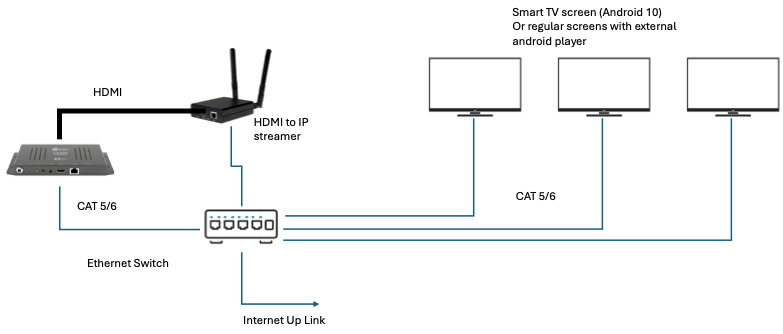 ## Creating & Configuring Wall Craft App
1. Search for wall craft in Pickcel's Appstore
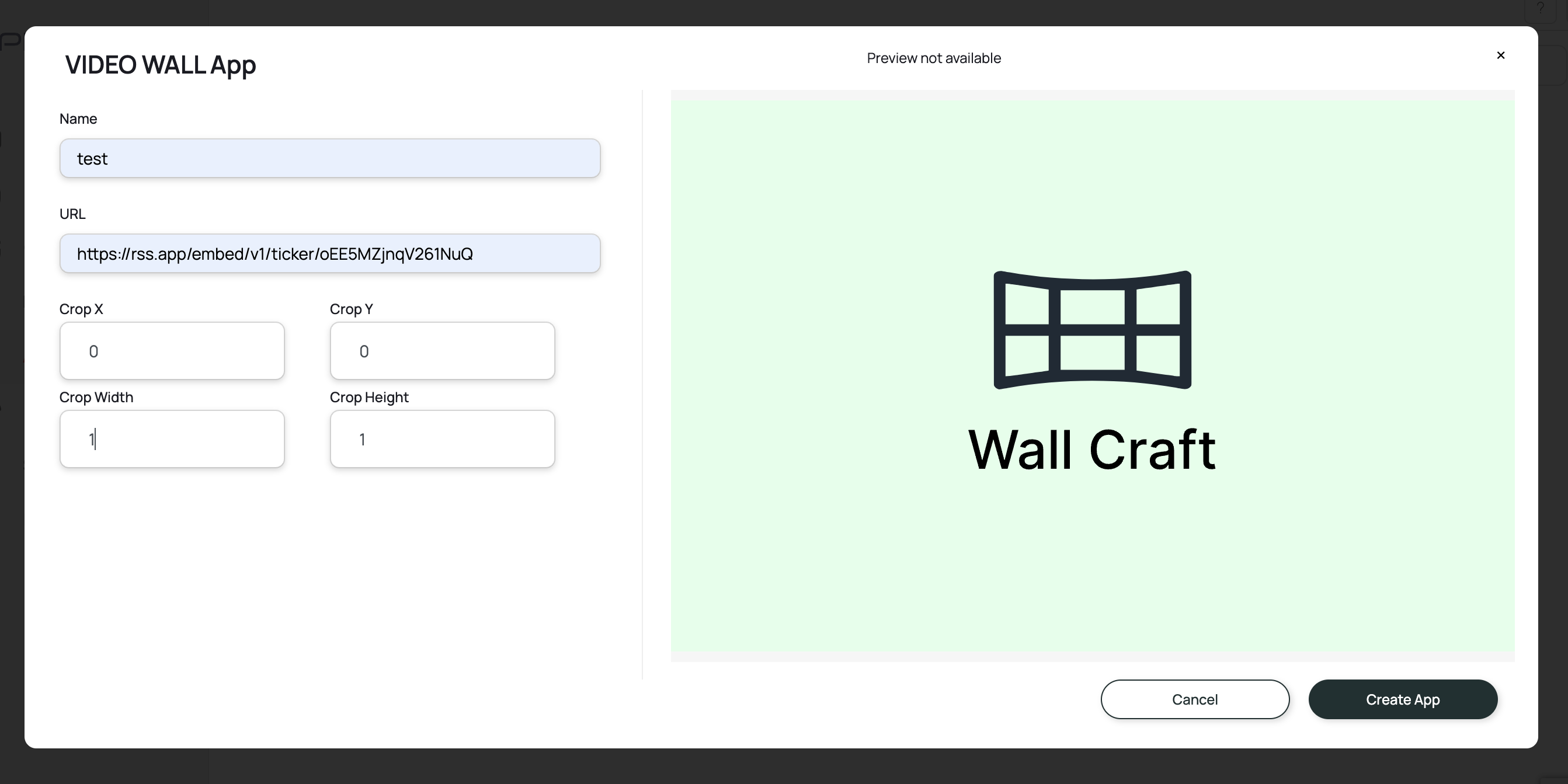
2. Create wall craft app by providing all the required details
3. Enter the coordinates of the content to be played on the screens as explained below
## To play sync content on multiple screens
Create Wall craft app with these coordinates - x: 0, y: 0, width: 1, height: 1
## Creating & Configuring Wall Craft App
1. Search for wall craft in Pickcel's Appstore
2. Create wall craft app by providing all the required details
3. Enter the coordinates of the content to be played on the screens as explained below
## To play sync content on multiple screens
Create Wall craft app with these coordinates - x: 0, y: 0, width: 1, height: 1
 1. Add this app to a composition
2. Publish this master composition to the Master device and the device will start playing the contents in sync through the IP-Streaming device across all screens.
## To play content on a Symmetric Video Wall
1. Add this app to a composition
2. Publish this master composition to the Master device and the device will start playing the contents in sync through the IP-Streaming device across all screens.
## To play content on a Symmetric Video Wall
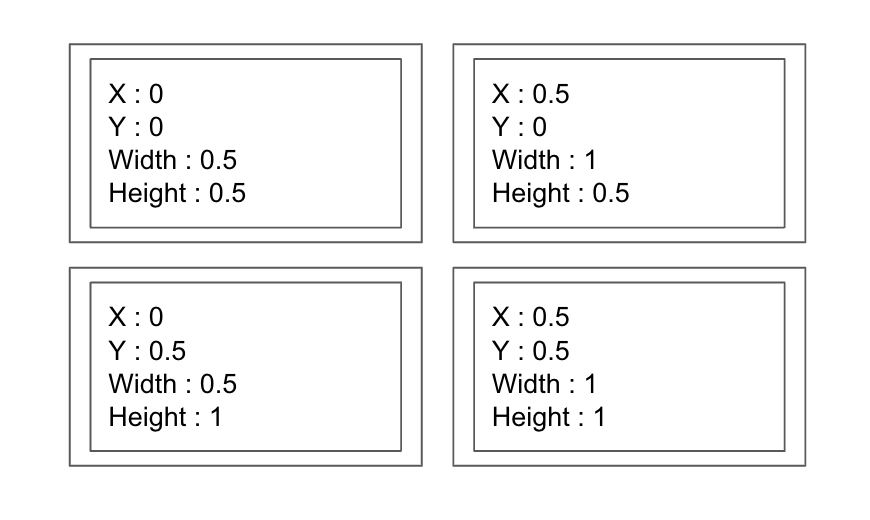
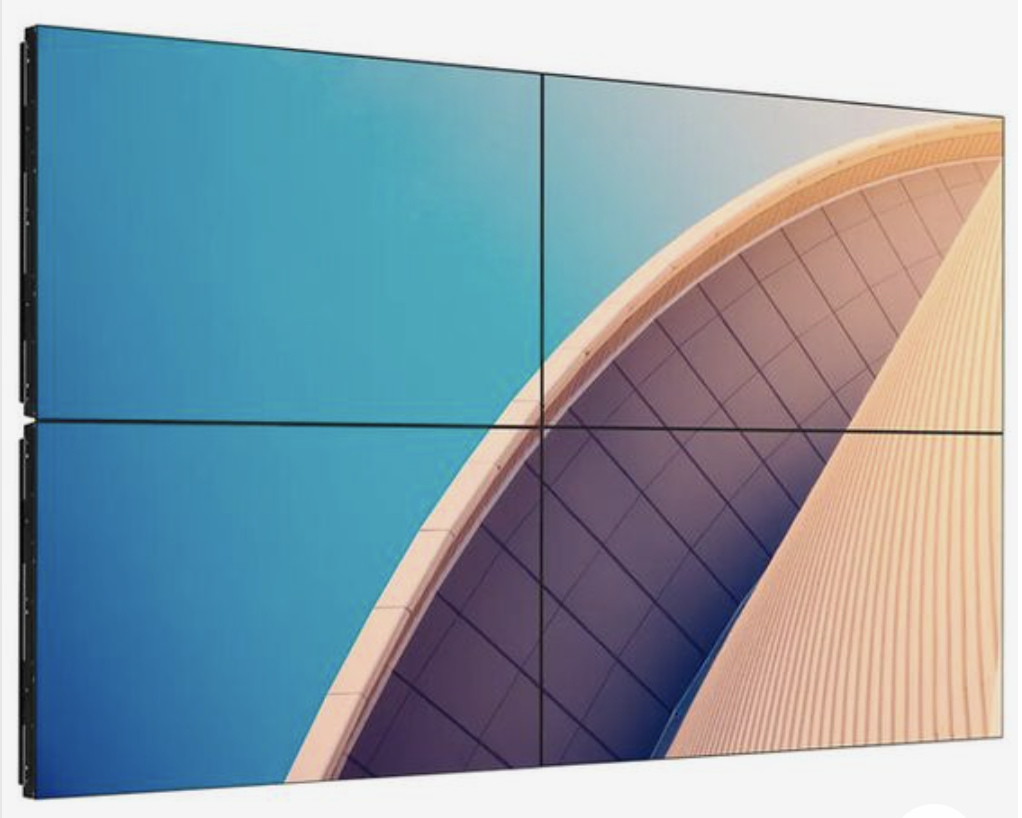 Here is an example for 2×2 video wall setup:
* **Left\_Top\_Screen:** x: 0, y: 0, width: 0.5, height: 0.5
* **Right\_Top\_Screen:** x: 0.5, y: 0, width: 1, height: 0.5
* **Left\_Bottom\_Screen:** x: 0, y: 0.5, width: 0.5, height: 1
* **Right\_Bottom\_Screen:** x: 0.5, y: 0.5, width: 1, height: 1
Here is an example for 2×2 video wall setup:
* **Left\_Top\_Screen:** x: 0, y: 0, width: 0.5, height: 0.5
* **Right\_Top\_Screen:** x: 0.5, y: 0, width: 1, height: 0.5
* **Left\_Bottom\_Screen:** x: 0, y: 0.5, width: 0.5, height: 1
* **Right\_Bottom\_Screen:** x: 0.5, y: 0.5, width: 1, height: 1
 1. Create a separate compositions for each screen with the associated wall craft app
2. Schedule the compositions to the signage screens where content needs to be played in sync
## Publishing the content to the screens
Create master composition where the actual contents are added to the composition that needs to be played on the screens.
## To play content on an Asymmetric Video Wall
1. Create a separate compositions for each screen with the associated wall craft app
2. Schedule the compositions to the signage screens where content needs to be played in sync
## Publishing the content to the screens
Create master composition where the actual contents are added to the composition that needs to be played on the screens.
## To play content on an Asymmetric Video Wall
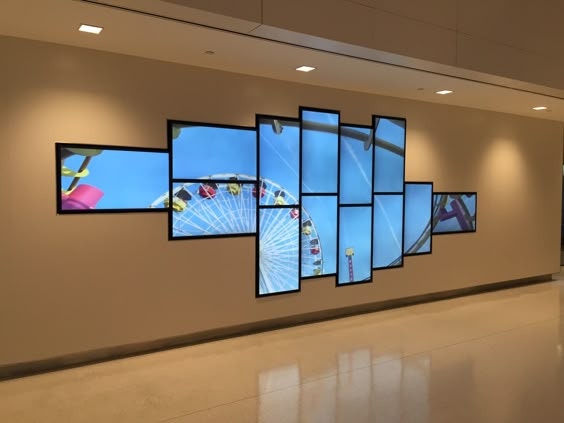 Preparing coordinates for an asymmetric video wall can be challenging. If you need assistance with these calculations or have any other queries, please don't hesitate to reach out to our \[support team]\(mailto:[support@pickcel.com](mailto:support@pickcel.com)?subject=Video Wall configuration with Wall Craft); we're here to help!
**Related Support Links:**
* [What is Composition? How to create a Composition?](/compositions/compositions)
Preparing coordinates for an asymmetric video wall can be challenging. If you need assistance with these calculations or have any other queries, please don't hesitate to reach out to our \[support team]\(mailto:[support@pickcel.com](mailto:support@pickcel.com)?subject=Video Wall configuration with Wall Craft); we're here to help!
**Related Support Links:**
* [What is Composition? How to create a Composition?](/compositions/compositions)