> ## Documentation Index
> Fetch the complete documentation index at: https://docs.pickcel.com/llms.txt
> Use this file to discover all available pages before exploring further.
# How to add X (formerly Twitter) from the Pickcel app store?
> Learn how to integrate X (formerly Twitter) with Pickcel to display posts on your digital signage screens
 Click on **Apps** > select **Social** from the categories.
.Tq27Y45yVU-G.png) Hover over the X app and click on **Create App** button.
Hover over the X app and click on **Create App** button.
.5K3SM0--SSrB.png) Click on the **Login with X** button.
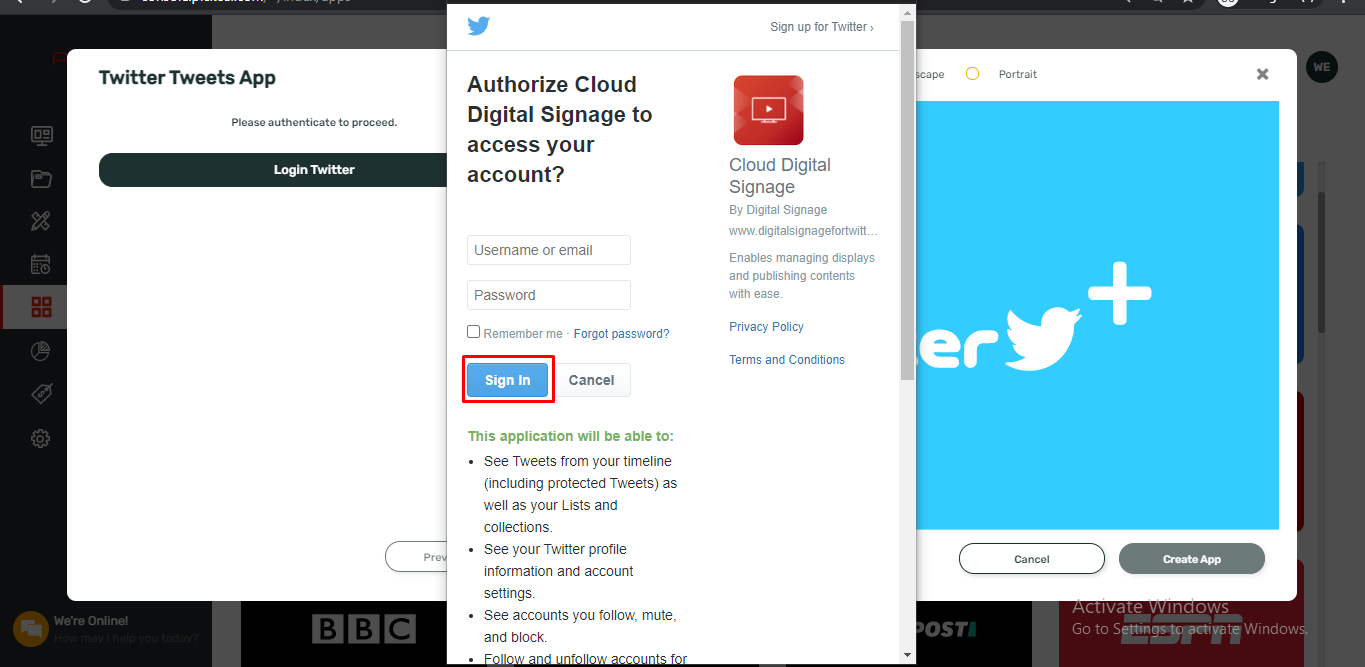
Enter your X username and password > Click on **Sign In**.
Click on the **Login with X** button.
Enter your X username and password > Click on **Sign In**.
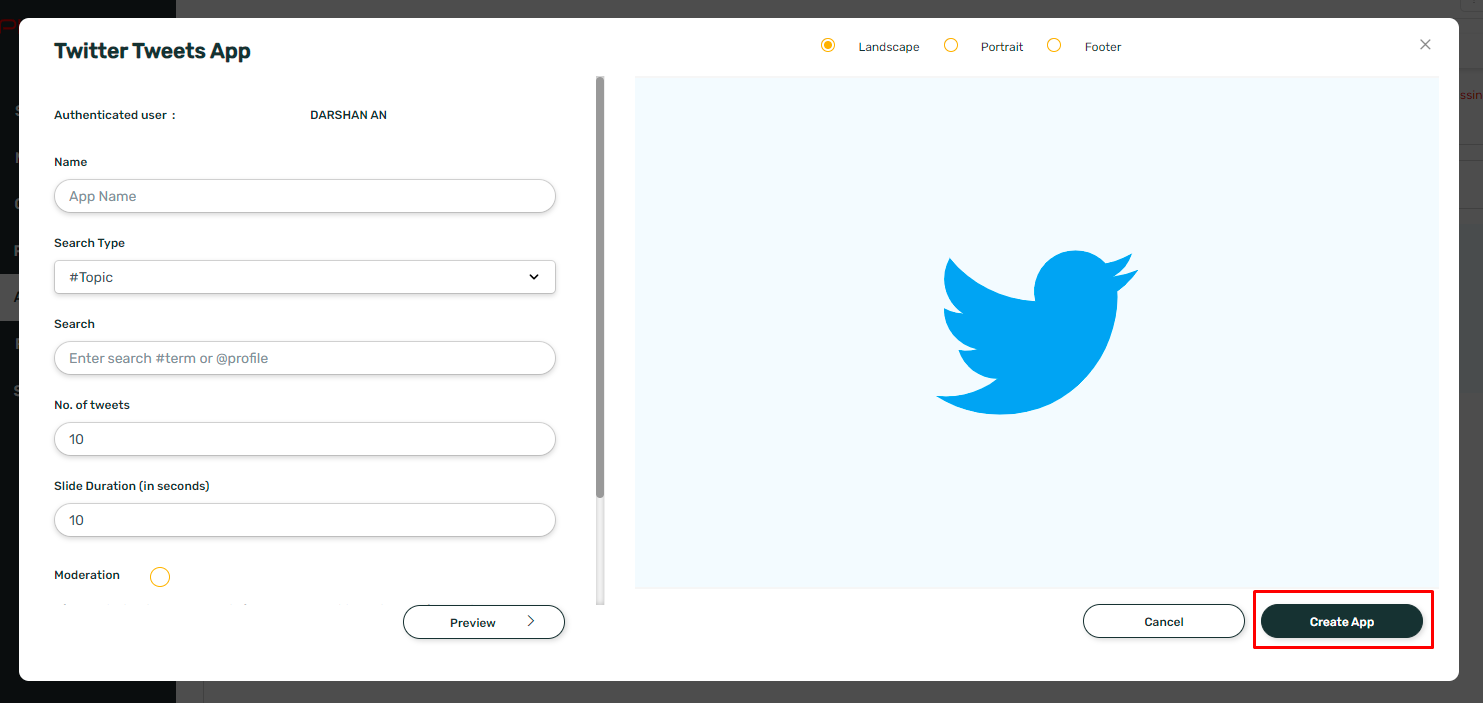
 Configure the app with the required information and click on **Create App**.
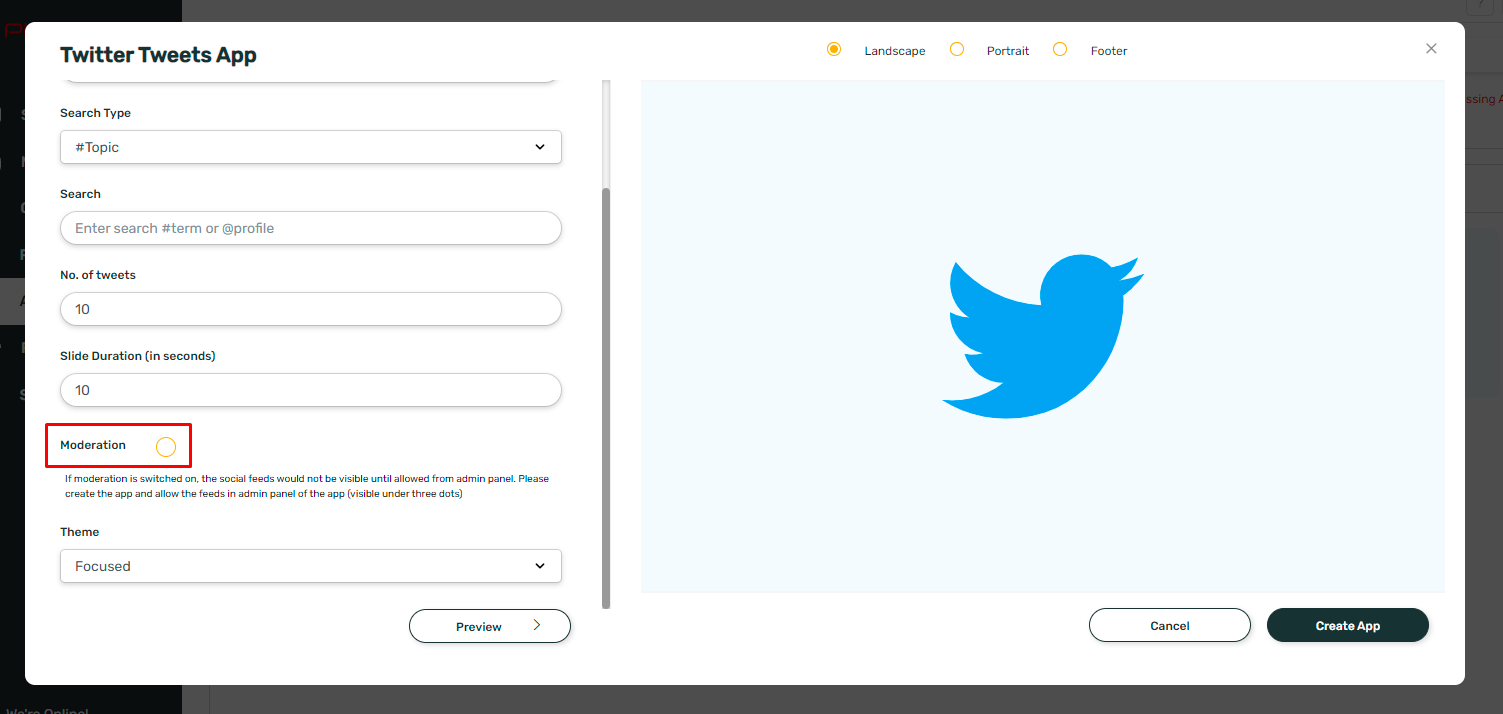
 * You may or may not enable **Moderation**. The moderation option allows you to manually select posts. If the option is disabled, the X posts are displayed automatically in the order of newest to oldest.
* At this stage, you can preview the app only if the moderation option is disabled.
* You may or may not enable **Moderation**. The moderation option allows you to manually select posts. If the option is disabled, the X posts are displayed automatically in the order of newest to oldest.
* At this stage, you can preview the app only if the moderation option is disabled.
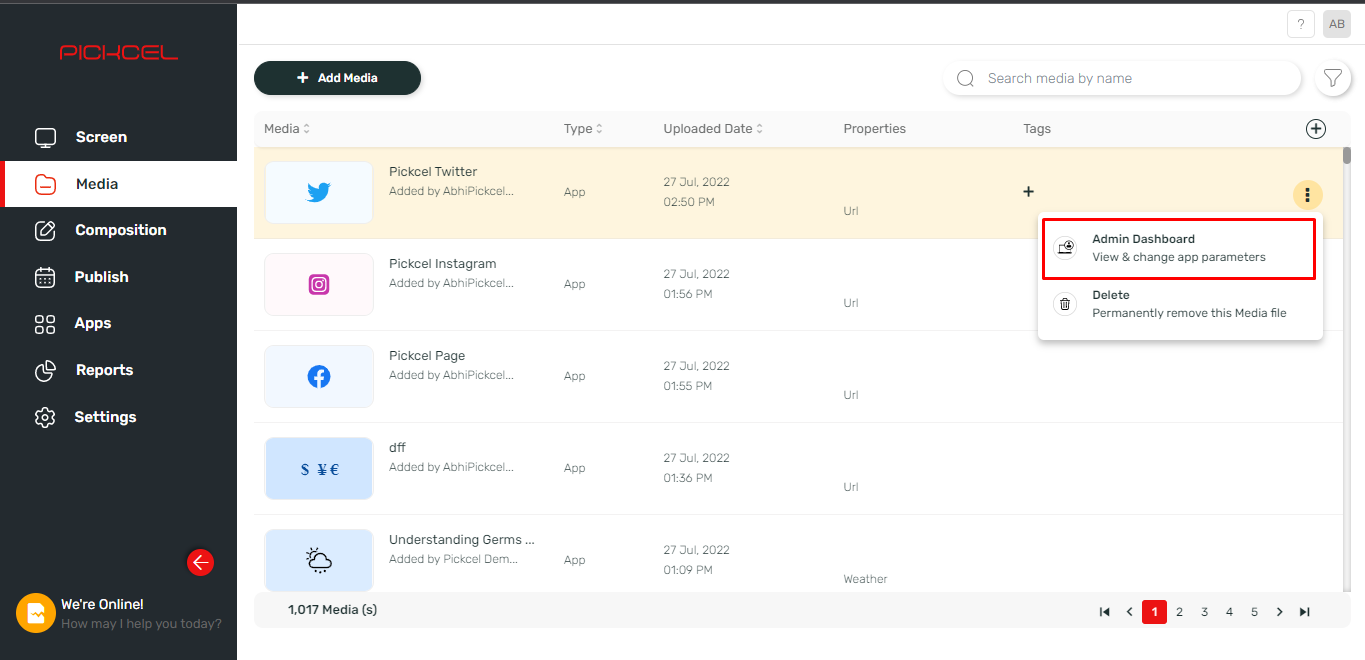
 If you have enabled moderation, then go to the **Media** Module tab. Hover over the X app that you just added and click on the **Three Dots** and Click on **Admin Dashboard**.
If you haven't enabled moderation, then no need to scroll down any further, your app is ready to use.
If you have enabled moderation, then go to the **Media** Module tab. Hover over the X app that you just added and click on the **Three Dots** and Click on **Admin Dashboard**.
If you haven't enabled moderation, then no need to scroll down any further, your app is ready to use.
 Click on the **Fetch Content** button.
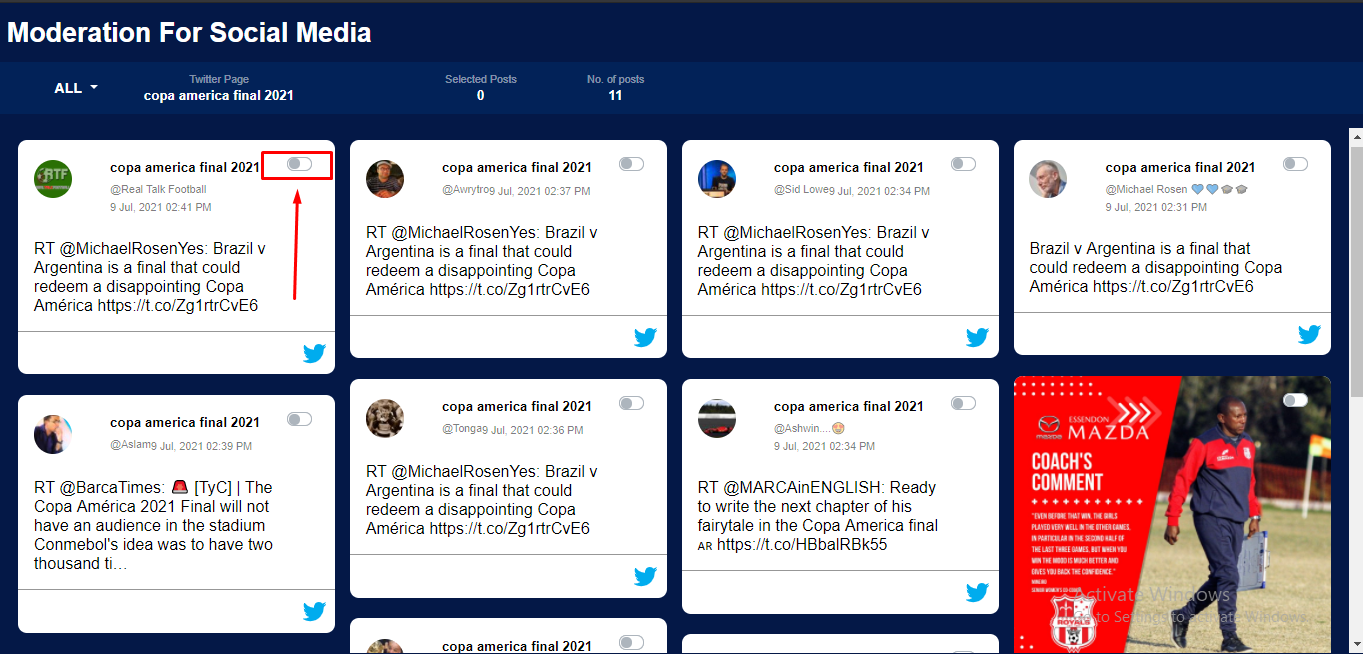
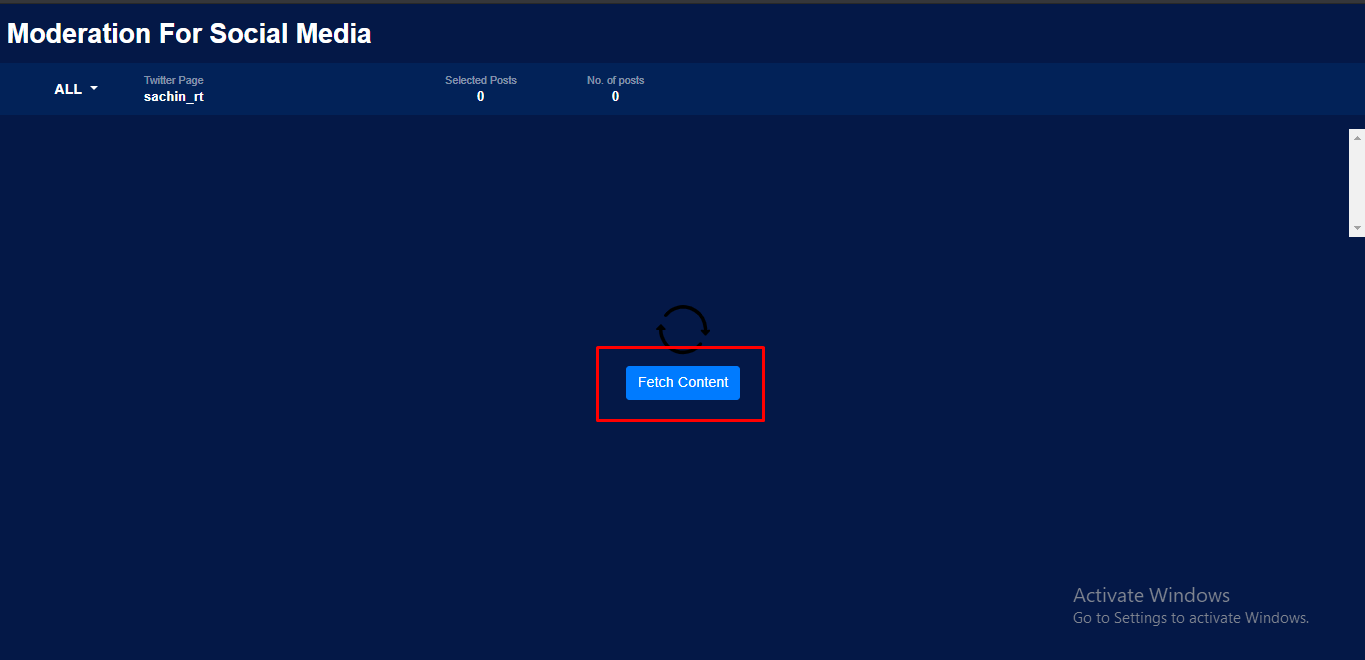 Enable the posts that you want to display on your screen.