> ## Documentation Index
> Fetch the complete documentation index at: https://docs.pickcel.com/llms.txt
> Use this file to discover all available pages before exploring further.

# How to add the Stocks app from the Pickcel App Store?

> Learn how to display stock market information on your digital signage screens
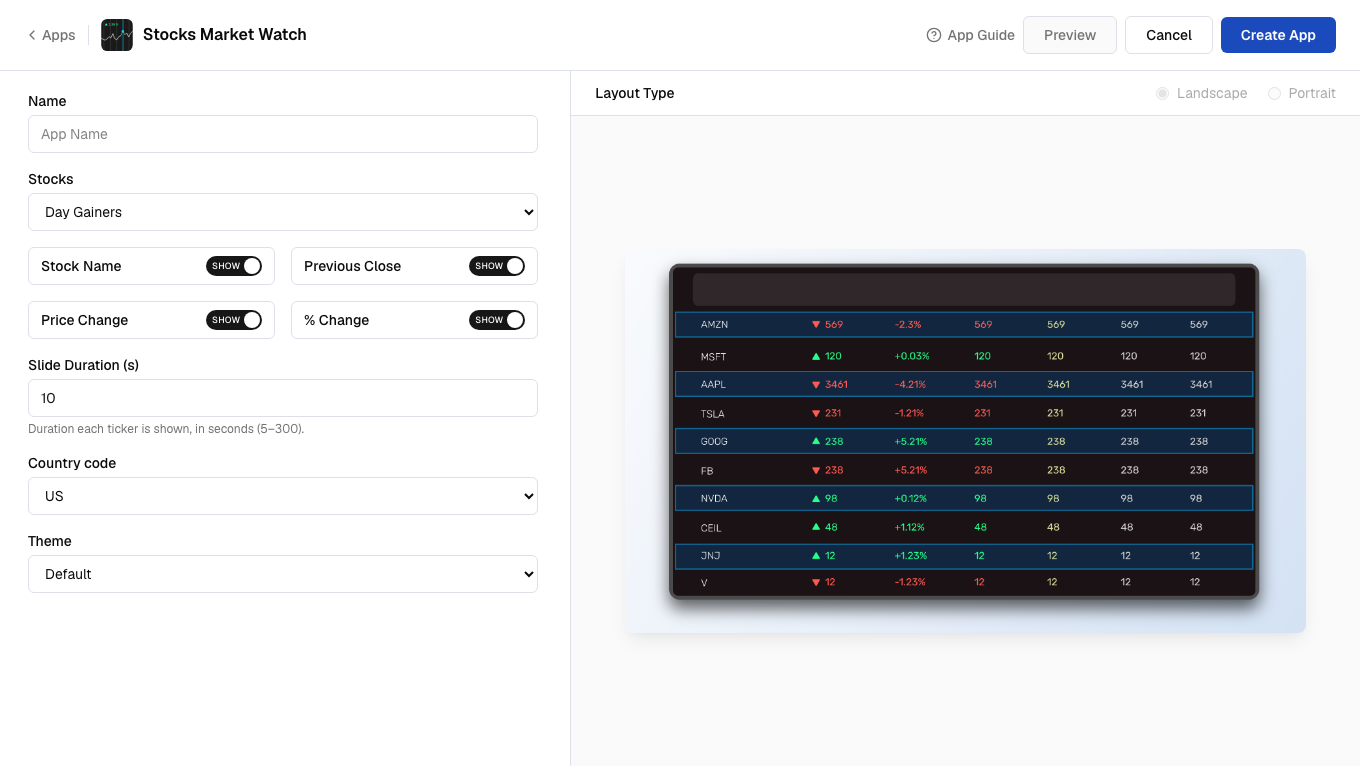
<Frame>
  <img src="https://cdn.pickcel.com/images/pickcel-docs/stocks/stocks-03-click-create-app.JejnNTspTNBE.png" alt="Stocks Market Watch app in the Pickcel App Store" />
</Frame>

<Steps>
  <Step title="Login and go to Apps module">
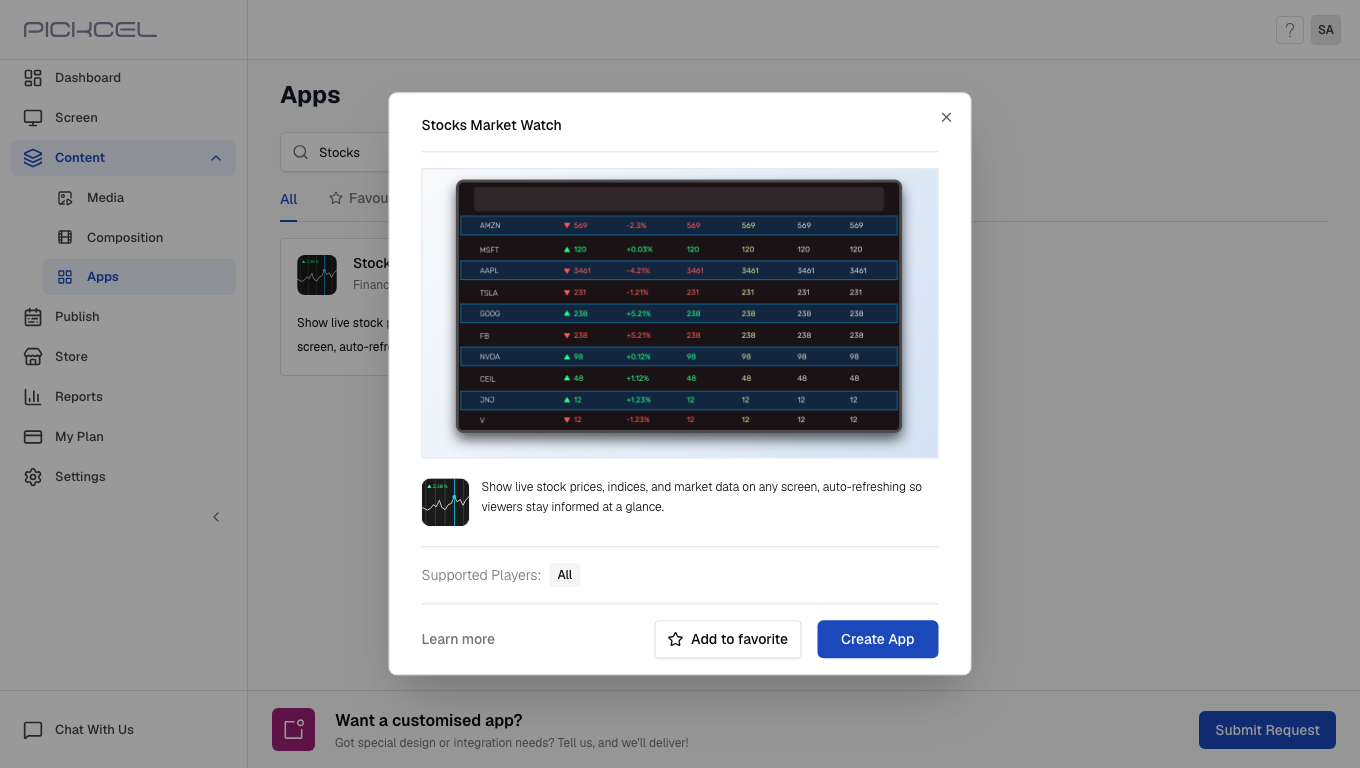
    [Login to your Pickcel account](https://console.pickcel.com/). Go to the **Apps** module.
    <Frame>
      <img src="https://cdn.pickcel.com/images/pickcel-docs/stocks/stocks-01-login-and-go-to-apps-module.r-g9R74cFoFJ.png" alt="Login and go to Apps module" />
    </Frame>
  </Step>

  <Step title="Search for Stocks app">
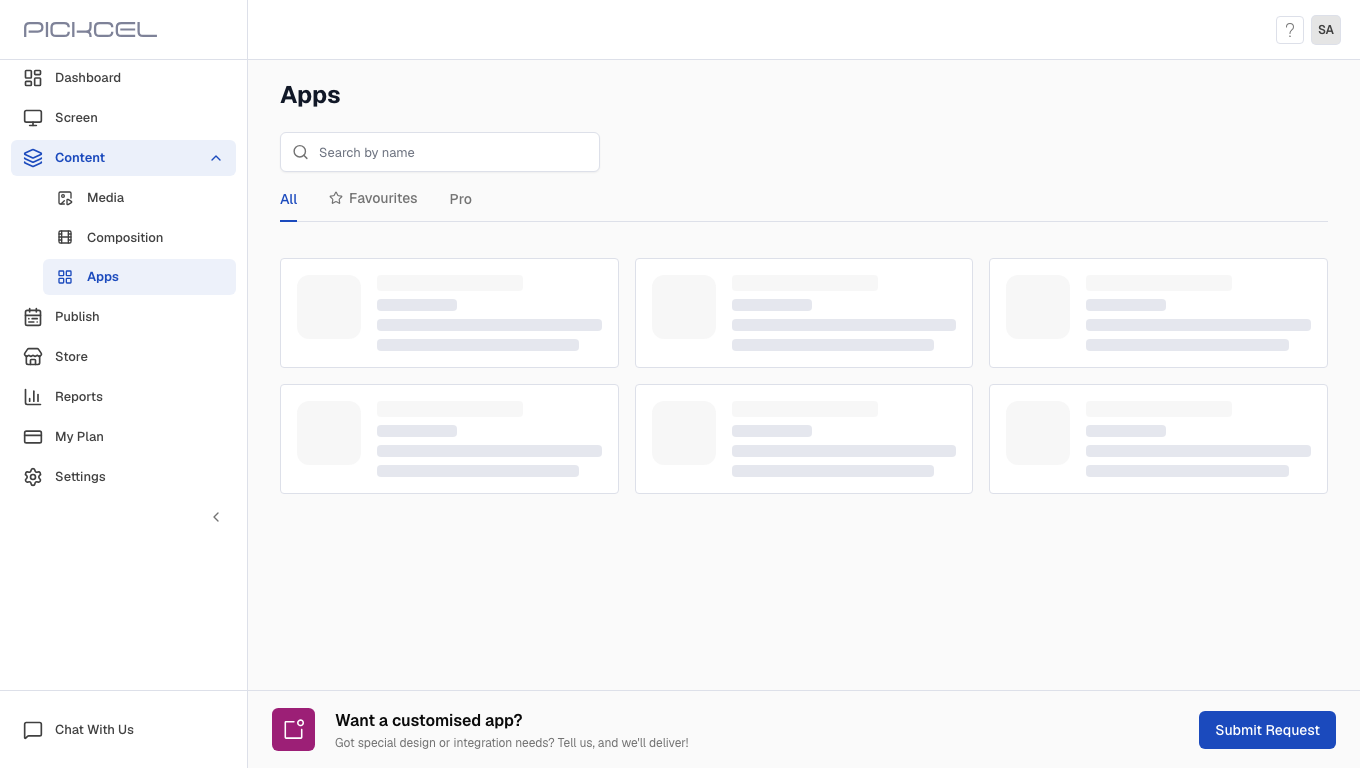
    Search for the **Stocks Market Watch** app using the search field.
    <Frame>
      <img src="https://cdn.pickcel.com/images/pickcel-docs/stocks/stocks-02-search-for-stocks-app.qM23S8iiAAve.png" alt="Search for Stocks app" />
    </Frame>
  </Step>

  <Step title="Click Create App">
    Click the **Stocks Market Watch** app card, then click **Create App** in the app details panel.

    <Frame>
      <img src="https://cdn.pickcel.com/images/pickcel-docs/stocks/stocks-03-click-create-app.JejnNTspTNBE.png" alt="Click Create App" />
    </Frame>
  </Step>

  <Step title="Enter app name">
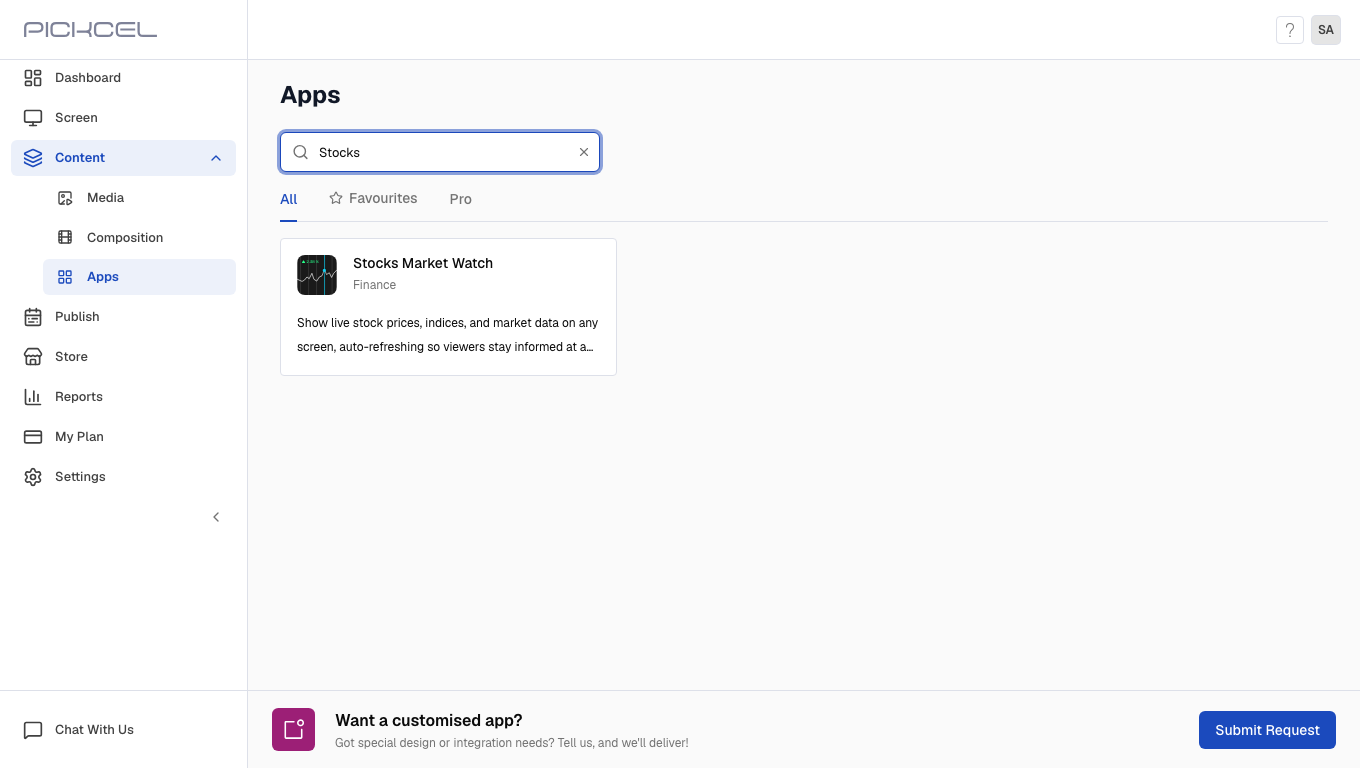
    Enter a **Name** for the app.

    <Frame>
      <img src="https://cdn.pickcel.com/images/pickcel-docs/stocks/stocks-04-enter-app-name.lrfBYggoxr2y.png" alt="Enter app name" />
    </Frame>
  </Step>

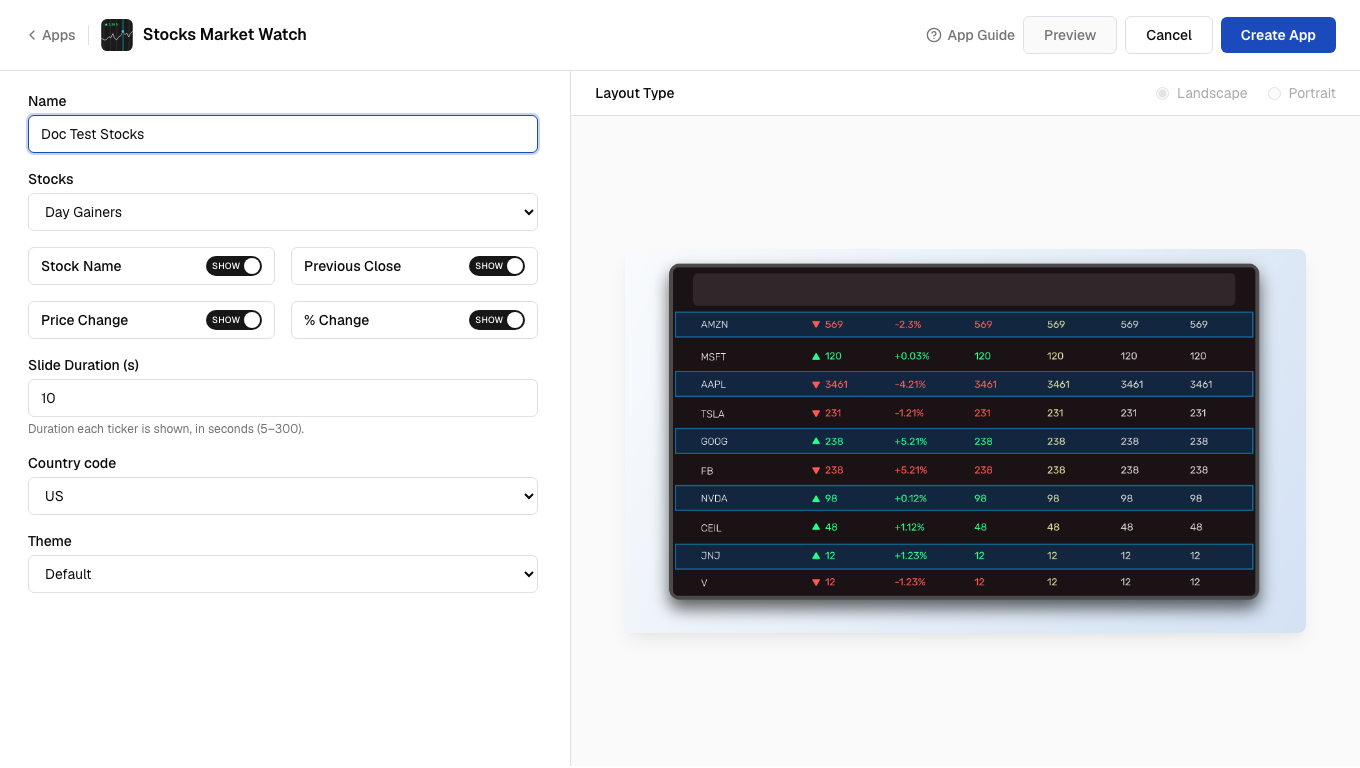
  <Step title="Select stocks list">
    Select a **Stocks** list (Day Gainers, Day Losers, or Most Actives).
    <Frame>
      <img src="https://cdn.pickcel.com/images/pickcel-docs/stocks/stocks-05-select-stocks-list.zs7dGG6xViCd.png" alt="Select stocks list" />
    </Frame>
  </Step>

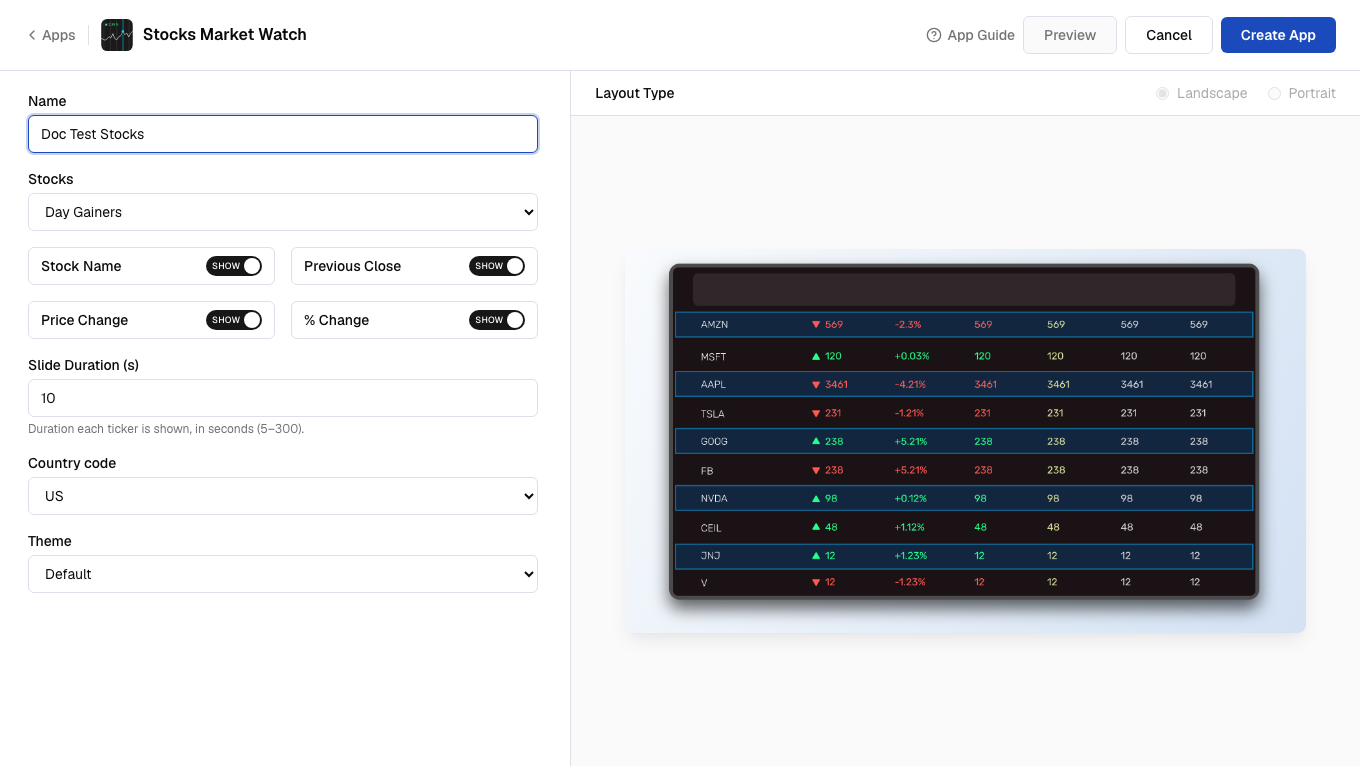
  <Step title="Select values to display">
    Toggle which stock values to **Show** or **Hide** on screen.
    <Frame>
      <img src="https://cdn.pickcel.com/images/pickcel-docs/stocks/stocks-06-select-values-to-display.FA88EMEcliEp.png" alt="Select values to display" />
    </Frame>
  </Step>

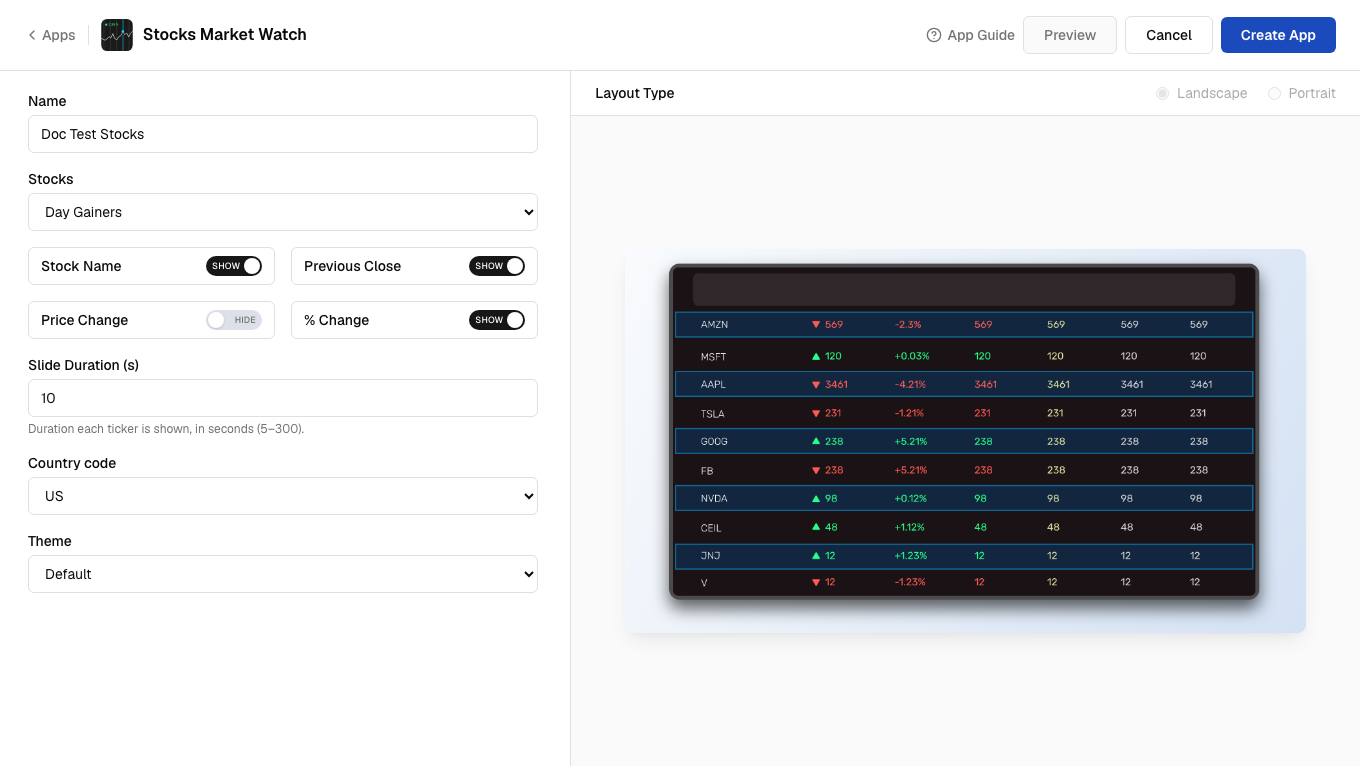
  <Step title="Select slide duration">
    Enter the **Slide Duration (s)** in seconds.
    <Frame>
      <img src="https://cdn.pickcel.com/images/pickcel-docs/stocks/stocks-07-select-slide-duration.-aUnHSKRt_1k.png" alt="Select slide duration" />
    </Frame>
  </Step>

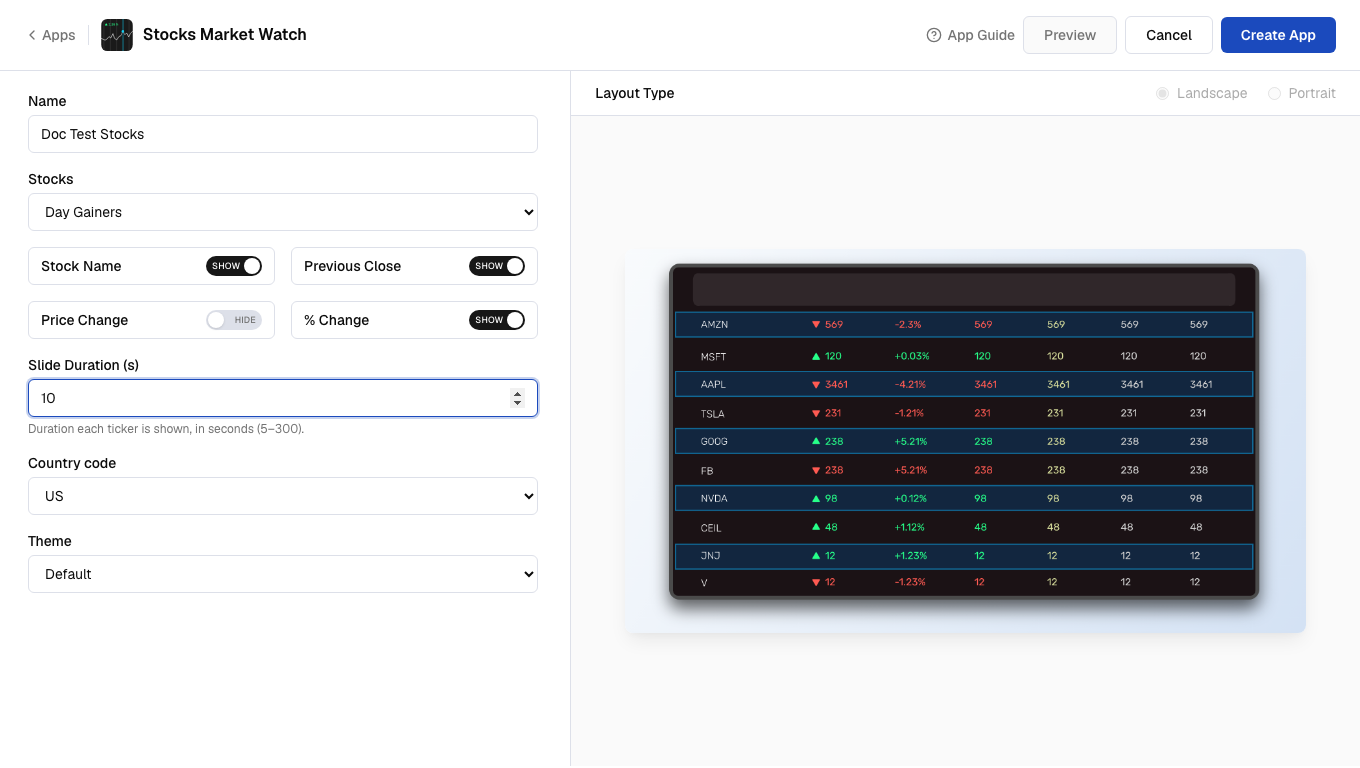
  <Step title="Select country and theme">
    Select the **Country code** and **Theme** for the display.
    <Frame>
      <img src="https://cdn.pickcel.com/images/pickcel-docs/stocks/stocks-08-select-country-and-theme.mbYOQNh2-w7K.png" alt="Select country and theme" />
    </Frame>
  </Step>

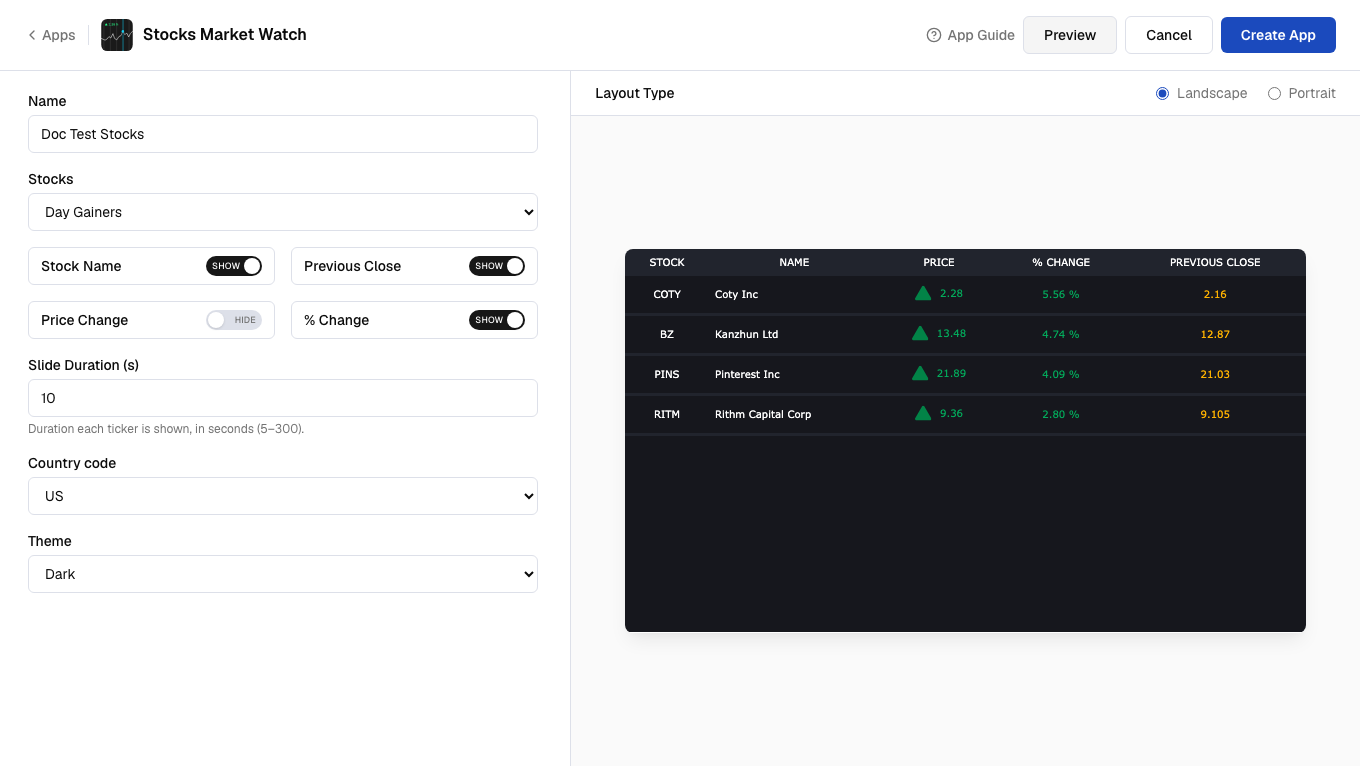
  <Step title="Preview and create">
    Click **Preview**, then click **Create App** to save the app.
    <Frame>
      <img src="https://cdn.pickcel.com/images/pickcel-docs/stocks/stocks-09-preview-and-create.vsulU2HGRw4X.png" alt="Preview and create" />
    </Frame>

    Your app is now ready for use.
  </Step>
</Steps>