> ## Documentation Index
> Fetch the complete documentation index at: https://docs.pickcel.com/llms.txt
> Use this file to discover all available pages before exploring further.
# How to add the Social Wall app from the Pickcel app store?
> Learn how to combine Facebook and Instagram posts into a moderated social media wall on your digital signage screens
This guide shows you how to combine Facebook and Instagram posts from your accounts into a single social wall on your digital signage screens.
**Use cases:**
* Retail stores and cafes can turn a live feed of customer posts and brand content into an always-on social wall.
* Marketing teams can showcase a curated, on-brand mix of Facebook and Instagram posts at events or in the office lobby.
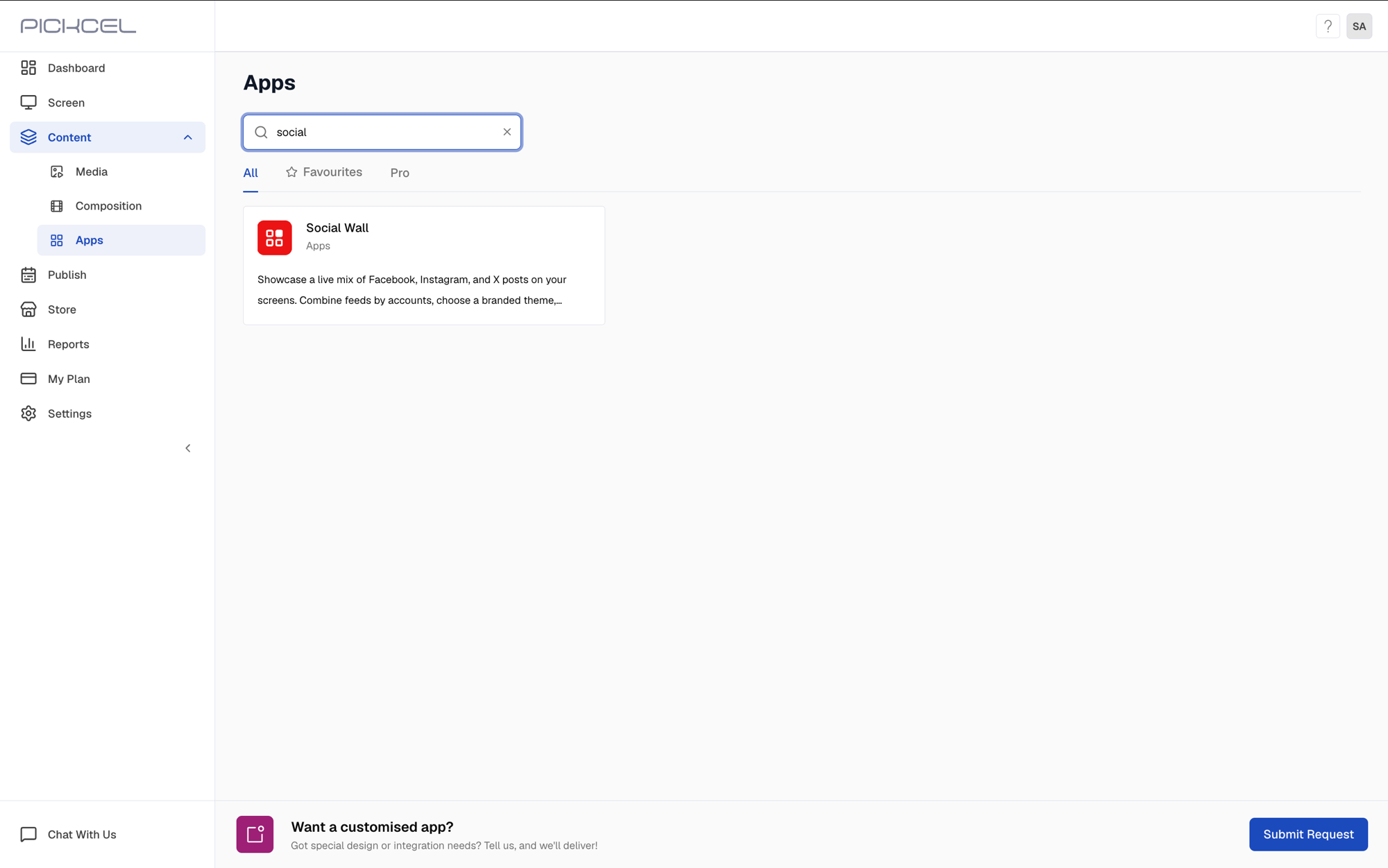
Log in to your [Pickcel account](https://console.pickcel.com/). Go to the **Apps** module and search for **Social Wall**.
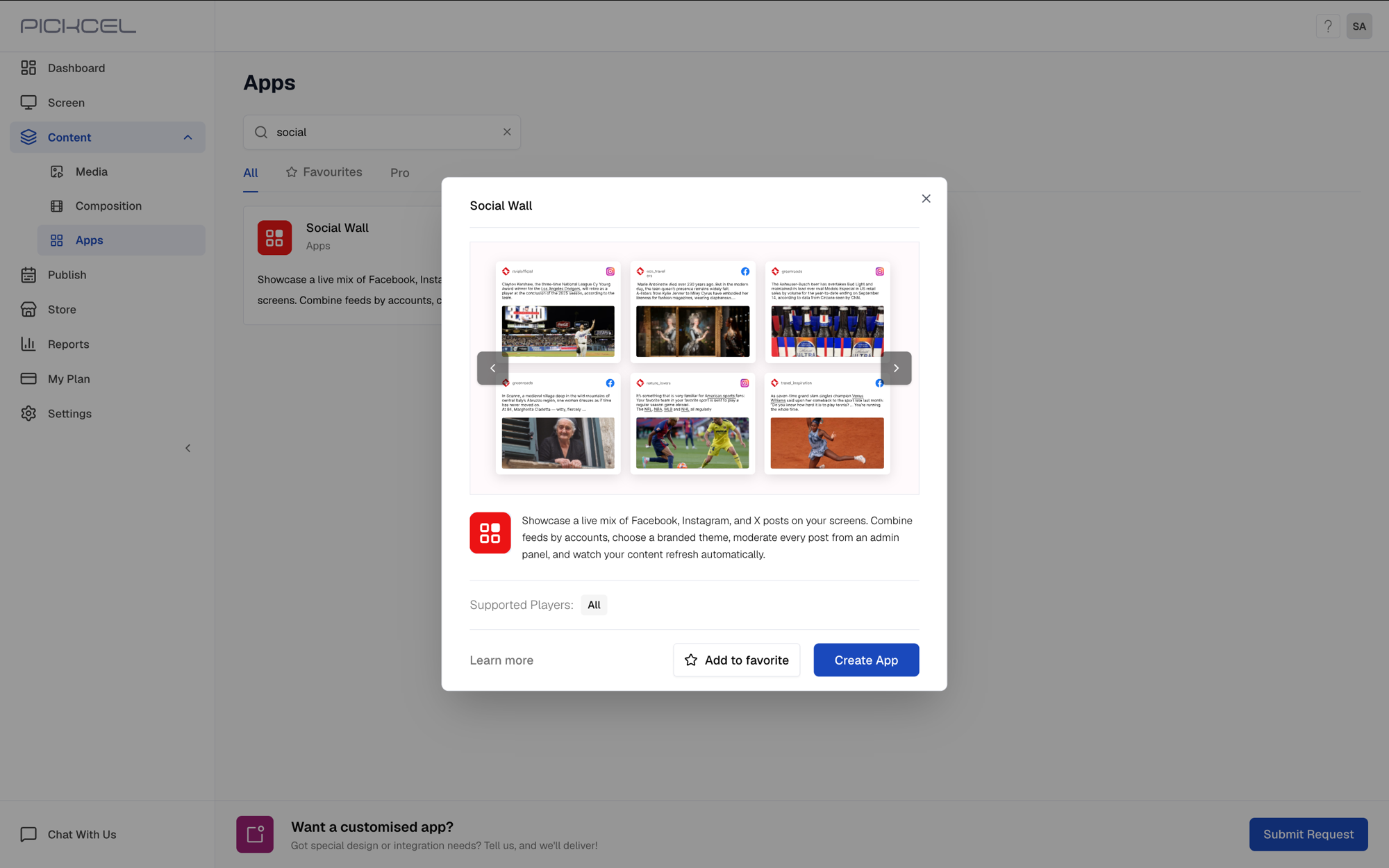
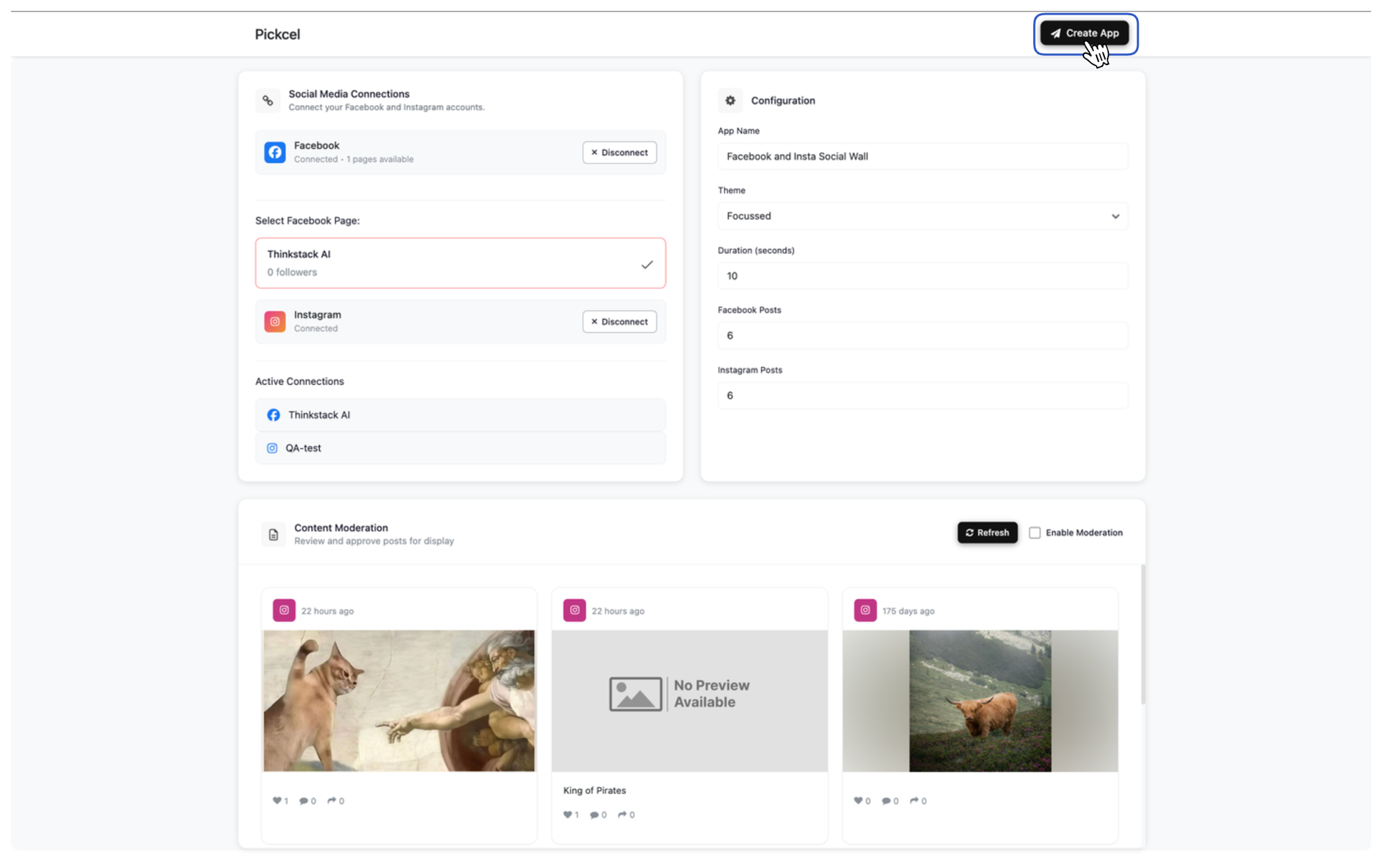
 Click the **Social Wall** app card, then click **Create App** in the app details panel.
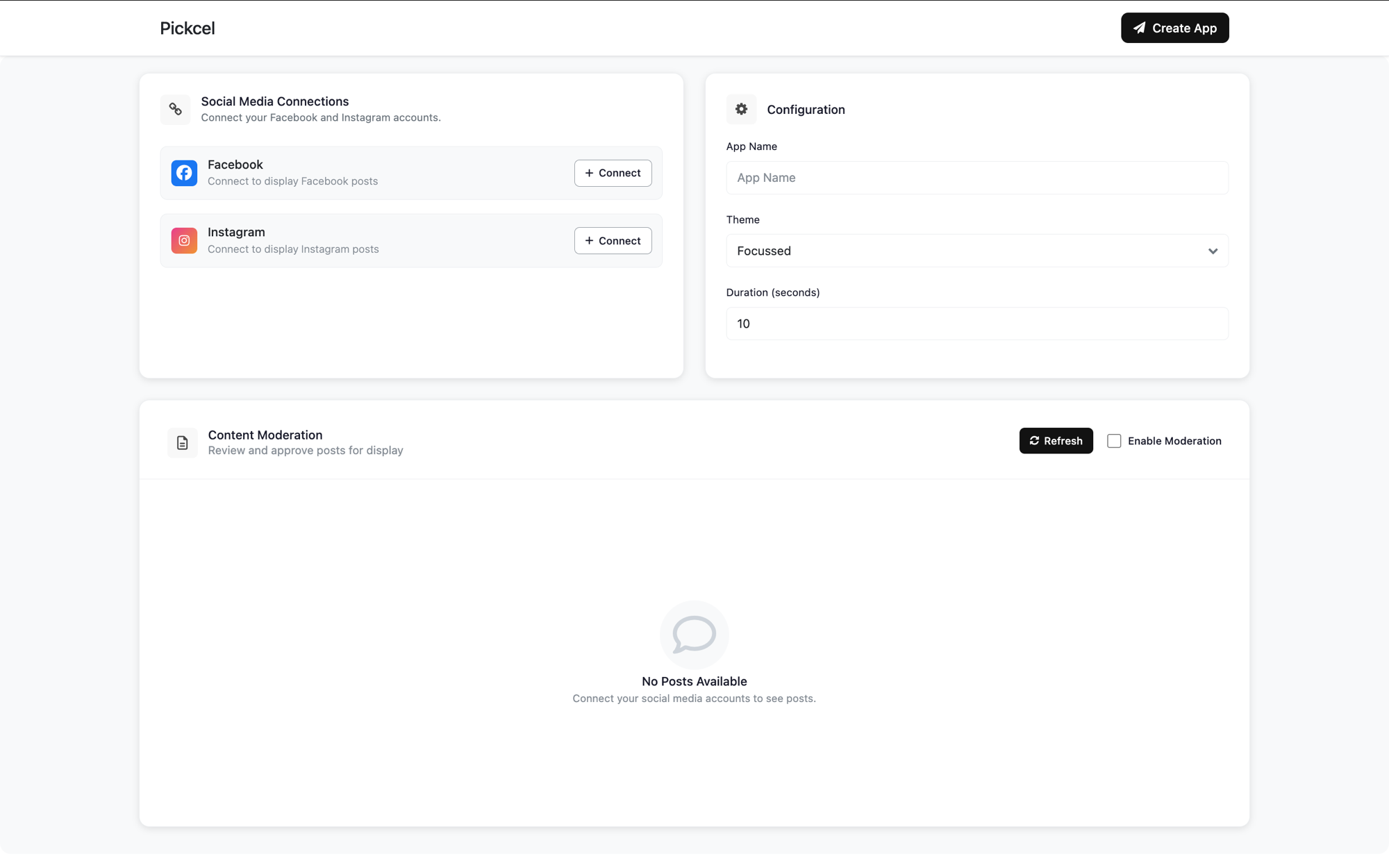
 Under **Social Media Connections**, click **Connect** next to Facebook.
 Select the Facebook page you want to pull posts from. Once connected, it appears under **Active Connections**.
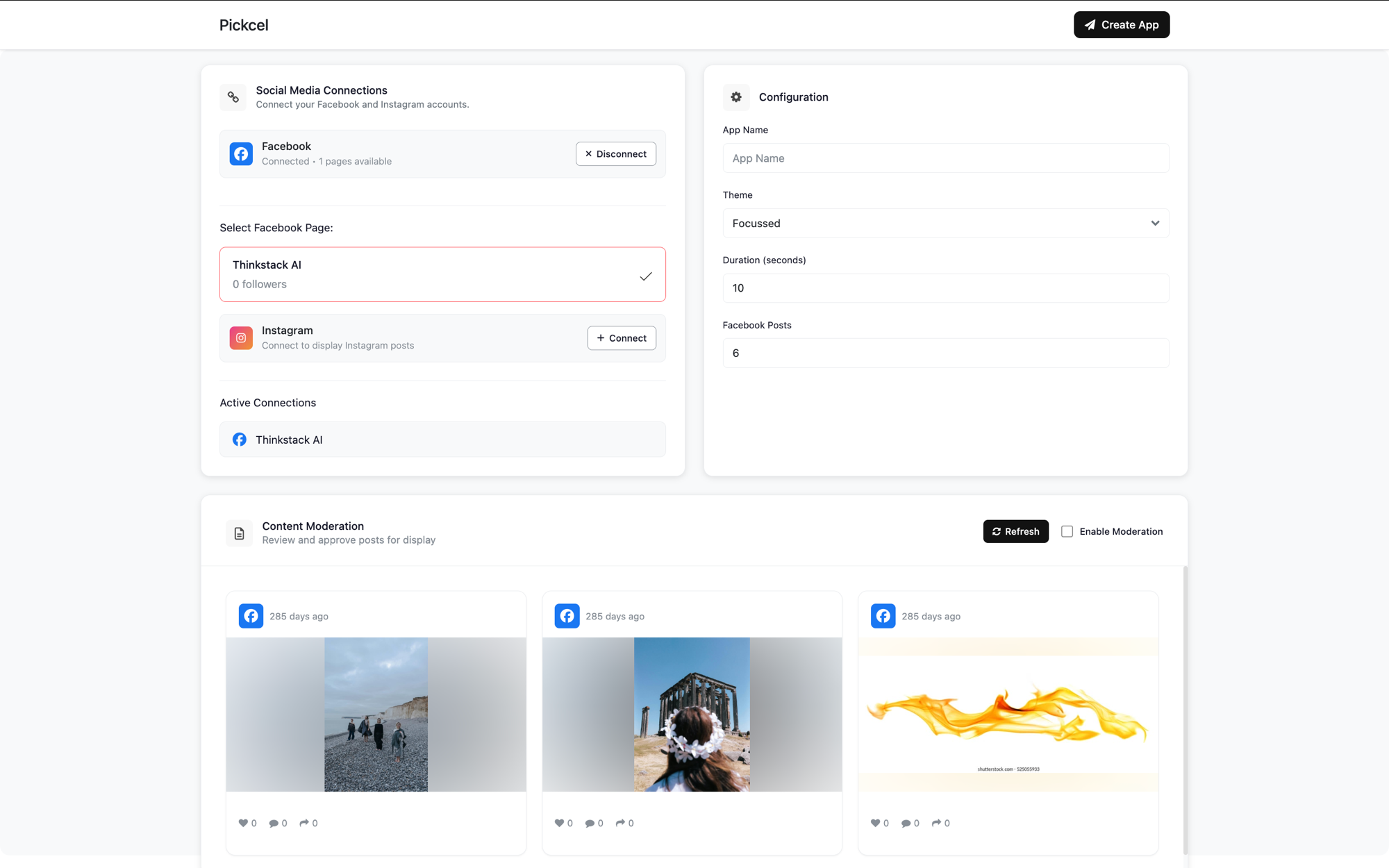 Click **Connect** next to Instagram the same way. Once both accounts are connected, they both appear under **Active Connections**.
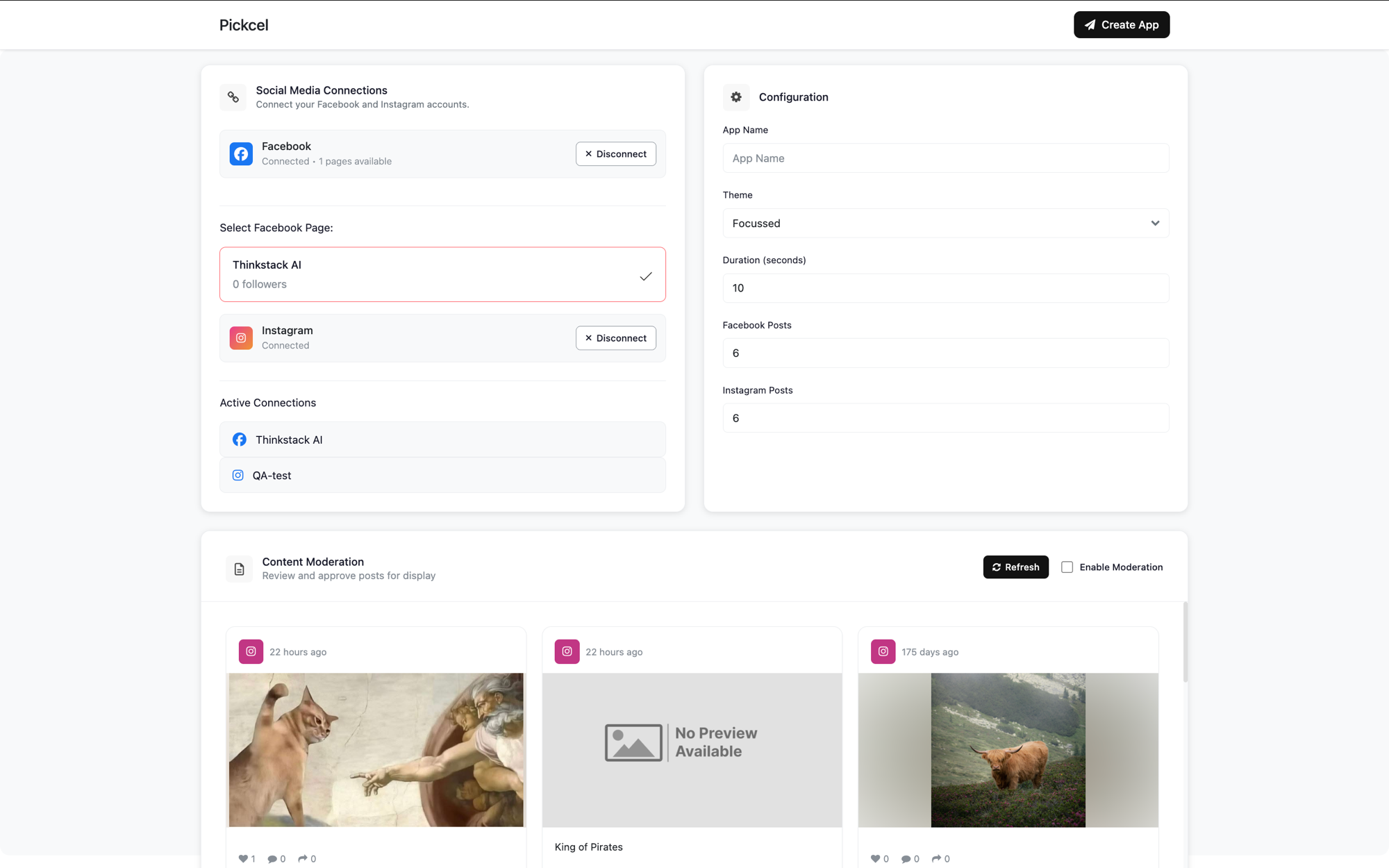 In the **Configuration** panel, enter a **App Name** so you can identify it later in the **Media** section.
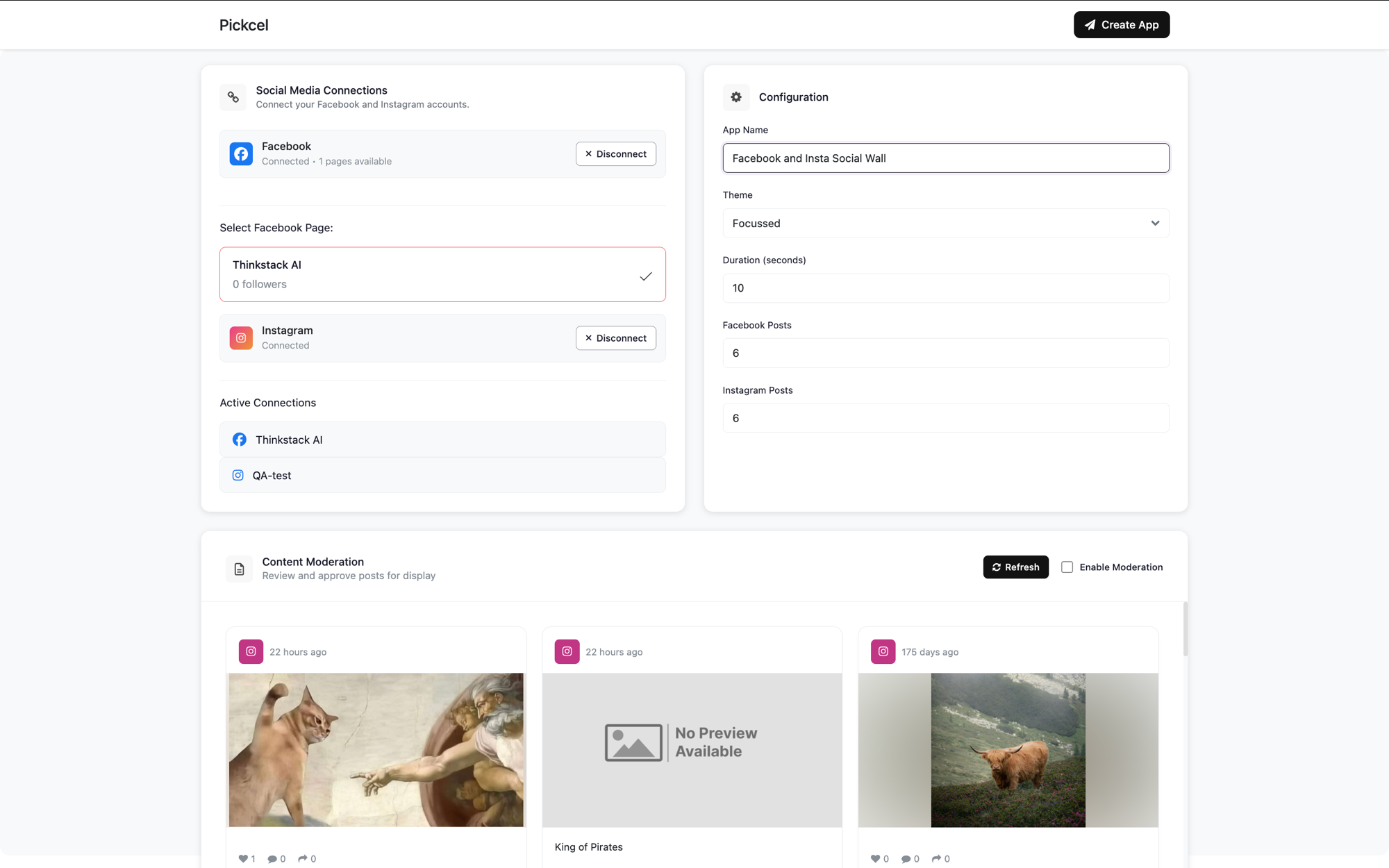 Then choose a **Theme**. Pick **Focussed** to show one post at a time, full screen.
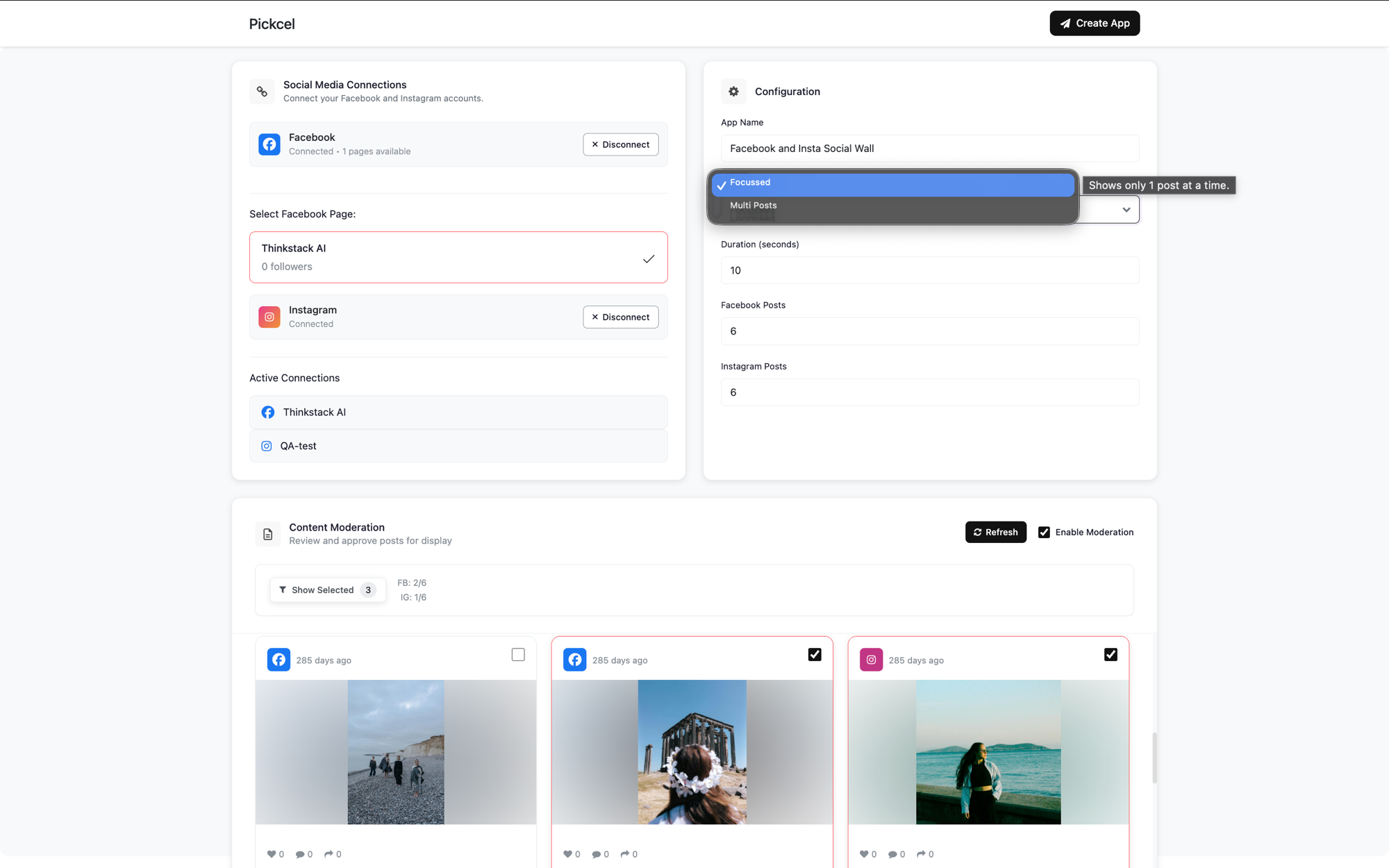 Or pick **Multi Posts** to show several posts together in a grid.
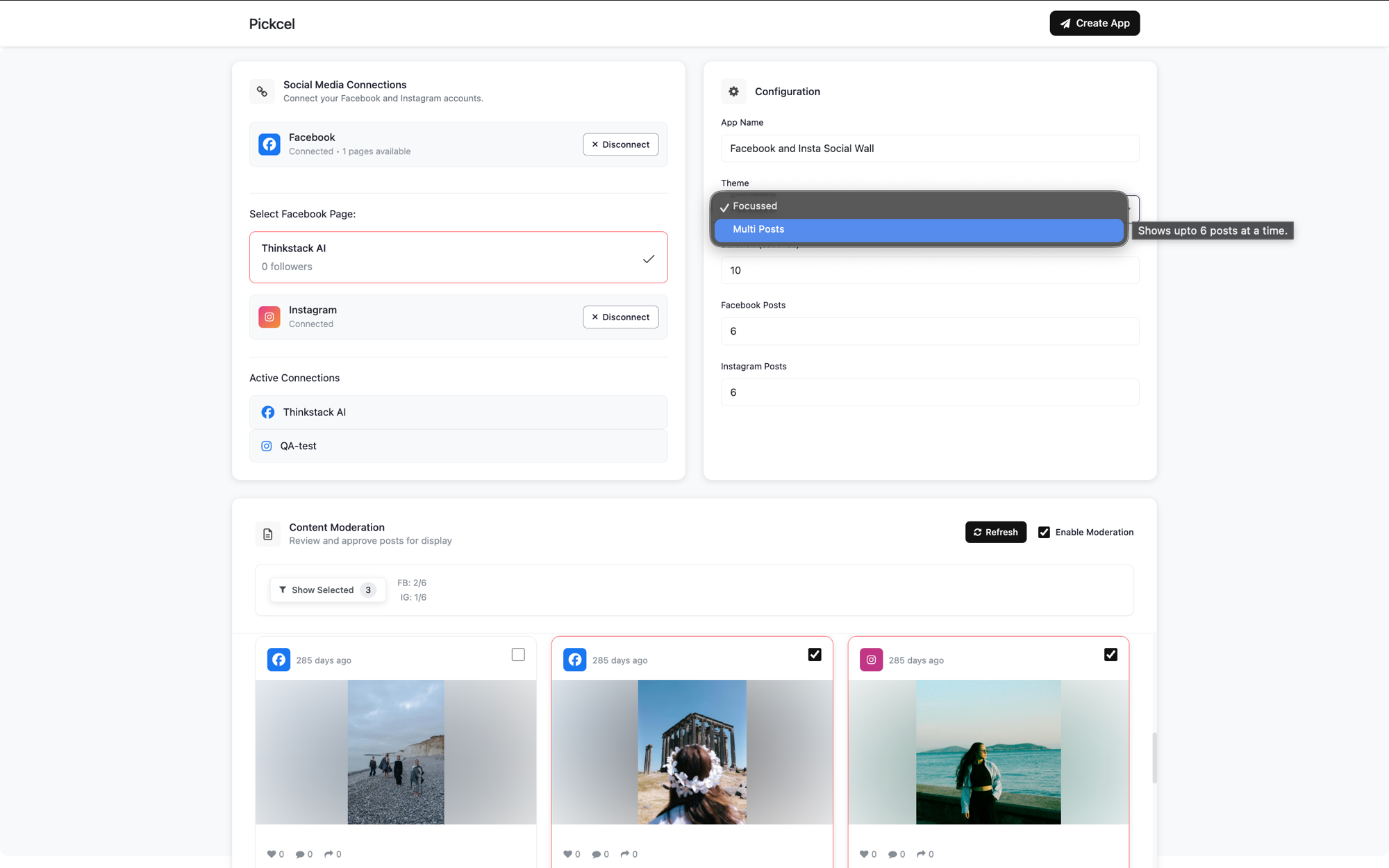 Set the **Duration (seconds)** to decide how long each post stays on screen.
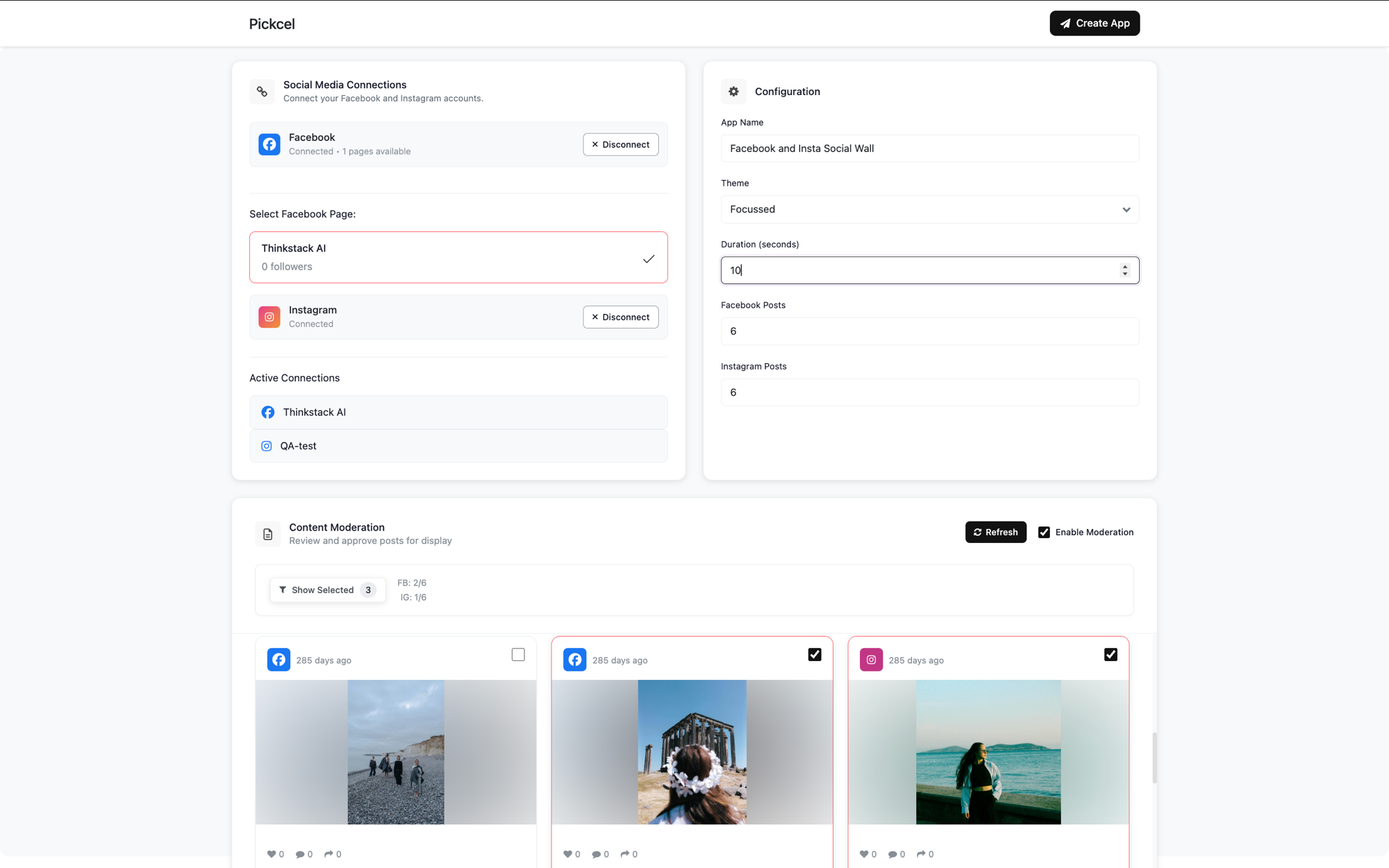 Set **Facebook Posts** and **Instagram Posts** to decide how many recent posts from each account to include in the rotation.
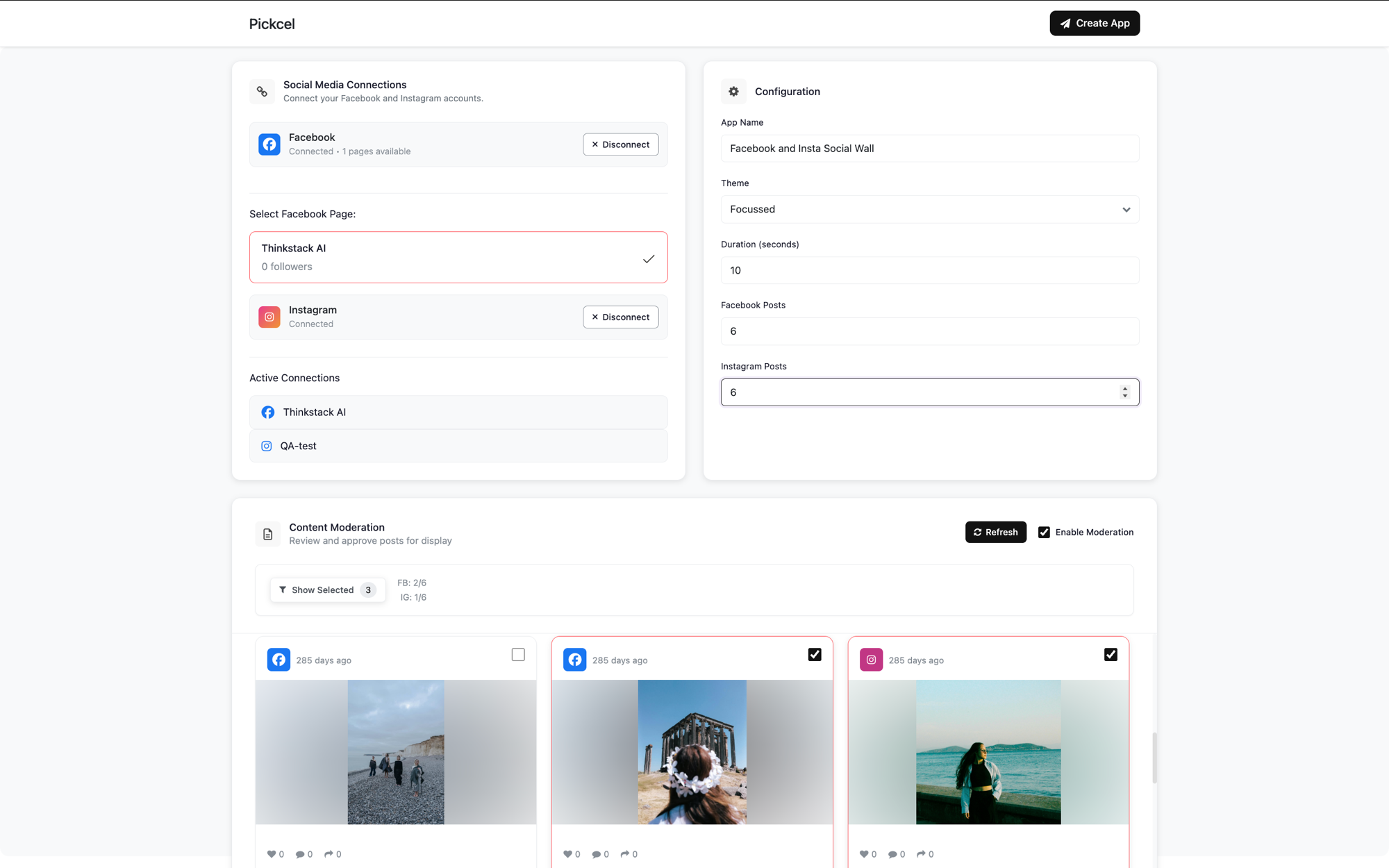 By default, all recent posts from both accounts play automatically. Scroll through the **Content Moderation** panel to see everything that's pulled in.
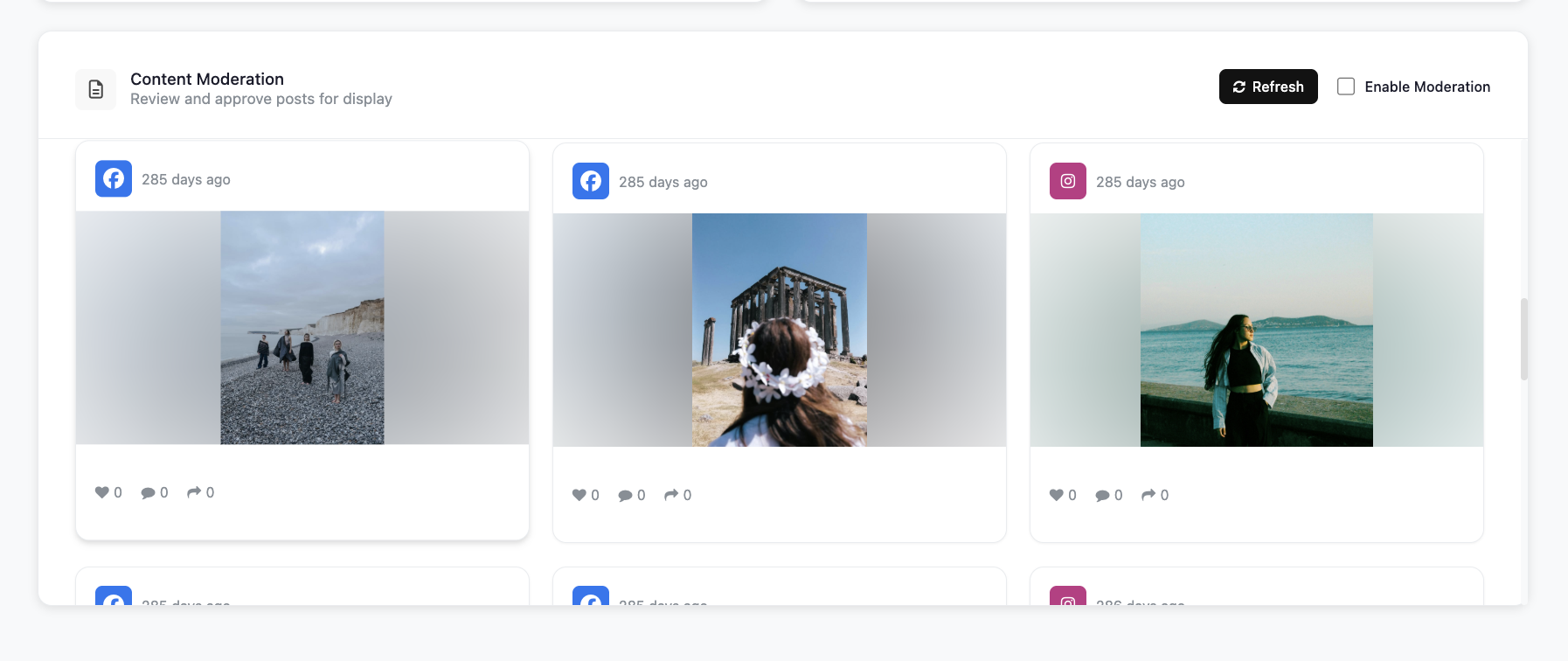 If you don't want every post shown, turn on **Enable Moderation**, then click each post you want to display. Selected posts get a checkmark and a highlighted border, and the **Show Selected** counter tracks how many you've picked from each account.
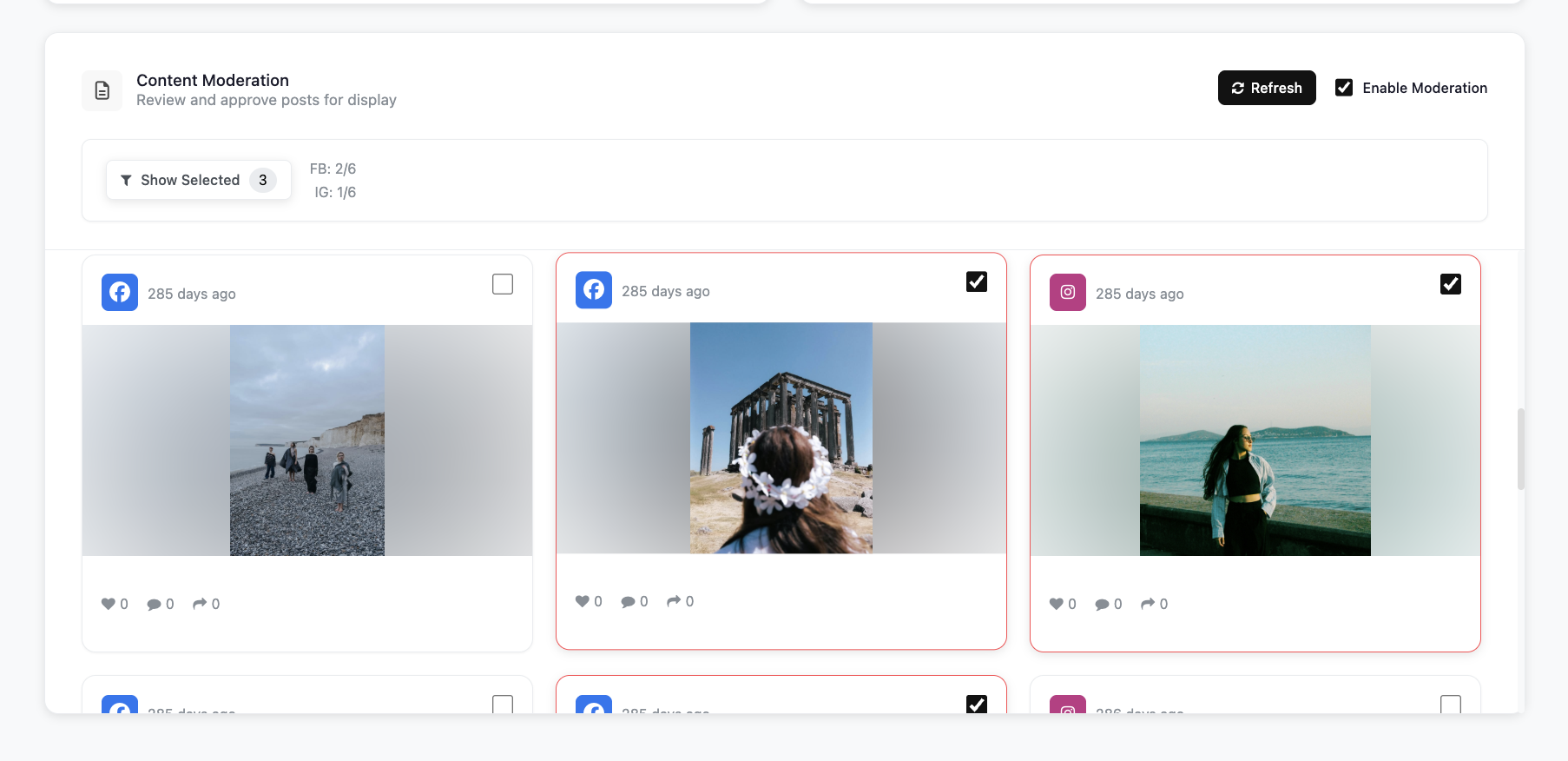 Moderation is optional. If you leave it off, all recent posts from your connected accounts play automatically.
Click **Create App** to finish. Your Social Wall app is now ready to use.
Moderation is optional. If you leave it off, all recent posts from your connected accounts play automatically.
Click **Create App** to finish. Your Social Wall app is now ready to use.
 ## What's Next?
The app is saved to your **Media** library under the name you gave it.
## What's Next?
The app is saved to your **Media** library under the name you gave it.
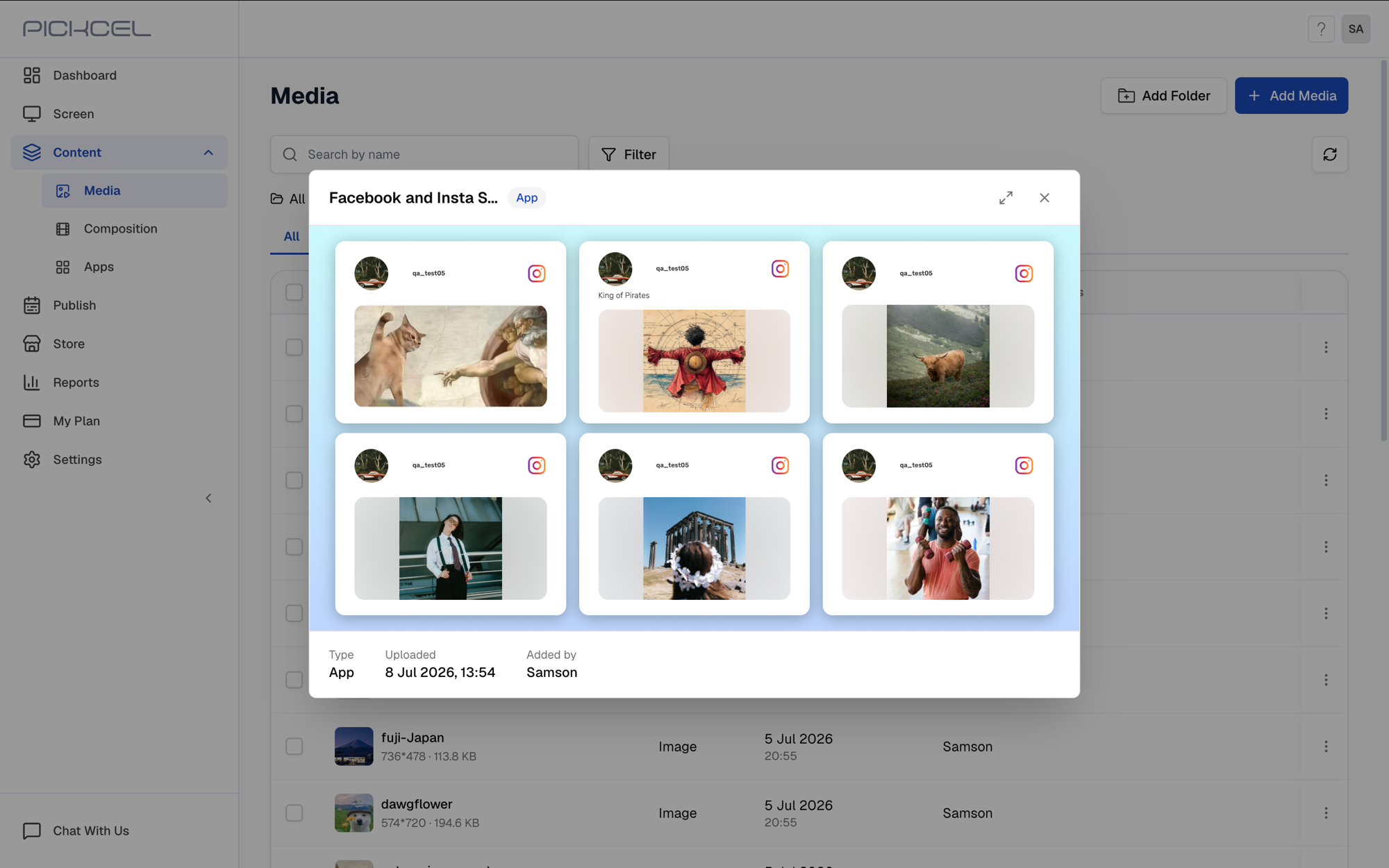
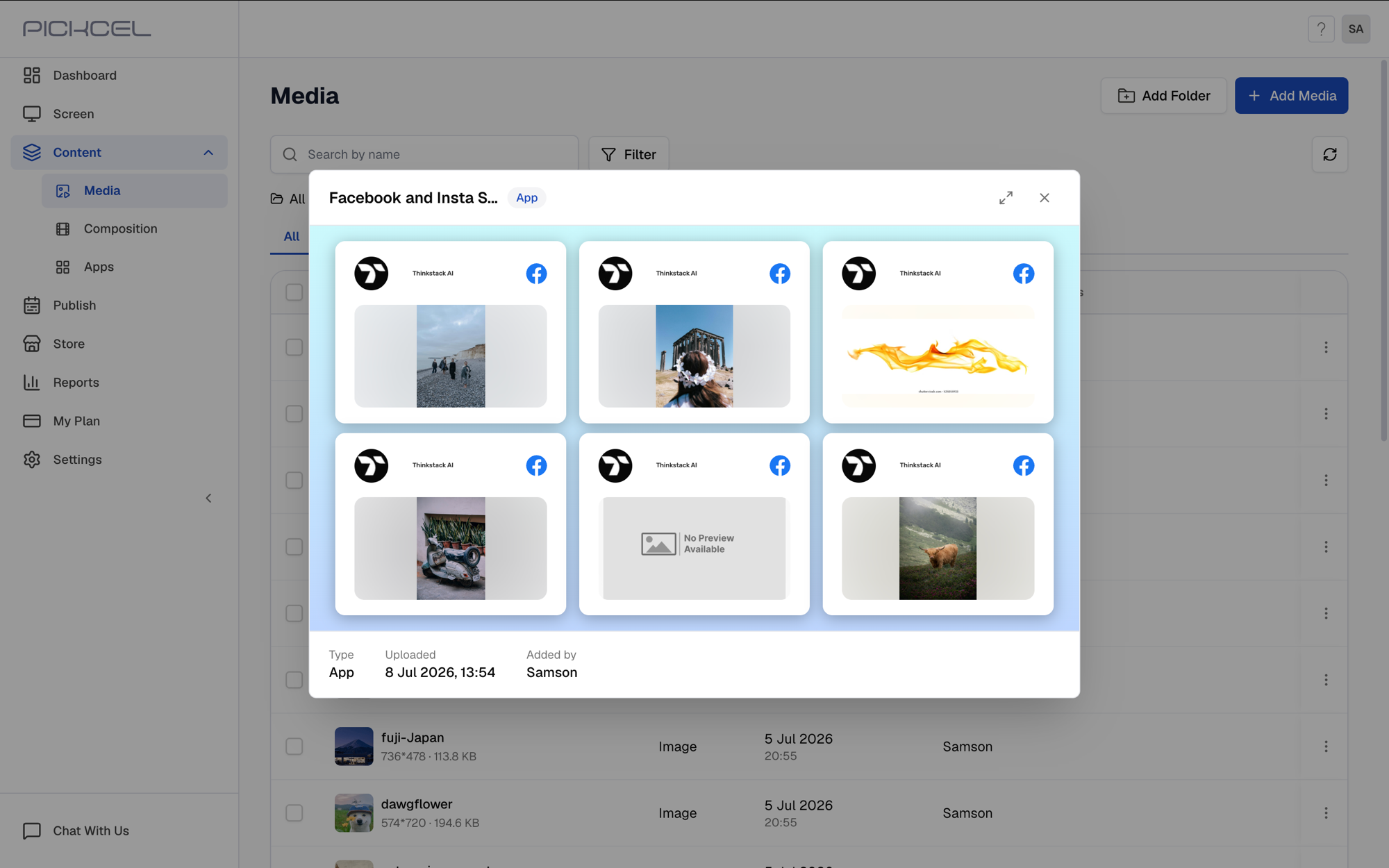
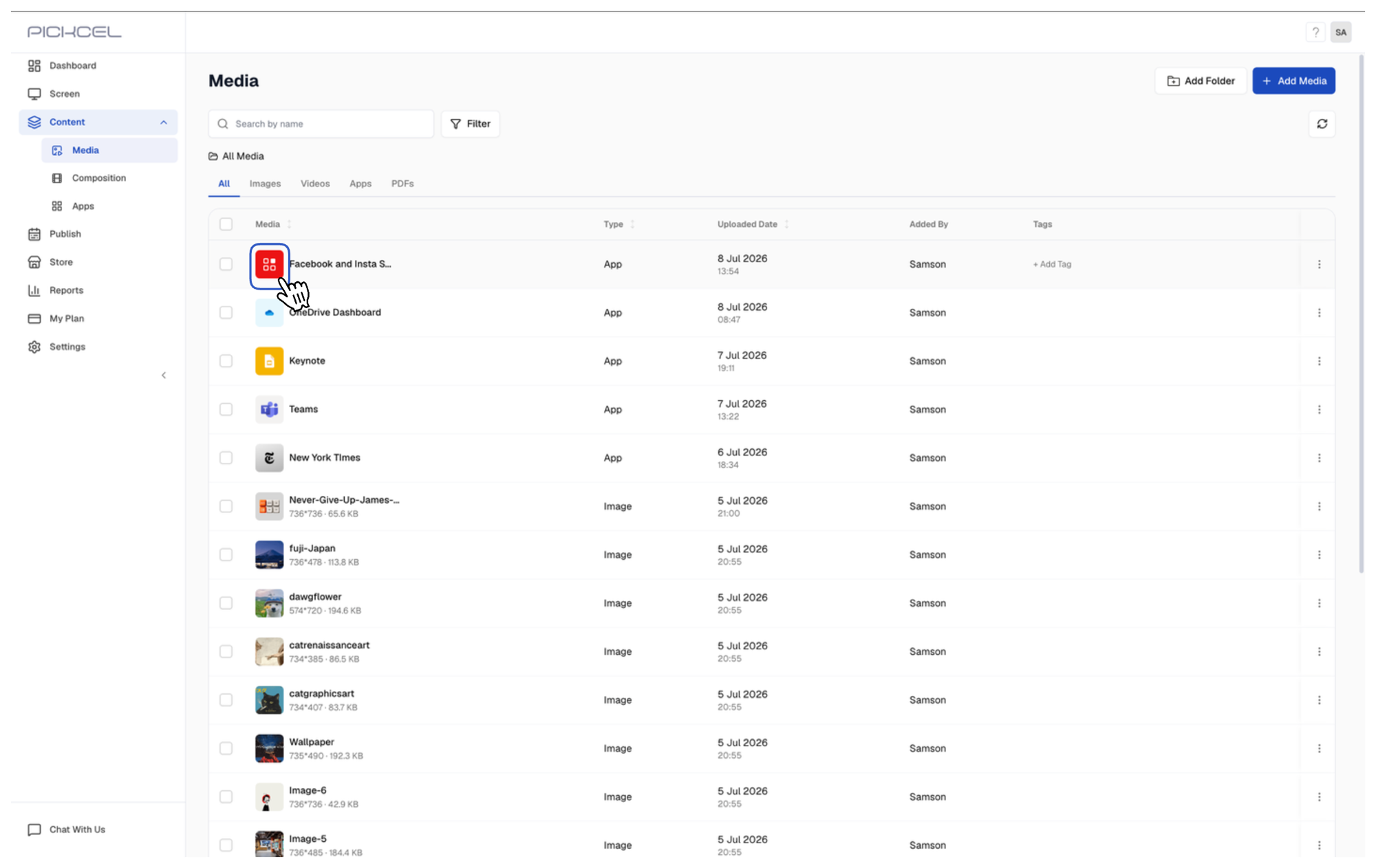 Click its thumbnail to preview it. With **Multi Posts**, the preview cycles through a grid of posts from each connected account.
 Add it to a composition, then schedule and publish it to your screens like any other content.
* Learn about [Compositions](/compositions/compositions)
* Learn how to [Publish or Schedule Content](/schedule-and-publish/publish-overview)
Add it to a composition, then schedule and publish it to your screens like any other content.
* Learn about [Compositions](/compositions/compositions)
* Learn how to [Publish or Schedule Content](/schedule-and-publish/publish-overview)