> ## Documentation Index
> Fetch the complete documentation index at: https://docs.pickcel.com/llms.txt
> Use this file to discover all available pages before exploring further.
# How to add the App for Slack from the Pickcel App Store?
> Learn how to integrate Slack with Pickcel to display content from your Slack channels on digital signage screens
Pickcel's Slack allows you to show content from your Slack account and a channel where you are a member.
**Use cases:**
* Sales and support teams can display live updates from a dedicated channel to keep the whole floor in sync.
* Offices and remote-first teams can surface announcements, reminders, and shoutouts on a shared screen without anyone having to check Slack.
Log in to your [Pickcel account](https://console.pickcel.com/). Go to the **Apps** module and search for **Slack**.
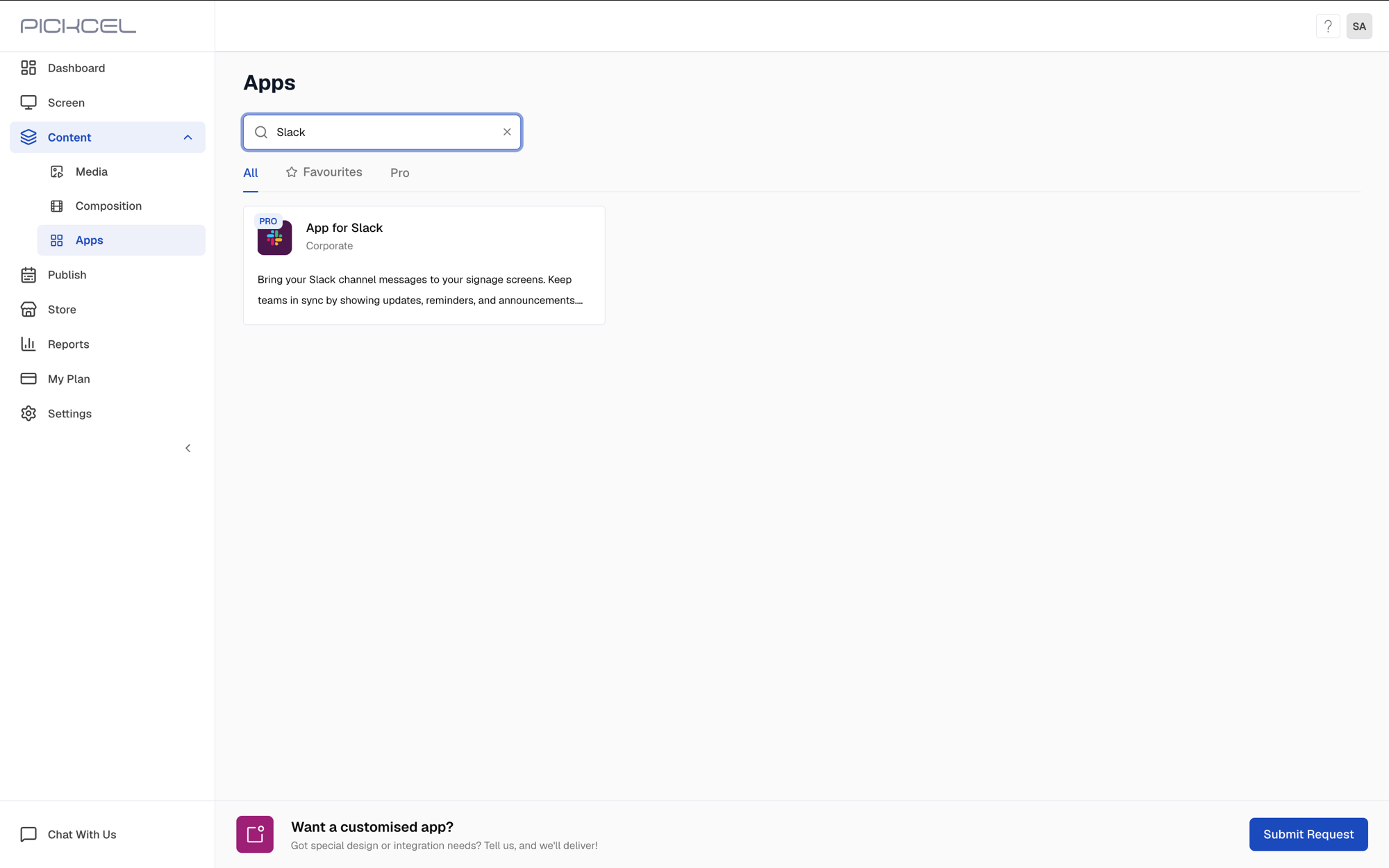 Click the **App for Slack** card, then click **Create App** in the app details panel.
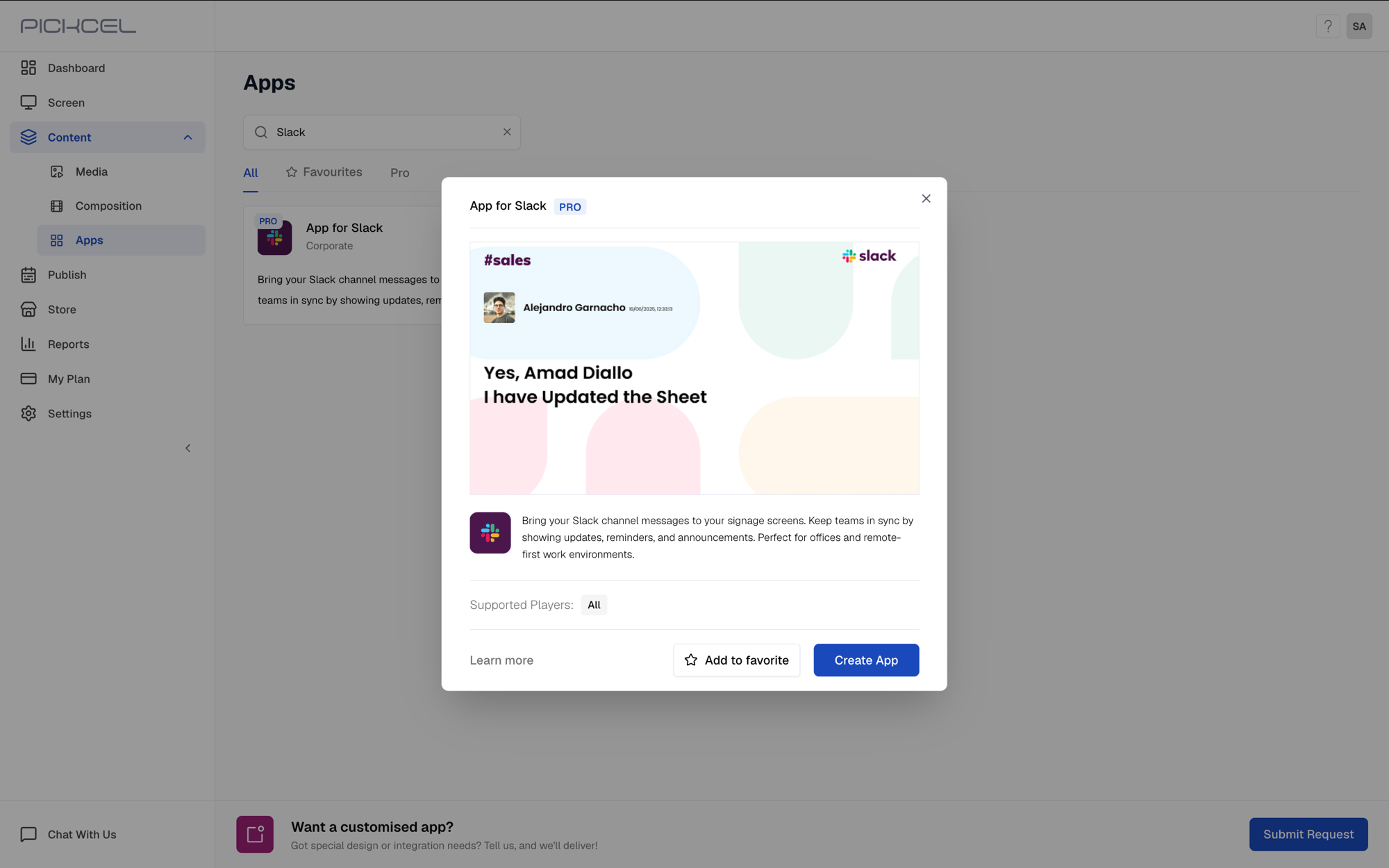 Click **Add to Slack** to authenticate.
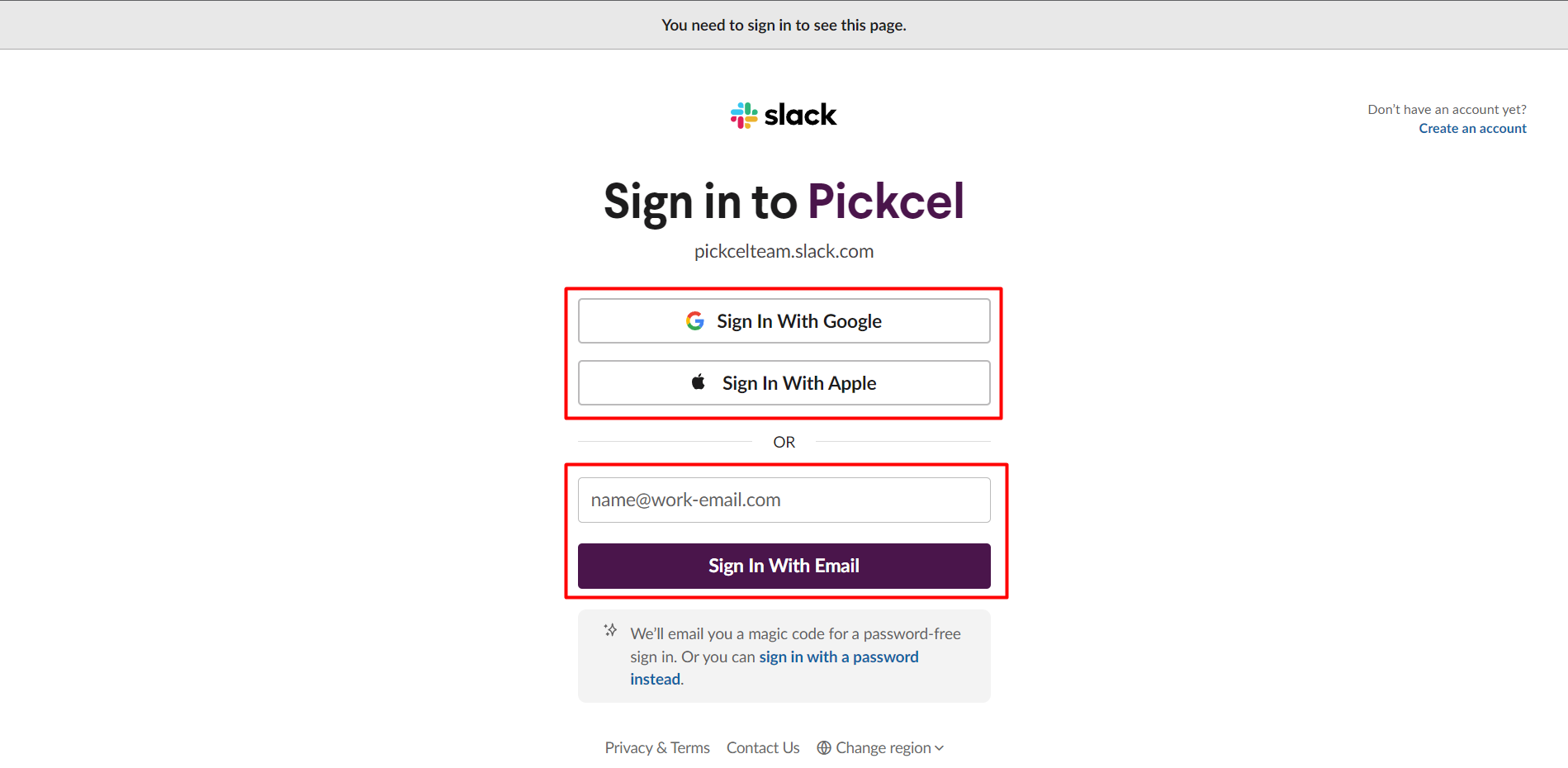
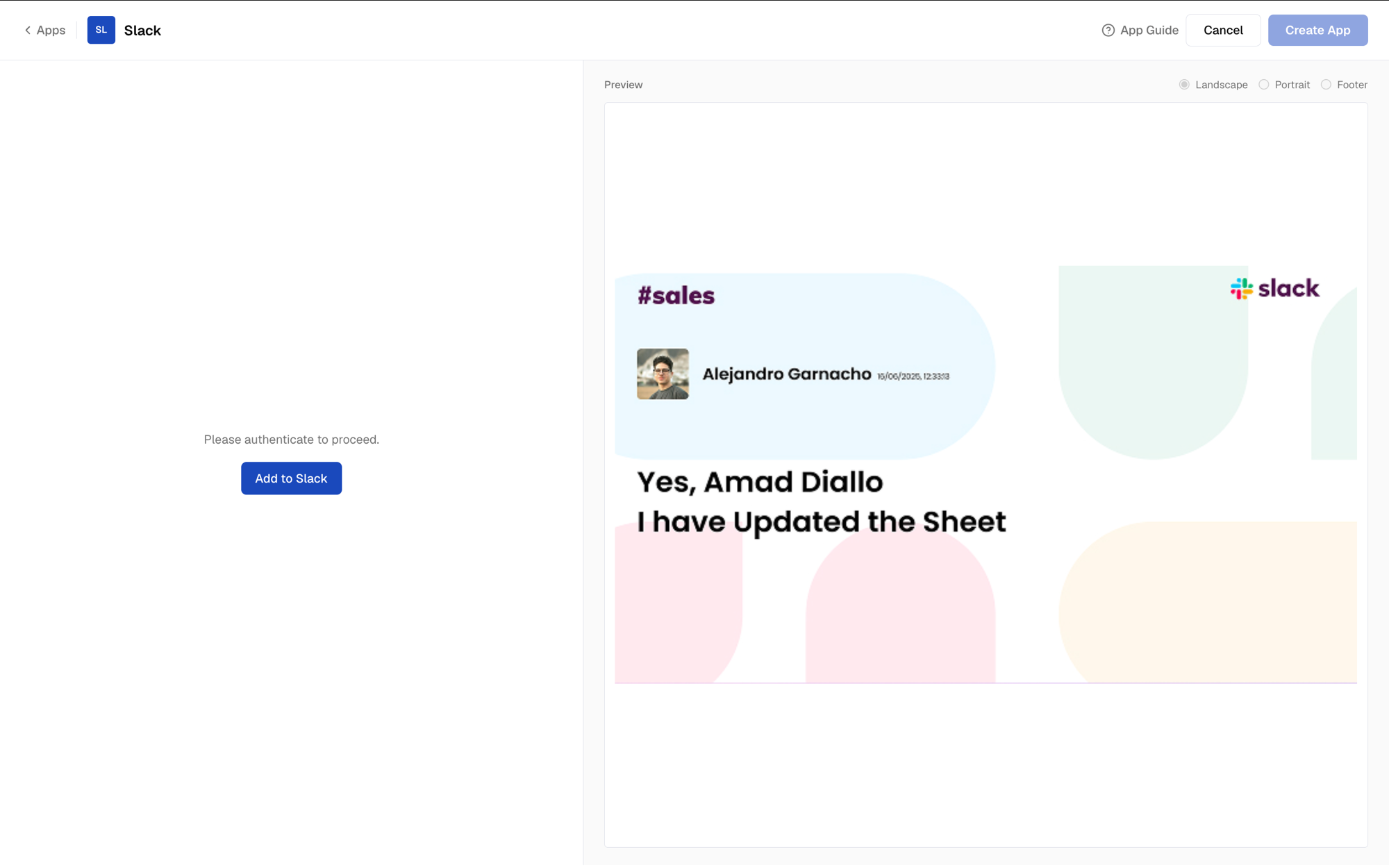 Enter your workspace's Slack URL here.
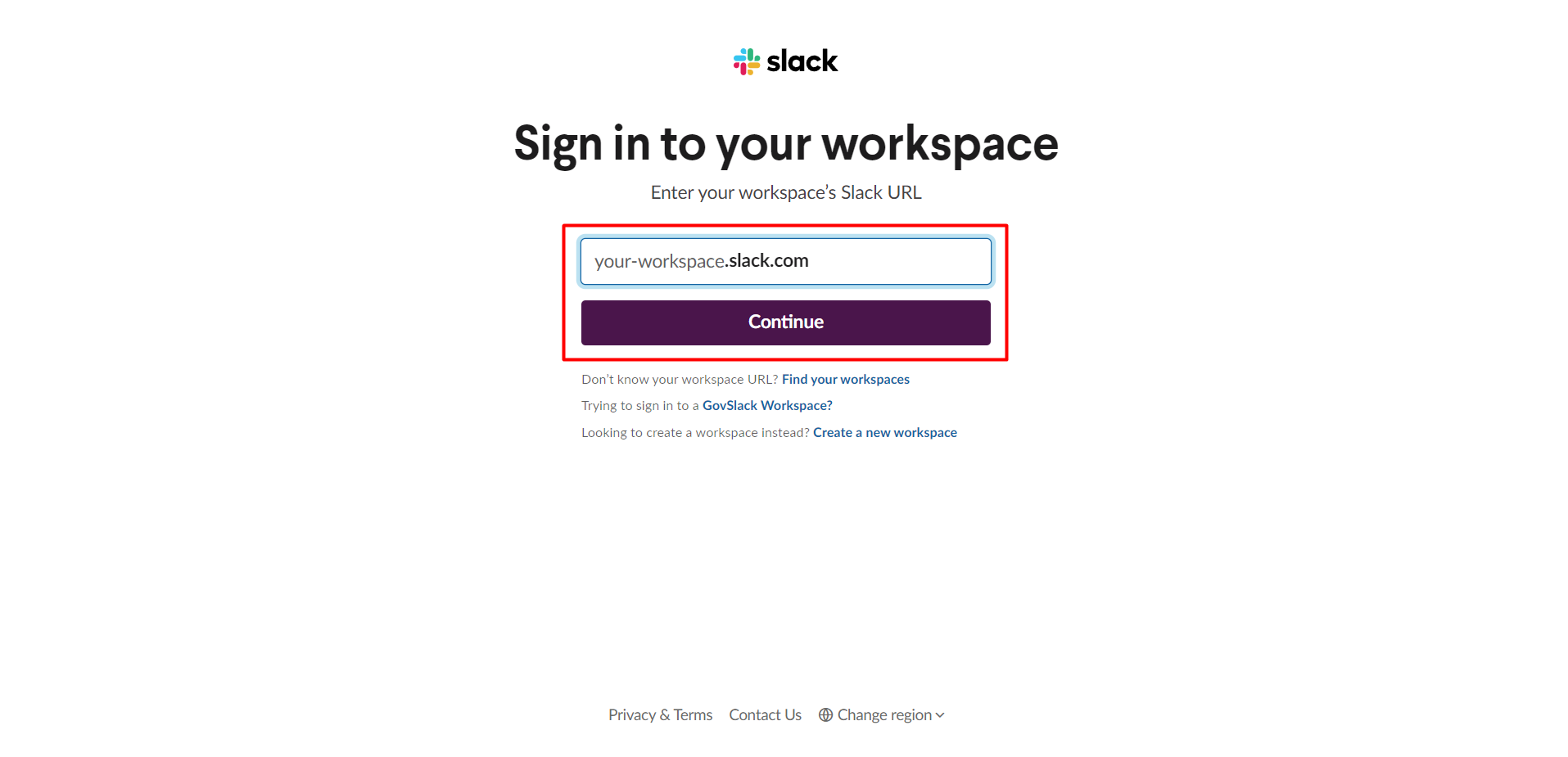 **Sign in** to your Slack account. You can use Google login or Apple login/ enter your email id and password directly and login.
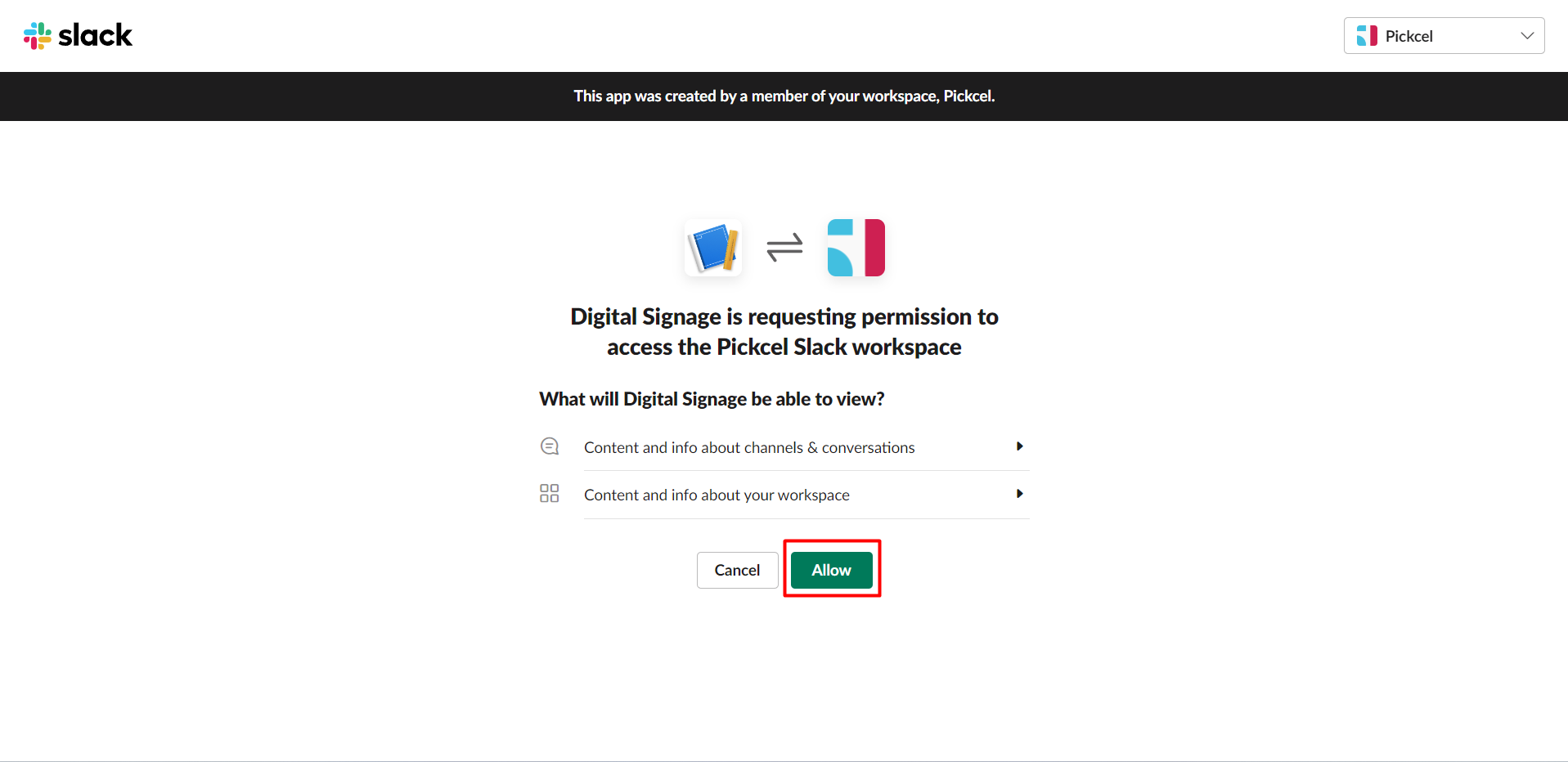
 Click on **Allow** to access your workspace.
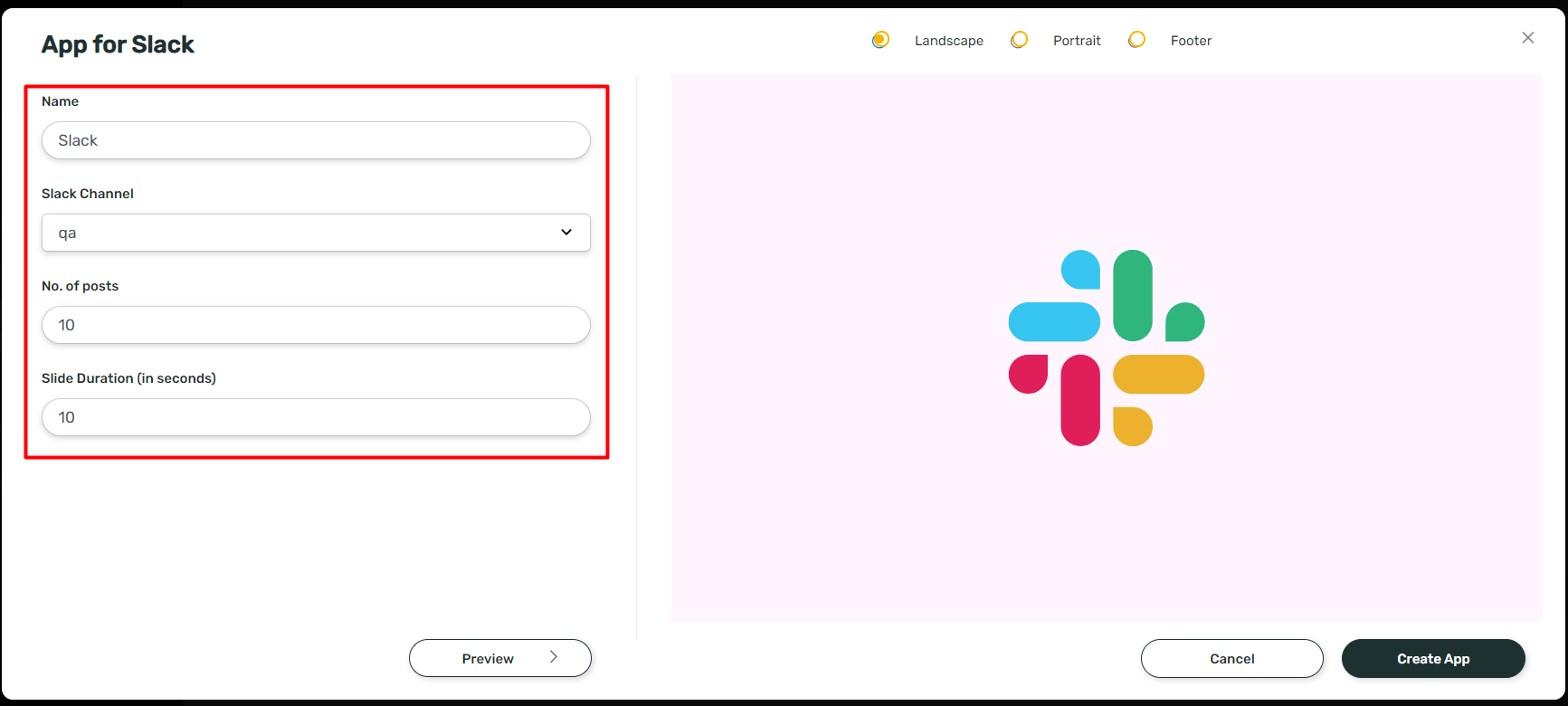
 Enter the App name, select the Slack channel and No. of Posts to be shown and enter the slide duration.
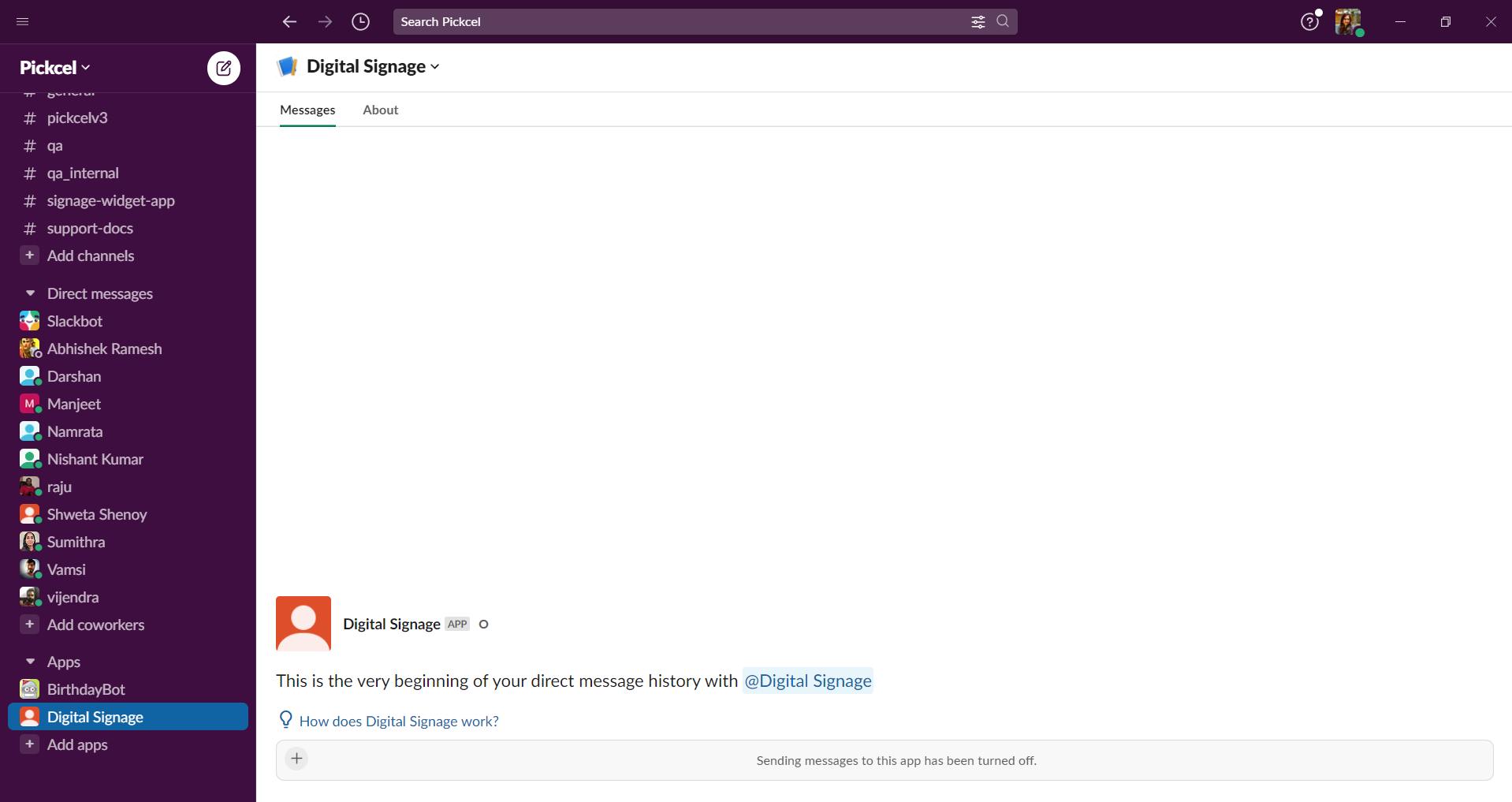
 Once we authenticate and select the channel from the drop down, we have to open Slack app and check if Digital Signage bot has been added. If not, we can add it by clicking on Apps and Search for Digital Signage. Click on Digital Signage.
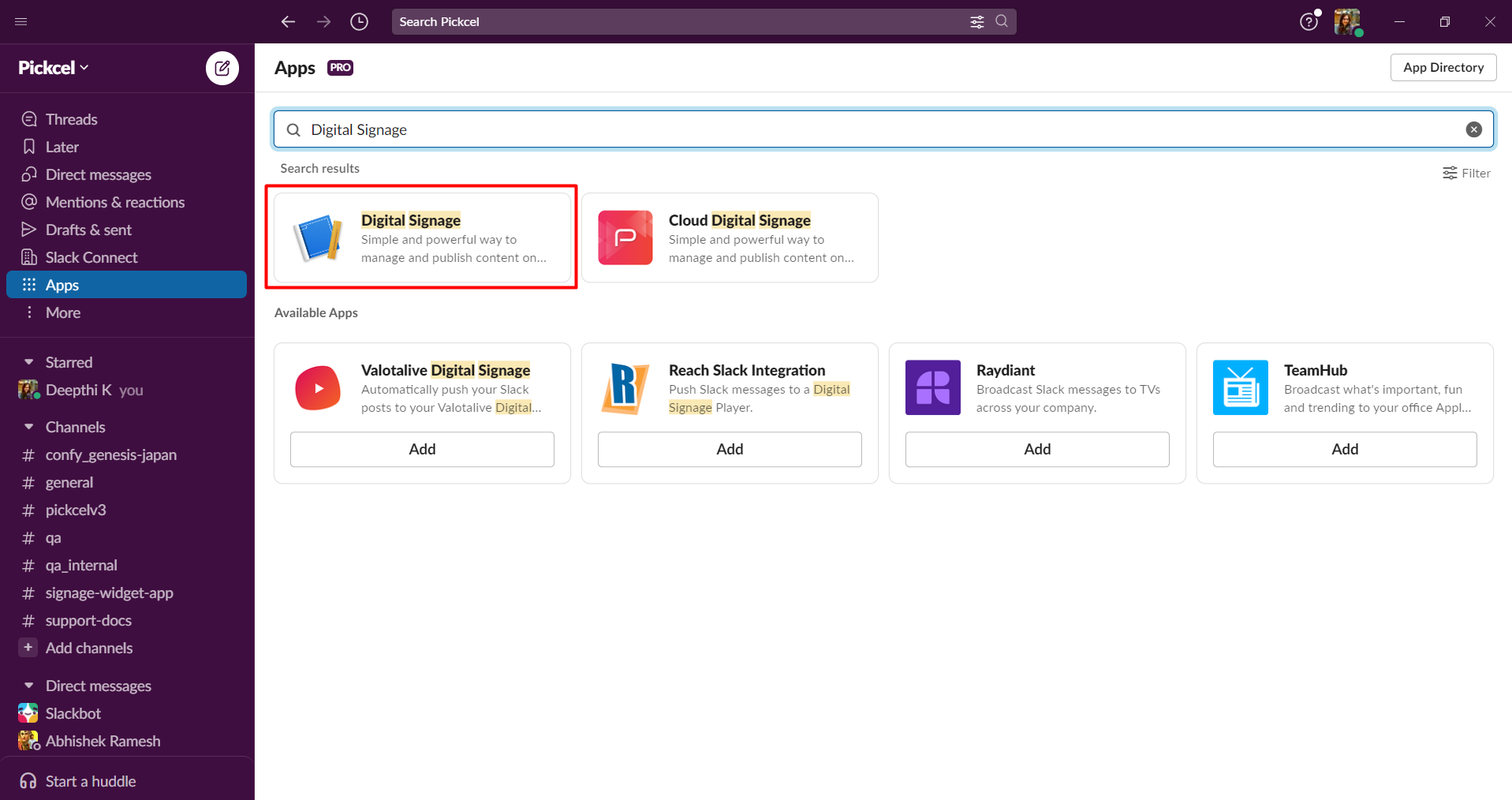 If added it will be seen under your apps section.
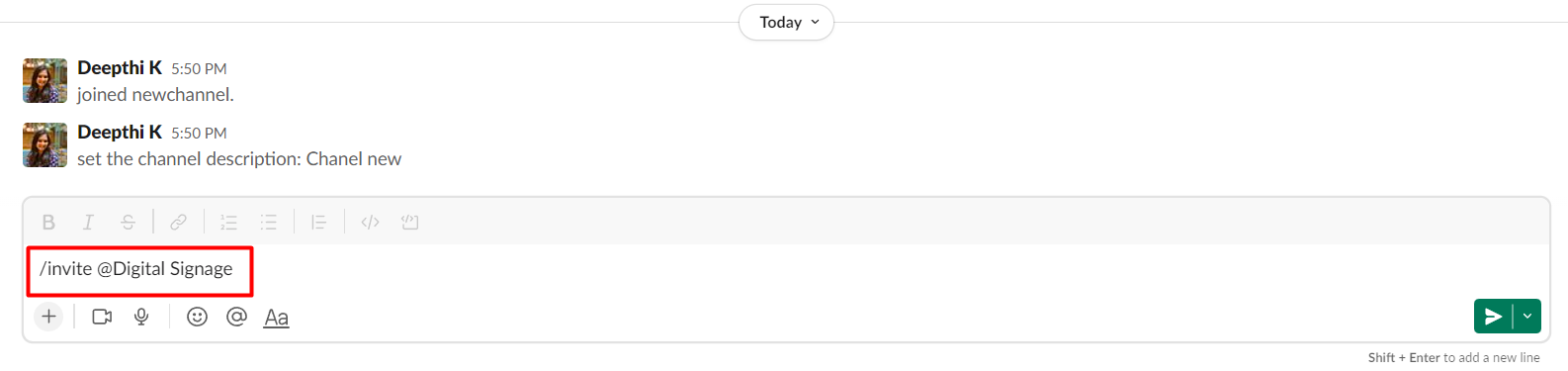
 We must invite this bot to the channel that we want to show in screen with a command: `/invite @Digital Signage`
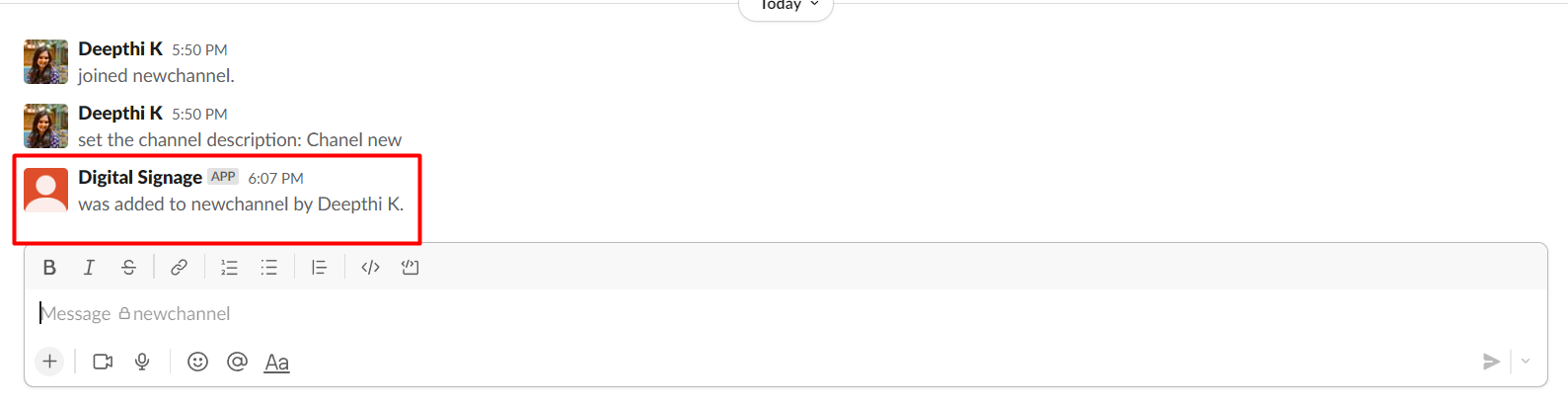
 It will get added and show a message like this.
 Now go back to the Slack app and click on **Create app**.
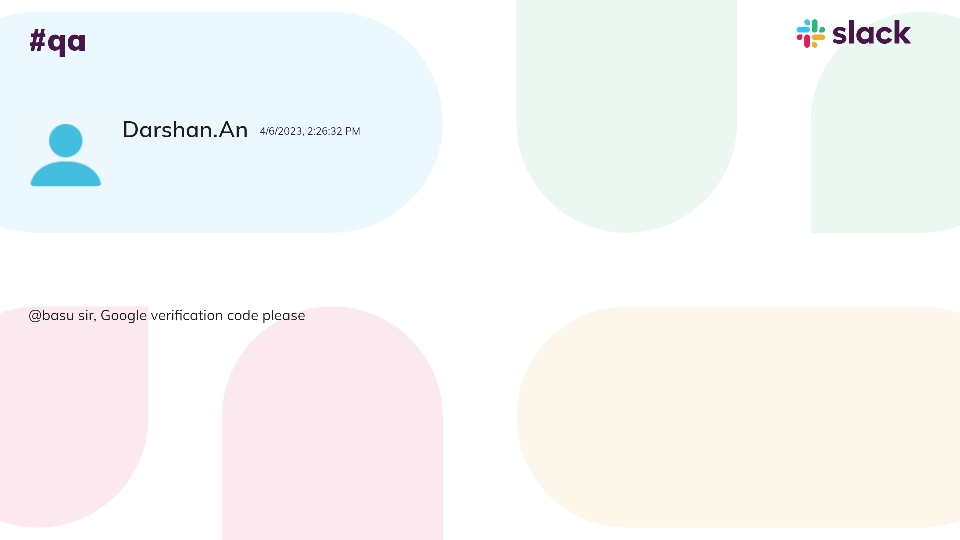
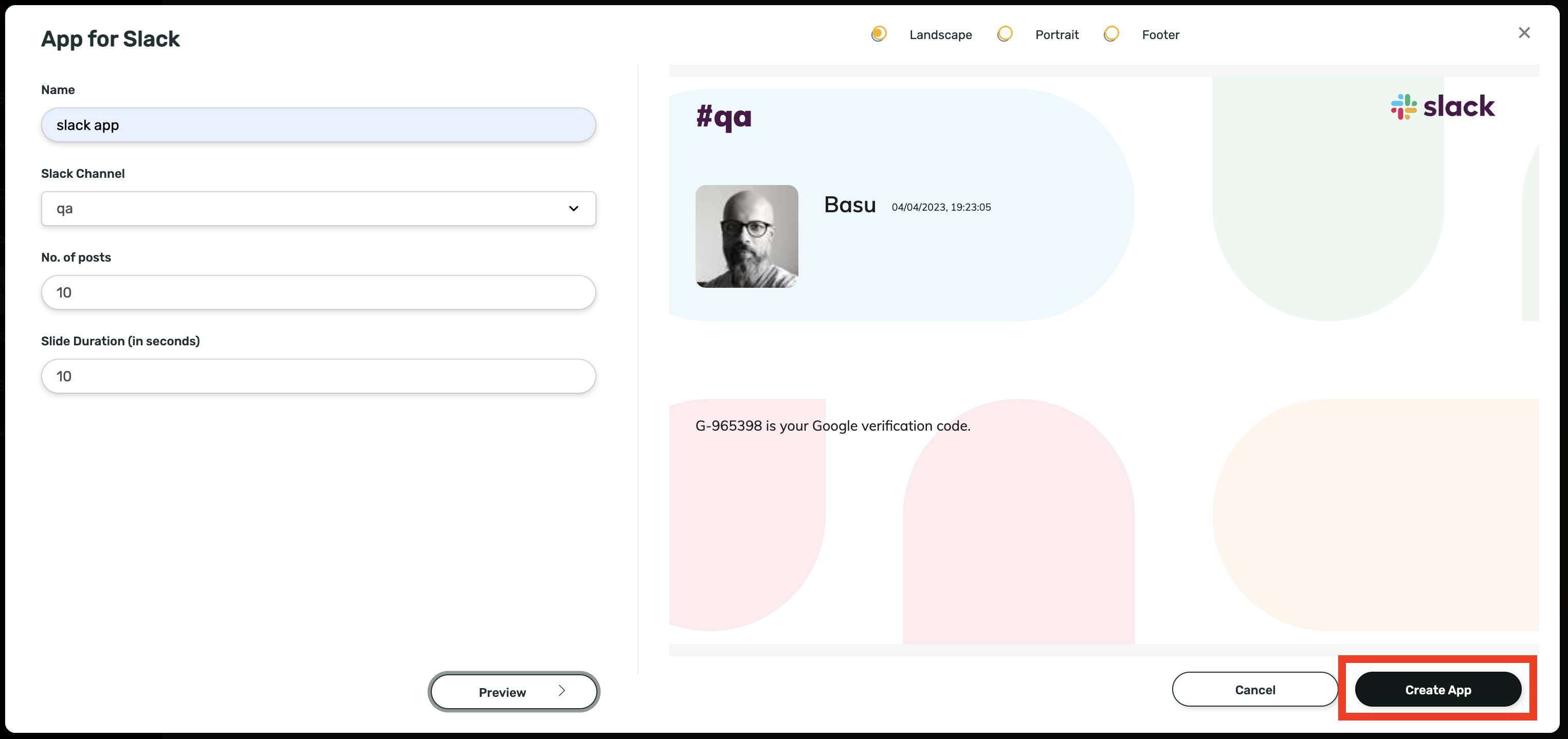 Your app will be created and look like this on screen.
 ## What's Next?
The app is saved to your **Media** library under the name you gave it. Add it to a composition, then schedule and publish it to your screens like any other content.
* Learn about [Compositions](/compositions/compositions)
* Learn how to [Publish or Schedule Content](/schedule-and-publish/publish-overview)
## What's Next?
The app is saved to your **Media** library under the name you gave it. Add it to a composition, then schedule and publish it to your screens like any other content.
* Learn about [Compositions](/compositions/compositions)
* Learn how to [Publish or Schedule Content](/schedule-and-publish/publish-overview)