> ## Documentation Index
> Fetch the complete documentation index at: https://docs.pickcel.com/llms.txt
> Use this file to discover all available pages before exploring further.

# How to add the Scroller App from the Pickcel App Store

> Learn how to create scrolling text banners with customizable speed and direction for your digital signage screens

<Steps>
  <Step title="Login and go to Apps module">
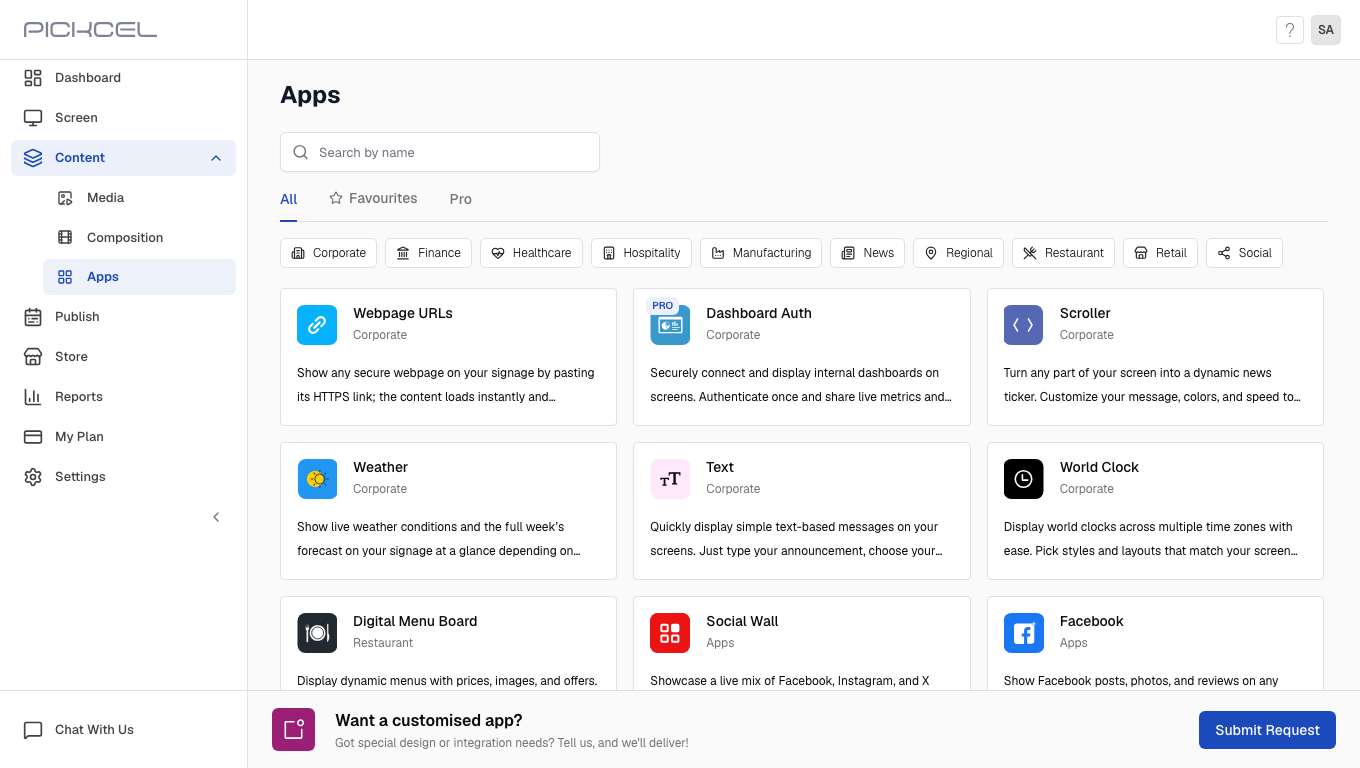
    [Login to your pickcel account](https://console.pickcel.com/). Go to the **App** module.
    <Frame>
      <img src="https://cdn.pickcel.com/images/pickcel-docs/scroller/scroller-01-login-and-go-to-apps-module.DQ8oKKAI1b7K.png" alt="Login and go to Apps module" />
    </Frame>
  </Step>

  <Step title="Search for scroller app">
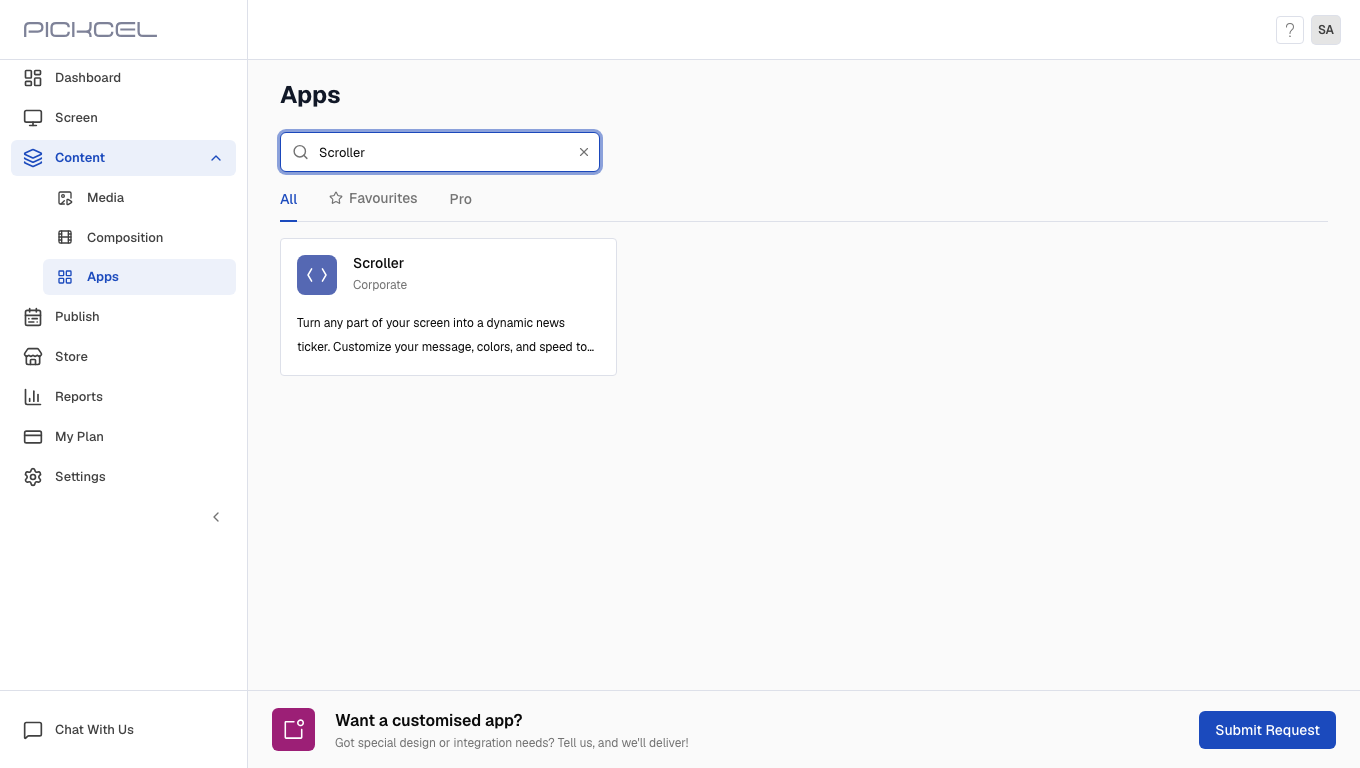
    Search for the scroller app using the search field.
    <Frame>
      <img src="https://cdn.pickcel.com/images/pickcel-docs/scroller/scroller-02-search-for-scroller-app.RZkhFL8k2mgD.png" alt="Search for scroller app" />
    </Frame>
  </Step>

  <Step title="Click Create App">
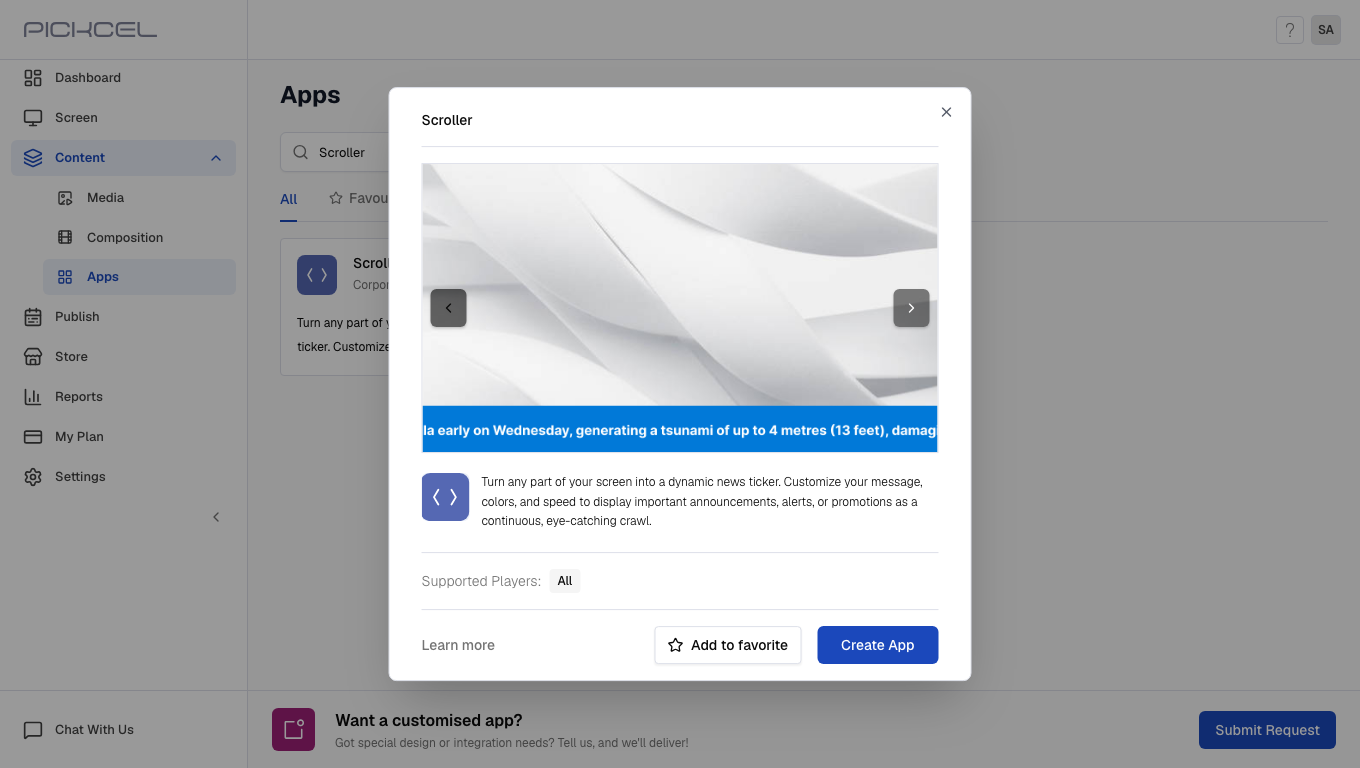
    Hover over the app and click on the **Create App** button.
    <Frame>
      <img src="https://cdn.pickcel.com/images/pickcel-docs/scroller/scroller-03-click-create-app.EvyHifMY31ul.png" alt="Click Create App" />
    </Frame>
  </Step>

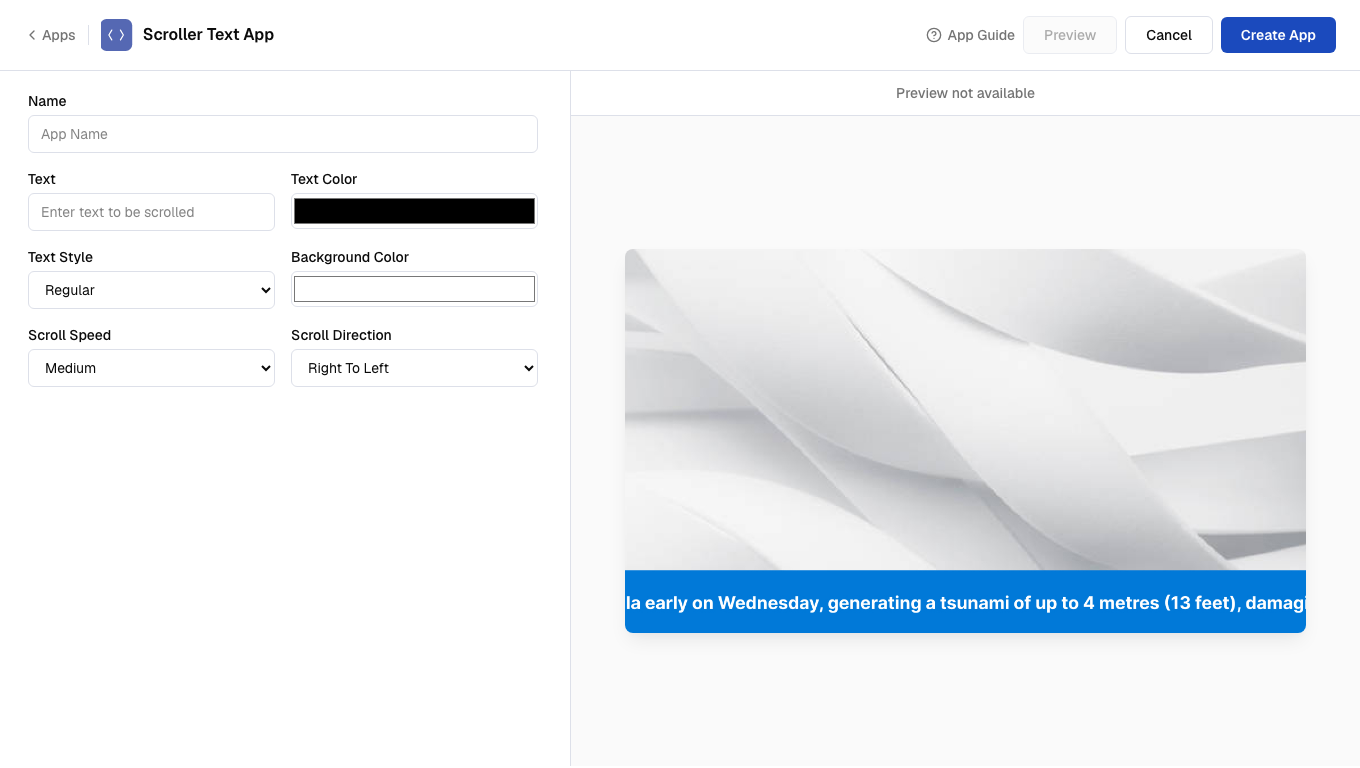
  <Step title="Enter app name">
    Enter a name for the app.

    <Frame>
      <img src="https://cdn.pickcel.com/images/pickcel-docs/scroller/scroller-04-enter-app-name.Clwvd4Id0Vy4.png" alt="Enter app name" />
    </Frame>
  </Step>

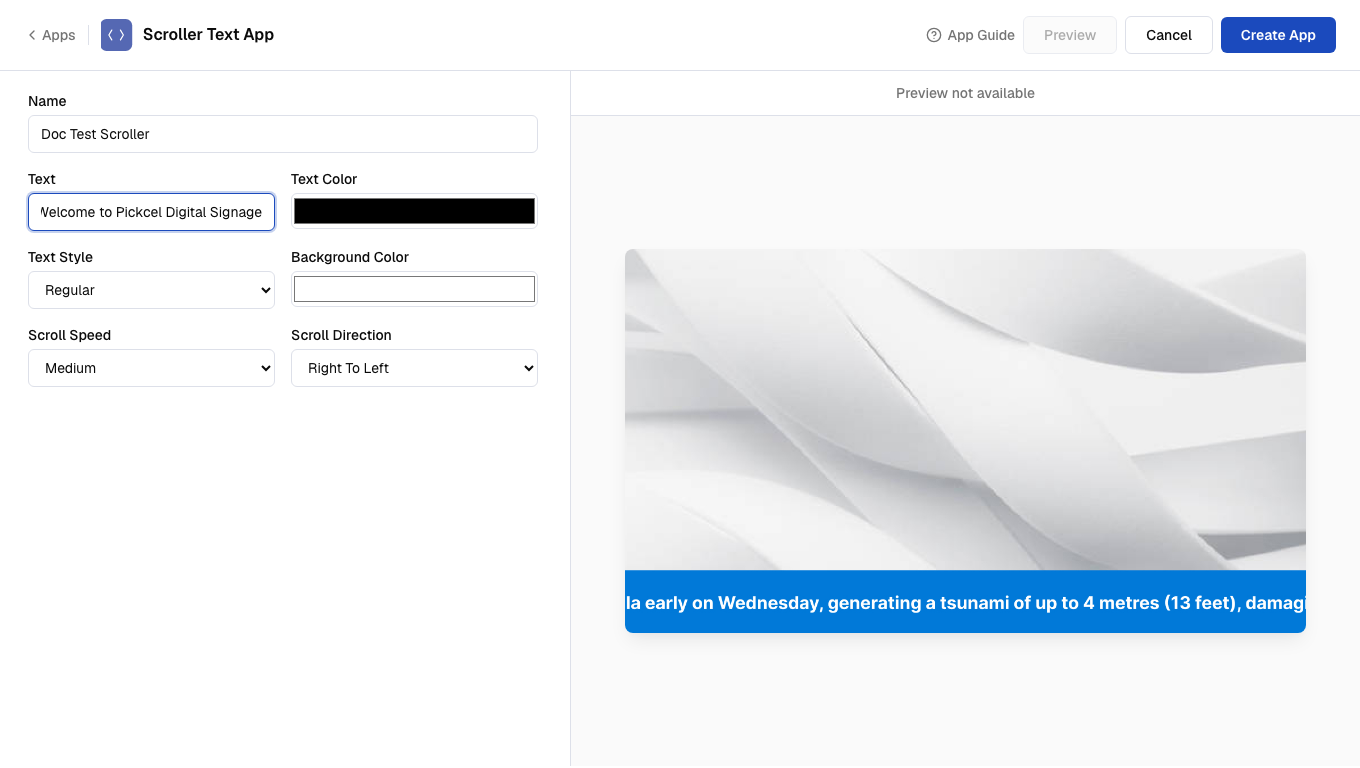
  <Step title="Enter scrolling text">
    Enter the text to be displayed as scrolled text.
    <Frame>
      <img src="https://cdn.pickcel.com/images/pickcel-docs/scroller/scroller-05-enter-scrolling-text.FbCDUeFHHaw8.png" alt="Enter scrolling text" />
    </Frame>
  </Step>

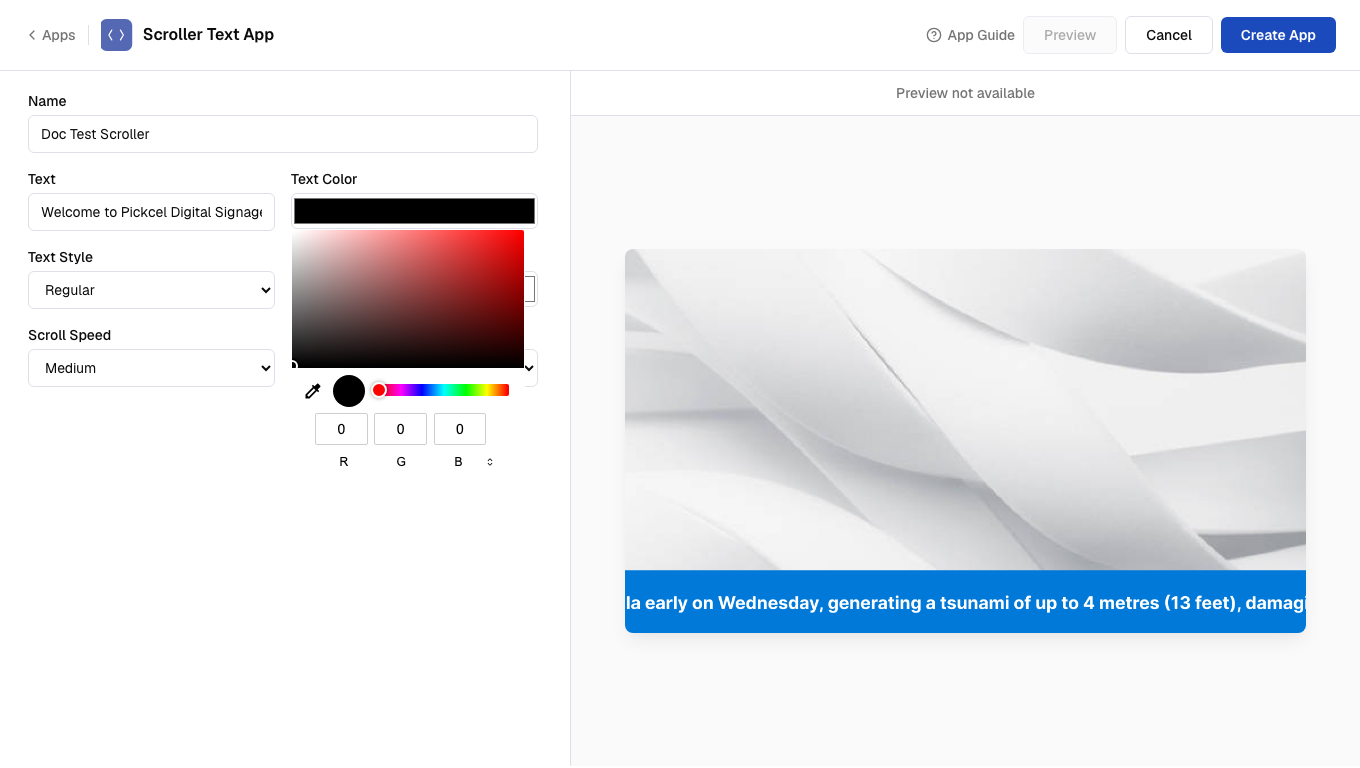
  <Step title="Choose text color">
    Choose the text color.

    <Frame>
      <img src="https://cdn.pickcel.com/images/pickcel-docs/scroller/scroller-06-choose-text-color.ypo6jYW7VCVu.png" alt="Choose text color" />
    </Frame>
  </Step>

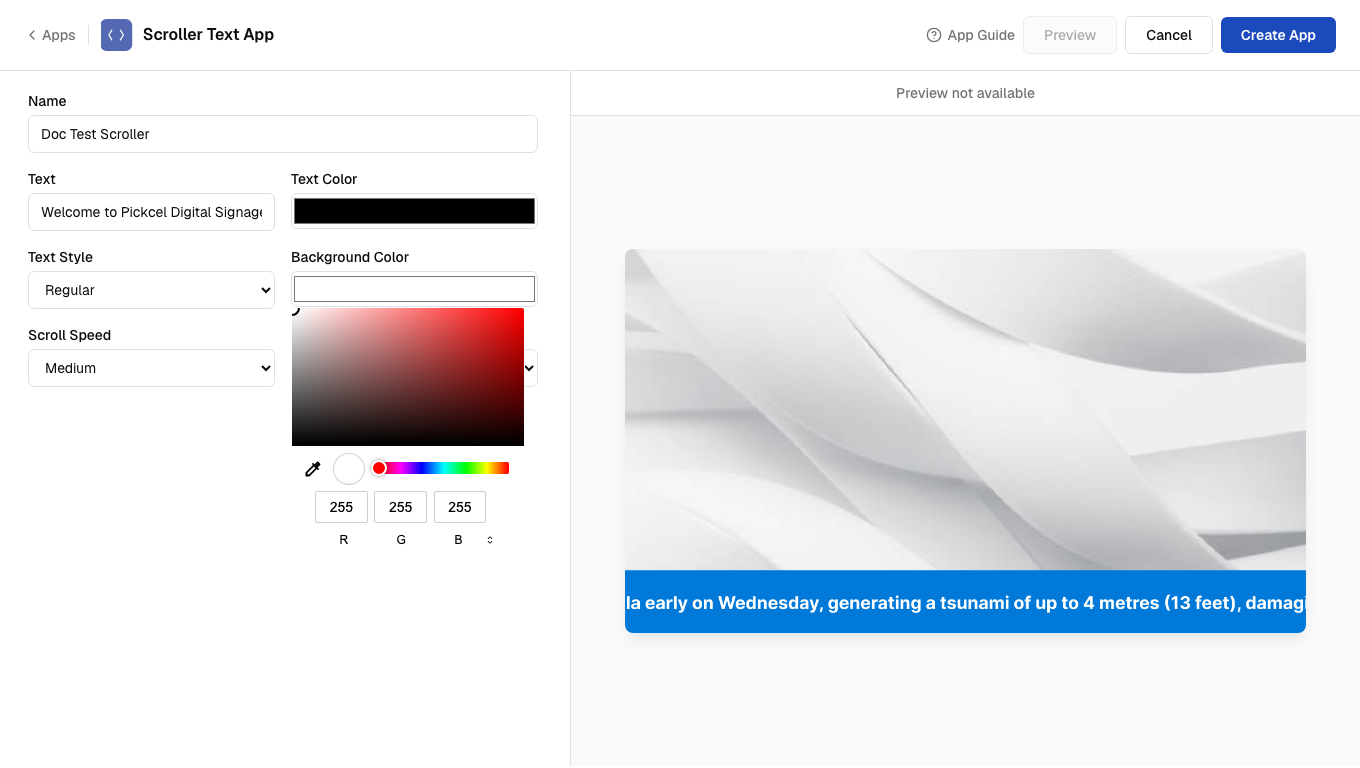
  <Step title="Choose background color">
    Choose the background color.

    <Frame>
      <img src="https://cdn.pickcel.com/images/pickcel-docs/scroller/scroller-07-choose-background-color.oozaMVv2rDIg.png" alt="Choose background color" />
    </Frame>
  </Step>

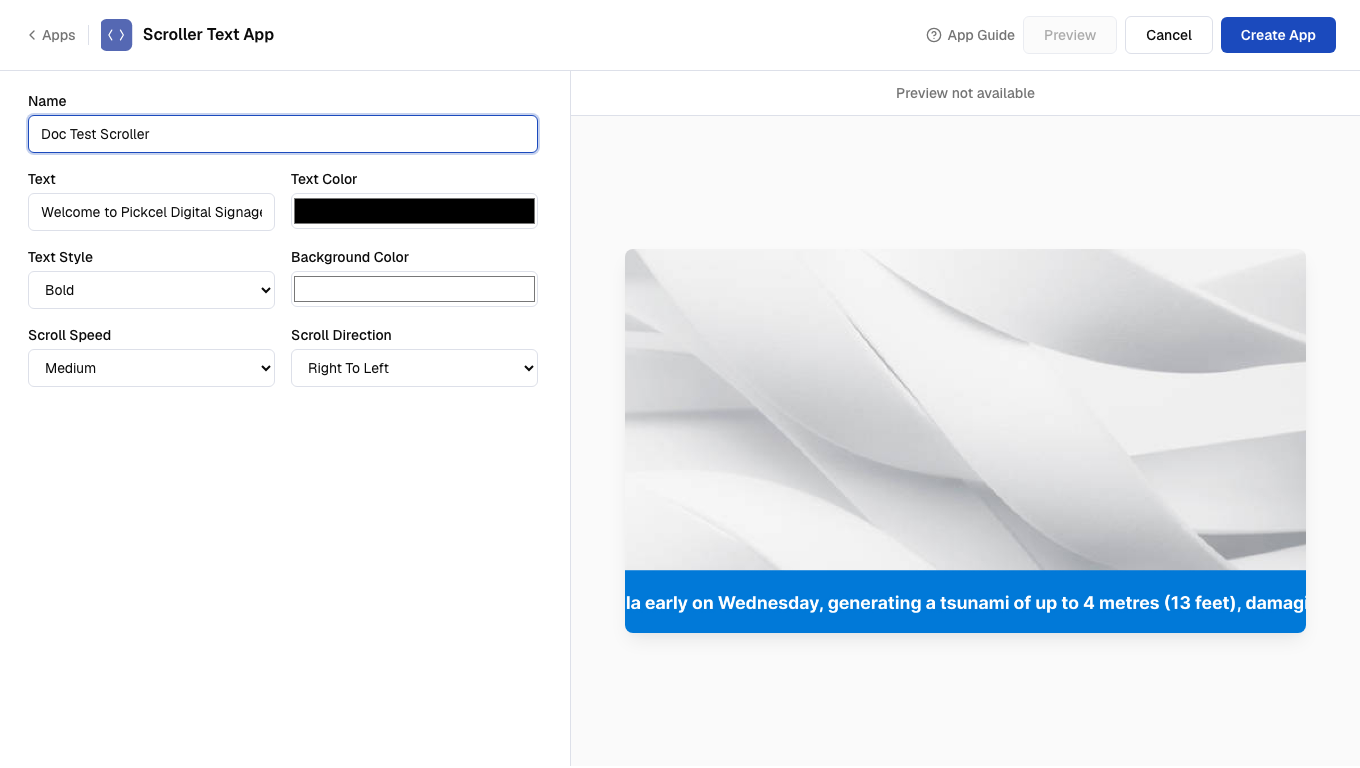
  <Step title="Select text style">
    Select the text style (italic/regular/bold).
    <Frame>
      <img src="https://cdn.pickcel.com/images/pickcel-docs/scroller/scroller-08-select-text-style.3LF6PWd-BEj9.png" alt="Select text style" />
    </Frame>
  </Step>

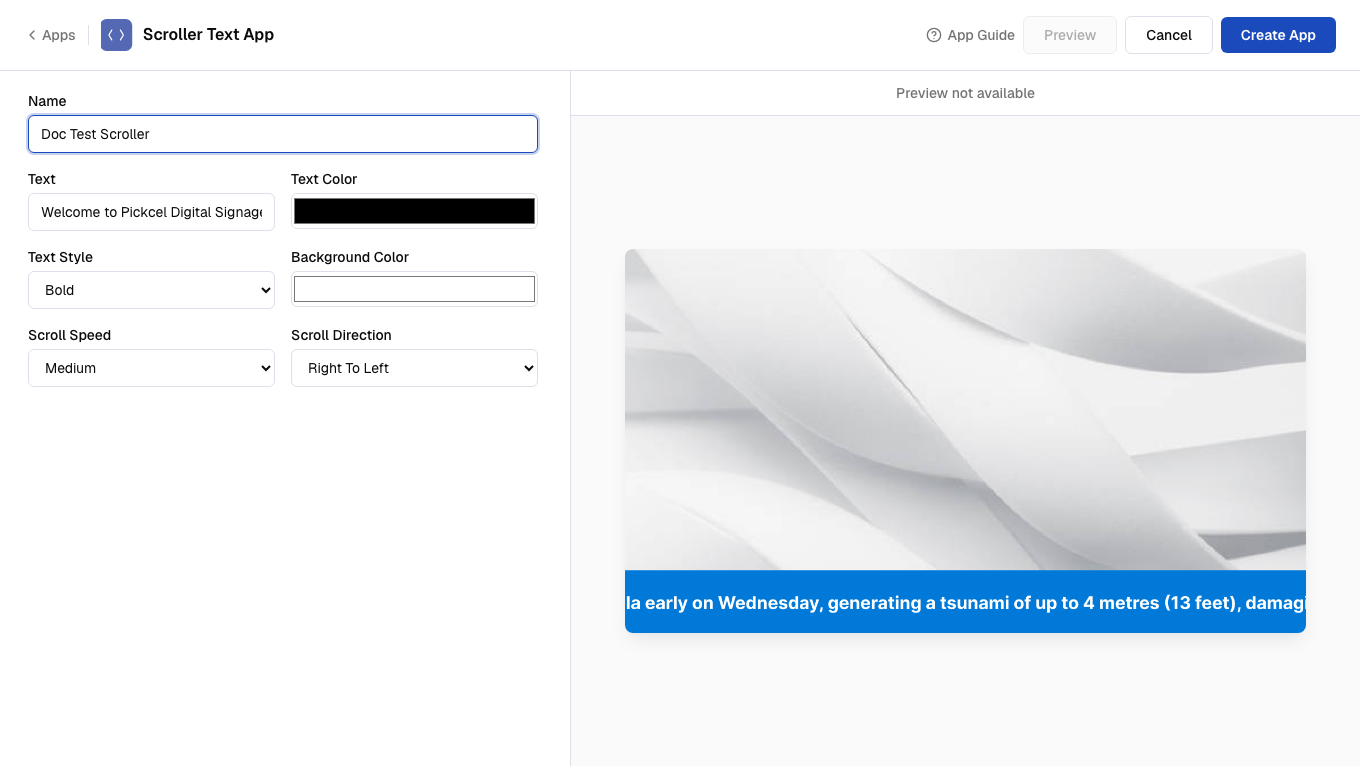
  <Step title="Select Scroller Speed">
    Select the **Scroller Speed** from the drop-down list.
    <Frame>
      <img src="https://cdn.pickcel.com/images/pickcel-docs/scroller/scroller-09-select-scroller-speed.jDPDfQZfym-P.png" alt="Select Scroller Speed" />
    </Frame>
  </Step>

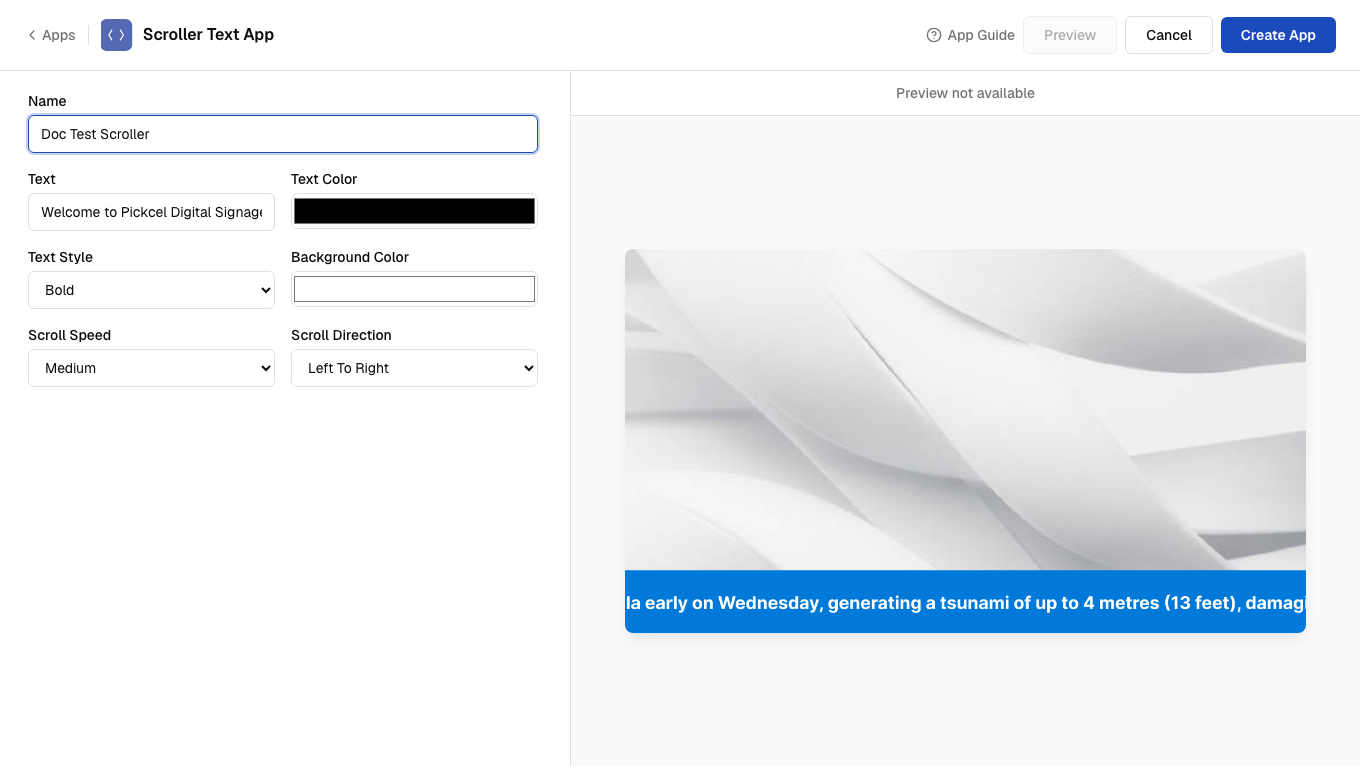
  <Step title="Select Scroll direction">
    Select the **Scroll direction**.

    <Frame>
      <img src="https://cdn.pickcel.com/images/pickcel-docs/scroller/scroller-10-select-scroll-direction.Eppv84Wqd-WJ.png" alt="Select Scroll direction" />
    </Frame>
  </Step>

  <Step title="Create the app">
    Click on the **Create app** button.

    <Frame>
      <img src="https://cdn.pickcel.com/images/pickcel-docs/scroller/scroller-11-create-the-app.cy3kjeEuTAwe.png" alt="Create the app" />
    </Frame>

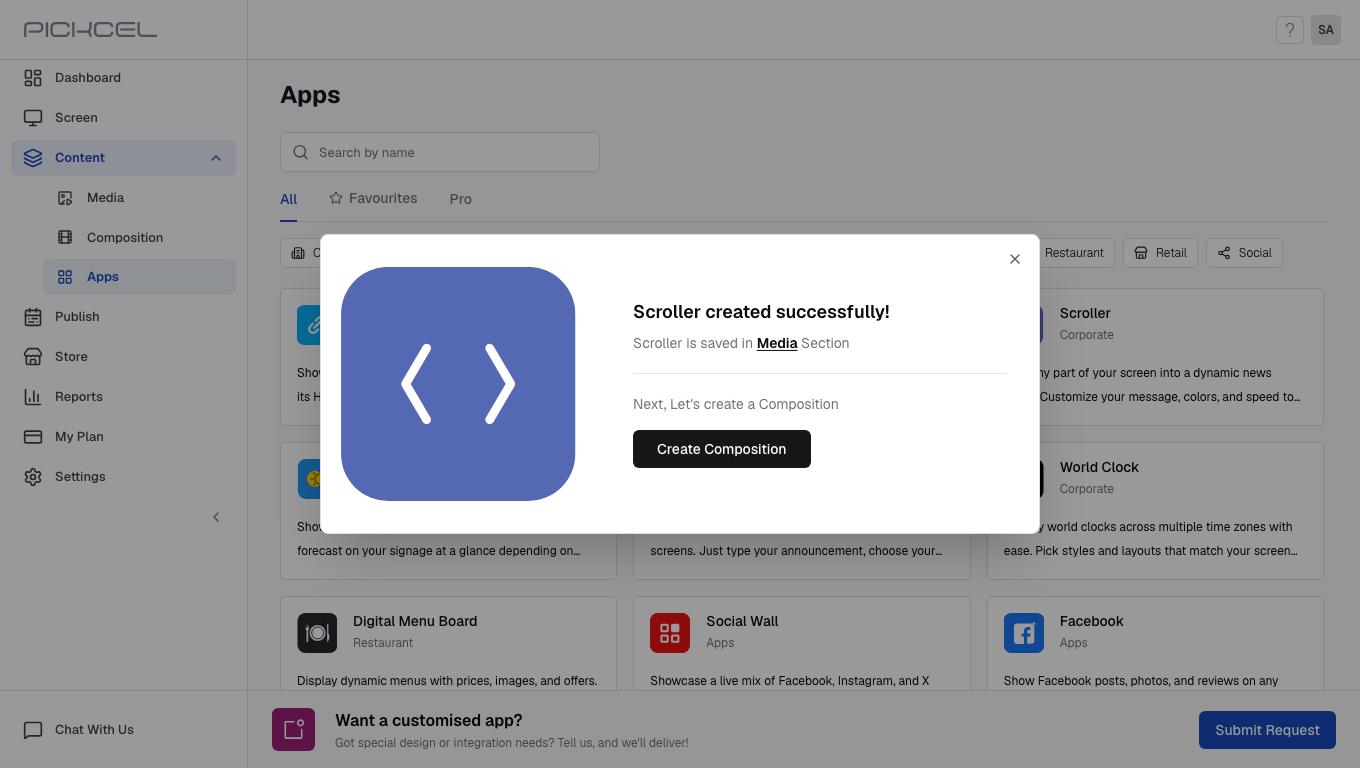
    Your scroller app is now ready to use.
  </Step>
</Steps>

<Note>
  If the text entered is in Urdu or Arabic language, then the scroll direction will be from left to right. For English and other languages, it will be from right to left.
</Note>