> ## Documentation Index
> Fetch the complete documentation index at: https://docs.pickcel.com/llms.txt
> Use this file to discover all available pages before exploring further.
# How to add the RSS Feed app from the Pickcel App Store?
> Stream live headlines from any RSS feed to your digital signage screens, with five themes and a customizable logo.
The RSS Feed app streams live headlines from any RSS feed URL straight to a screen. Point it at a news site, blog, or company feed and it keeps pulling fresh headlines automatically, no republishing required.
In this guide we build a **Tech News Ticker** pulling live headlines from TechCrunch.
## Prerequisites
* A [Pickcel account](https://console.pickcel.com/) with access to the **Content** module
* The RSS feed URL you want to display
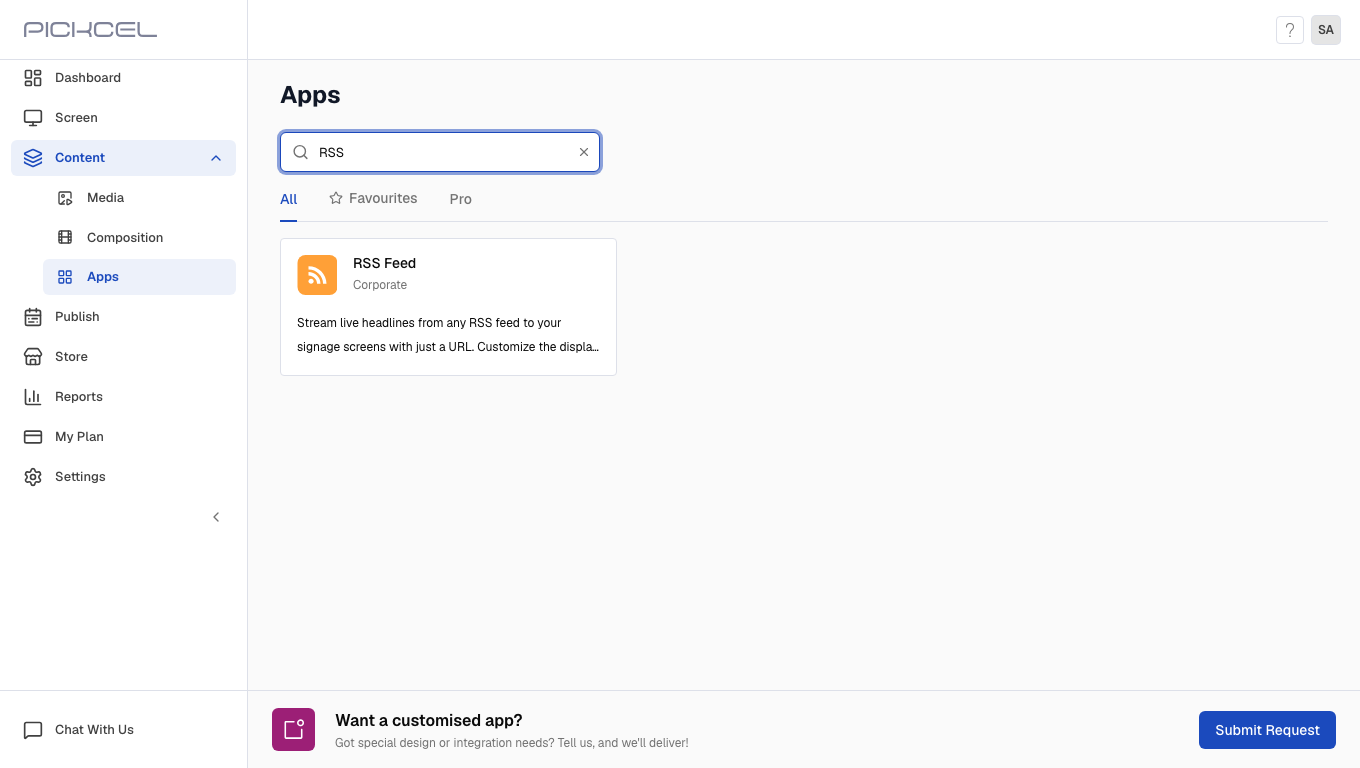
In the Pickcel console, expand **Content** in the left menu and select **Apps**. Search for **RSS** using the search field.
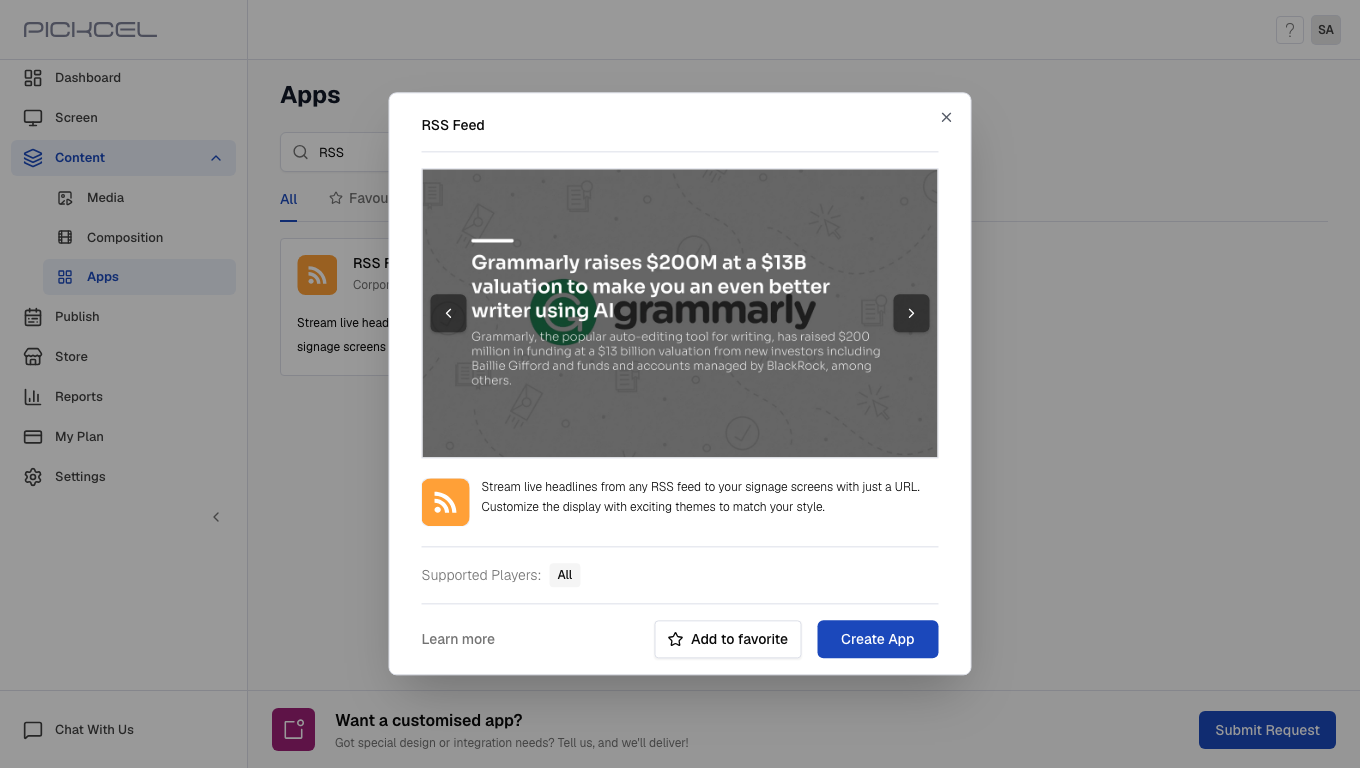
 Click the **RSS Feed** card. A details panel opens with a preview of the app. Click **Create App** to open the editor.
 Enter a **Name** for the app and paste your **RSS Feed Url**. Set **Slide Duration** to how many seconds each headline stays on screen (5 to 300 seconds), and toggle **Enable Animation** for a sliding transition between headlines. We used **Tech News Ticker**, TechCrunch's feed, and an **8** second duration.
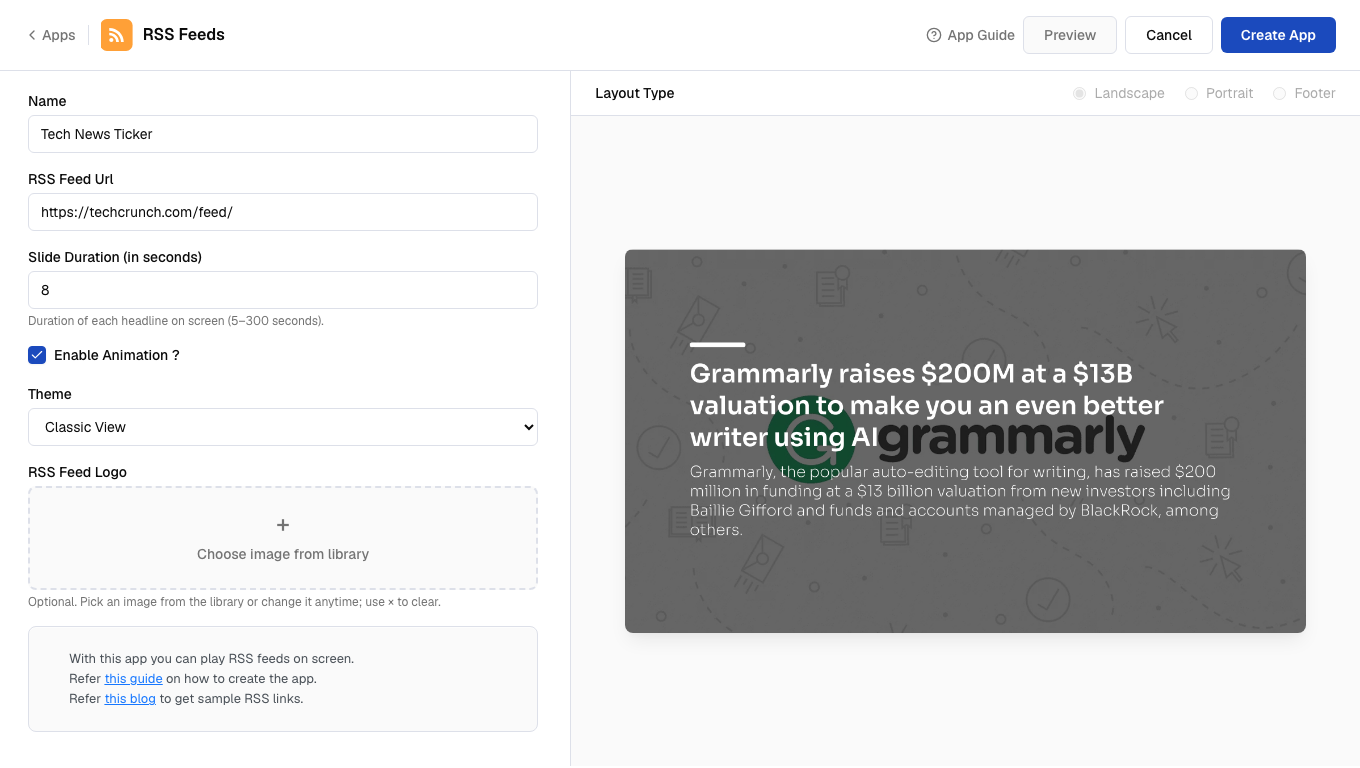 Don't have an RSS URL handy? The panel links to a guide and a list of sample feeds to test with.
Click **Preview** to load your live feed, then switch **Theme** to see how each style presents a headline. Expand each option below to see it rendered with a real headline from our feed.
Don't have an RSS URL handy? The panel links to a guide and a list of sample feeds to test with.
Click **Preview** to load your live feed, then switch **Theme** to see how each style presents a headline. Expand each option below to see it rendered with a real headline from our feed.
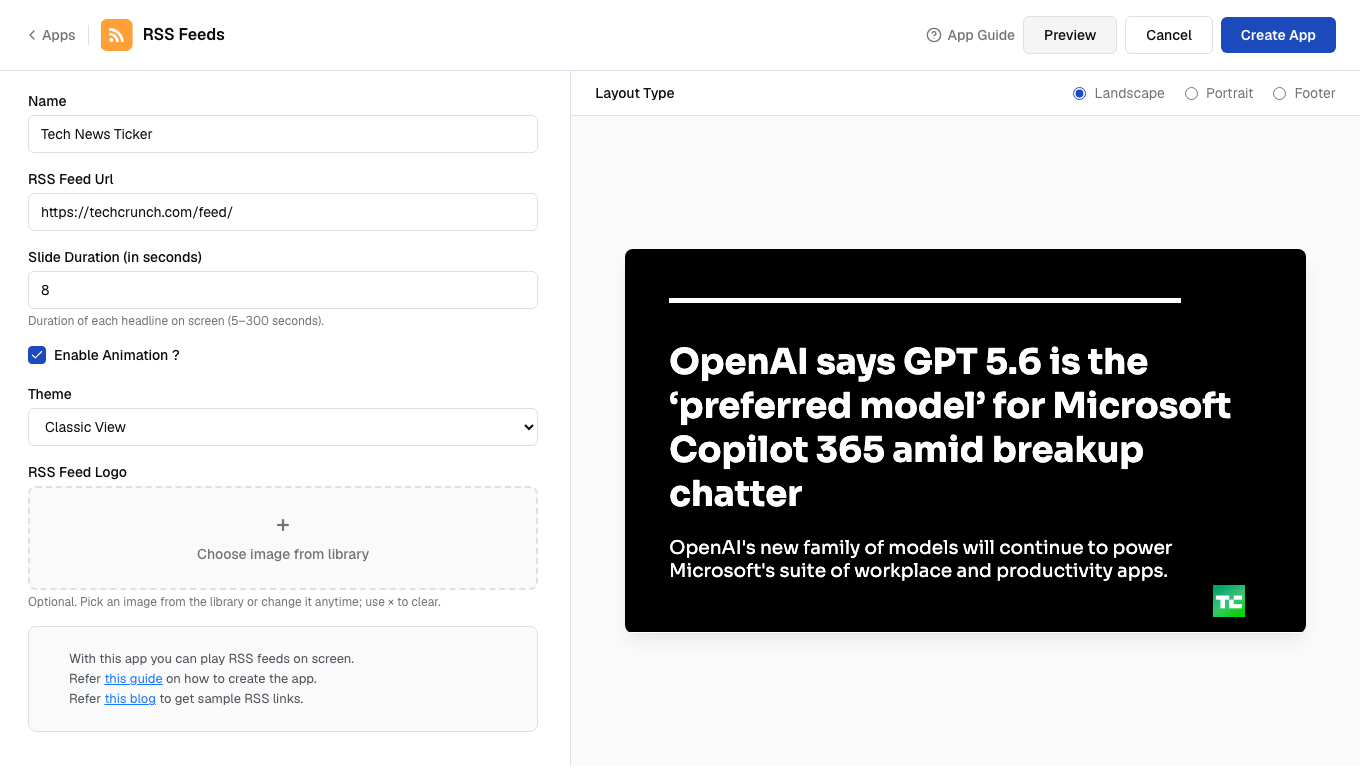
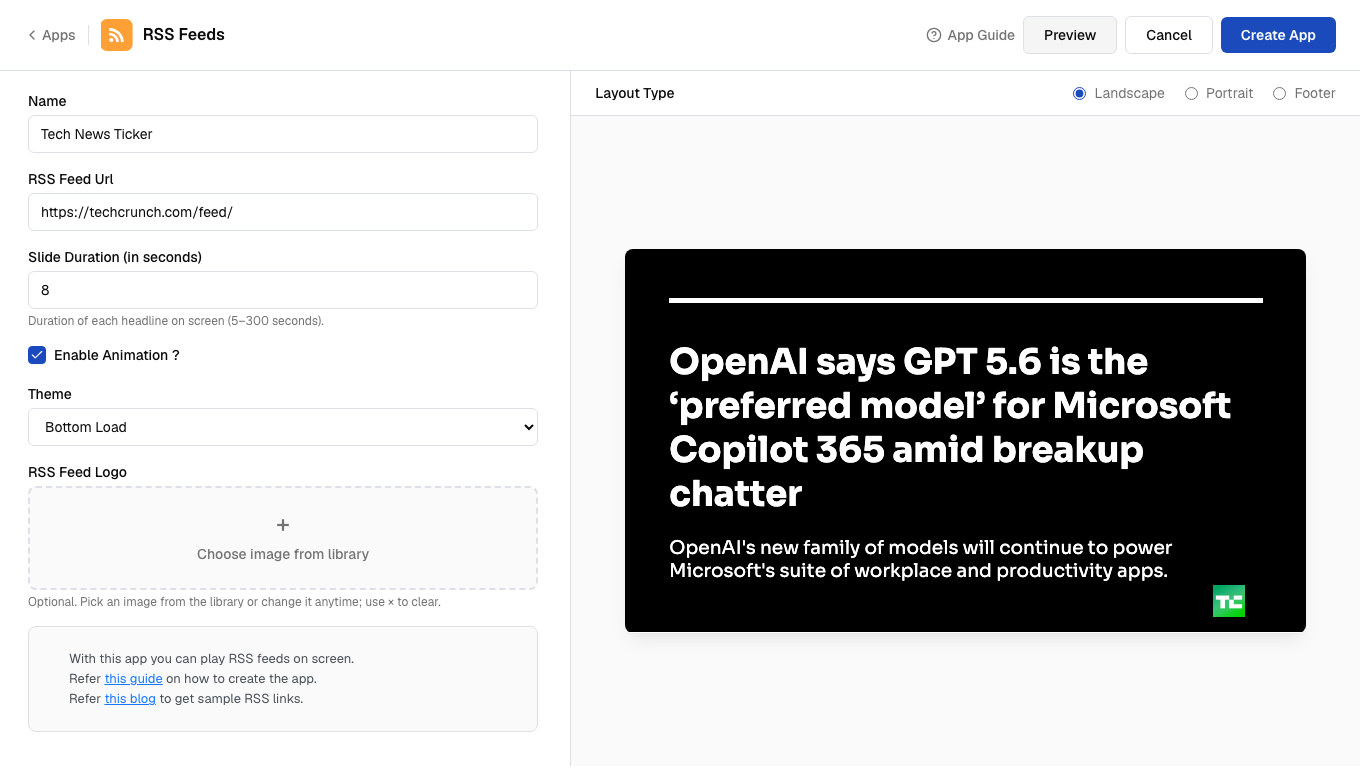
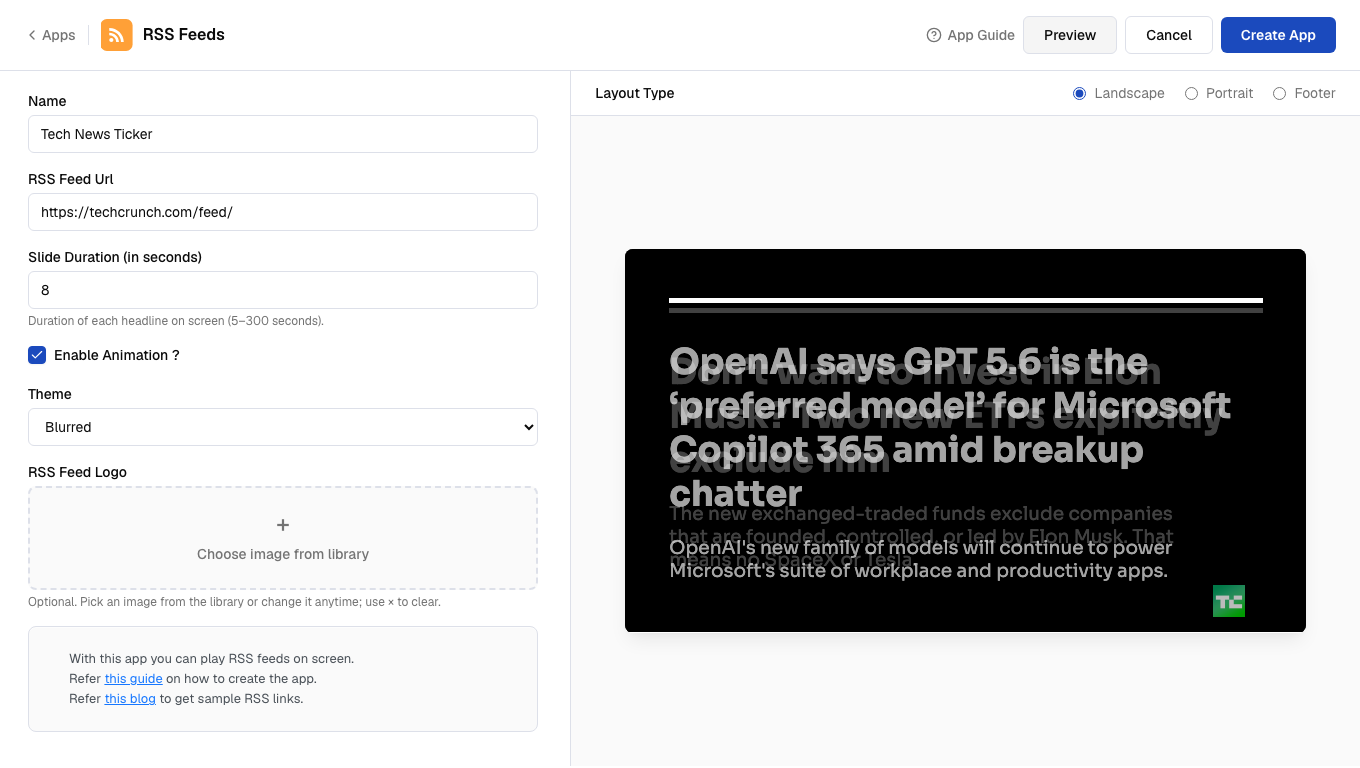
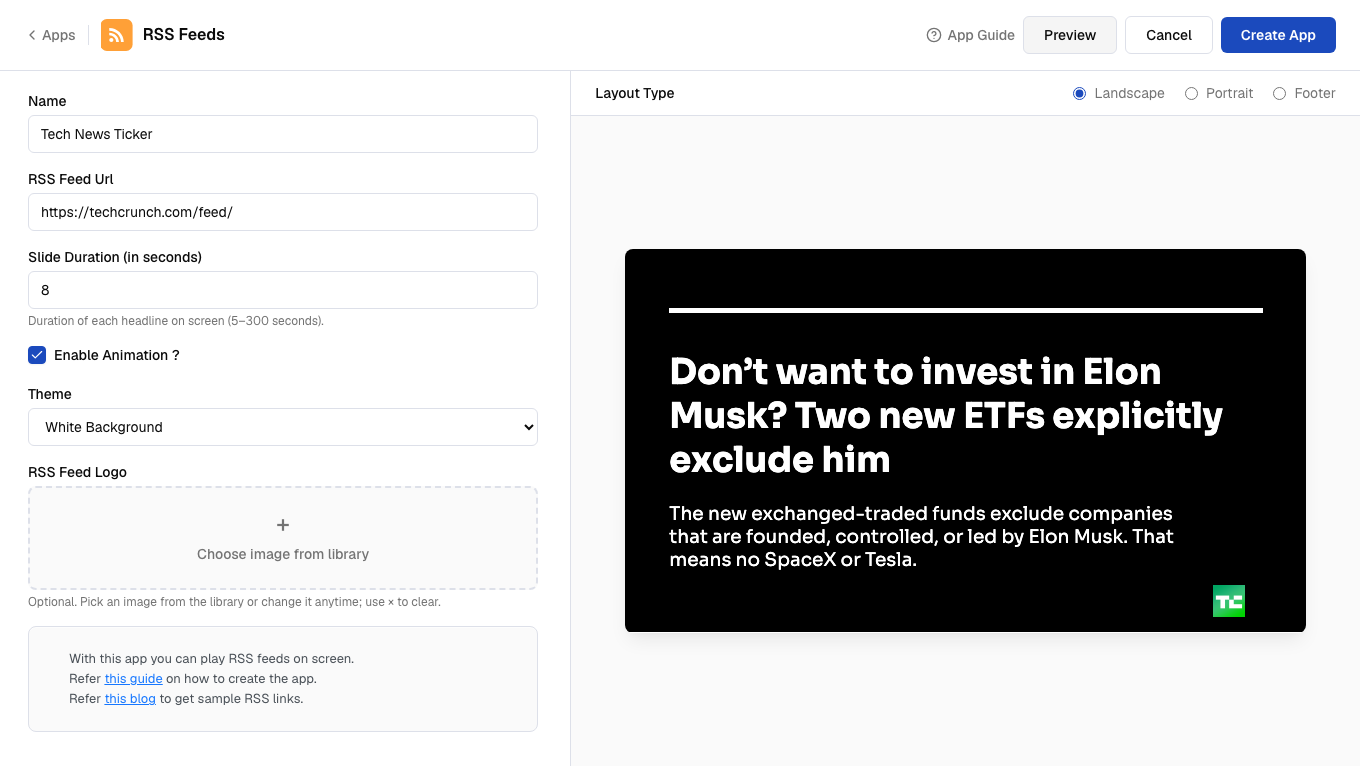
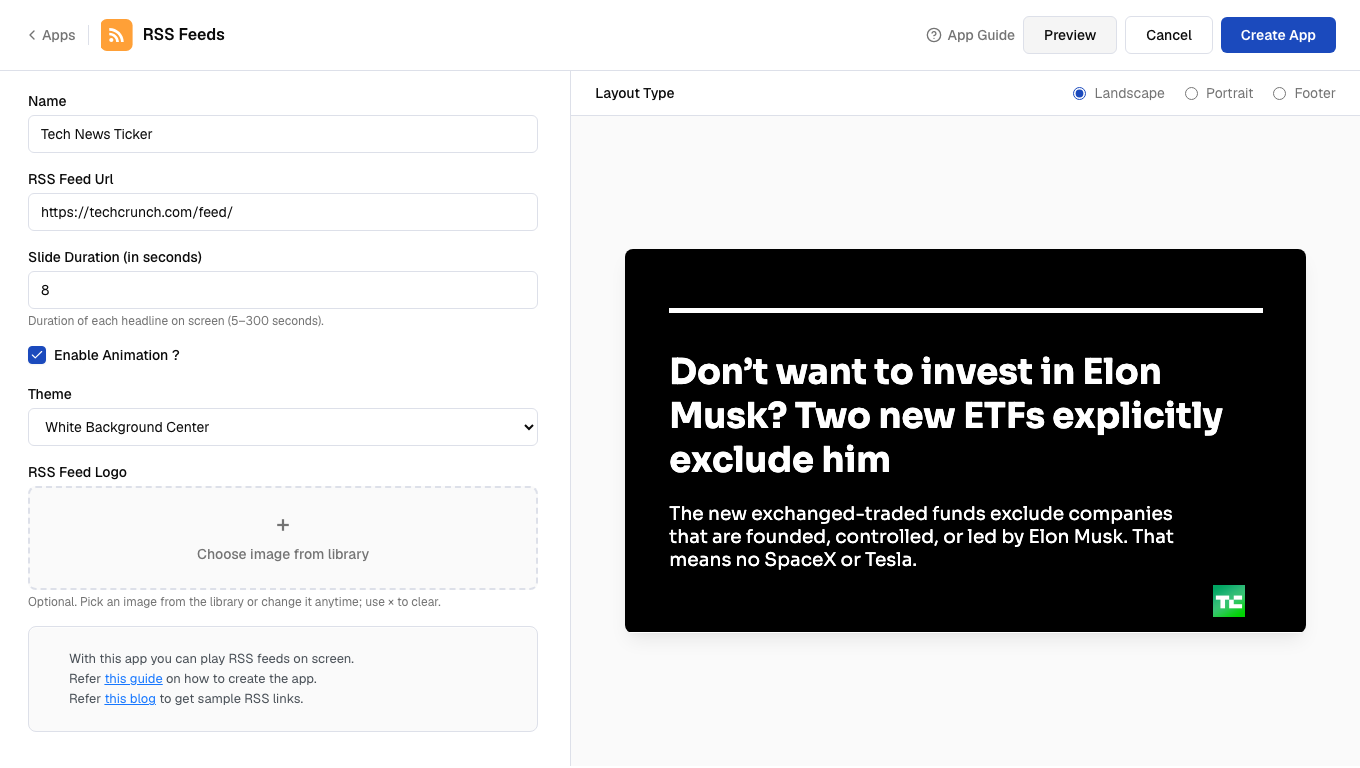 Click the **RSS Feed Logo** panel to open **Choose image**, then select an image already in your **Media** library.
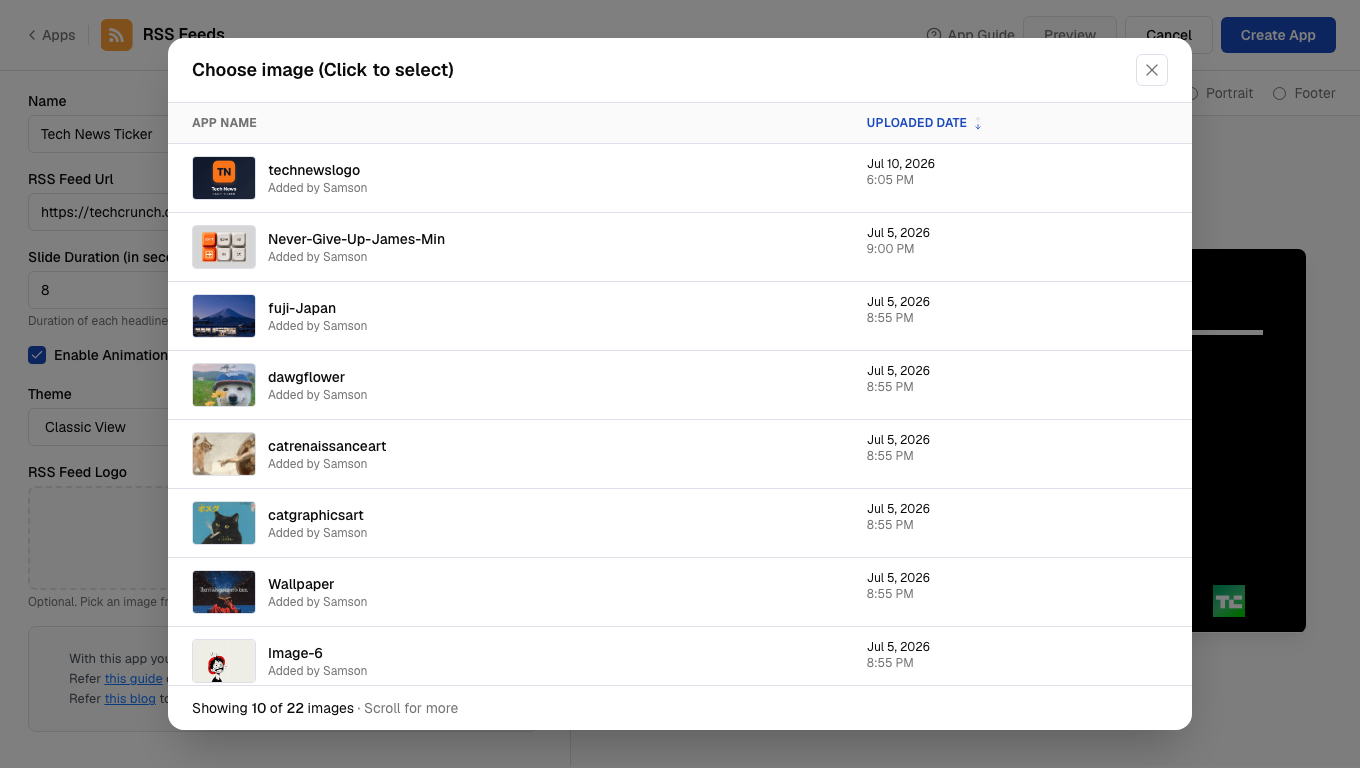 Only images already uploaded to **Media** appear here. Go to **Content > Media** first if the logo you want isn't listed yet. Use the **×** on the thumbnail to clear it later.
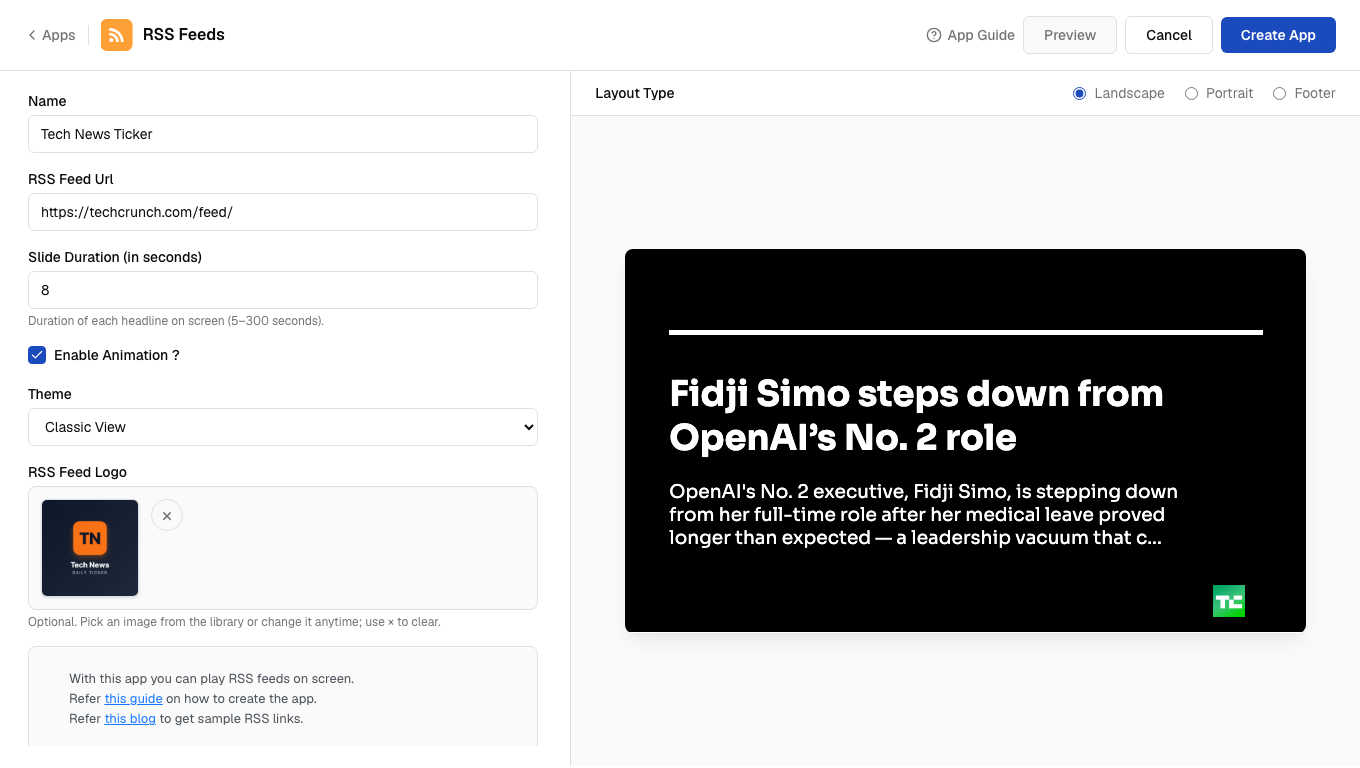 Click **Create App**. A success dialog confirms the feed was created and offers to walk you through adding it to a composition.
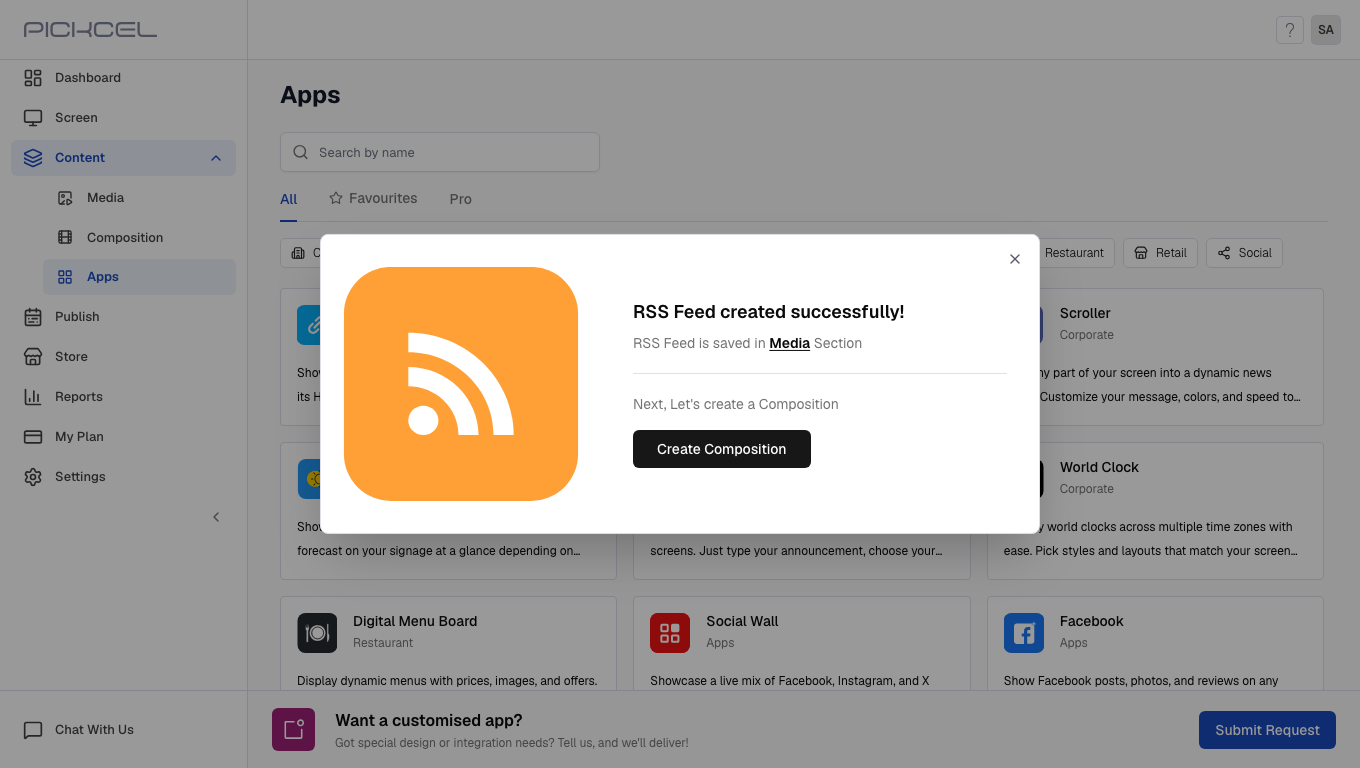 The app is stored in **Content > Media** under the name you gave it, with type **App**.
## What's Next?
* Add the feed to a multi-zone layout: [Compositions](/compositions/compositions)
* Send it to your screens: [Publish or Schedule Content](/schedule-and-publish/publish-overview)
The app is stored in **Content > Media** under the name you gave it, with type **App**.
## What's Next?
* Add the feed to a multi-zone layout: [Compositions](/compositions/compositions)
* Send it to your screens: [Publish or Schedule Content](/schedule-and-publish/publish-overview)