> ## Documentation Index
> Fetch the complete documentation index at: https://docs.pickcel.com/llms.txt
> Use this file to discover all available pages before exploring further.

# How to add the Quotes app from the Pickcel App Store?

> Learn how to add the Quotes app to display inspirational quotes on your digital signage screens

<Frame>
  <img src="https://mintcdn.com/pickcel-92c6a68f/bjMr5QgwDVGcLfC5/images/apps/quotes-1.jpg?fit=max&auto=format&n=bjMr5QgwDVGcLfC5&q=85&s=8334c1a03a34778e2b54215bf0077a69" alt="Quotes app preview" width="870" height="383" data-path="images/apps/quotes-1.jpg" />
</Frame>

<Steps>
  <Step title="Log in and open Apps">
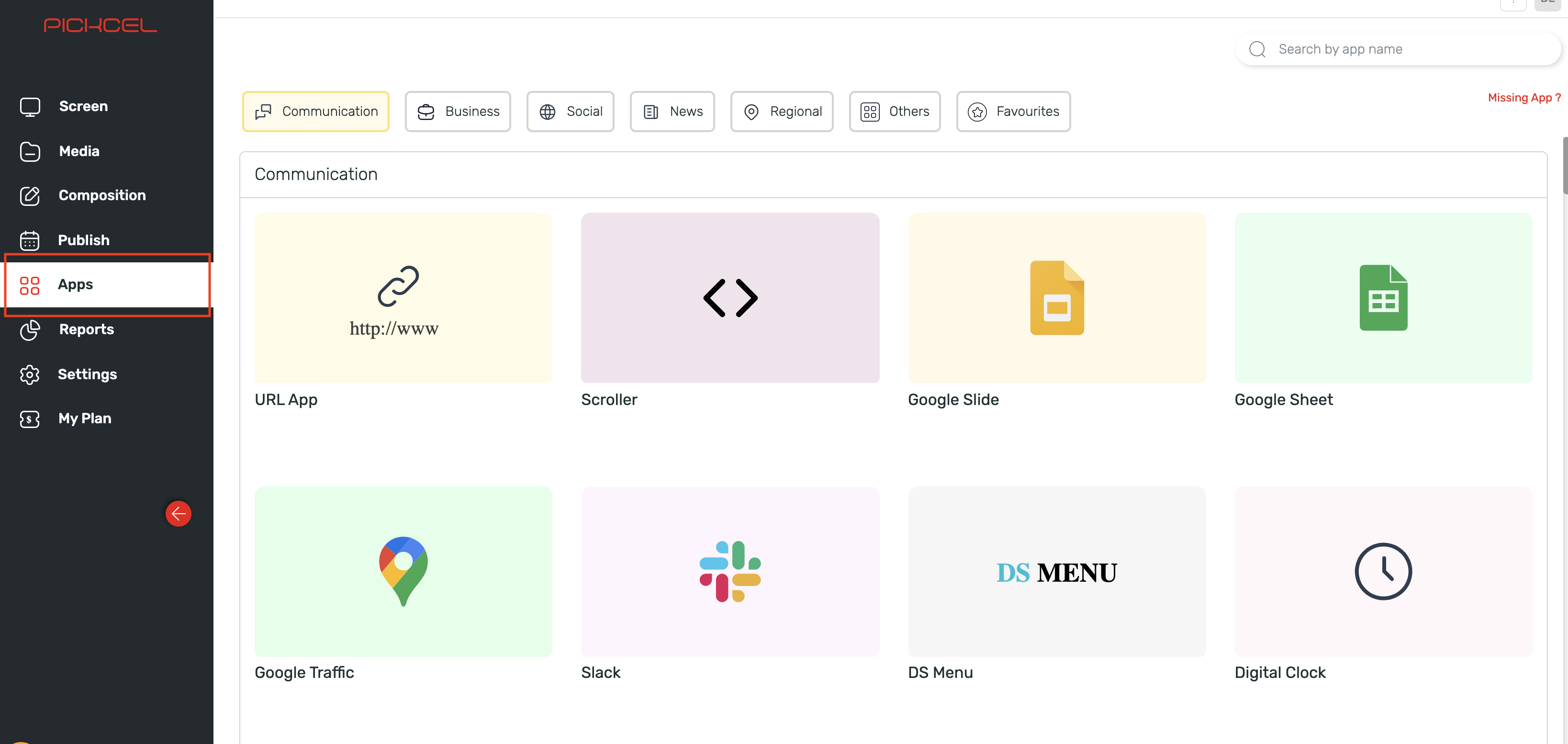
    [Login to your Pickcel account.](https://console.pickcel.com/) Open **Apps**:
    <Frame>
      <img src="https://mintcdn.com/pickcel-92c6a68f/bjMr5QgwDVGcLfC5/images/apps/quotes-2.jpg?fit=max&auto=format&n=bjMr5QgwDVGcLfC5&q=85&s=54d72323fd090b6179d3d43edbb35a5a" alt="Pickcel console with Apps selected" width="3276" height="1554" data-path="images/apps/quotes-2.jpg" />
    </Frame>
  </Step>

  <Step title="Search for Quotes app">
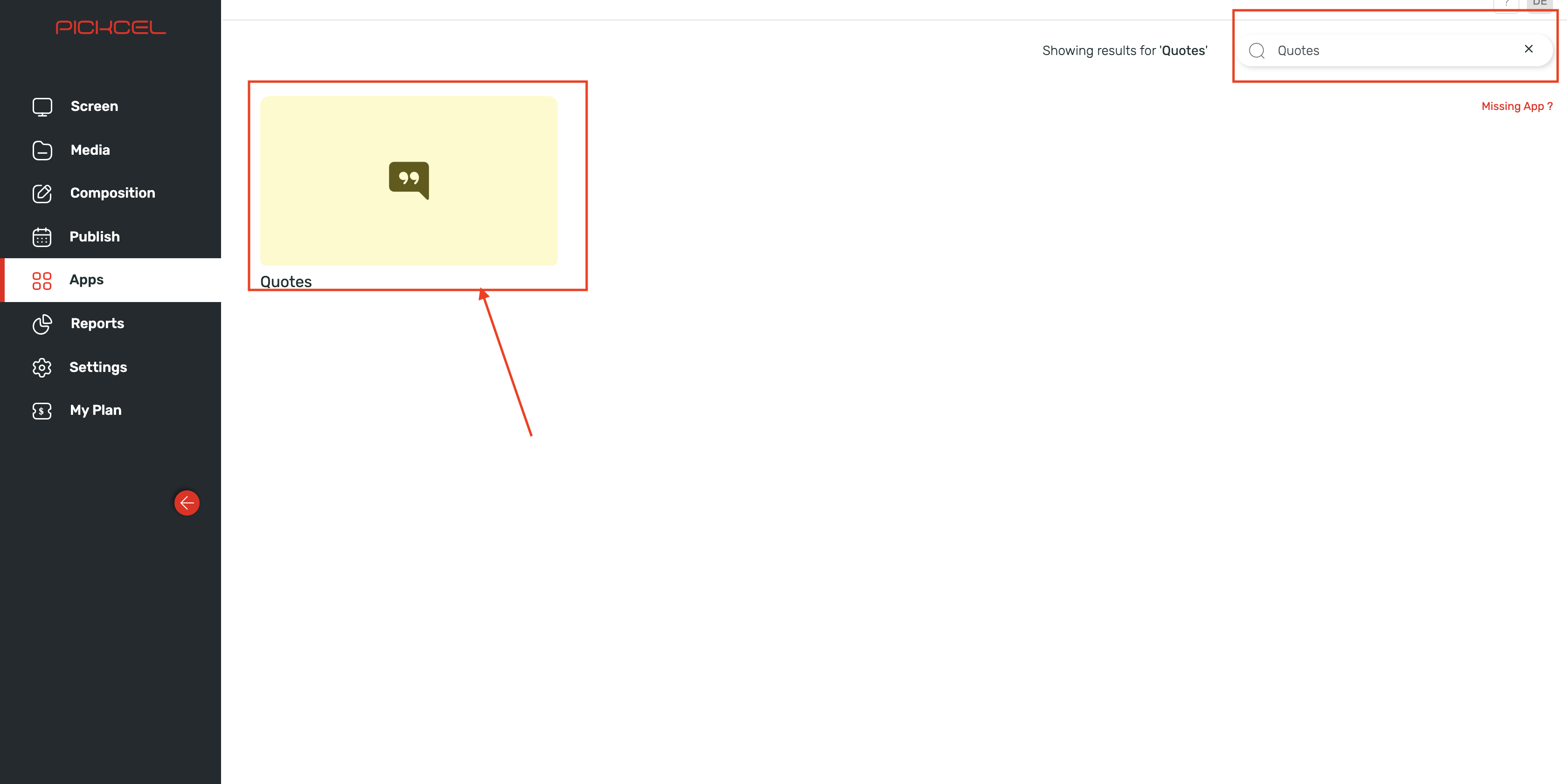
    Search for the '**Quotes** app' using the search field and you will see the quotes app in the app listing:
    <Frame>
      <img src="https://mintcdn.com/pickcel-92c6a68f/bjMr5QgwDVGcLfC5/images/apps/quotes-3.jpg?fit=max&auto=format&n=bjMr5QgwDVGcLfC5&q=85&s=fa2757bb8462aad40436ae704671cc77" alt="Search Quotes app" width="3360" height="1682" data-path="images/apps/quotes-3.jpg" />
    </Frame>
  </Step>

  <Step title="Click Create App">
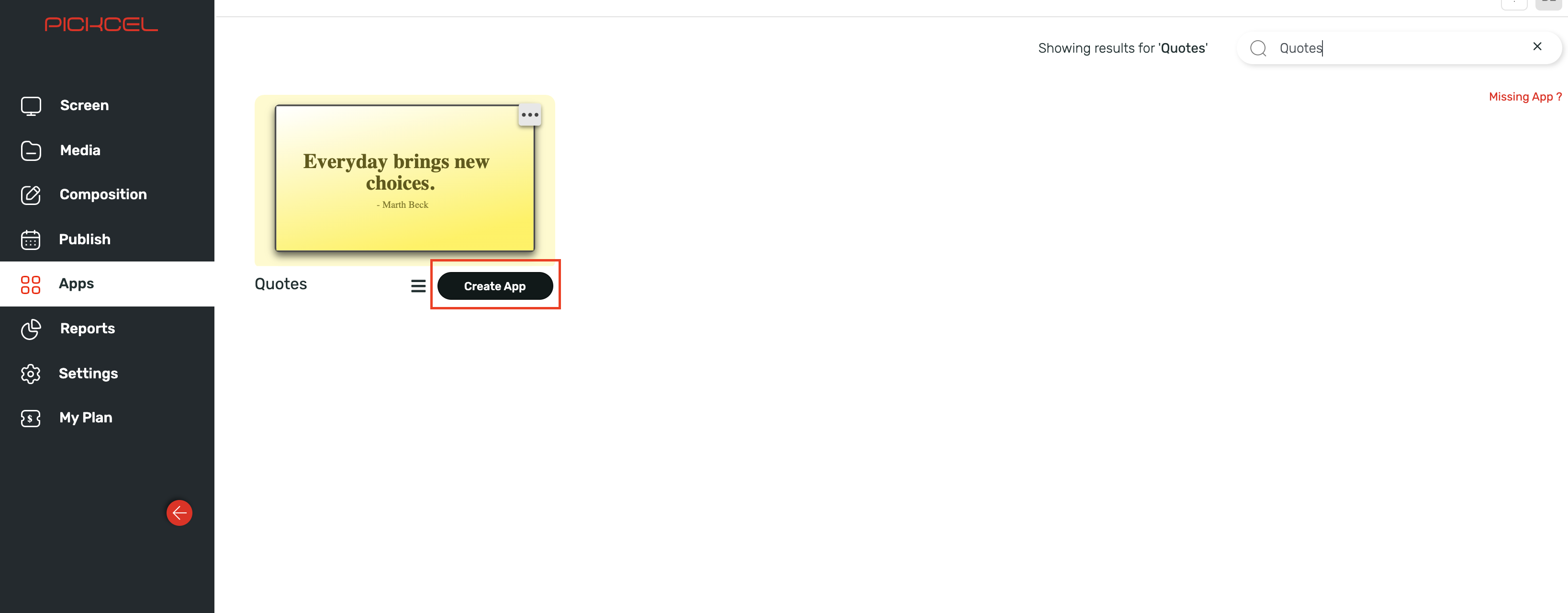
    Hover over the app thumbnail and click on the **Create App** button:
    <Frame>
      <img src="https://mintcdn.com/pickcel-92c6a68f/bjMr5QgwDVGcLfC5/images/apps/quotes-4.jpg?fit=max&auto=format&n=bjMr5QgwDVGcLfC5&q=85&s=33b145df8518ab23e15af264dc8745a6" alt="Click Create App" width="3276" height="1280" data-path="images/apps/quotes-4.jpg" />
    </Frame>
  </Step>

  <Step title="Enter app name">
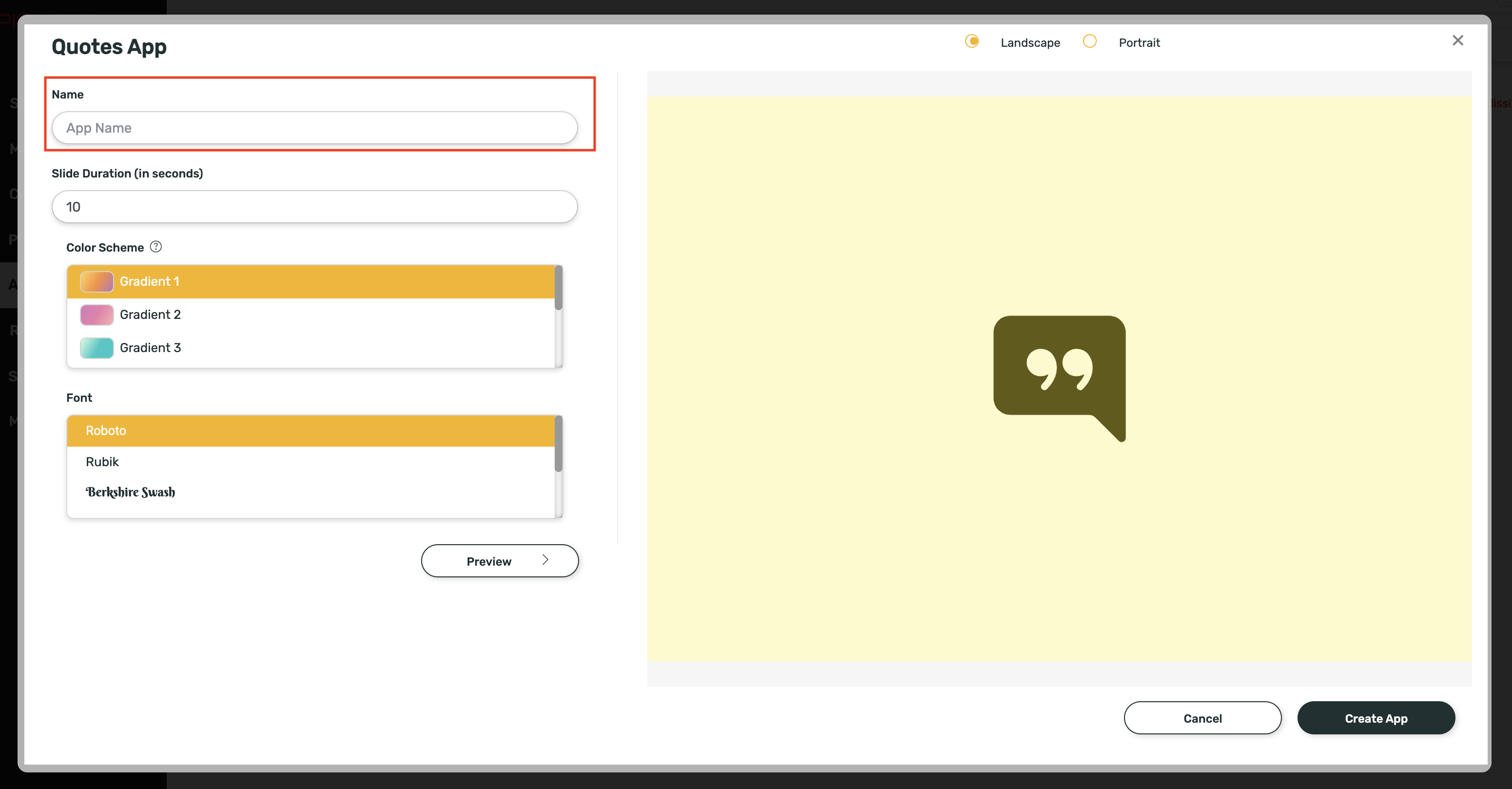
    Enter a **name** in the Textbox for identification of the app:
    <Frame>
      <img src="https://mintcdn.com/pickcel-92c6a68f/bjMr5QgwDVGcLfC5/images/apps/quotes-5.jpg?fit=max&auto=format&n=bjMr5QgwDVGcLfC5&q=85&s=e08351c964f36df039c8f662bff47342" alt="Enter app name" width="3102" height="1618" data-path="images/apps/quotes-5.jpg" />
    </Frame>
  </Step>

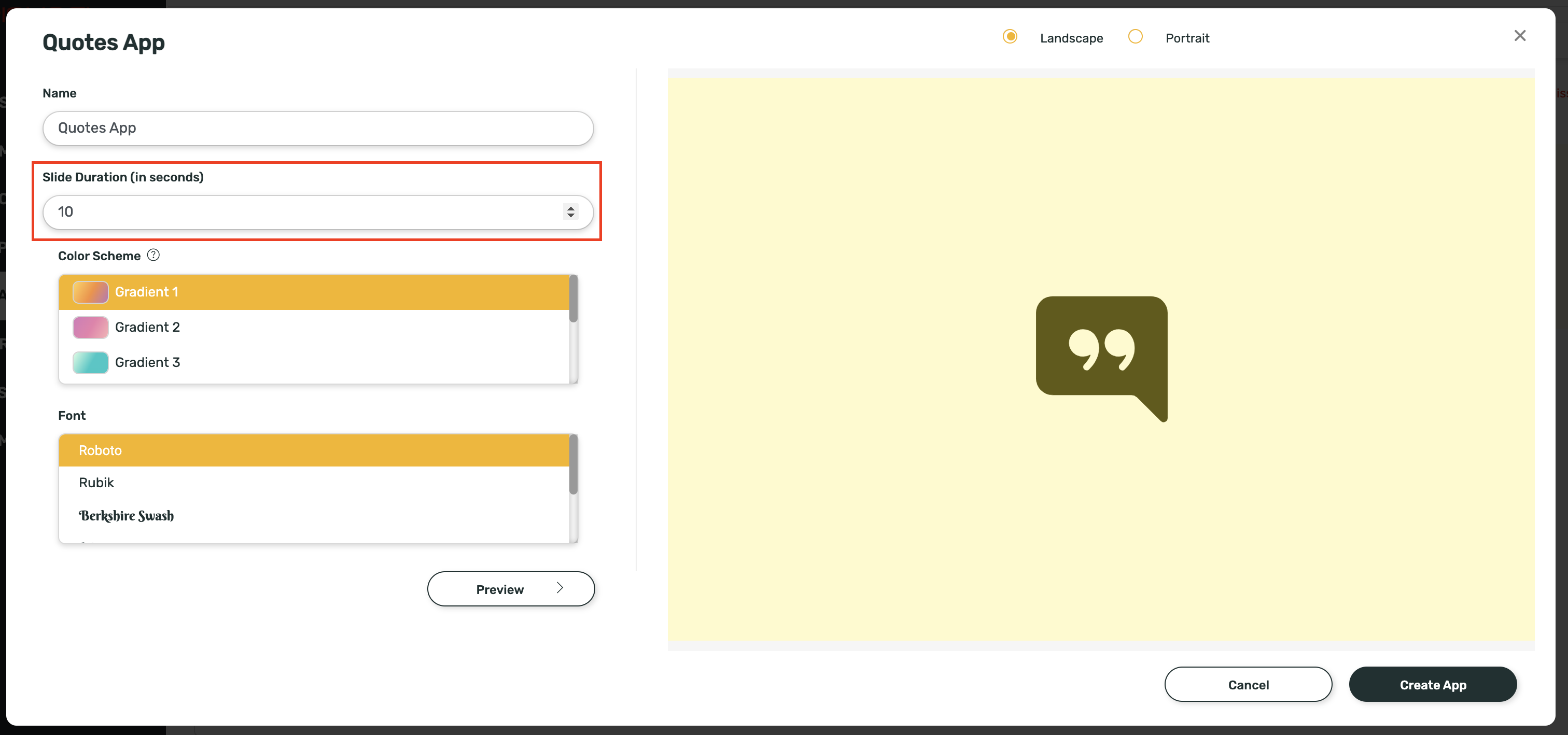
  <Step title="Enter slide duration">
    Enter the slide duration (in seconds):
    <Frame>
      <img src="https://mintcdn.com/pickcel-92c6a68f/bjMr5QgwDVGcLfC5/images/apps/quotes-6.jpg?fit=max&auto=format&n=bjMr5QgwDVGcLfC5&q=85&s=5a572305c40eb3ff5f3fe654e2252ef7" alt="Enter slide duration" width="3024" height="1418" data-path="images/apps/quotes-6.jpg" />
    </Frame>
  </Step>

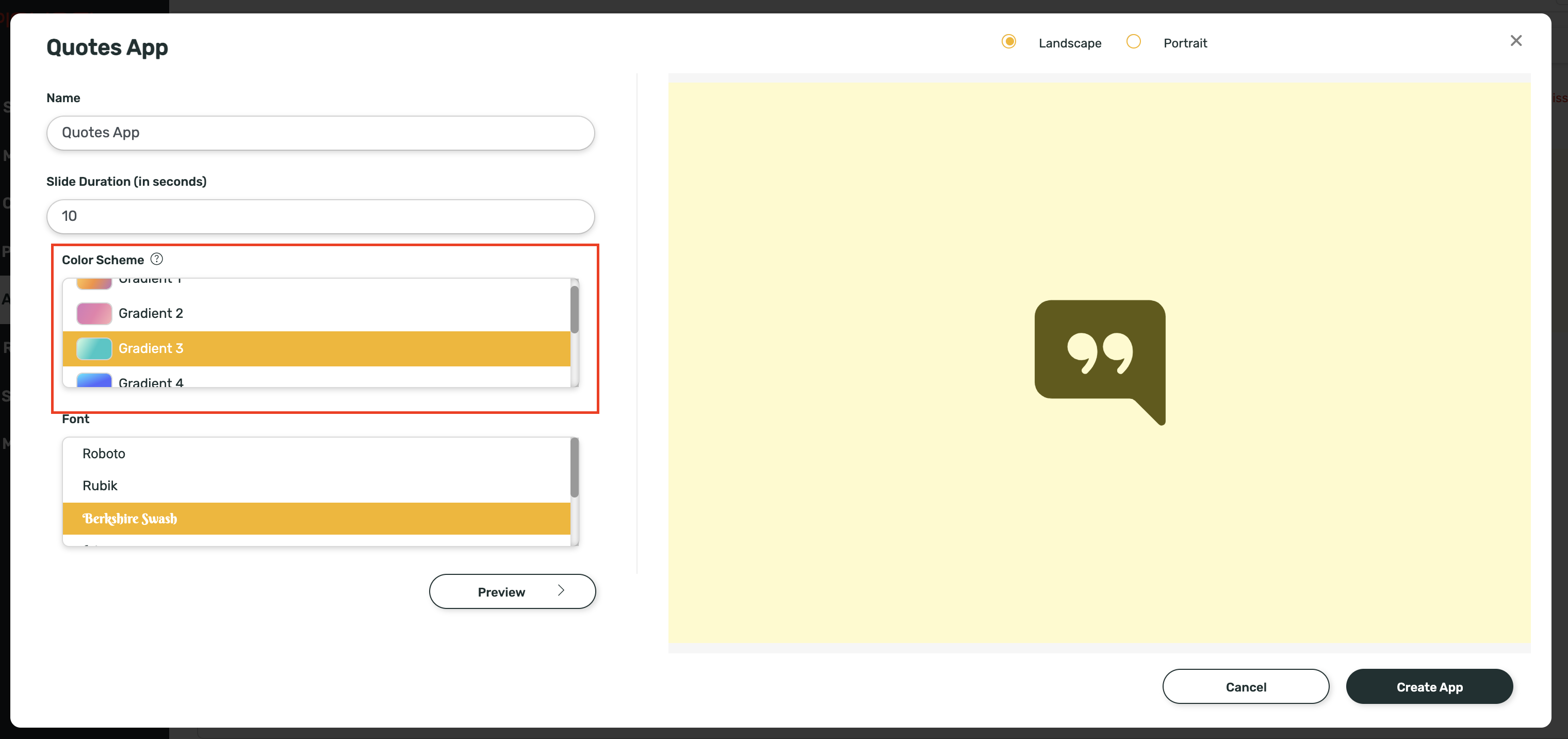
  <Step title="Select Colour Scheme">
    Select a Colour Scheme of your choice from the list given: Colour Schemes available: Gradient 1, Gradient 2, Gradient 3, Gradient 4, Black, White and Transparent with black text and Transparent with white text.
    <Frame>
      <img src="https://mintcdn.com/pickcel-92c6a68f/bjMr5QgwDVGcLfC5/images/apps/quotes-7.jpg?fit=max&auto=format&n=bjMr5QgwDVGcLfC5&q=85&s=ae99599c9ef1ee85d8c8766cb1b6c44f" alt="Select colour scheme" width="3040" height="1432" data-path="images/apps/quotes-7.jpg" />
    </Frame>
  </Step>

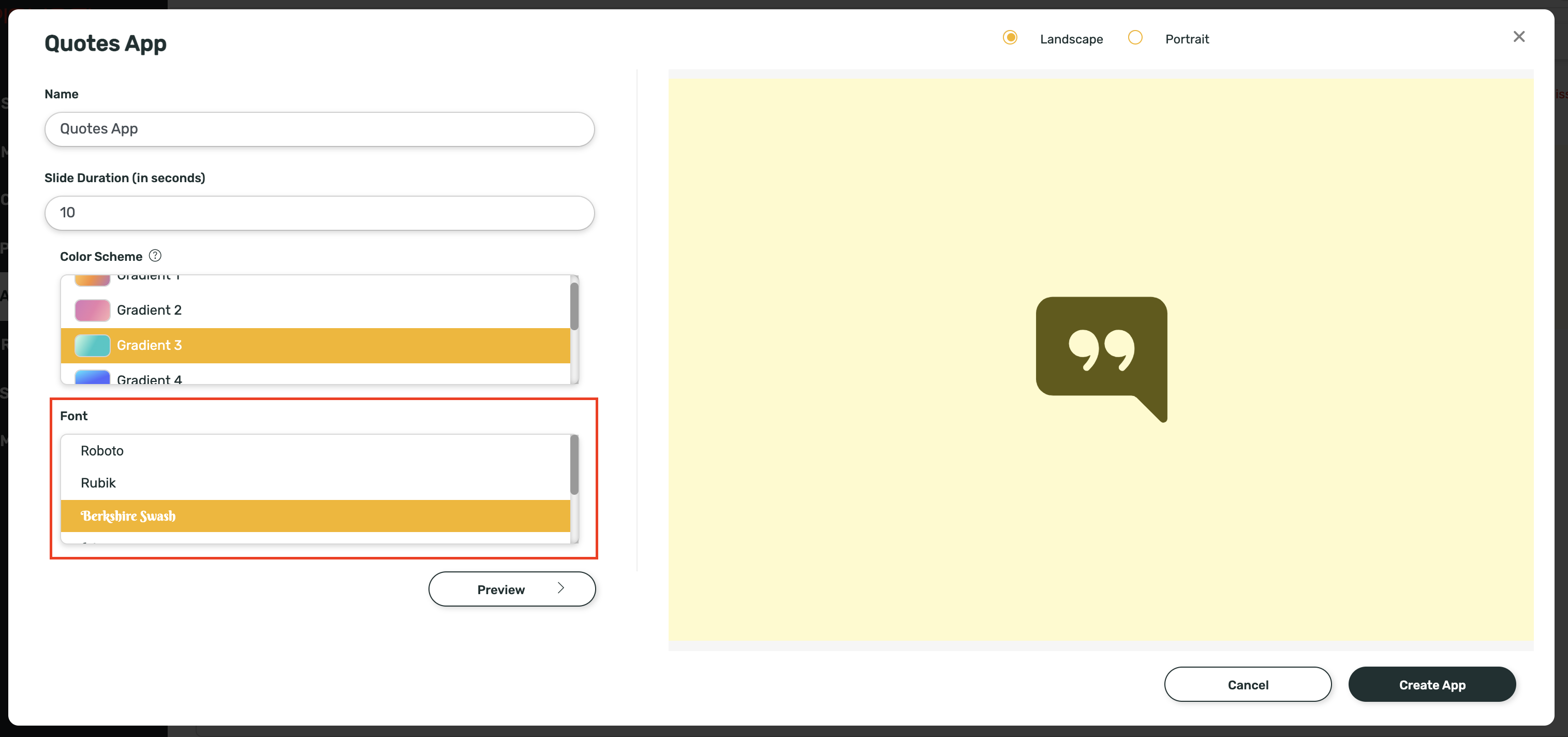
  <Step title="Select Font">
    Select a Font of your choice from the list given: Fonts available: Roboto, Rubik, Berkshire Swash, Lobster, Bad Script, Pacifico.
    <Frame>
      <img src="https://mintcdn.com/pickcel-92c6a68f/bjMr5QgwDVGcLfC5/images/apps/quotes-8.jpg?fit=max&auto=format&n=bjMr5QgwDVGcLfC5&q=85&s=739b6c6f1b8fabc1400fb0361b684673" alt="Select font" width="3030" height="1424" data-path="images/apps/quotes-8.jpg" />
    </Frame>
  </Step>

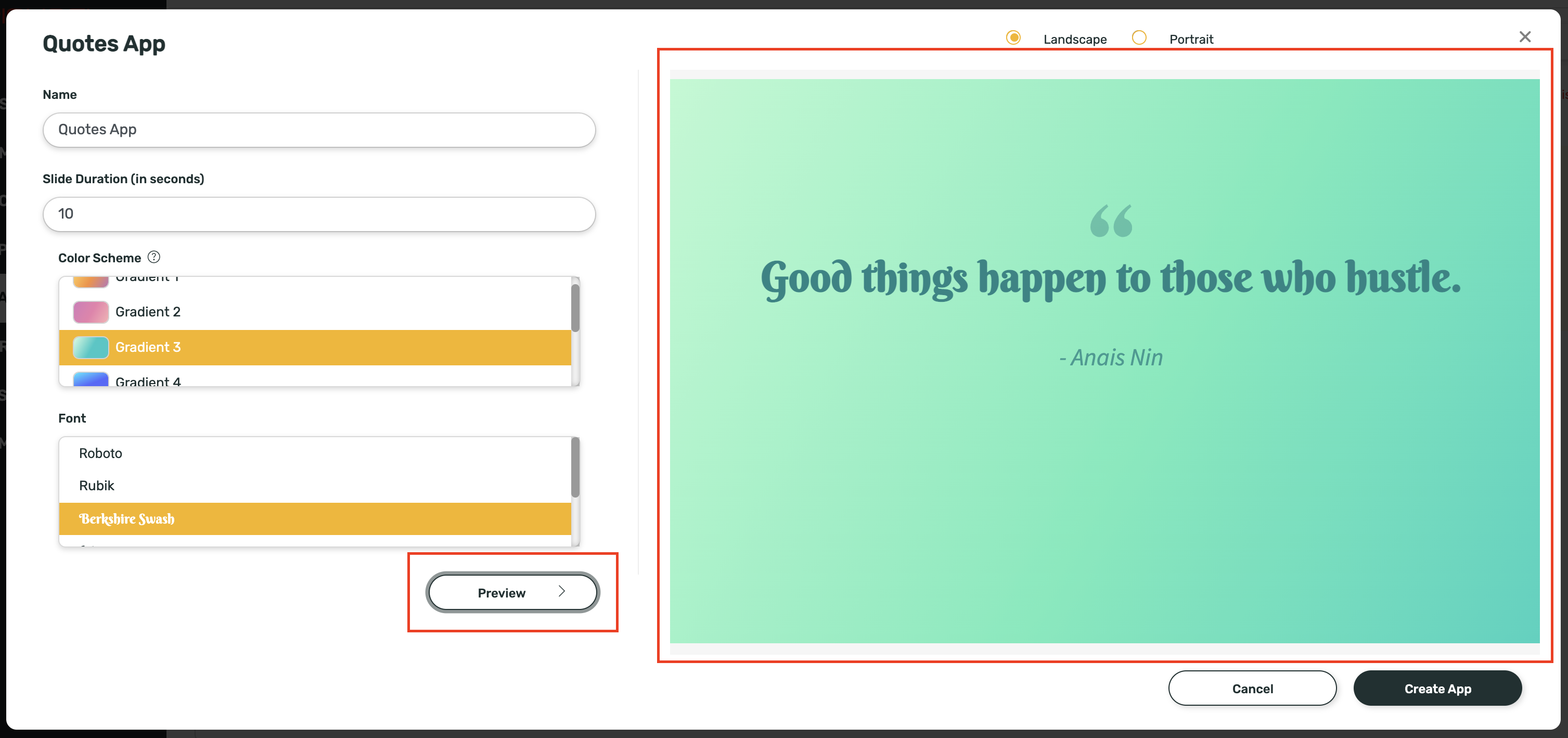
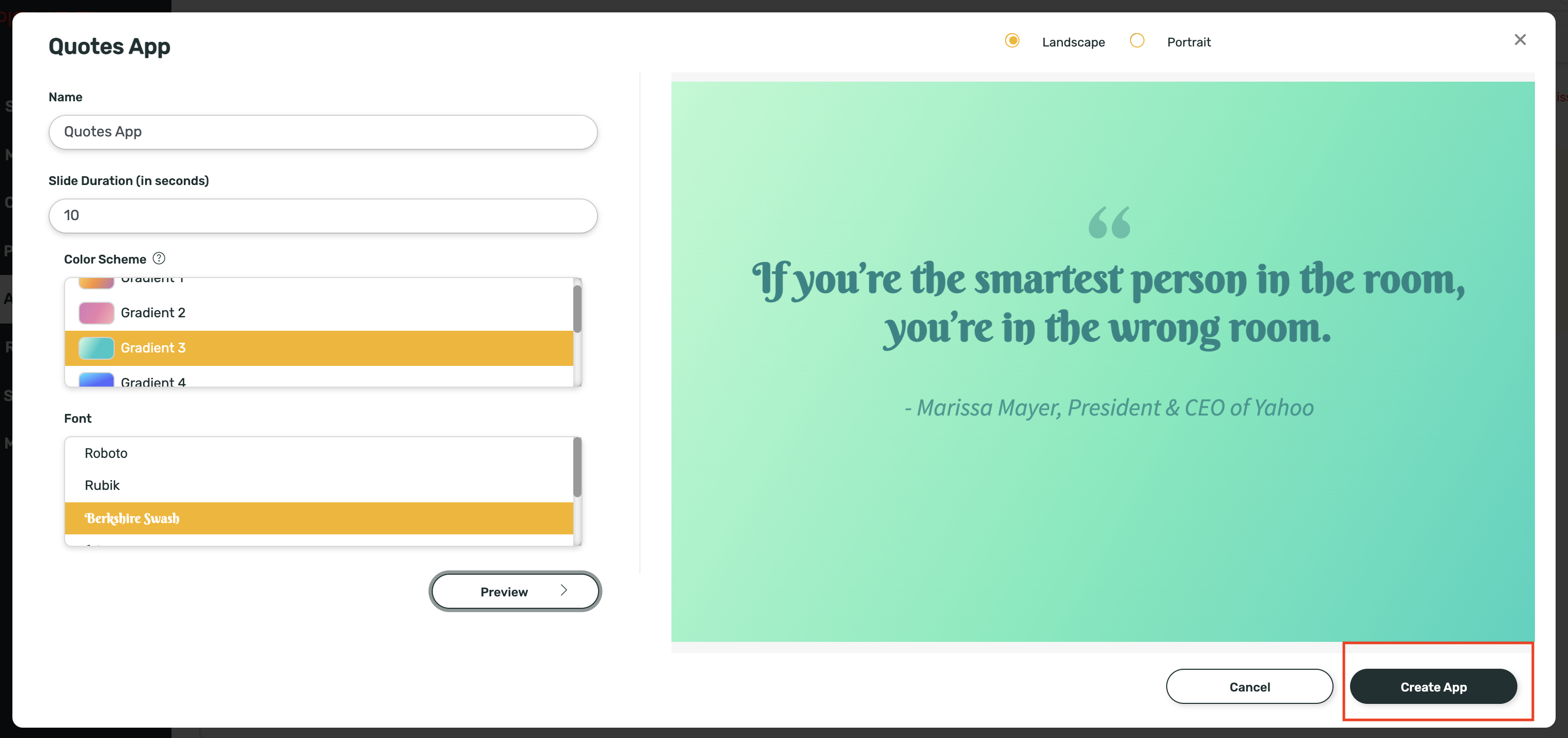
  <Step title="Preview and create">
    Click on Preview to view your selection:
    <Frame>
      <img src="https://mintcdn.com/pickcel-92c6a68f/bjMr5QgwDVGcLfC5/images/apps/quotes-9.jpg?fit=max&auto=format&n=bjMr5QgwDVGcLfC5&q=85&s=fce818b1d616765ec27b2a9a6ed88db6" alt="Preview app" width="3014" height="1418" data-path="images/apps/quotes-9.jpg" />
    </Frame>

    Click on **Create App** and the app will be created successfully.
    <Frame>
      <img src="https://mintcdn.com/pickcel-92c6a68f/bjMr5QgwDVGcLfC5/images/apps/quotes-10.jpg?fit=max&auto=format&n=bjMr5QgwDVGcLfC5&q=85&s=fcb24f9674cbe9bba863584b8a2afb33" alt="Click Create App" width="3036" height="1428" data-path="images/apps/quotes-10.jpg" />
    </Frame>
  </Step>
</Steps>
