> ## Documentation Index
> Fetch the complete documentation index at: https://docs.pickcel.com/llms.txt
> Use this file to discover all available pages before exploring further.
# What is Pickcel Queue Management application and how to create it?
> Learn how to set up a digital queue management system to streamline visitor flow and reduce wait times with virtual tokens
Pickcel's queue management application replaces the "take-a-ticket" system by allowing visitors to enter a queue from a digital kiosk or a mobile device. It will provide tokens virtually, and individuals can wait for their token number to be displayed on the screen to have their visit.
## To create a Queue Management application
[Login to your Pickcel account](https://console.pickcel.com/). Open **Apps** and search for the **Queue Management** app.
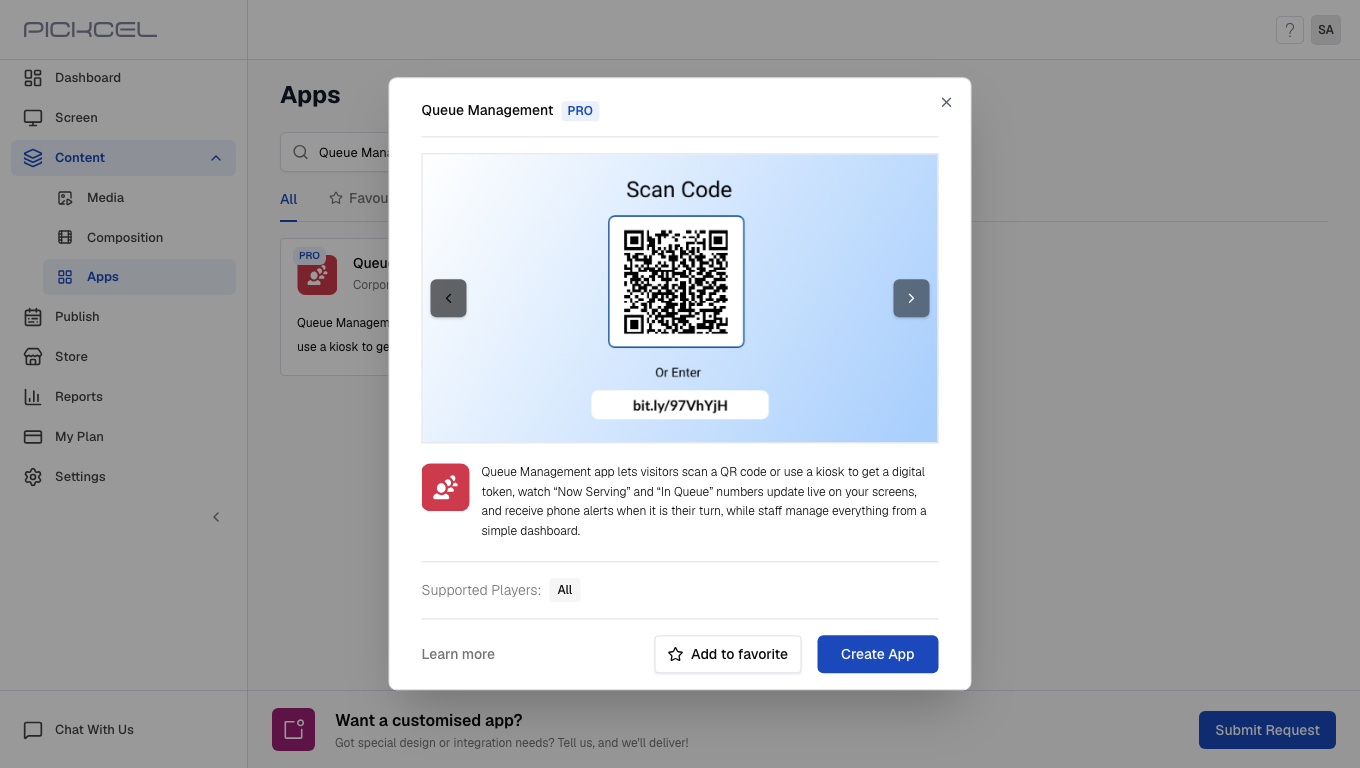
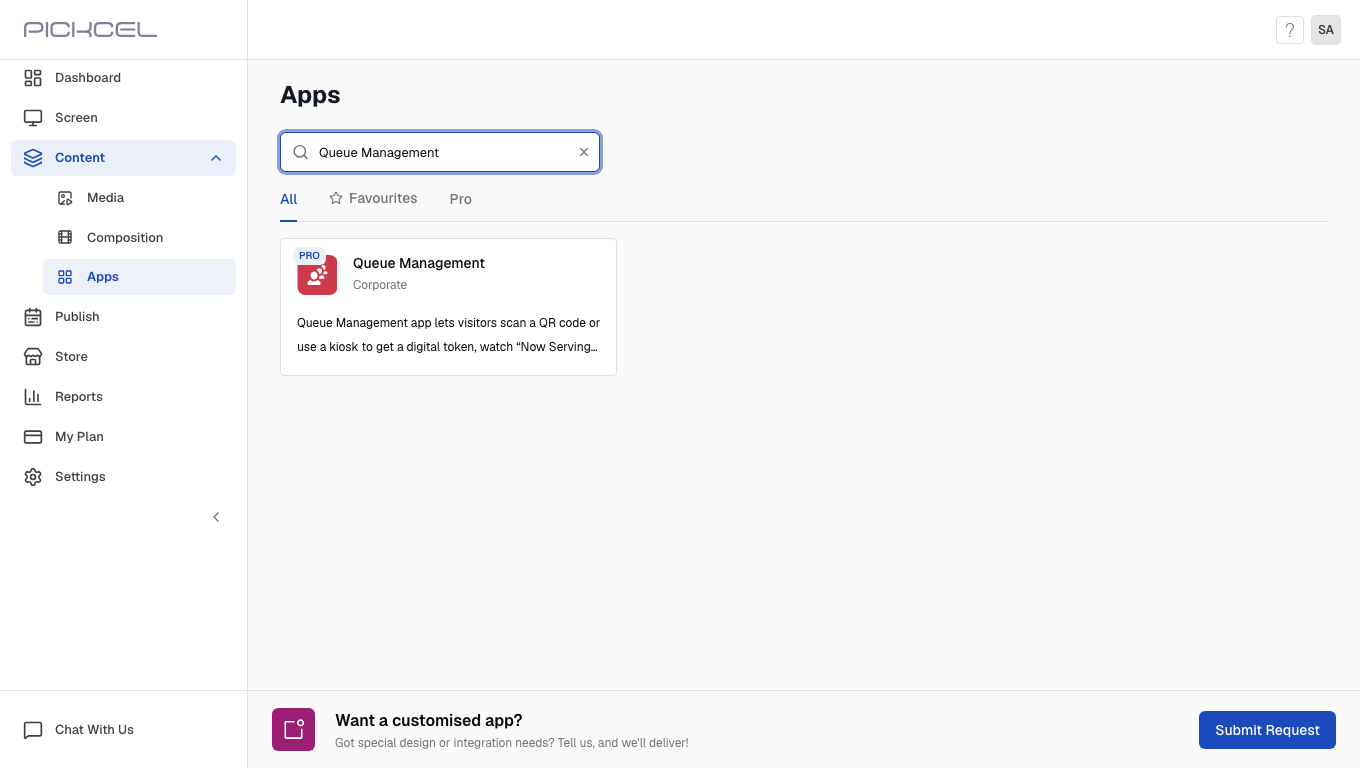 Click the **Queue Management** app card, then click **Create App** in the app details panel.
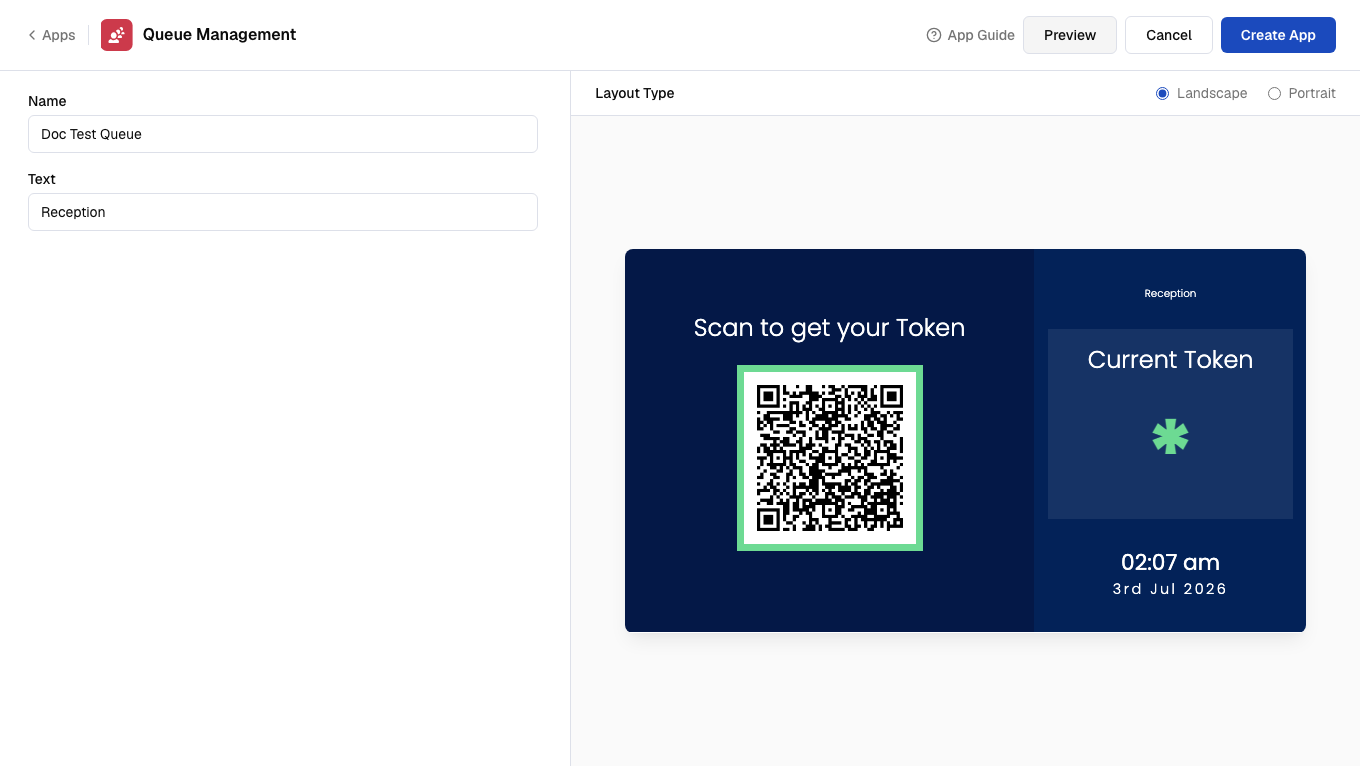
 Enter a **Name** for the app and a **Text** to identify the queue on screen.
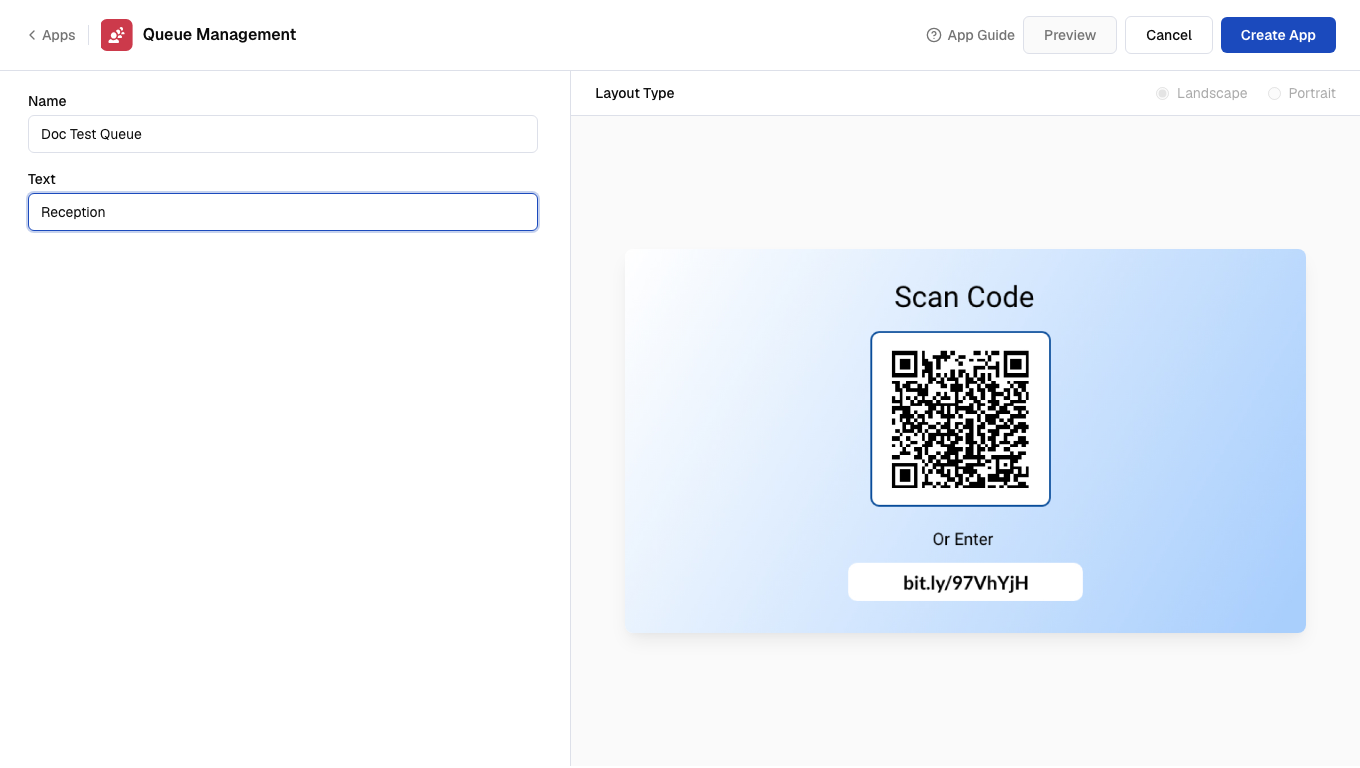 You can check the preview by clicking **Preview**, and if all looks good, click on **Create App**. The app gets saved in the **Media** library.
 Add it to a composition and share it on your screen.
[Learn how to create a composition](/compositions/compositions).
Add it to a composition and share it on your screen.
[Learn how to create a composition](/compositions/compositions).
 ## How to manage the visits and tokens generated?
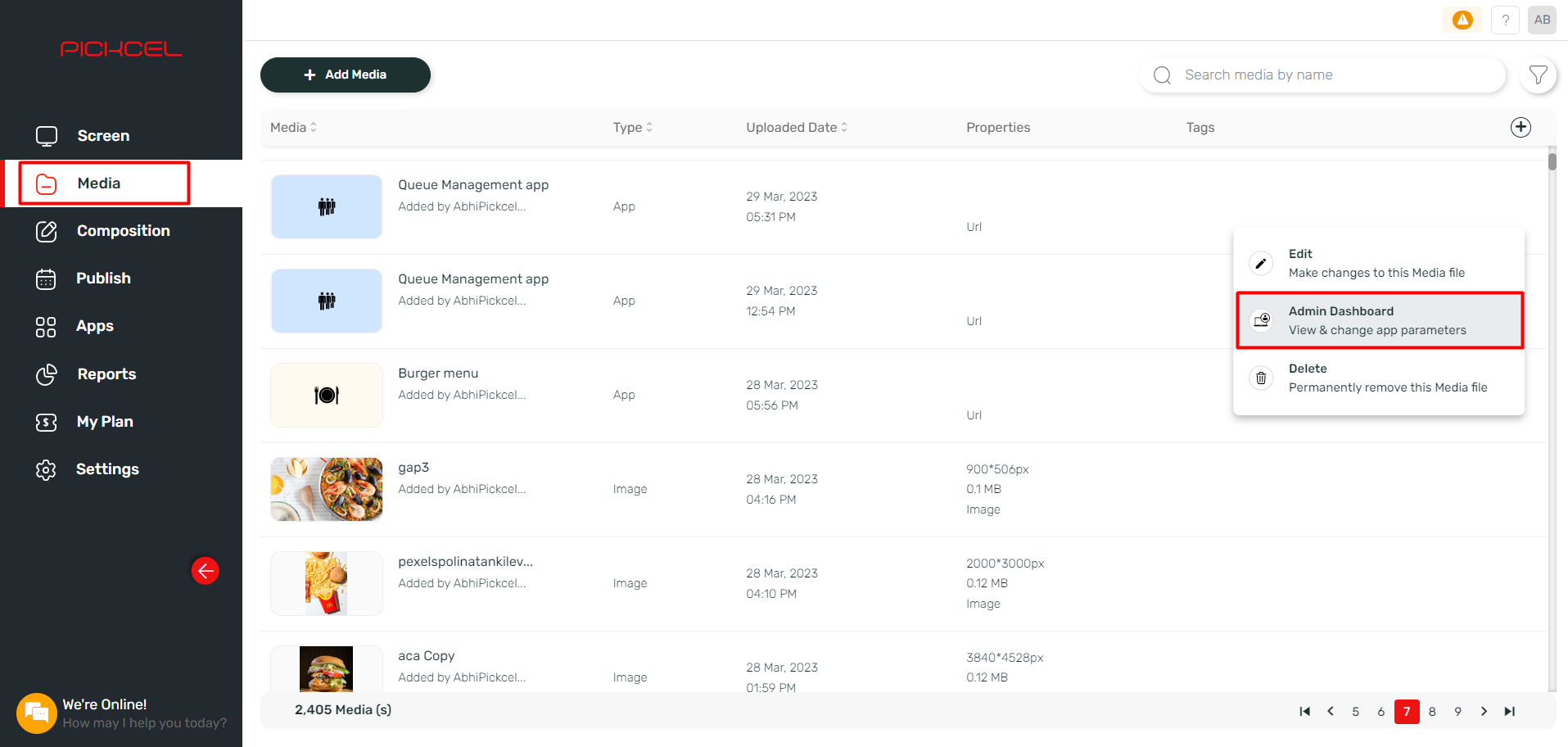
Open **Media** on your Pickcel dashboard. You will find your saved queue management app. On hover, three dots will appear at the far right. Click on the three dots. From the dropdown menu, select **Admin Dashboard**.
## How to manage the visits and tokens generated?
Open **Media** on your Pickcel dashboard. You will find your saved queue management app. On hover, three dots will appear at the far right. Click on the three dots. From the dropdown menu, select **Admin Dashboard**.
 An admin dashboard will open in a new window. All the tokens generated will be displayed on the left-hand side.
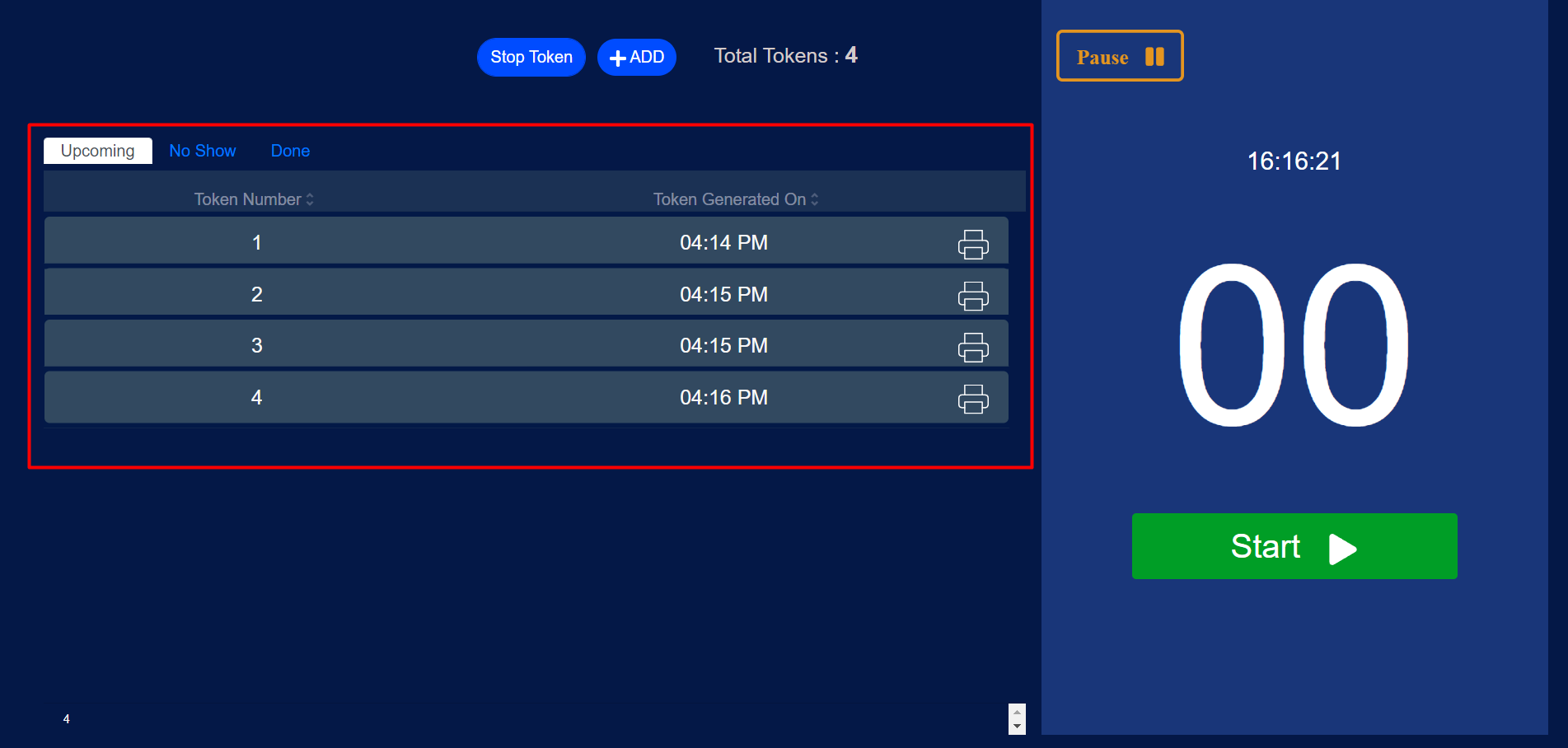 You can also add a token by clicking on the **+Add** button at the top.
On the right-hand side, click on **Start**, and the queue will start like this. If the visitor doesn't show up, click on **No show**, and if the visit is done, click on **Done**. After either, the queue will move to the next one.
You can also add a token by clicking on the **+Add** button at the top.
On the right-hand side, click on **Start**, and the queue will start like this. If the visitor doesn't show up, click on **No show**, and if the visit is done, click on **Done**. After either, the queue will move to the next one.
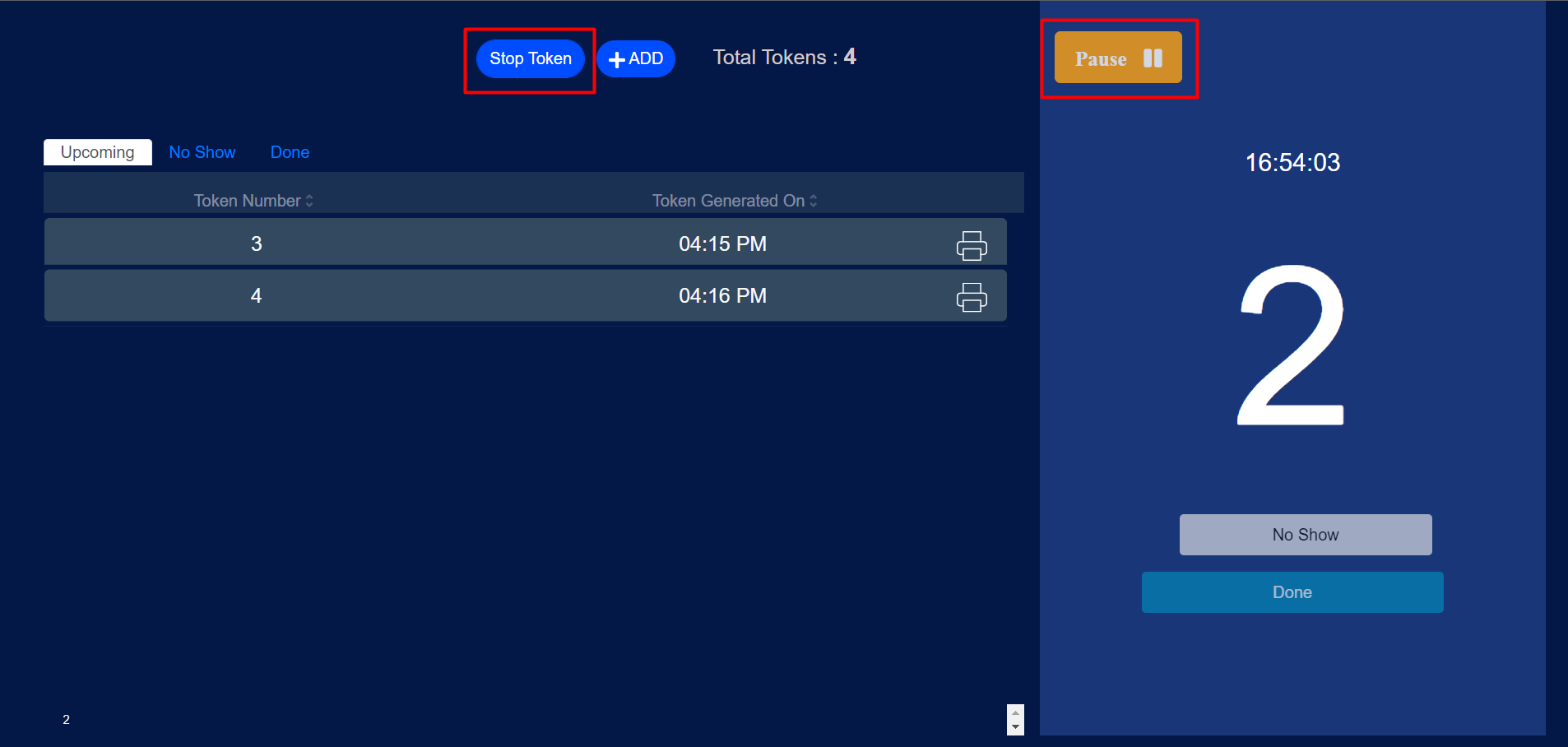
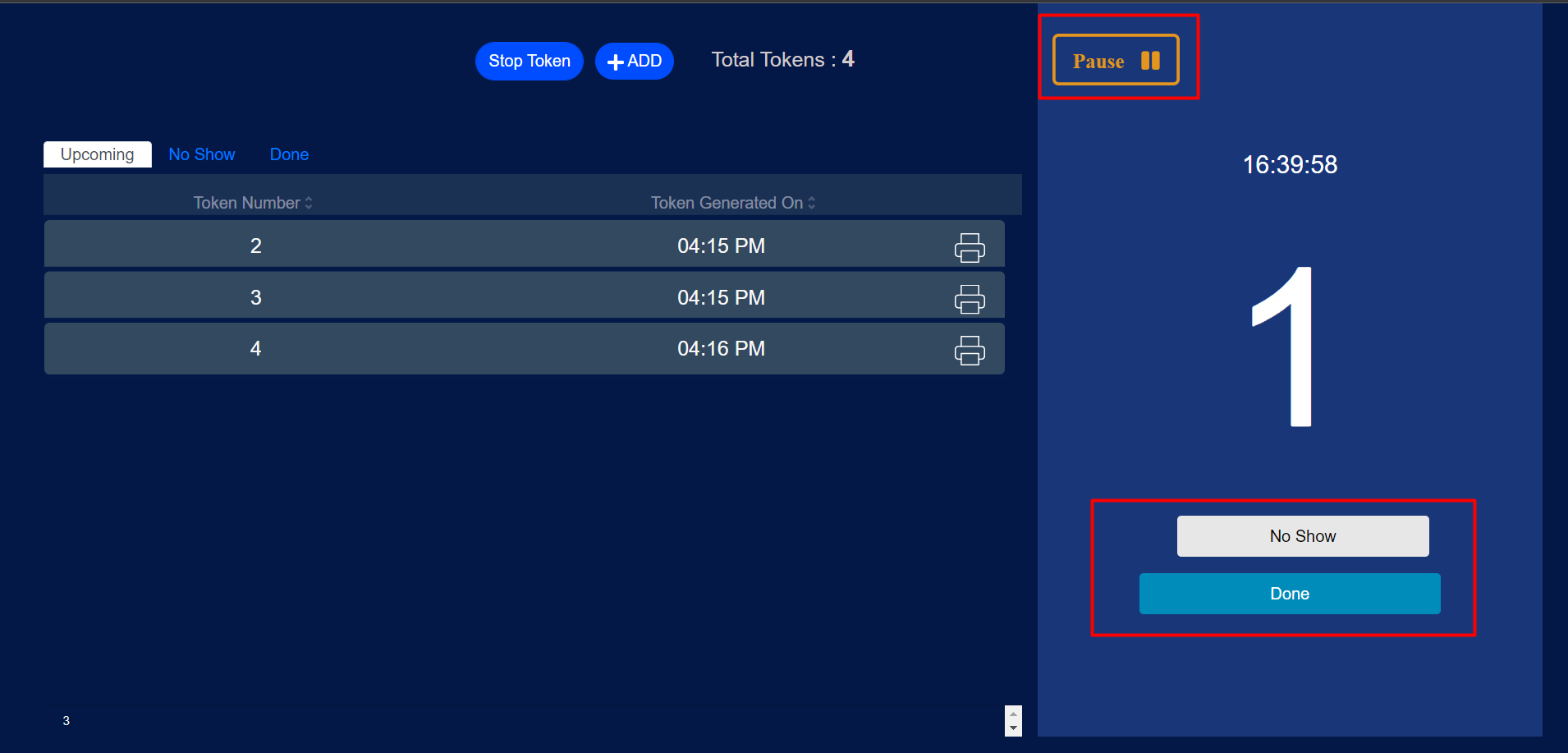 Click on **Pause** to temporarily pause it. You can click on the **Stop token** to stop it entirely.
 ## How does the app work for the end users?
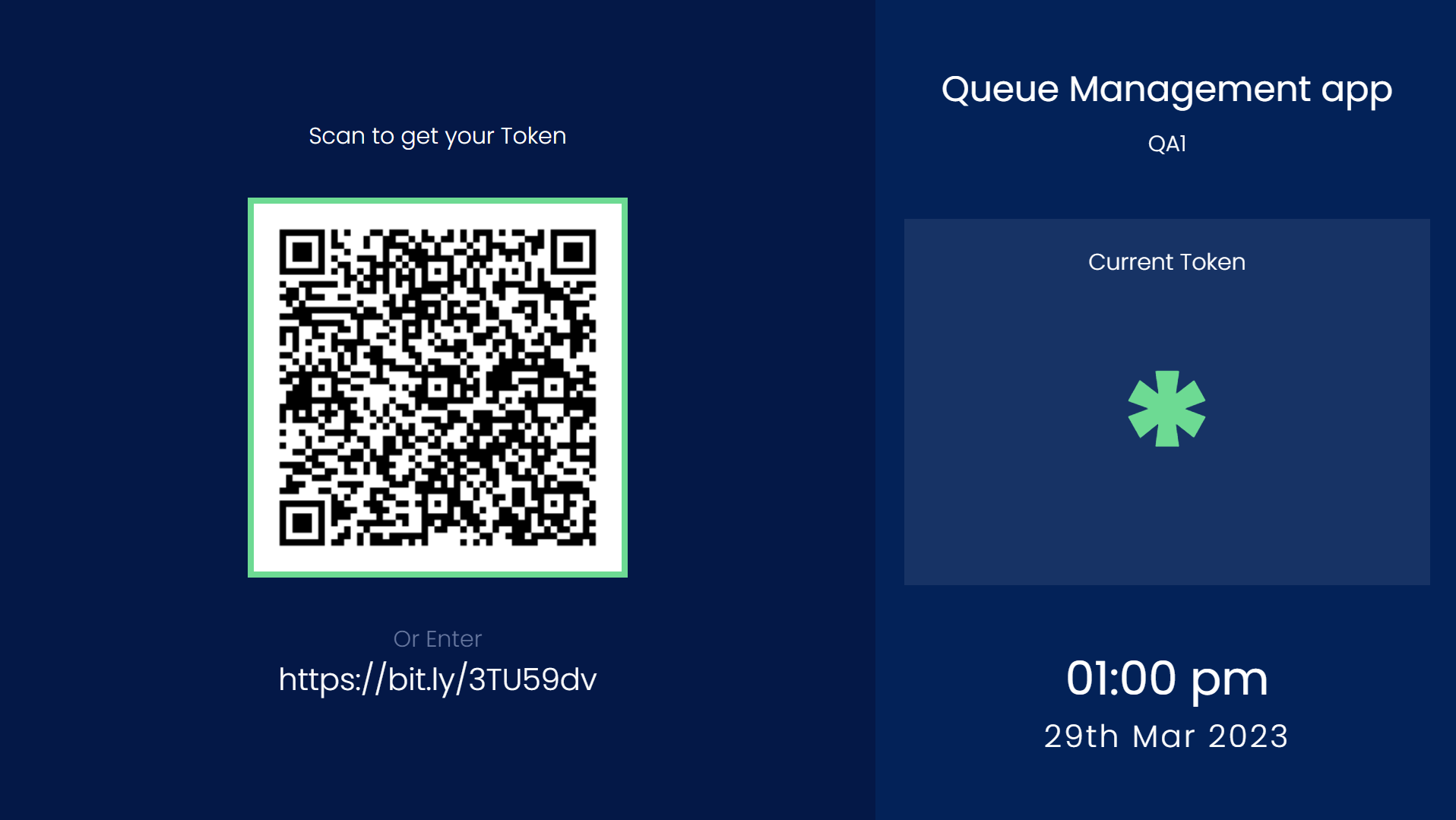
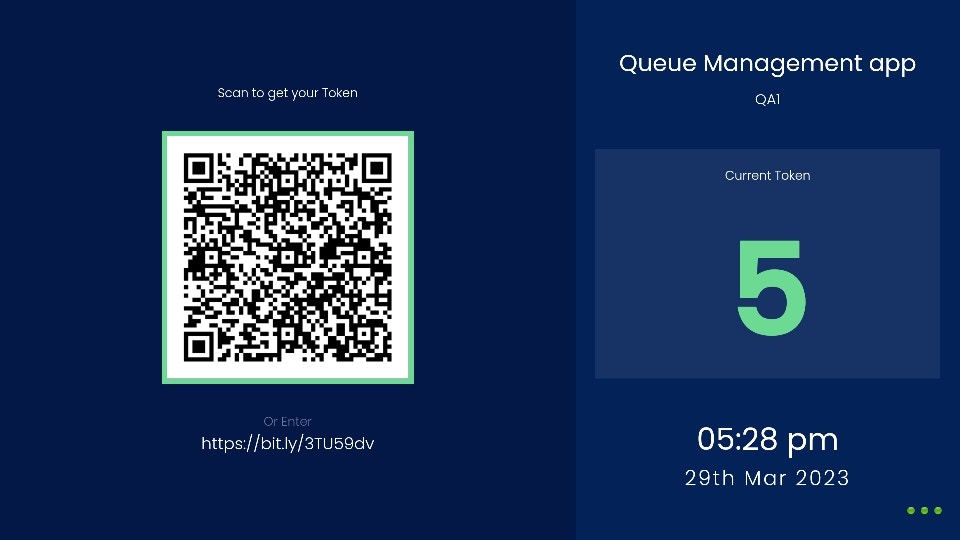
A QR code will be displayed on the screen with the current ongoing token.
## How does the app work for the end users?
A QR code will be displayed on the screen with the current ongoing token.
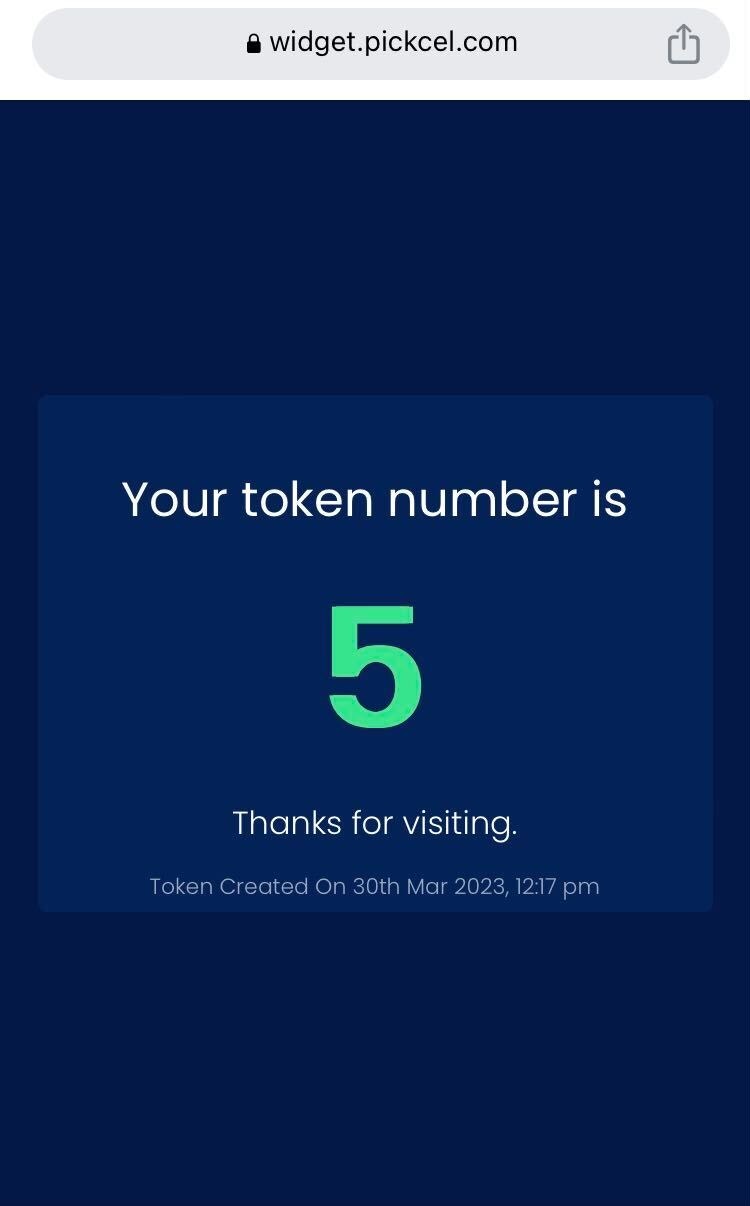
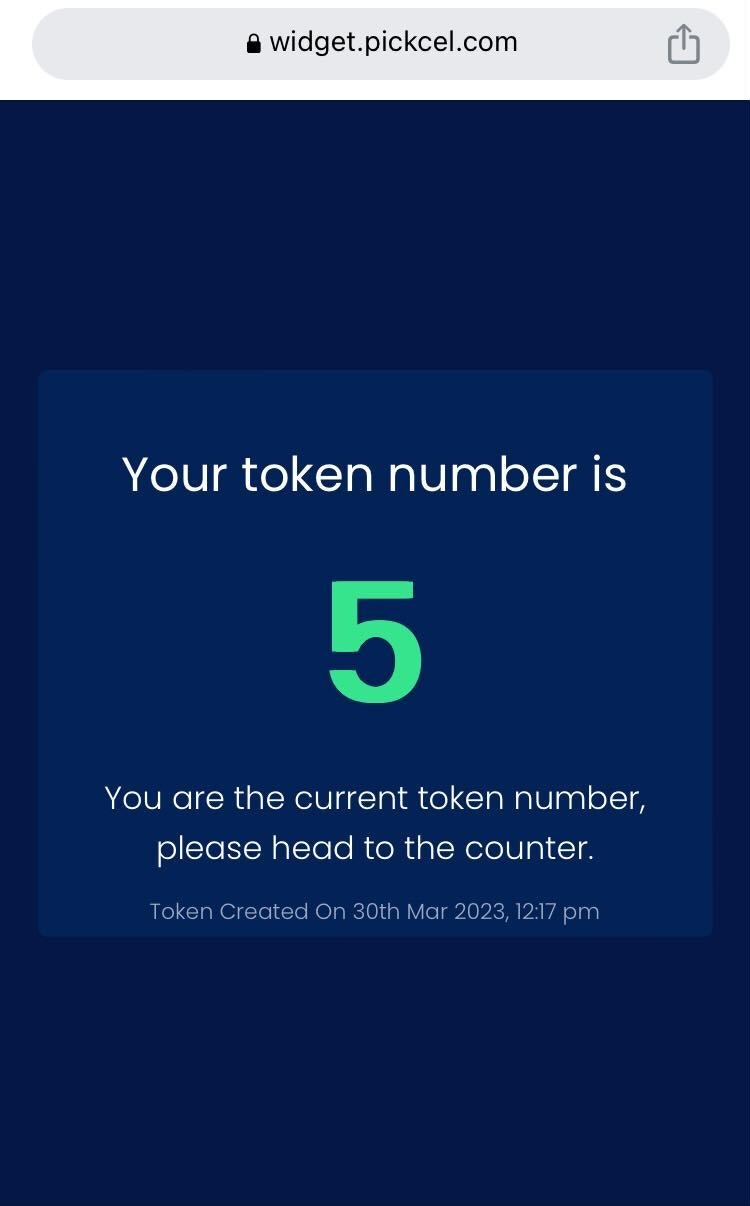
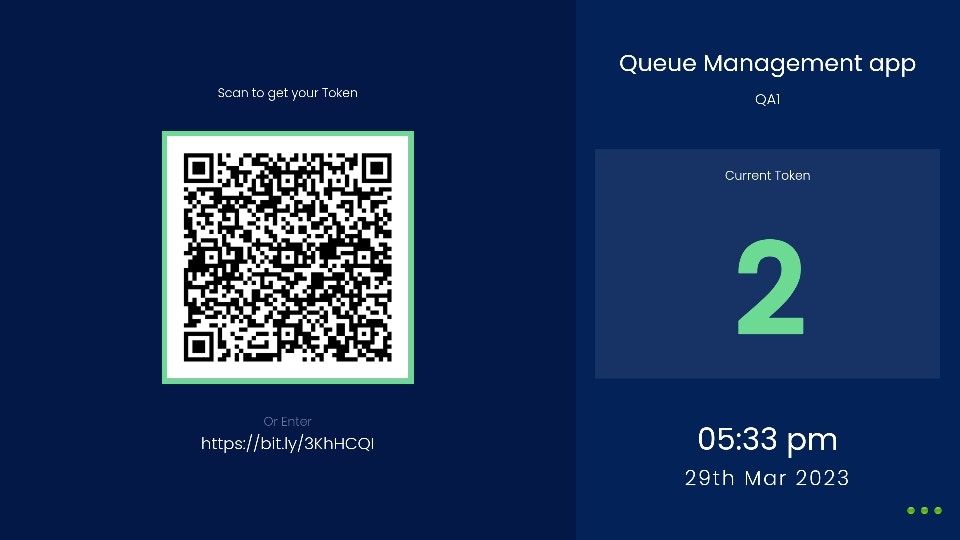 User can scan the QR code shown on the screen and generate a token. The token will be shown on their mobile devices like this:
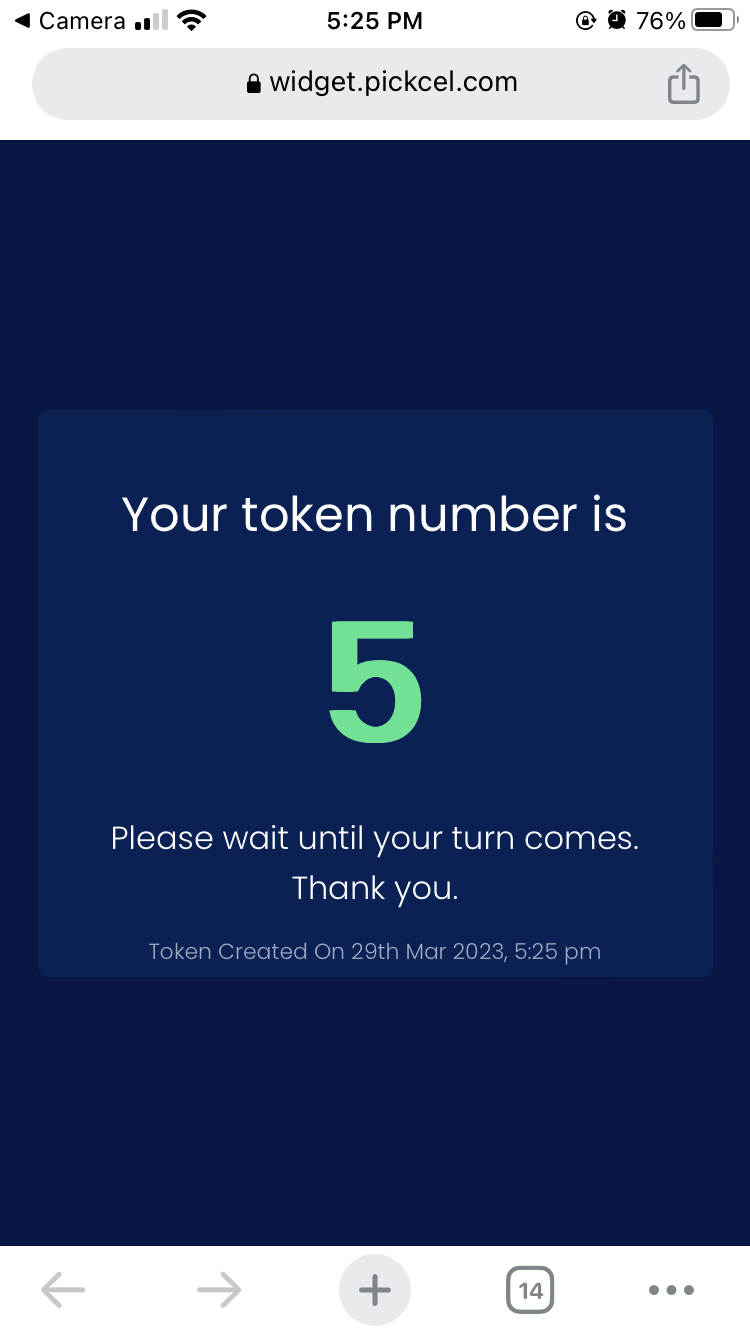 When the user's token number is displayed on the screen, it means it is their turn for the visit.
 On the user's mobile phone, the notification with the token number is updated when it is their turn.
 Upon the visit completion, a *Thank You* message is shown on the user's mobile: