> ## Documentation Index
> Fetch the complete documentation index at: https://docs.pickcel.com/llms.txt
> Use this file to discover all available pages before exploring further.
# How to add the QR Code app from the Pickcel App Store?
> Learn how to create and display QR codes linked to URLs on your digital signage screens
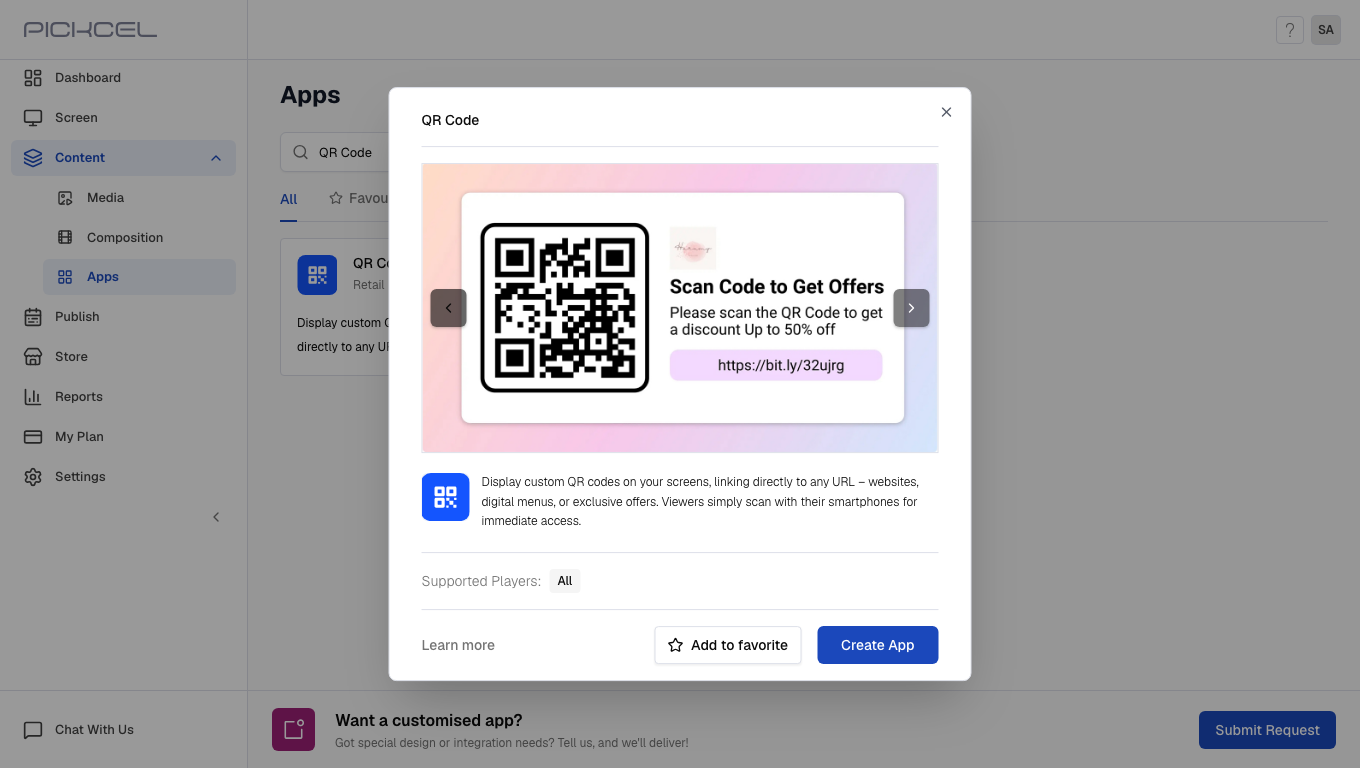 The QR code app is designed to display QR codes linked with any URL. Once created, viewers can scan the QR code using their smartphones to open the URL on their phones.
**Use cases:**
* Retail store owners can use this app to advertise their website.
* Event managers can display QR codes linked with a virtual brochure.
[Login to your Pickcel account](https://console.pickcel.com/). Go to the **Apps** module.
The QR code app is designed to display QR codes linked with any URL. Once created, viewers can scan the QR code using their smartphones to open the URL on their phones.
**Use cases:**
* Retail store owners can use this app to advertise their website.
* Event managers can display QR codes linked with a virtual brochure.
[Login to your Pickcel account](https://console.pickcel.com/). Go to the **Apps** module.
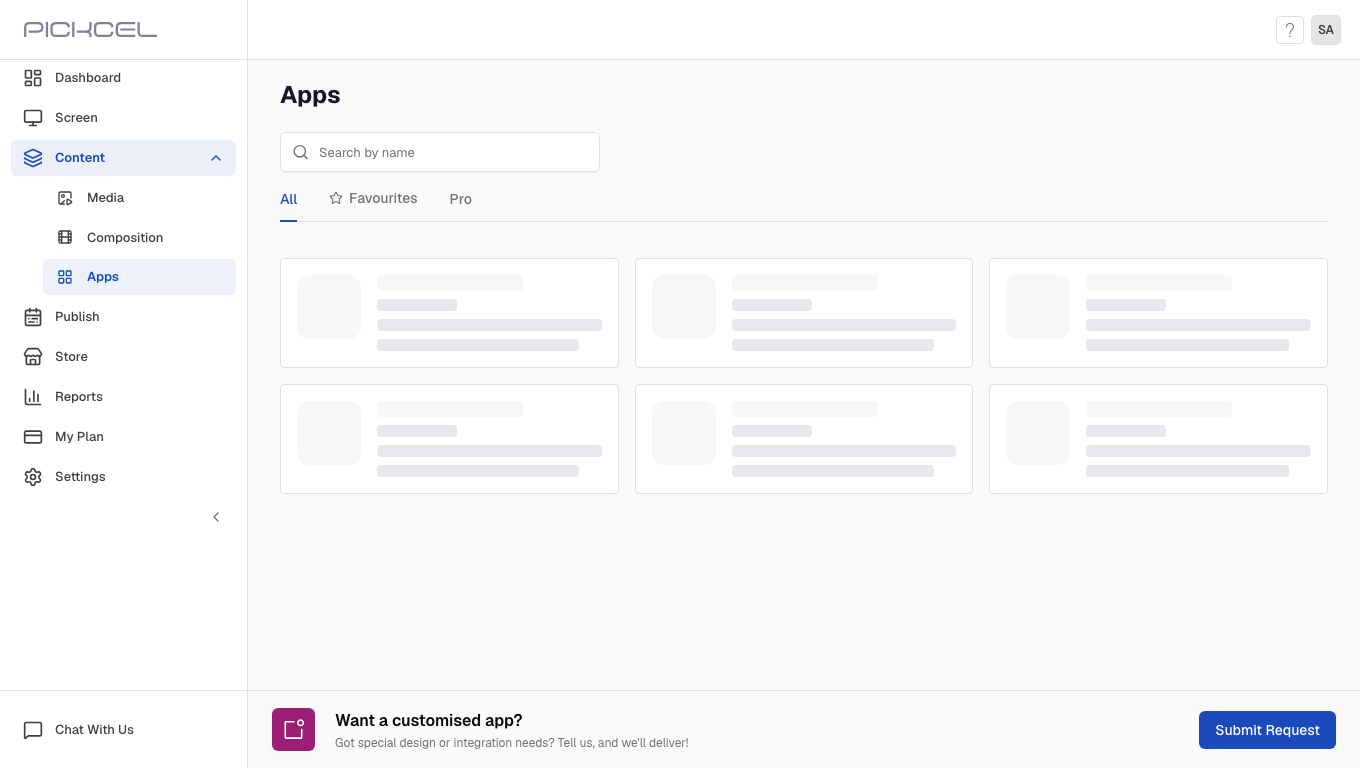 Search for the **QR Code** app using the search field.
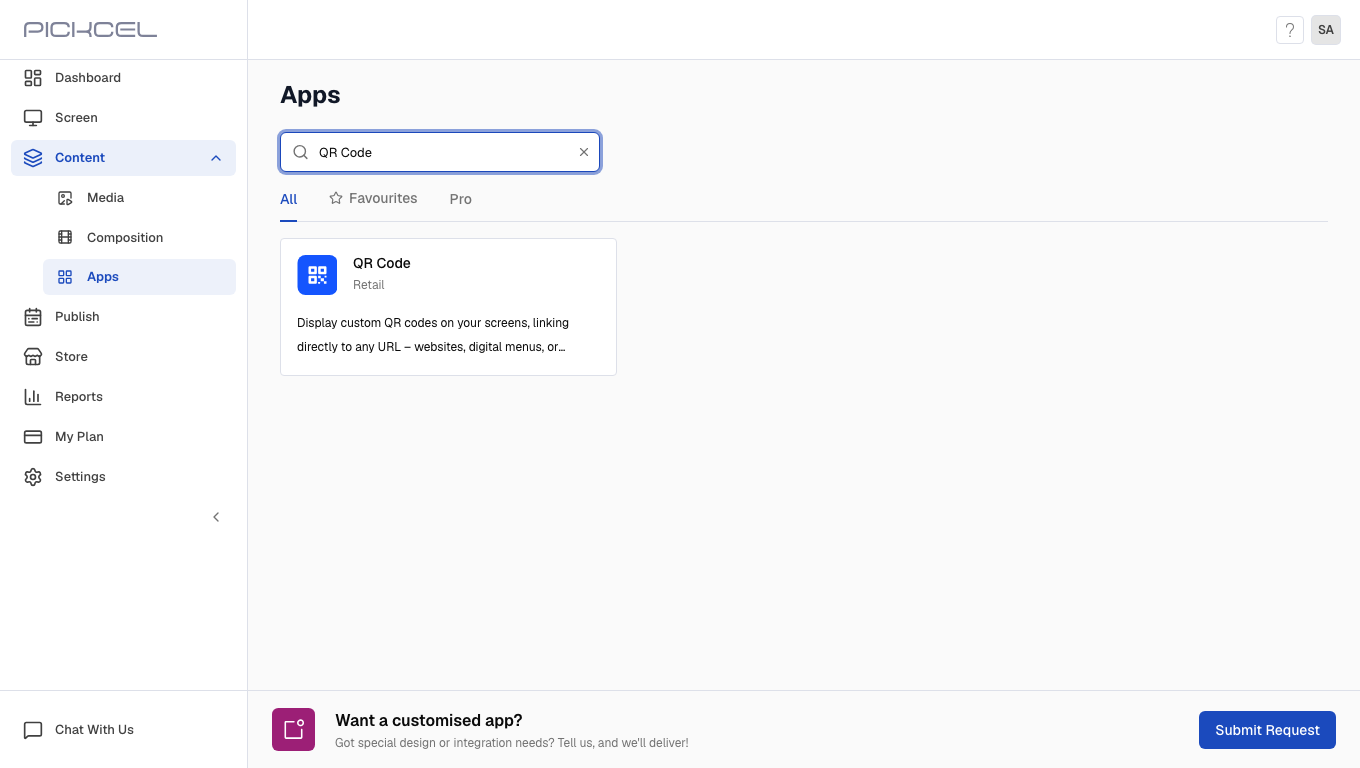 Click the **QR Code** app card, then click **Create App** in the app details panel.
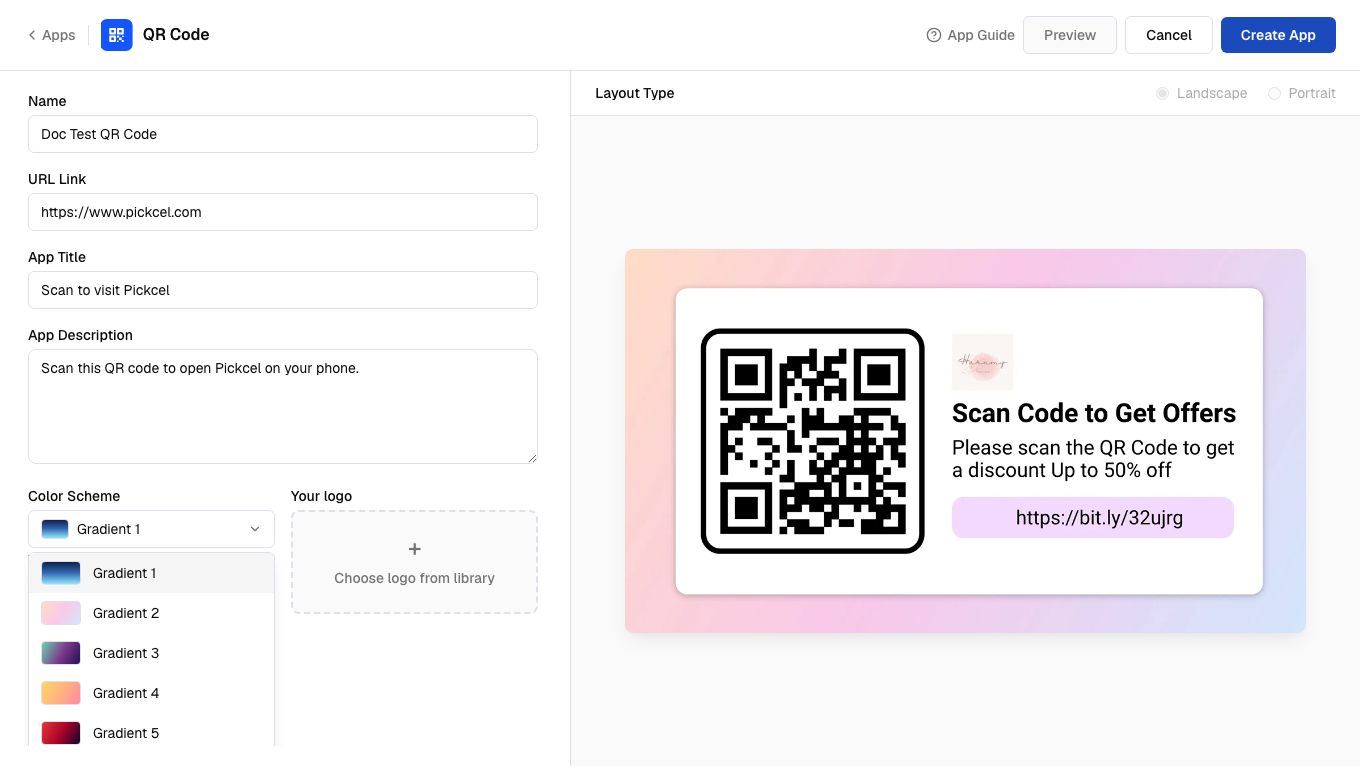
Enter the **Name**, **URL Link**, **App Title**, and **App Description**, then select a **Color Scheme**.
Click the **QR Code** app card, then click **Create App** in the app details panel.
Enter the **Name**, **URL Link**, **App Title**, and **App Description**, then select a **Color Scheme**.
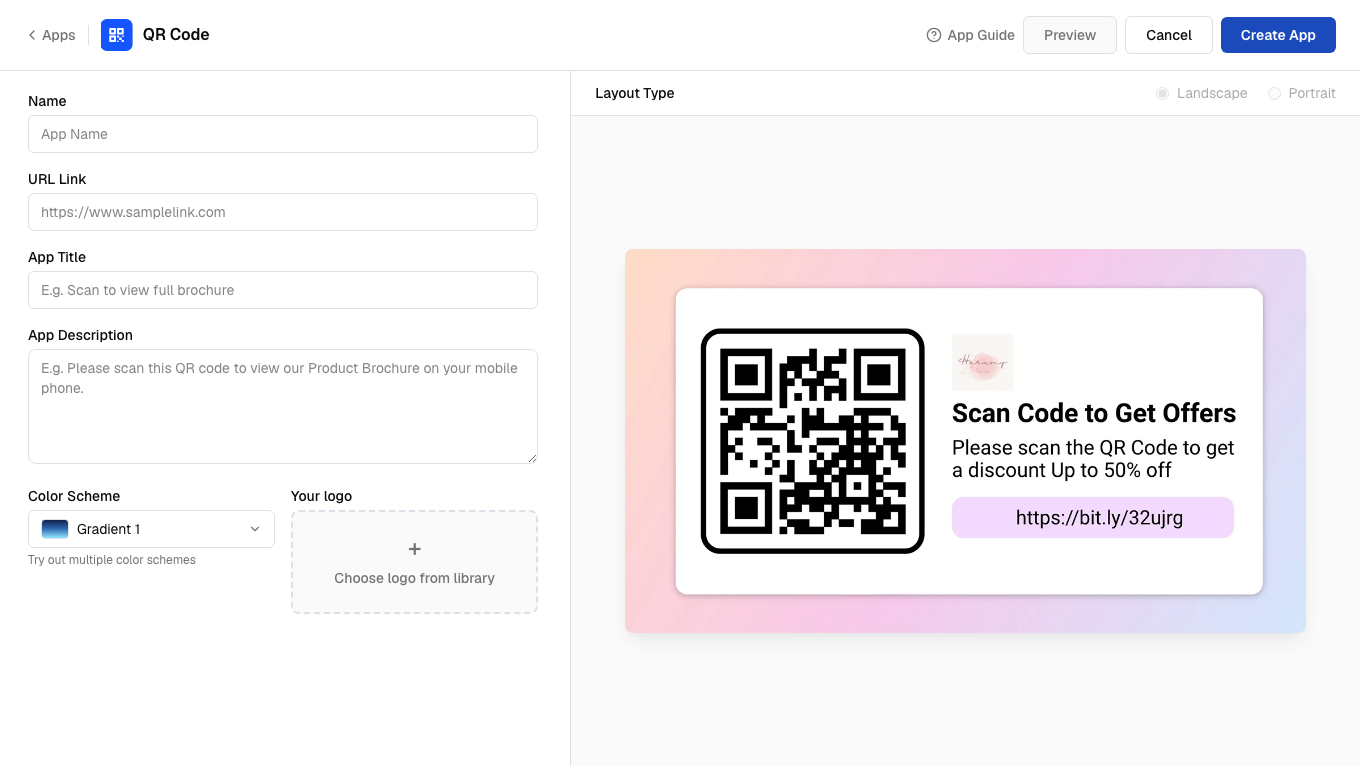 Click **Choose logo from library** to add your logo from the media library.
 Click **Preview**, then click **Create App** to save the app.
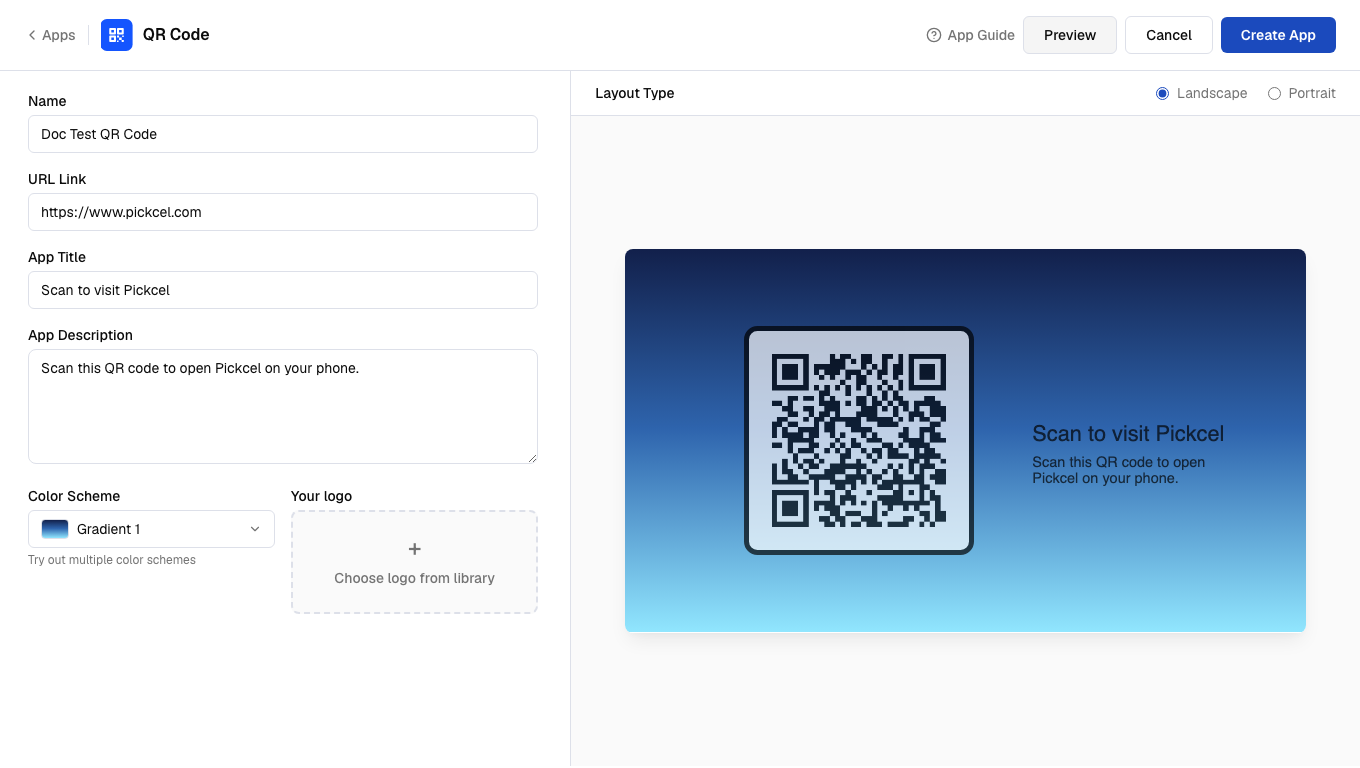 Your app is now ready to use.