> ## Documentation Index
> Fetch the complete documentation index at: https://docs.pickcel.com/llms.txt
> Use this file to discover all available pages before exploring further.

# How to use Power BI app with Pickcel?

> Use the standalone Power BI app to display interactive reports and dashboards on your digital signage screens with automatic page refresh

The **standalone Power BI app** is a dedicated Pickcel app for displaying Power BI reports. It connects directly to your Power BI workspace and supports automatic page rotation, making it ideal for real-time dashboards and reports.

<Info>
  **Looking for another way?** If you need more control over authentication methods or your device is a BrightSign player, use the [Dashboard app (Power BI method)](/apps/dashboard-apps/power-bi) instead, which supports server-side login and works across all device types.
</Info>

<Steps>
  <Step title="Login and click Apps">
    <Frame>
      <img src="https://cdn.pickcel.com/images/support/apps/Power/Screenshot(213).alVa1yWe7IZ8.png" alt="Click Apps" />
    </Frame>
  </Step>

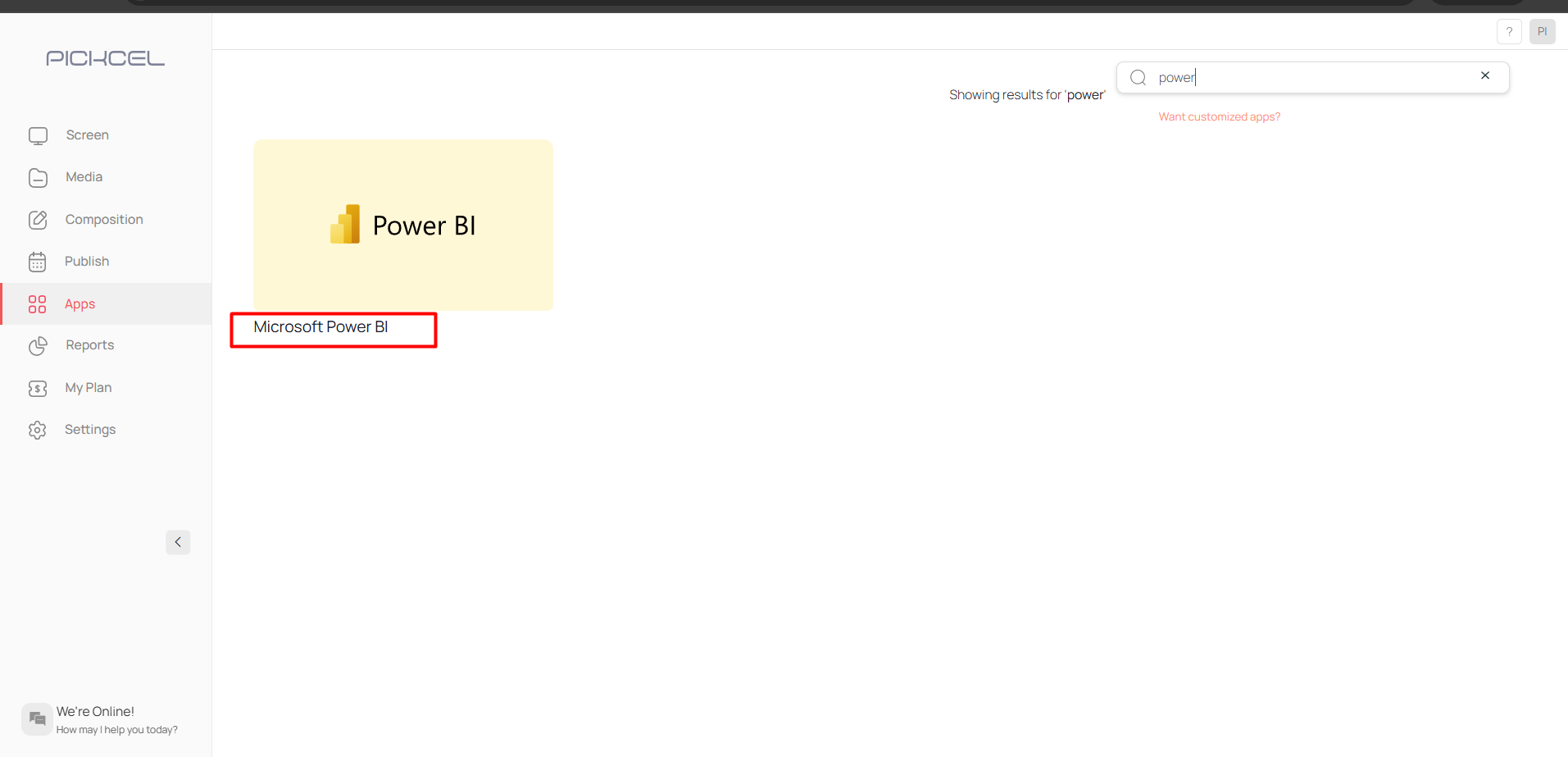
  <Step title="Search for Power BI">
    <Frame>
      <img src="https://mintcdn.com/pickcel-92c6a68f/0U2teAcLg2zC-M6u/images/apps/power-bi-3.jpg?fit=max&auto=format&n=0U2teAcLg2zC-M6u&q=85&s=5e515ec6dc69df299f21a7be0f6bbaec" alt="Search Power BI" width="1913" height="923" data-path="images/apps/power-bi-3.jpg" />
    </Frame>
  </Step>

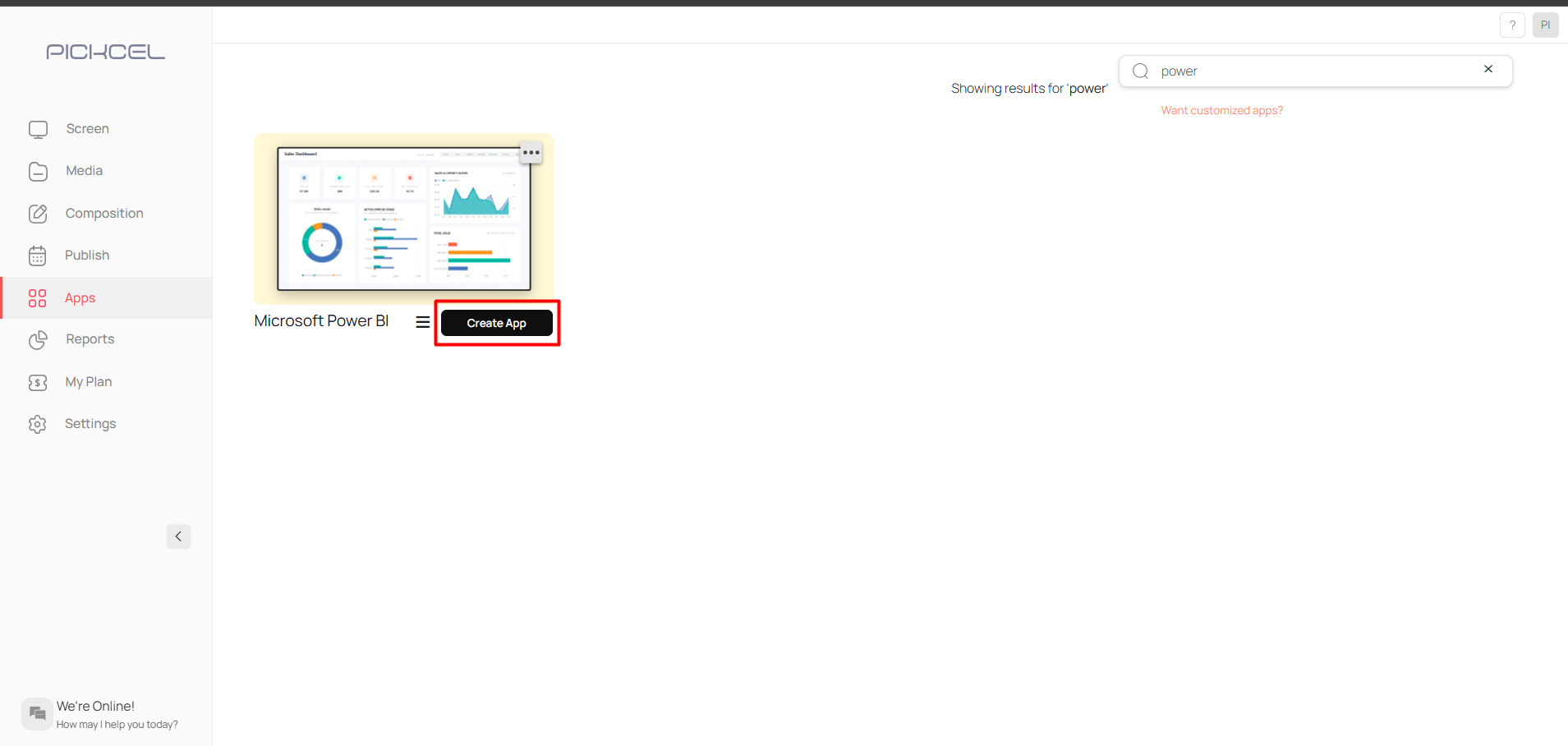
  <Step title="Click Create App">
    <Frame>
      <img src="https://mintcdn.com/pickcel-92c6a68f/0U2teAcLg2zC-M6u/images/apps/power-bi-4.jpg?fit=max&auto=format&n=0U2teAcLg2zC-M6u&q=85&s=5d0b9d2d806e7e164e6a76ea5af35964" alt="Click Create App" width="1909" height="908" data-path="images/apps/power-bi-4.jpg" />
    </Frame>
  </Step>

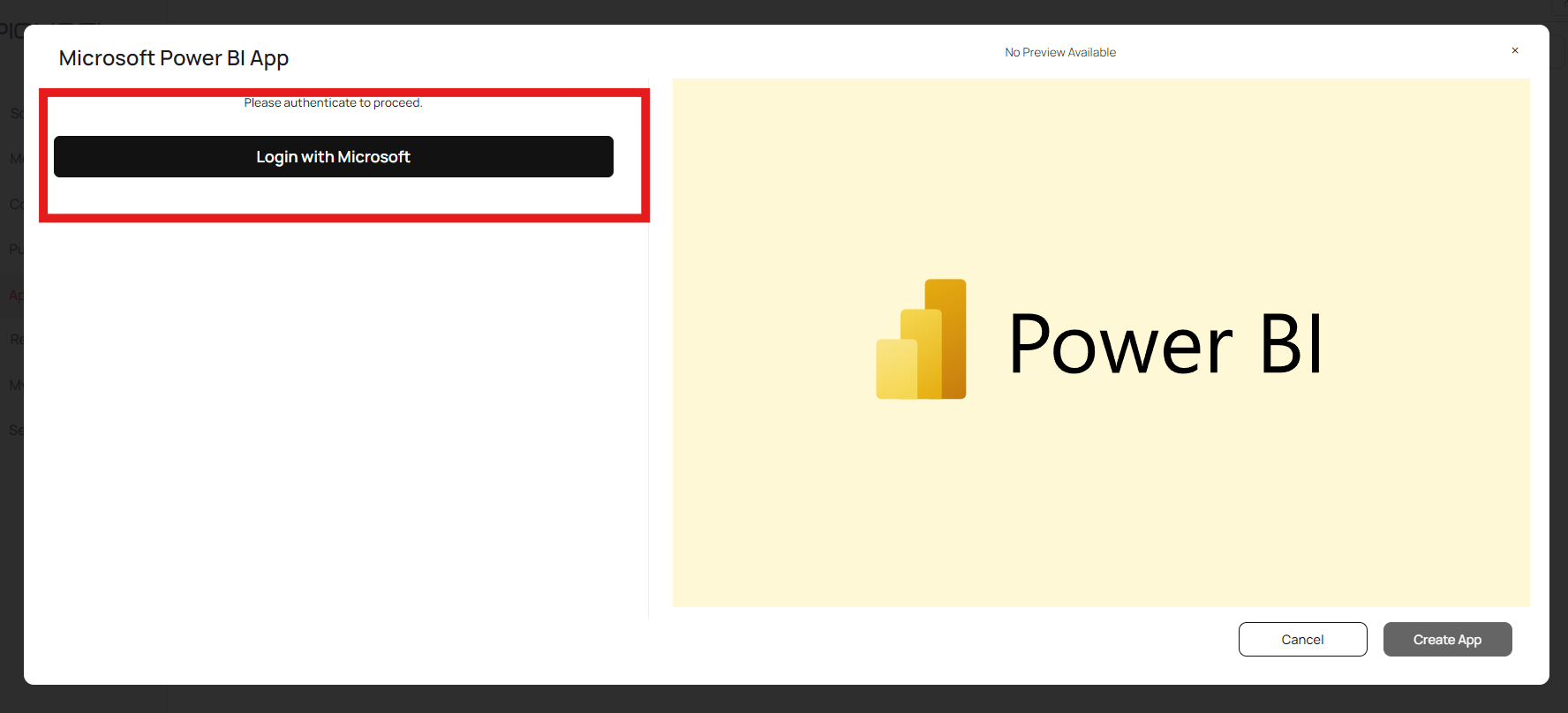
  <Step title="Login with Microsoft account">
    <Frame>
      <img src="https://mintcdn.com/pickcel-92c6a68f/0U2teAcLg2zC-M6u/images/apps/power-bi-5.jpg?fit=max&auto=format&n=0U2teAcLg2zC-M6u&q=85&s=56972bf6c38745f547e28e26e0d9f965" alt="Login with Microsoft" width="1776" height="808" data-path="images/apps/power-bi-5.jpg" />
    </Frame>
  </Step>

  <Step title="Enter app name">
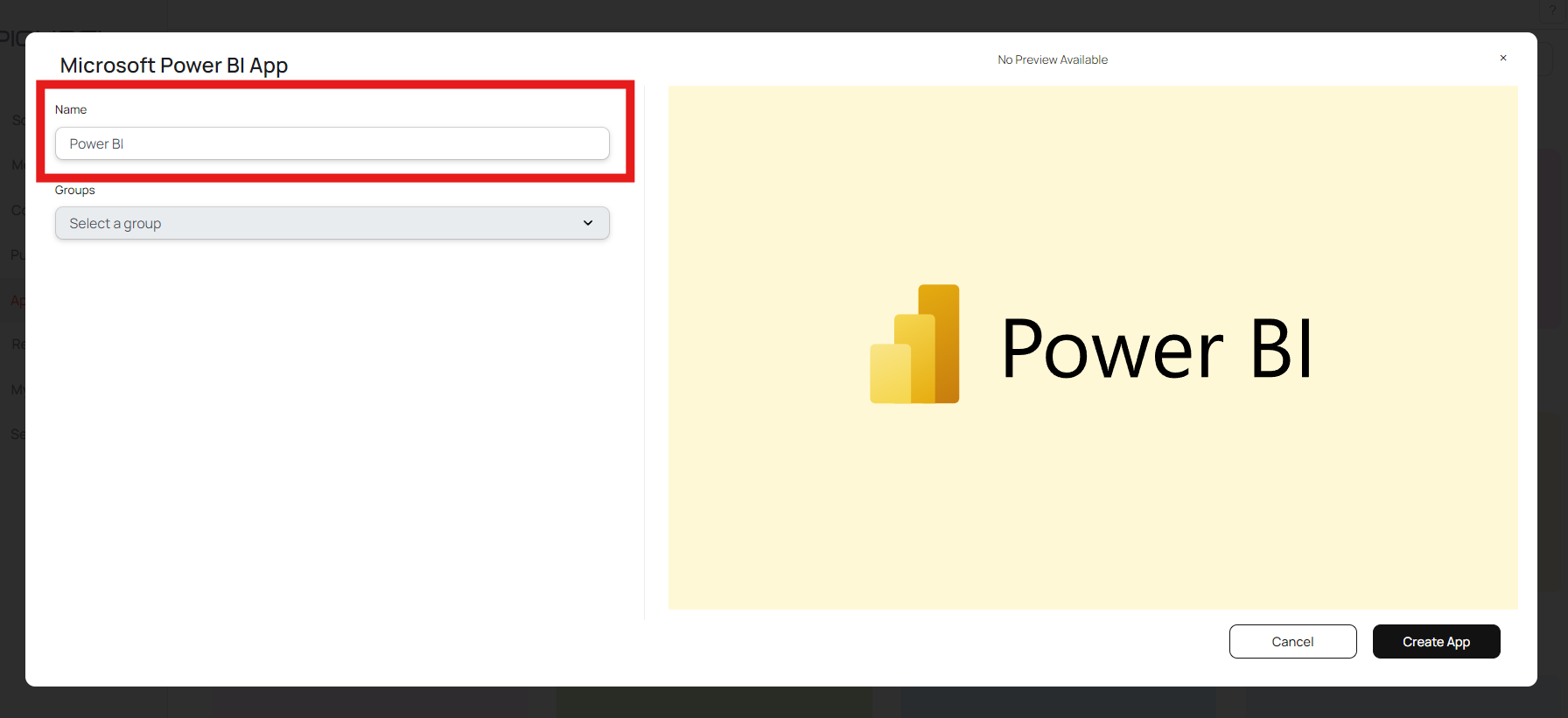
    After successful authentication, you will see the groups in your Power BI account. Give a suitable name to your app.
    <Frame>
      <img src="https://mintcdn.com/pickcel-92c6a68f/0U2teAcLg2zC-M6u/images/apps/power-bi-7.jpg?fit=max&auto=format&n=0U2teAcLg2zC-M6u&q=85&s=d88db30ccd25625e7965c6c2f9edb94e" alt="Enter app name" width="1792" height="821" data-path="images/apps/power-bi-7.jpg" />
    </Frame>
  </Step>

  <Step title="Select workspace group">
    <Note>
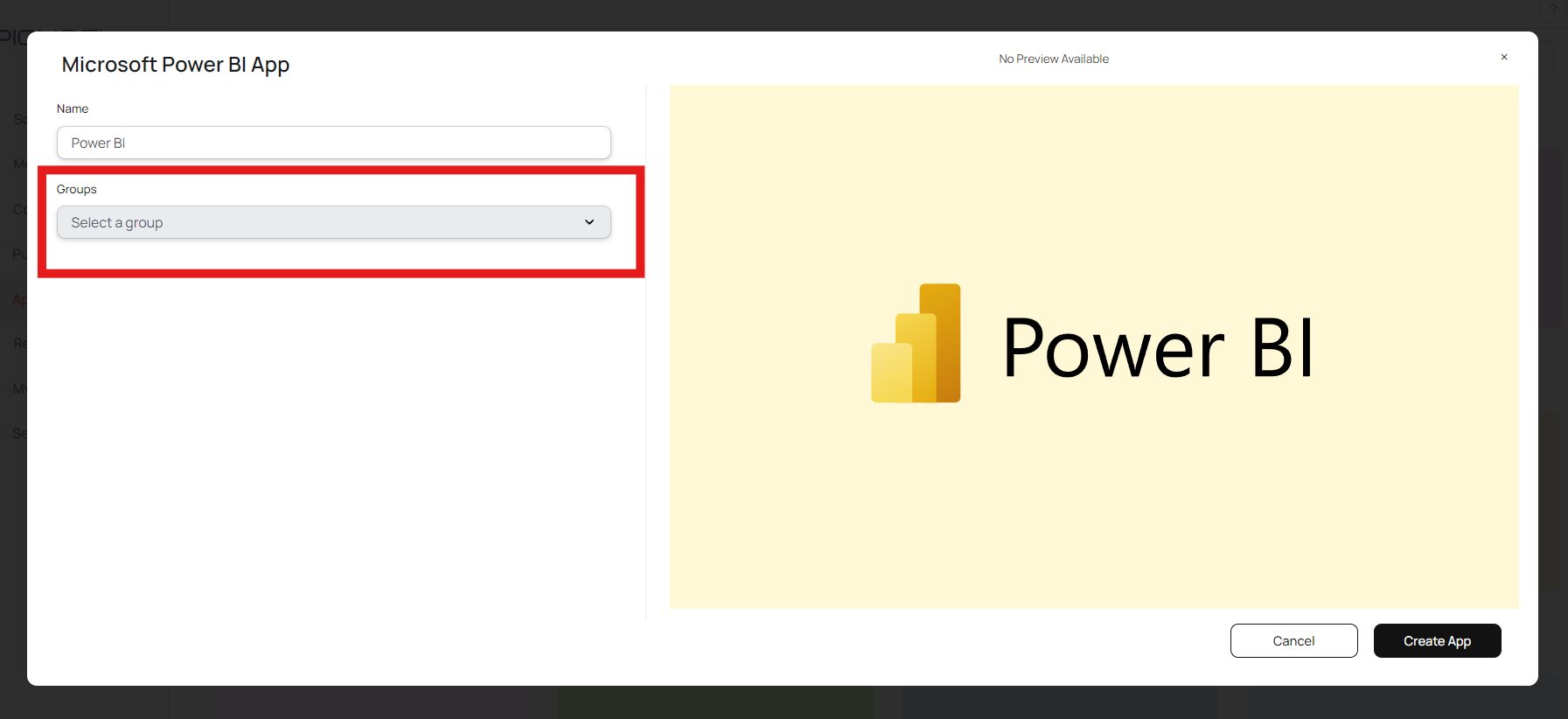
      Make sure to add your reports in a custom or new workspace. Pickcel cannot access reports from "My workspace".
    </Note>

    <Frame>
      <img src="https://mintcdn.com/pickcel-92c6a68f/0U2teAcLg2zC-M6u/images/apps/power-bi-9.jpg?fit=max&auto=format&n=0U2teAcLg2zC-M6u&q=85&s=0bd5809a0370b4d12a58dd1d55bb8341" alt="Select workspace" width="1793" height="822" data-path="images/apps/power-bi-9.jpg" />
    </Frame>
  </Step>

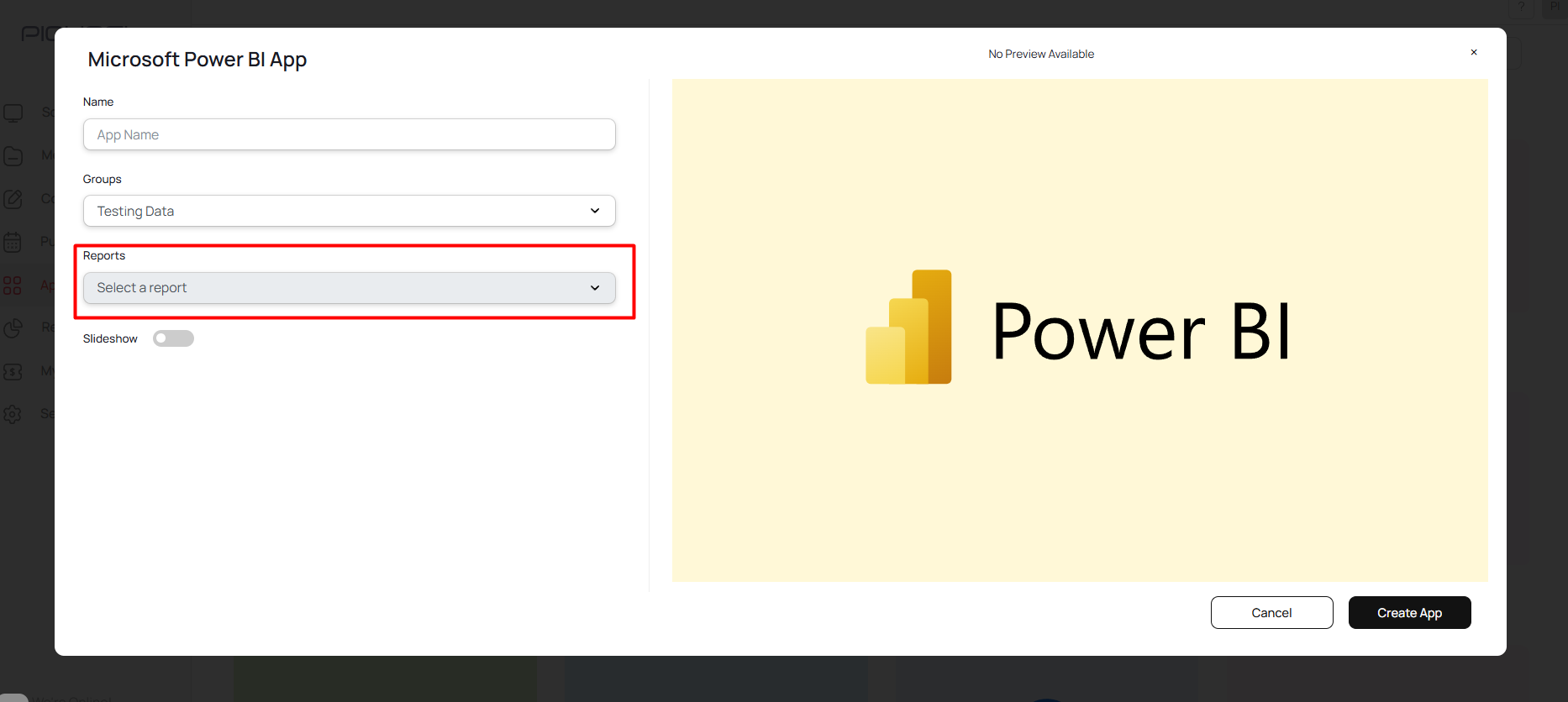
  <Step title="Select report">
    <Frame>
      <img src="https://mintcdn.com/pickcel-92c6a68f/0U2teAcLg2zC-M6u/images/apps/power-bi-10.jpg?fit=max&auto=format&n=0U2teAcLg2zC-M6u&q=85&s=0f19a77a24417008176c449fc9f9f2de" alt="Select report" width="1866" height="836" data-path="images/apps/power-bi-10.jpg" />
    </Frame>
  </Step>

  <Step title="Configure page display">
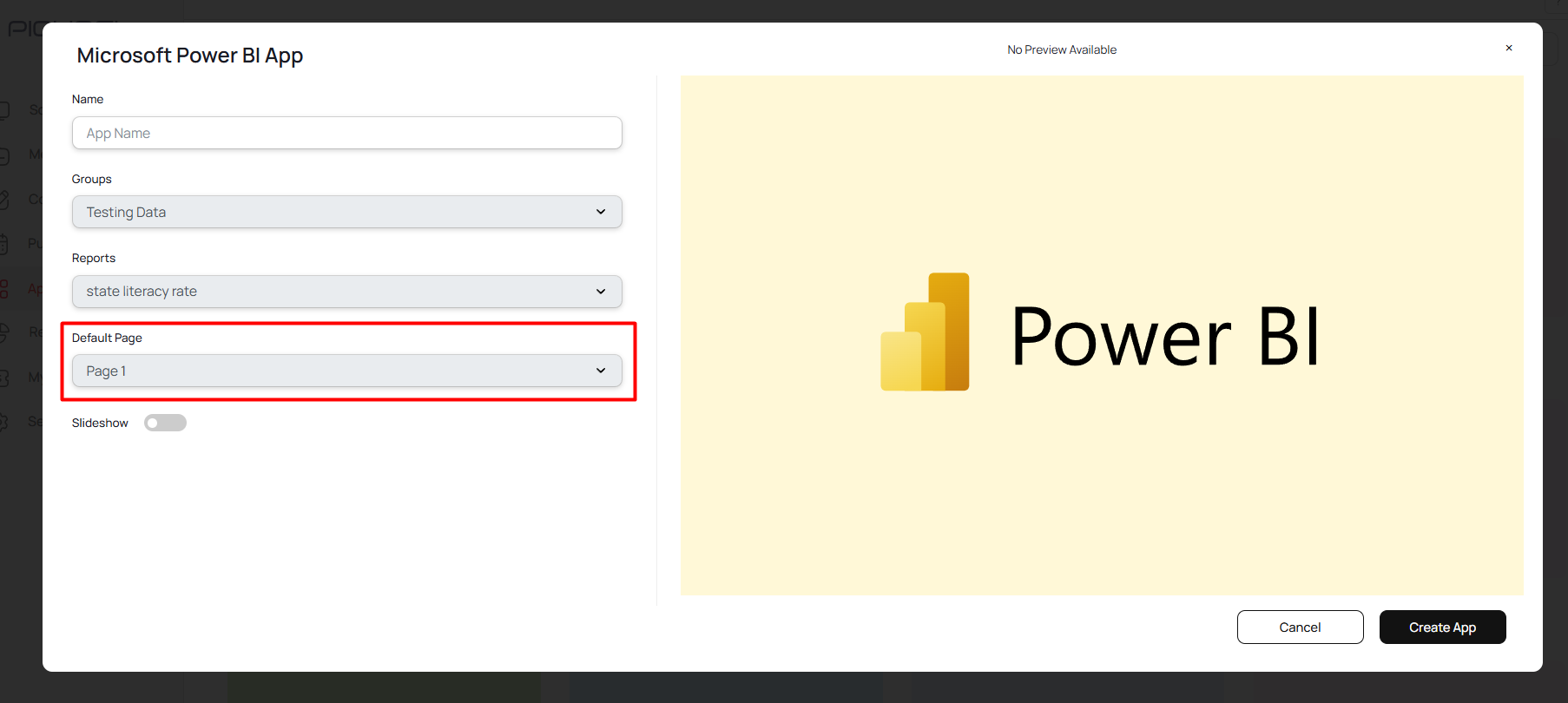
    **Page Display (Default Page):** Choose a specific page to be displayed.
    <Frame>
      <img src="https://mintcdn.com/pickcel-92c6a68f/0U2teAcLg2zC-M6u/images/apps/power-bi-12.jpg?fit=max&auto=format&n=0U2teAcLg2zC-M6u&q=85&s=20ebaa9f2a288e80434d7a3011a2b4fd" alt="Page display" width="1806" height="810" data-path="images/apps/power-bi-12.jpg" />
    </Frame>

    <Note>
      Viewers can still manually switch pages using the Power BI navigation menu at the bottom by clicking on the page tabs.
    </Note>

    **OR**

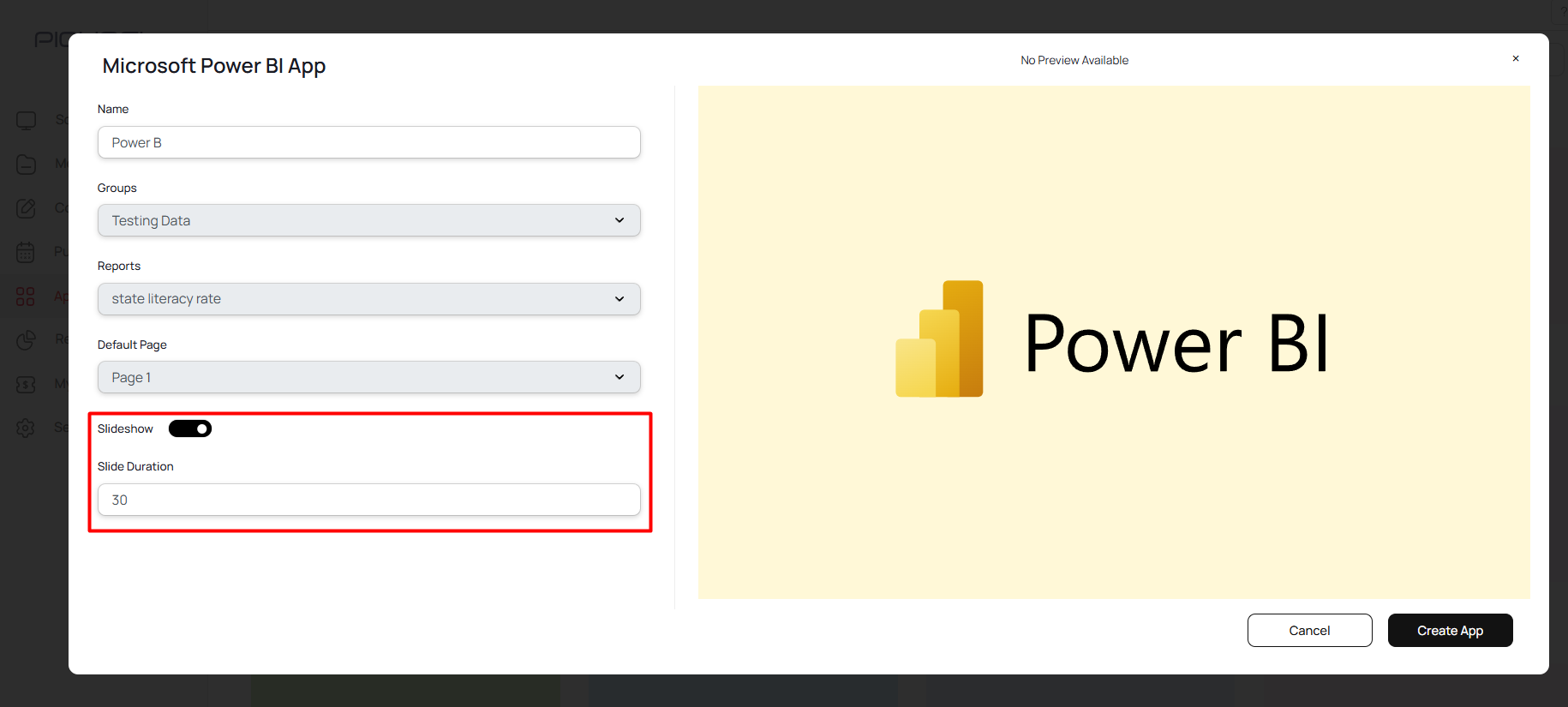
    **Multiple Page Display (Slideshow Mode):** Enable the **Slideshow** toggle to automatically cycle through all pages in the report. Set the duration for how long each page will be displayed.
    <Frame>
      <img src="https://mintcdn.com/pickcel-92c6a68f/0U2teAcLg2zC-M6u/images/apps/power-bi-13.jpg?fit=max&auto=format&n=0U2teAcLg2zC-M6u&q=85&s=dbf7655d0723cc8071e343f85007bd12" alt="Slideshow mode" width="1830" height="825" data-path="images/apps/power-bi-13.jpg" />
    </Frame>
  </Step>

  <Step title="Create and preview app">
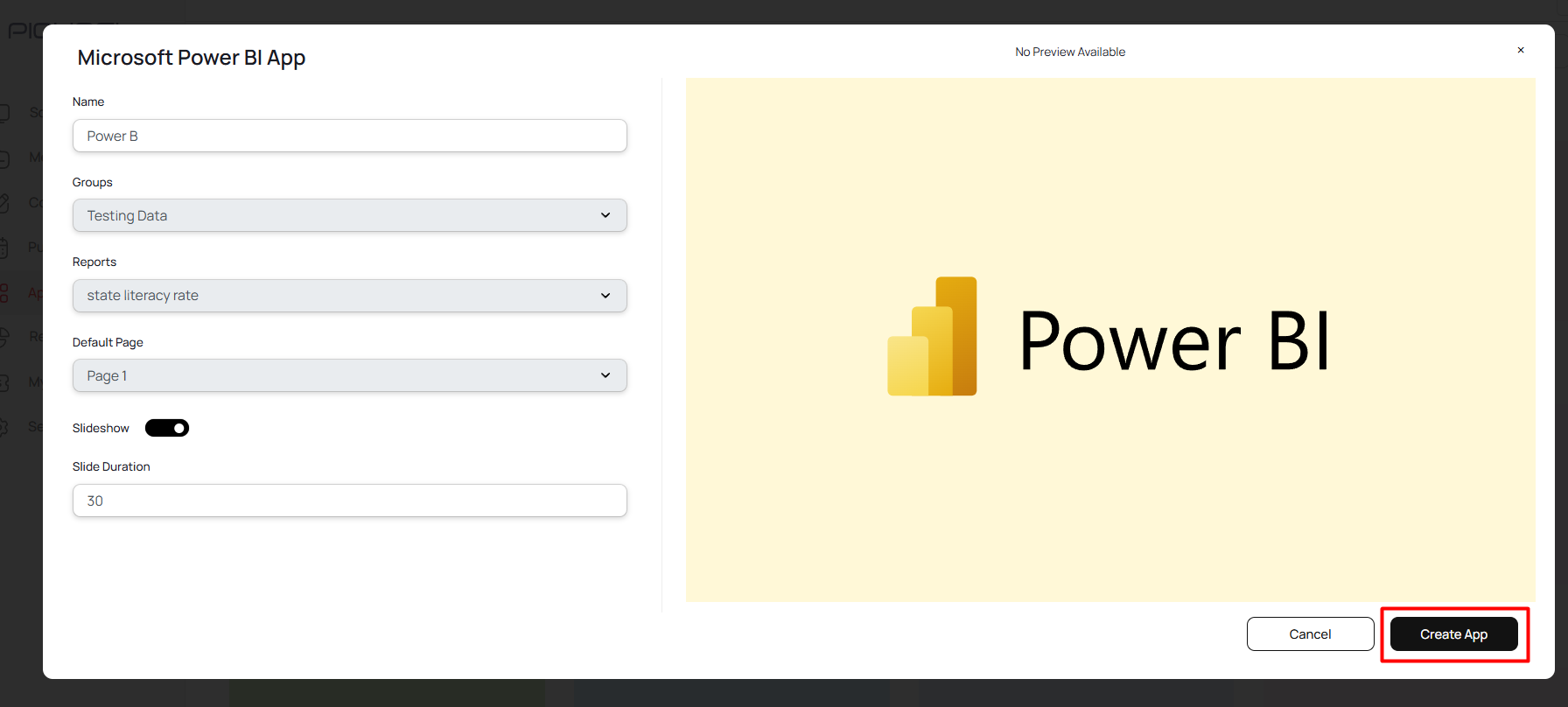
    Click **Create App** to save your configuration.
    <Frame>
      <img src="https://mintcdn.com/pickcel-92c6a68f/0U2teAcLg2zC-M6u/images/apps/power-bi-14.jpg?fit=max&auto=format&n=0U2teAcLg2zC-M6u&q=85&s=372255ed0013016adc70dd7f745245b8" alt="Click Create App" width="1792" height="808" data-path="images/apps/power-bi-14.jpg" />
    </Frame>

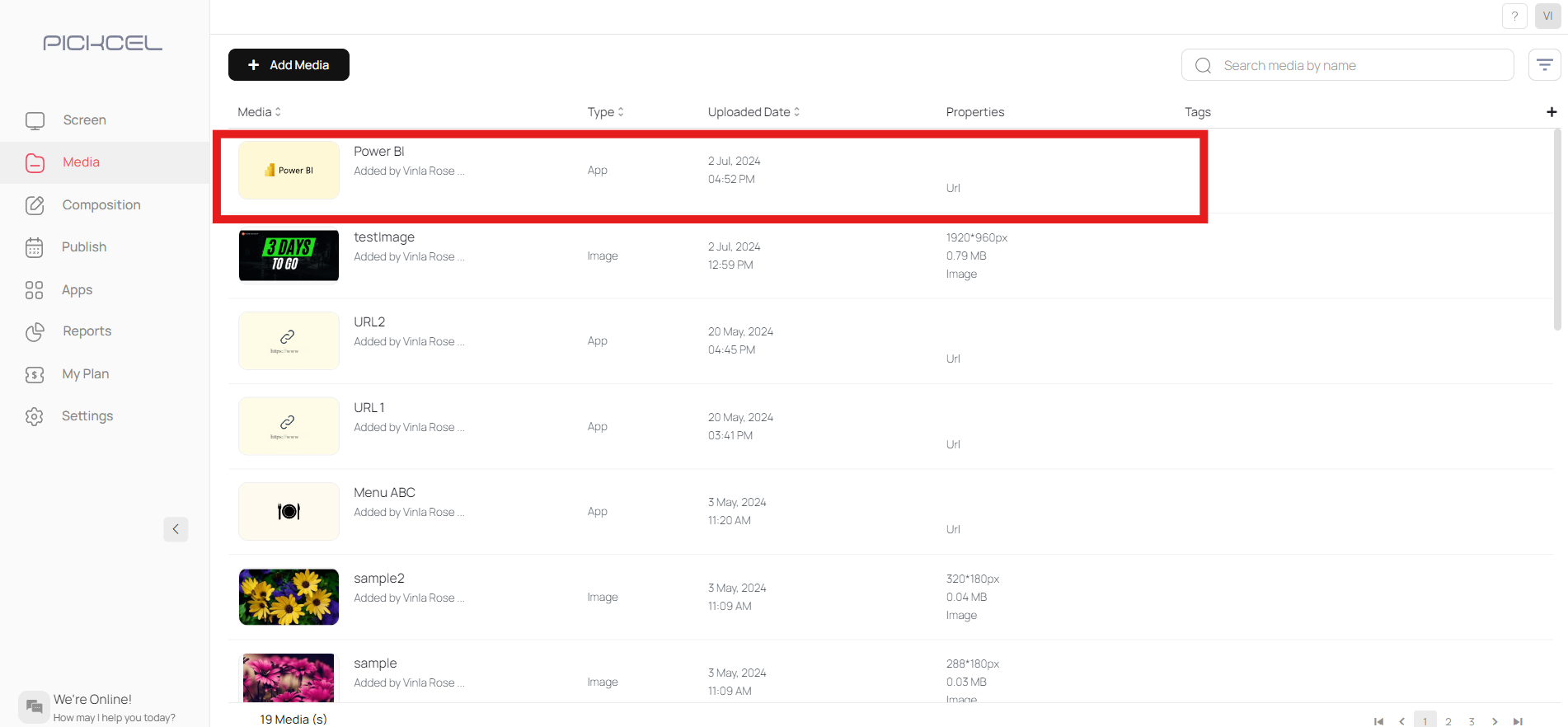
    Your app will appear in the **Media** section.
    <Frame>
      <img src="https://mintcdn.com/pickcel-92c6a68f/0U2teAcLg2zC-M6u/images/apps/power-bi-15.jpg?fit=max&auto=format&n=0U2teAcLg2zC-M6u&q=85&s=dad4b56d1462a9160bc609c0c4f3d170" alt="View in media" width="1902" height="882" data-path="images/apps/power-bi-15.jpg" />
    </Frame>

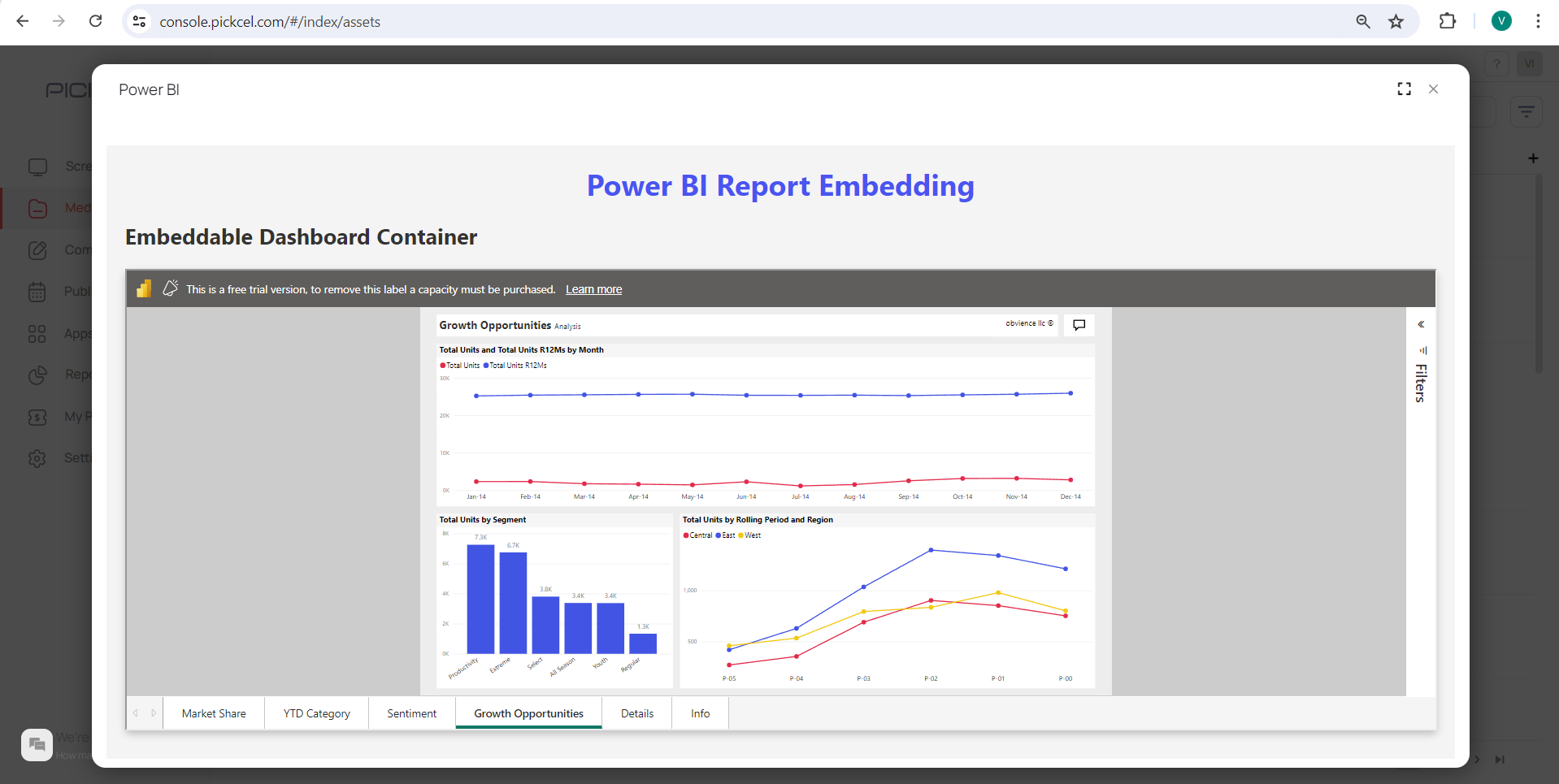
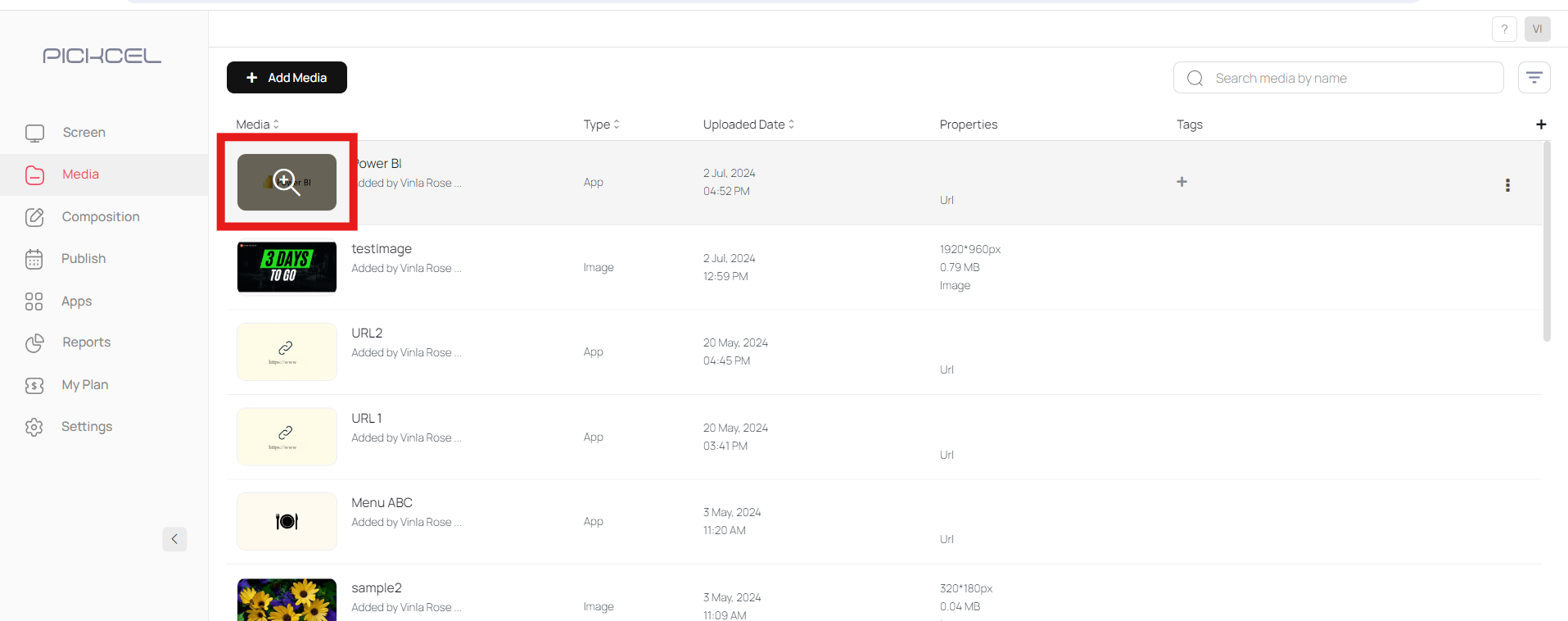
    Click on the **thumbnail** to preview it.
    <Frame>
      <img src="https://mintcdn.com/pickcel-92c6a68f/0U2teAcLg2zC-M6u/images/apps/power-bi-16.jpg?fit=max&auto=format&n=0U2teAcLg2zC-M6u&q=85&s=d7a9ab8edce3a6f6281f6262ab9f1847" alt="Preview app" width="1915" height="758" data-path="images/apps/power-bi-16.jpg" />
    </Frame>

    ***

    <Frame caption="Preview of the Power BI Report">
      <img src="https://mintcdn.com/pickcel-92c6a68f/0U2teAcLg2zC-M6u/images/apps/power-bi-17.jpg?fit=max&auto=format&n=0U2teAcLg2zC-M6u&q=85&s=6c16543c71964554aced283814207b60" alt="Power BI App Preview" width="1918" height="965" data-path="images/apps/power-bi-17.jpg" />
    </Frame>
  </Step>
</Steps>

<Warning>
  This dedicated Power BI app is **not supported on BrightSign devices**. If you are using BrightSign, please use the [Dashboard app configured for Power BI](/apps/dashboard-apps/power-bi) instead.
</Warning>

<Info>
  **Support links:**

  * [How to create a composition?](/compositions/compositions)
  * [How to publish content on the screen?](/schedule-and-publish/publish-overview)
</Info>