> ## Documentation Index
> Fetch the complete documentation index at: https://docs.pickcel.com/llms.txt
> Use this file to discover all available pages before exploring further.
# How to add the New York Times app from the Pickcel app store?
> Learn how to display New York Times news headlines on your digital signage screens
Log in to your [Pickcel account](https://console.pickcel.com/). Go to the **Apps** module and search for **New York Times**.
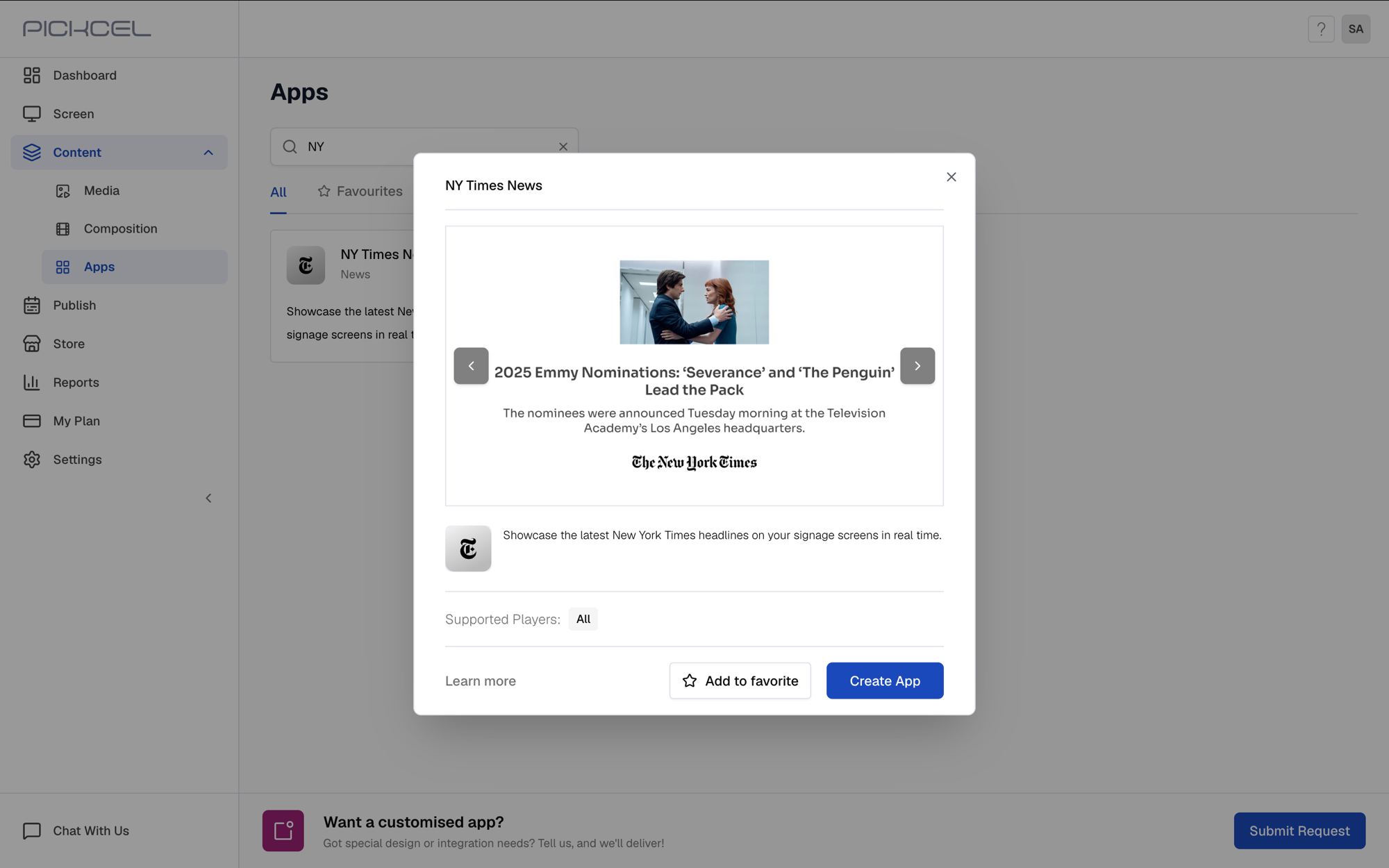
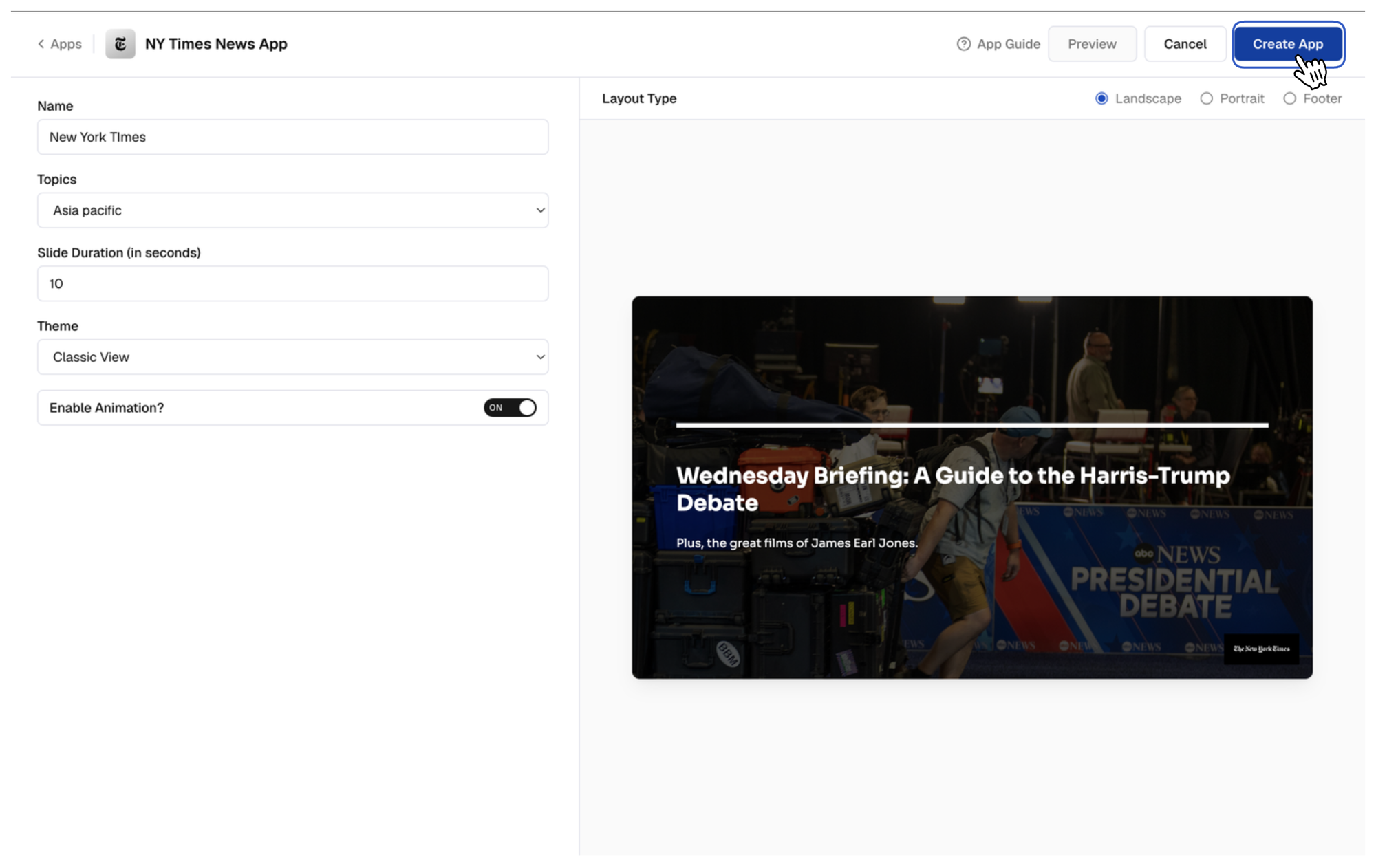
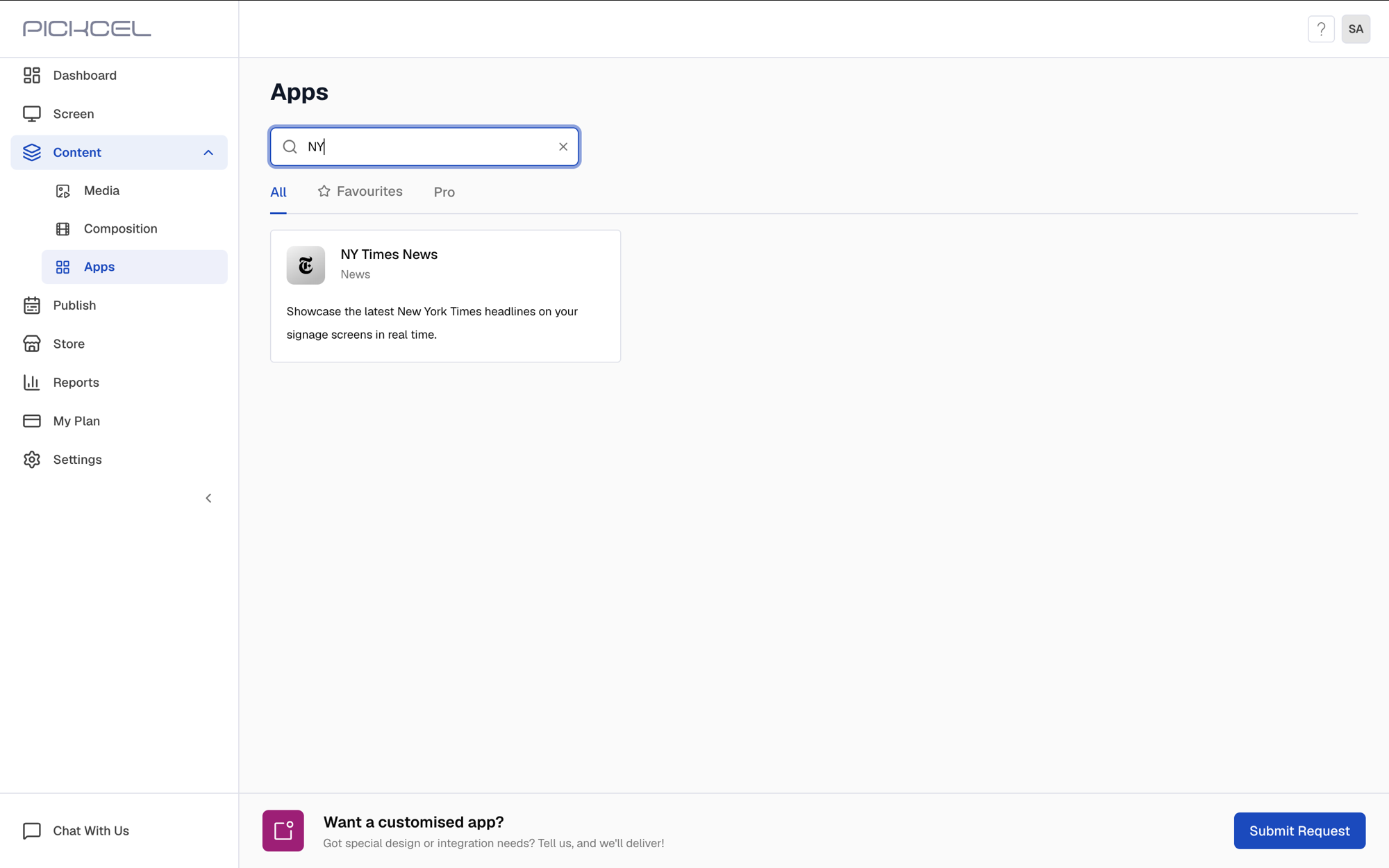 Click the **New York Times** app card, then click **Create App** in the app details panel.
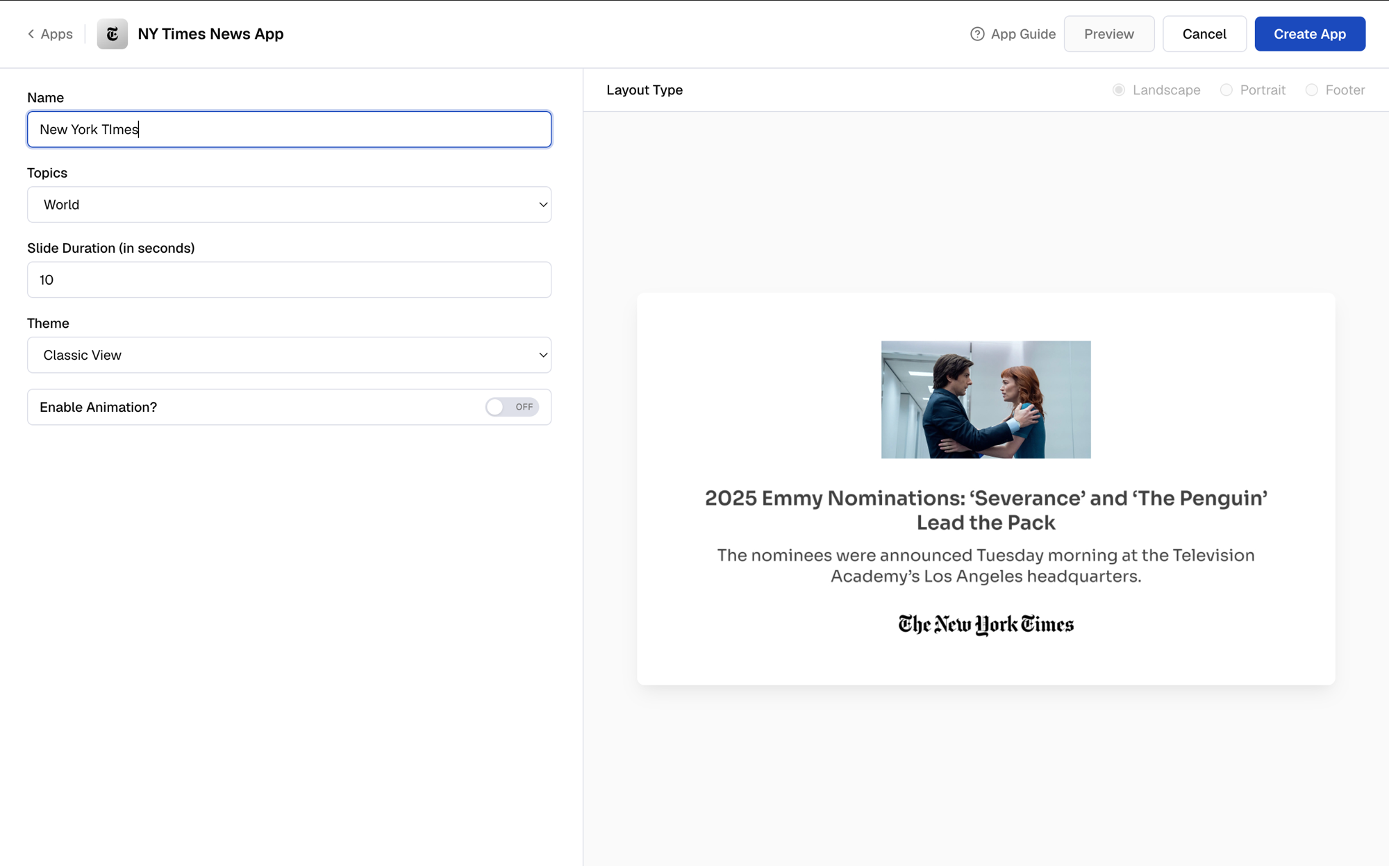
 Enter a **Name** for the app. This is how you'll identify it later in the **Media** section.
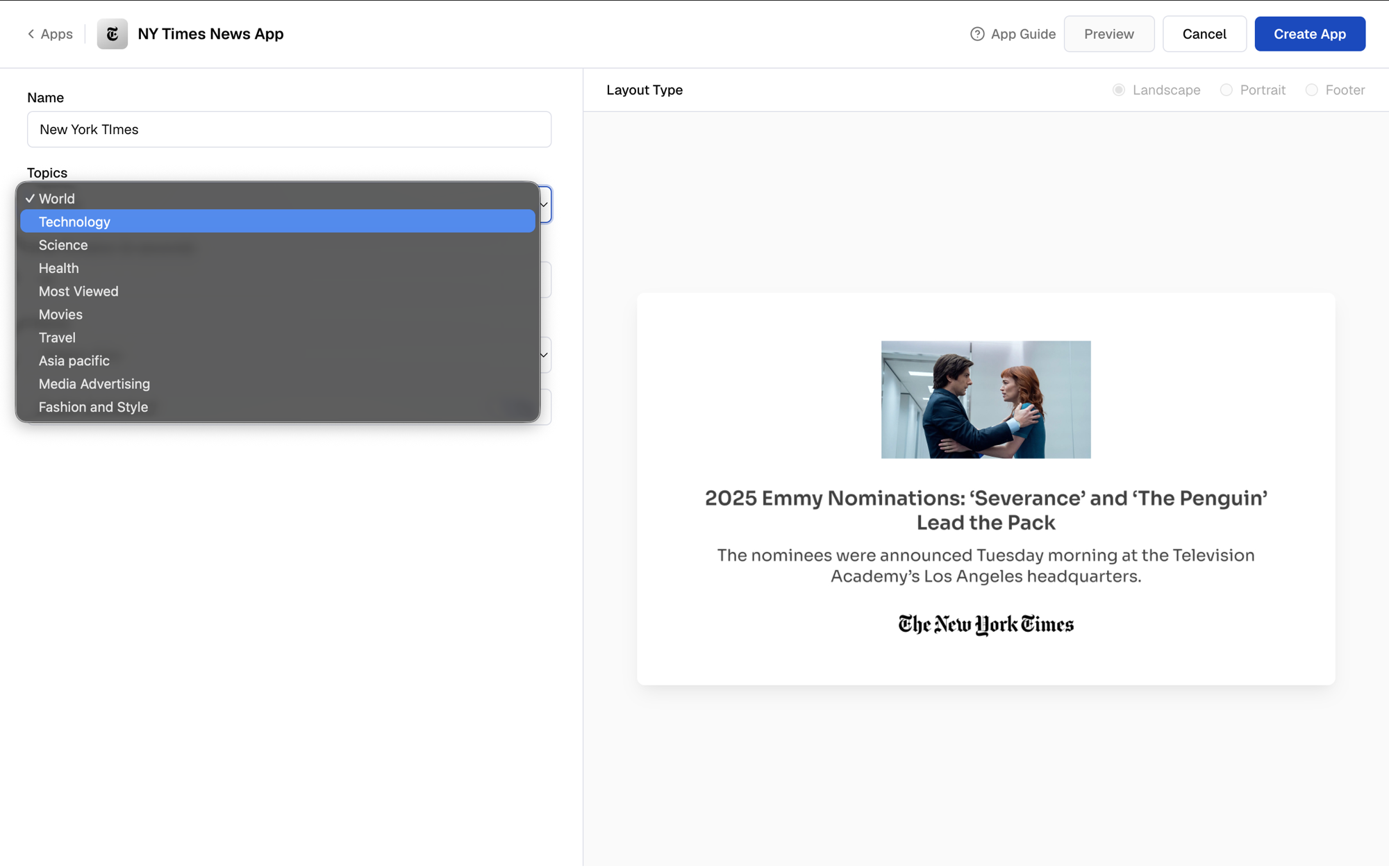
 Select the news **Topic** to display (World, Technology, Science, Health, Most Viewed, Movies, Travel, Asia Pacific, Media Advertising, or Fashion and Style).
 Decide how long each headline stays on screen. **10 seconds** is the default.
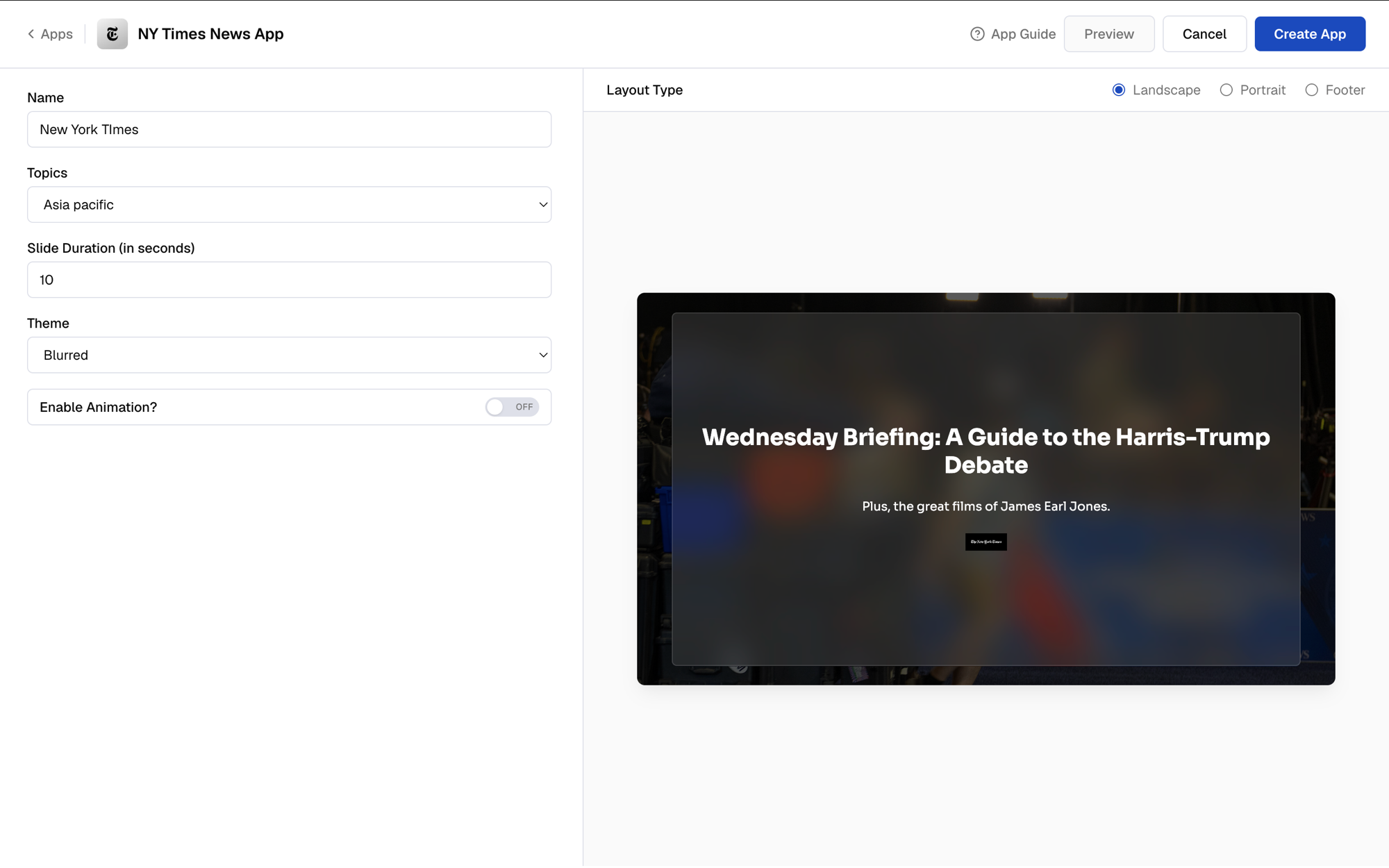
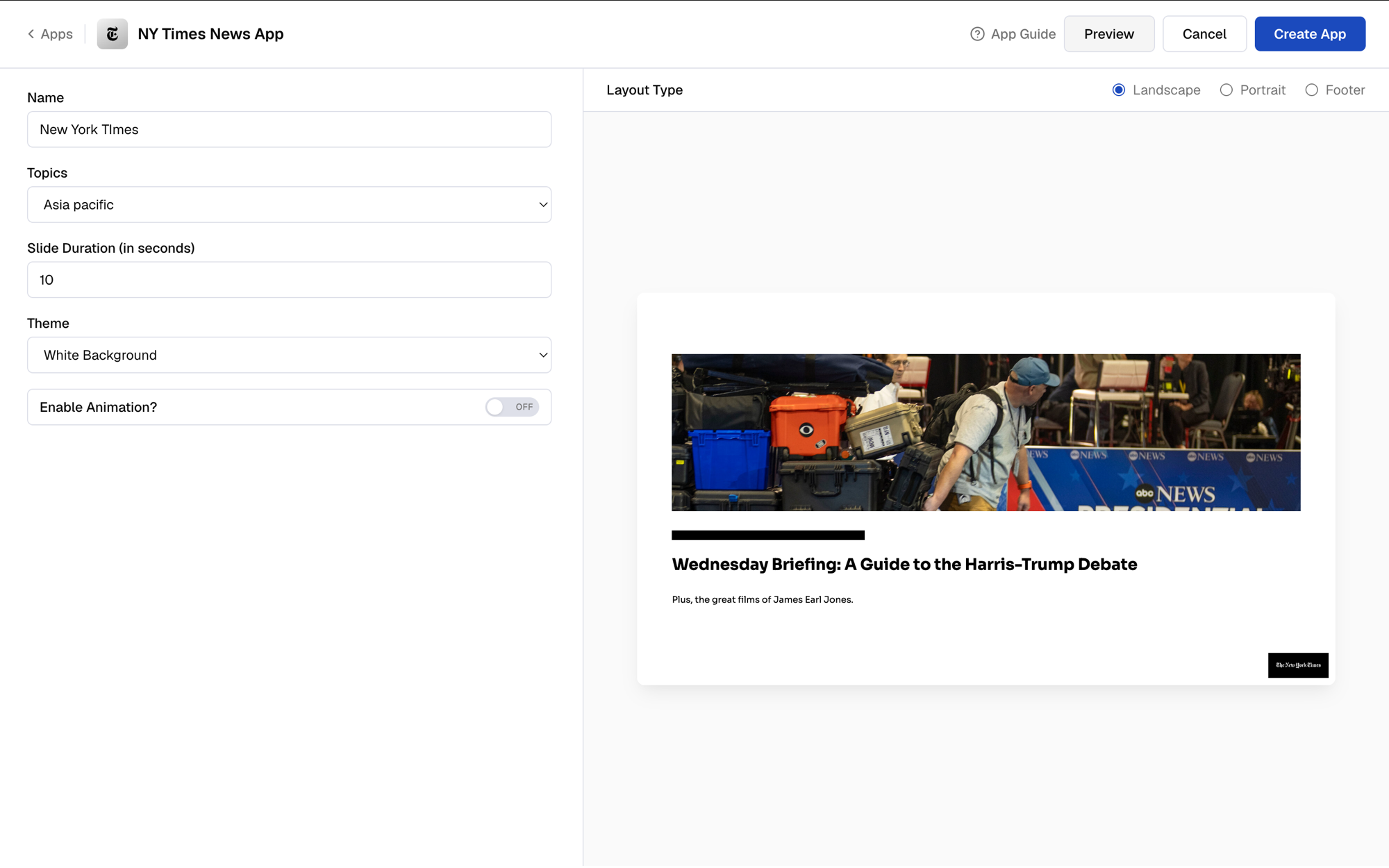
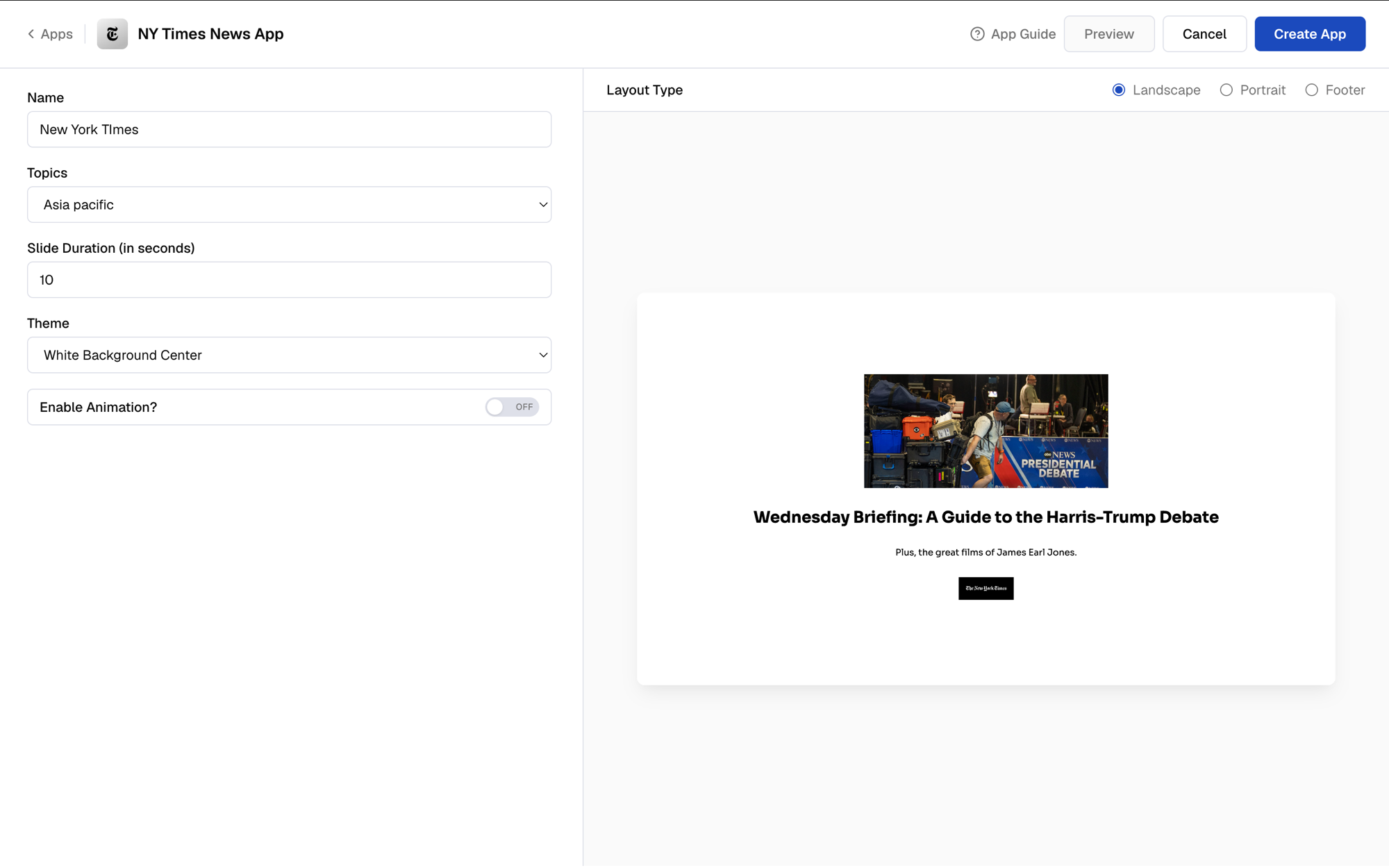
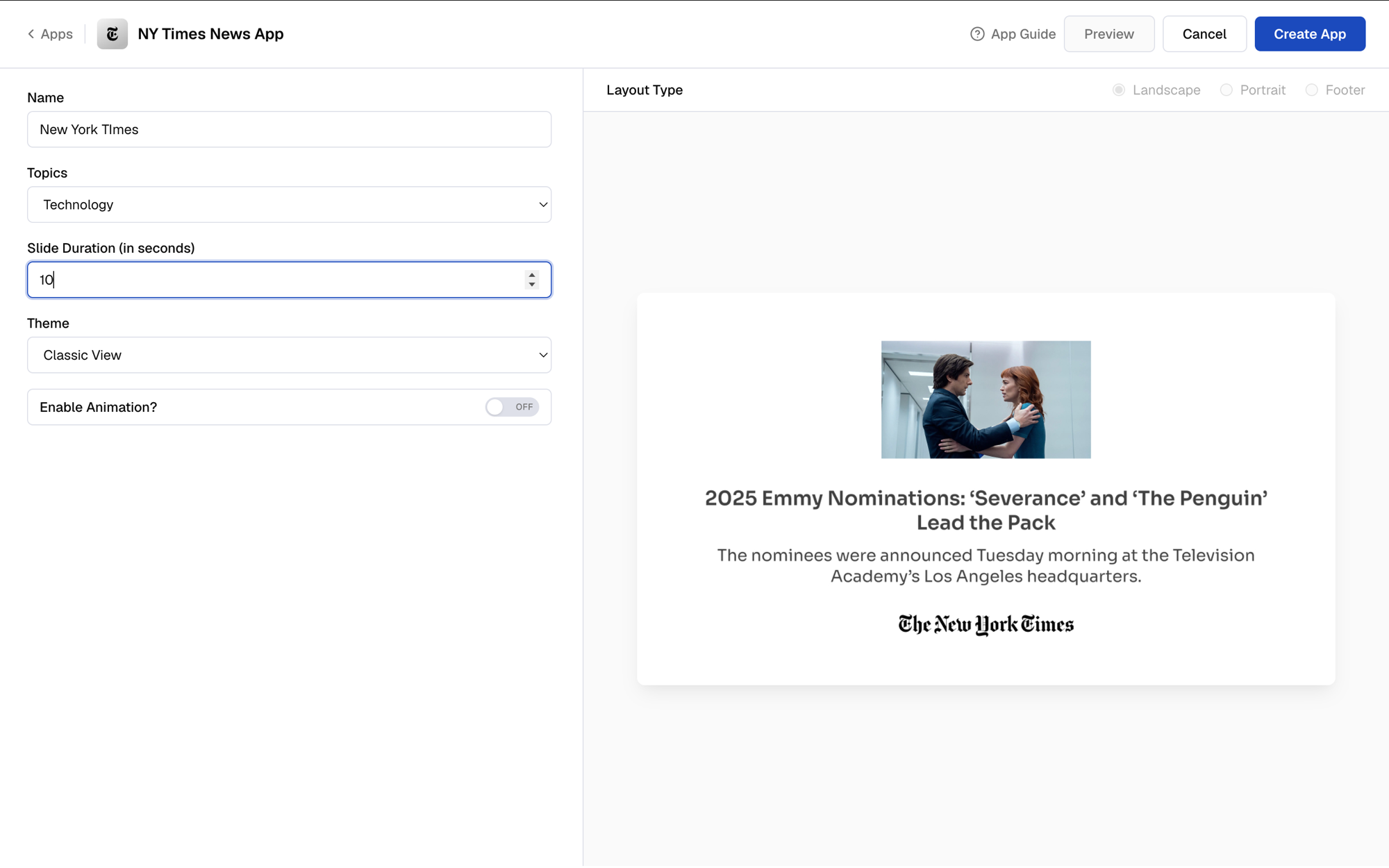 Choose a **Theme** based on how you want to show the content. Expand each option to preview it, then click **Preview** in the app to see how it looks before deciding.


 Toggle **Enable Animation** on if you want the slide to animate in.
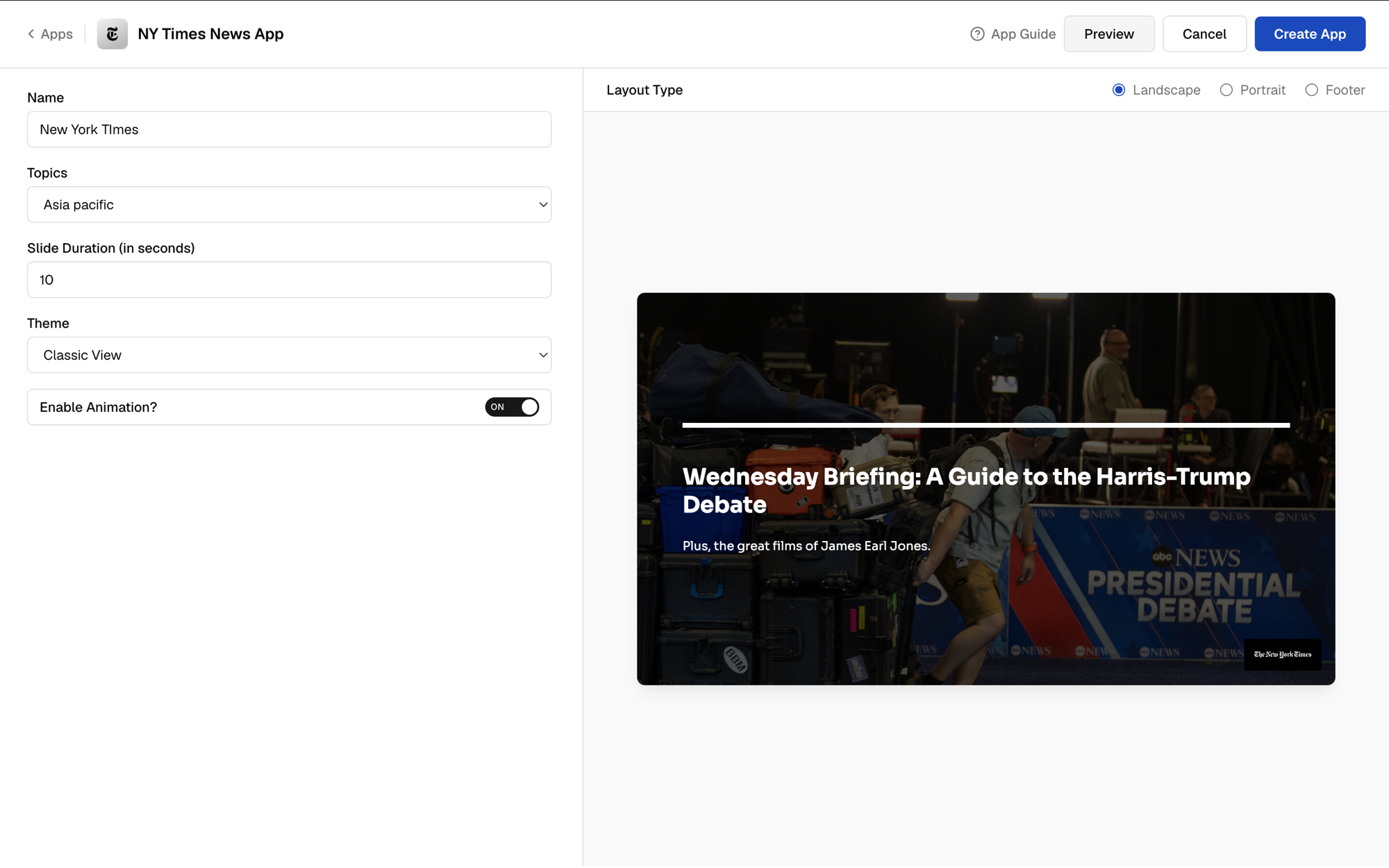 Pick the **Layout Type** that matches your screen.
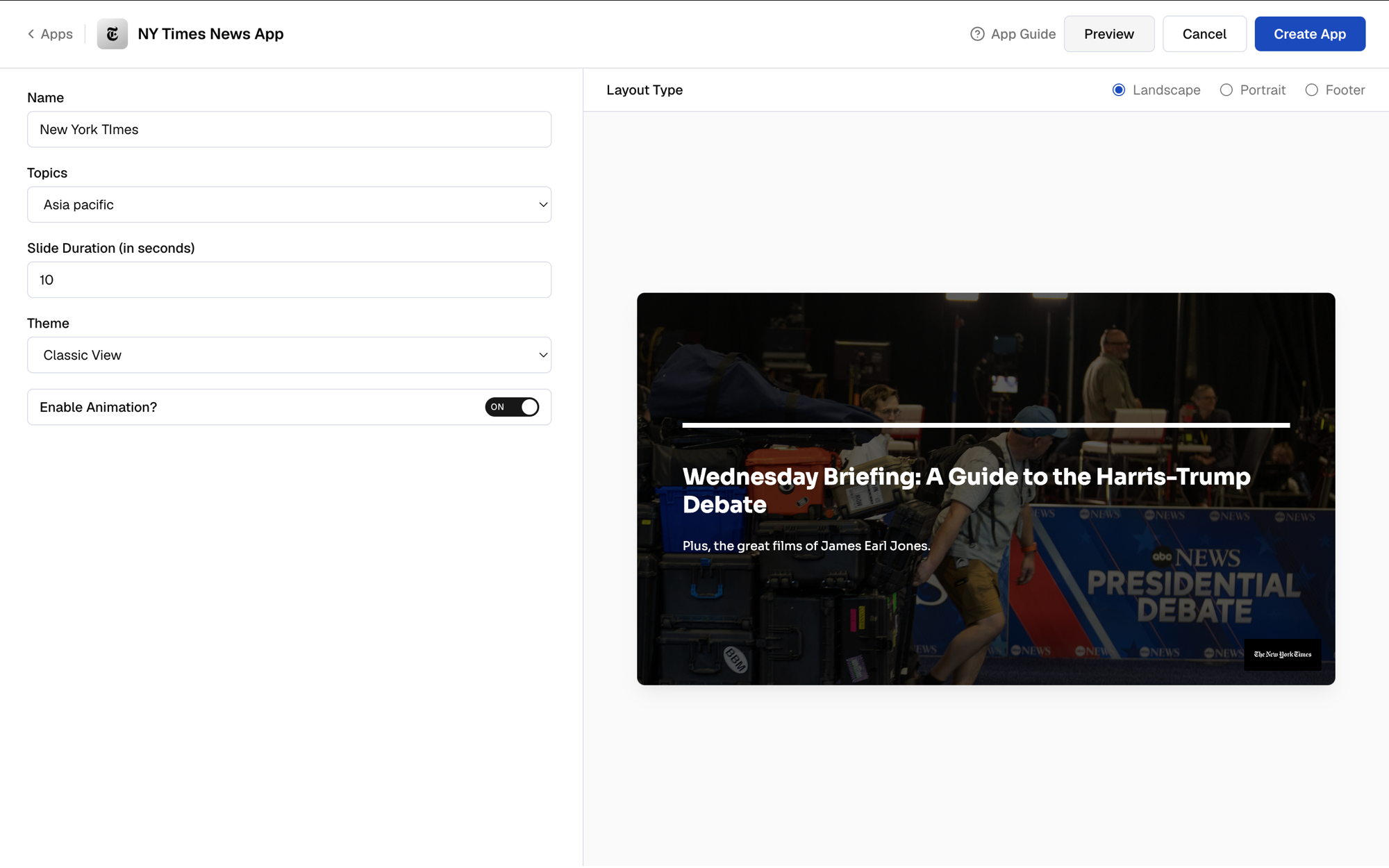
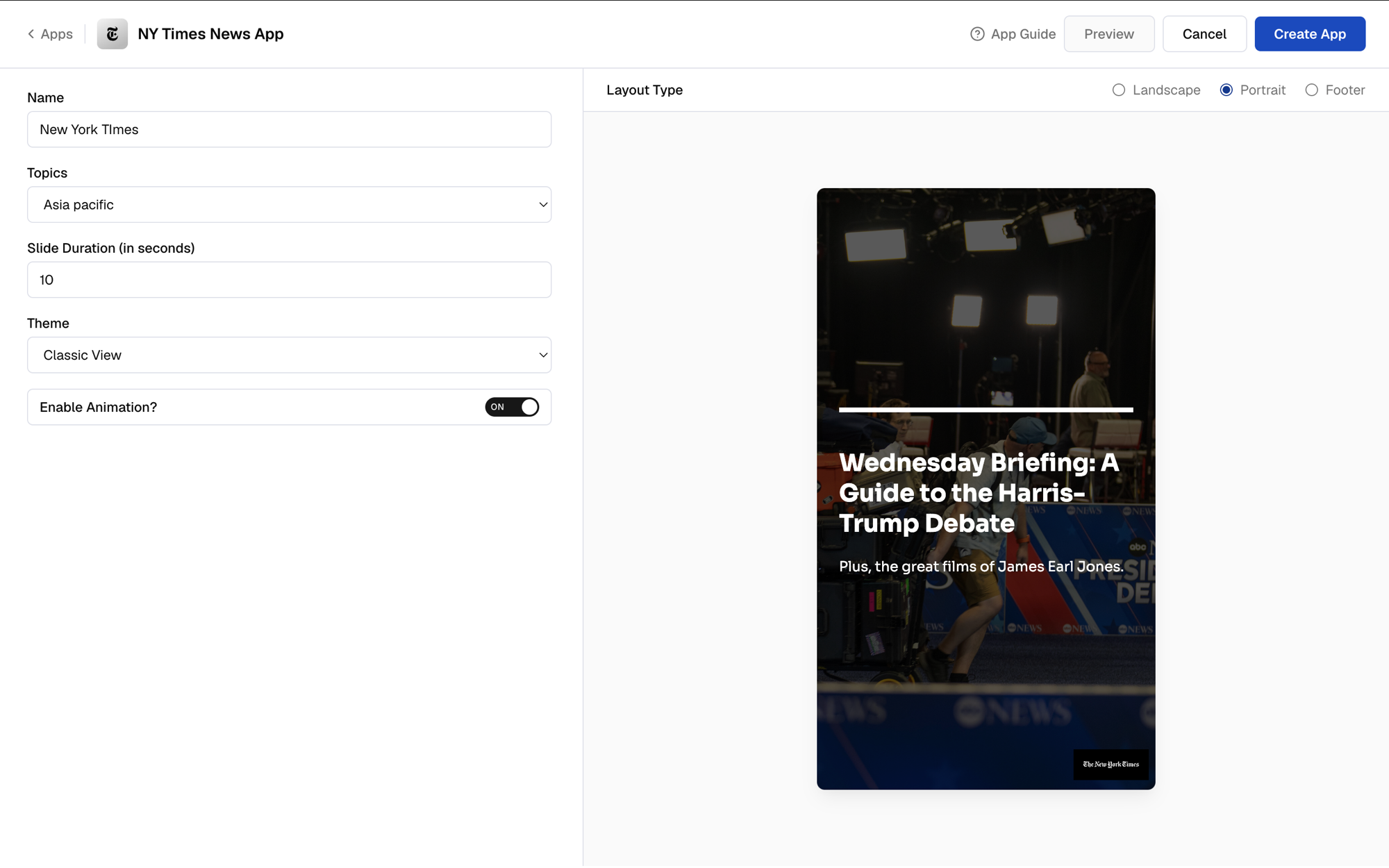
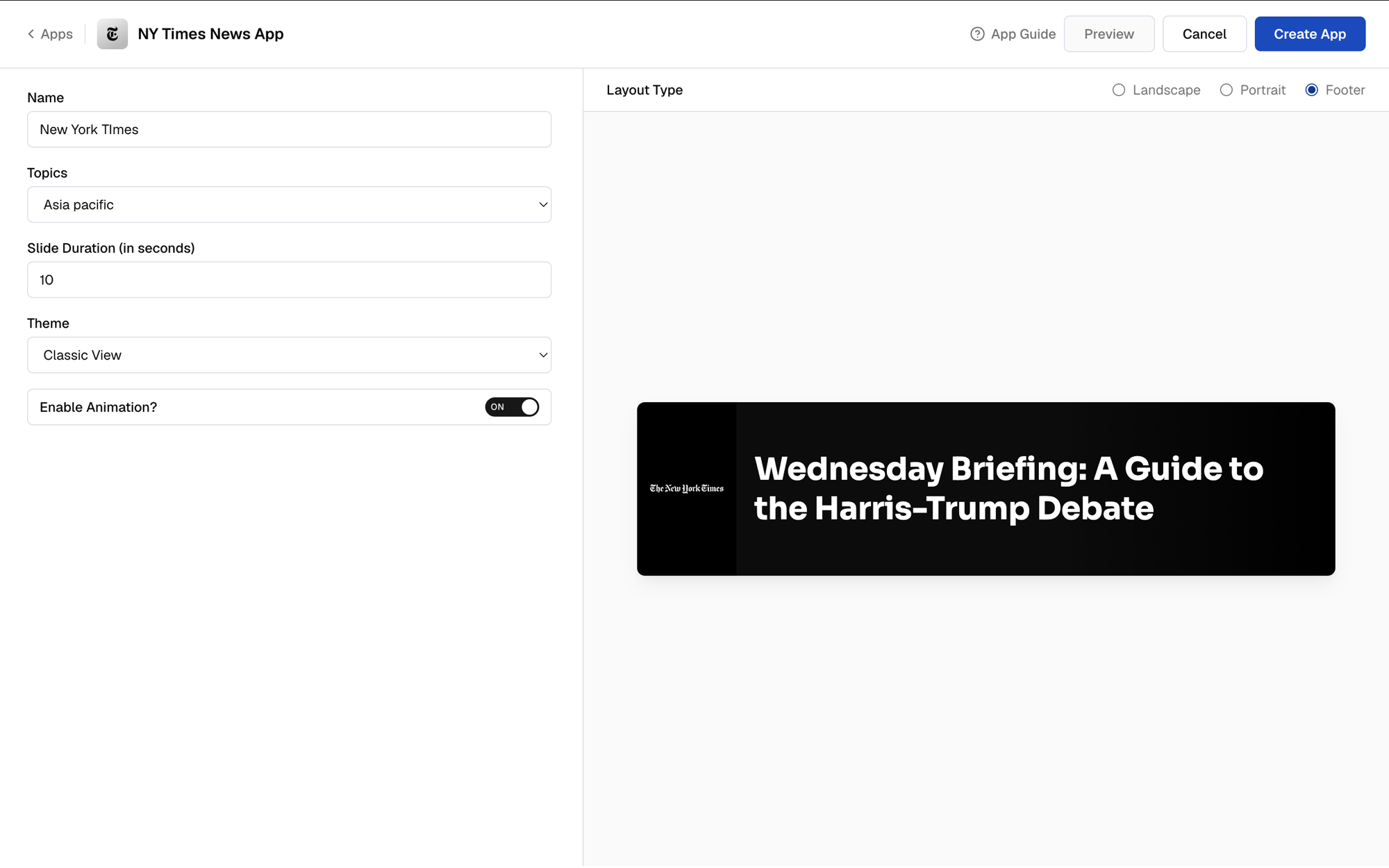 Once you're happy with the result, click **Create App**.
 Your New York Times app is now ready to use.
## What's Next?
Use the app to create a composition, or preview it first.
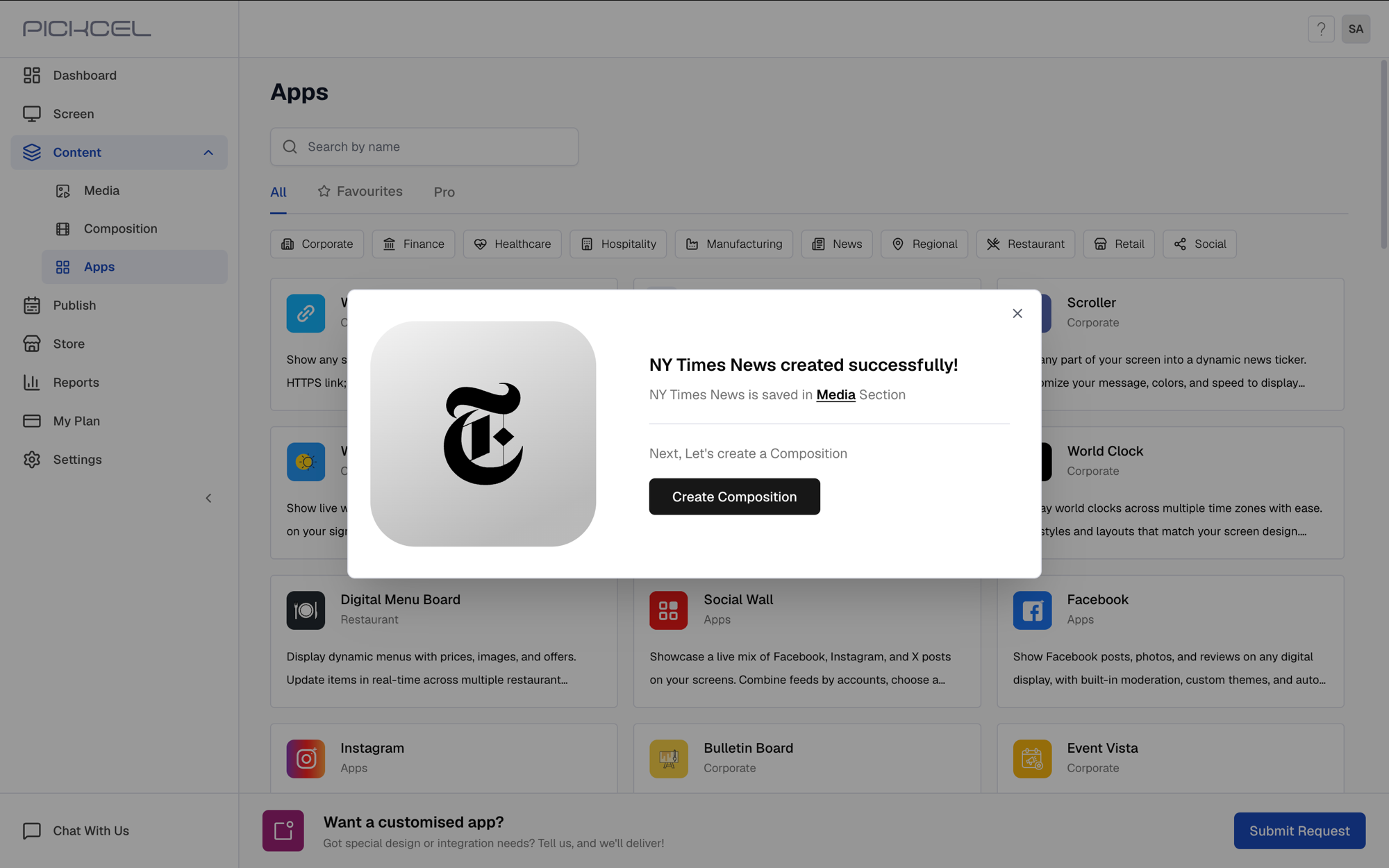
Click **Create Composition** right after creating the app to add it to a layout.
Your New York Times app is now ready to use.
## What's Next?
Use the app to create a composition, or preview it first.
Click **Create Composition** right after creating the app to add it to a layout.
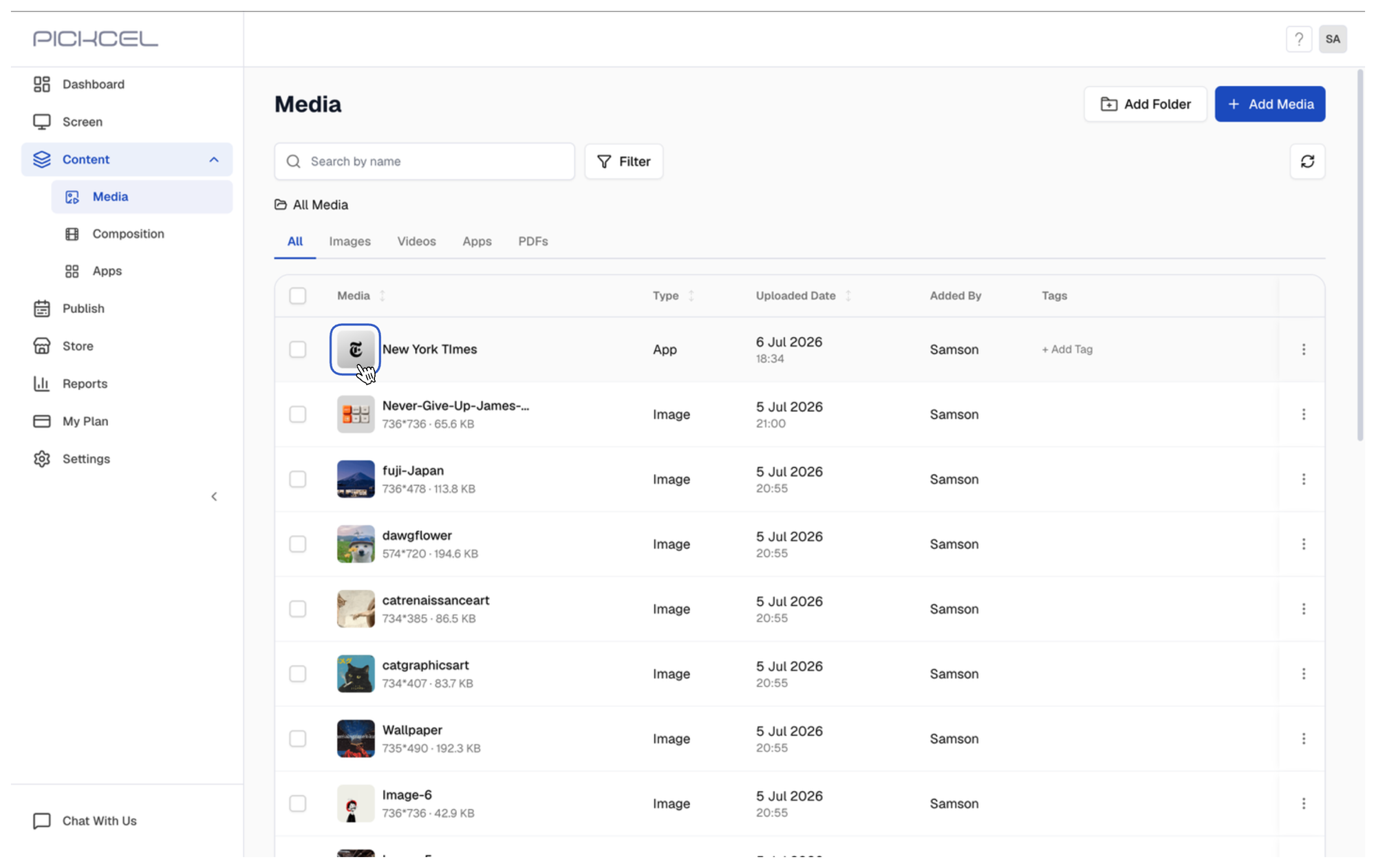
 Or go to **Media**, click the app's thumbnail to preview it, and assign it to a composition later.
 * Learn about [Compositions](/compositions/compositions)
* Learn how to [Publish or Schedule Content](/schedule-and-publish/publish-overview)
* Learn about [Compositions](/compositions/compositions)
* Learn how to [Publish or Schedule Content](/schedule-and-publish/publish-overview)