> ## Documentation Index
> Fetch the complete documentation index at: https://docs.pickcel.com/llms.txt
> Use this file to discover all available pages before exploring further.
# How to display Microsoft Teams messages on digital signage using Pickcel?
> Connect a Microsoft Teams channel to Pickcel to display live team messages on your digital signage screens
This guide shows you how to connect a Microsoft Teams channel to Pickcel and display its messages on your digital signage screens, useful for internal announcements, standups, and team recognition boards.
## Prerequisites
Before you begin, make sure you have:
* A Microsoft account with access to the Team and Channel you want to display
* Permission to allow Pickcel to read messages from that channel on your behalf
Pickcel only reads messages from the Team and Channel you select. It cannot post or modify messages.
***
Log in to your [Pickcel account](https://console.pickcel.com/). Go to the **Apps** module and search for **Teams**.
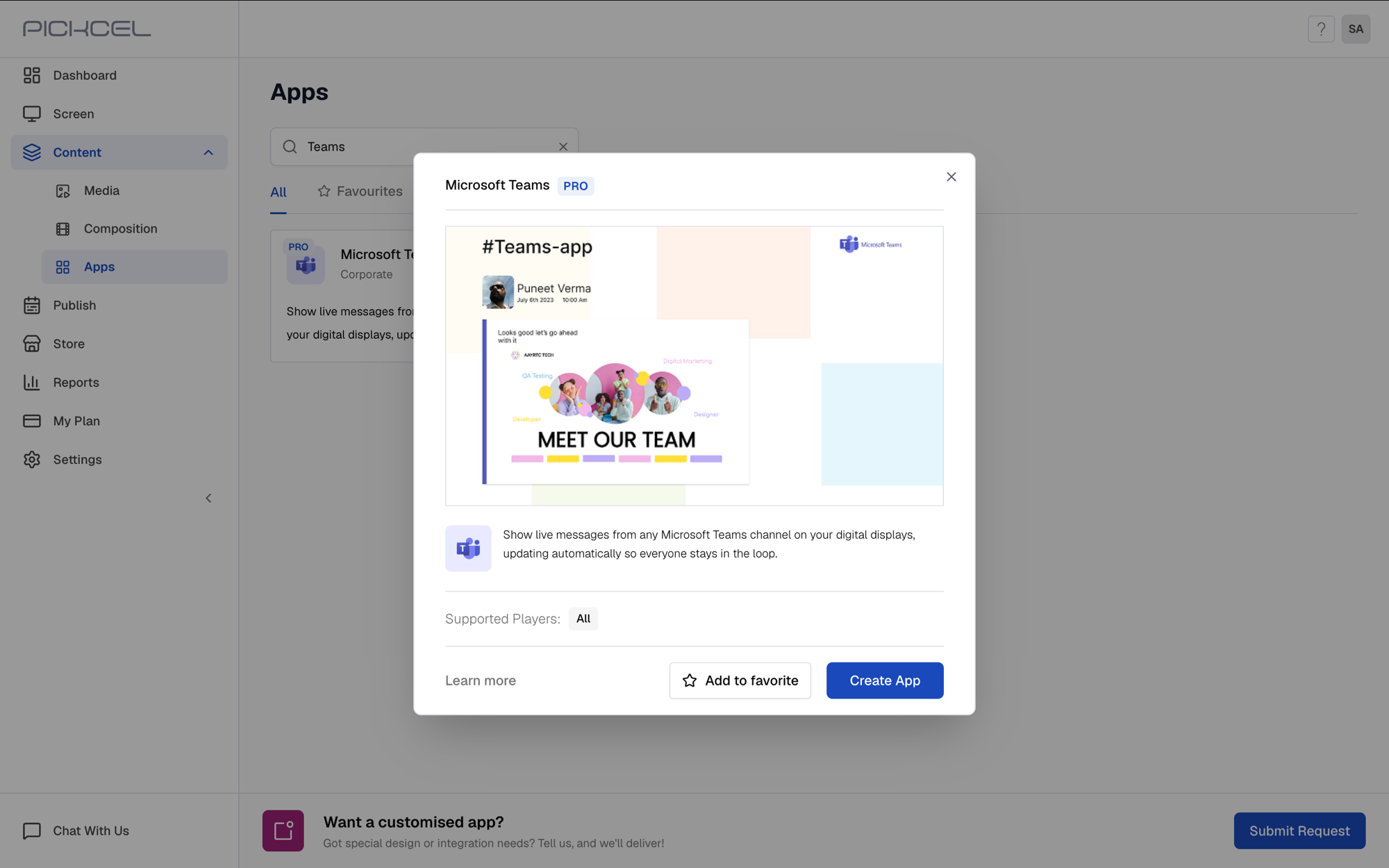
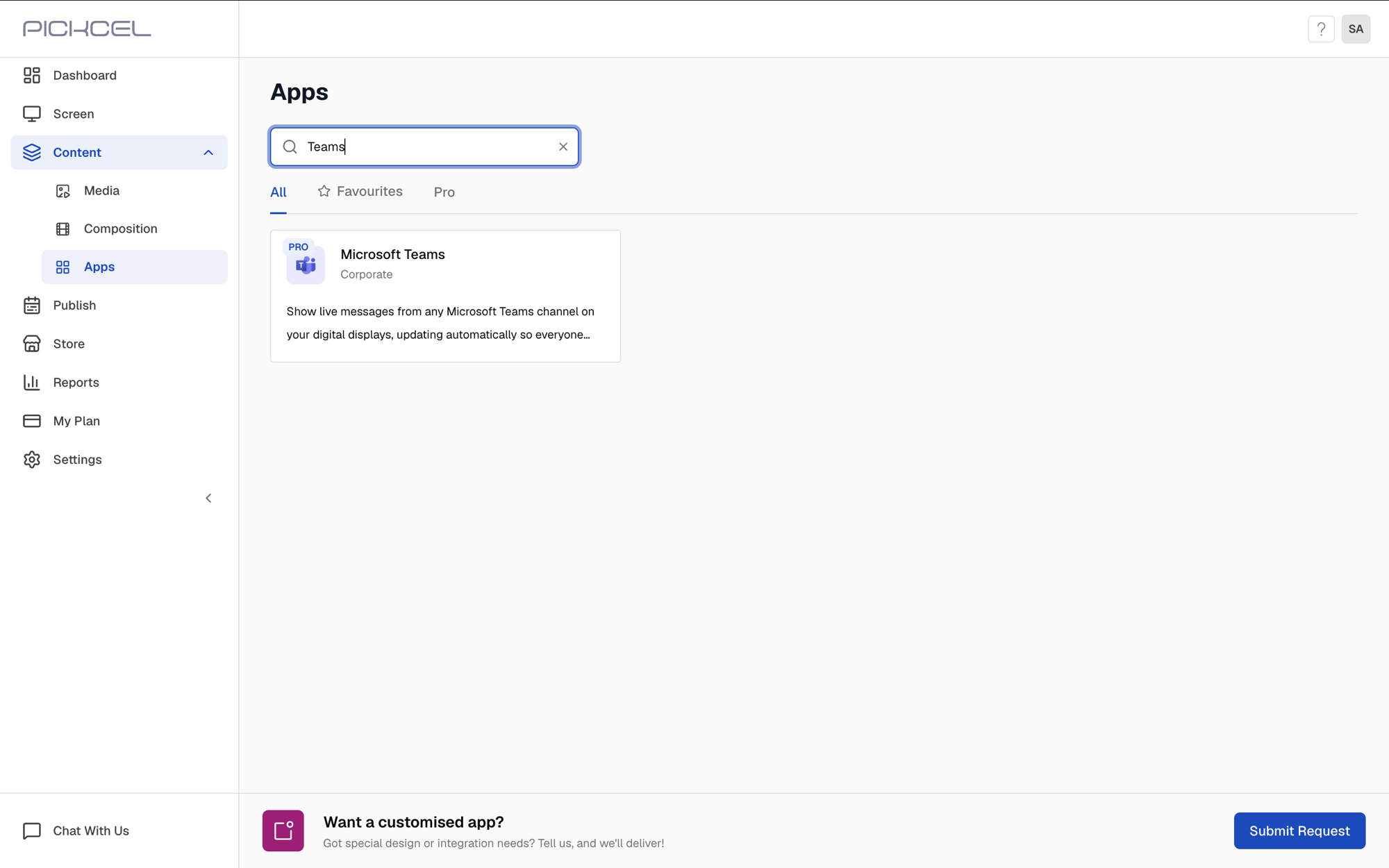 Click the **Microsoft Teams** app card, then click **Create App** in the app details panel.
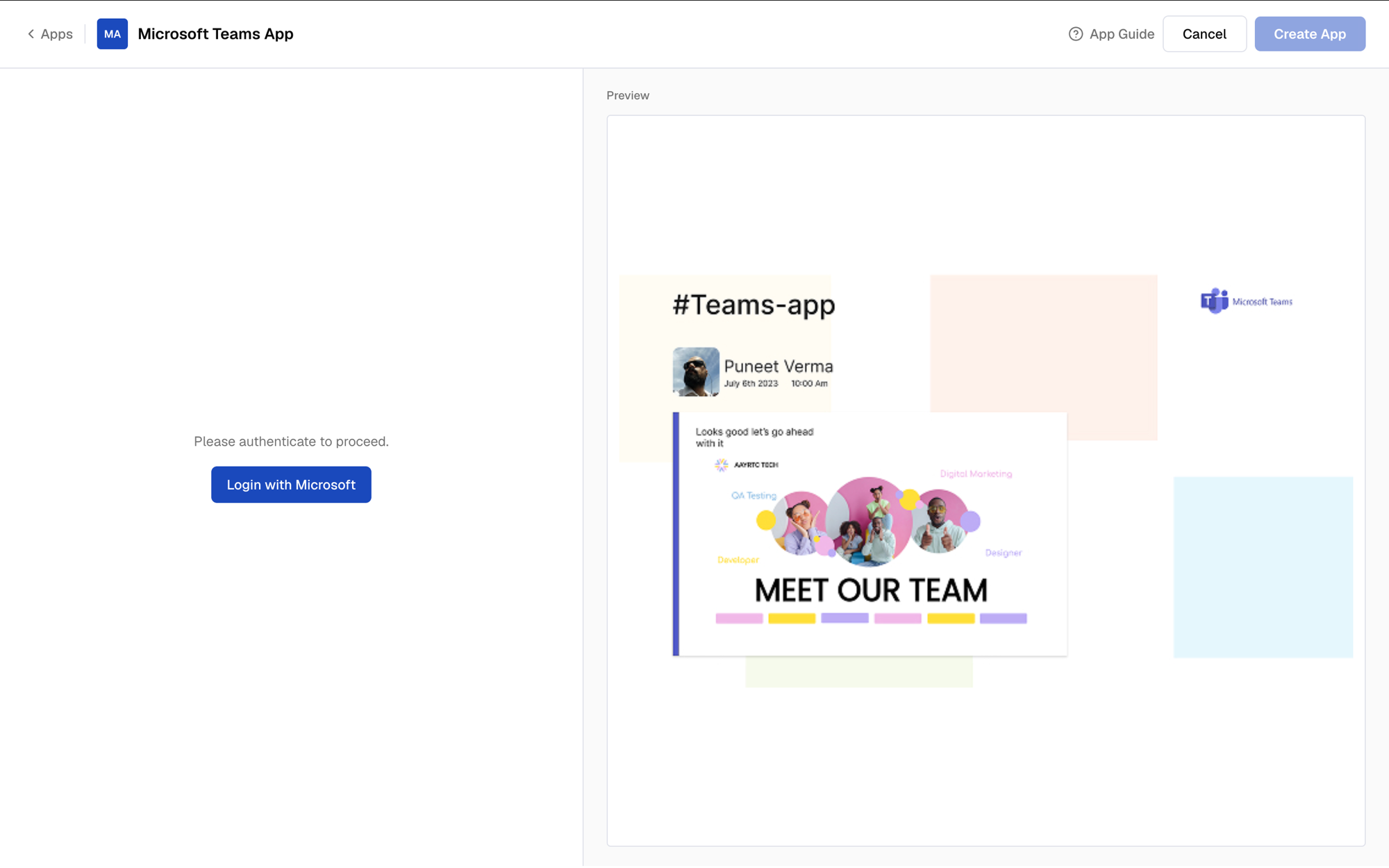
 Click **Login with Microsoft** and sign in with an account that has access to the Team and Channel you want to display. Pickcel needs this connection to read messages on your behalf.
 Once you're signed in, a confirmation toast appears and the app configuration form loads.
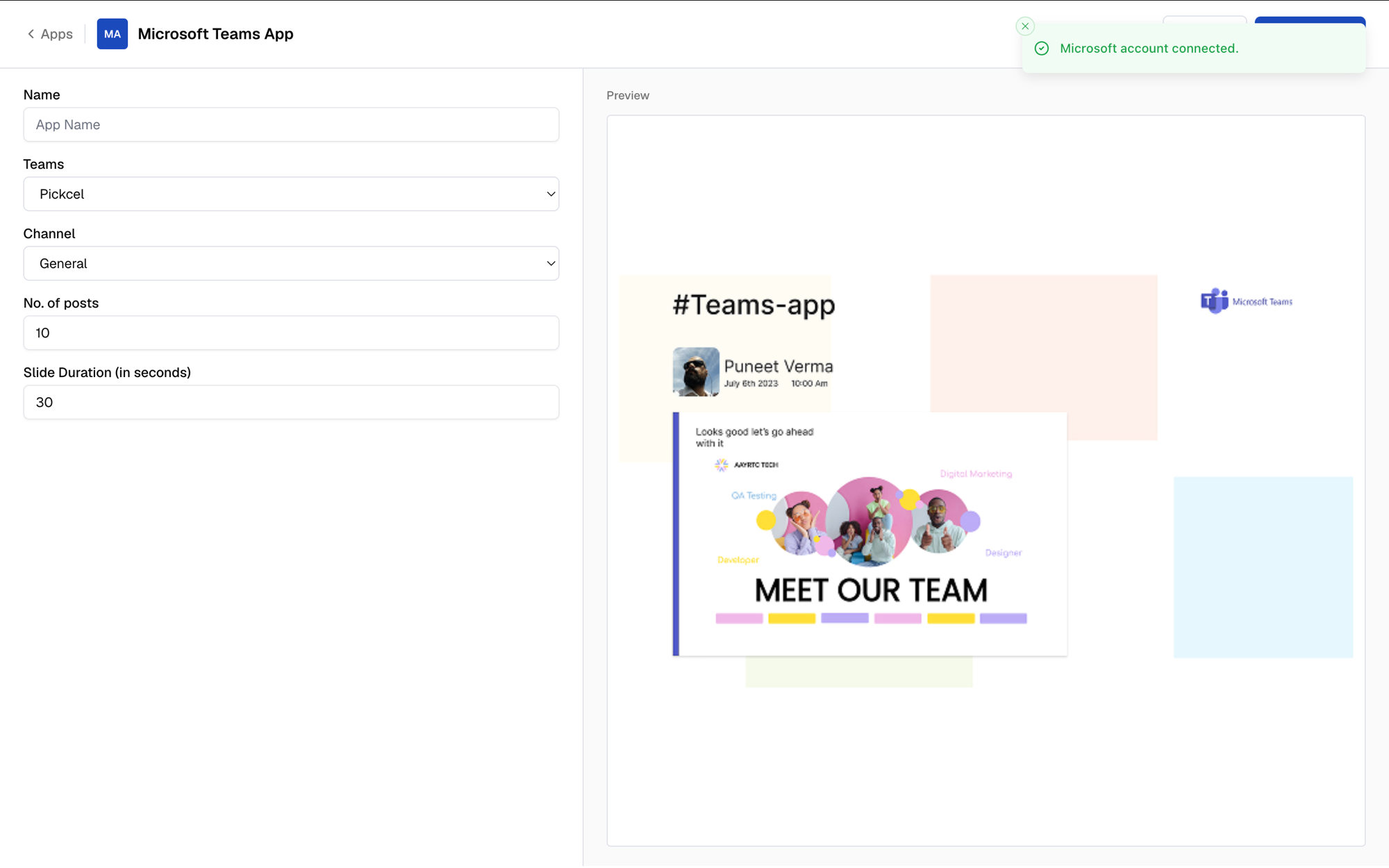 Enter a **Name** for the app so you can identify it later in the **Media** section, then choose the **Team** whose messages you want to display.
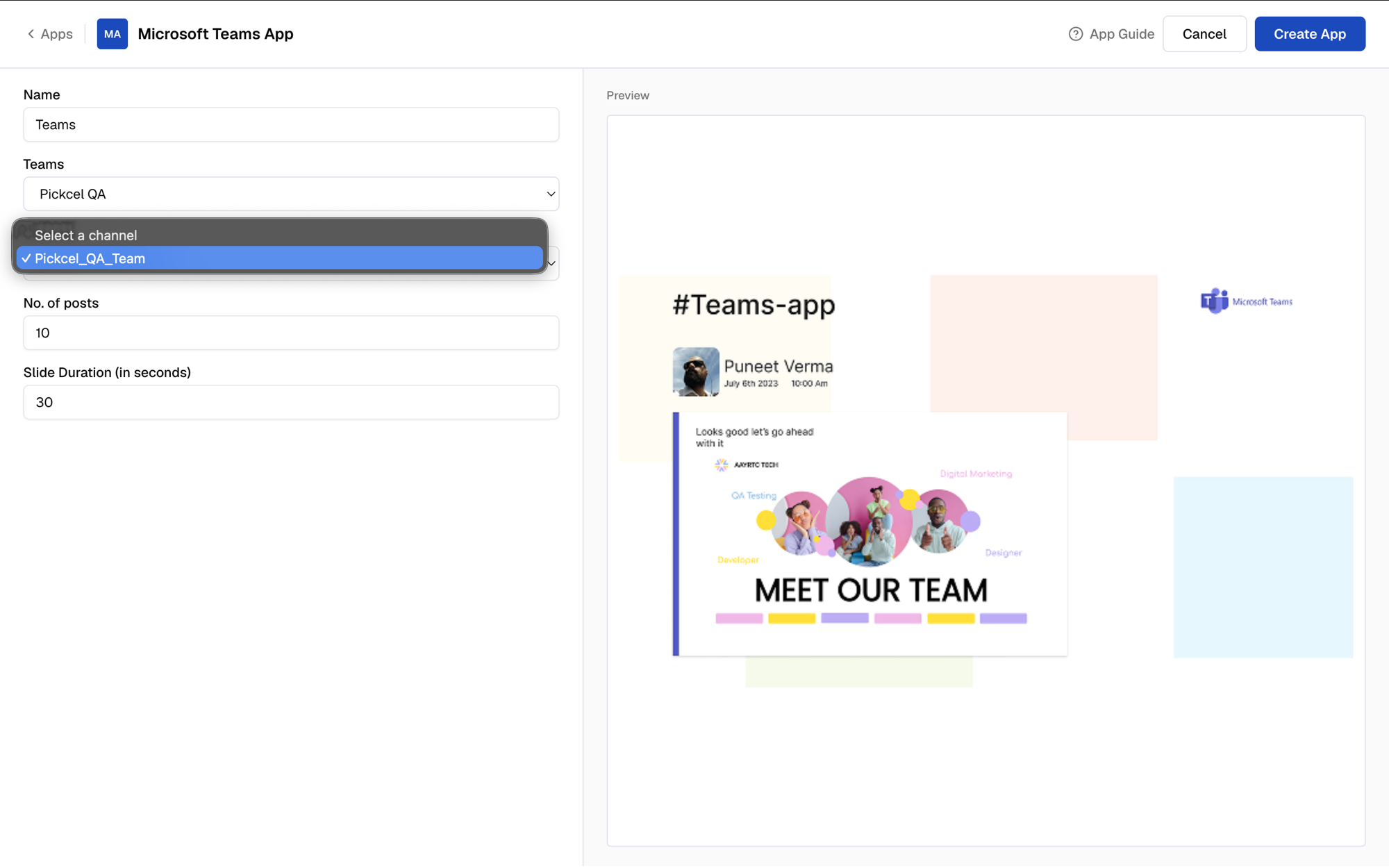
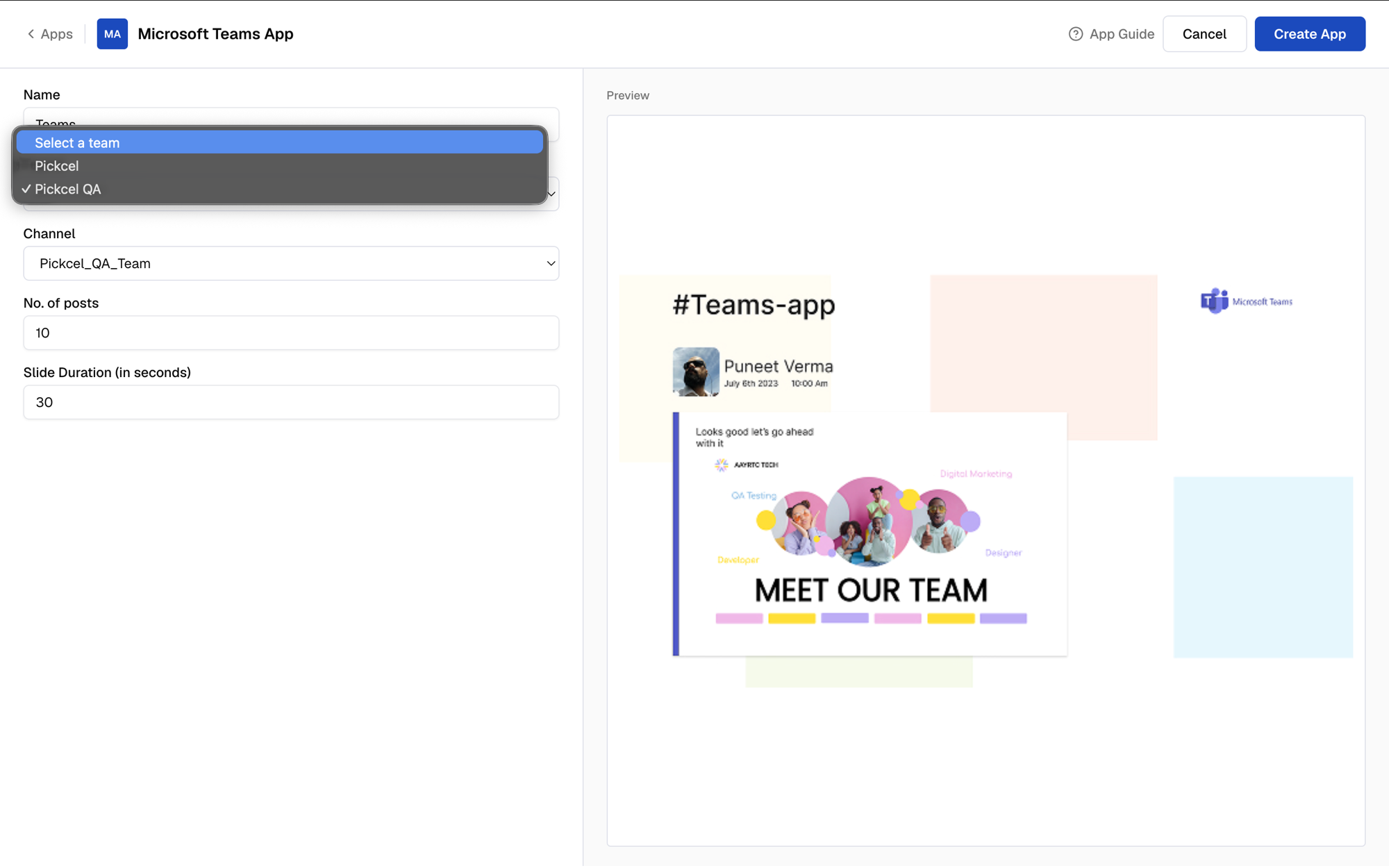 Pick the **Channel** within that Team to pull messages from.
 Choose how many recent posts from the channel to cycle through.
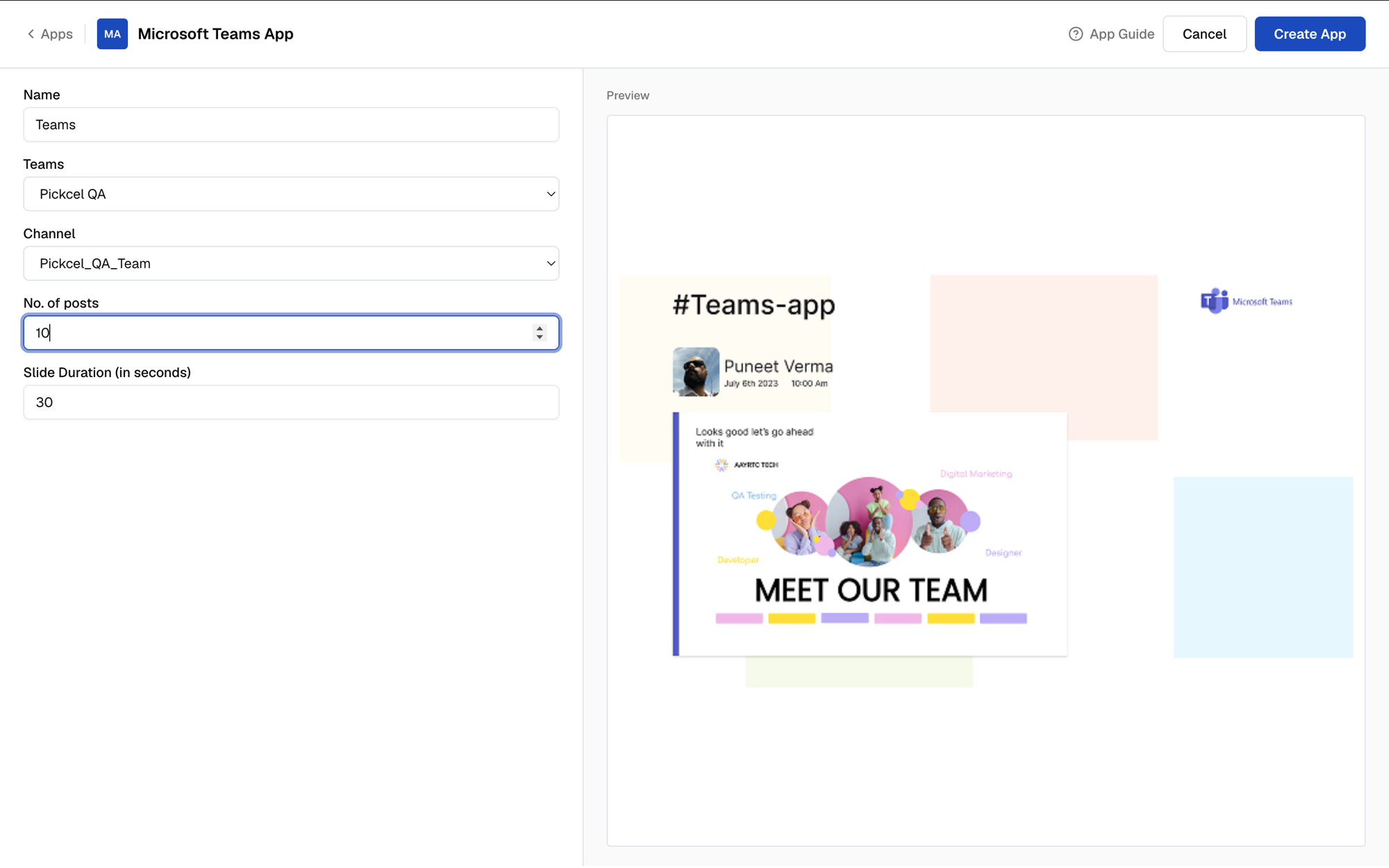 The number of posts must be 5 or more.
Decide how long each post stays on screen before moving to the next.
The number of posts must be 5 or more.
Decide how long each post stays on screen before moving to the next.
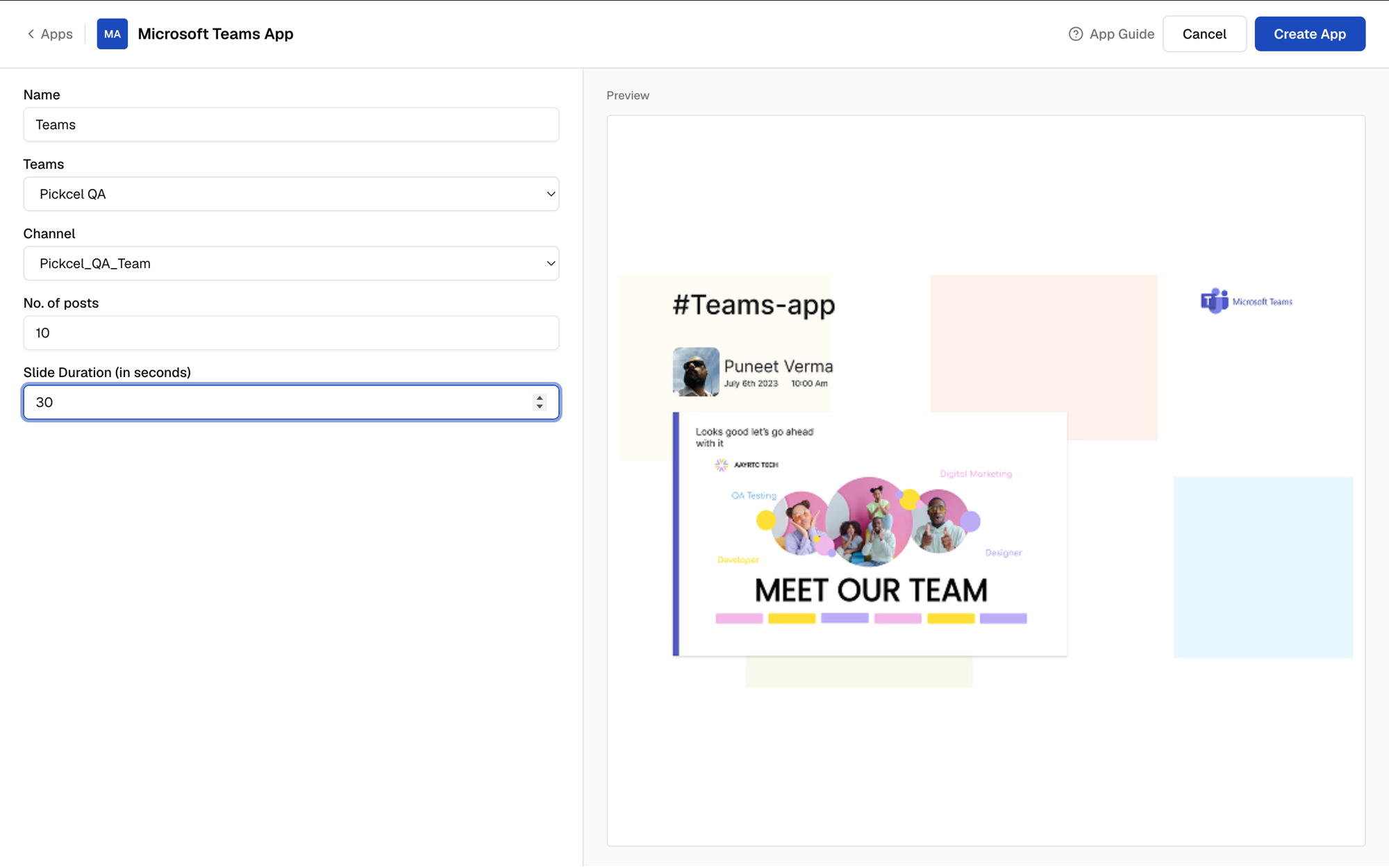 Click **Create App** to finish.
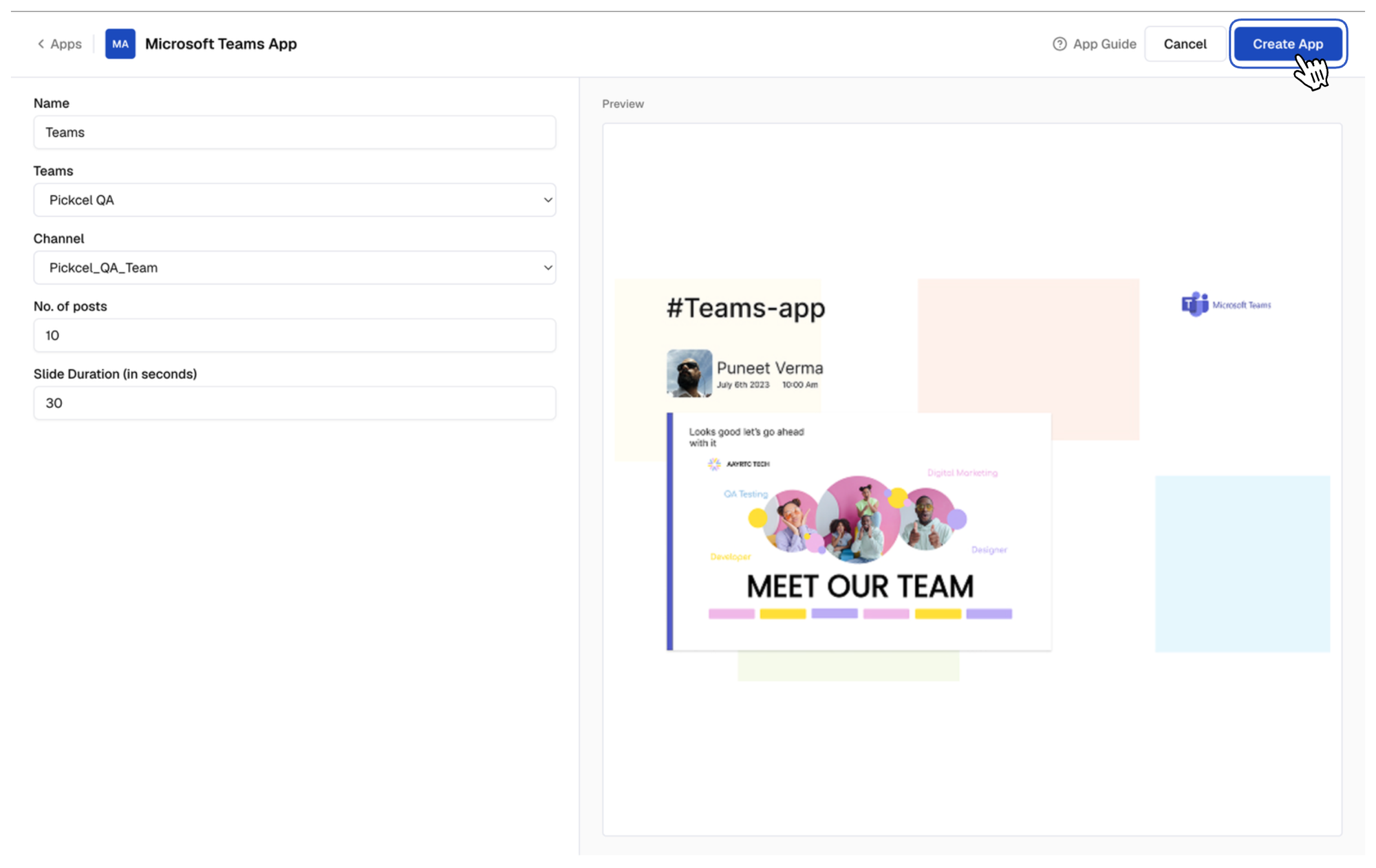 Your Microsoft Teams app is now ready to use.
If the connected Microsoft account doesn't have access to the selected Team and Channel, the app shows no messages instead of an error.
## What's Next?
Use the app to create a composition, or preview it first.
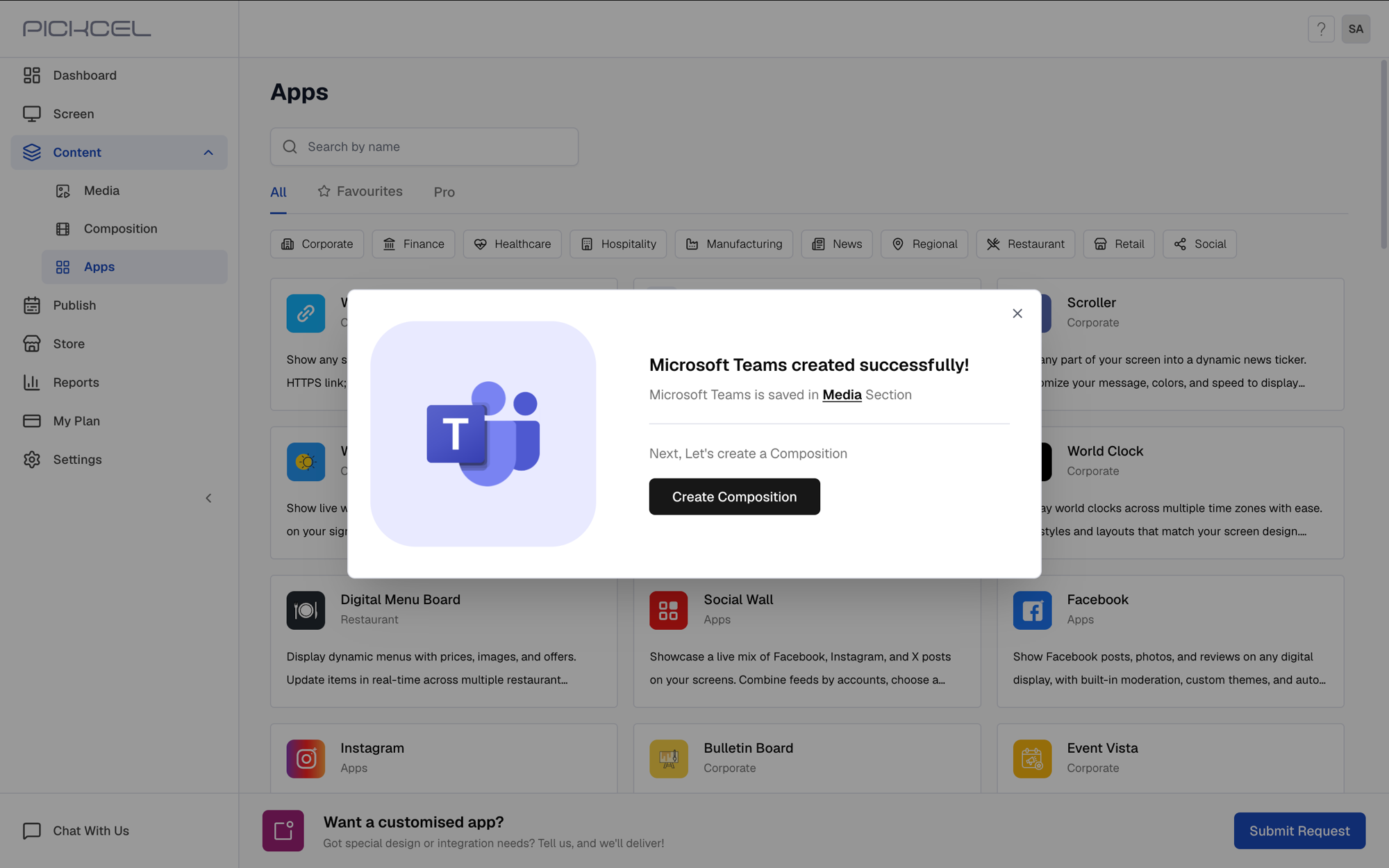
Click **Create Composition** right after creating the app to add it to a layout.
Your Microsoft Teams app is now ready to use.
If the connected Microsoft account doesn't have access to the selected Team and Channel, the app shows no messages instead of an error.
## What's Next?
Use the app to create a composition, or preview it first.
Click **Create Composition** right after creating the app to add it to a layout.
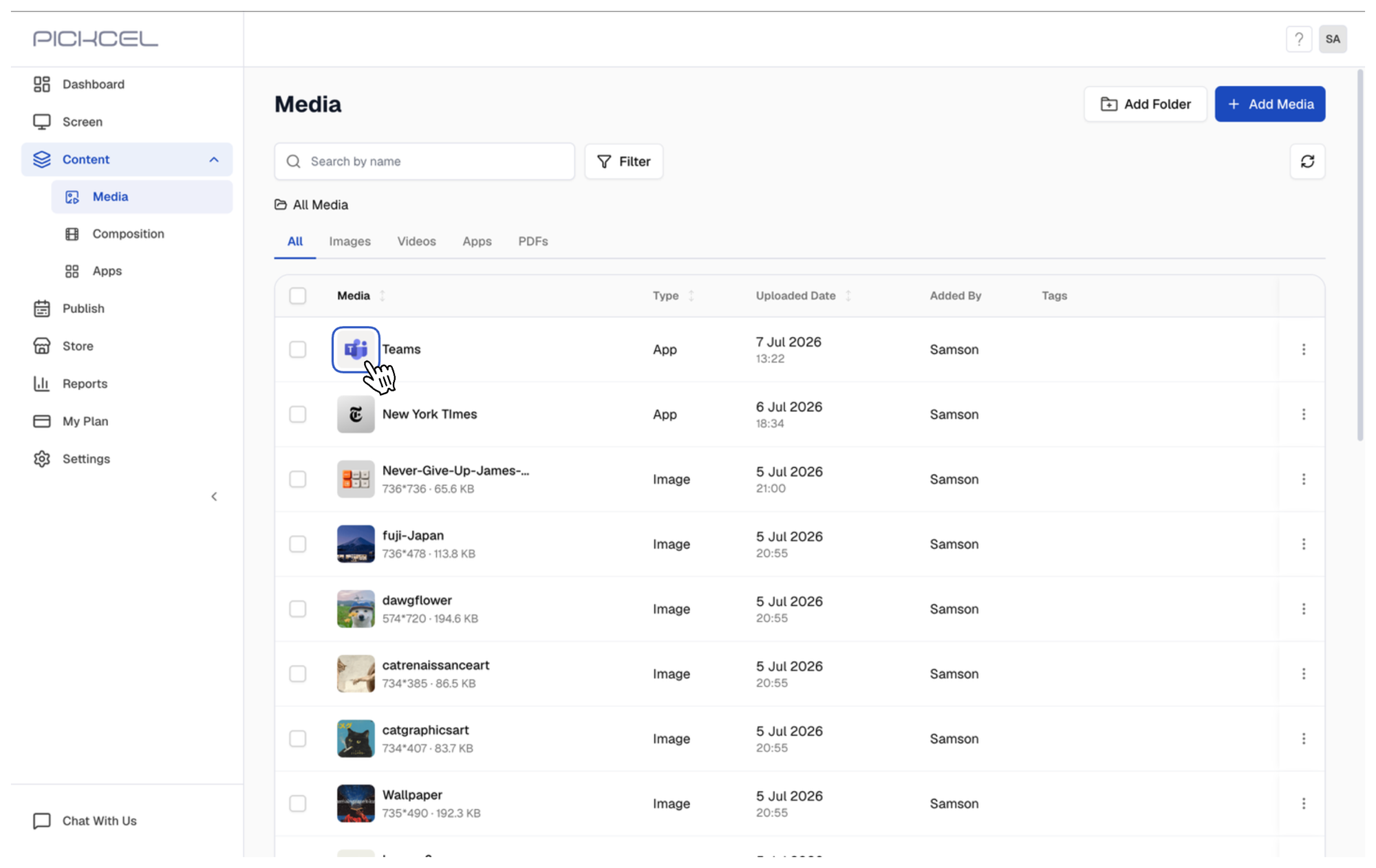
 Or go to **Media**, click the app's thumbnail to preview it, and assign it to a composition later.
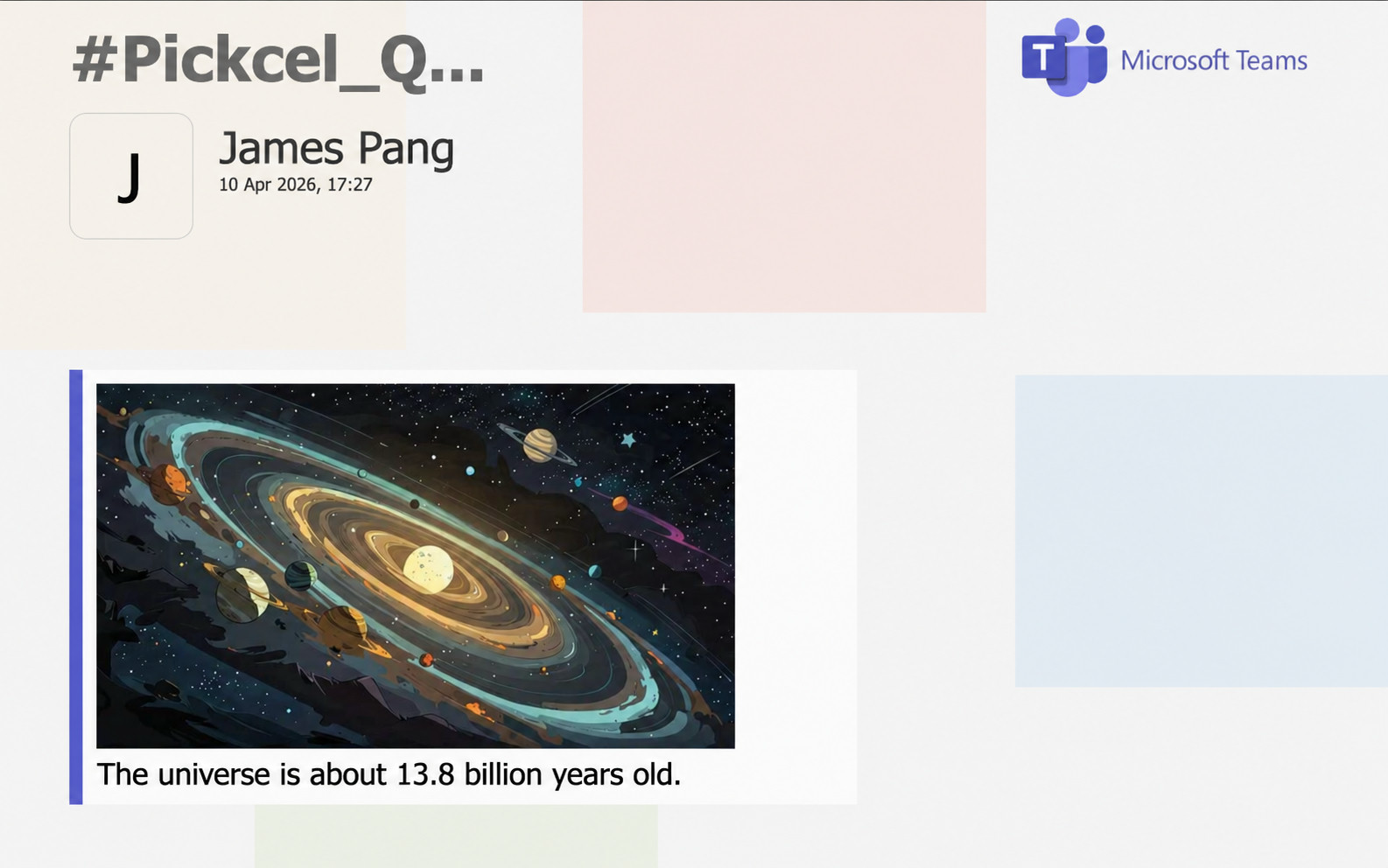
 Here's how the messages look once the app is live on screen.
 * Learn about [Compositions](/compositions/compositions)
* Learn how to [Publish or Schedule Content](/schedule-and-publish/publish-overview)
* Learn about [Compositions](/compositions/compositions)
* Learn how to [Publish or Schedule Content](/schedule-and-publish/publish-overview)