> ## Documentation Index
> Fetch the complete documentation index at: https://docs.pickcel.com/llms.txt
> Use this file to discover all available pages before exploring further.
# How to add the Meet Your Team app from the Pickcel app store?
> Learn how to turn a Google Sheet of employee profiles into a digital signage carousel with the Meet Your Team app
This guide shows you how to display a carousel of employee profiles on your digital signage screens, pulled straight from a Google Sheet.
## Prerequisites
Before you begin, make sure you have:
* A Google account to sign in with
* A [template spreadsheet](https://docs.google.com/spreadsheets/d/1X8qsSQpZM77KsS5QO5HrW5innGmBiTdfHn93pcPNbb4/edit?gid=0#gid=0) copied to your own Google Drive, with one row per employee and their **Display Name**, **Picture URL**, **Job Title**, **Department**, **Quote**, and **Start Date** filled in
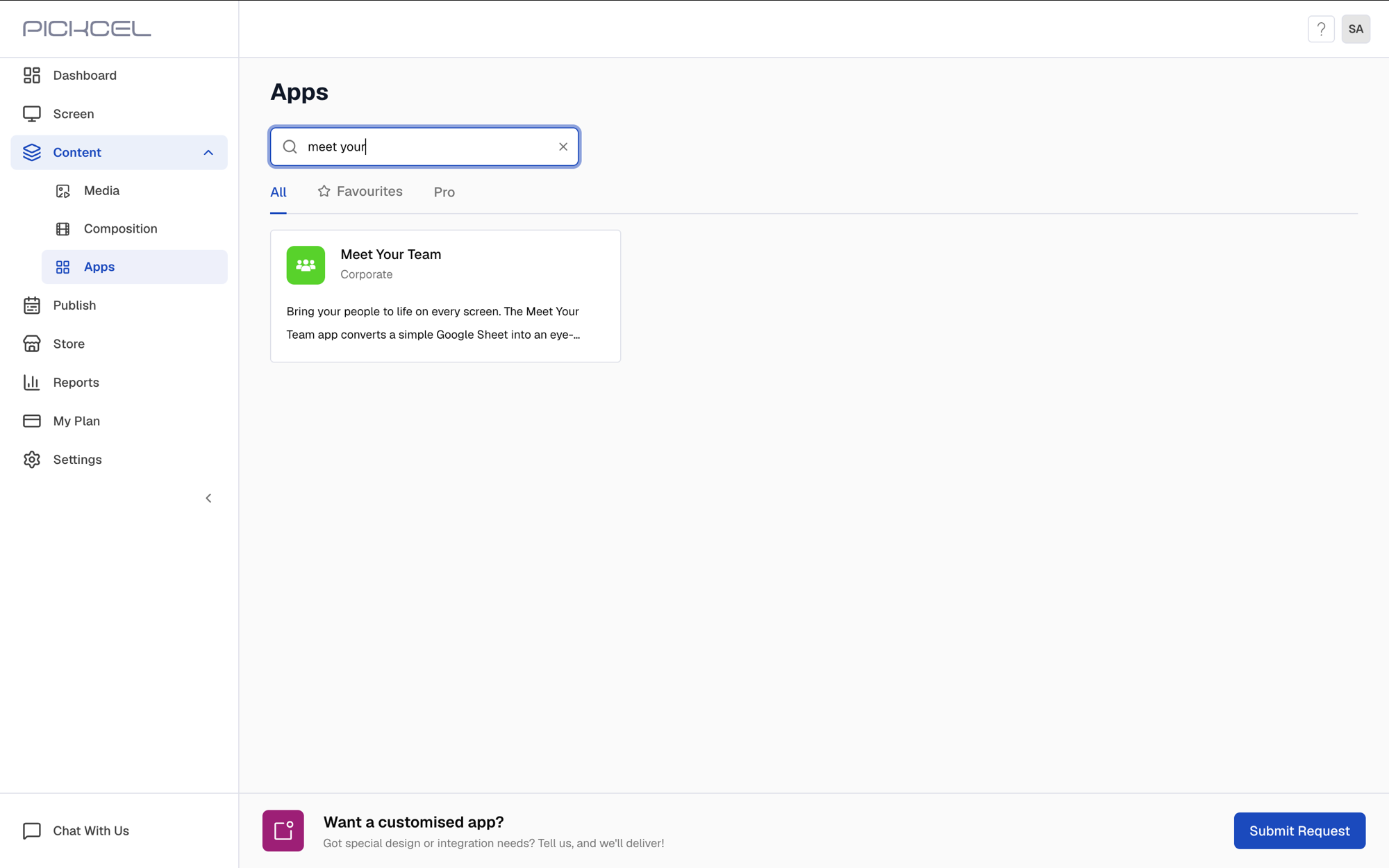
Log in to your [Pickcel account](https://console.pickcel.com/). Go to the **Apps** module and search for **Meet Your Team**.
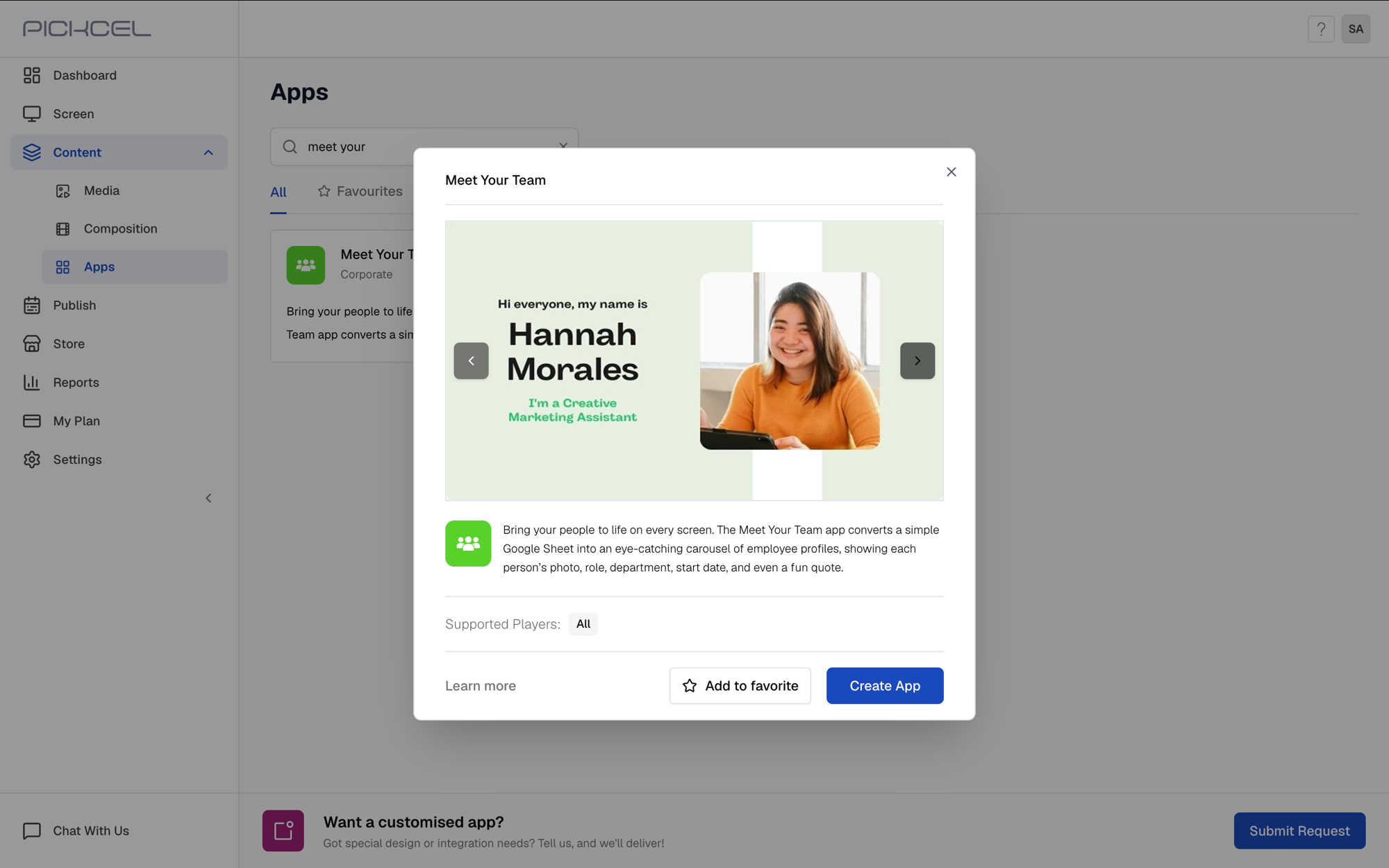
 Click the **Meet Your Team** app card, then click **Create App** in the app details panel.
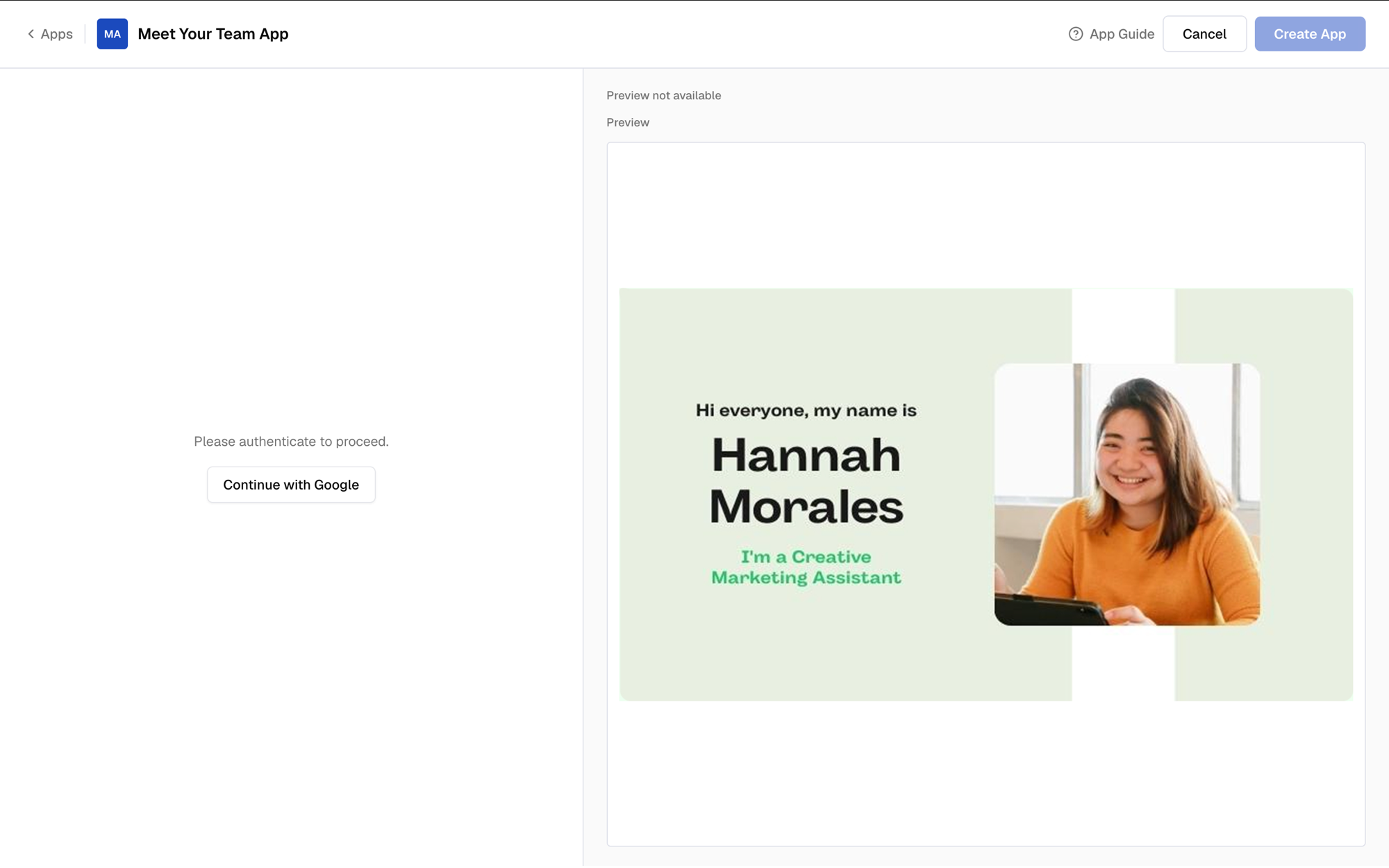
 Click **Continue with Google** and sign in with the account that owns your team spreadsheet.
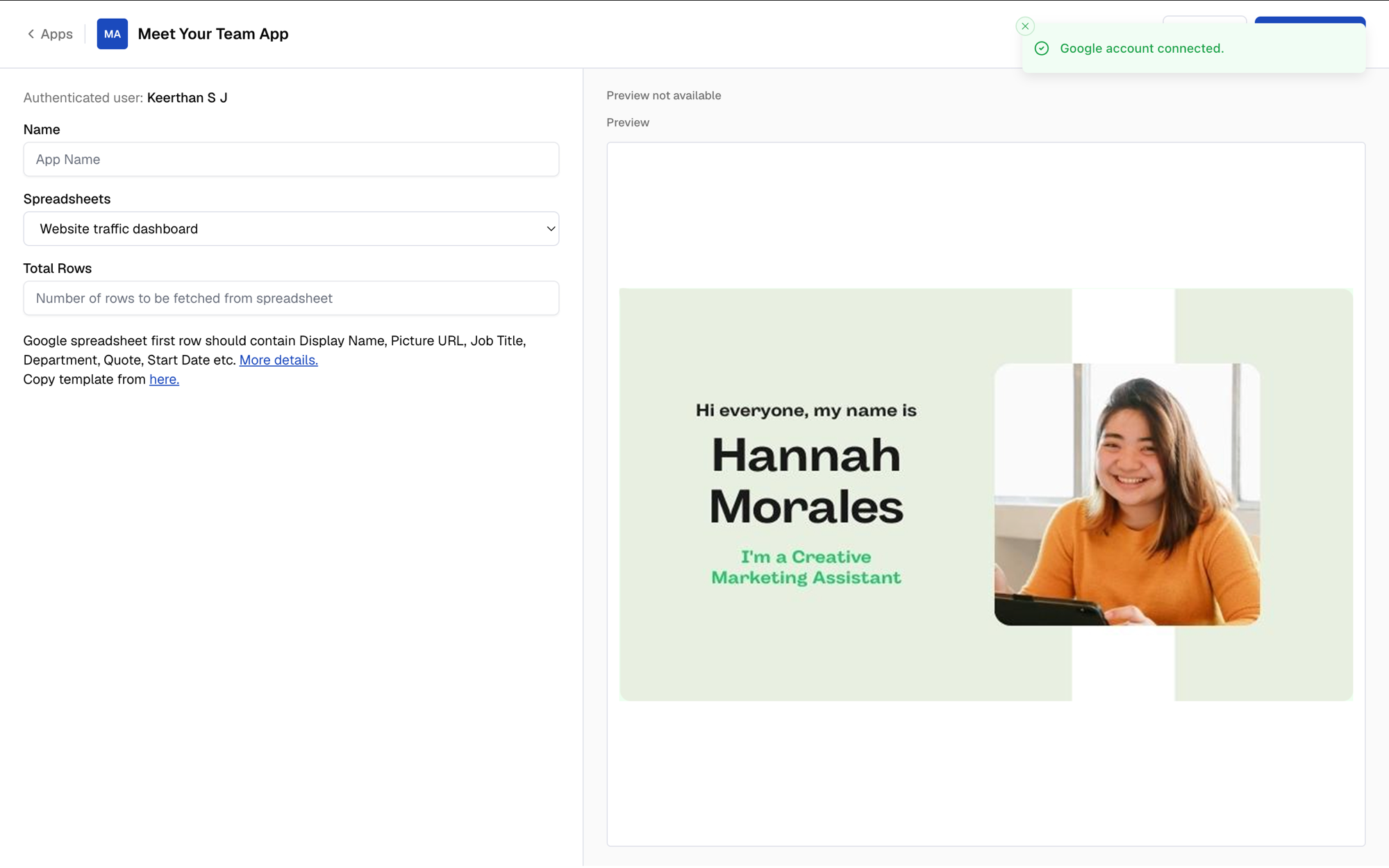
 Enter a **Name** for the app. If you don't have the template ready, click **Copy template from here** to open the template spreadsheet.
 Copy the template, then enter the employee details you want to show on the signage screen, one row per person.
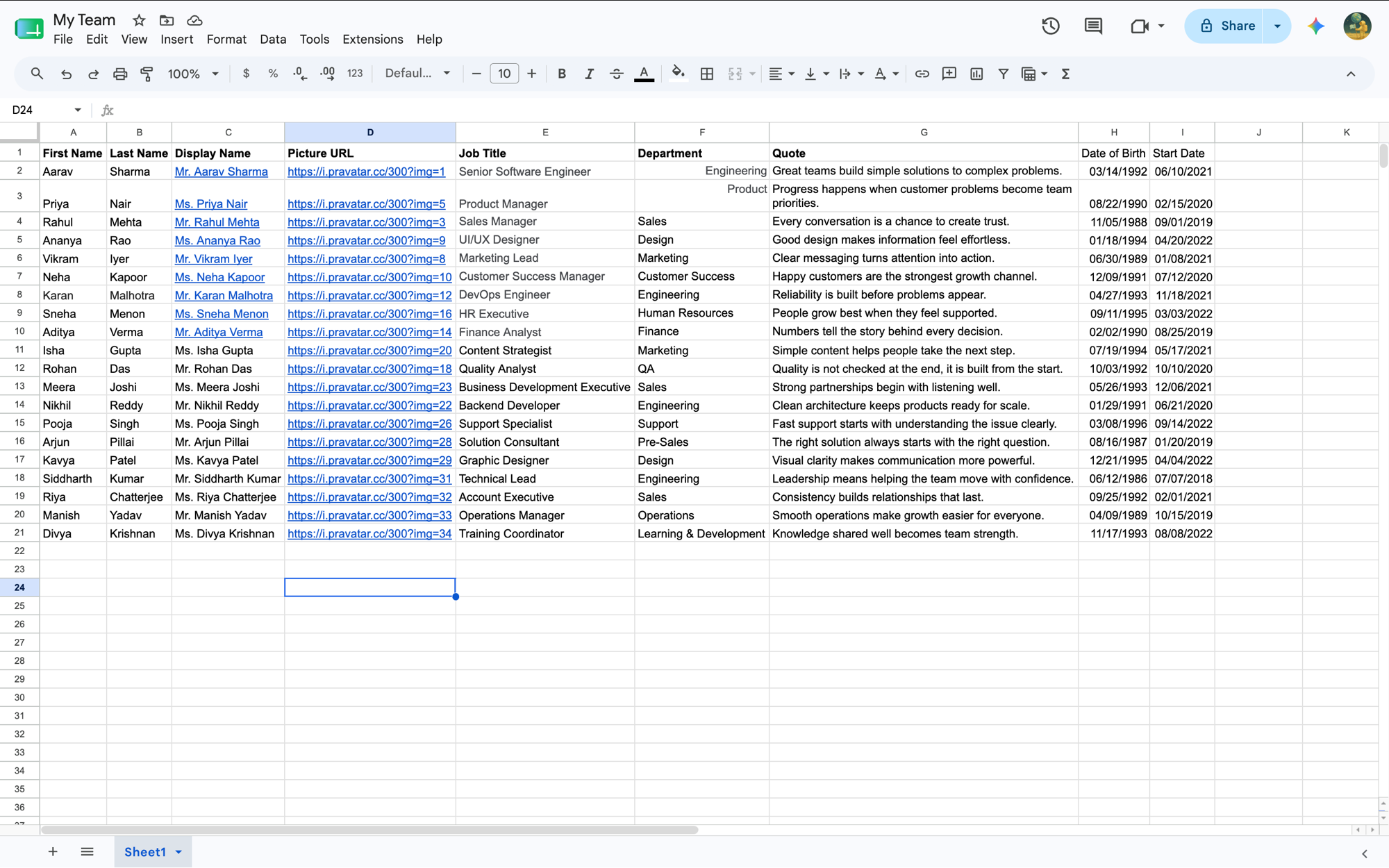 Then come back to Pickcel.
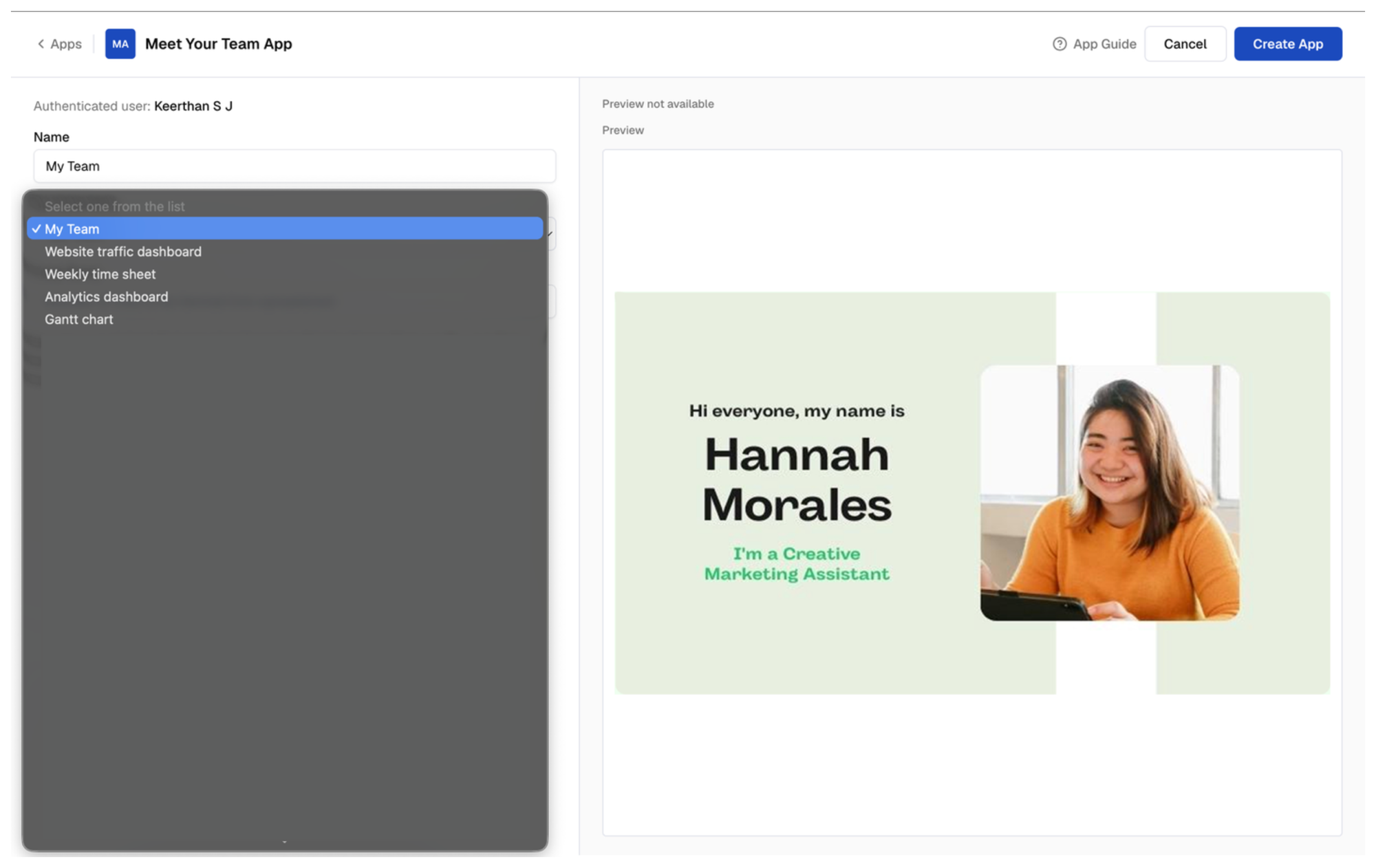
From the **Spreadsheets** dropdown, select the sheet you just filled in.
Then come back to Pickcel.
From the **Spreadsheets** dropdown, select the sheet you just filled in.
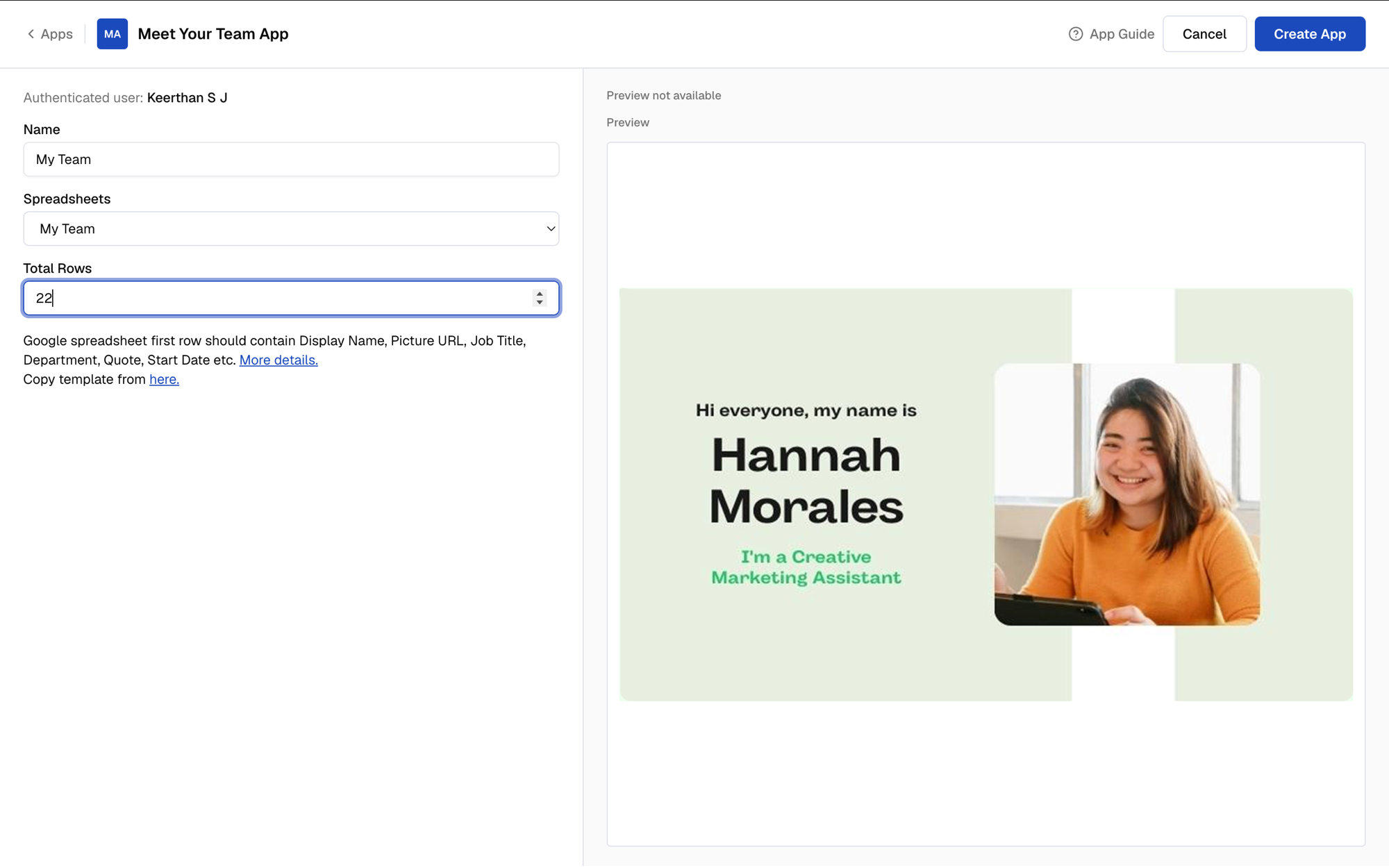
 Set **Total Rows** to the number of employees in your spreadsheet, so Pickcel knows how many rows to fetch.
 Click **Create App**.
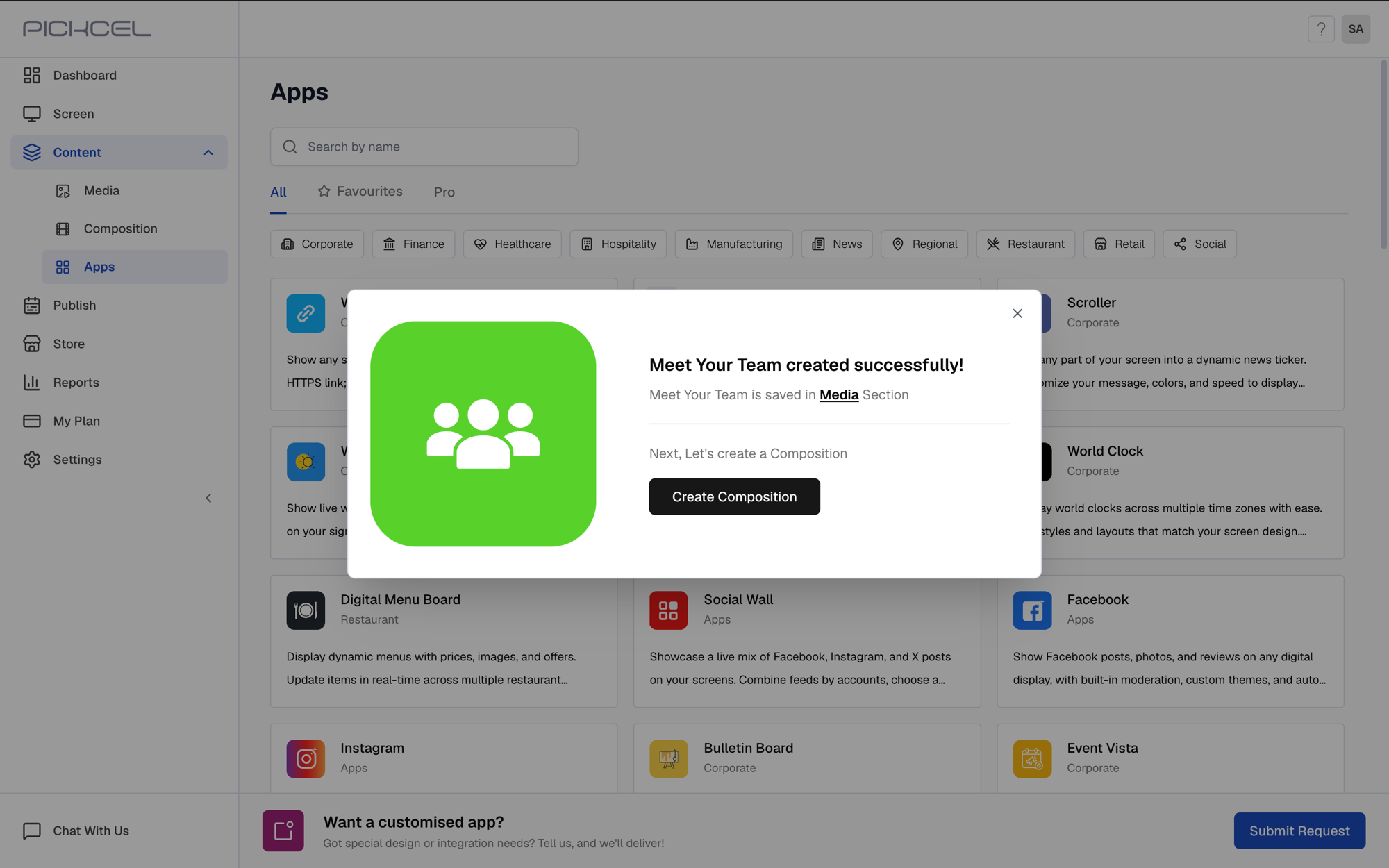
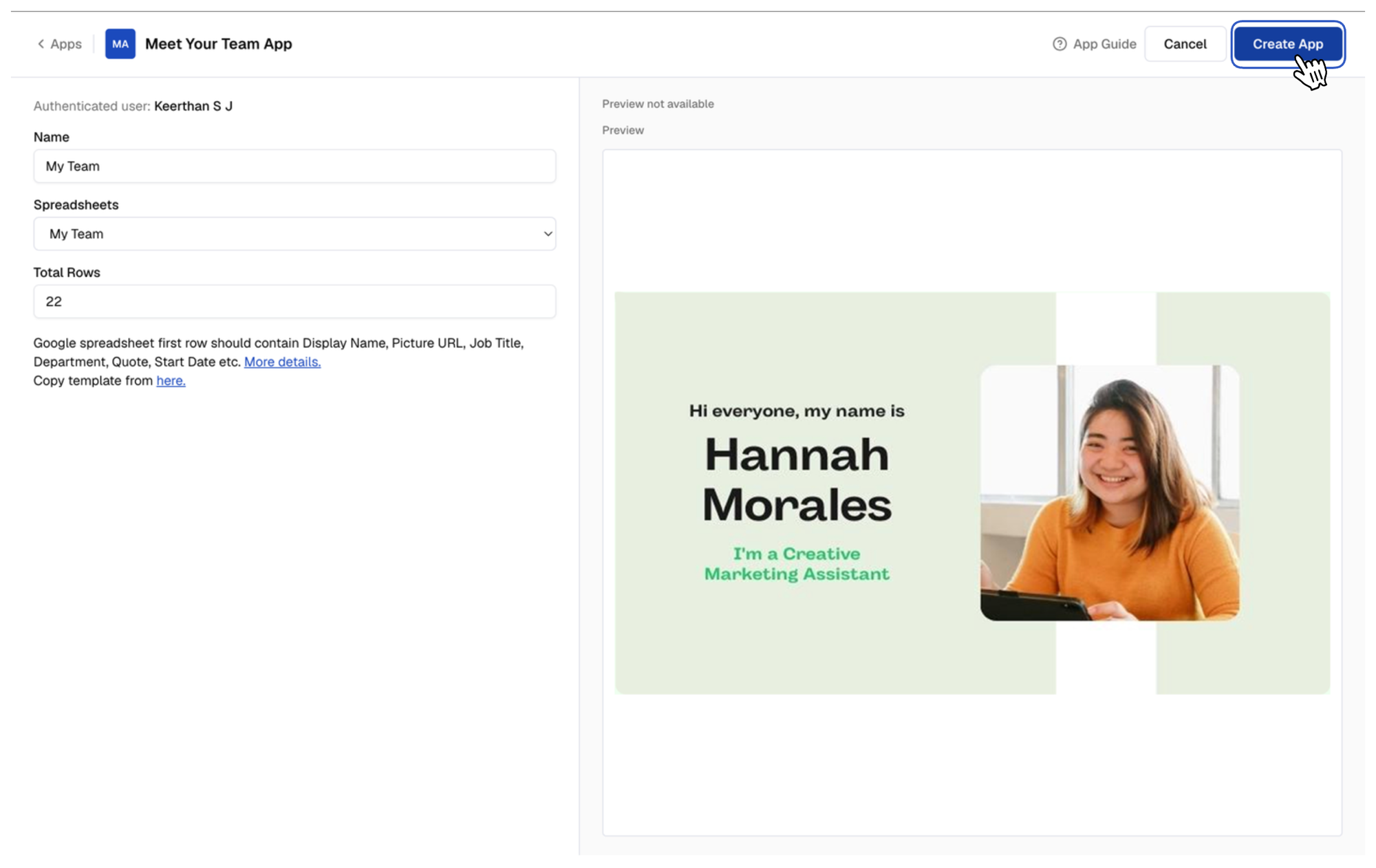 Your Meet Your Team app is now ready to use.
 ## What's Next?
The app is saved to your **Media** library under the name you gave it.
## What's Next?
The app is saved to your **Media** library under the name you gave it.
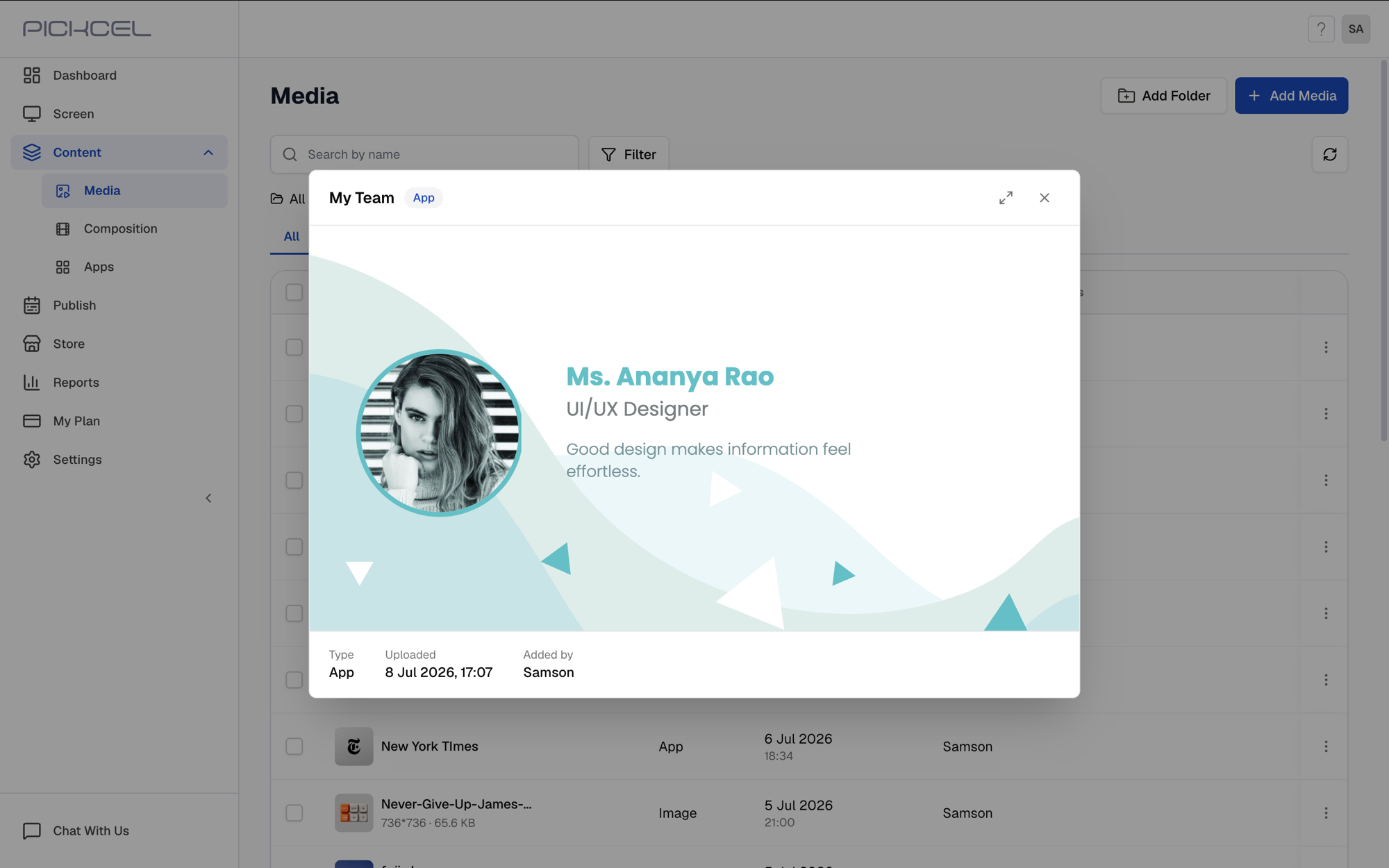
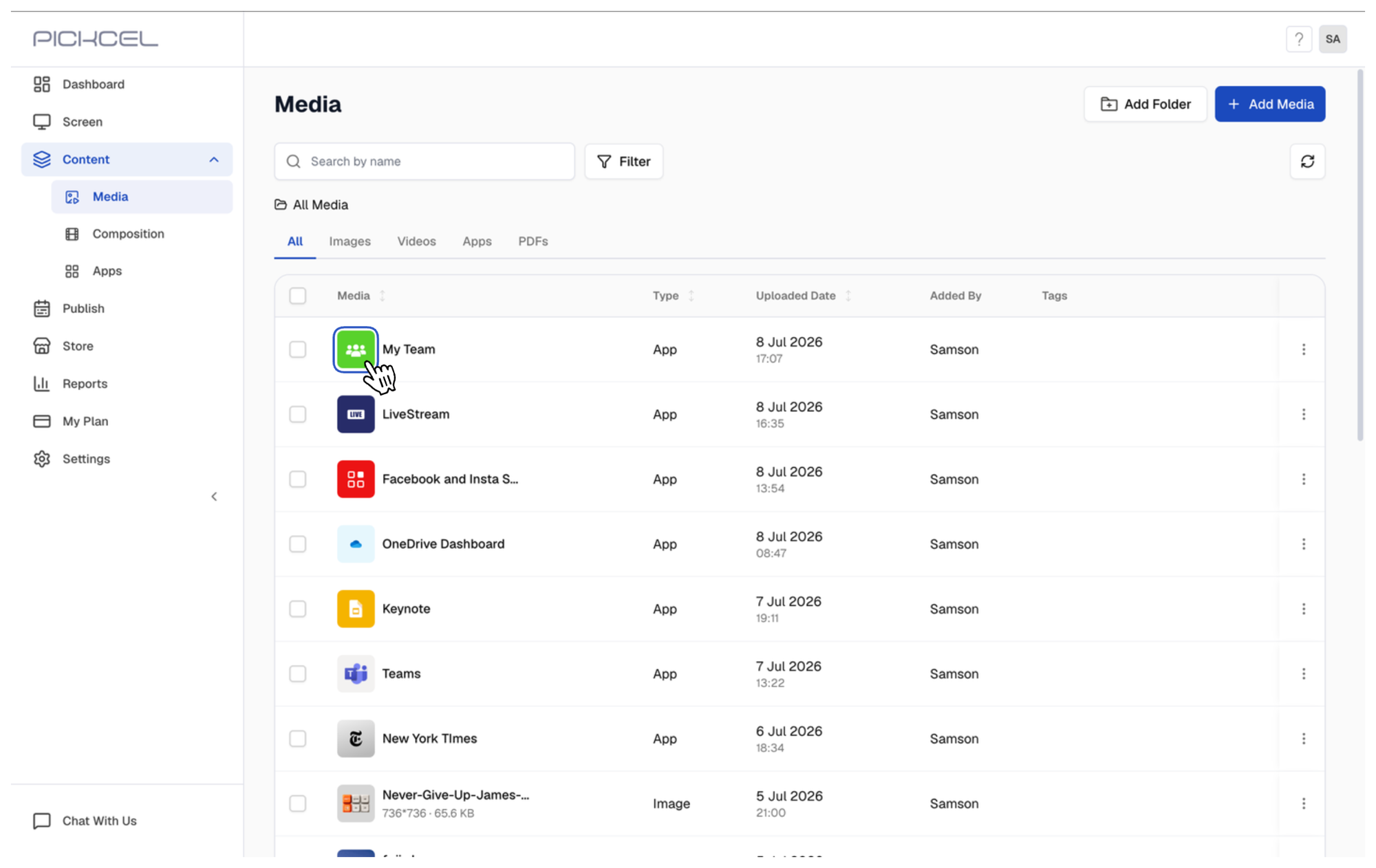 Click its thumbnail to preview it. The carousel cycles through each employee's photo, name, role, and quote from your spreadsheet.
 Add it to a composition, then schedule and publish it to your screens like any other content.
To update the carousel, just edit the rows in your Google Sheet, no need to recreate the app.
* Learn about [Compositions](/compositions/compositions)
* Learn how to [Publish or Schedule Content](/schedule-and-publish/publish-overview)
Add it to a composition, then schedule and publish it to your screens like any other content.
To update the carousel, just edit the rows in your Google Sheet, no need to recreate the app.
* Learn about [Compositions](/compositions/compositions)
* Learn how to [Publish or Schedule Content](/schedule-and-publish/publish-overview)