> ## Documentation Index
> Fetch the complete documentation index at: https://docs.pickcel.com/llms.txt
> Use this file to discover all available pages before exploring further.
# How to stream a live event, Zoom, or Teams meeting to your digital signage screens?
> Learn how to stream a live event, Zoom call, Microsoft Teams meeting, or OBS broadcast to your digital signage screens using Pickcel's Event Stream app
With Pickcel's Event Stream app, you can display a live stream on any of your screens. Paste in credentials from a streaming tool you already use, Zoom, Microsoft Teams, OBS Studio, or any other software with RTMP streaming support, and your event plays live wherever the app is published. If you don't already have a streaming setup, **Pickcel Go**, our mobile app, is a quick way to stream directly from your phone's camera instead.
## Create the Event Stream app in Pickcel
Log in to your [Pickcel account](https://console.pickcel.com/). Go to the **Apps** module and search for **Event Stream**.
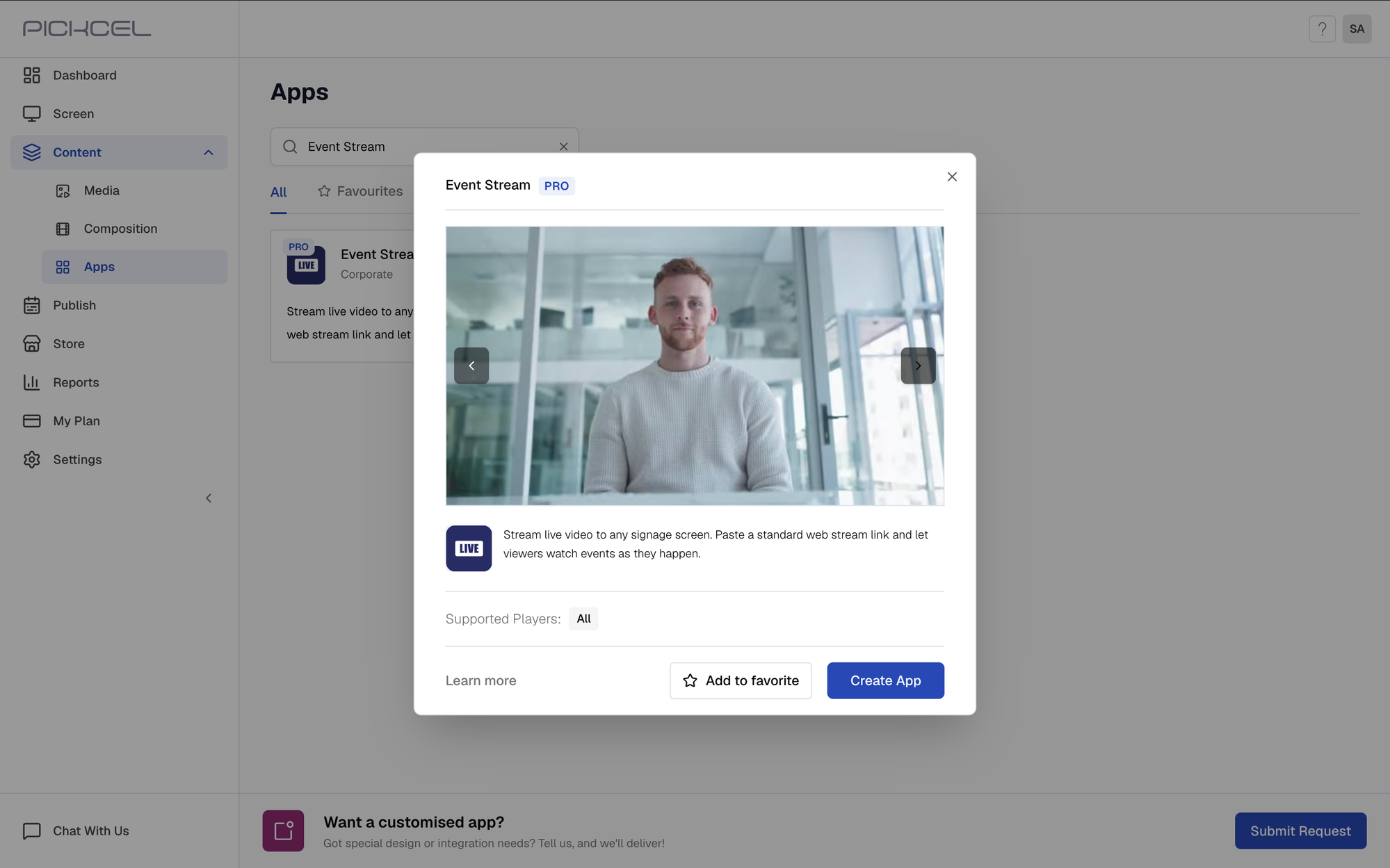
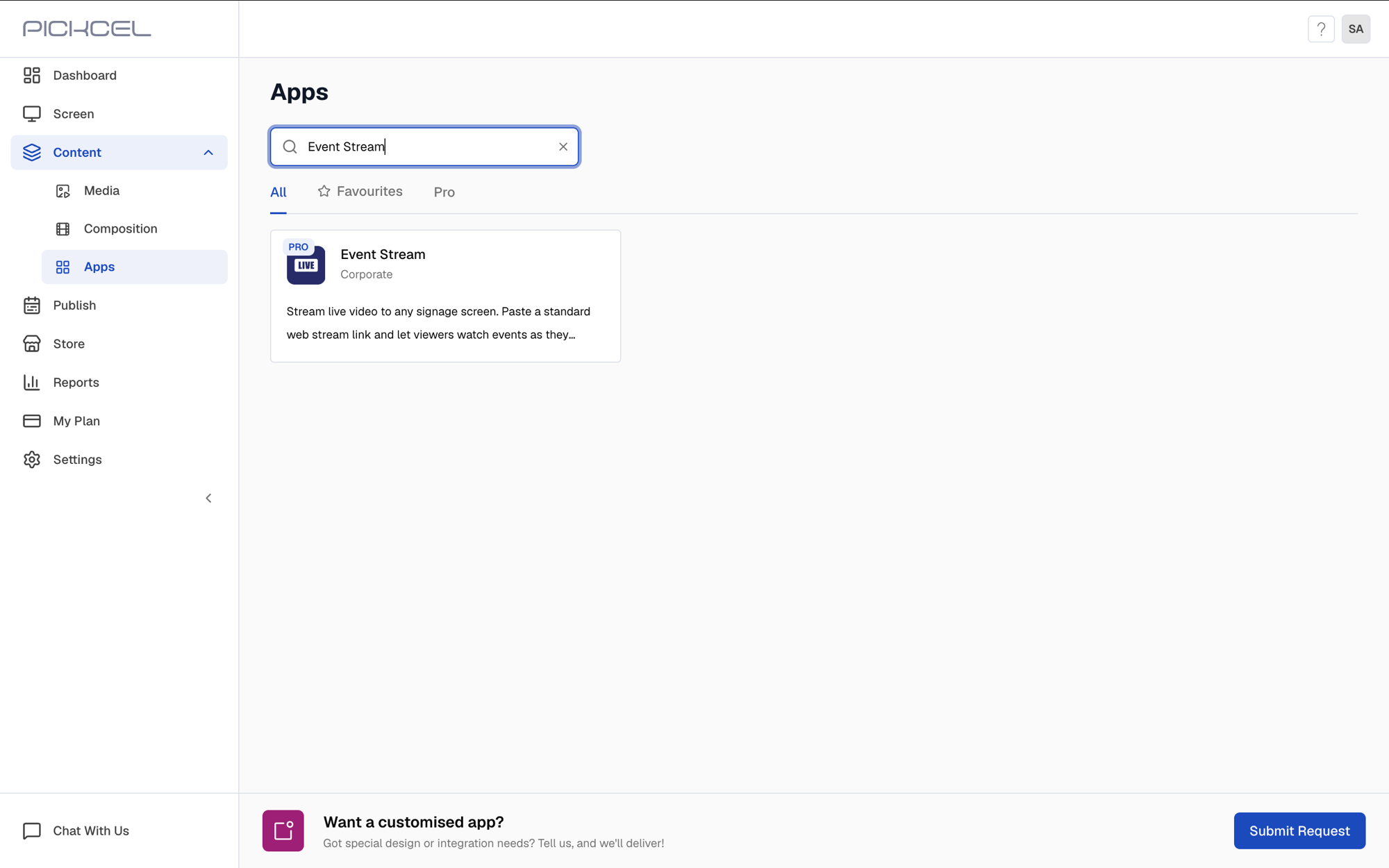 Click the **Event Stream** app card, then click **Create App** in the app details panel.
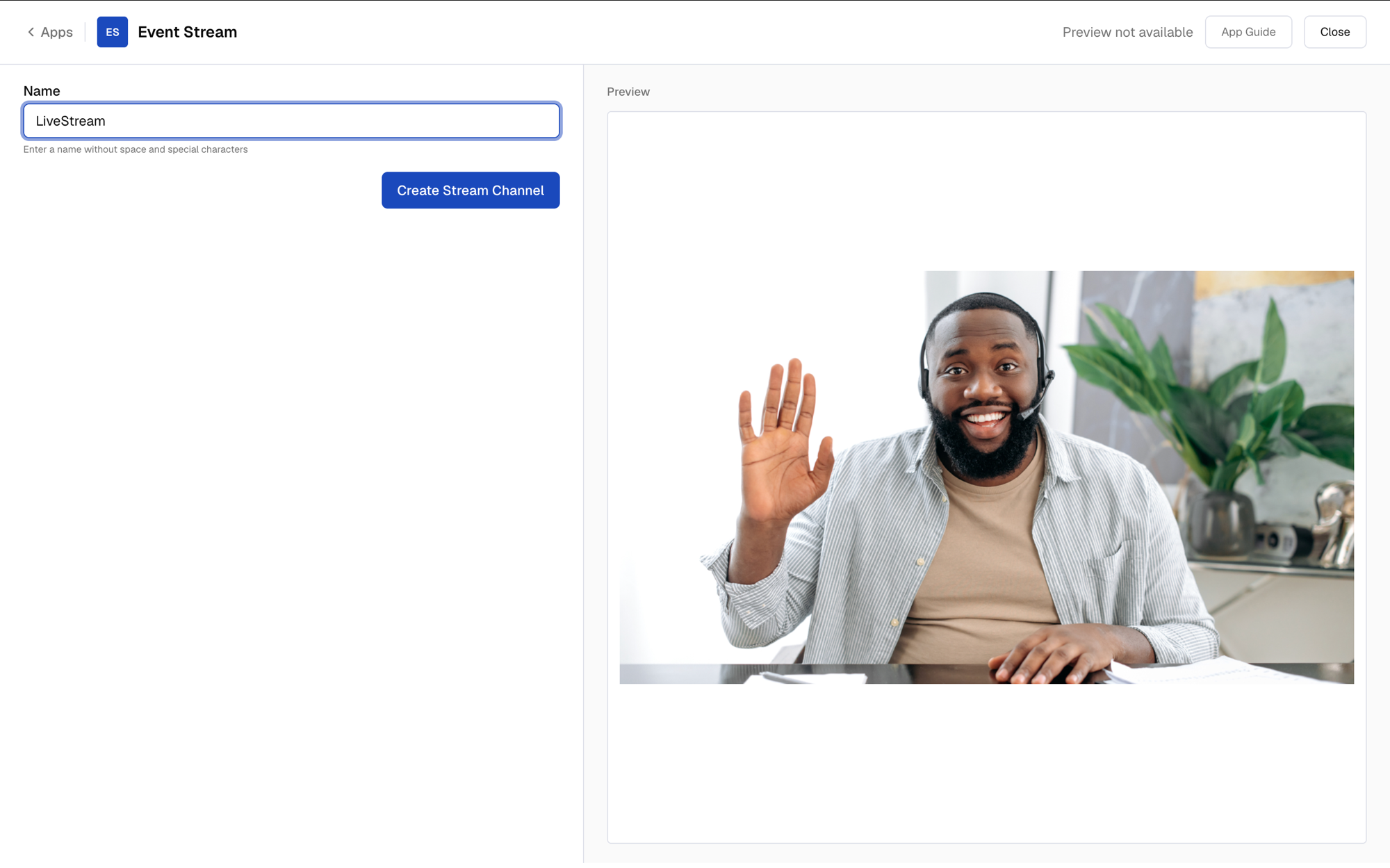
 Enter a **Name** for the app, then click **Create Stream Channel** and wait for the credentials to generate.
The name can't contain spaces or special characters.
Enter a **Name** for the app, then click **Create Stream Channel** and wait for the credentials to generate.
The name can't contain spaces or special characters.
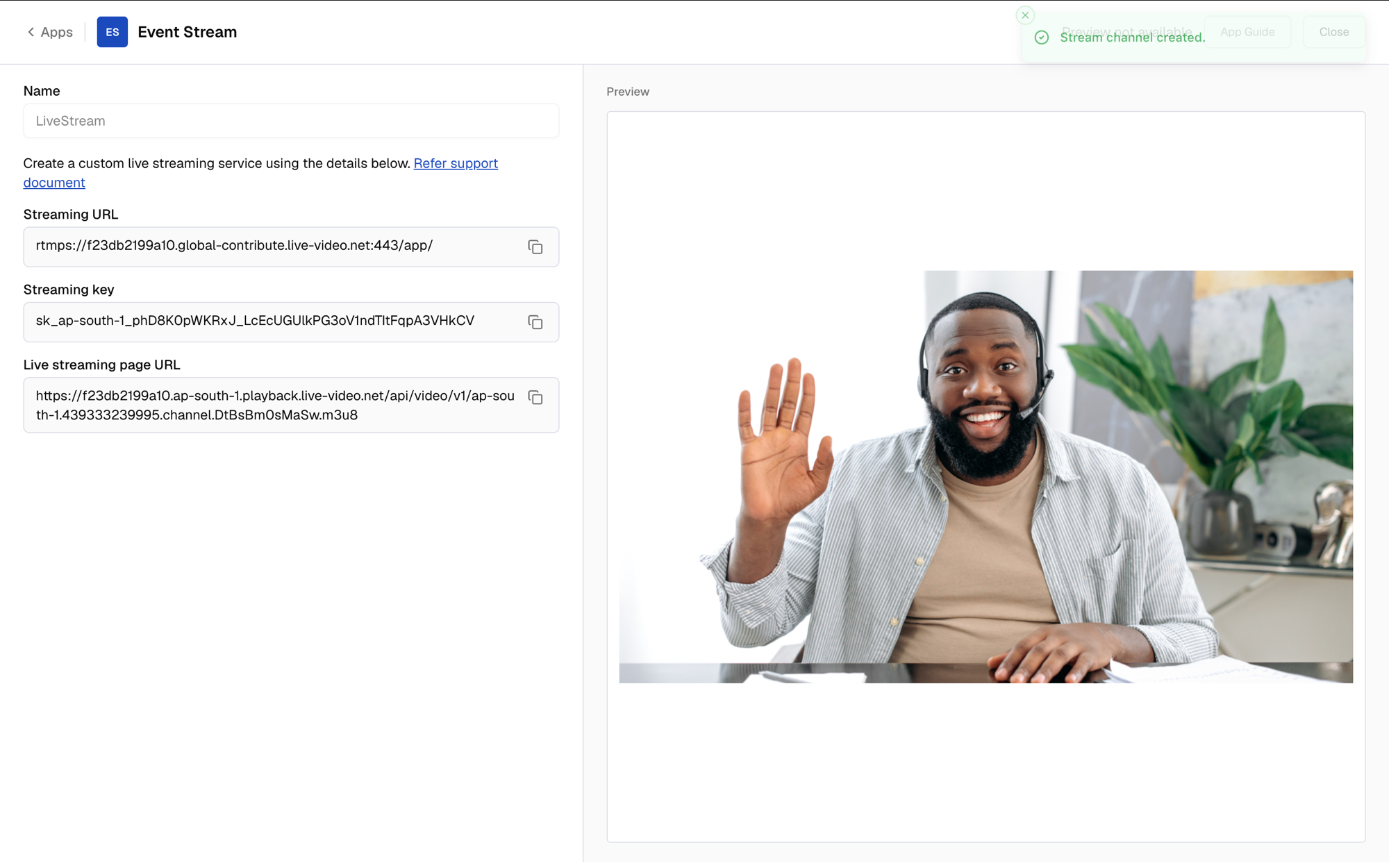
 Once the channel is created, copy the **Streaming URL** and **Streaming key**. You'll paste these into your streaming tool of choice in the next step.
 Click **Close**, then create a composition and add the app to it, and assign it to your screens.
Screens show a "Waiting for stream to start" message until you actually start streaming.
## Start streaming to your screen
Most streaming tools have a **Custom Streaming Service** or **RTMP** option that accepts the same **Streaming URL** (server) and **Streaming key** you copied above:
* **Zoom**: enable **Custom Live Streaming Service** for your meeting or webinar, then paste the Streaming URL and Streaming key.
* **Microsoft Teams**: use a **Custom Streaming App** for the meeting, then paste the Streaming URL and Streaming key.
* **OBS Studio**: go to **Settings → Stream**, set the service to **Custom**, then paste the Streaming URL as the **Server** and the Streaming key as the **Stream Key**.
Once you start streaming from the tool, the feed appears live on any screen where the app is published.
For a casual update or a quick test, you can stream straight from your phone's camera with the **Pickcel Go** app, no other software needed.
Install the Pickcel Go app from the [App Store](https://apps.apple.com/in/app/pickcel-go-digital-signage/id1533647872) or [Play Store](https://play.google.com/store/apps/details?id=digital.signage.software.editor\&hl=en) if you haven't already.
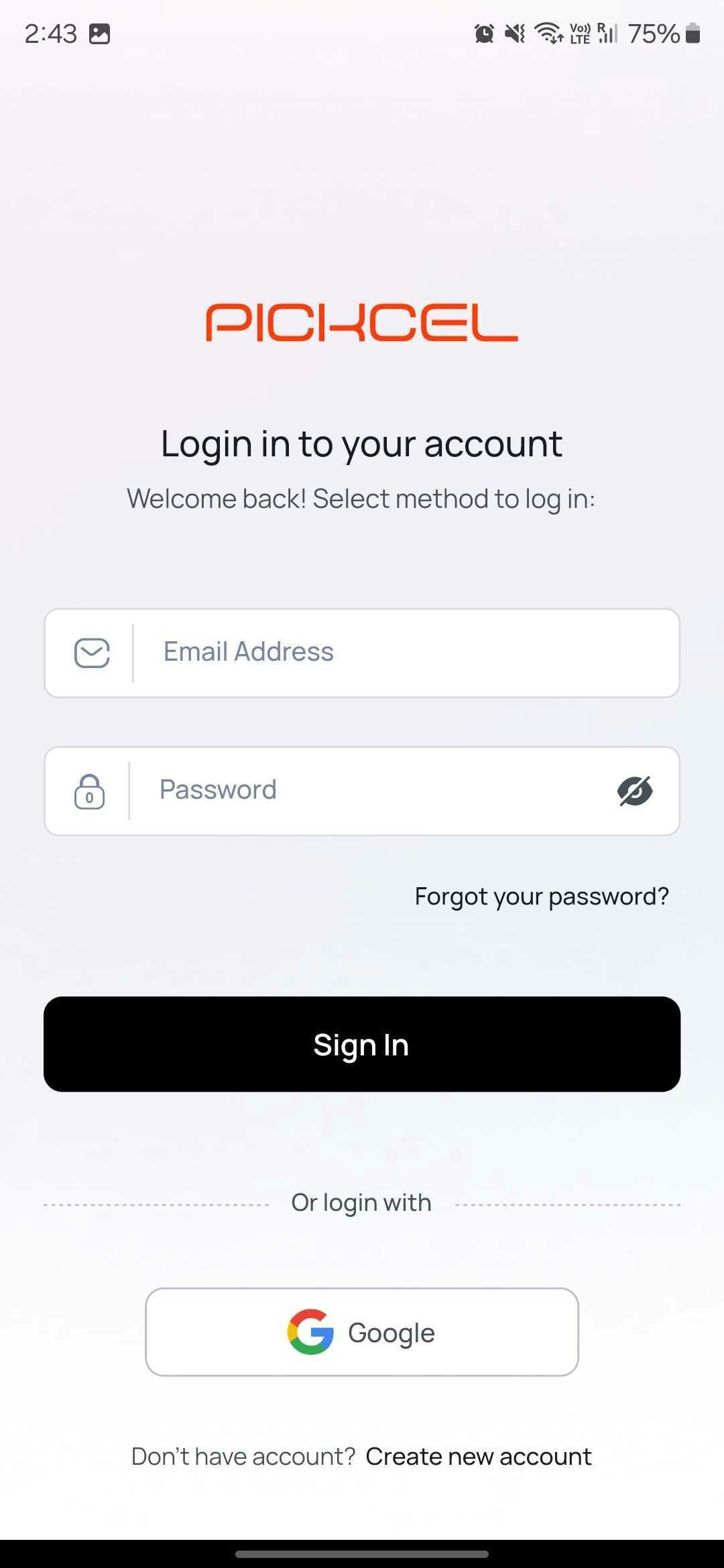
Log in with your registered email ID and password.
Click **Close**, then create a composition and add the app to it, and assign it to your screens.
Screens show a "Waiting for stream to start" message until you actually start streaming.
## Start streaming to your screen
Most streaming tools have a **Custom Streaming Service** or **RTMP** option that accepts the same **Streaming URL** (server) and **Streaming key** you copied above:
* **Zoom**: enable **Custom Live Streaming Service** for your meeting or webinar, then paste the Streaming URL and Streaming key.
* **Microsoft Teams**: use a **Custom Streaming App** for the meeting, then paste the Streaming URL and Streaming key.
* **OBS Studio**: go to **Settings → Stream**, set the service to **Custom**, then paste the Streaming URL as the **Server** and the Streaming key as the **Stream Key**.
Once you start streaming from the tool, the feed appears live on any screen where the app is published.
For a casual update or a quick test, you can stream straight from your phone's camera with the **Pickcel Go** app, no other software needed.
Install the Pickcel Go app from the [App Store](https://apps.apple.com/in/app/pickcel-go-digital-signage/id1533647872) or [Play Store](https://play.google.com/store/apps/details?id=digital.signage.software.editor\&hl=en) if you haven't already.
Log in with your registered email ID and password.
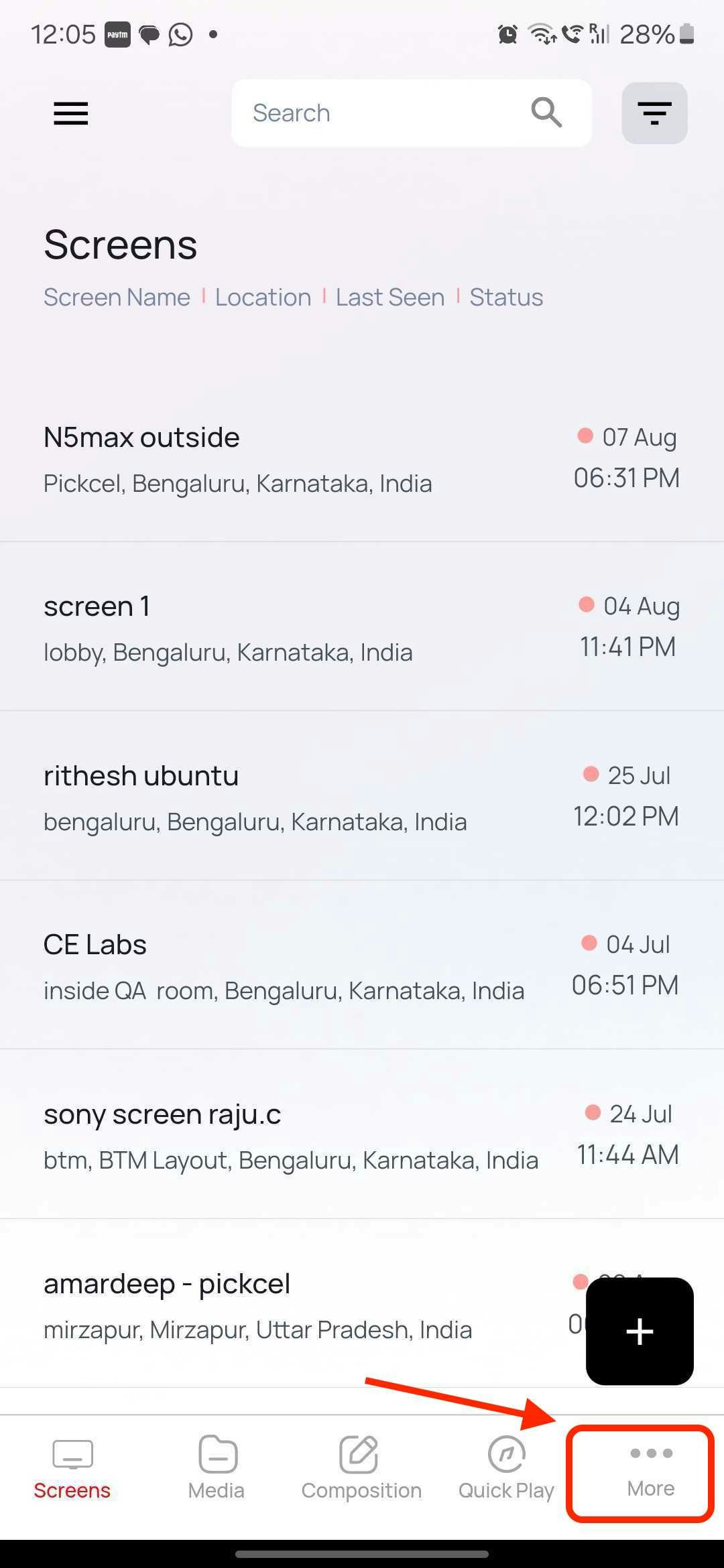
 Tap the **More** option in the bottom navigation bar to access additional menus.
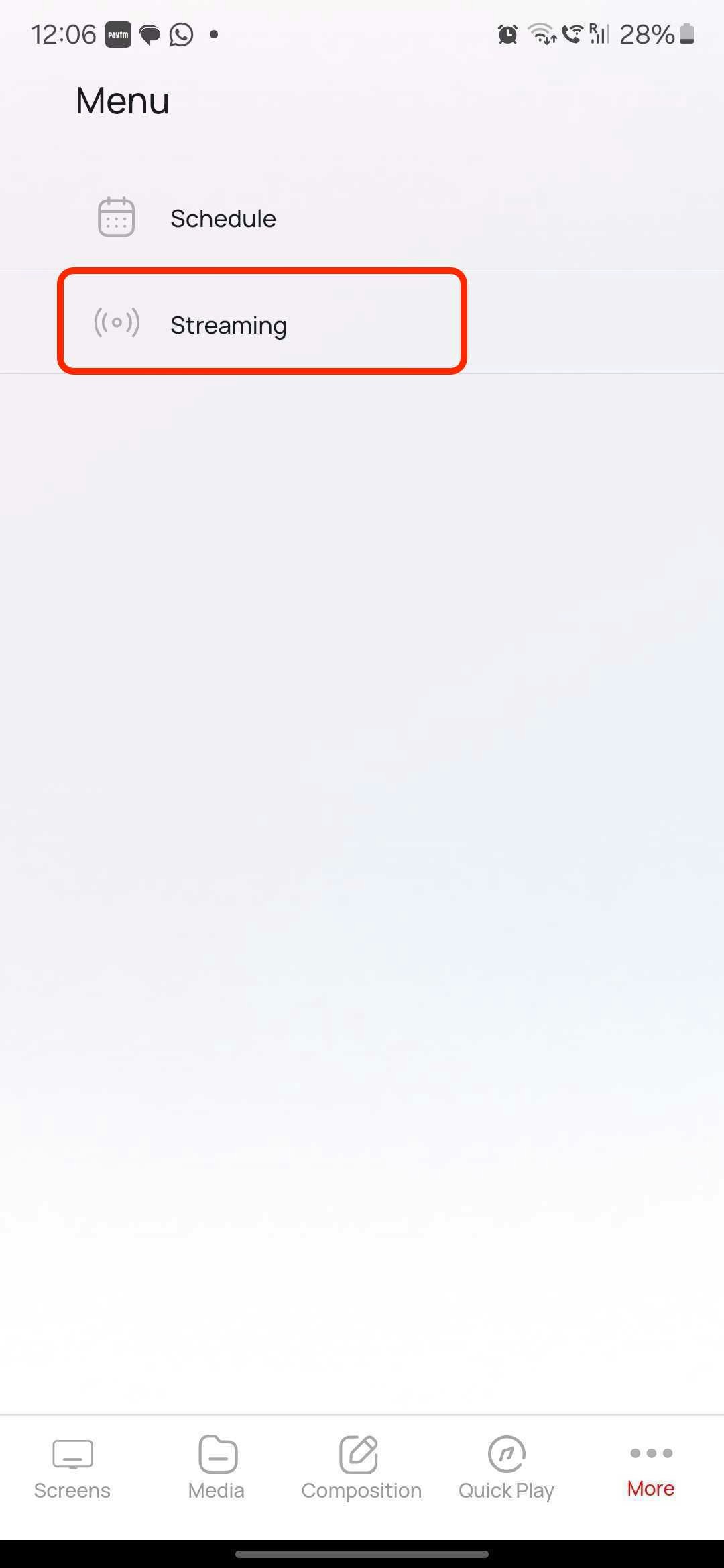
 Select the **Streaming** option.
 A list of stream apps created in your account at the console will be displayed.
If no apps are visible, please ensure you have created one.
A list of stream apps created in your account at the console will be displayed.
If no apps are visible, please ensure you have created one.
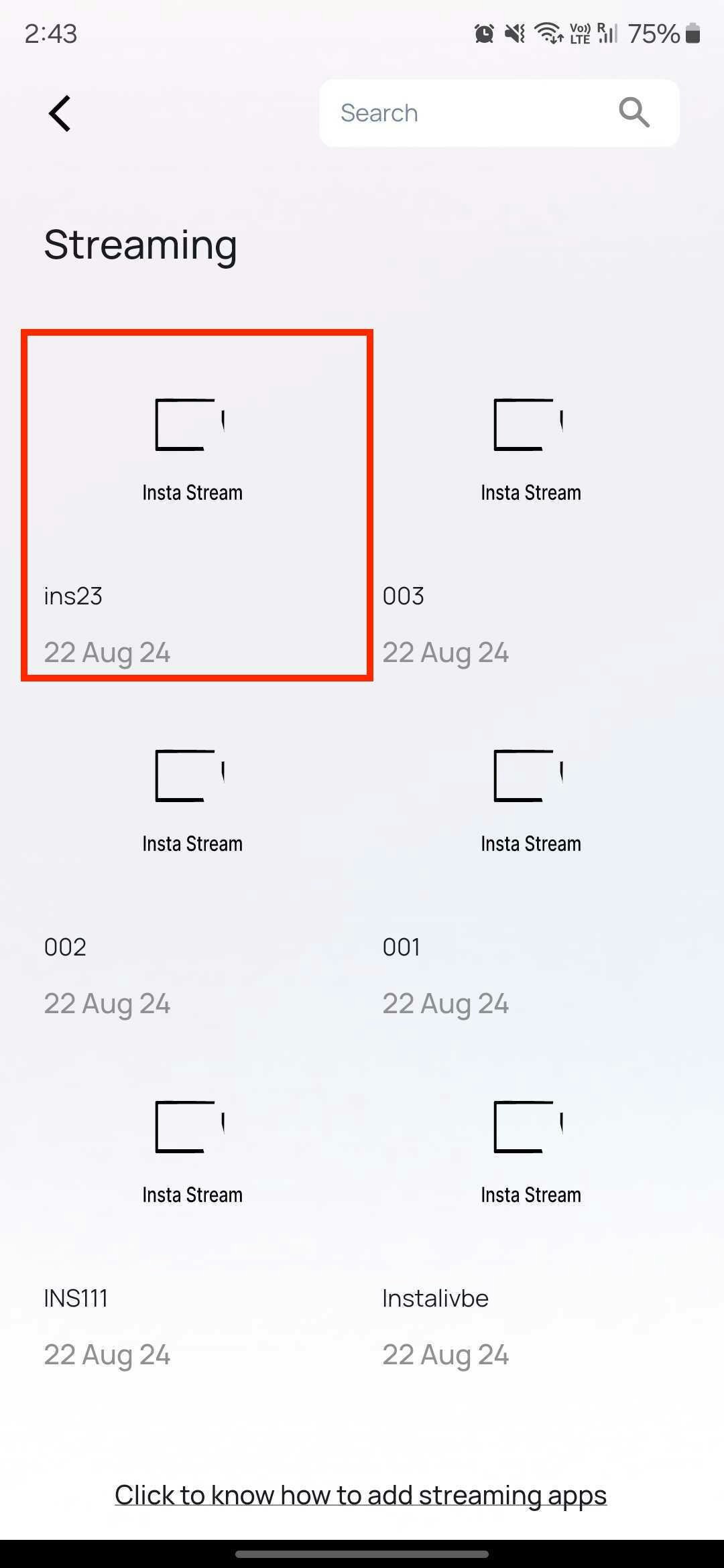 Tap the app you just created, and a confirmation popup will appear. Tap **Start Streaming** to be redirected to the streaming screen.
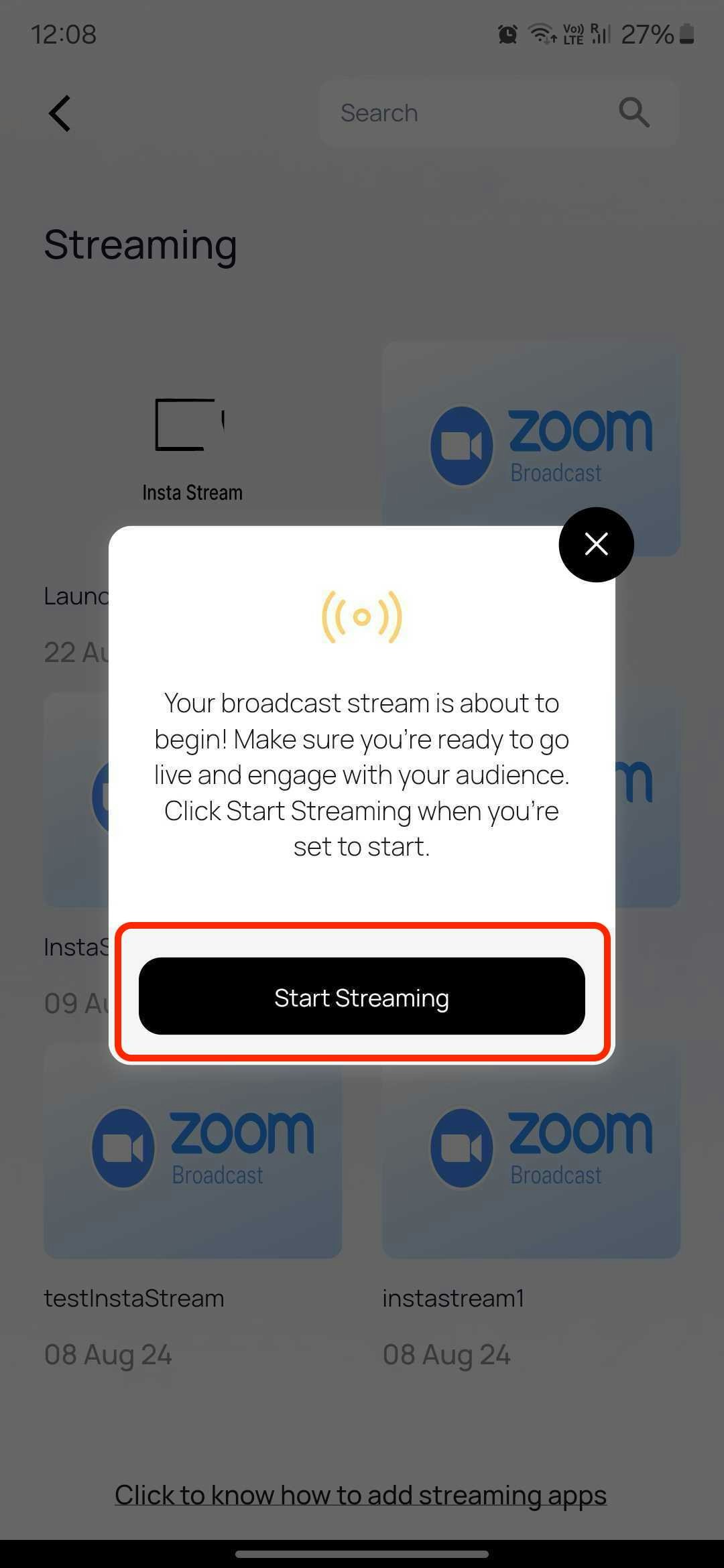 Grant the necessary permissions when prompted.
 Once permissions are granted, the app will begin streaming from the mobile camera.
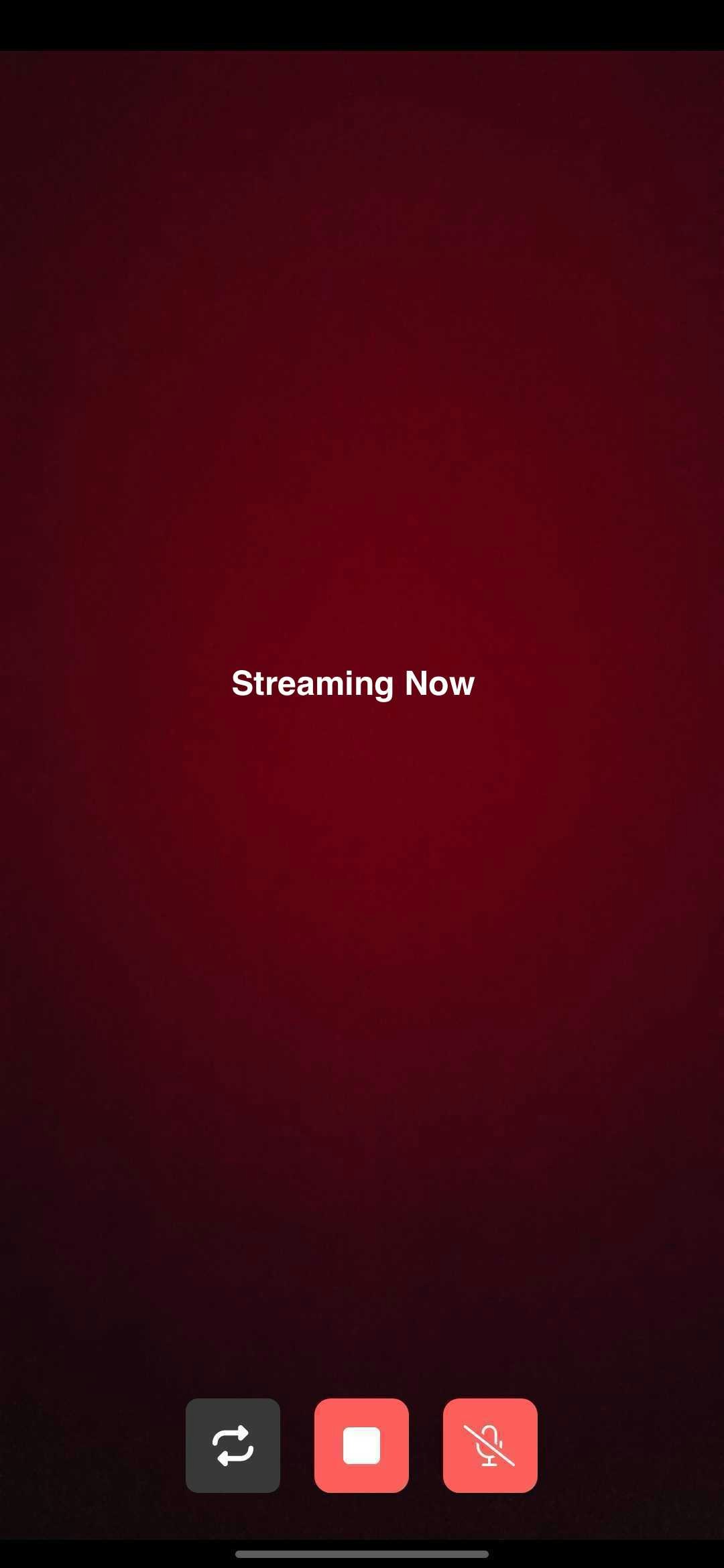 The streamed video will appear on the TV screens where the app is published.
You can mute/unmute the microphone or switch between the front and rear cameras while streaming.
Tap the **Stop** icon in the center of the screen to end the streaming session.
Having trouble with setting up the app or having any queries? Get in touch with our support team here - [support@pickcel.com](mailto:support@pickcel.com)
The streamed video will appear on the TV screens where the app is published.
You can mute/unmute the microphone or switch between the front and rear cameras while streaming.
Tap the **Stop** icon in the center of the screen to end the streaming session.
Having trouble with setting up the app or having any queries? Get in touch with our support team here - [support@pickcel.com](mailto:support@pickcel.com)