> ## Documentation Index
> Fetch the complete documentation index at: https://docs.pickcel.com/llms.txt
> Use this file to discover all available pages before exploring further.
# How to add the Instagram app from the Pickcel app store?
> Learn how to connect Instagram with Pickcel to display Instagram posts on your digital signage screens
This guide shows you how to connect your Instagram business account to Pickcel and display its posts on your digital signage screens.
## Prerequisites
Before you begin, make sure you have:
* An Instagram **Business** or **Creator** account
* Login access to that account, to authorize the connection
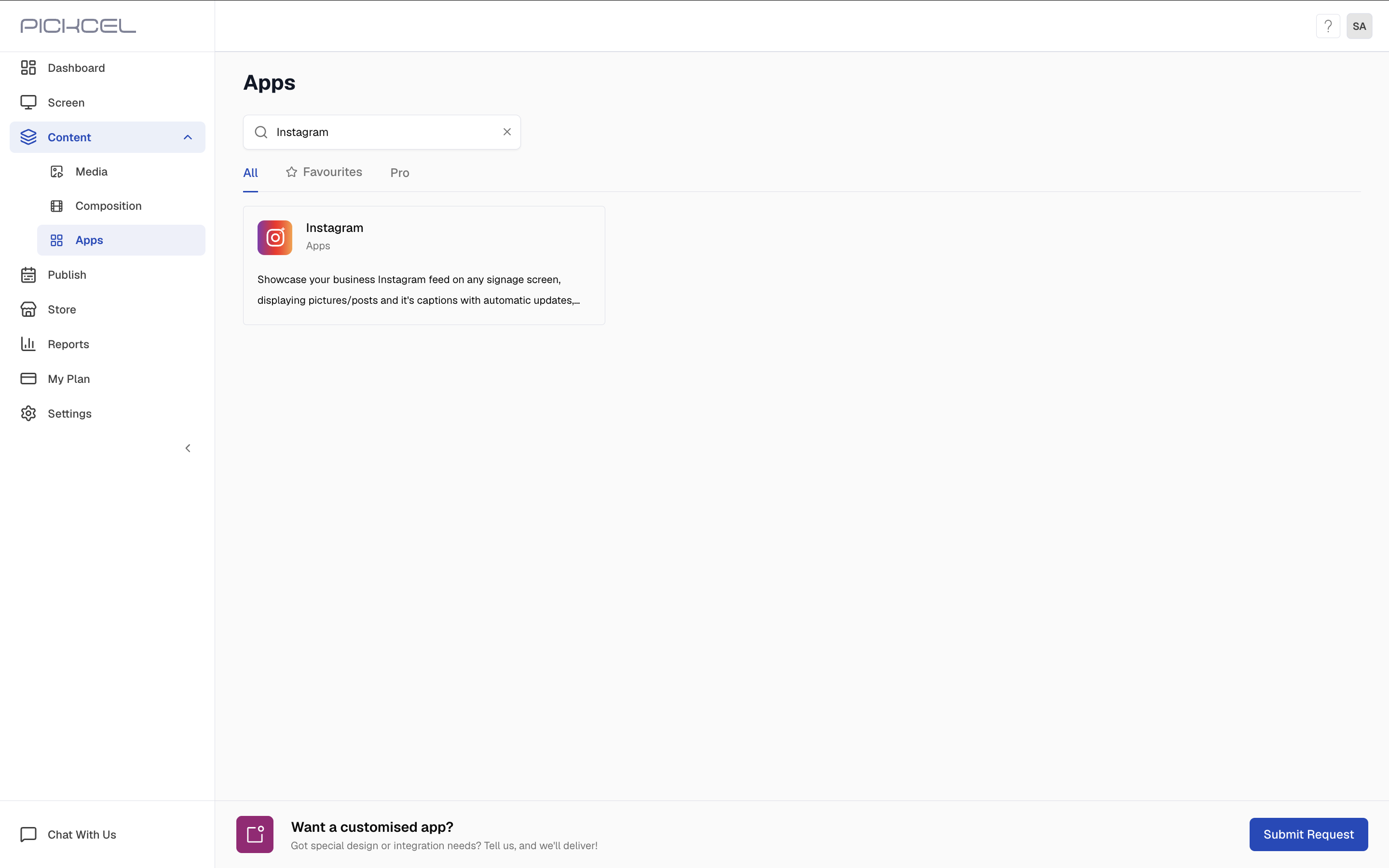
Log in to your [Pickcel account](https://console.pickcel.com/). Go to the **Apps** module and search for **Instagram**.
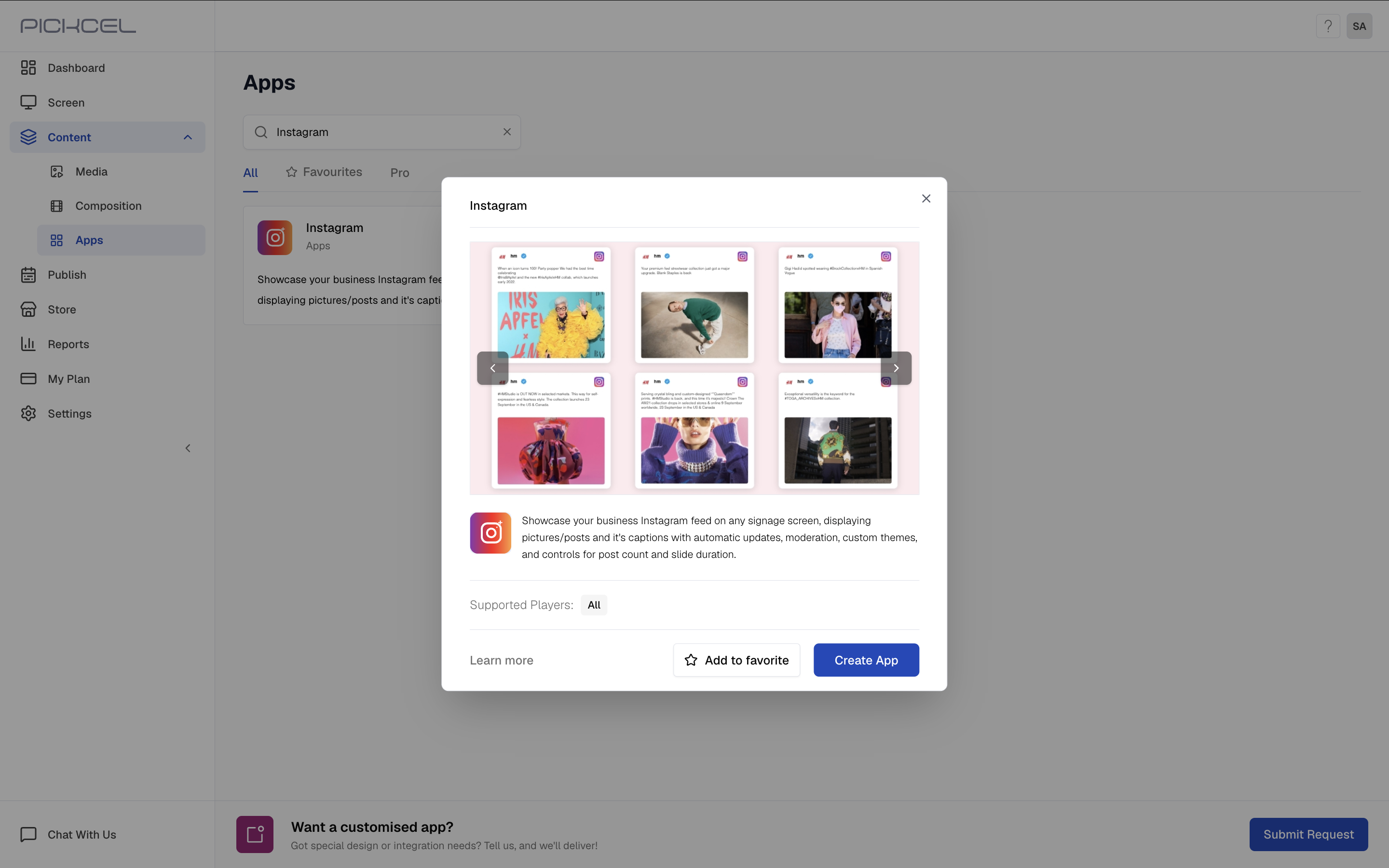
 Click the **Instagram** app card, then click **Create App** in the app details panel.
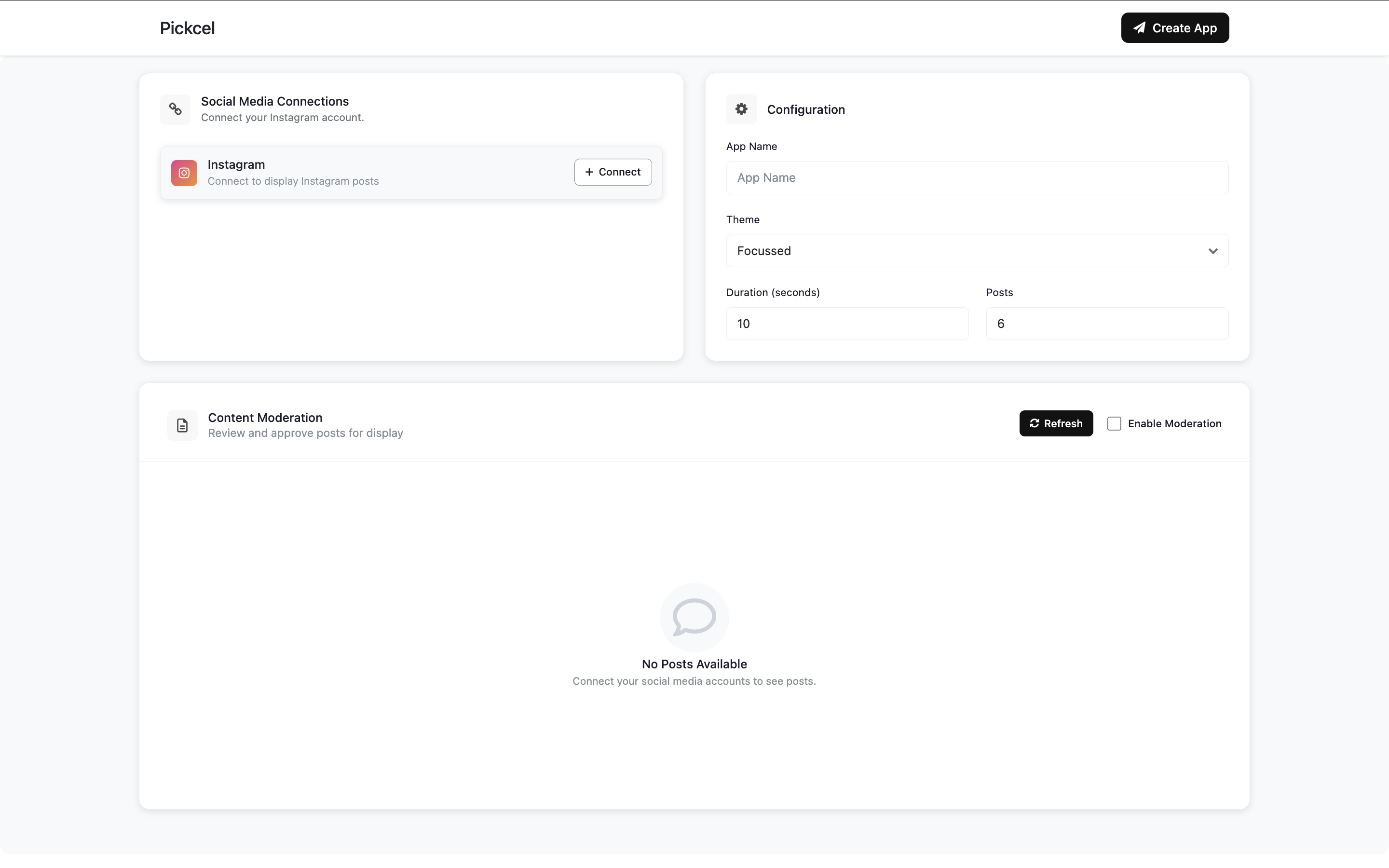
 Under **Social Media Connections**, click **Connect** next to Instagram.
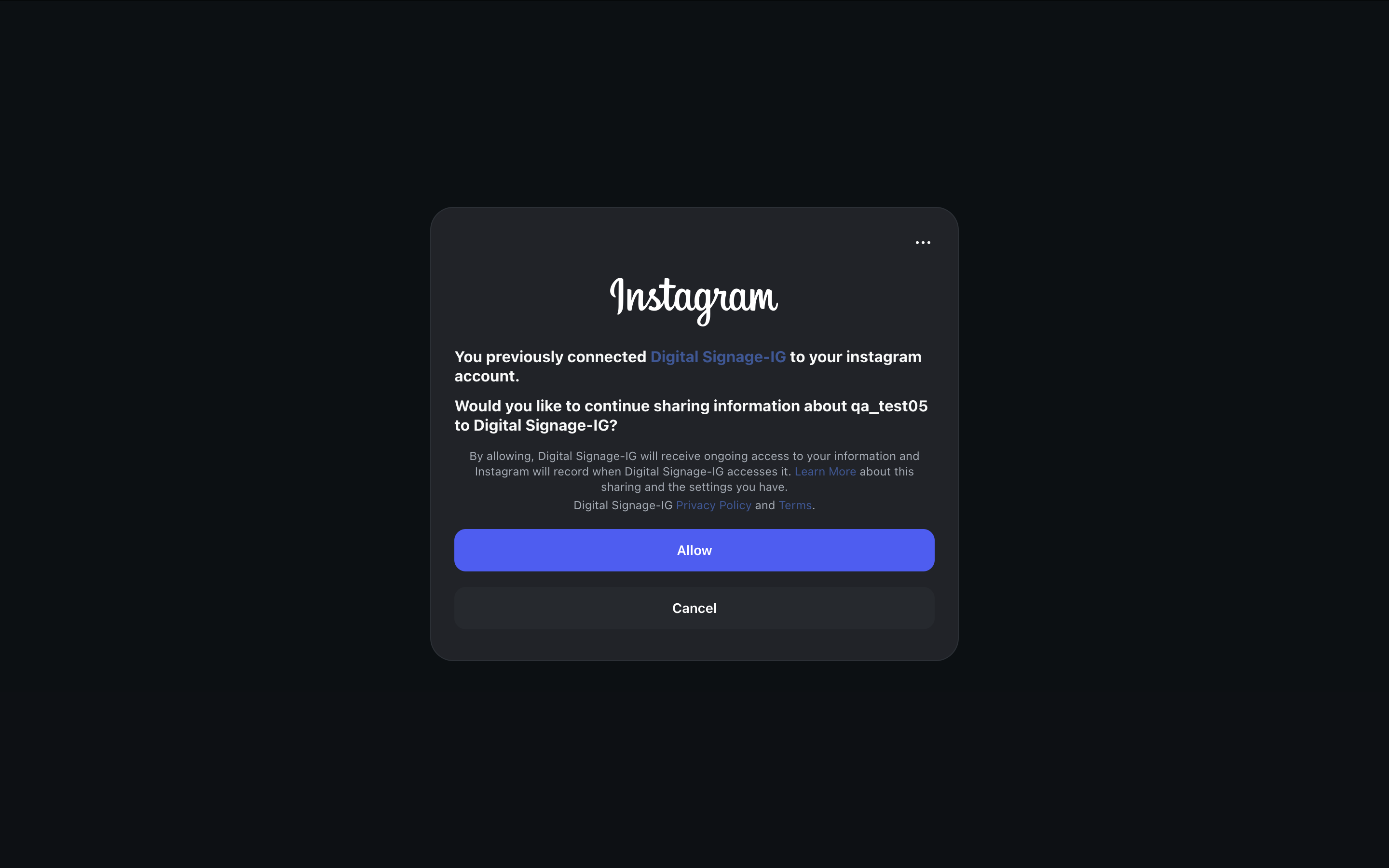
 Log in with your Instagram credentials, then click **Allow** to authorize Pickcel to read your posts.
 Once connected, Instagram shows as **Connected**, the account appears under **Active Connections**, and your recent posts load automatically.
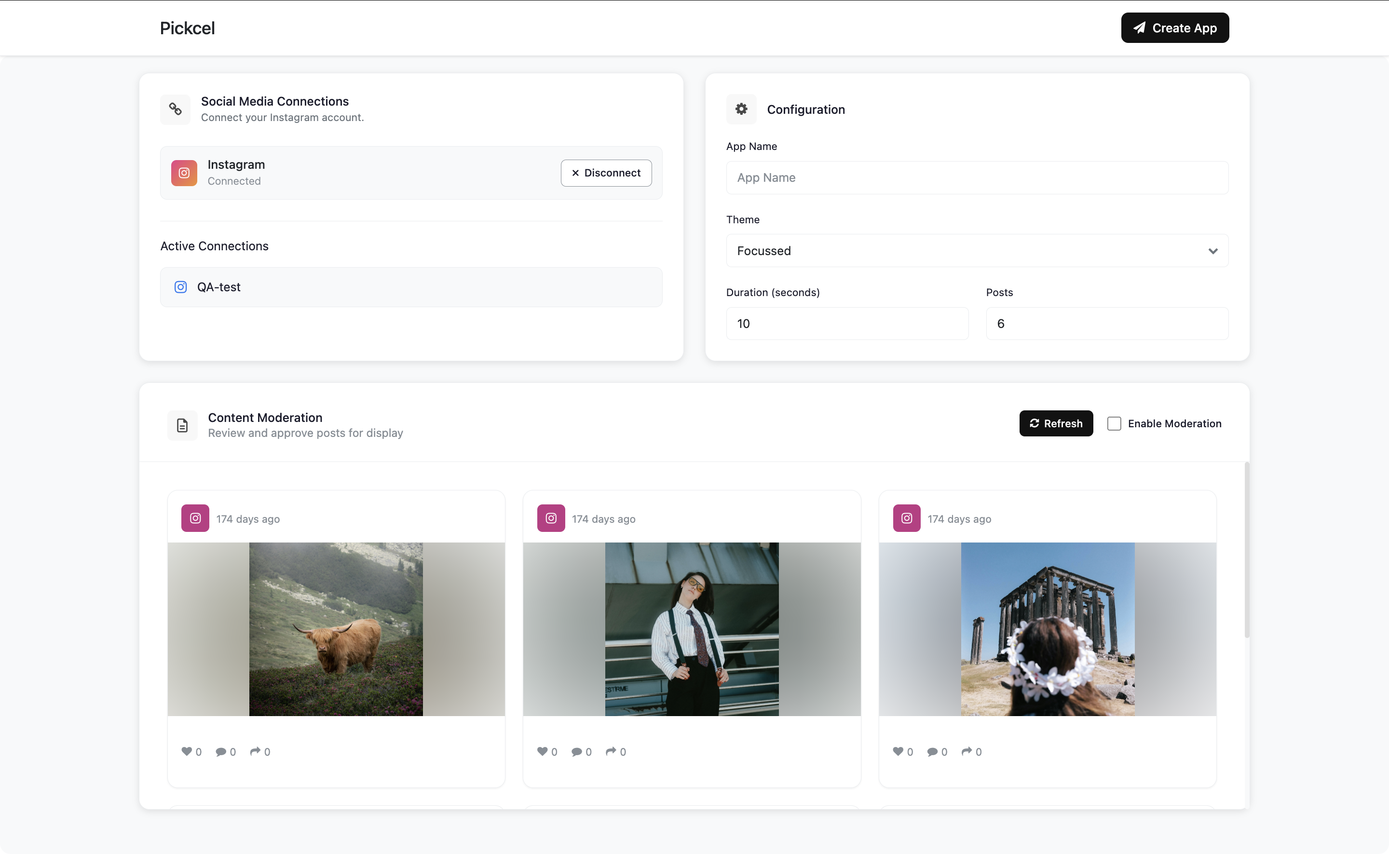 In the **Configuration** panel, enter a **Name** for the app so you can identify it later in the **Media** section. Then choose a **Theme**.
Pick **Focussed** to show one post at a time, full screen.
In the **Configuration** panel, enter a **Name** for the app so you can identify it later in the **Media** section. Then choose a **Theme**.
Pick **Focussed** to show one post at a time, full screen.
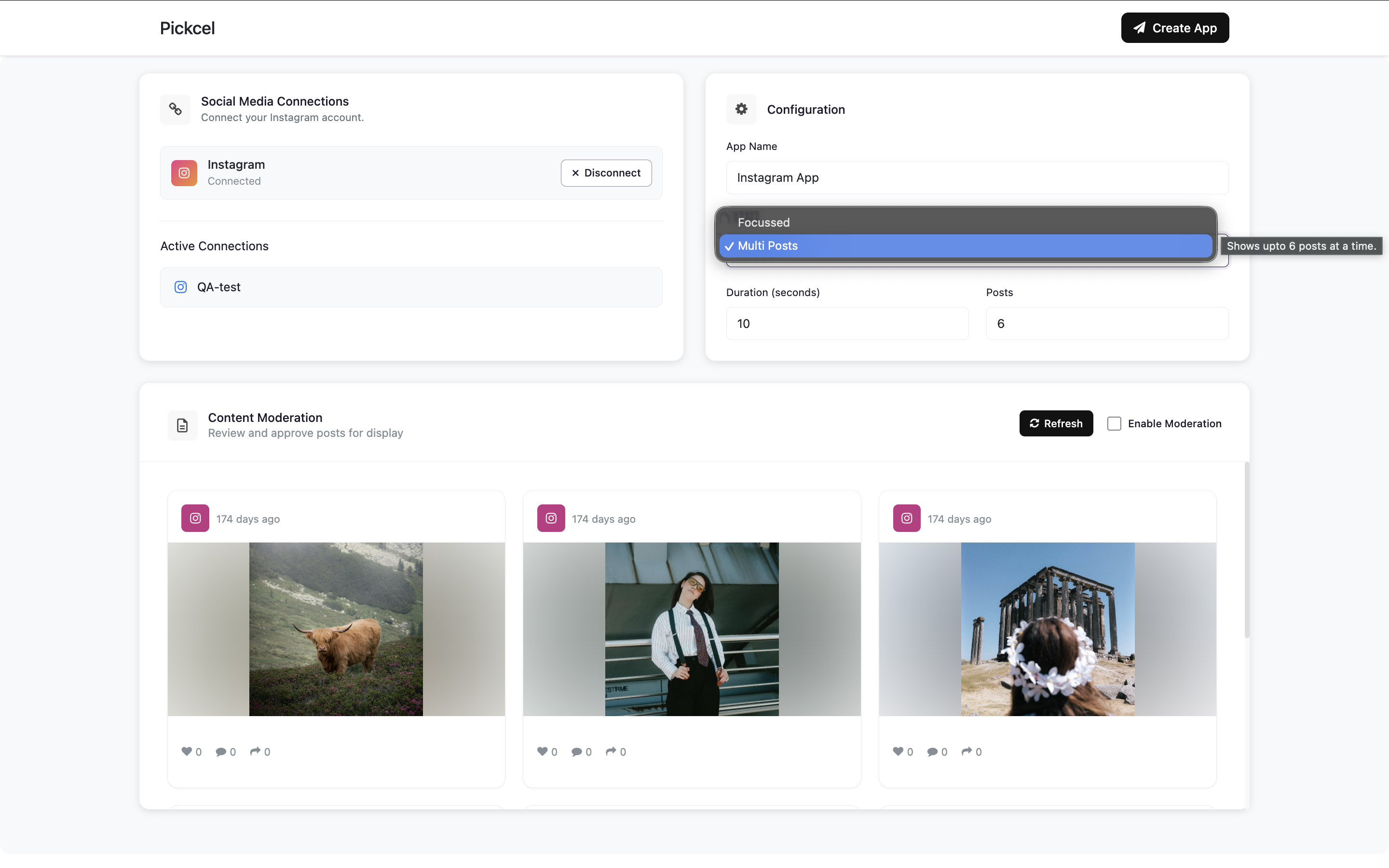
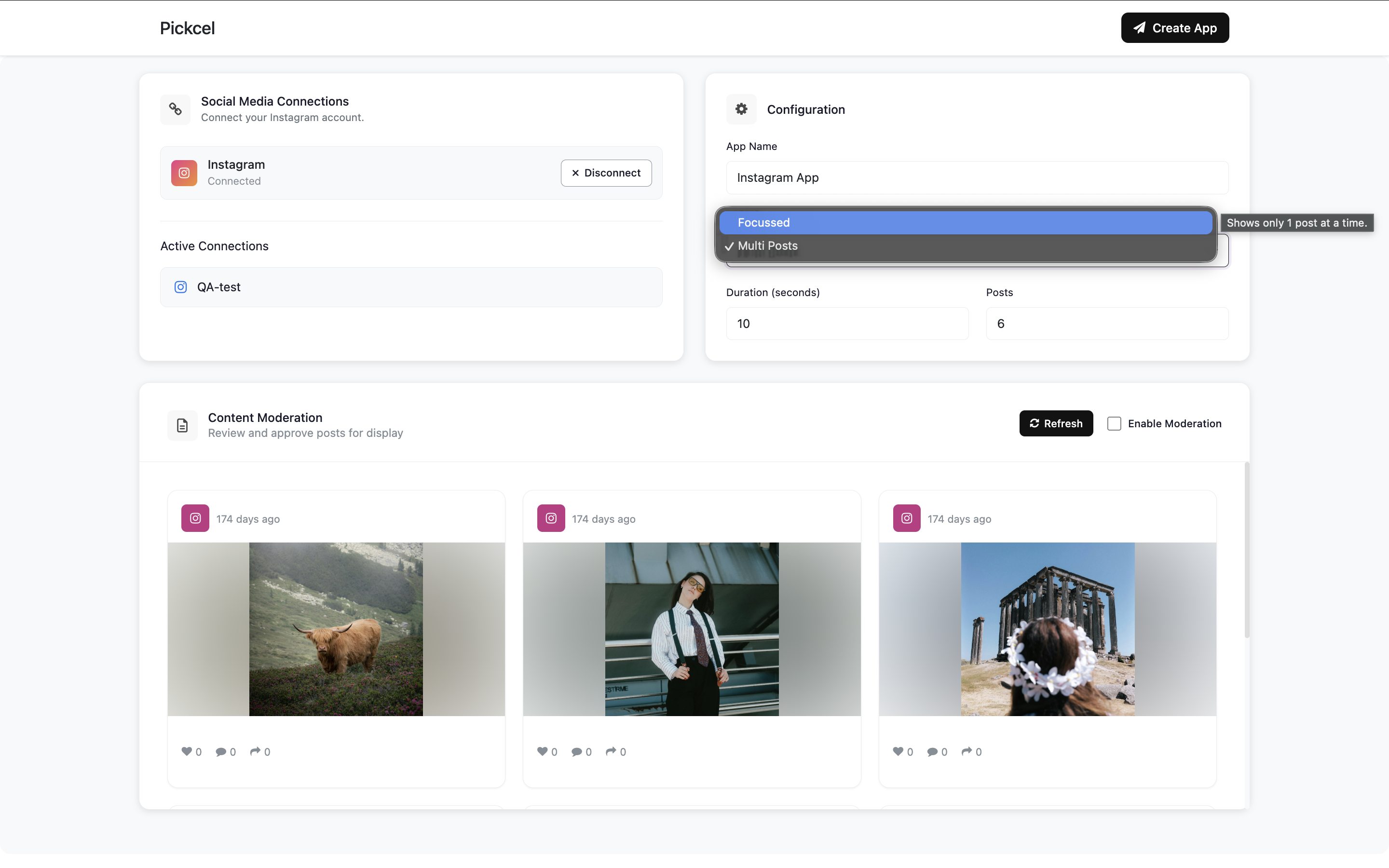 Or pick **Multi Posts** to show several posts together in a grid.
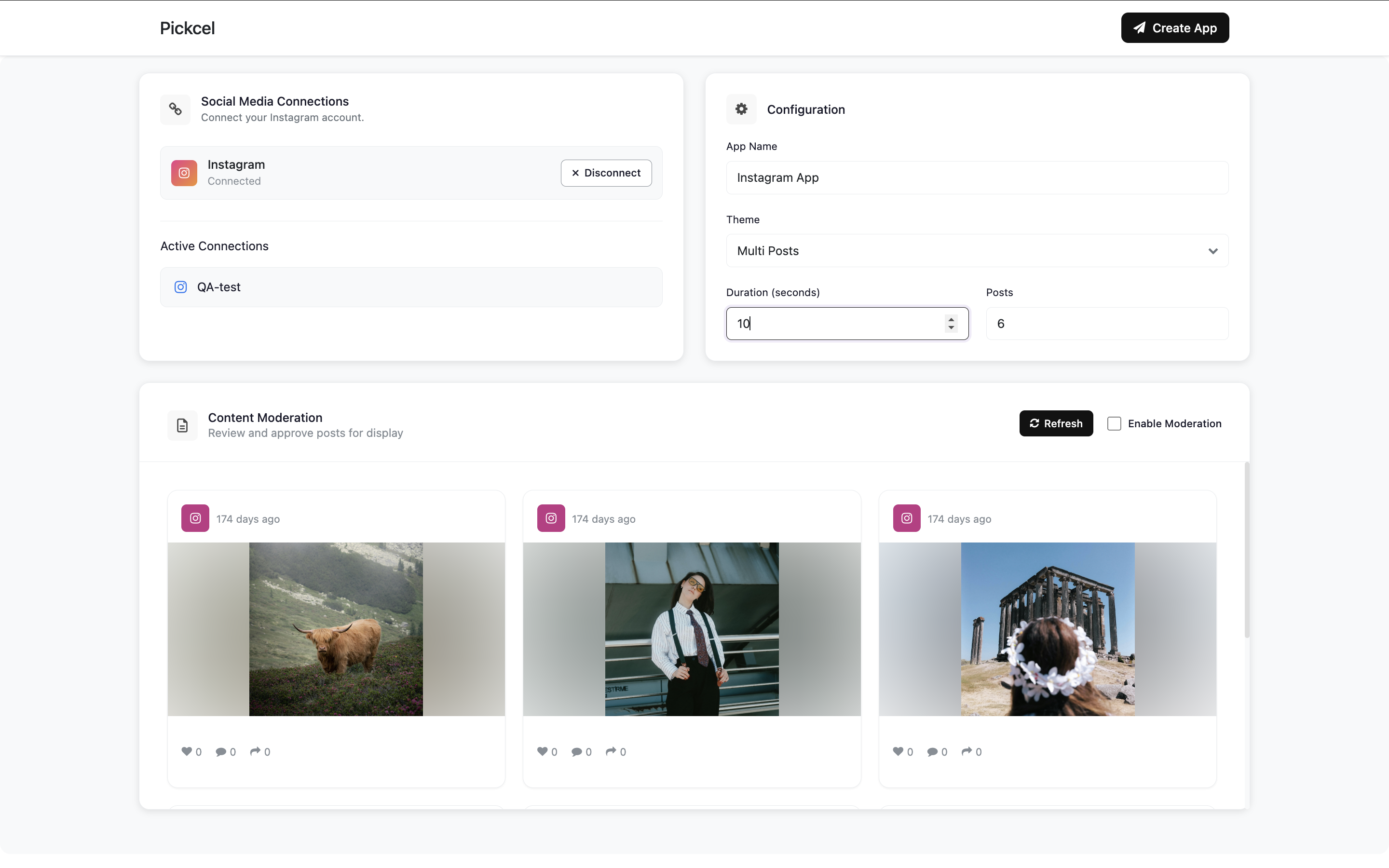
 Set the **Duration (seconds)** to decide how long each post stays on screen.
 Set **Posts** to decide how many of your recent posts to include in the rotation.
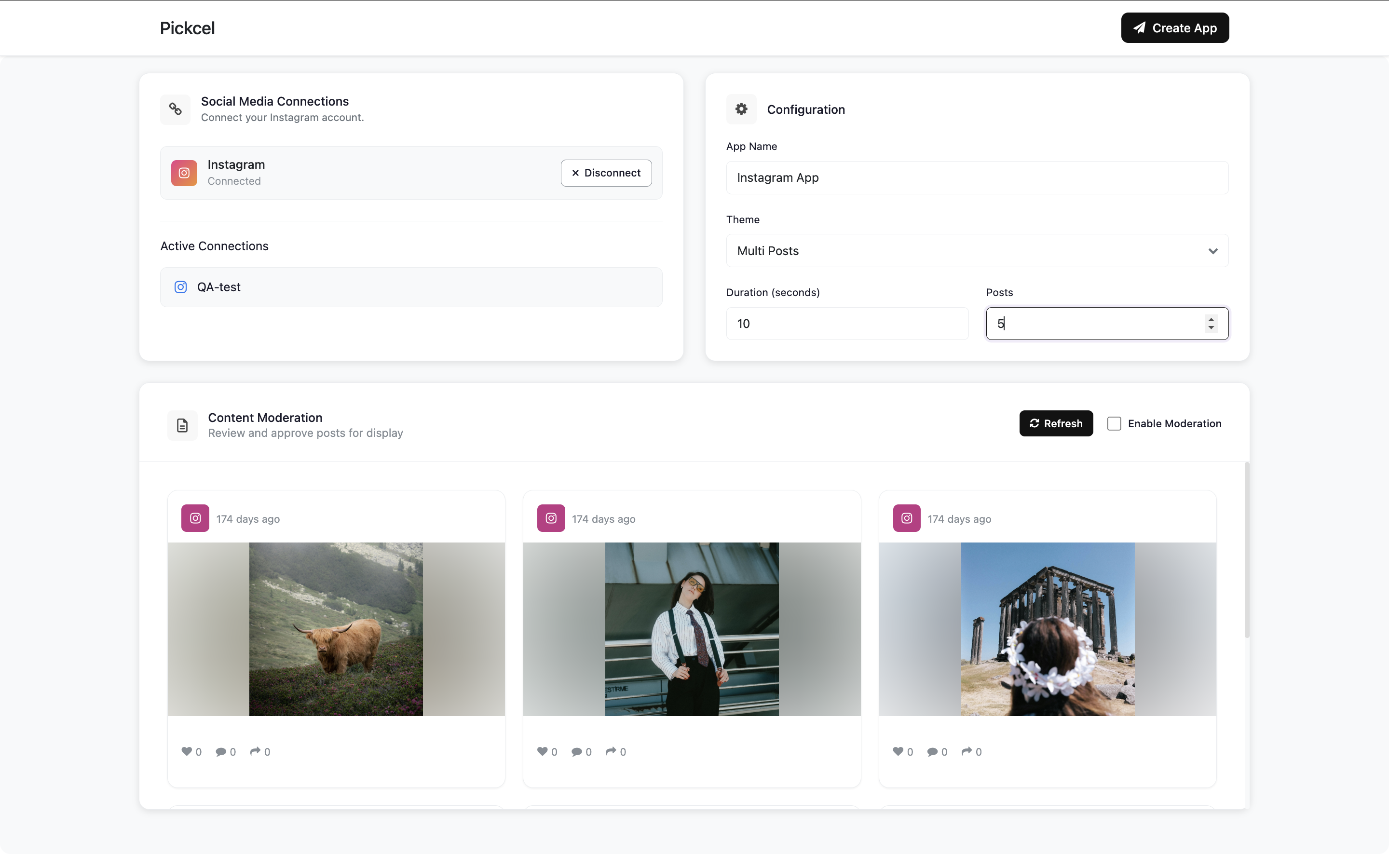 If you don't want every post shown automatically, turn on **Enable Moderation**, then click **Refresh** and select which posts you want to display. Selected posts get a checkmark and a highlighted border.
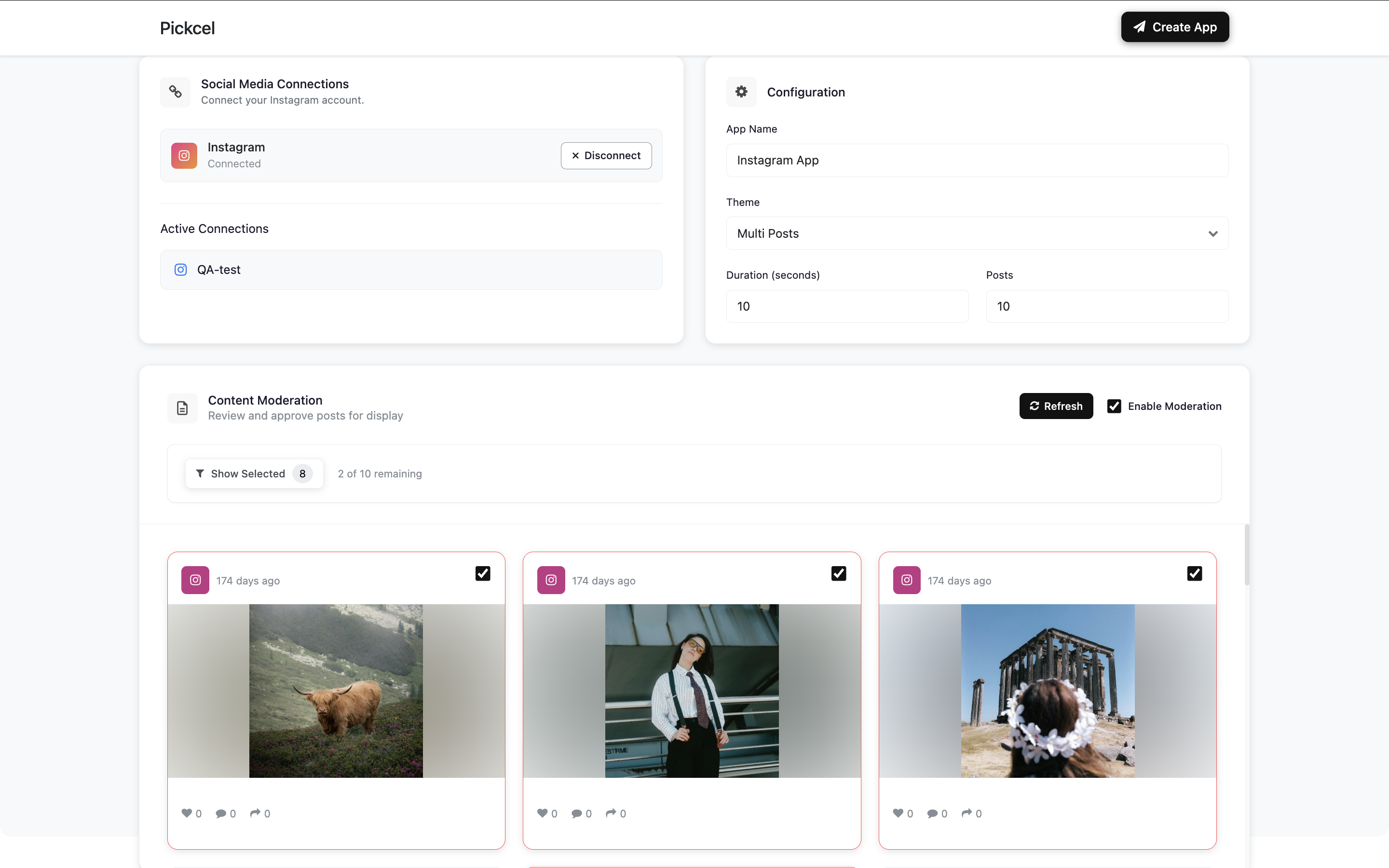
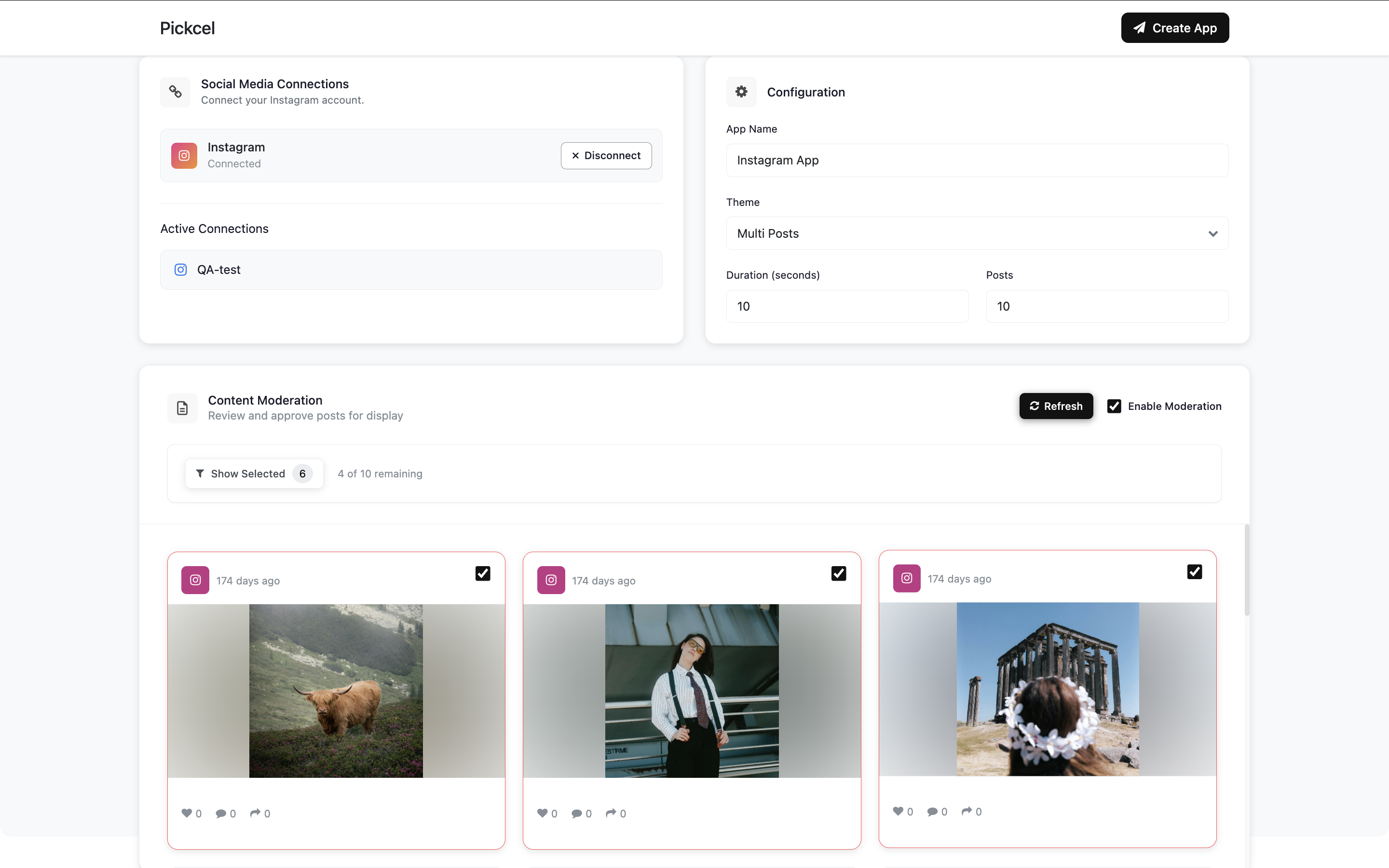 Keep selecting until you have exactly the posts you want in rotation.
 Moderation is optional. If you leave it off, all your Instagram posts play automatically, newest to oldest.
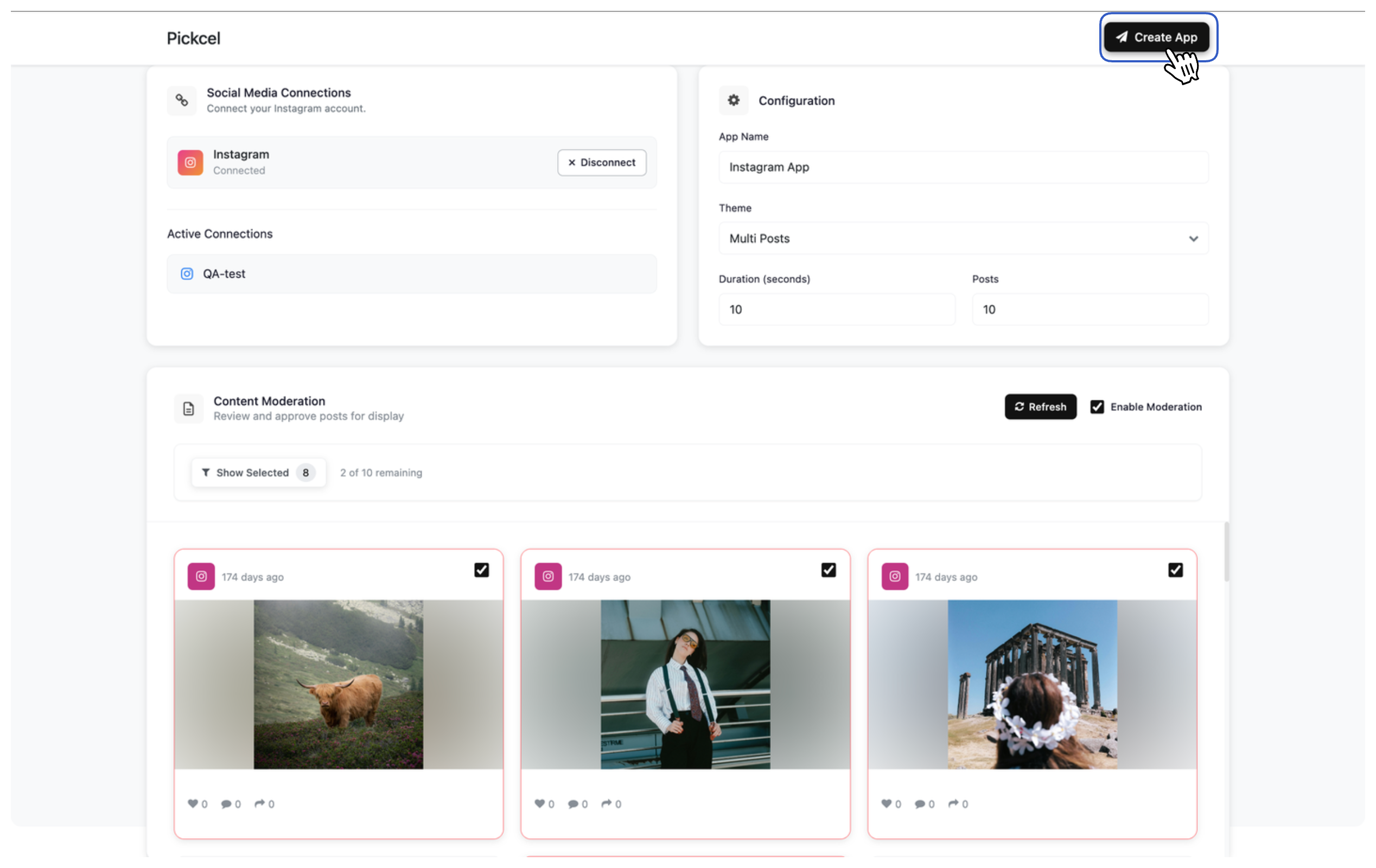
Click **Create App** to finish. Your Instagram app is now ready to use.
Moderation is optional. If you leave it off, all your Instagram posts play automatically, newest to oldest.
Click **Create App** to finish. Your Instagram app is now ready to use.
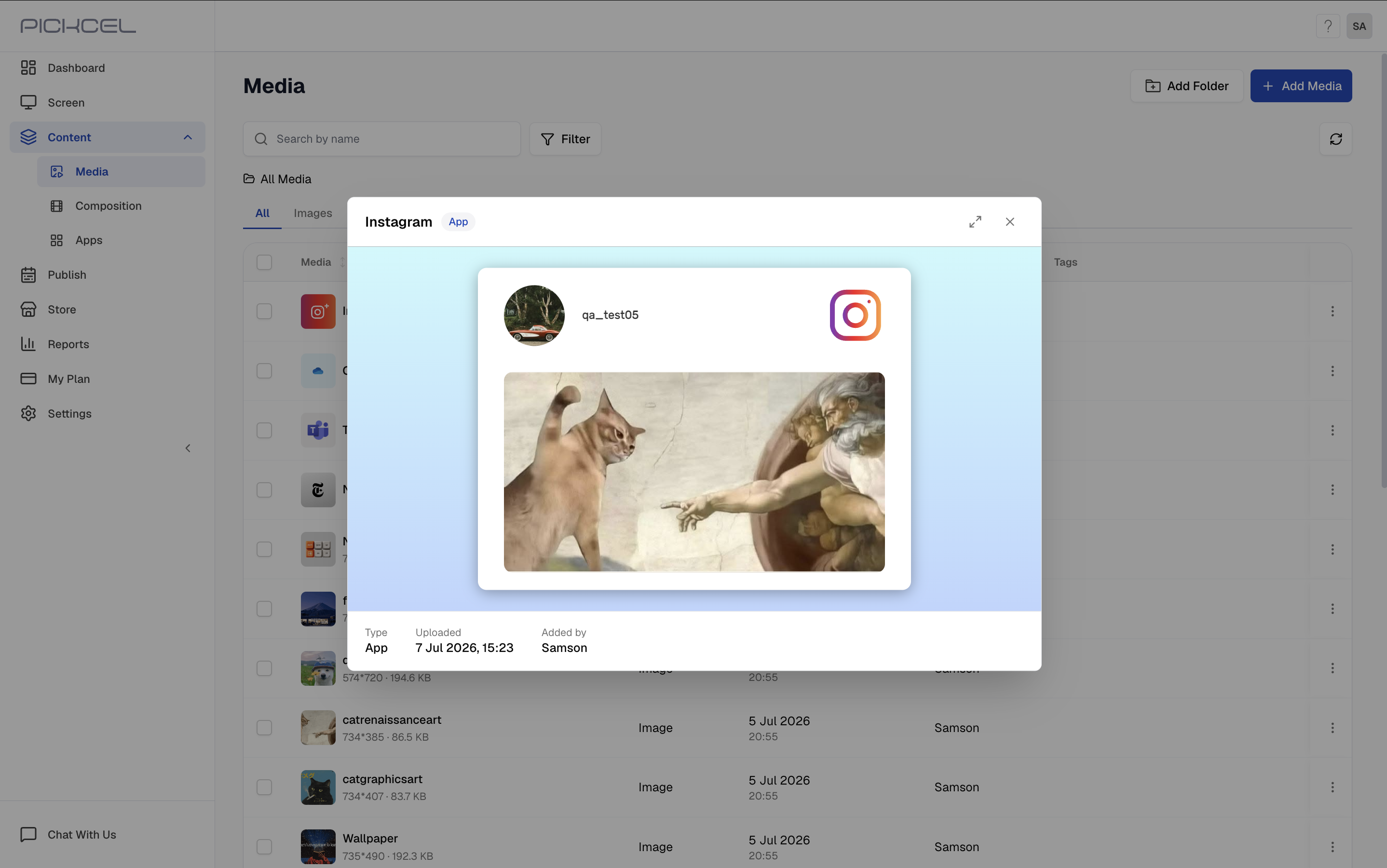
 Click the app's thumbnail in **Media** to preview it. With **Focussed**, the preview shows one post at a time.
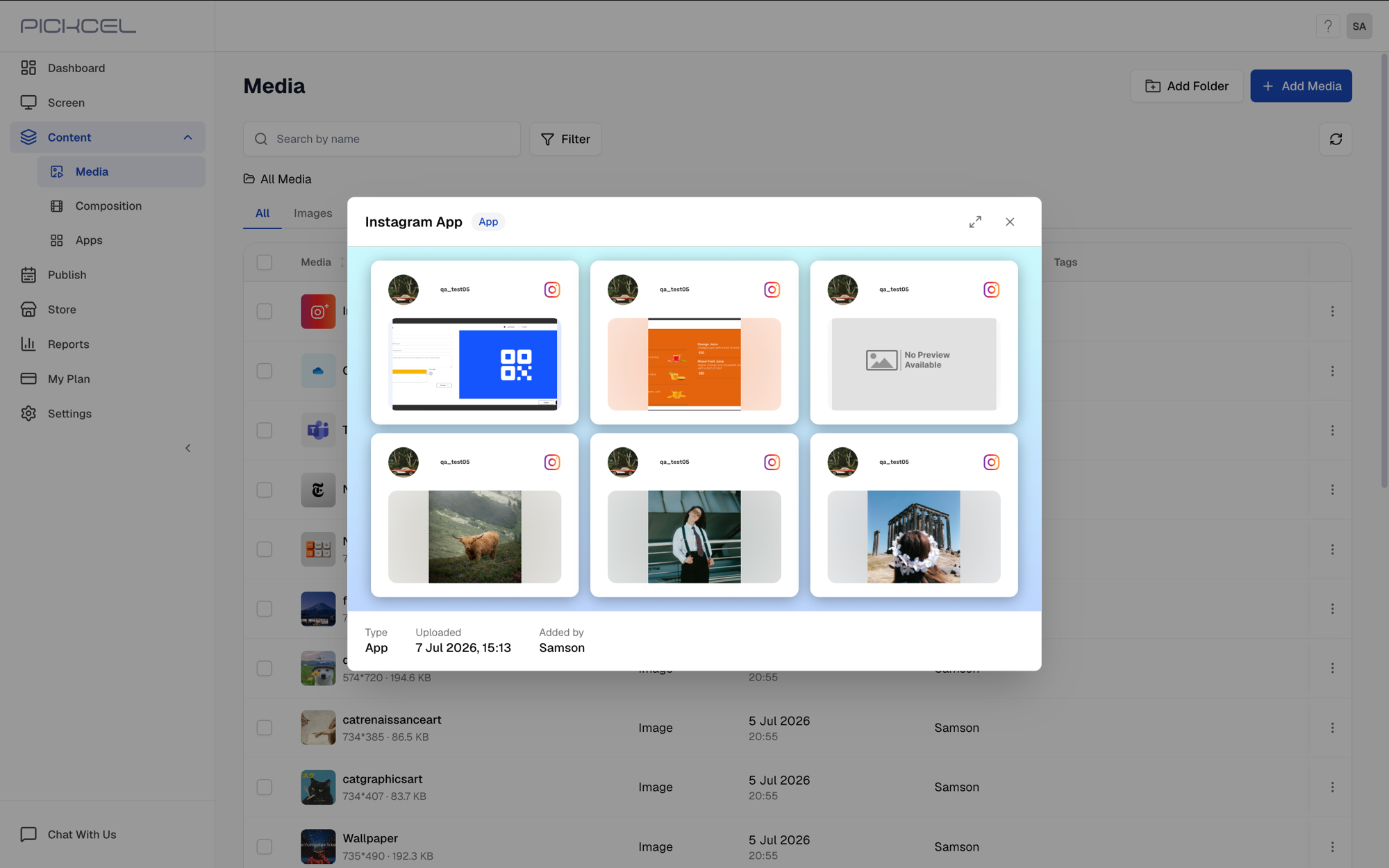
 With **Multi Posts**, the preview instead shows up to 6 posts together in a grid.
 ## What's Next?
The app is saved to your **Media** library under the name you gave it. Add it to a composition, then schedule and publish it to your screens like any other content.
* Learn about [Compositions](/compositions/compositions)
* Learn how to [Publish or Schedule Content](/schedule-and-publish/publish-overview)
## What's Next?
The app is saved to your **Media** library under the name you gave it. Add it to a composition, then schedule and publish it to your screens like any other content.
* Learn about [Compositions](/compositions/compositions)
* Learn how to [Publish or Schedule Content](/schedule-and-publish/publish-overview)