> ## Documentation Index
> Fetch the complete documentation index at: https://docs.pickcel.com/llms.txt
> Use this file to discover all available pages before exploring further.
# How to Add the Google Traffic App from the Pickcel App Store?
> Learn how to add and configure the Google Traffic app to display live traffic conditions and road congestion data on your digital signage screens
The Google Traffic App is a real-time digital signage application powered by Google Maps. It displays live road conditions, congestion levels, and traffic flow for any location in the world, directly on your Pickcel-managed screens. Whether deployed in hotel lobbies, corporate reception areas, or transportation hubs, this app gives audiences immediate, actionable travel intelligence.
This app uses the Google Maps JavaScript API. Traffic data accuracy and availability are subject to Google's coverage for the selected region. Real-time updates are served **as long as the player maintains a live internet connection**.
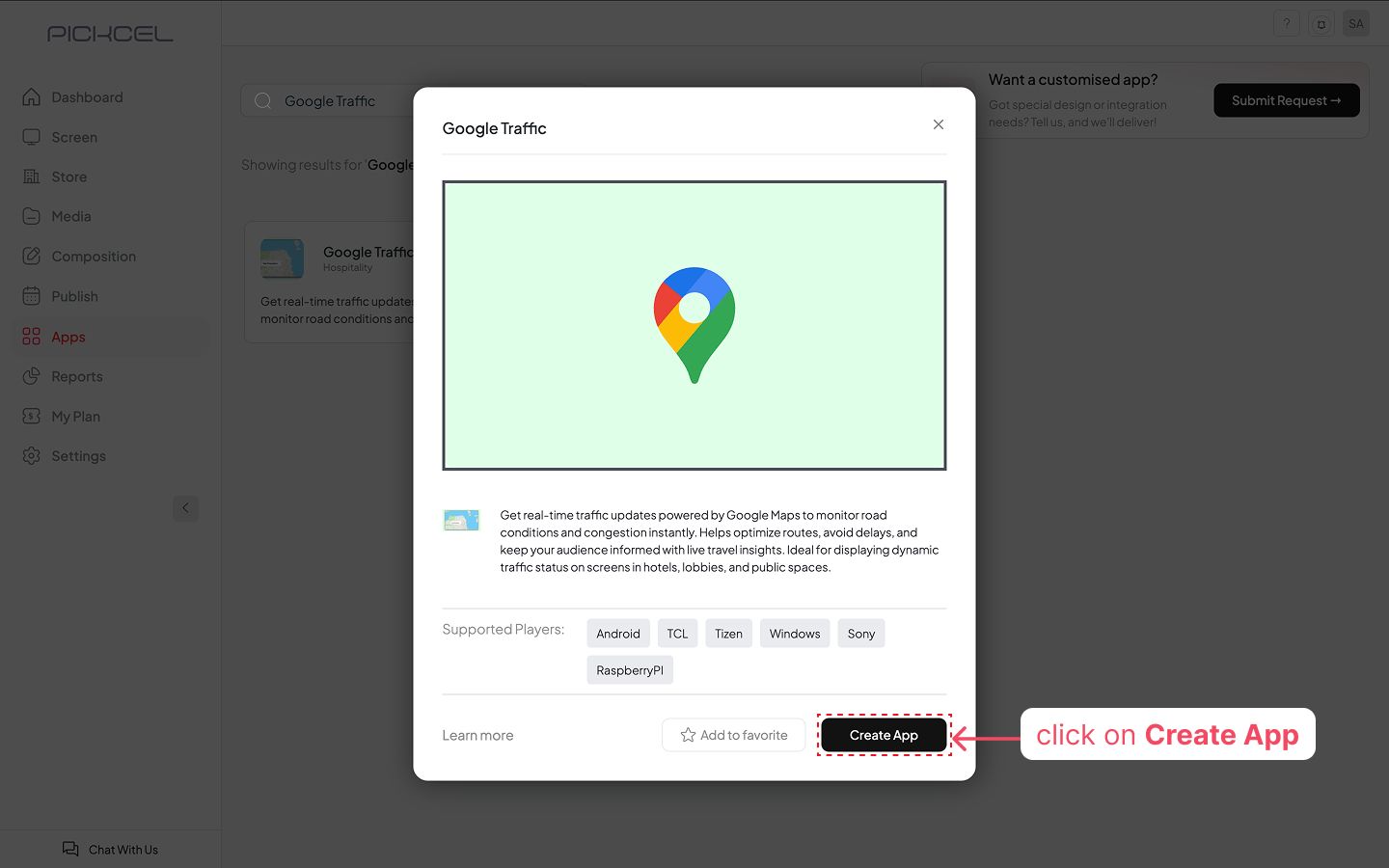
**Supported Players**: Android, TCL, Tizen, Windows, Sony, and Raspberry Pi.
[Login to your Pickcel account.](https://console.pickcel.com/) Go to the **Apps** module, search for the **Google Traffic** app using the search field, and click on the **Create App** button.
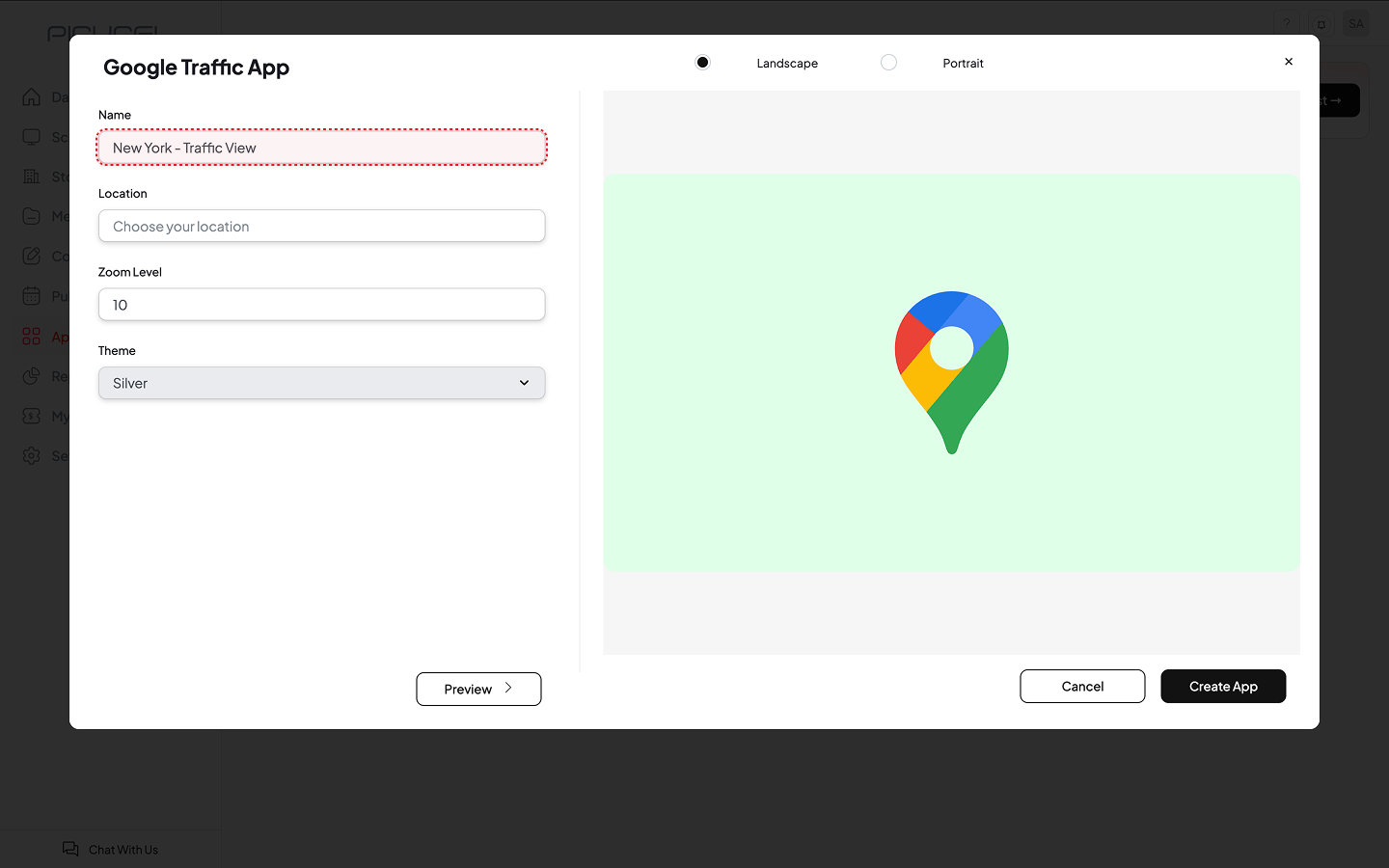
 Enter a unique **Name** for the app instance. This is how it will appear in your Media library.
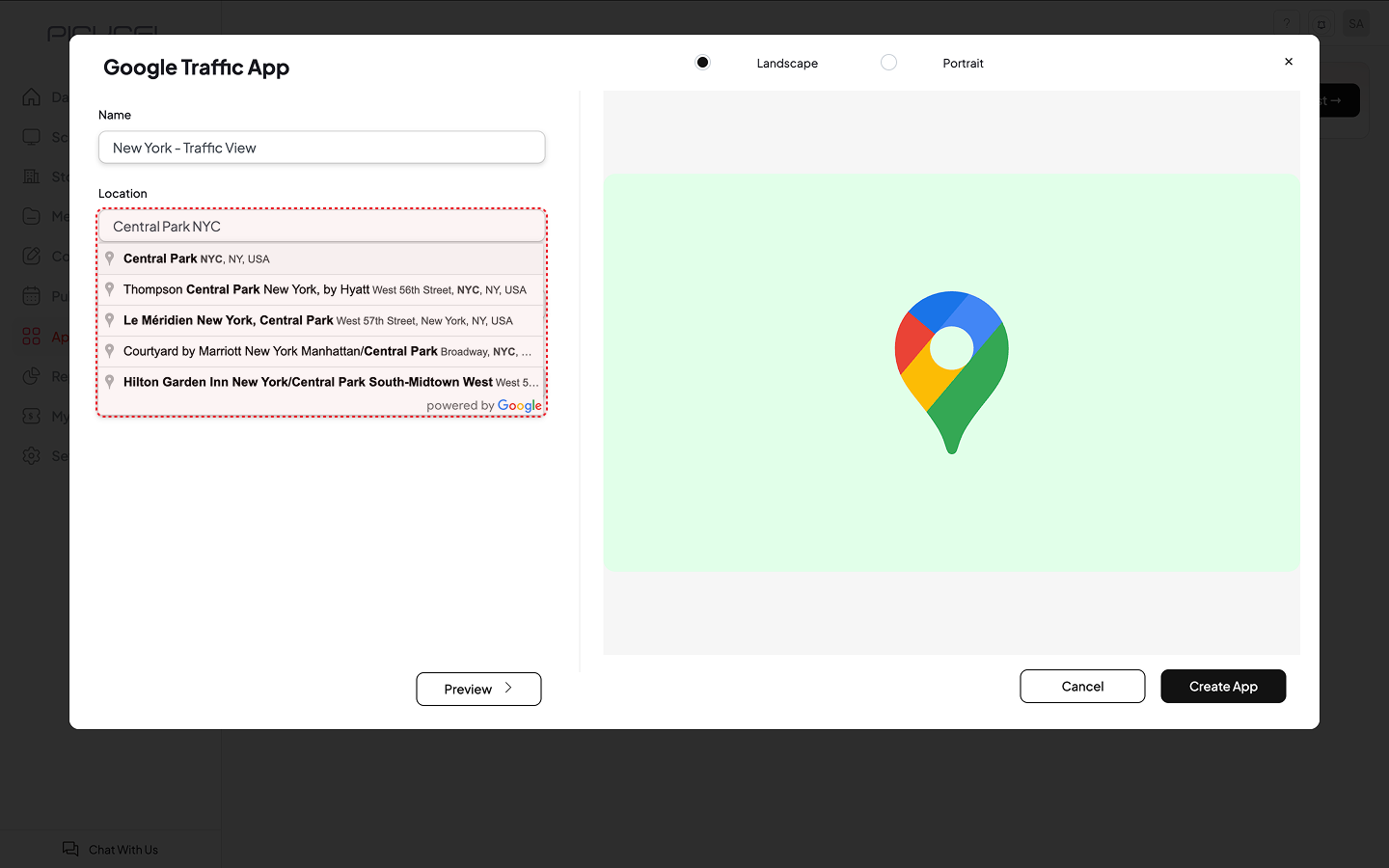
 Enter the **Location** whose traffic you want to display (e.g. "Manhattan, NY", "HR Tech Park, Bangalore").
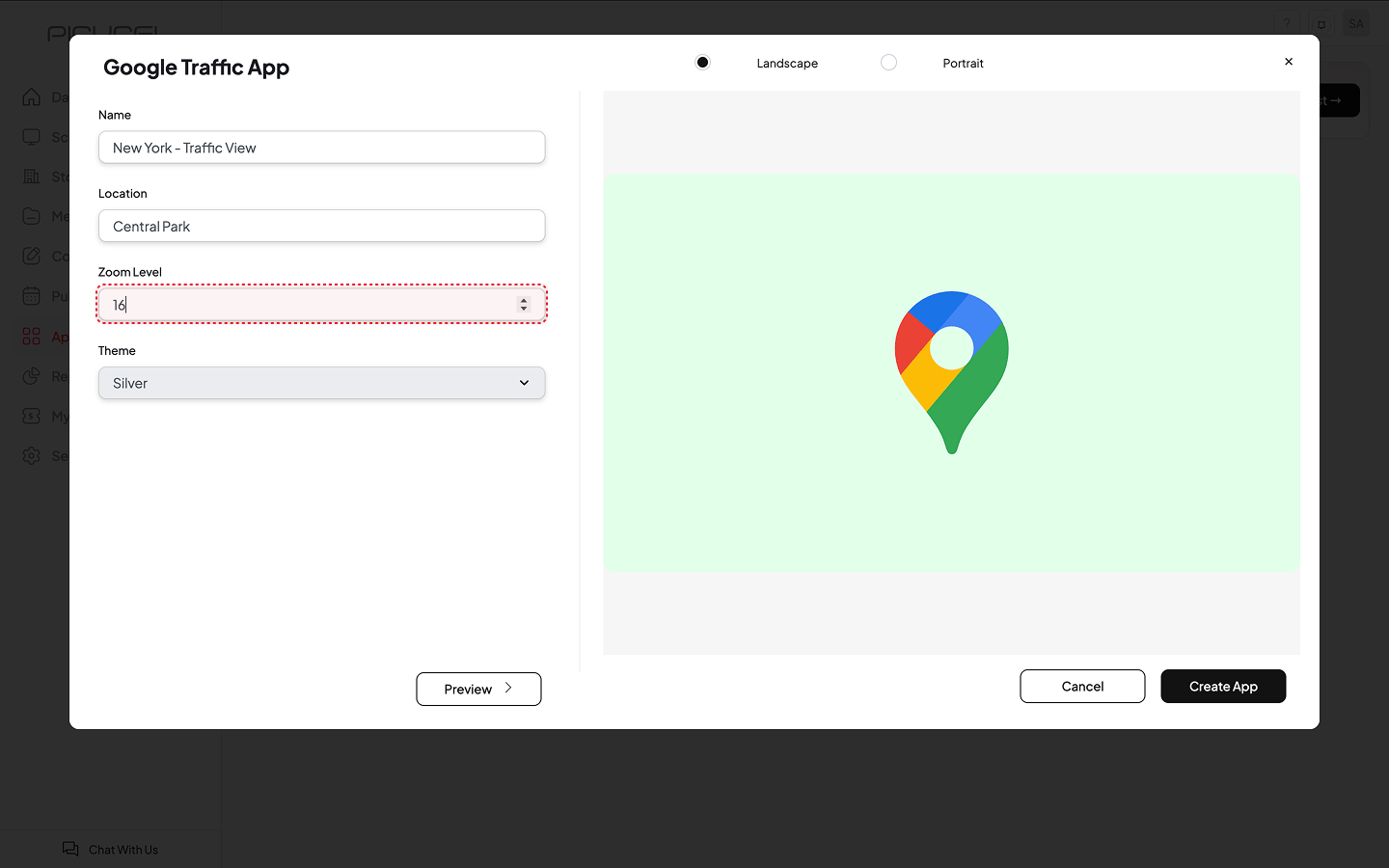
 Set the **Zoom Level** (1–20) to control how closely the map is zoomed. We recommend **15–16** for showing traffic on specific roads near your venue, ideal for helping guests and visitors plan their route in real time.
| Zoom Level | Map Coverage | Best For |
| ---------- | ---------------------- | ------------------------------------------------------ |
| 1 – 4 | Continent / Country | Decorative or informational displays |
| 5 – 8 | Region / Large City | Airports, train stations, inter-city hubs |
| 9 – 12 | City / District | Hotel lobbies, corporate campuses |
| 13 – 16 | Neighbourhood / Street | Venues, retail stores, event centres **(recommended)** |
| 17 – 20 | Block / Building Level | Hyper-local detail |
Set the **Zoom Level** (1–20) to control how closely the map is zoomed. We recommend **15–16** for showing traffic on specific roads near your venue, ideal for helping guests and visitors plan their route in real time.
| Zoom Level | Map Coverage | Best For |
| ---------- | ---------------------- | ------------------------------------------------------ |
| 1 – 4 | Continent / Country | Decorative or informational displays |
| 5 – 8 | Region / Large City | Airports, train stations, inter-city hubs |
| 9 – 12 | City / District | Hotel lobbies, corporate campuses |
| 13 – 16 | Neighbourhood / Street | Venues, retail stores, event centres **(recommended)** |
| 17 – 20 | Block / Building Level | Hyper-local detail |
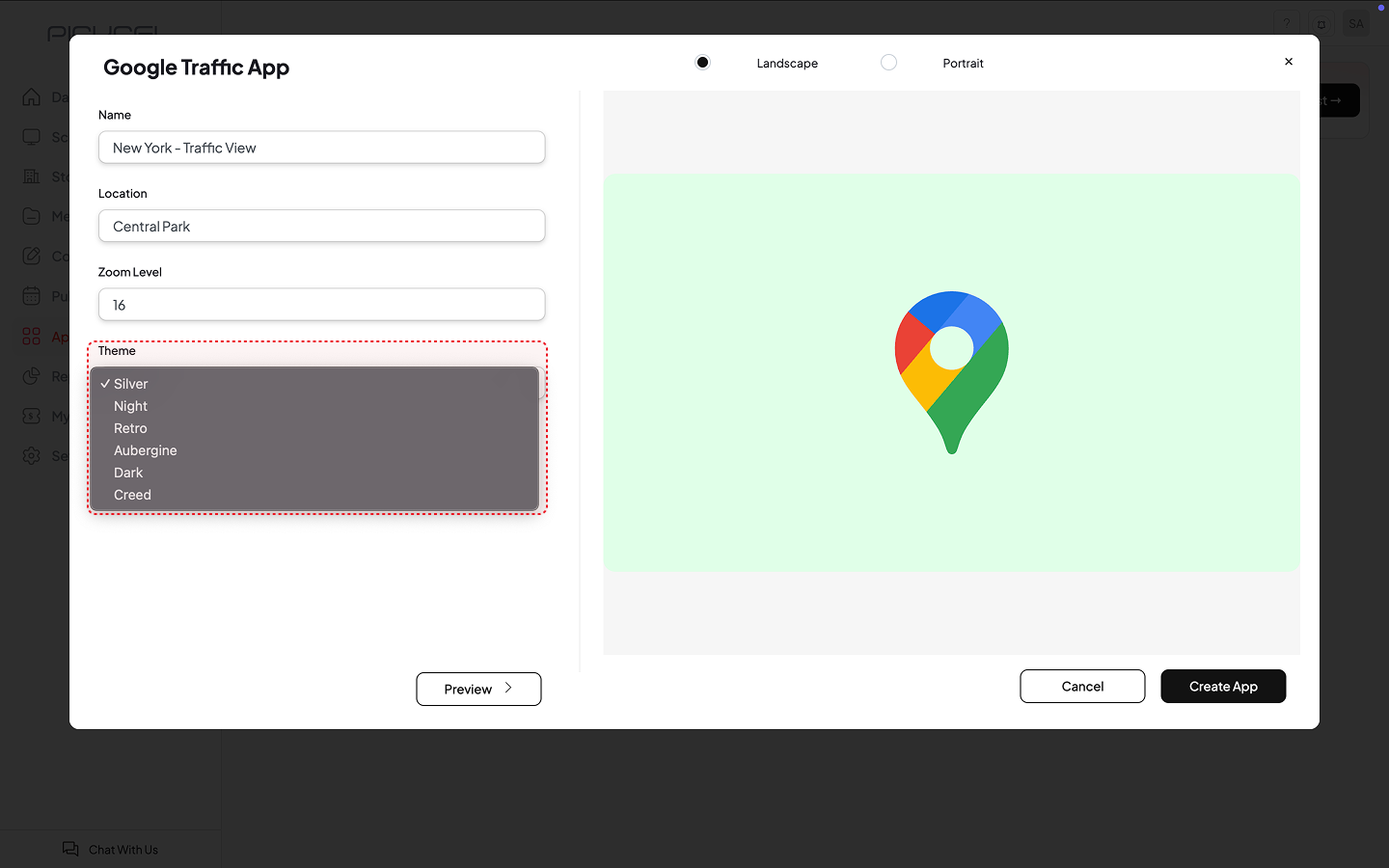
 Choose a **Theme** for the map. The default is **Silver**.
| Theme | Appearance | Ideal Environment |
| ------------- | ---------------------------------- | --------------------------------------- |
| **Silver** | Light grey, clean and minimal | Corporate offices, modern hotel lobbies |
| **Night** | Dark background, bright accents | Bars, lounges, cinema foyers |
| **Retro** | Warm, aged paper tones | Heritage properties, boutique hotels |
| **Aubergine** | Rich purple-grey palette | Luxury brands, spas, high-end retail |
| **Dark** | Deep charcoal, high-contrast lines | Broadcast studios, control rooms |
| **Creed** | Strong contrast, clean geometry | Creative agencies, tech companies |
Choose a **Theme** for the map. The default is **Silver**.
| Theme | Appearance | Ideal Environment |
| ------------- | ---------------------------------- | --------------------------------------- |
| **Silver** | Light grey, clean and minimal | Corporate offices, modern hotel lobbies |
| **Night** | Dark background, bright accents | Bars, lounges, cinema foyers |
| **Retro** | Warm, aged paper tones | Heritage properties, boutique hotels |
| **Aubergine** | Rich purple-grey palette | Luxury brands, spas, high-end retail |
| **Dark** | Deep charcoal, high-contrast lines | Broadcast studios, control rooms |
| **Creed** | Strong contrast, clean geometry | Creative agencies, tech companies |
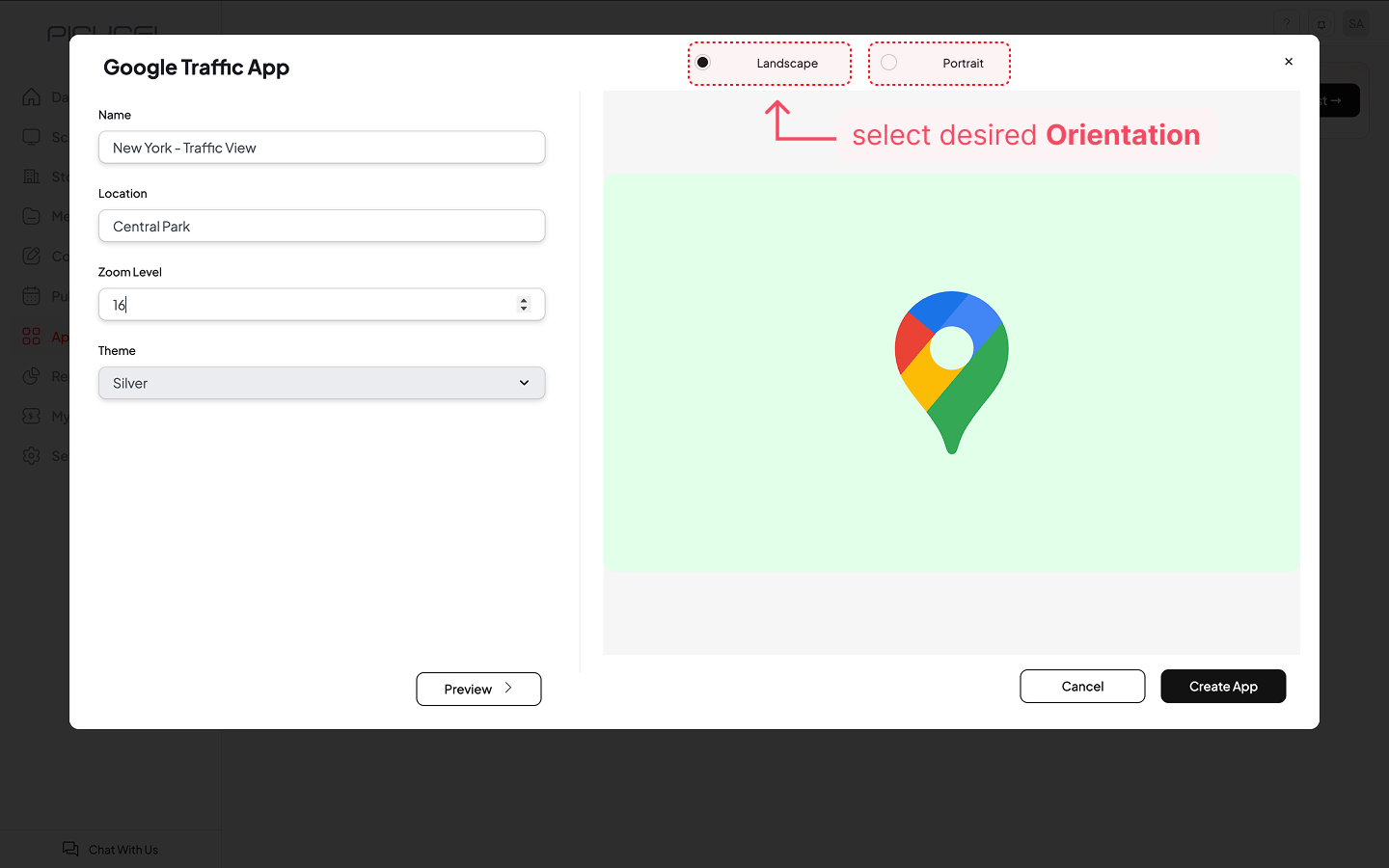
 Select **Landscape** or **Portrait** to match your screen's physical mounting.
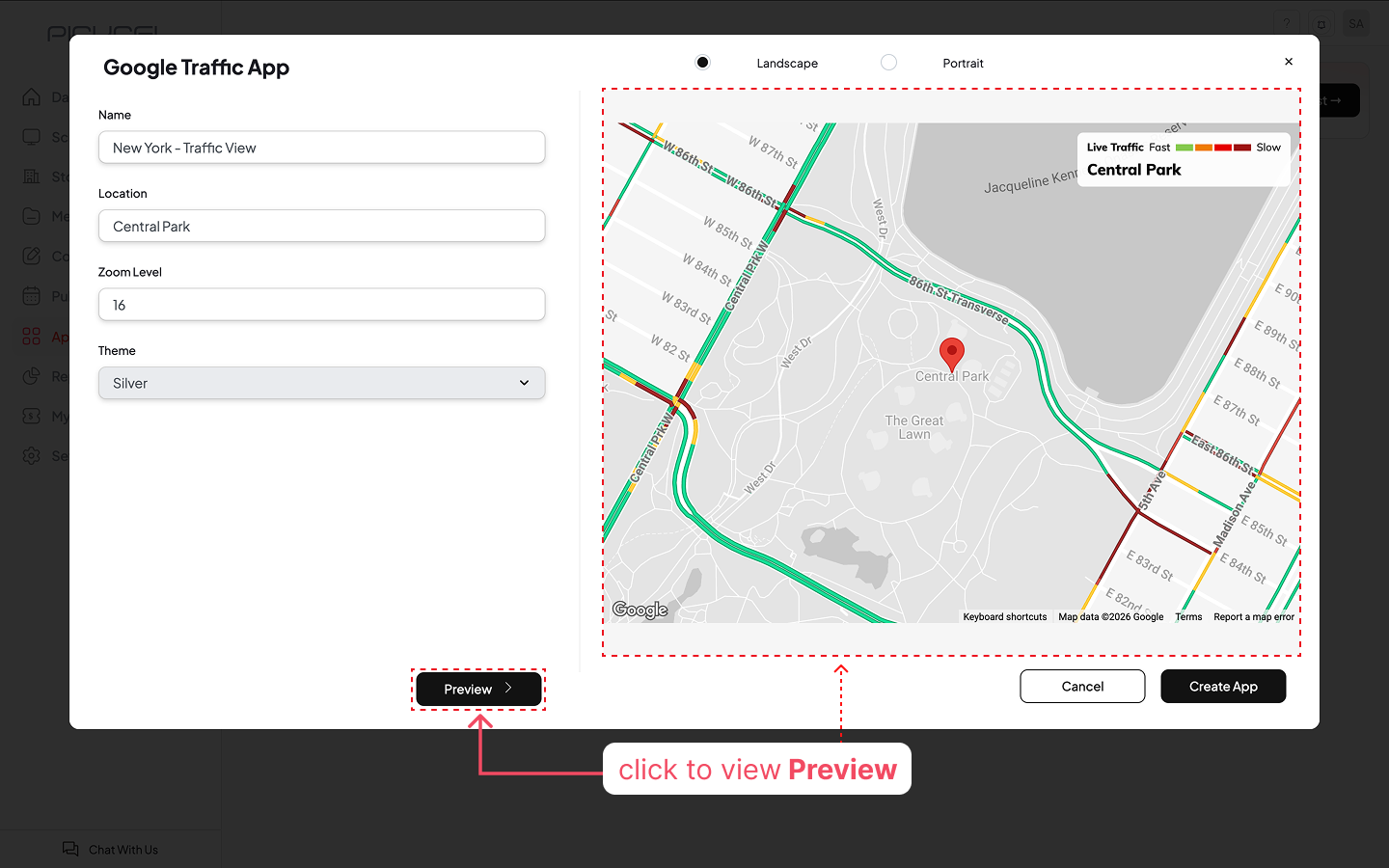
 Click **Preview** to verify the map looks correct. Once satisfied, click **Create App**. The app is saved to your Pickcel Media library under the name you specified.
 Your Google Traffic app is now ready to use.
## Best Practices
* Set zoom to **7–8** for motorway/highway conditions and **10–12** for city-centre traffic.
* Use **Silver** in bright spaces and **Night** or **Dark** in dimly lit environments.
* Schedule the app during peak commute periods (e.g. 07:00–09:30, 17:00–19:30) to maximise relevance.
* Pair with the **Weather** app in a split-screen composition for a complete travel snapshot.
* When deploying across locations, name each instance clearly (e.g. "Traffic - Singapore CBD").
## Troubleshooting
Ensure the player has an active internet connection. Google Maps requires outbound HTTPS access.
Use a full city name or recognised landmark rather than abbreviations.
Traffic data requires a minimum zoom level of approximately **7**. Increase the zoom and republish.
This is normal during initial download. If it persists, restart the player and check its network connection.
Confirm the orientation setting matches the physical screen rotation. Republish after correcting.
**Next Steps**
Your Google Traffic app is now saved in your media library. Here's what you can do next:
Embed the app in a multi-zone layout alongside other content like weather, news, or announcements.
Assign the app directly to a screen or screen group, either full-screen or on a schedule (e.g. peak commute hours).
Your Google Traffic app is now ready to use.
## Best Practices
* Set zoom to **7–8** for motorway/highway conditions and **10–12** for city-centre traffic.
* Use **Silver** in bright spaces and **Night** or **Dark** in dimly lit environments.
* Schedule the app during peak commute periods (e.g. 07:00–09:30, 17:00–19:30) to maximise relevance.
* Pair with the **Weather** app in a split-screen composition for a complete travel snapshot.
* When deploying across locations, name each instance clearly (e.g. "Traffic - Singapore CBD").
## Troubleshooting
Ensure the player has an active internet connection. Google Maps requires outbound HTTPS access.
Use a full city name or recognised landmark rather than abbreviations.
Traffic data requires a minimum zoom level of approximately **7**. Increase the zoom and republish.
This is normal during initial download. If it persists, restart the player and check its network connection.
Confirm the orientation setting matches the physical screen rotation. Republish after correcting.
**Next Steps**
Your Google Traffic app is now saved in your media library. Here's what you can do next:
Embed the app in a multi-zone layout alongside other content like weather, news, or announcements.
Assign the app directly to a screen or screen group, either full-screen or on a schedule (e.g. peak commute hours).