> ## Documentation Index
> Fetch the complete documentation index at: https://docs.pickcel.com/llms.txt
> Use this file to discover all available pages before exploring further.

# How to add the Fox News app from the Pickcel App Store?

> Learn how to display Fox News headlines on your digital signage screens

<Steps>
  <Step title="Search for and create the app">
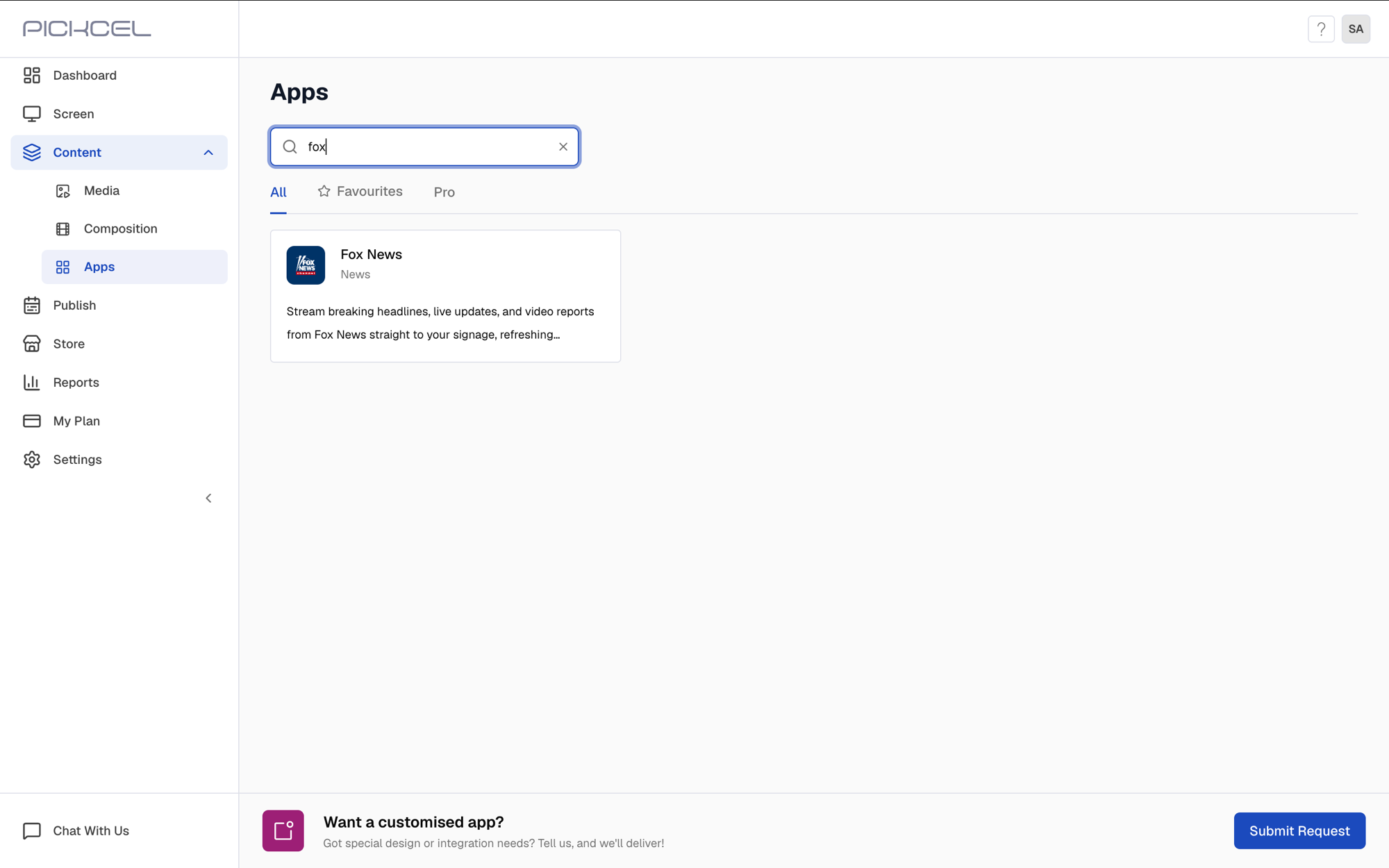
    Log in to your [Pickcel account](https://console.pickcel.com/). Go to the **Apps** module and search for **Fox News**.
    <Frame>
      <img src="https://cdn.pickcel.com/images/pickcel-docs/fox-news/fox-news-01-search-for-app.W5ddc-5S8bOV.png" alt="Search for Fox News app" />
    </Frame>

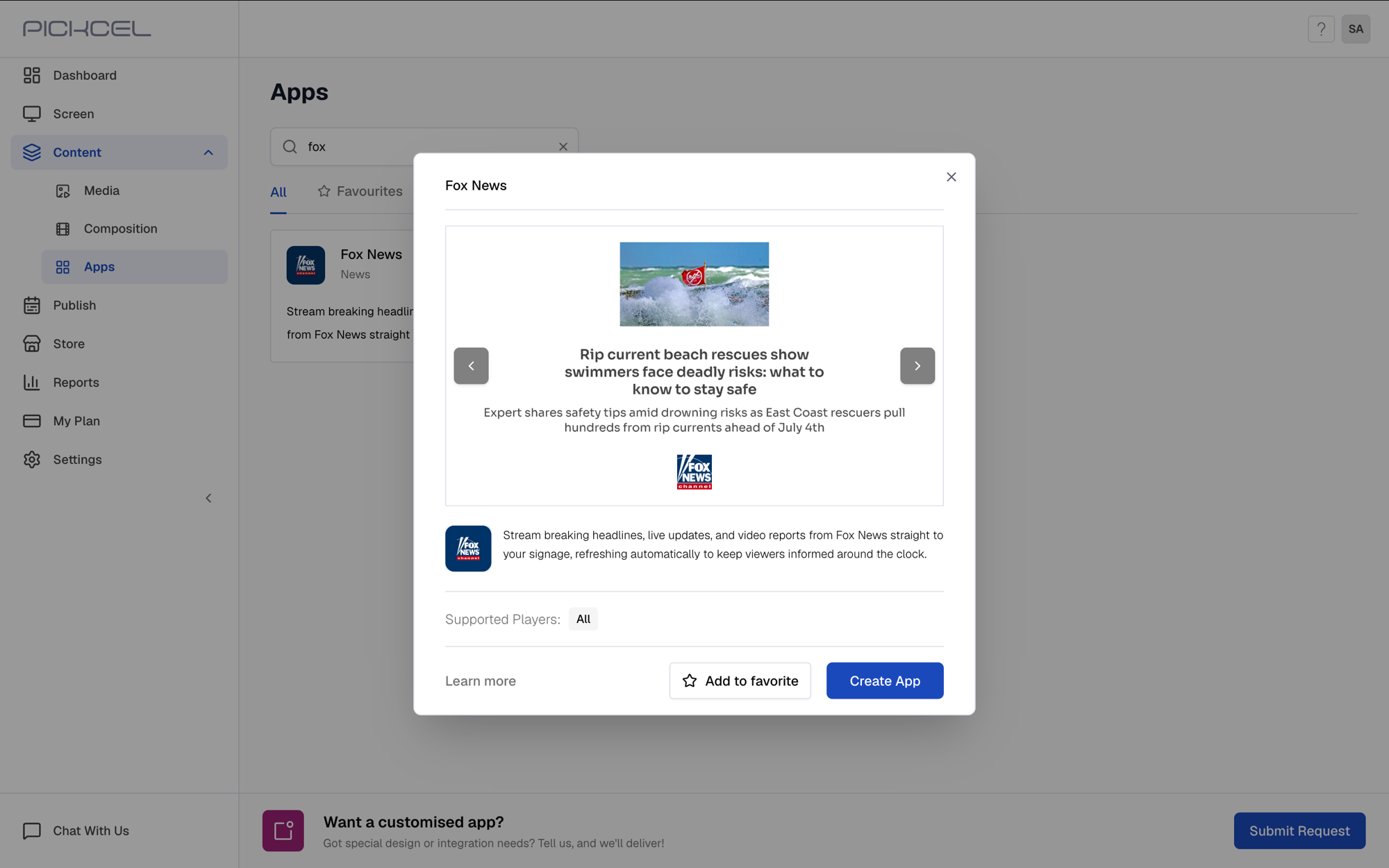
    Click the **Fox News** app card, then click **Create App** in the app details panel.
    <Frame>
      <img src="https://cdn.pickcel.com/images/pickcel-docs/fox-news/fox-news-02-click-create-app.YCDHqNXYn35P.png" alt="Click Create App" />
    </Frame>
  </Step>

  <Step title="Enter app name">
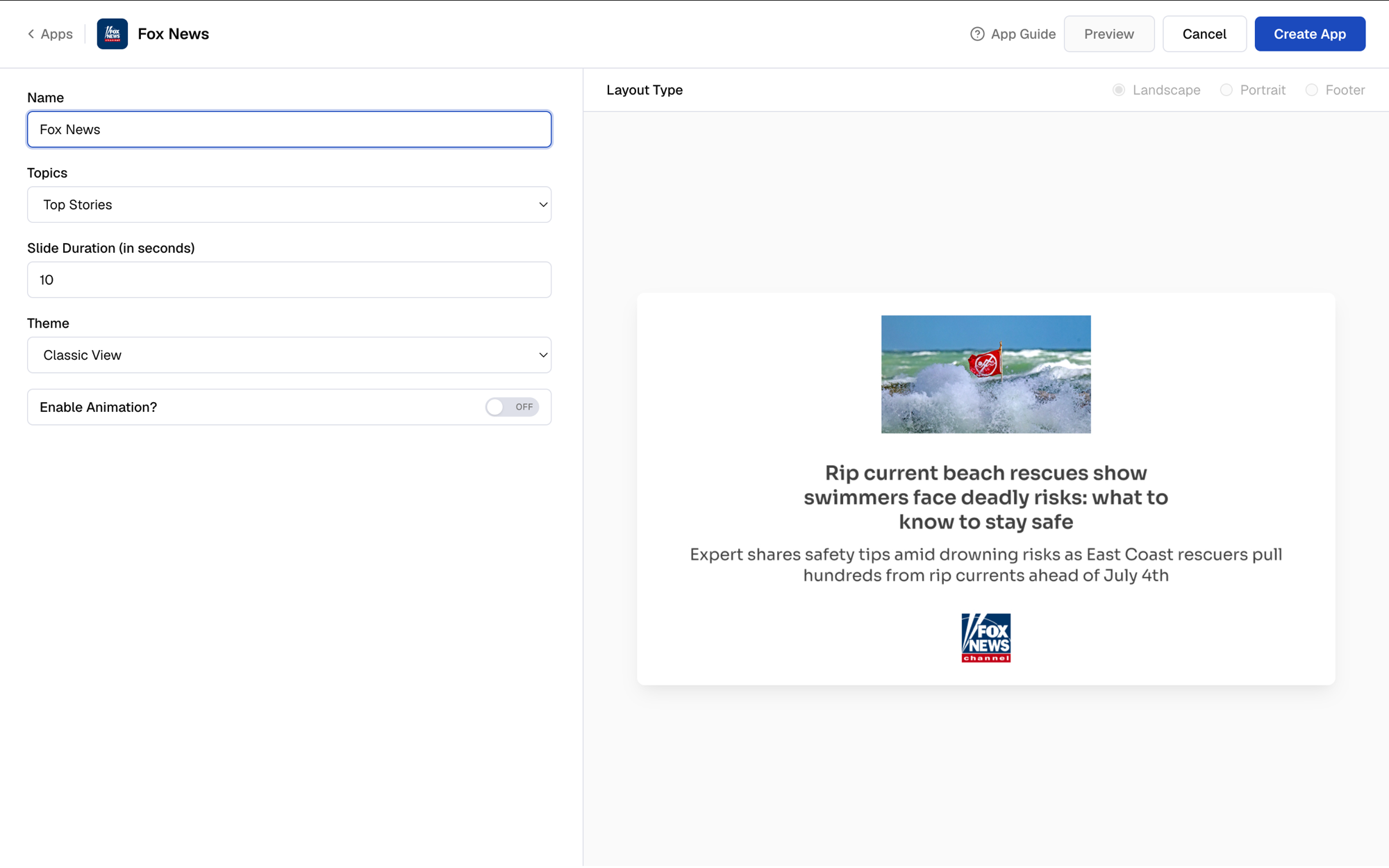
    Enter a **Name** for the app. This is how you'll identify it later in the **Media** section.
    <Frame>
      <img src="https://cdn.pickcel.com/images/pickcel-docs/fox-news/fox-news-03-enter-app-name.MGuLIs_tAVaI.png" alt="Enter app name" />
    </Frame>
  </Step>

  <Step title="Select a news topic">
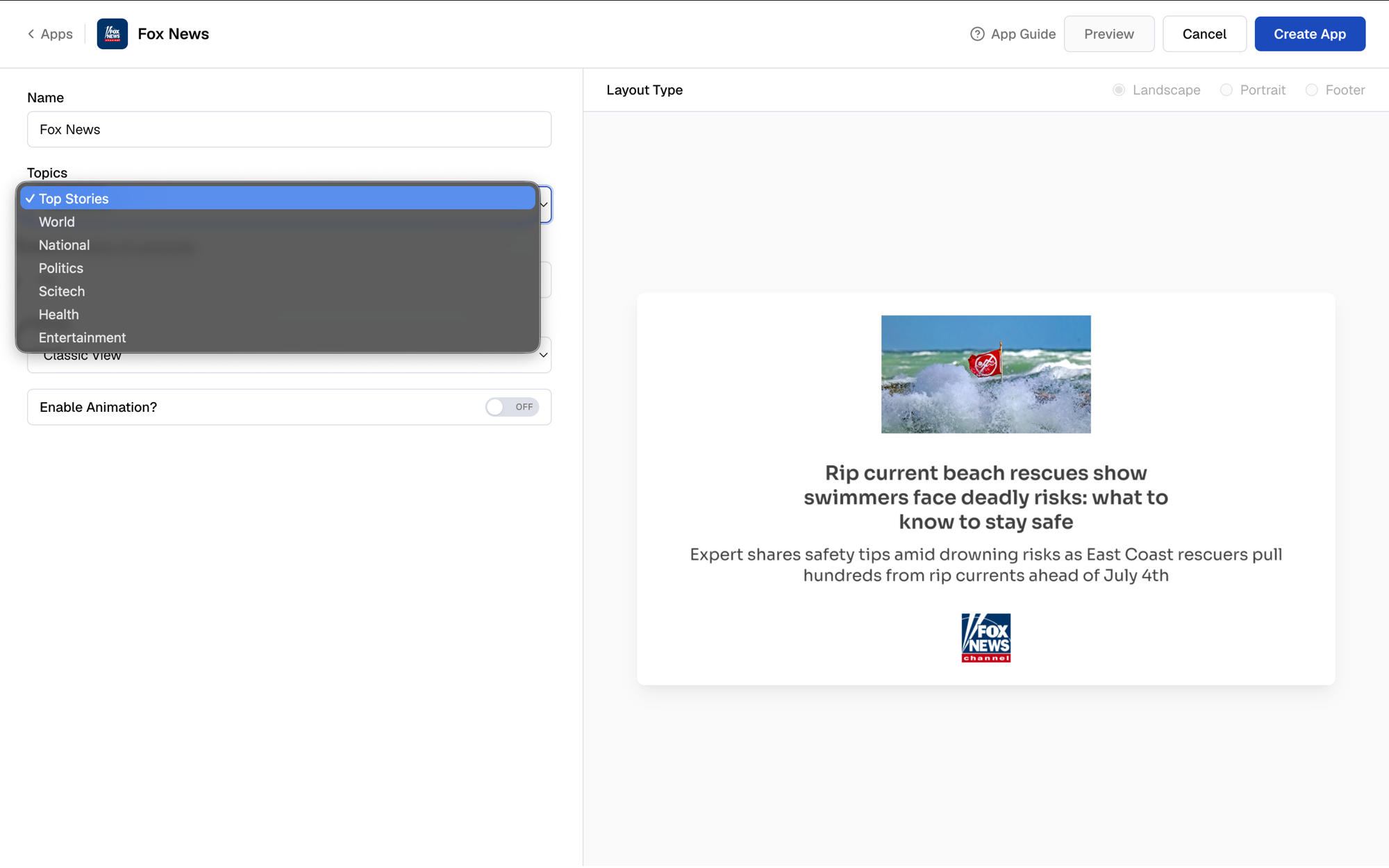
    Select the news **Topic** to display (Top Stories, World, National, Politics, Scitech, Health, or Entertainment).
    <Frame>
      <img src="https://cdn.pickcel.com/images/pickcel-docs/fox-news/fox-news-04-select-news-topic.xkDSpF_xmFqu.png" alt="Select news topic" />
    </Frame>
  </Step>

  <Step title="Set the slide duration">
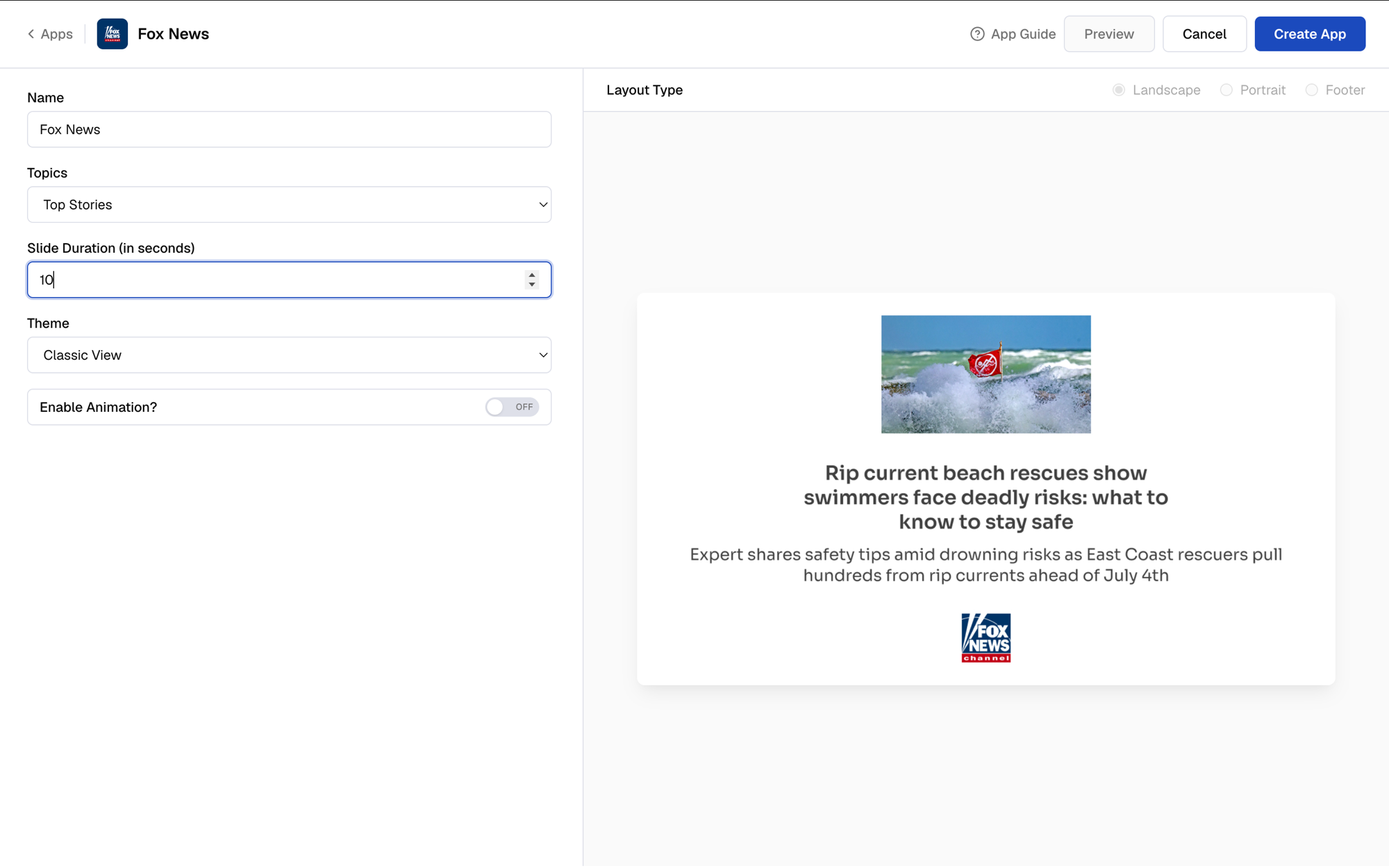
    Decide how long each headline stays on screen. **10 seconds** is the default.
    <Frame>
      <img src="https://cdn.pickcel.com/images/pickcel-docs/fox-news/fox-news-05-enter-slide-duration.GO-2fL2Pa_fP.png" alt="Set slide duration" />
    </Frame>
  </Step>

  <Step title="Select a theme">
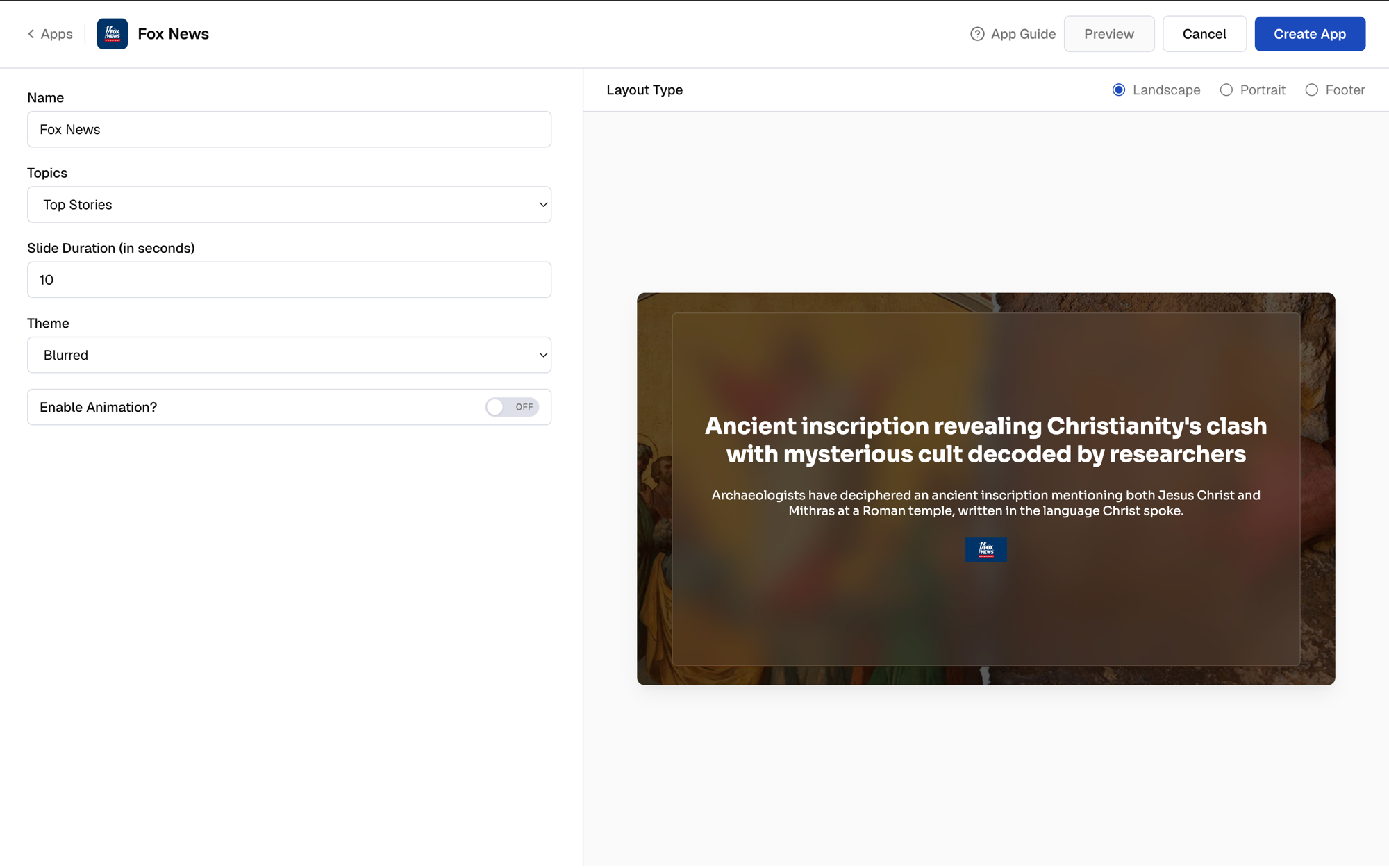
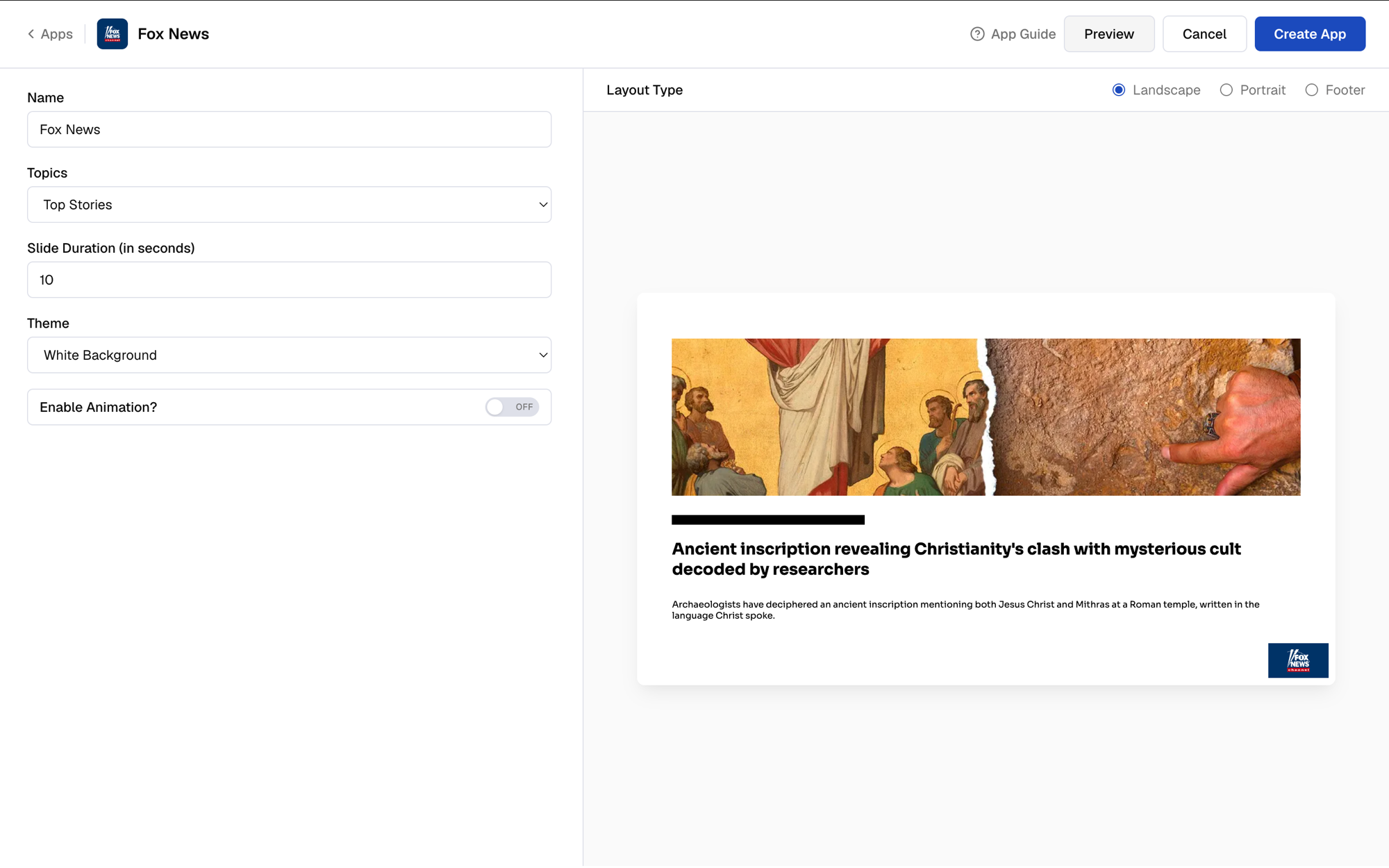
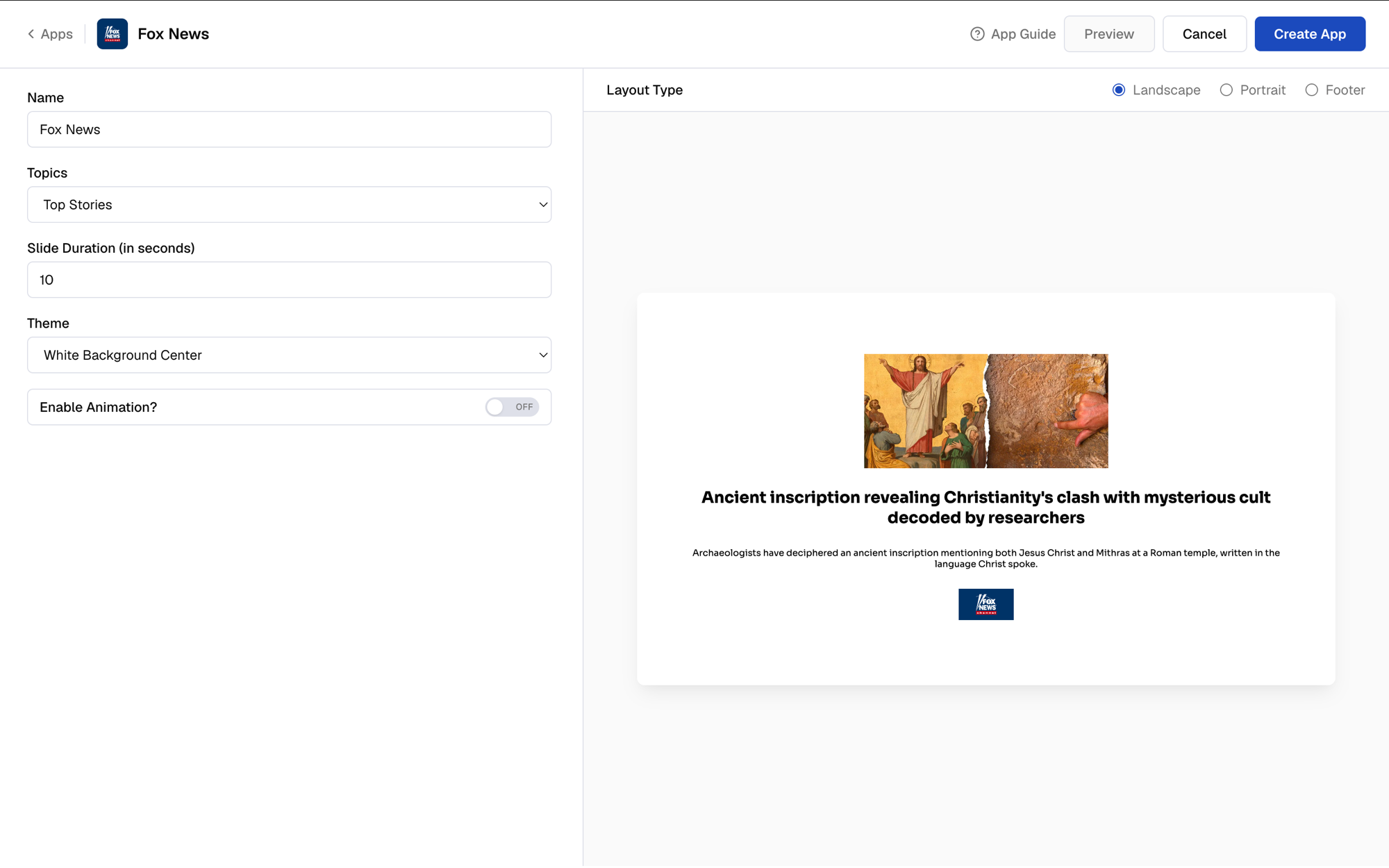
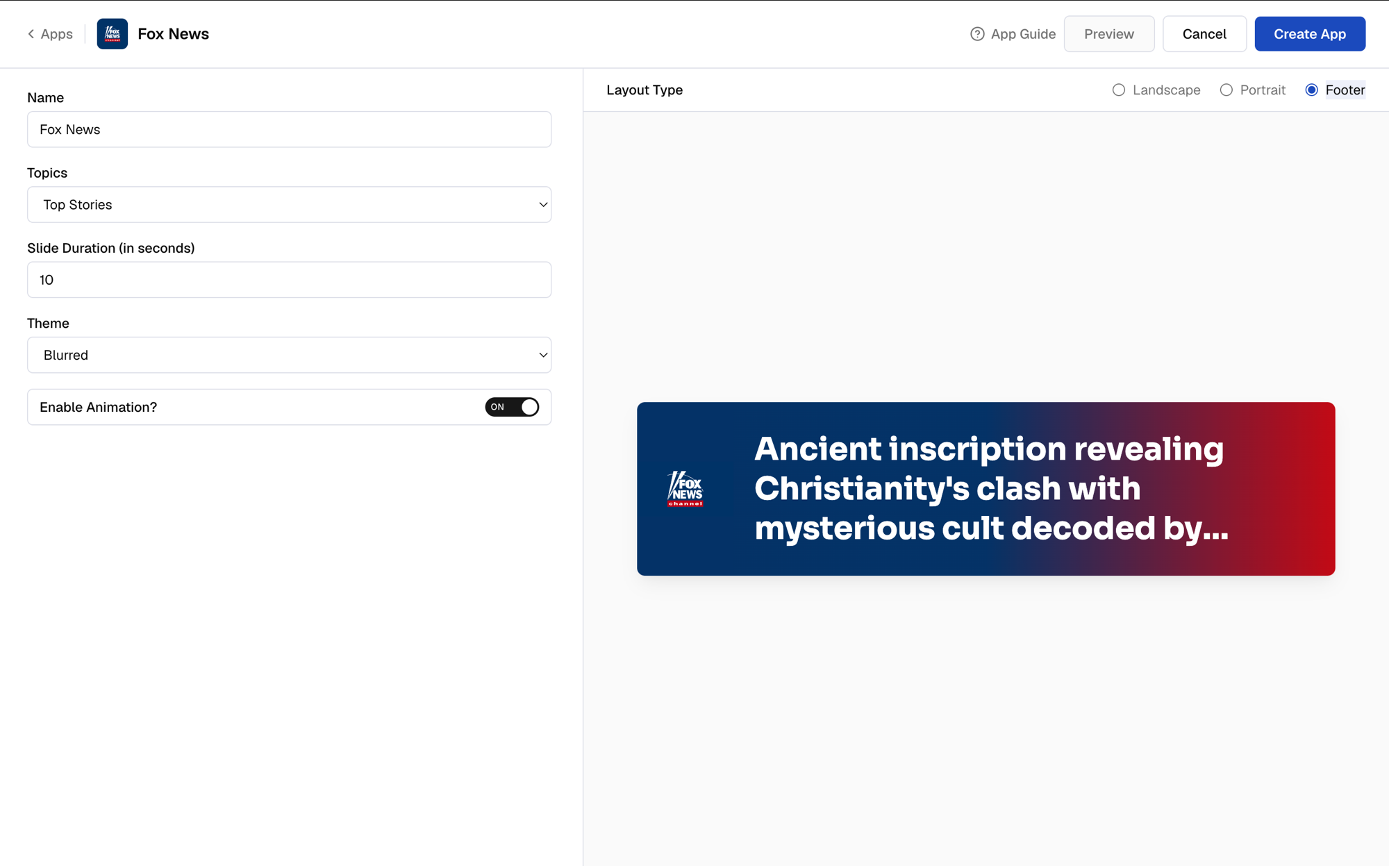
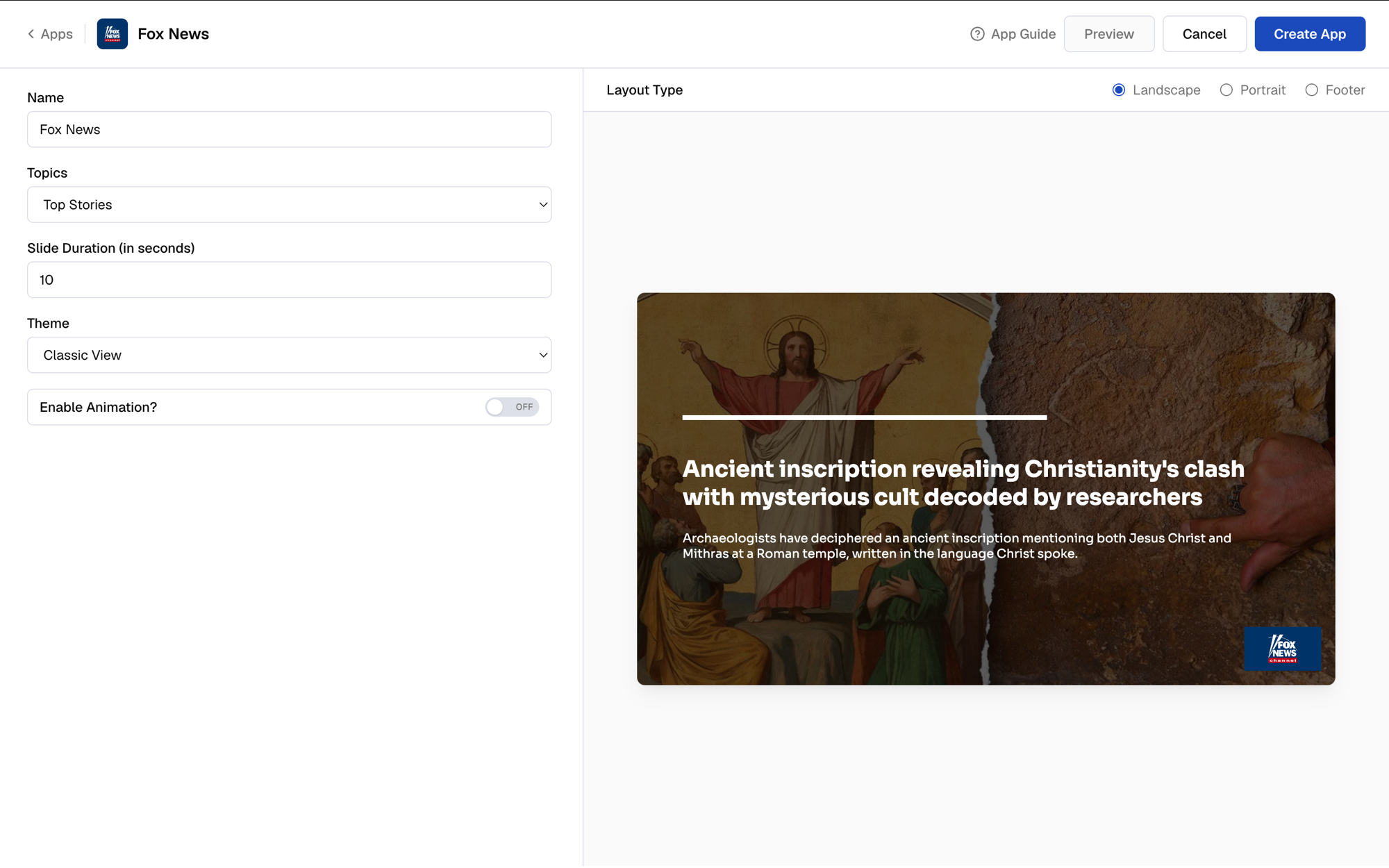
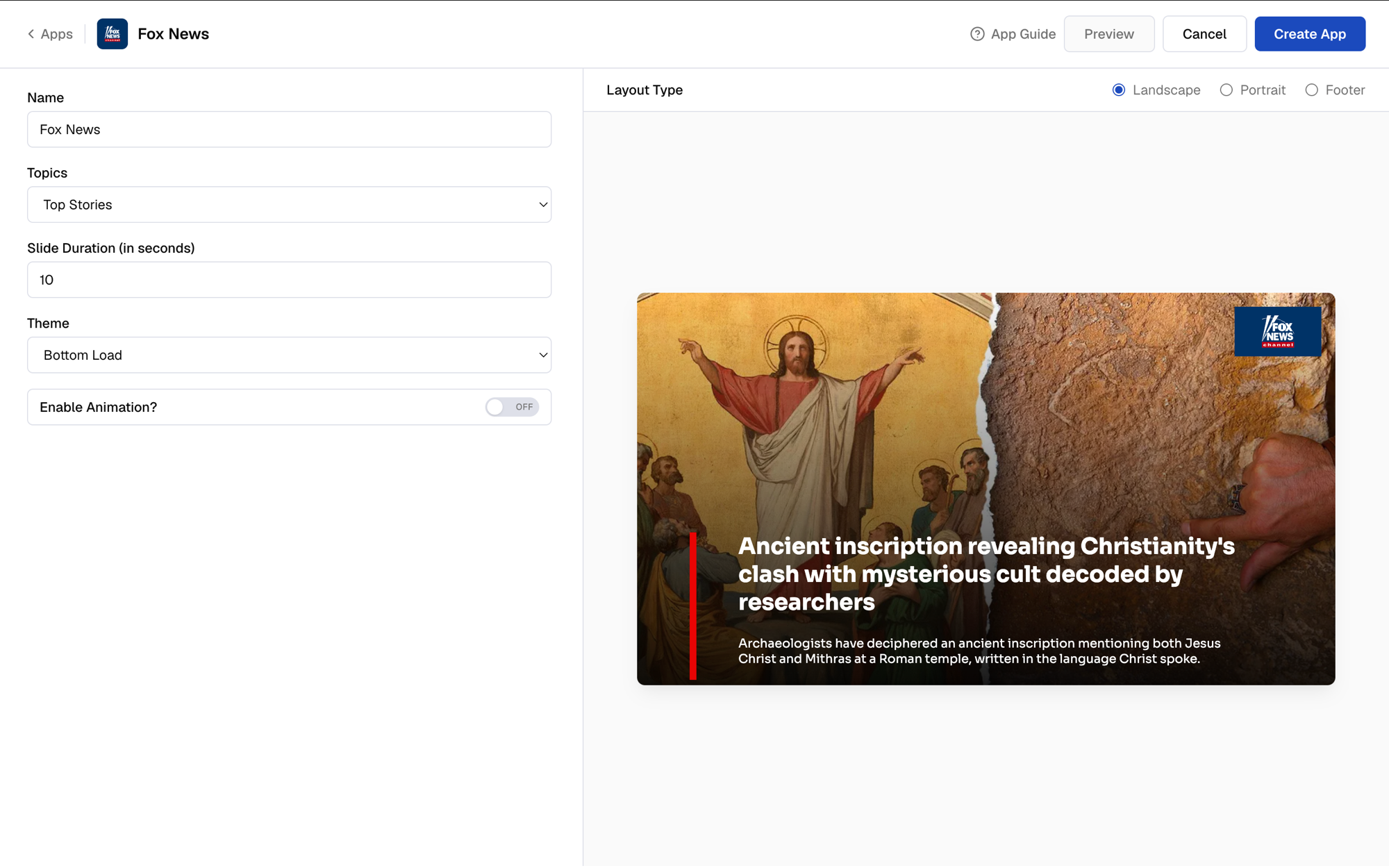
    Choose a **Theme** based on how you want to show the content. Expand each option to preview it, then click **Preview** in the app to see how it looks before deciding.
    <AccordionGroup>
      <Accordion title="Classic View">
        <Frame>
          <img src="https://cdn.pickcel.com/images/pickcel-docs/fox-news/fox-news-06-theme-classic-view._4W7OMt82HAz.png" alt="Classic View theme" />
        </Frame>
      </Accordion>

      <Accordion title="Bottom Load">
        <Frame>
          <img src="https://cdn.pickcel.com/images/pickcel-docs/fox-news/fox-news-07-theme-bottom-load.dlmWJS5S_AsQ.png" alt="Bottom Load theme" />
        </Frame>
      </Accordion>

      <Accordion title="Blurred">
        <Frame>
          <img src="https://cdn.pickcel.com/images/pickcel-docs/fox-news/fox-news-08-theme-blurred.xto0p5w4_m6R.png" alt="Blurred theme" />
        </Frame>
      </Accordion>

      <Accordion title="White Background">
        <Frame>
          <img src="https://cdn.pickcel.com/images/pickcel-docs/fox-news/fox-news-09-theme-white-background.zQ1xjIe-k0Gi.png" alt="White Background theme" />
        </Frame>
      </Accordion>

      <Accordion title="White Background Center">
        <Frame>
          <img src="https://cdn.pickcel.com/images/pickcel-docs/fox-news/fox-news-10-theme-white-background-center.gMecZIIjxIjj.png" alt="White Background Center theme" />
        </Frame>
      </Accordion>
    </AccordionGroup>
  </Step>

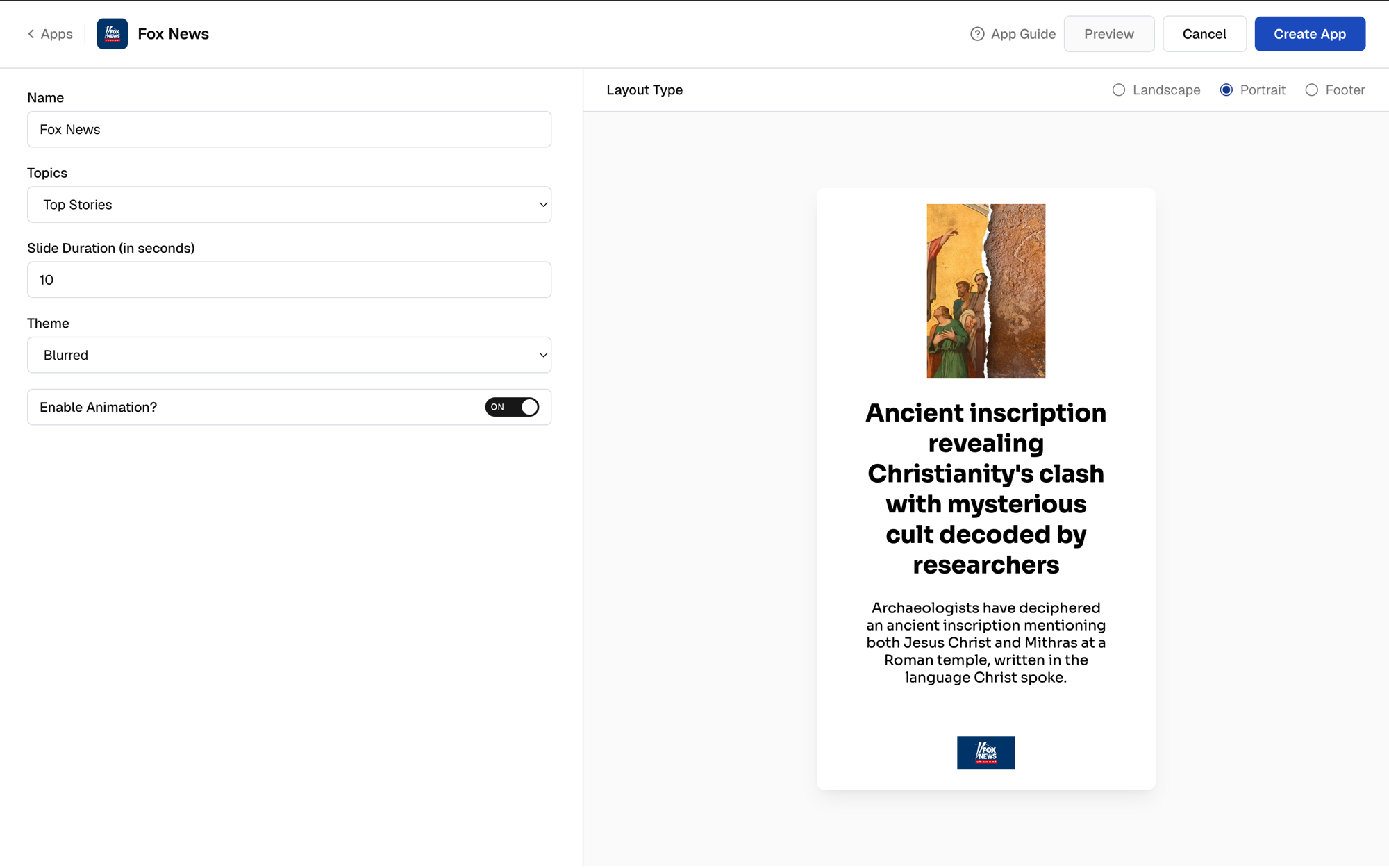
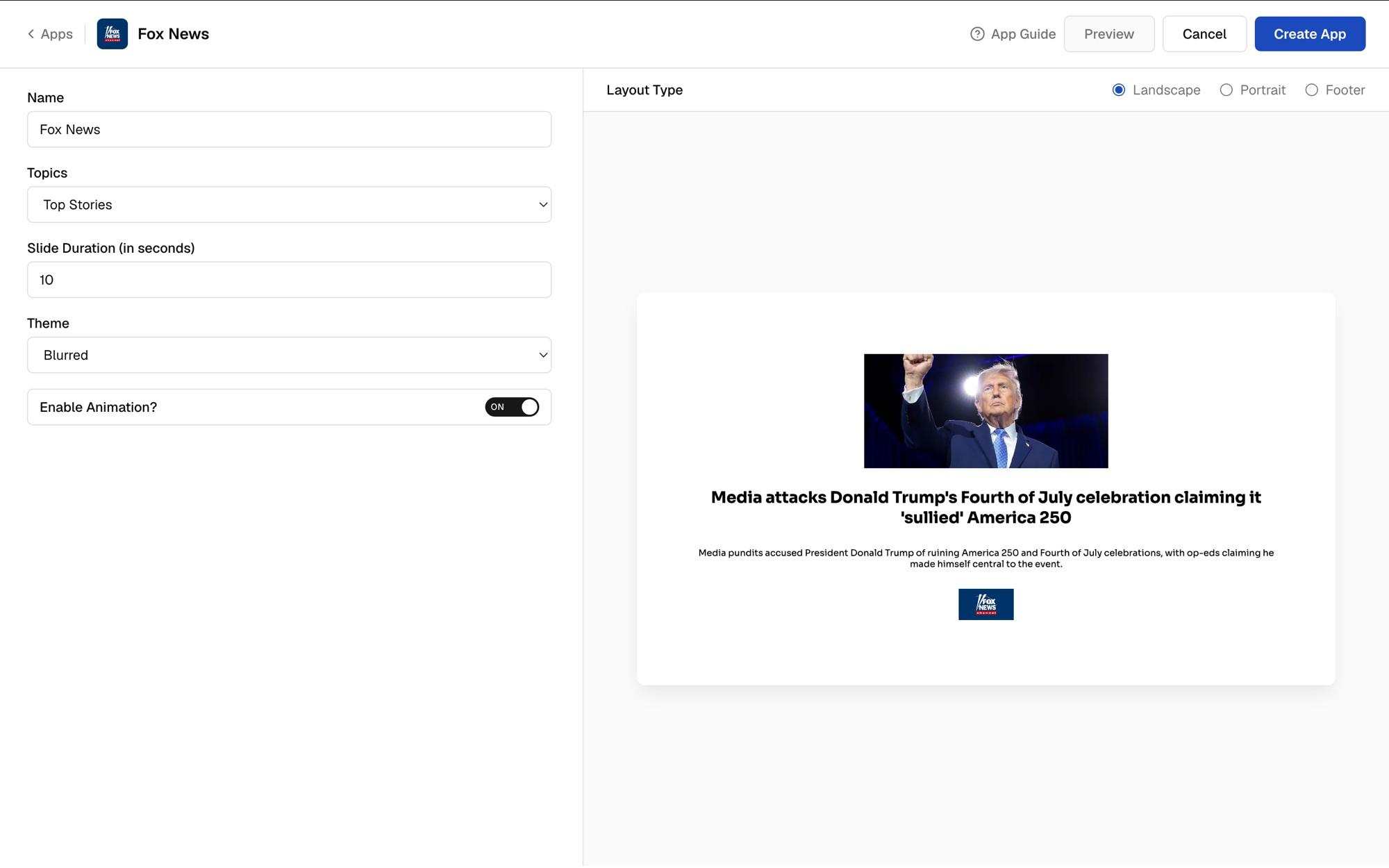
  <Step title="Enable animation (optional)">
    Toggle **Enable Animation** on if you want the slide to animate in.
    <Frame>
      <img src="https://cdn.pickcel.com/images/pickcel-docs/fox-news/fox-news-11-enable-animation.S7_1BcB0OXE-.png" alt="Enable Animation toggle" />
    </Frame>
  </Step>

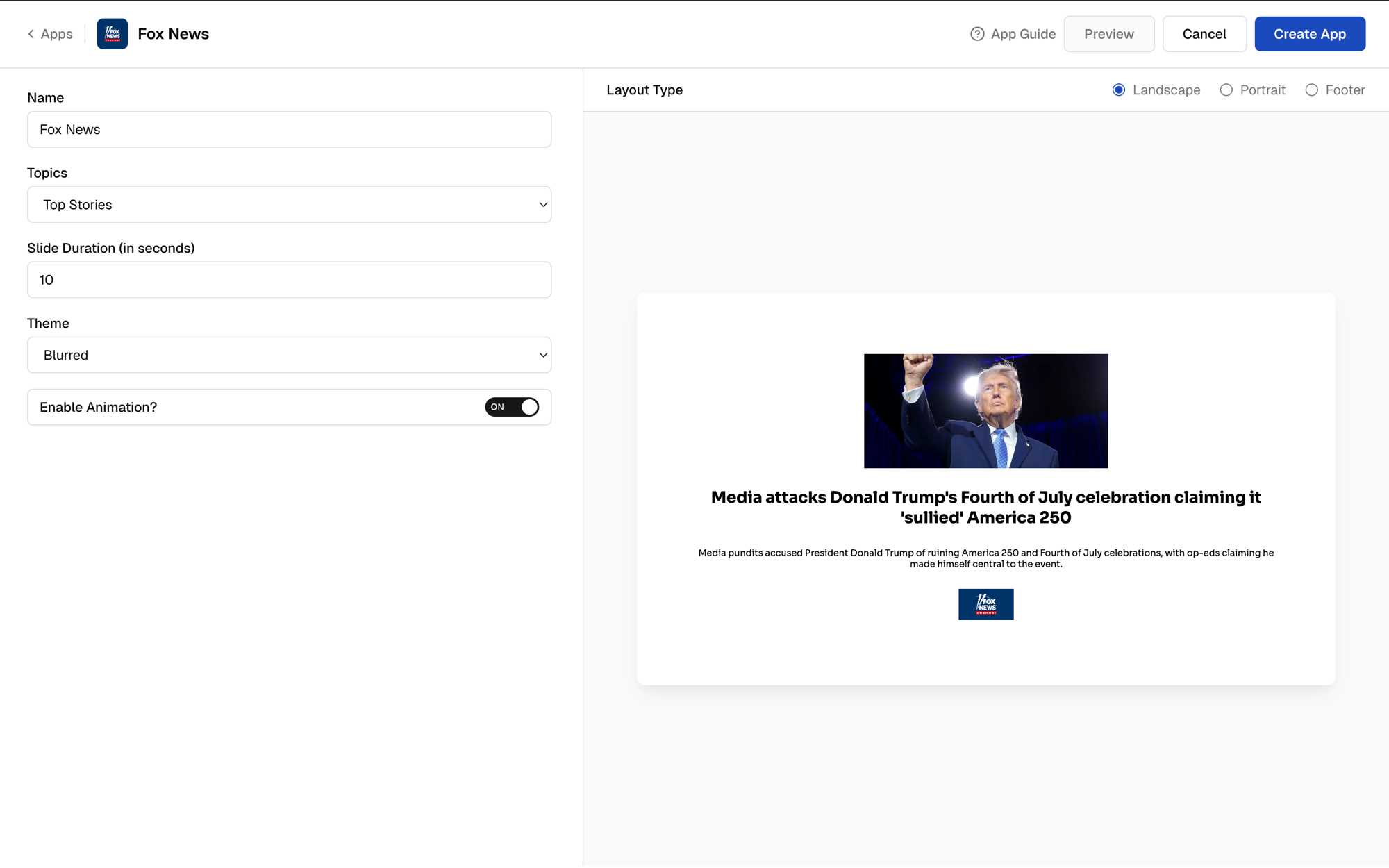
  <Step title="Choose a layout type">
    Pick the **Layout Type** that matches your screen.
    <Tabs>
      <Tab title="Landscape">
        <Frame>
          <img src="https://cdn.pickcel.com/images/pickcel-docs/fox-news/fox-news-12-layout-landscape.S7_1BcB0OXE-.png" alt="Landscape layout type" />
        </Frame>
      </Tab>

      <Tab title="Portrait">
        <Frame>
          <img src="https://cdn.pickcel.com/images/pickcel-docs/fox-news/fox-news-13-layout-portrait.sMFmlsLZoFIa.png" alt="Portrait layout type" />
        </Frame>
      </Tab>

      <Tab title="Footer">
        <Frame>
          <img src="https://cdn.pickcel.com/images/pickcel-docs/fox-news/fox-news-14-layout-footer.OGkuMFUtQW0Z.png" alt="Footer layout type" />
        </Frame>
      </Tab>
    </Tabs>
  </Step>

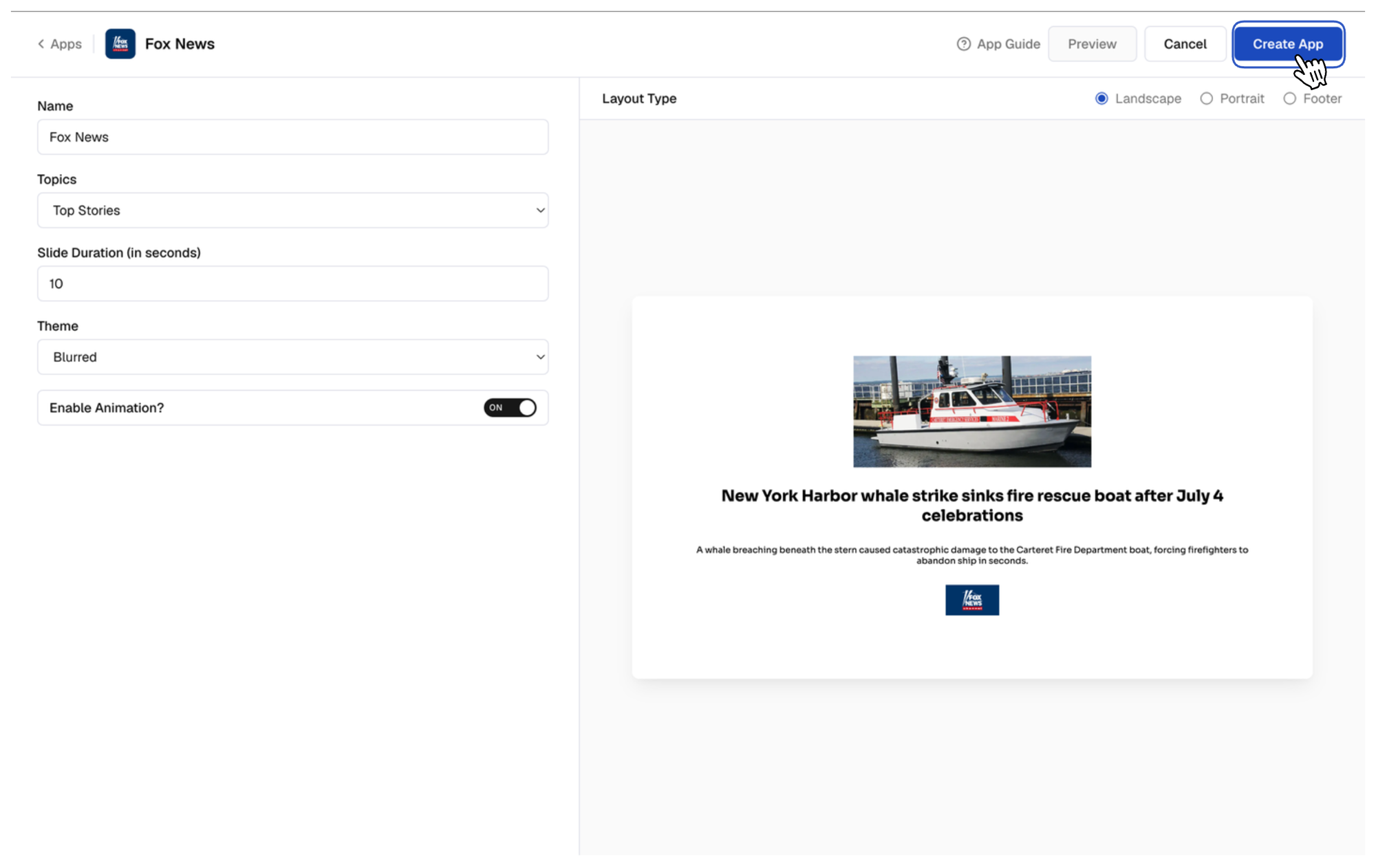
  <Step title="Create the app">
    Once you're happy with the result, click **Create App**.
    <Frame>
      <img src="https://cdn.pickcel.com/images/pickcel-docs/fox-news/fox-news-15-create-app-button.HbECQjlj2FOc.png" alt="Click Create App" />
    </Frame>

    Your Fox News app is now ready to use.
  </Step>
</Steps>

## What's Next?

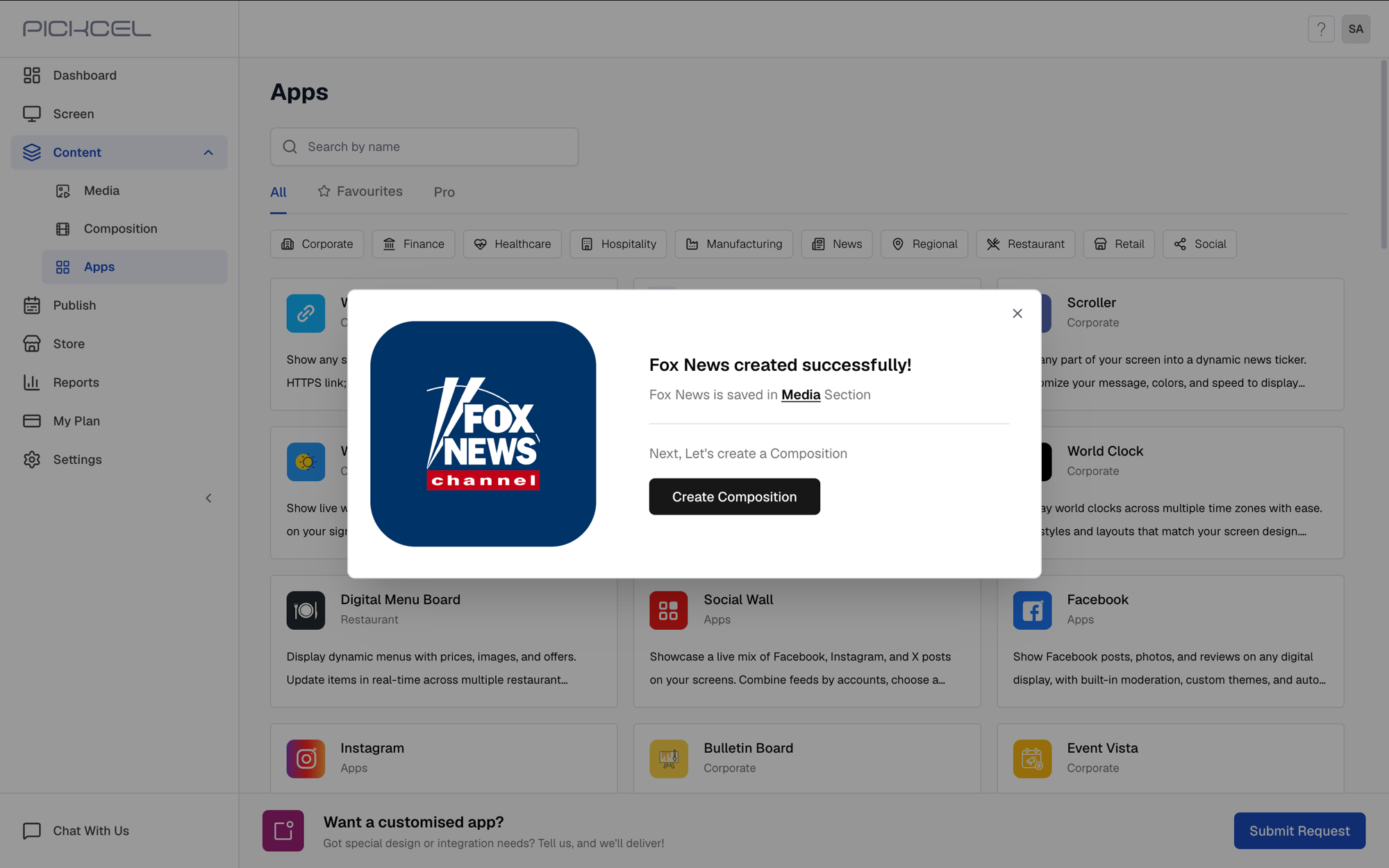
Use the app to create a composition, or preview it first.

Click **Create Composition** right after creating the app to add it to a layout.
<Frame>
  <img src="https://cdn.pickcel.com/images/pickcel-docs/fox-news/fox-news-16-app-created-success.3QivuAD-cUV-.png" alt="App created successfully, with option to create a composition" />
</Frame>

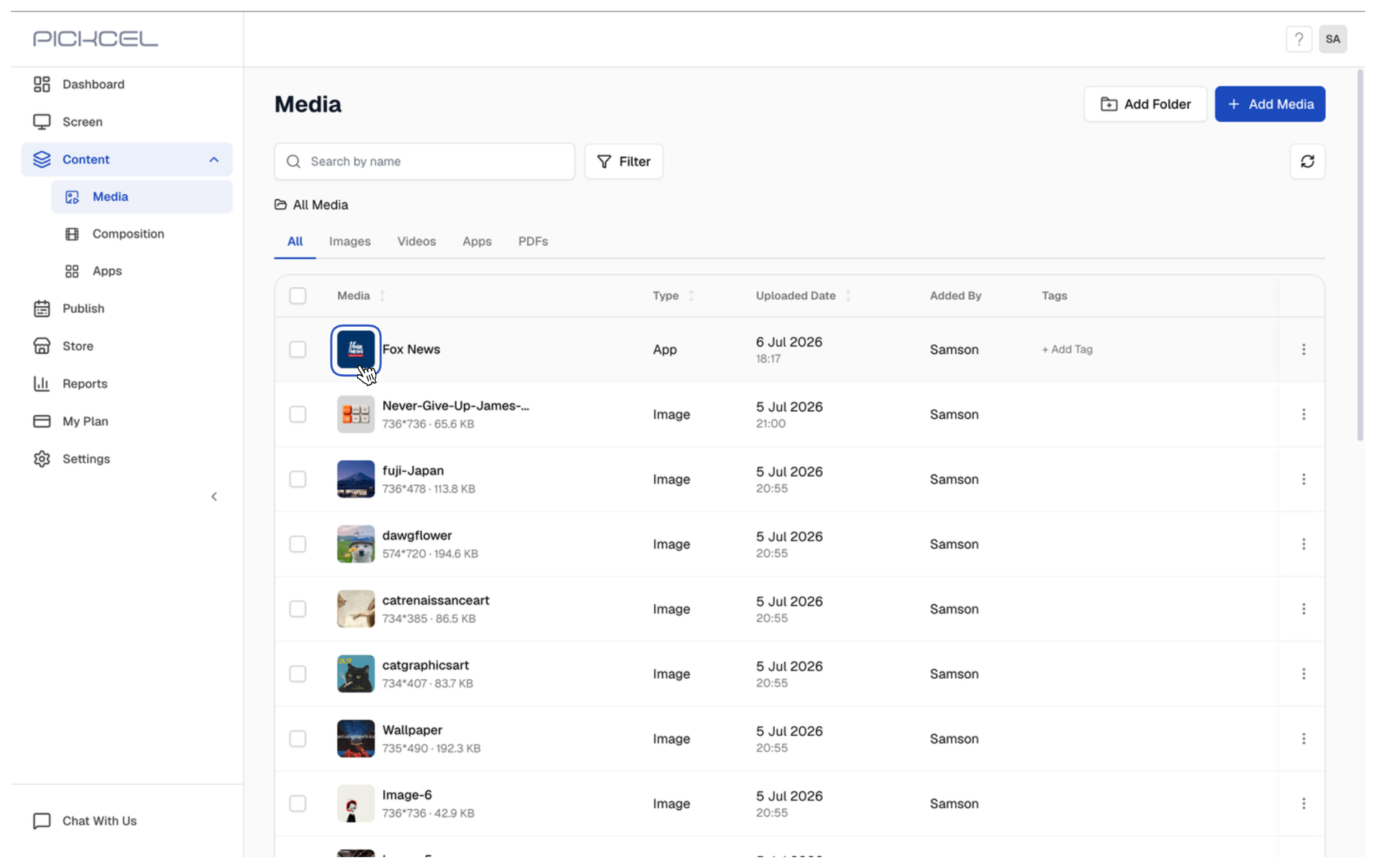
Or go to **Media**, click the app's thumbnail to preview it, and assign it to a composition later.
<Frame>
  <img src="https://cdn.pickcel.com/images/pickcel-docs/fox-news/fox-news-17-preview-from-media-list.TlB4PfgSy11F.png" alt="Fox News app in the Media list, ready to preview" />
</Frame>

<Note>
  * Learn about [Compositions](/compositions/compositions)
  * Learn how to [Publish or Schedule Content](/schedule-and-publish/publish-overview)
</Note>