> ## Documentation Index
> Fetch the complete documentation index at: https://docs.pickcel.com/llms.txt
> Use this file to discover all available pages before exploring further.
# How to add the Facebook app from the Pickcel app store
> Learn how to connect your Facebook Business Page to display posts on your digital signage screens
 Learn more about [Pickcel Facebook app functionality](https://www.pickcel.com/digital-signage-apps/facebook-plus-feeds.html).
You must have a Facebook Business Page in order to use this application.
[Login to your Pickcel account](https://console.pickcel.com/). Open **Apps** and search for **Facebook**.
Learn more about [Pickcel Facebook app functionality](https://www.pickcel.com/digital-signage-apps/facebook-plus-feeds.html).
You must have a Facebook Business Page in order to use this application.
[Login to your Pickcel account](https://console.pickcel.com/). Open **Apps** and search for **Facebook**.
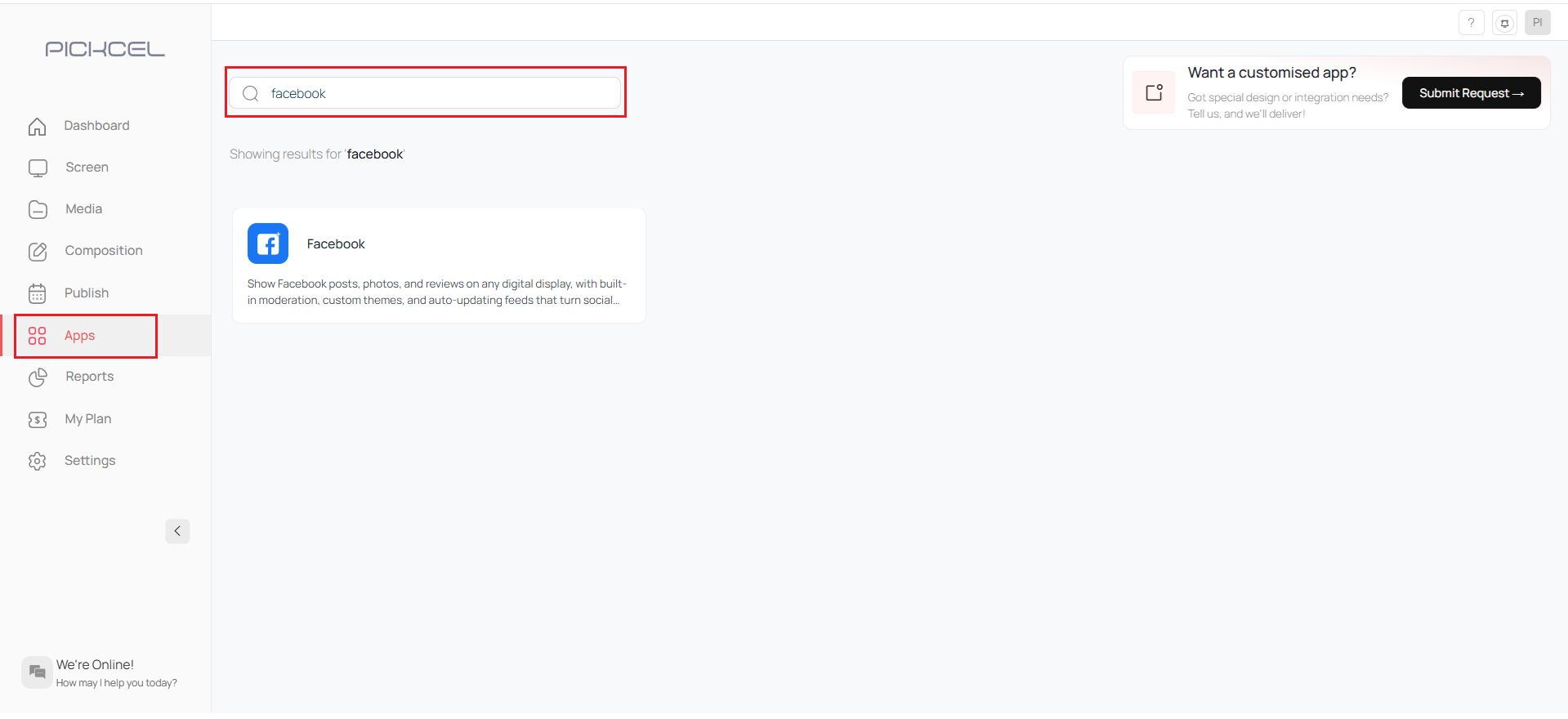 click on the **Create App** button.
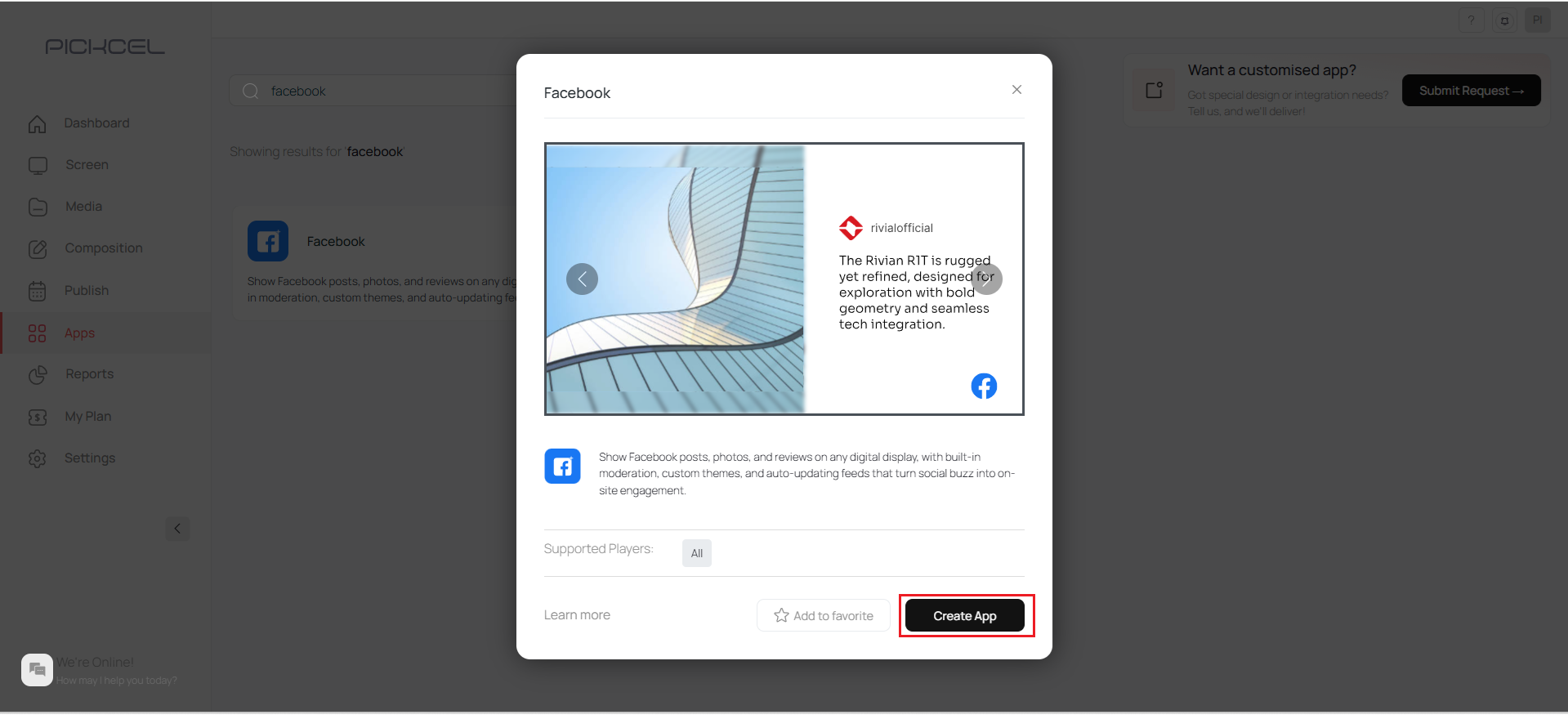 Click on the **Connect** button to log in to your Facebook account.
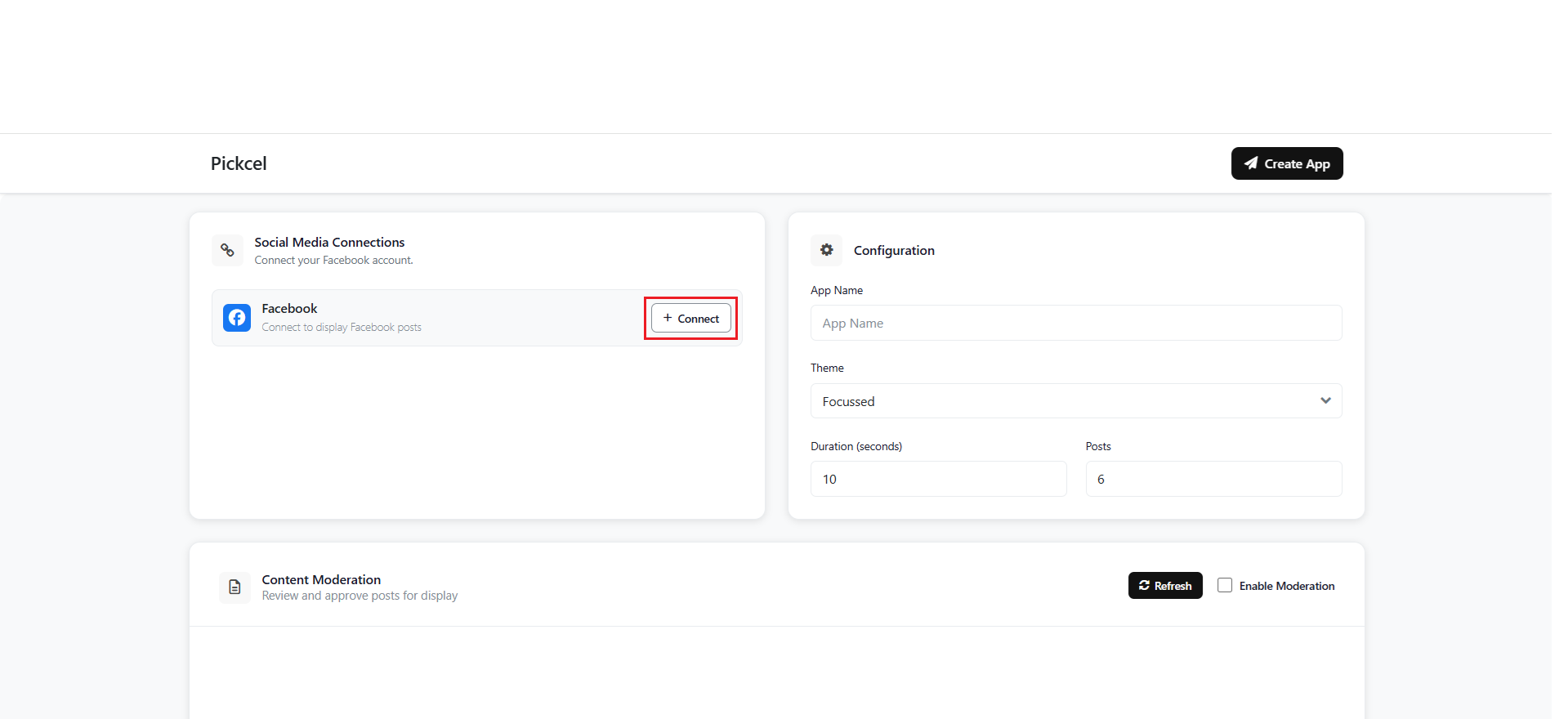 Enter your Facebook e-mail and password > Click on **Login**.
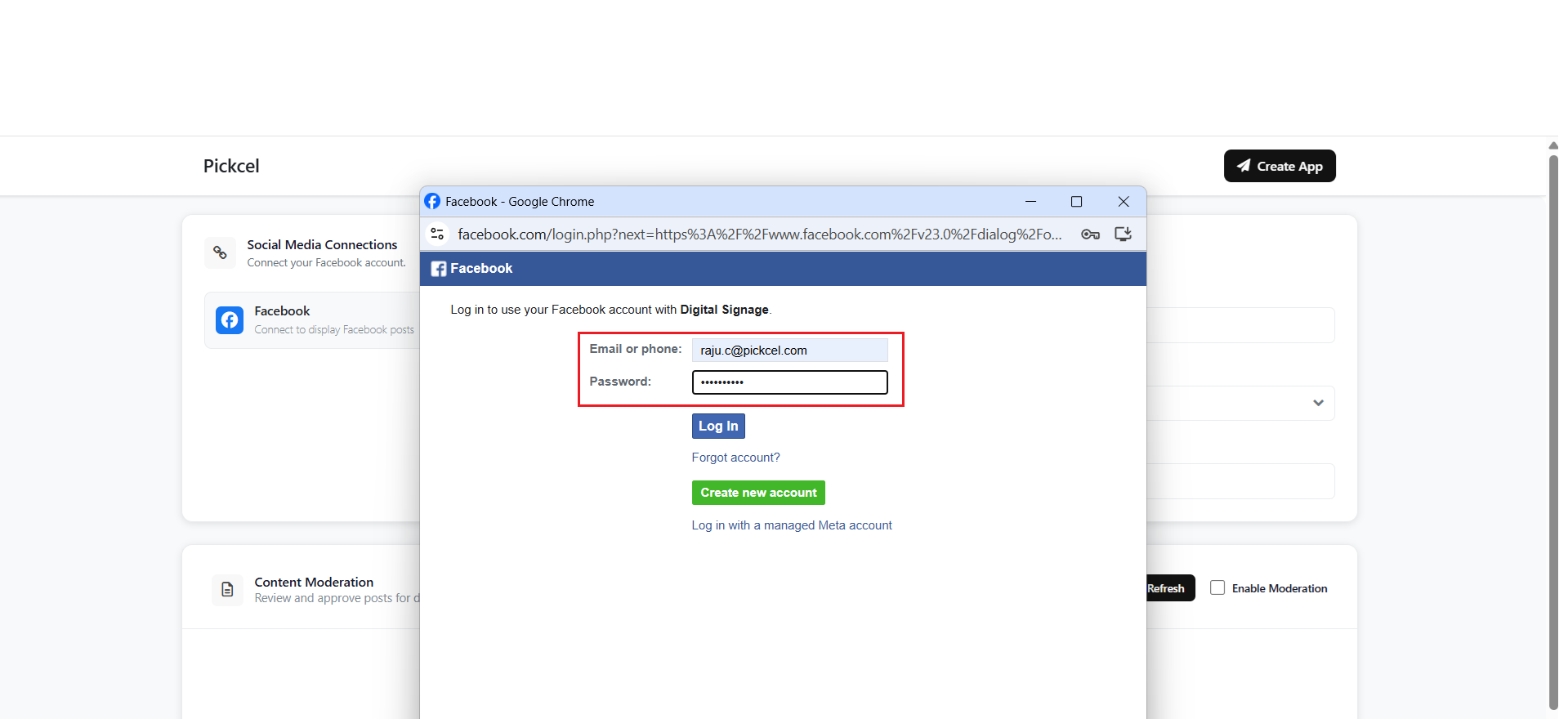 After a successful connection, all your Facebook pages will be displayed. Select a page to view its posts, which will then appear below.
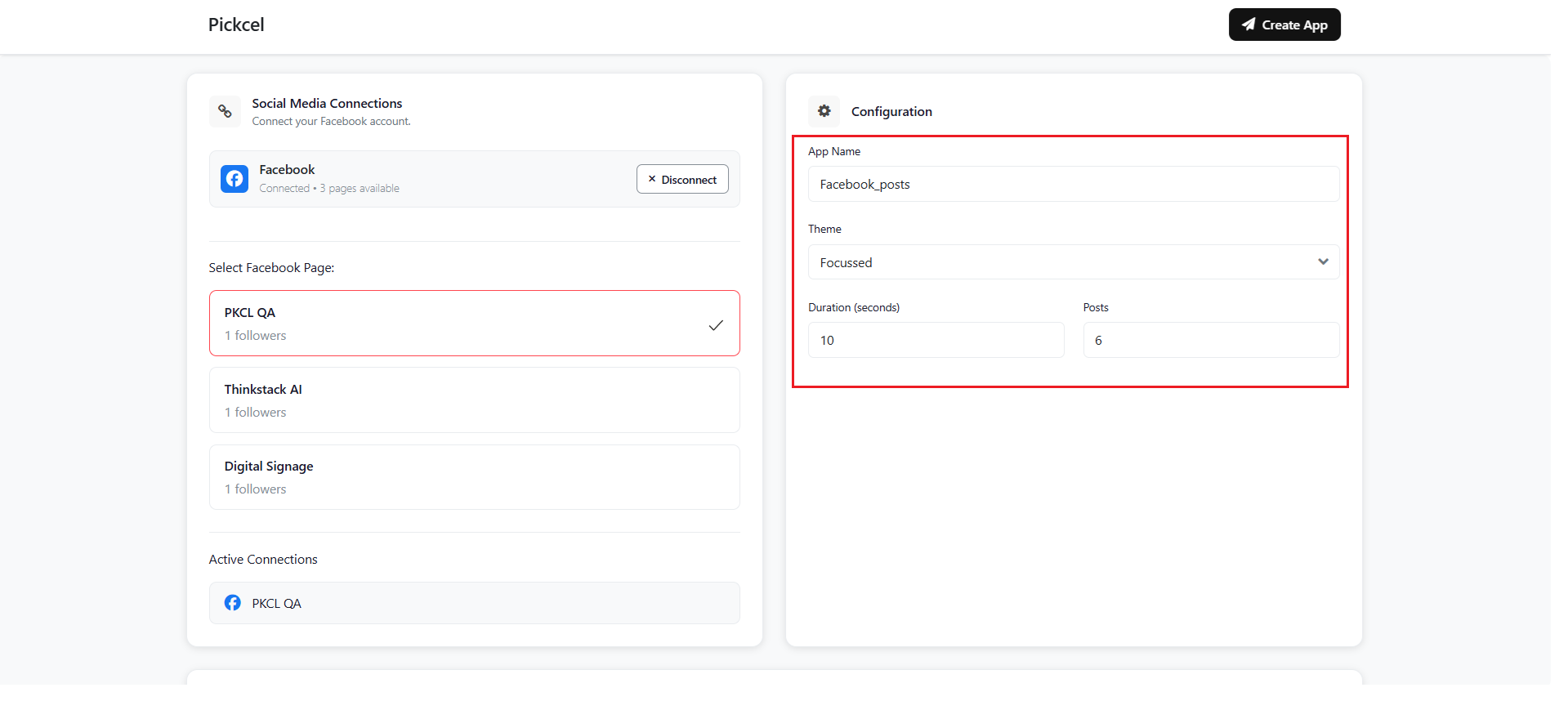
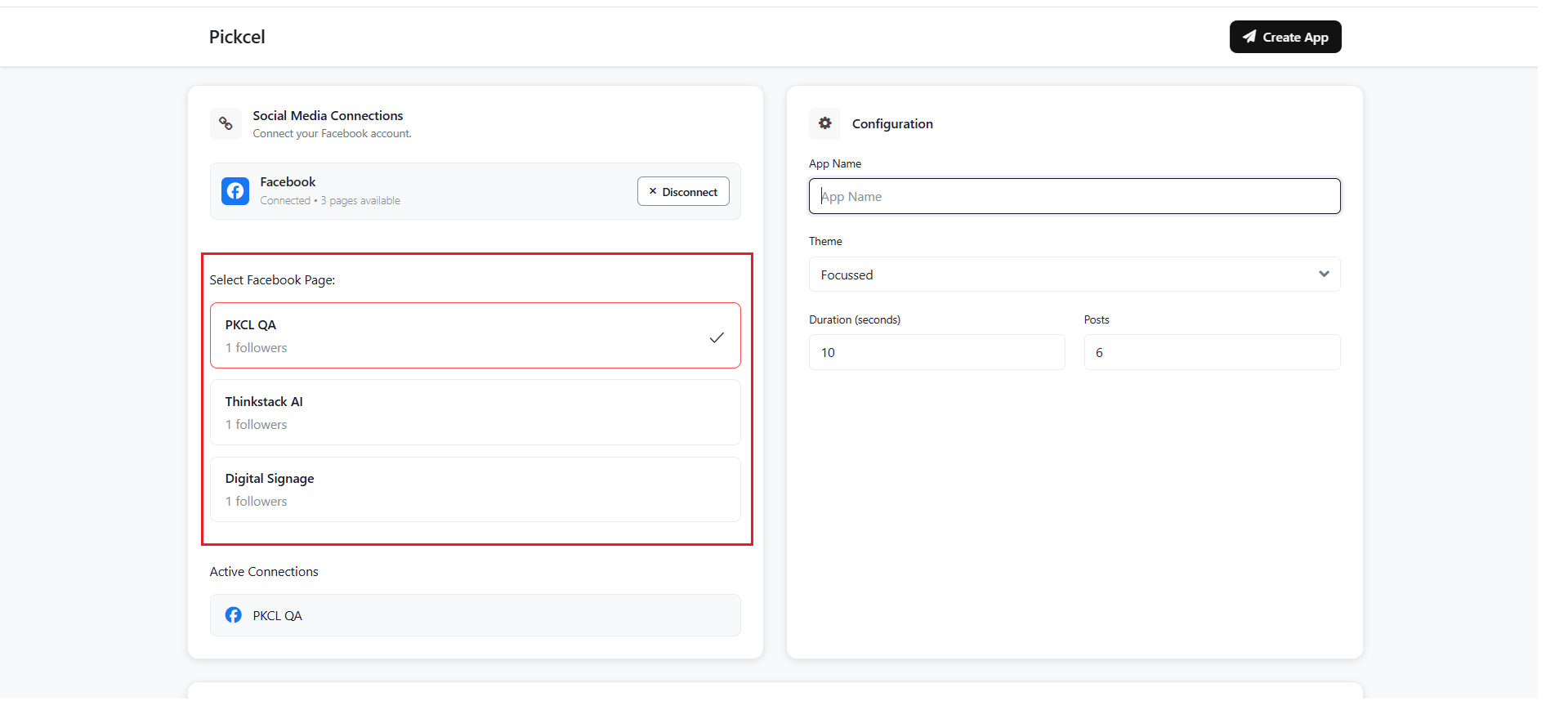 Enter the app name, choose a theme (focused or multi-posts), enter the post duration and number of posts to display on screen.
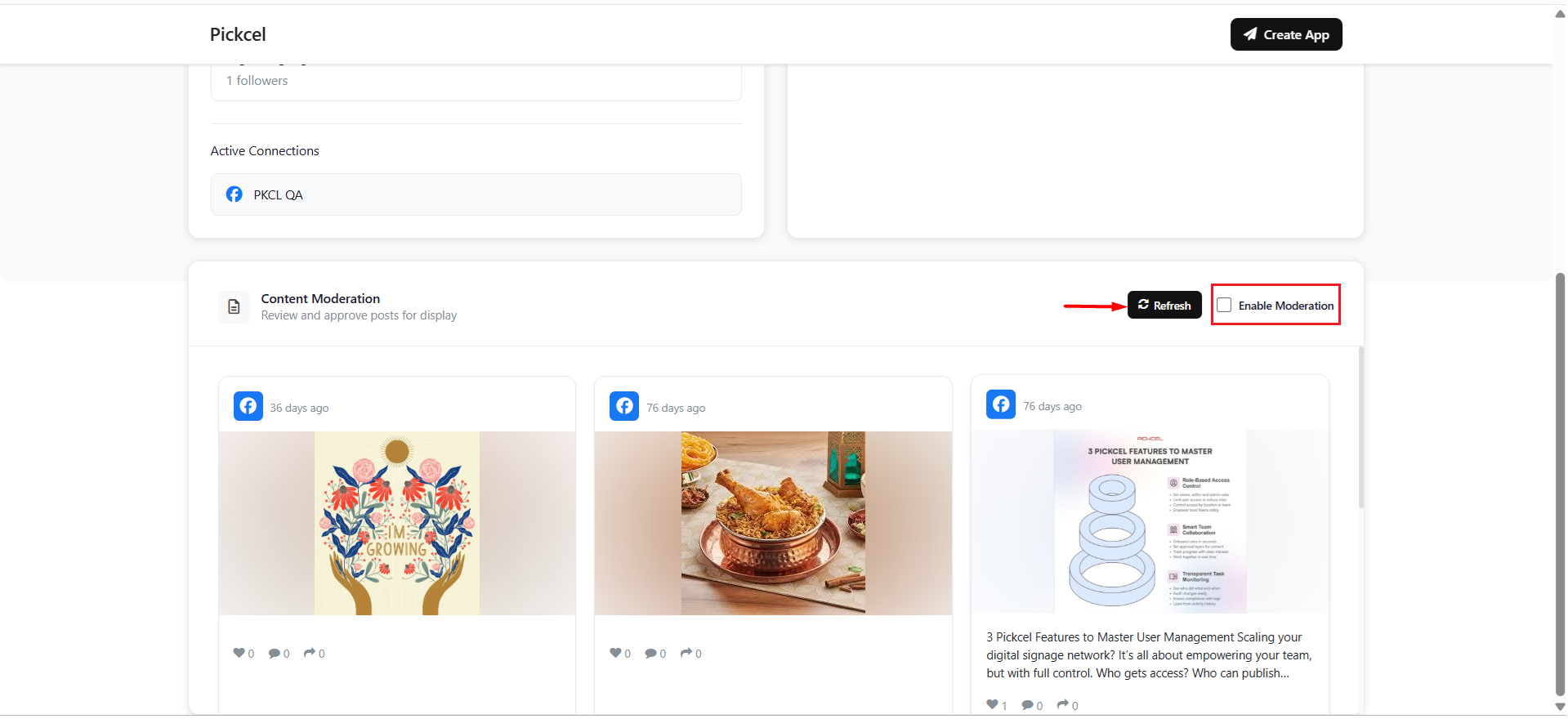
 Then click on the **Refresh** button to fetch the latest post from the Facebook page and you can enable the moderation option if needed.
You may or may not enable **Moderation**. The moderation option allows you to manually select your Facebook posts. If the option is disabled, Facebook posts are prompted automatically in the order of newest to oldest.
Then click on the **Refresh** button to fetch the latest post from the Facebook page and you can enable the moderation option if needed.
You may or may not enable **Moderation**. The moderation option allows you to manually select your Facebook posts. If the option is disabled, Facebook posts are prompted automatically in the order of newest to oldest.
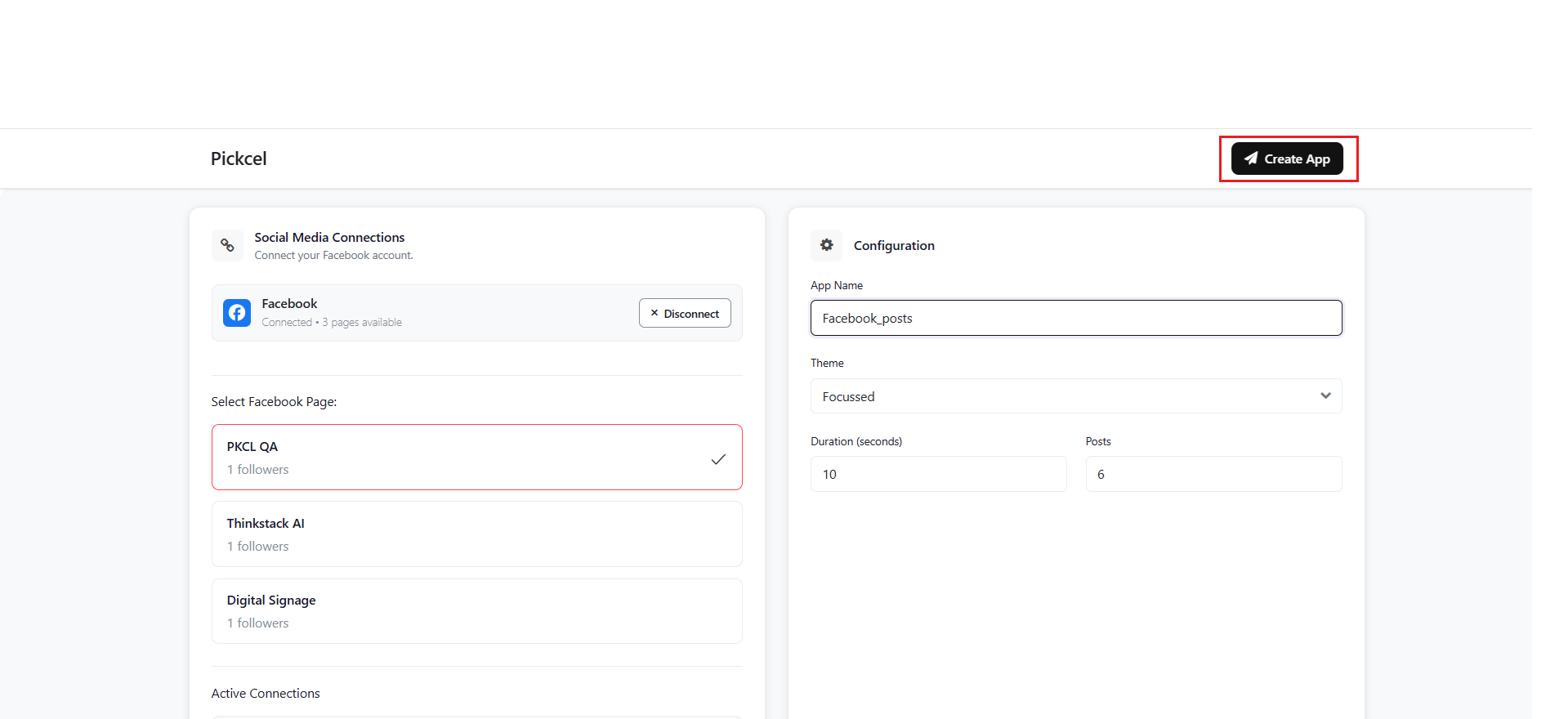
 Configure the app with the required information and click on **Create App**.
 Users can select the post from the Admin Dashboard if the **Moderation** option is enabled.
Your Facebook app is now ready to be published on your screen.
Users can select the post from the Admin Dashboard if the **Moderation** option is enabled.
Your Facebook app is now ready to be published on your screen.