> ## Documentation Index
> Fetch the complete documentation index at: https://docs.pickcel.com/llms.txt
> Use this file to discover all available pages before exploring further.
# How to add the Zoom (Event Stream) app from the Pickcel App Store?
> Live stream Zoom meetings to your digital signage screens using Pickcel's Event Stream app and Zoom's custom live streaming option.
Using Pickcel's **Event Stream** app, you can live stream any Zoom meeting across your screens.
You need a **paid Zoom account**, and **live streaming must be enabled** in your Zoom account settings. If it isn't enabled yet, turn on custom live streaming in your Zoom account first.
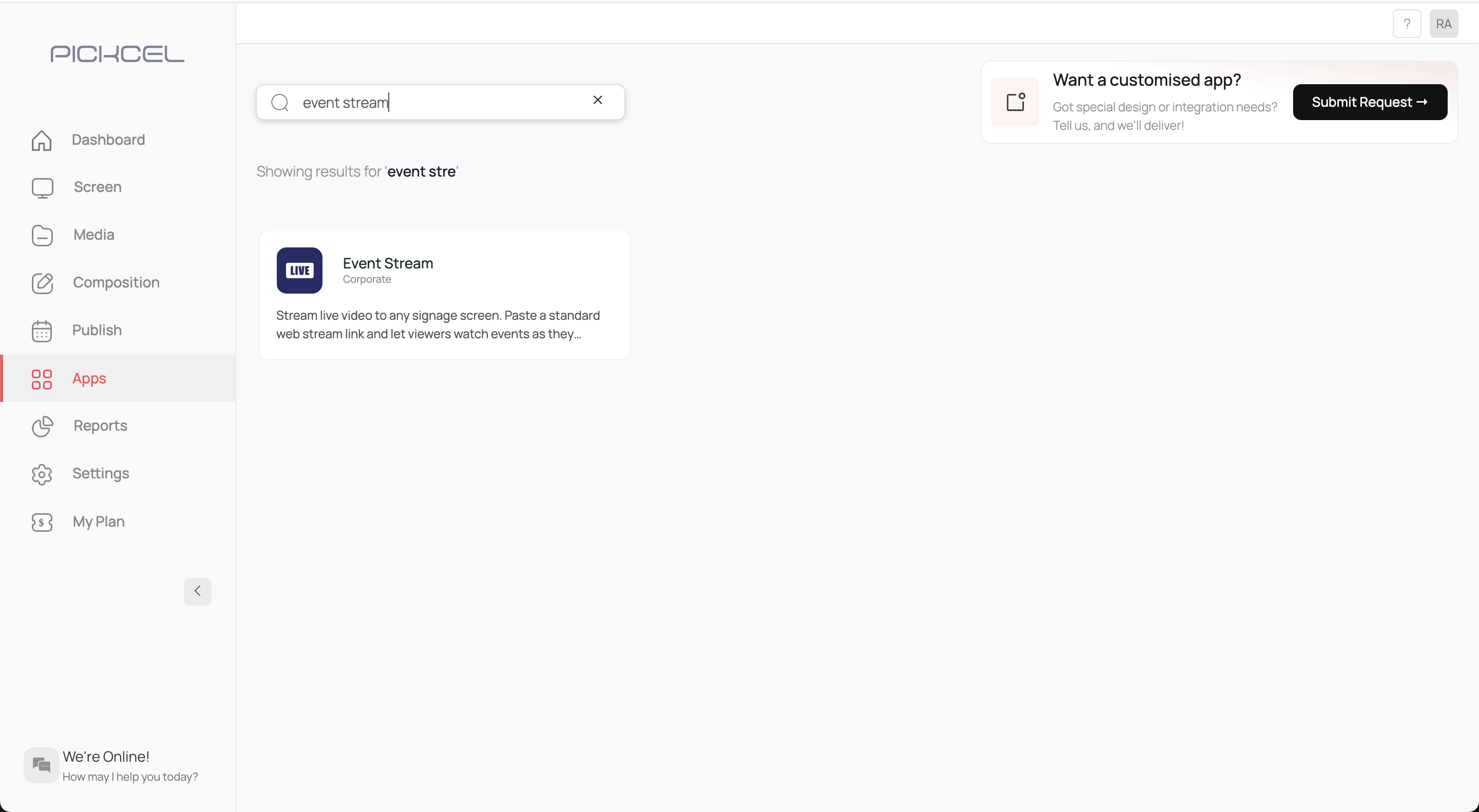
[Login to your Pickcel account](https://console.pickcel.com/), go to the **Apps** module, and search for the **Event Stream** app using the search field.
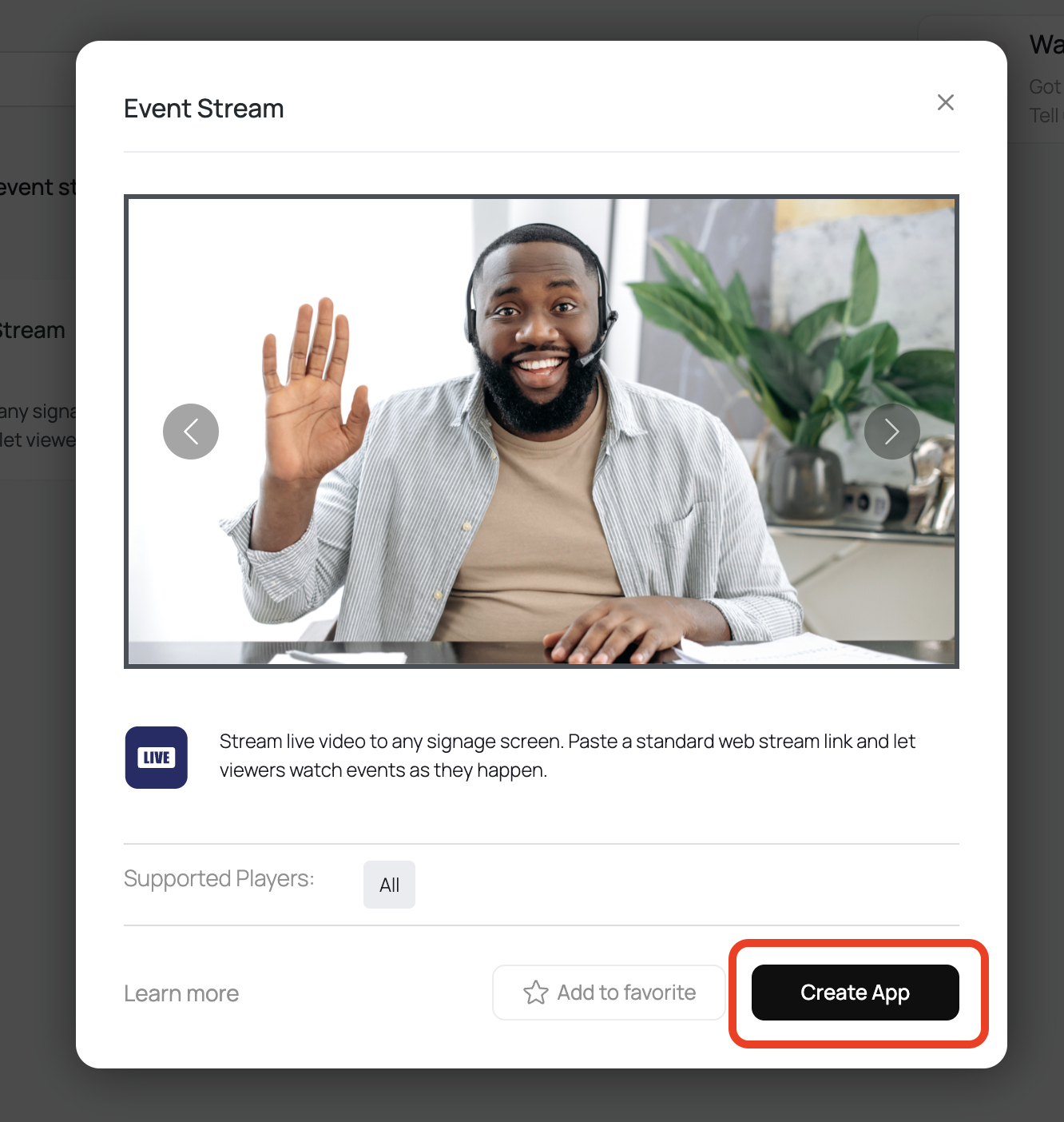
 Click the app thumbnail and click **Create App**.
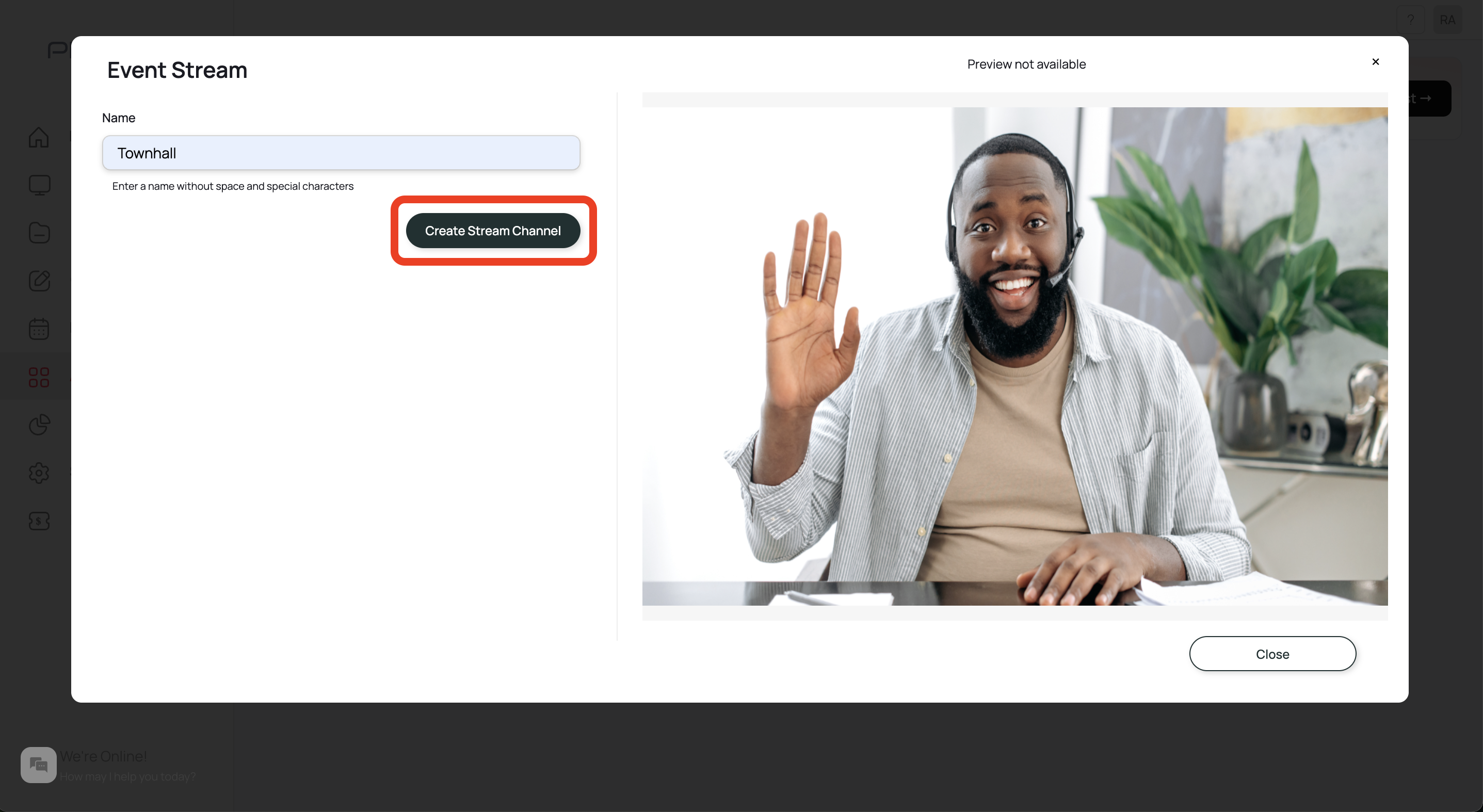
 Enter a **name** for the app (no spaces or special characters), then click **Create Stream Channel**.
 You'll see the **credentials** required to live stream the Zoom meeting. Keep these handy for the next steps.
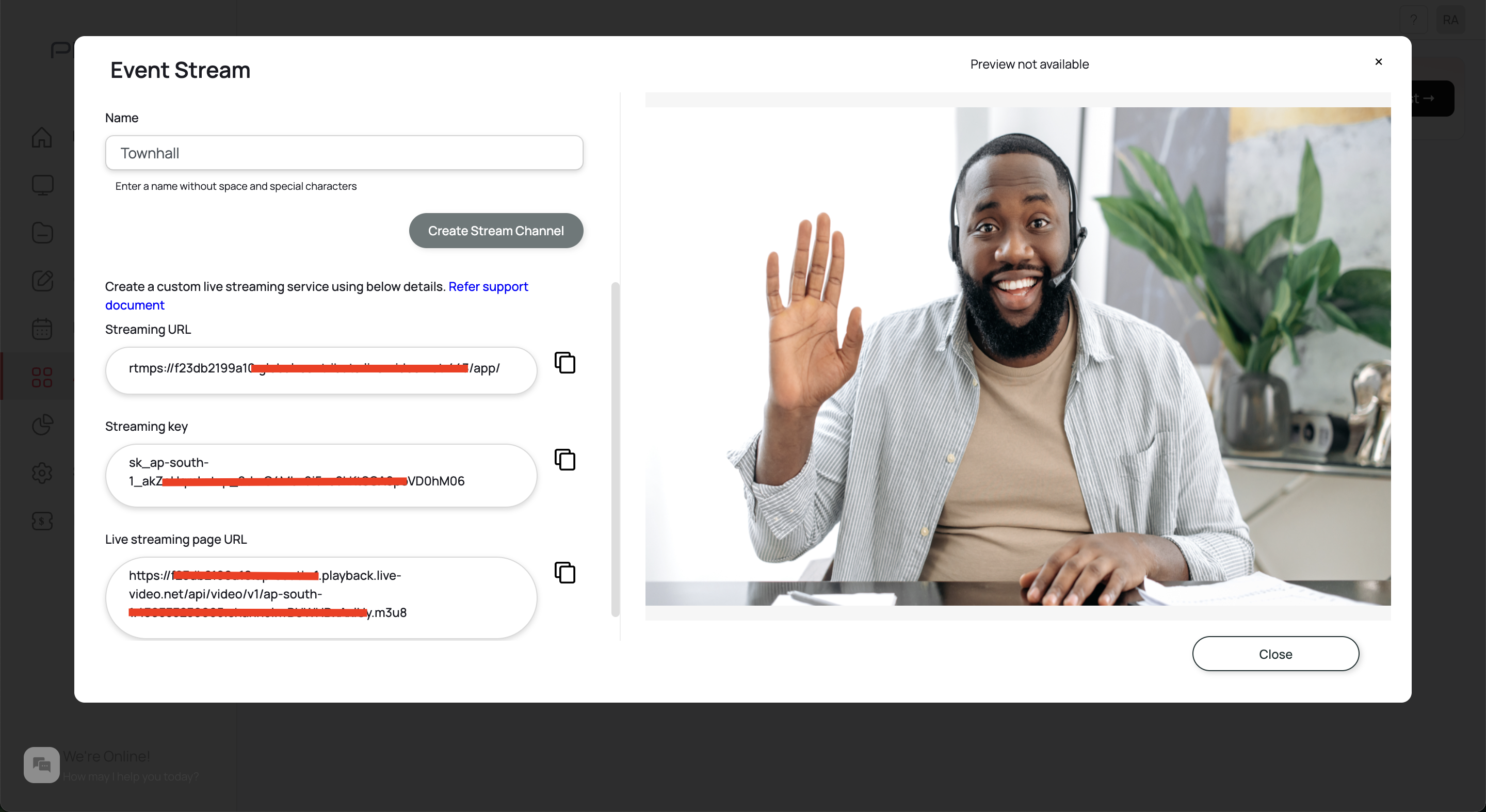 [Create a composition](/compositions/compositions), add this app to it, and assign it to a screen using [Quick Play](/schedule-and-publish/quick-play) or a [schedule](/schedule-and-publish/publish-v4).
The screen may show a black screen until the meeting starts and live streaming is configured.
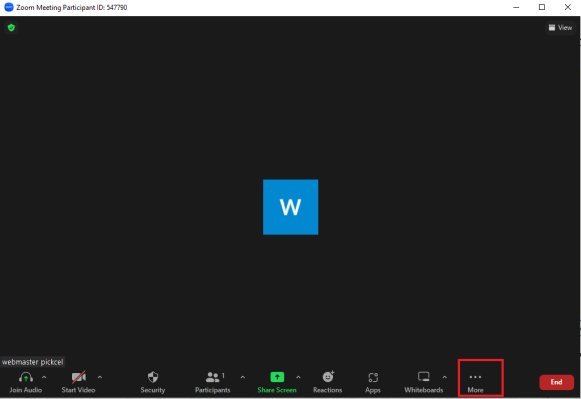
**Start** your Zoom meeting, then click **More** in the meeting toolbar.
[Create a composition](/compositions/compositions), add this app to it, and assign it to a screen using [Quick Play](/schedule-and-publish/quick-play) or a [schedule](/schedule-and-publish/publish-v4).
The screen may show a black screen until the meeting starts and live streaming is configured.
**Start** your Zoom meeting, then click **More** in the meeting toolbar.
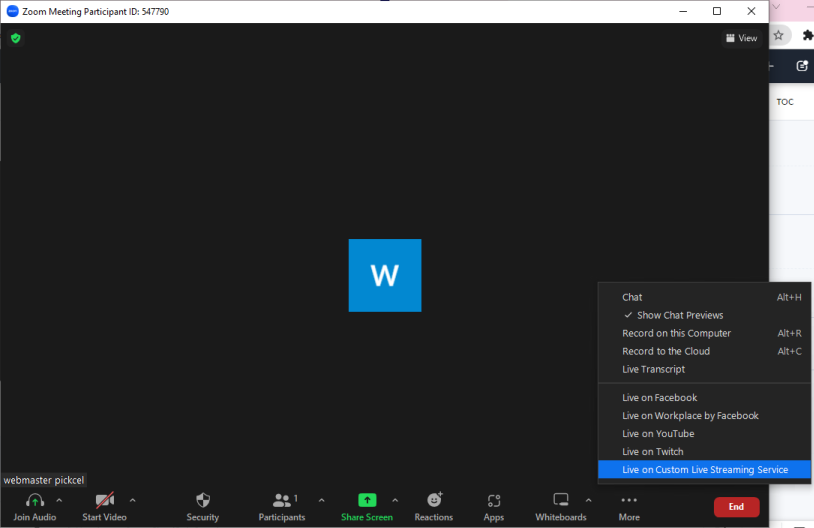
 From the **More** menu, choose **Live on Custom Live Streaming Service**.
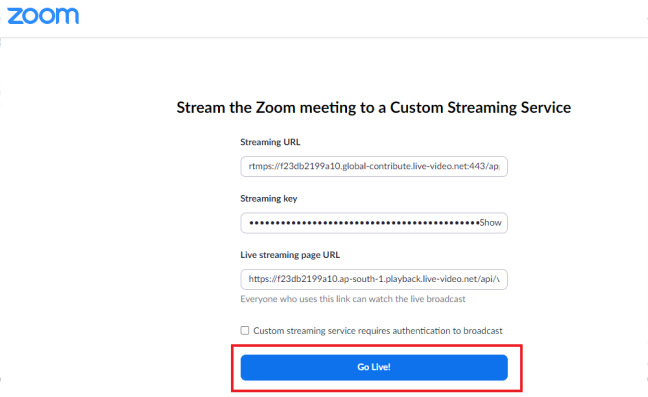
 In the form that opens, enter the credentials from Step 4, then click **Go Live!** Once it confirms, the meeting starts playing on every screen assigned the matching composition.