> ## Documentation Index
> Fetch the complete documentation index at: https://docs.pickcel.com/llms.txt
> Use this file to discover all available pages before exploring further.
# How to Stream a Microsoft Teams Town Hall on Digital Signage Using OBS and Pickcel?
> Live stream a Microsoft Teams town hall to your digital signage screens using Pickcel's Event Stream app and OBS Studio.
Using Pickcel's **Event Stream** app together with **OBS Studio**, you can live stream a Microsoft Teams town hall across your screens.
Town halls don't support the in-meeting **Custom Streaming** app that regular meetings and webinars use, so the stream is captured and relayed with OBS instead. If you're streaming a Teams meeting or webinar, follow the simpler [Teams Live Stream guide](/apps/event-stream/teams).
## Prerequisites
* A [Pickcel account](https://console.pickcel.com/)
* A computer that will join the town hall and run OBS. Use a dedicated computer for this: the person managing the signage joins the town hall on it, runs OBS, and streams to Pickcel, so whatever is presented in the town hall is captured and shown live on screen.
* **OBS Studio** installed on that computer. OBS is a free application that captures video and audio from your system and streams it live: [OBS for Windows](https://obsproject.com/kb/windows-installation) or [OBS for Mac](https://obsproject.com/kb/mac-installation).
[Login to your Pickcel account](https://console.pickcel.com/), go to **Apps**, and search for the **Event Stream** app using the search field.
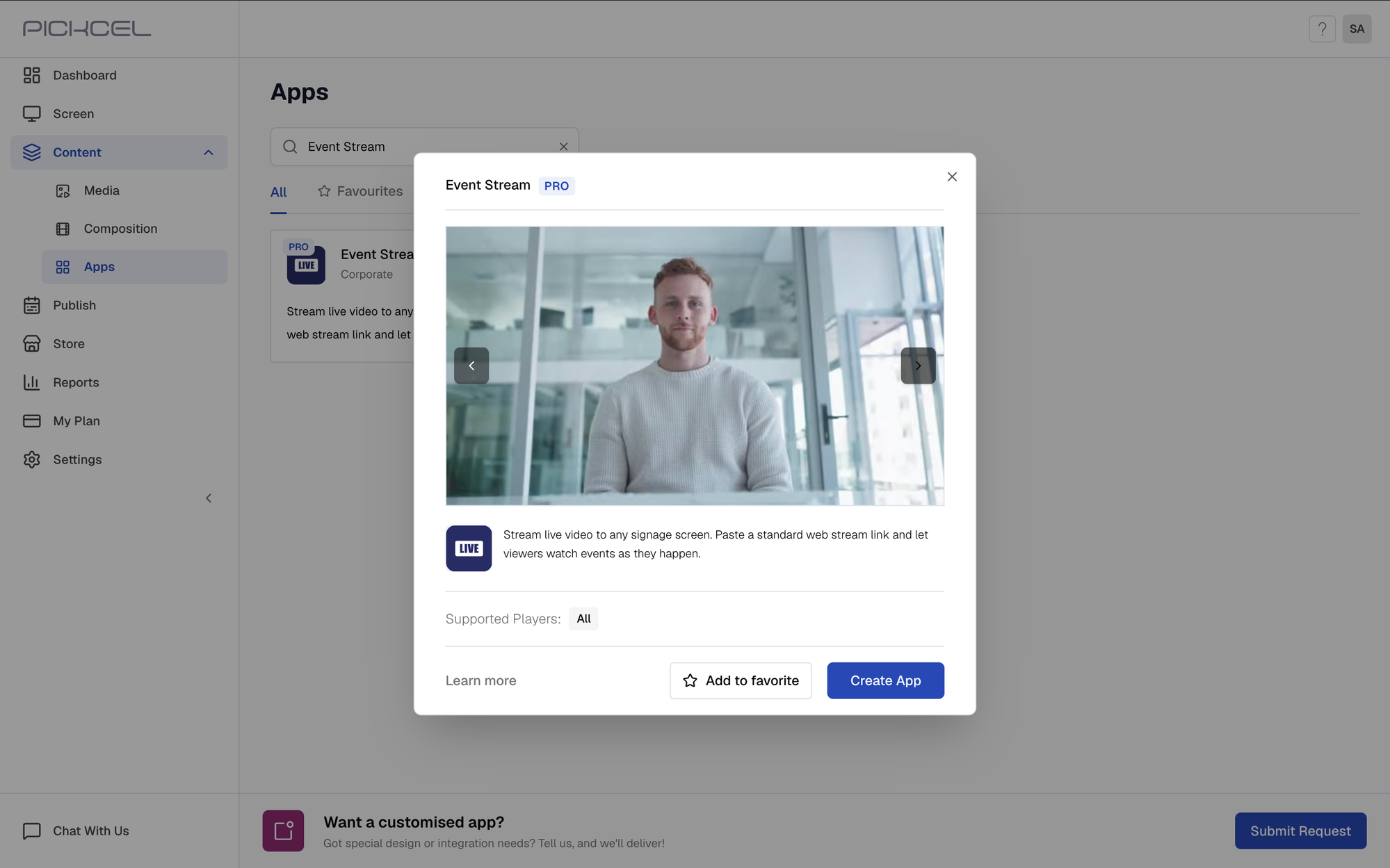
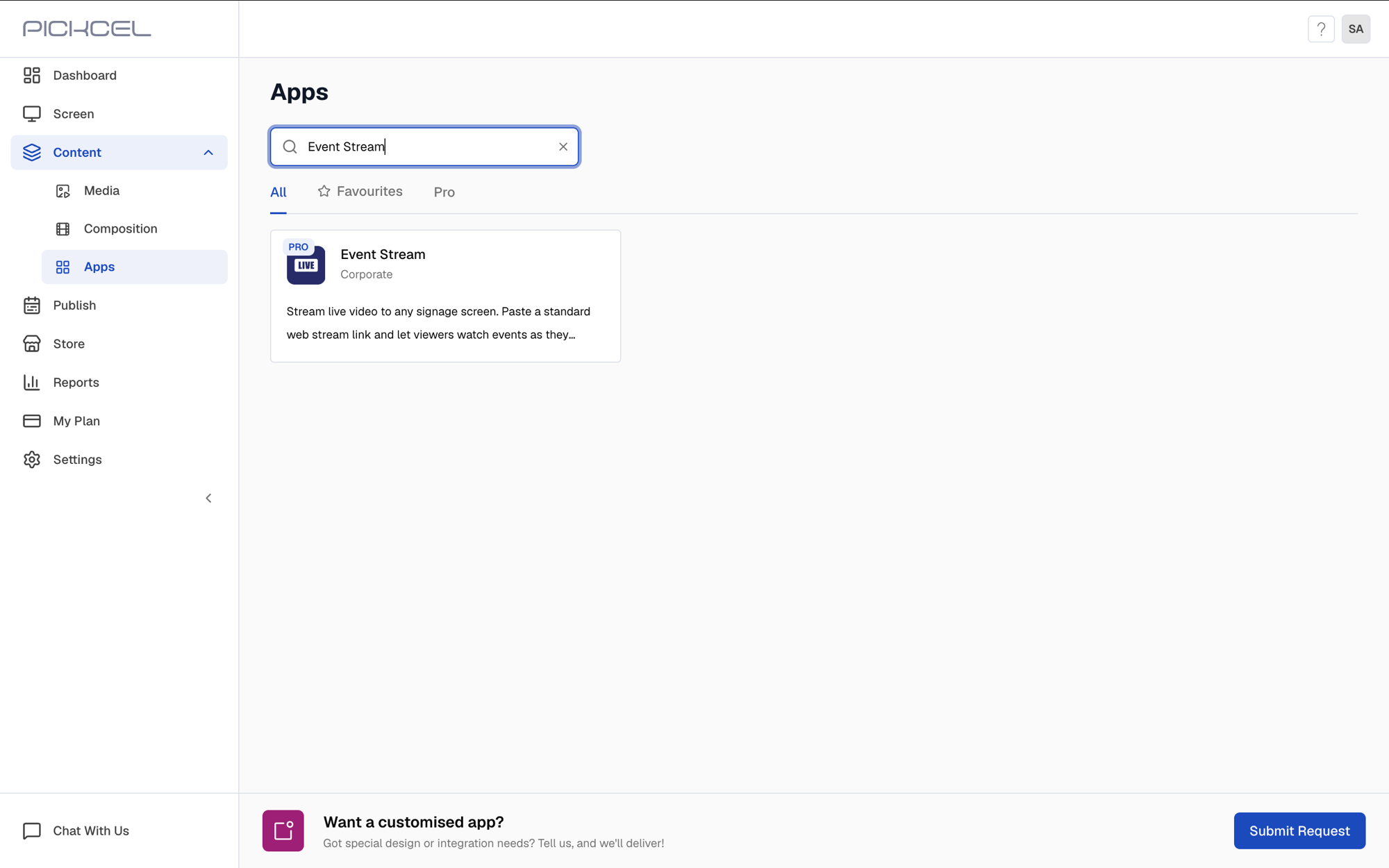 Click the app thumbnail and click **Create App**.
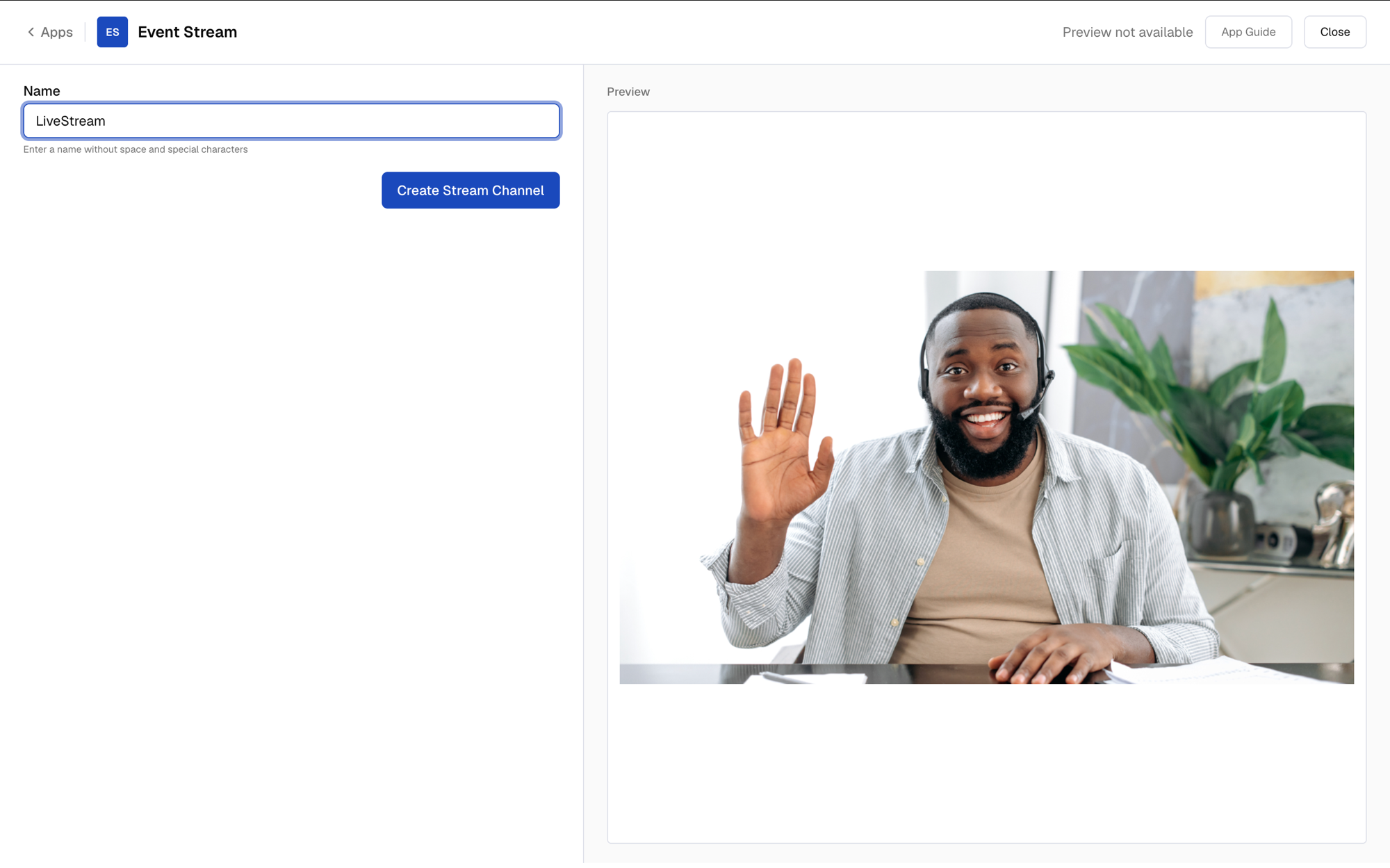
 Enter a **name** for the app, for example **MarchTownHall** (no spaces or special characters), then click **Create Stream Channel**.
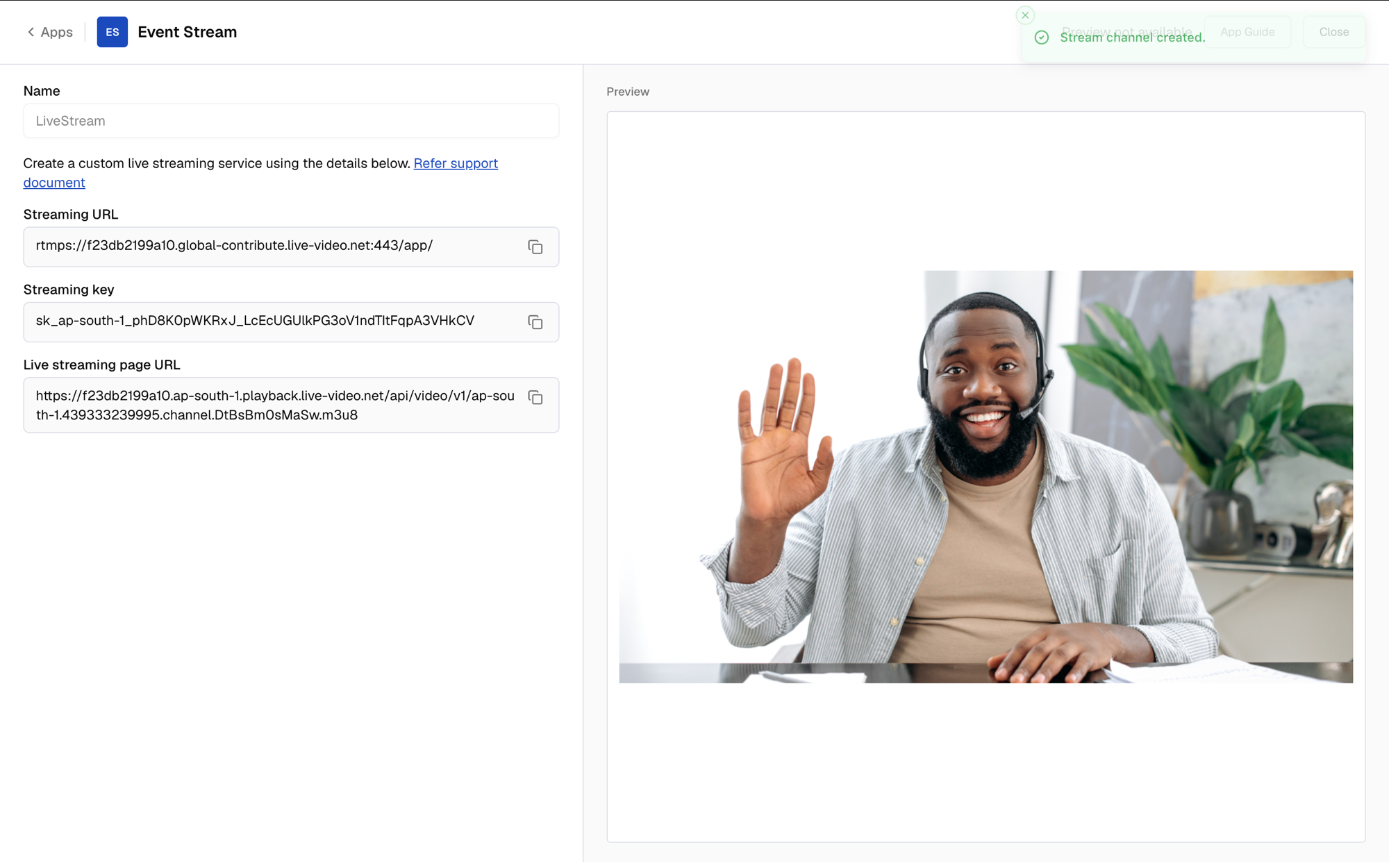
 Pickcel generates the **Streaming URL** and **Streaming key**. Keep both ready, you will paste them into OBS in a moment.
 Click **Close**. The app is automatically added to your **Media** library.
On the computer running OBS, join the Teams town hall as an attendee or viewer. This computer should play the town hall video and audio, because OBS captures both from this system.
Open **OBS Studio** and go to **Settings > Stream**.
* In the **Server** field, paste the **Streaming URL** copied from Pickcel.
* In the **Stream Key** field, paste the **Streaming key** copied from Pickcel.
Click **Close**. The app is automatically added to your **Media** library.
On the computer running OBS, join the Teams town hall as an attendee or viewer. This computer should play the town hall video and audio, because OBS captures both from this system.
Open **OBS Studio** and go to **Settings > Stream**.
* In the **Server** field, paste the **Streaming URL** copied from Pickcel.
* In the **Stream Key** field, paste the **Streaming key** copied from Pickcel.
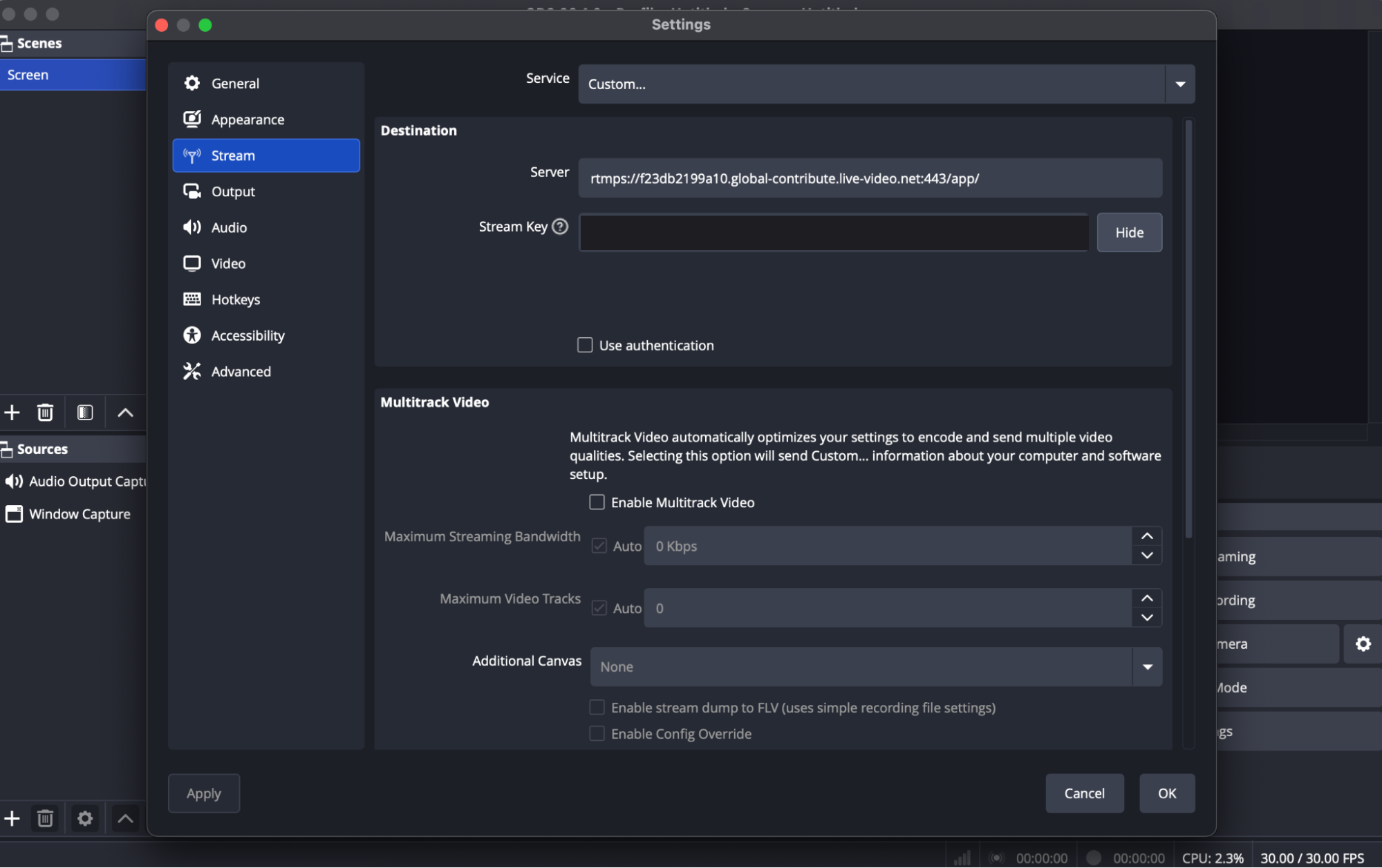 Click **OK**.
In the **Sources** panel, click the **+** icon and select **Window Capture**. Give it a name, for example **Teams Town Hall**, then pick the Microsoft Teams window where the town hall is playing from the window list and click **OK**.
Click **OK**.
In the **Sources** panel, click the **+** icon and select **Window Capture**. Give it a name, for example **Teams Town Hall**, then pick the Microsoft Teams window where the town hall is playing from the window list and click **OK**.
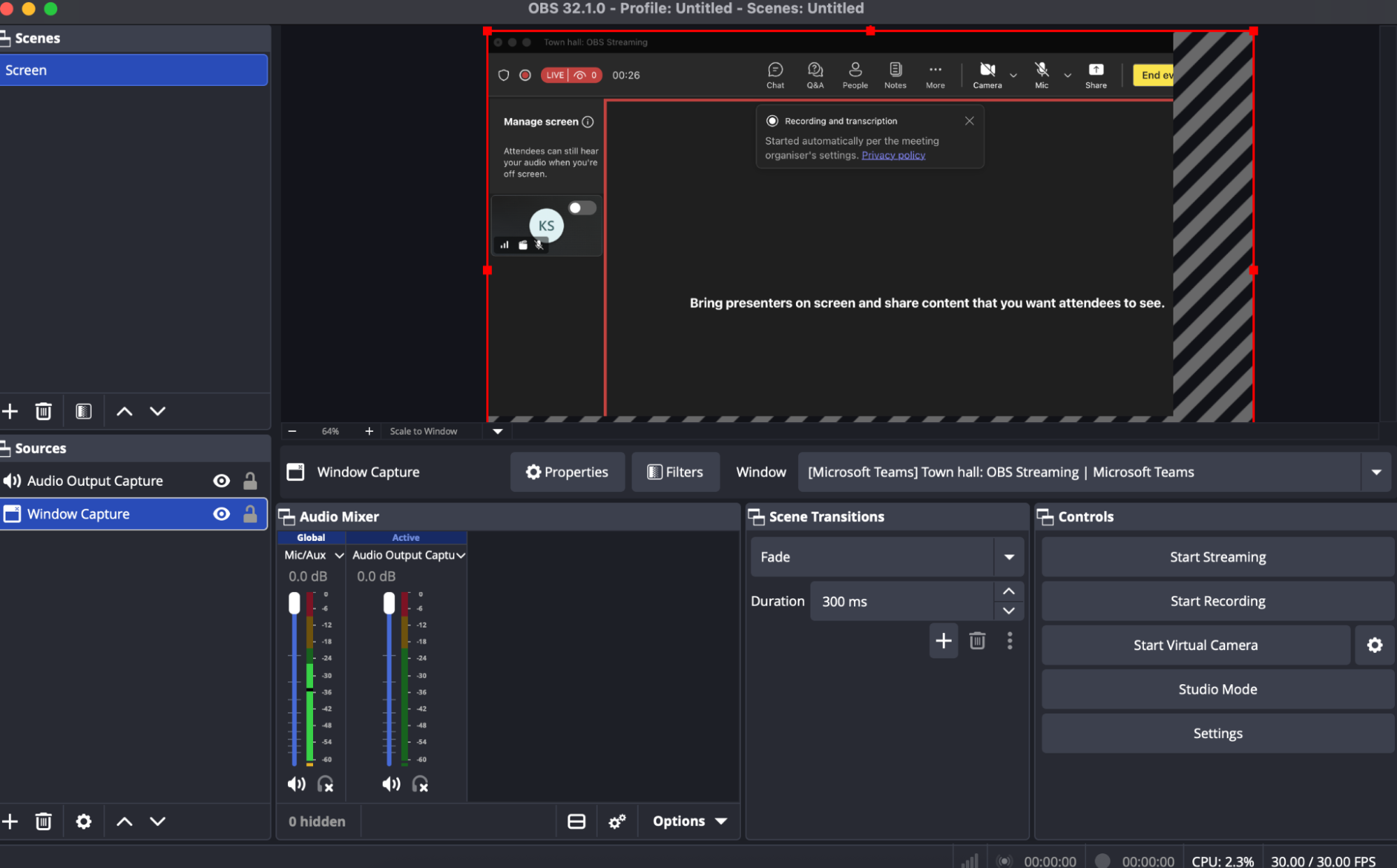 In the **Sources** panel, click **+** again and add either:
* **Application Audio Capture**, then select **Microsoft Teams**, or
* **Audio Output Capture**, then select the speaker or output device playing the town hall audio.
In the **Sources** panel, click **+** again and add either:
* **Application Audio Capture**, then select **Microsoft Teams**, or
* **Audio Output Capture**, then select the speaker or output device playing the town hall audio.
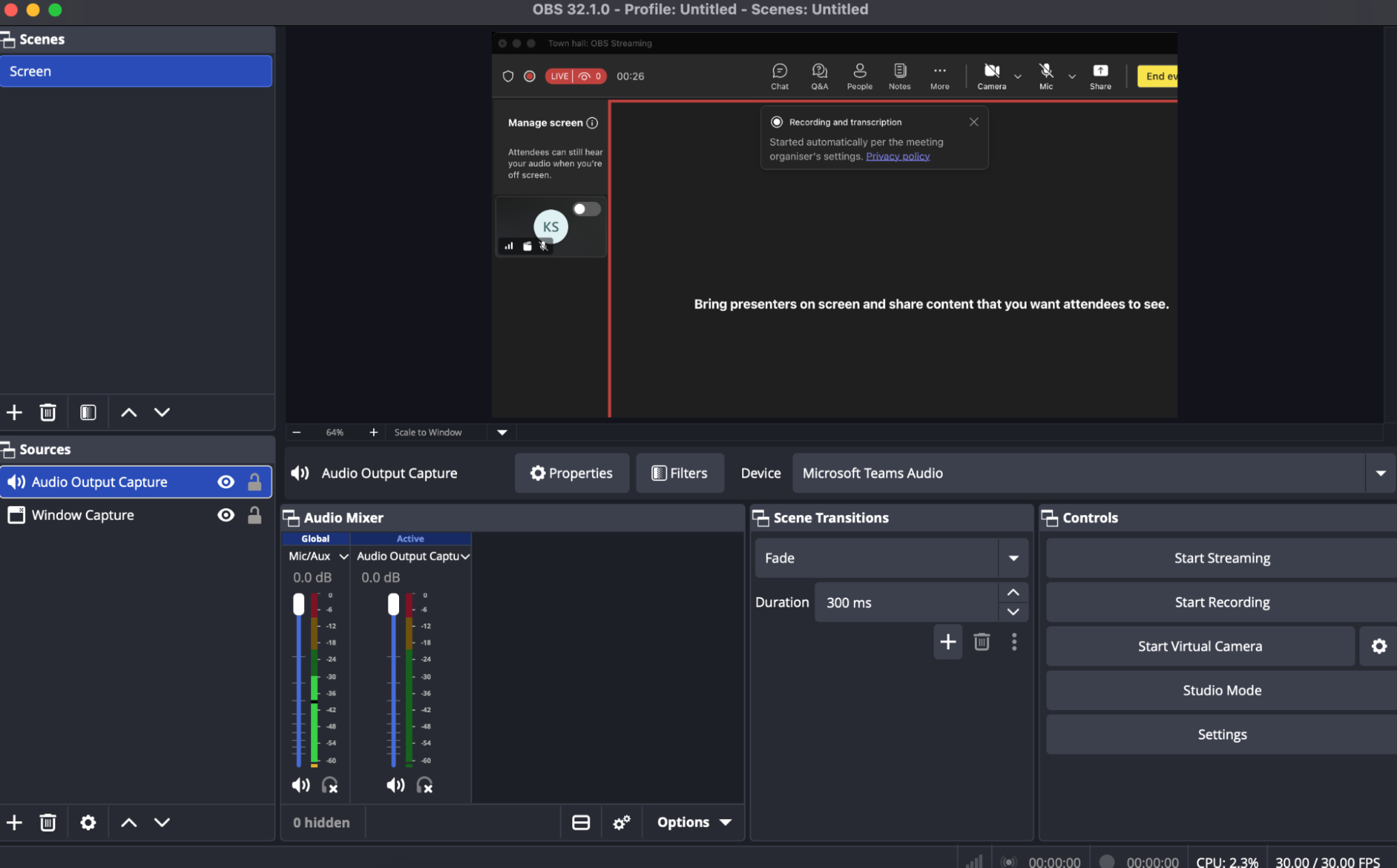 Without an audio source, the signage screens show the town hall silently. This step is what carries the sound to Pickcel.
Before going live, make sure:
* the Teams town hall window is visible in the OBS preview
* the audio meters are moving in OBS
* the correct video and audio sources are selected
Without an audio source, the signage screens show the town hall silently. This step is what carries the sound to Pickcel.
Before going live, make sure:
* the Teams town hall window is visible in the OBS preview
* the audio meters are moving in OBS
* the correct video and audio sources are selected
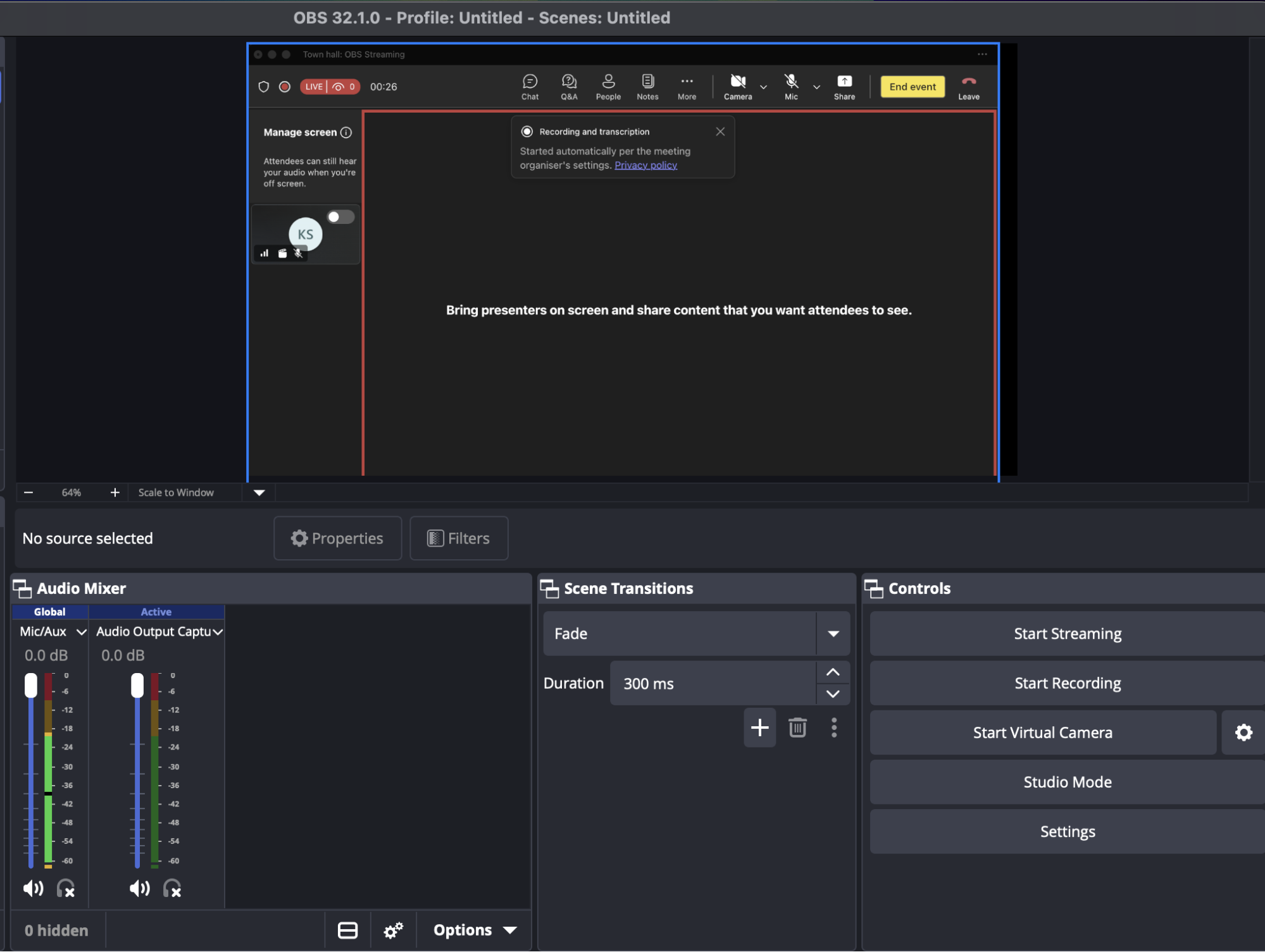 In the **Controls** panel, click **Start Streaming**. OBS now sends the town hall feed to your Event Stream app. You can verify it by previewing the app from your **Media** library in Pickcel.
[Create a composition](/compositions/compositions) using a **single zone** layout so the stream plays full screen, add this app to it, and assign it to a screen using [Quick Play](/schedule-and-publish/quick-play) or a [schedule](/schedule-and-publish/publish-v4).
Assigning the app before you start streaming also works, the screen just shows black until streaming starts.
## What's Next?
* Streaming a regular meeting or webinar instead? Follow the [Teams Live Stream guide](/apps/event-stream/teams), no OBS needed.
* Learn about [Compositions](/compositions/compositions)
* Learn how to [Publish or Schedule Content](/schedule-and-publish/publish-overview)
In the **Controls** panel, click **Start Streaming**. OBS now sends the town hall feed to your Event Stream app. You can verify it by previewing the app from your **Media** library in Pickcel.
[Create a composition](/compositions/compositions) using a **single zone** layout so the stream plays full screen, add this app to it, and assign it to a screen using [Quick Play](/schedule-and-publish/quick-play) or a [schedule](/schedule-and-publish/publish-v4).
Assigning the app before you start streaming also works, the screen just shows black until streaming starts.
## What's Next?
* Streaming a regular meeting or webinar instead? Follow the [Teams Live Stream guide](/apps/event-stream/teams), no OBS needed.
* Learn about [Compositions](/compositions/compositions)
* Learn how to [Publish or Schedule Content](/schedule-and-publish/publish-overview)