> ## Documentation Index
> Fetch the complete documentation index at: https://docs.pickcel.com/llms.txt
> Use this file to discover all available pages before exploring further.
# How to Add the Dealership App from the Pickcel App Store
> Learn how to create and customize a dealership catalog to showcase vehicles, specs, and pricing on your digital signage
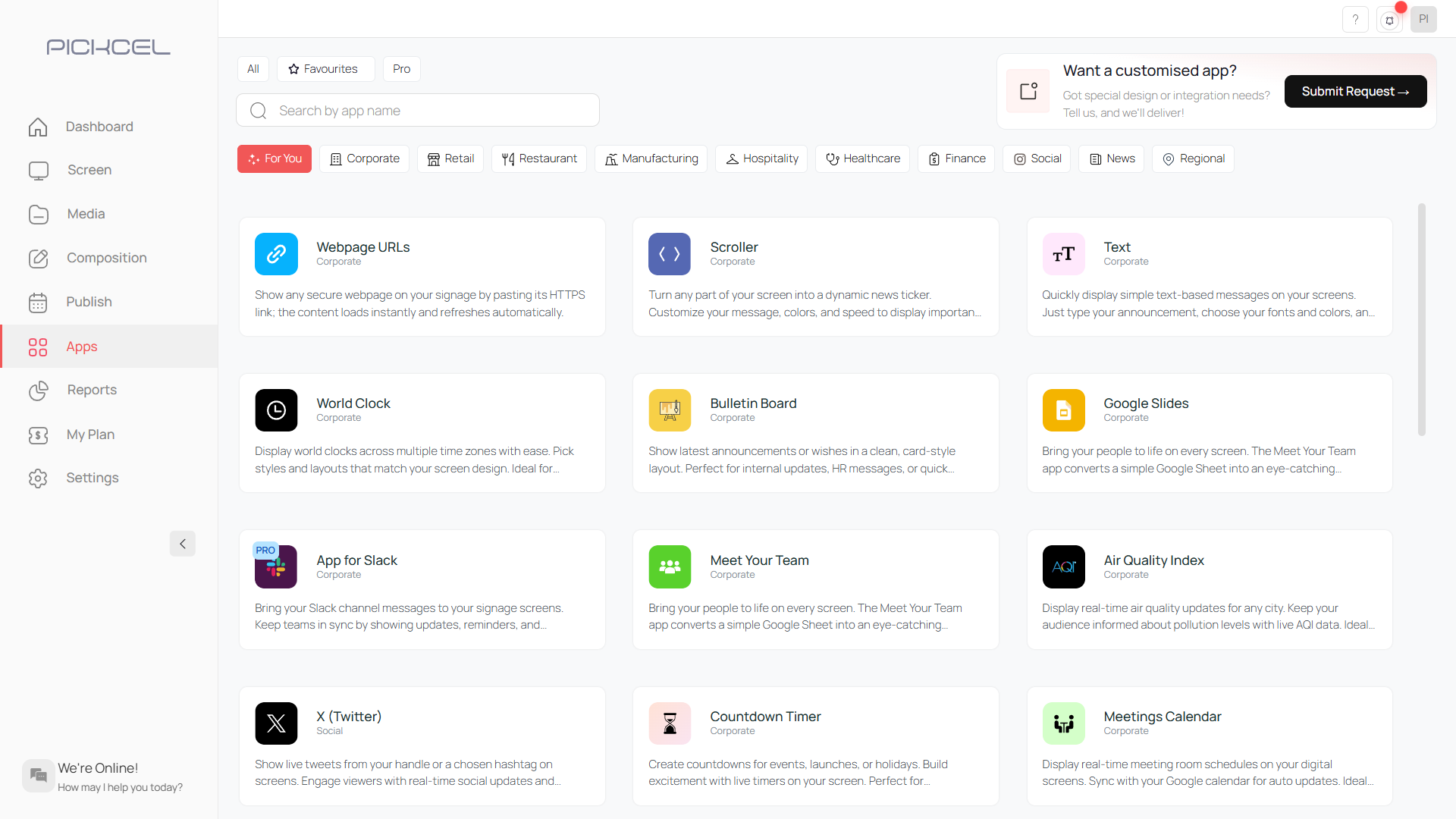
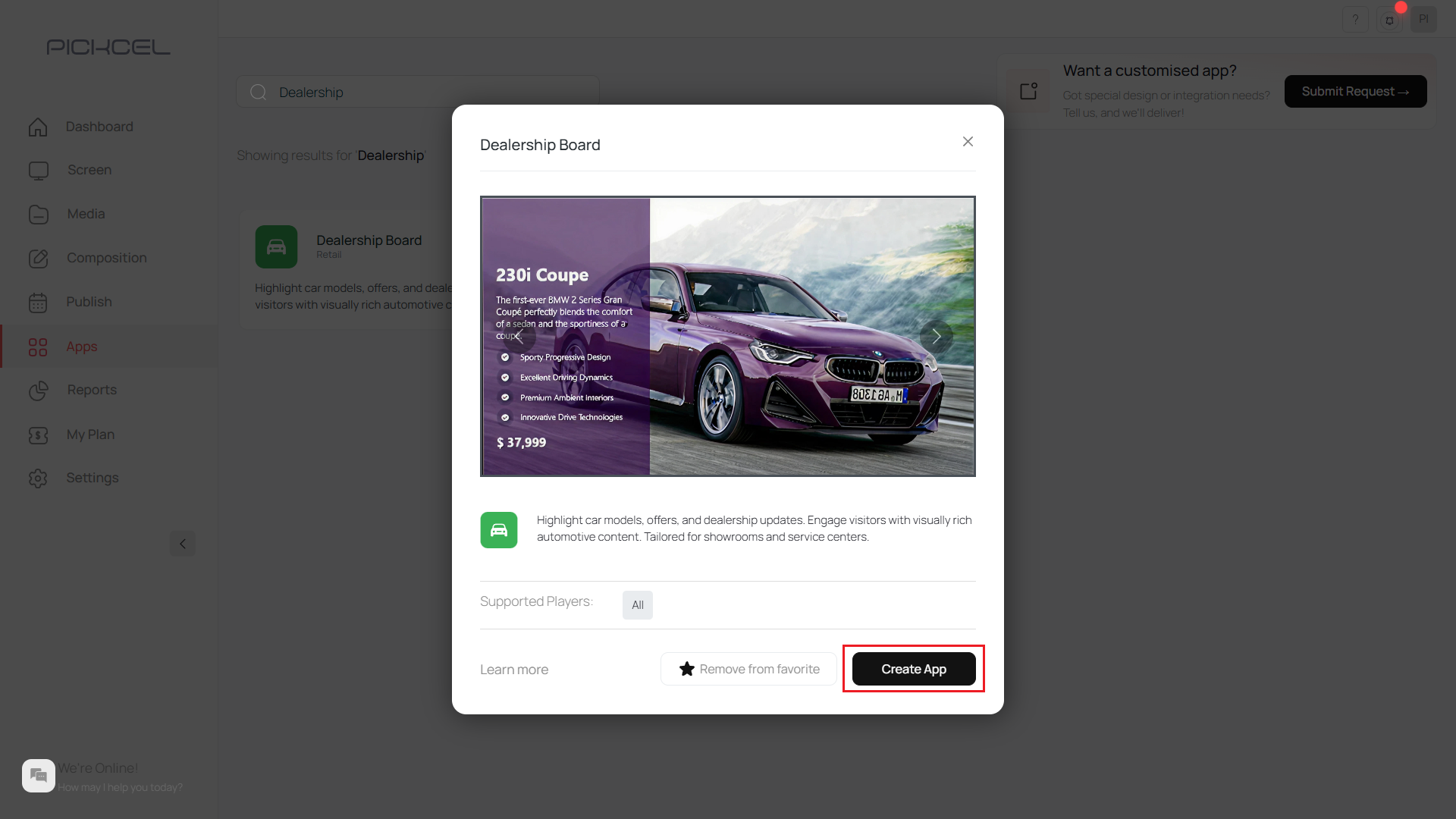
 [Login to your Pickcel account](https://console.pickcel.com/). Go to **Apps**.
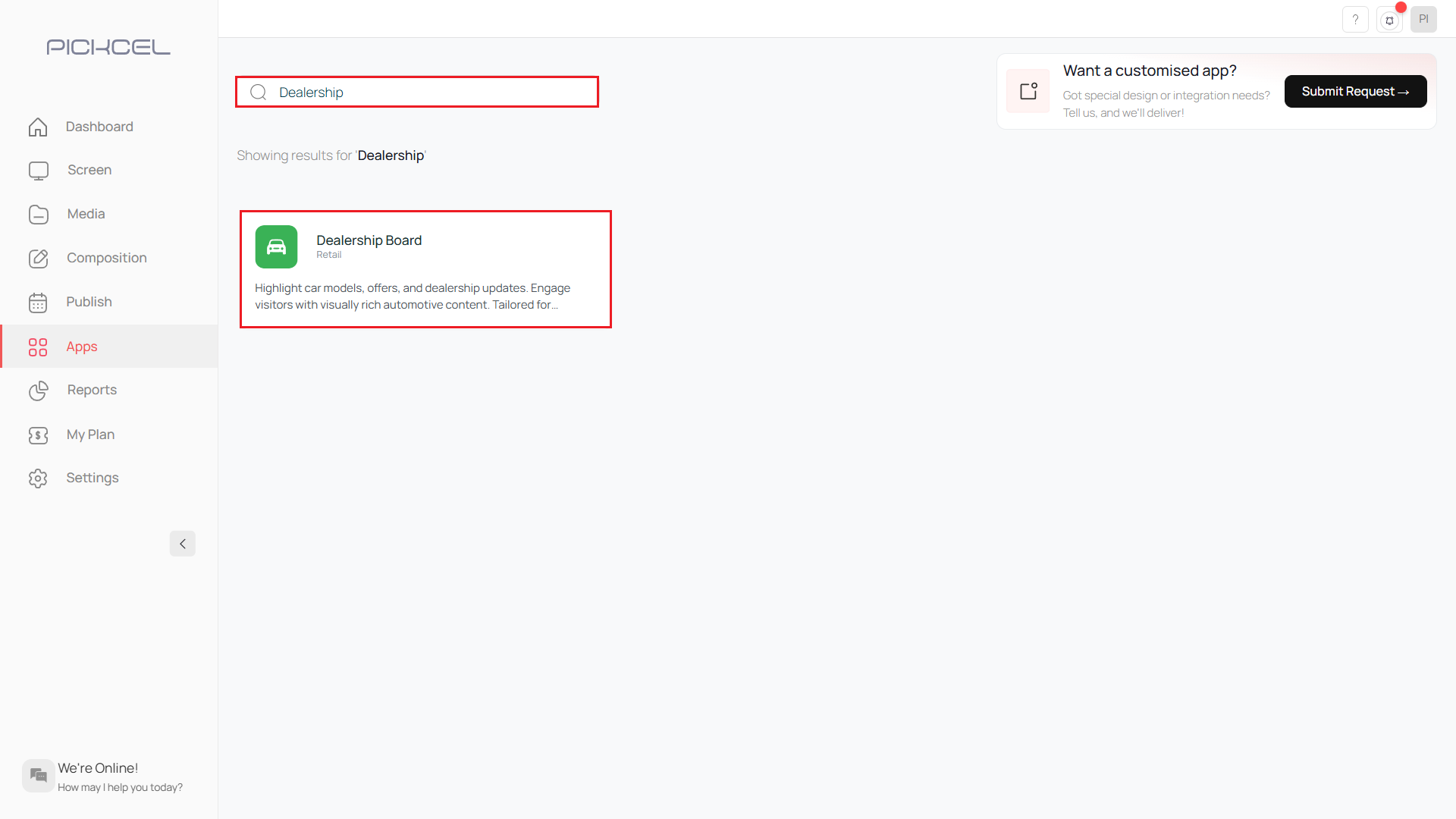
 Search for **Dealership App** in **Apps**.
 Click on the **Create App** button.
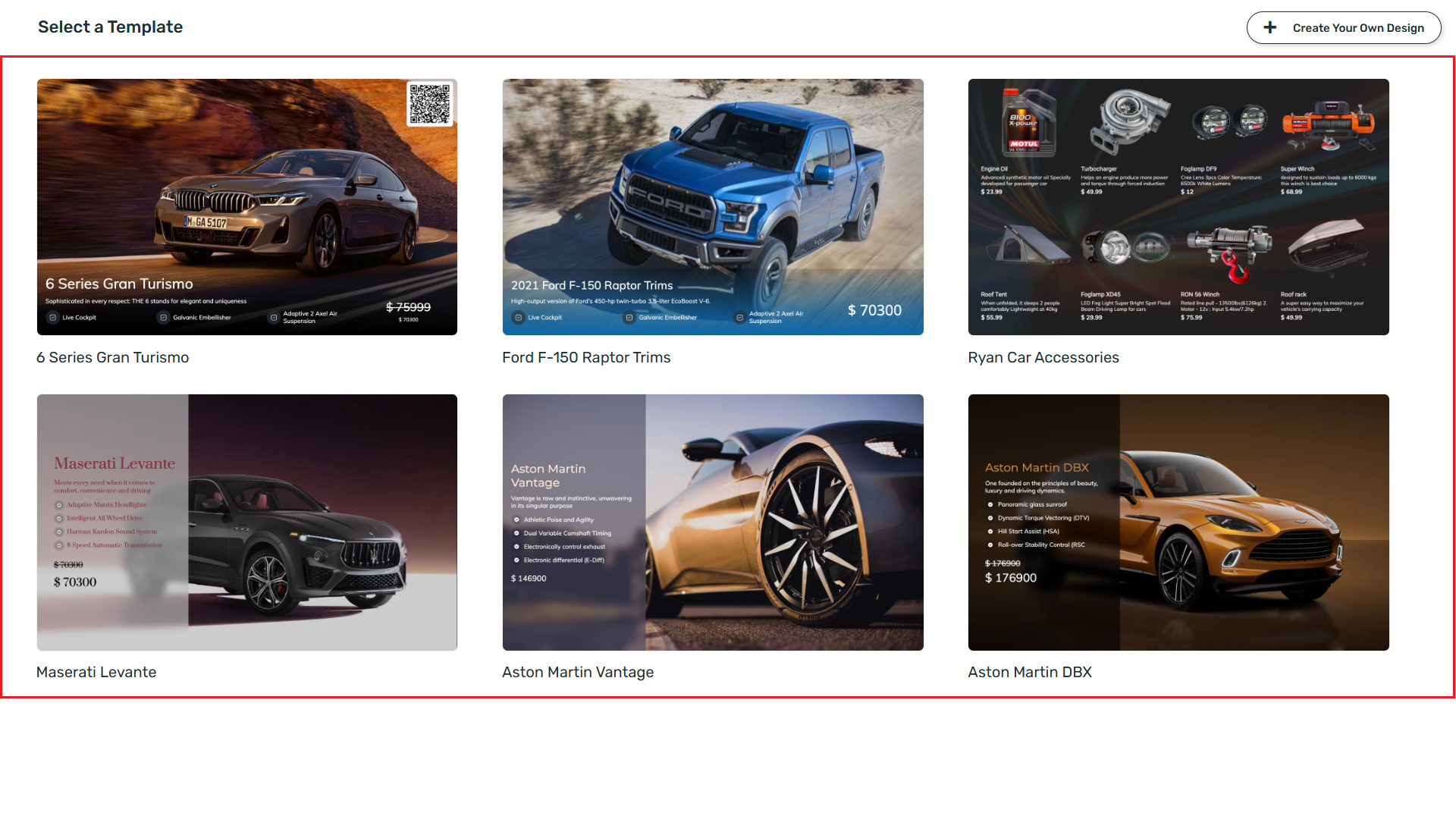
 This opens a new window and shows a number of already created templates here.
Templates are pre-designed frameworks where everything from texts, pictures, backgrounds, colors, dimensions to alignments can be edited to create a fully customised design.
This opens a new window and shows a number of already created templates here.
Templates are pre-designed frameworks where everything from texts, pictures, backgrounds, colors, dimensions to alignments can be edited to create a fully customised design.
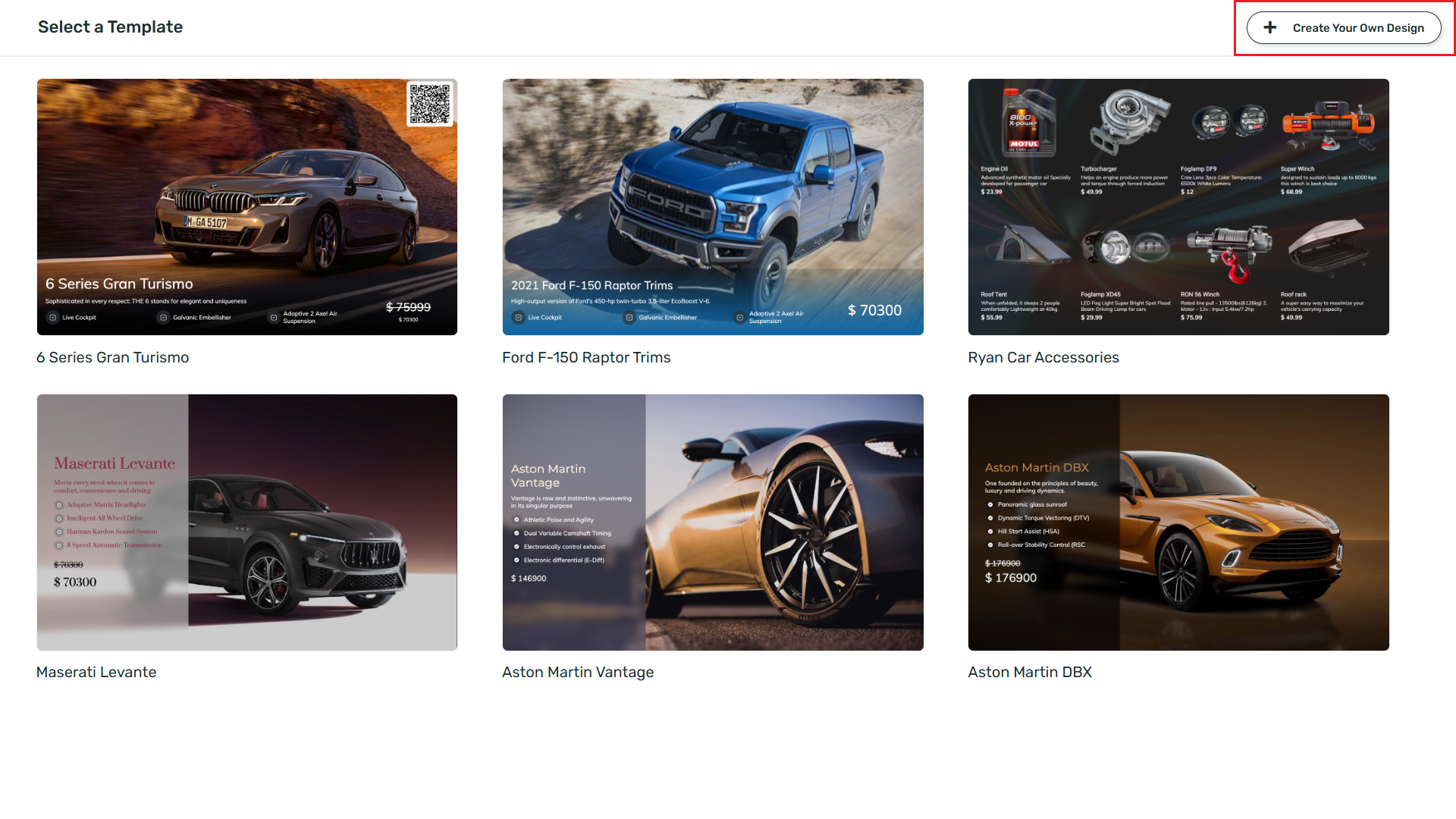
 You can choose to select one of these templates and edit or can **Create your own Template**.
Click on **Create your own Design** button.
You can choose to select one of these templates and edit or can **Create your own Template**.
Click on **Create your own Design** button.
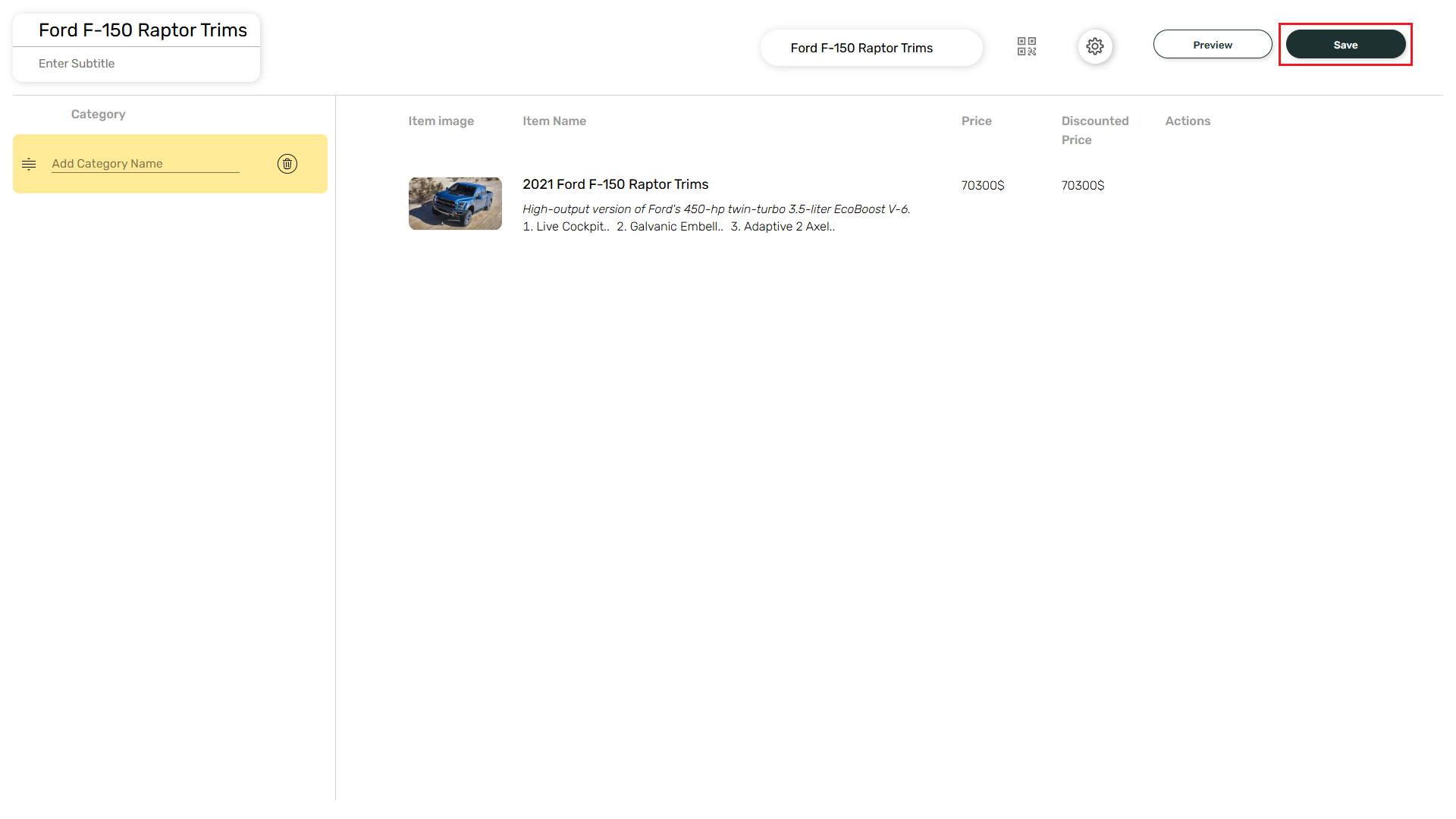
 Enter the **App Title**.
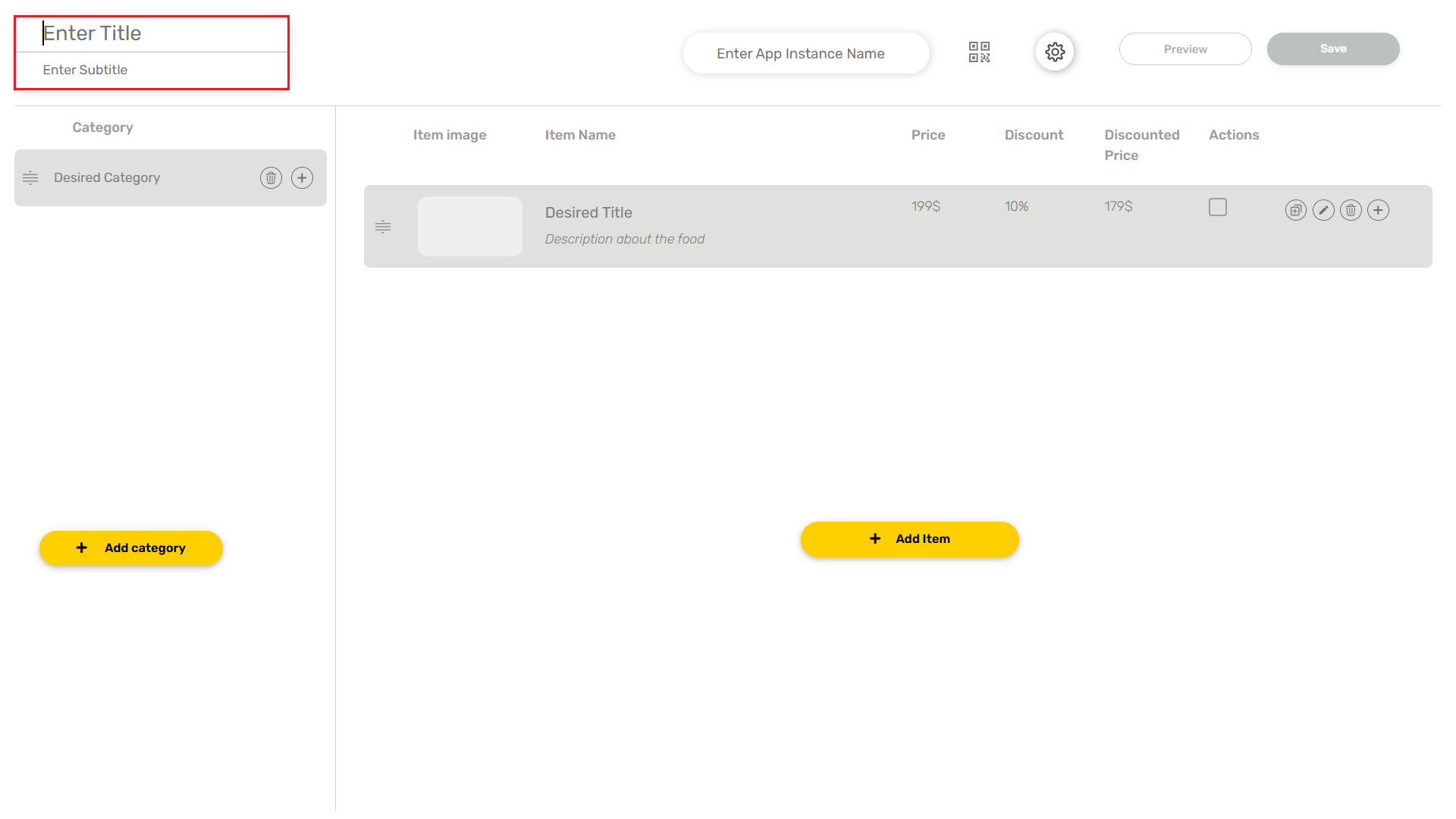 Click on the **Add Category** button and add a category of your choice here.
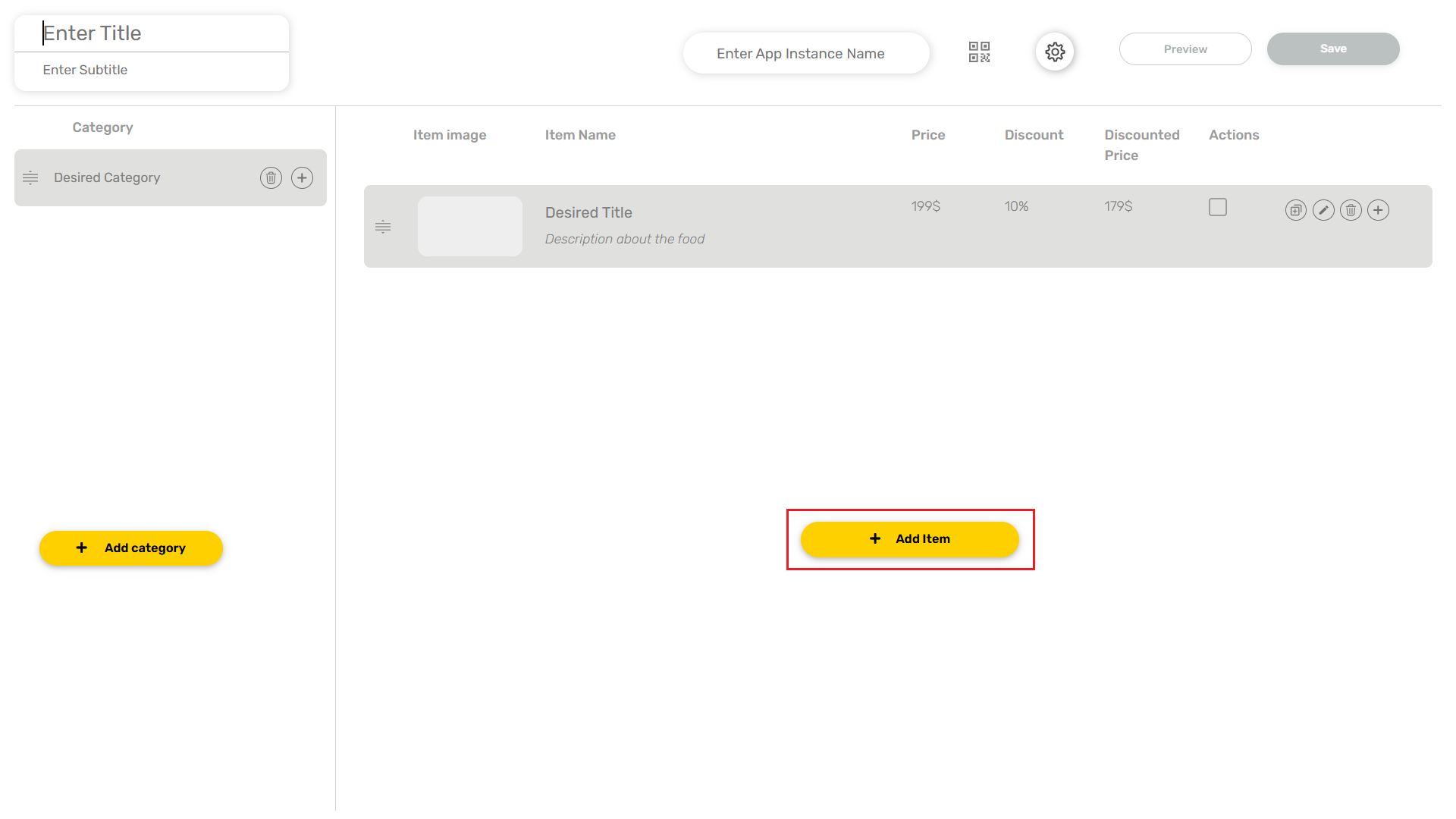
 Click on the **Add Item** button and add an item corresponding to the category selected.
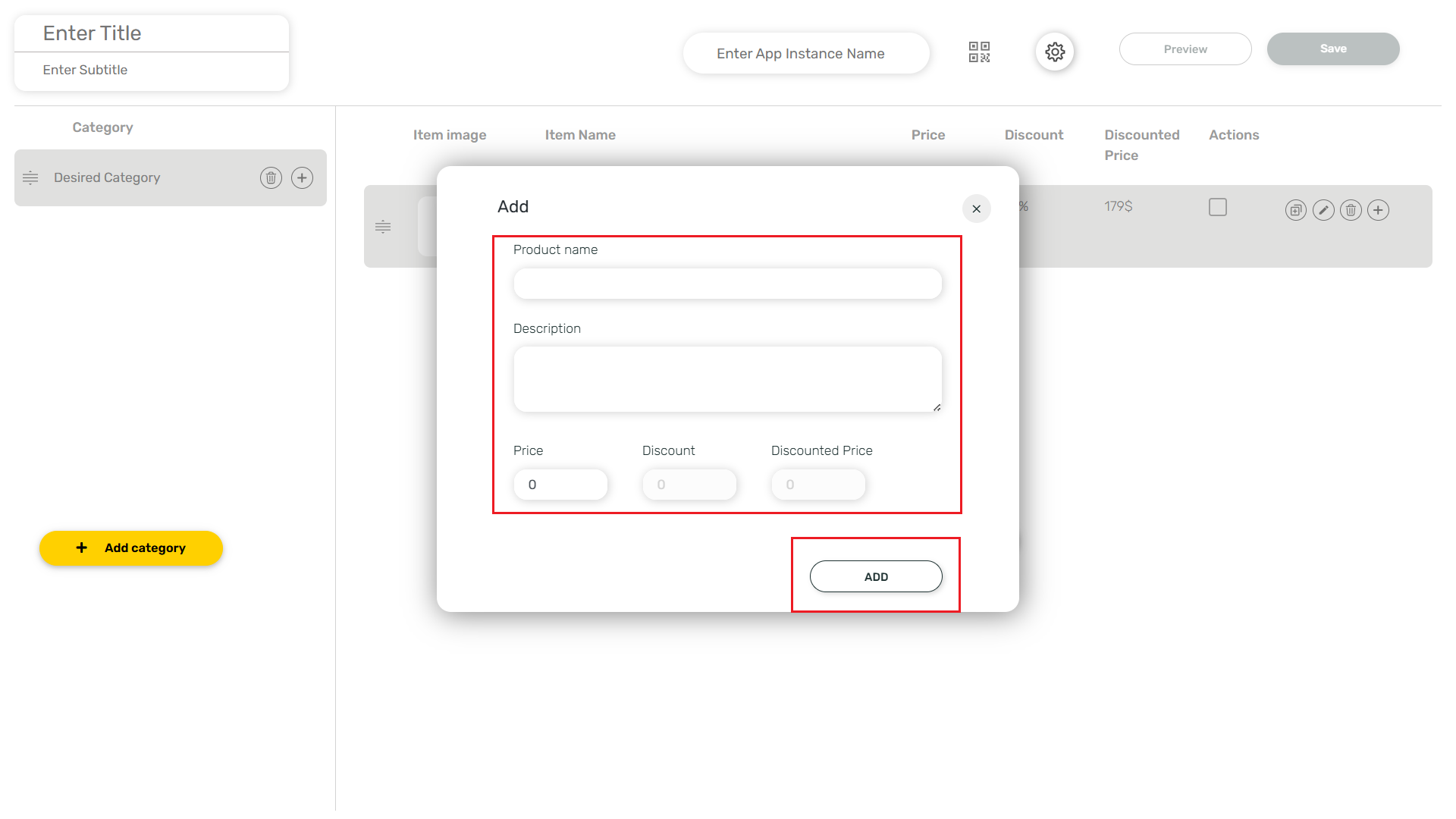
 Enter the **Item Name**, **Description**, **Price** and click on the **ADD** button.
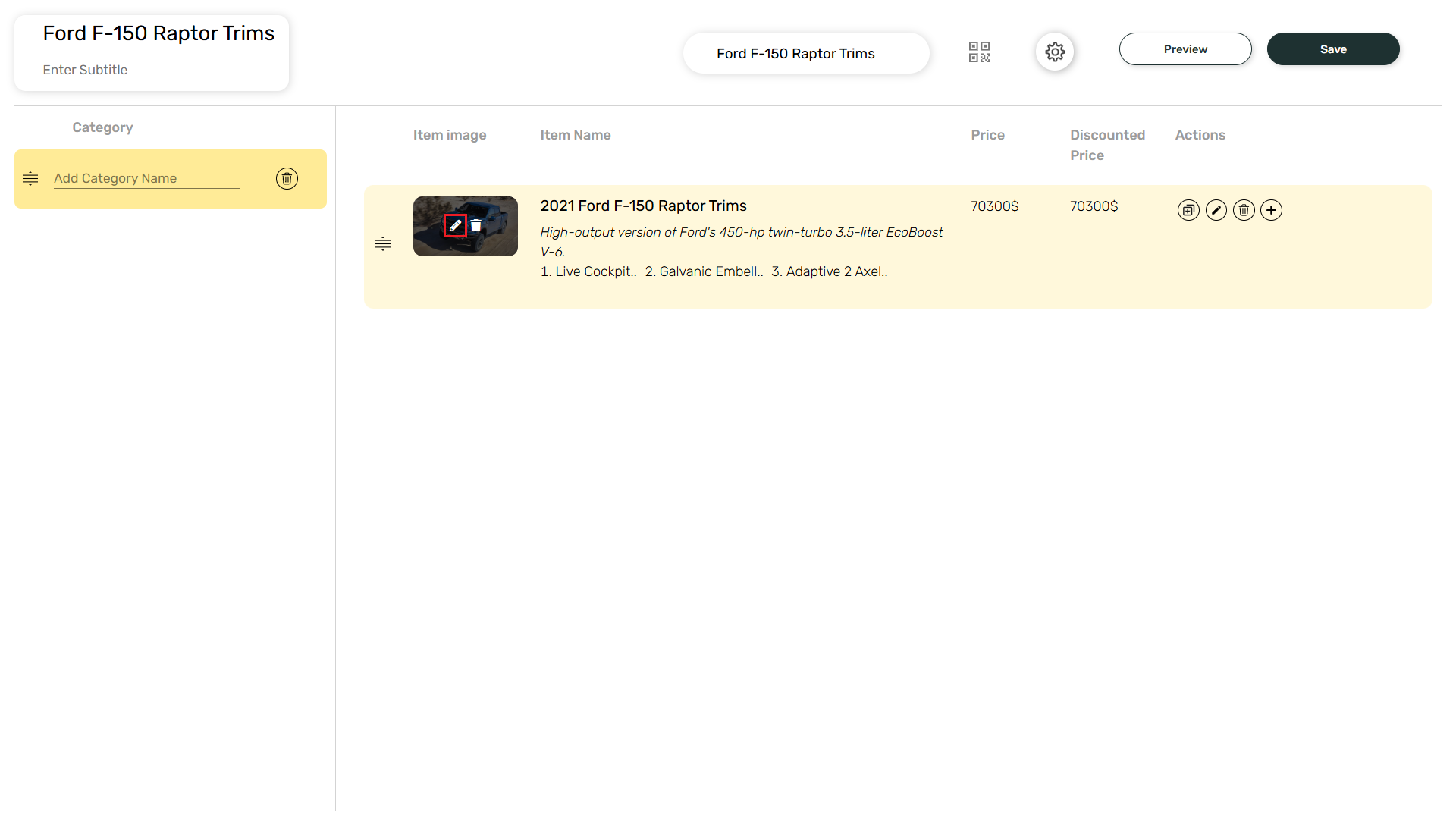
 Select a photo from the media to add for the display of the product. Click on the **Edit Image** icon.
 Click on **Copy**, **Edit**, **Delete** and **+** to perform necessary actions for a particular item.
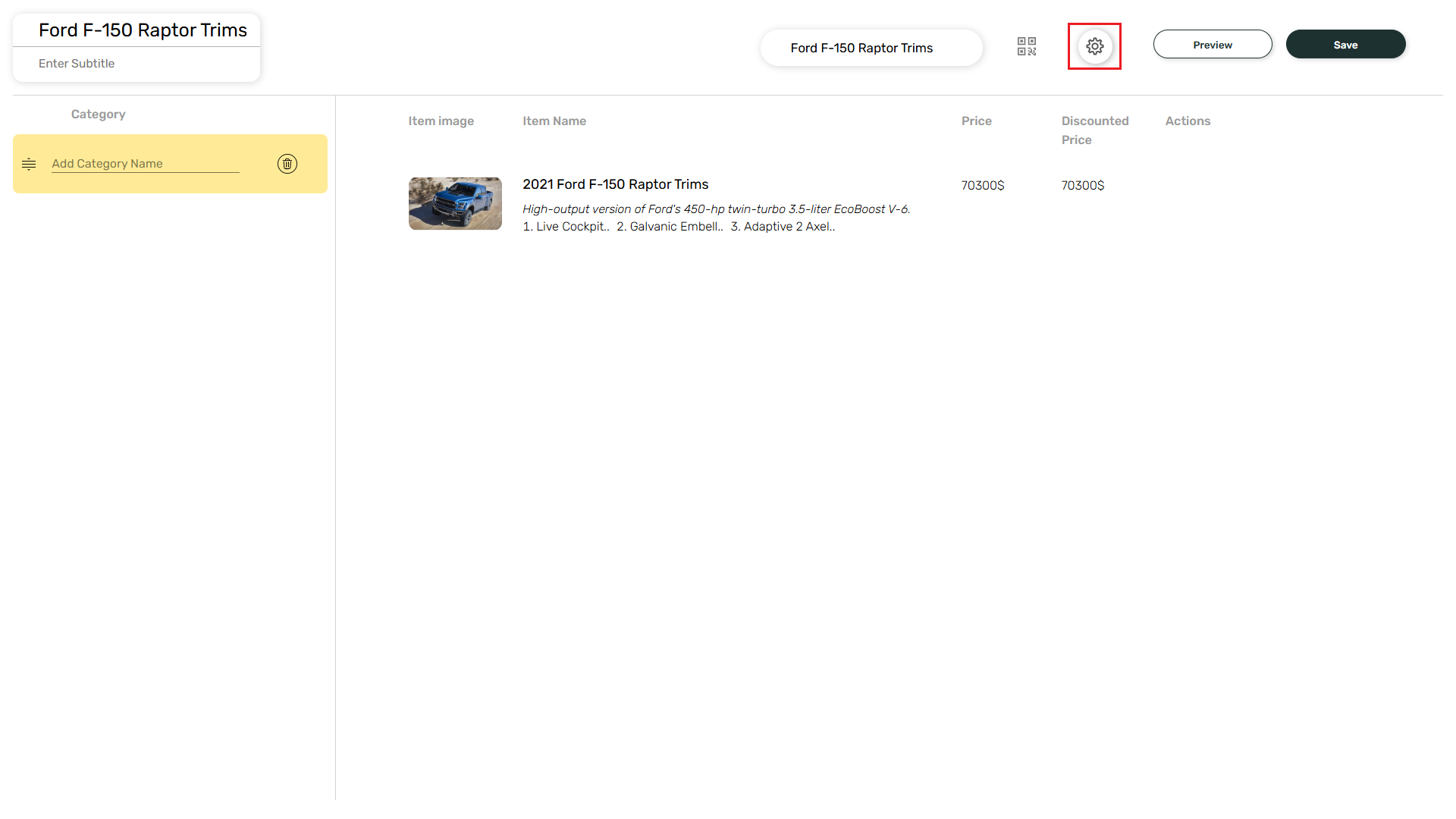
 Click on the **Settings** icon.
 You can edit the colours in the **Body** section. Also, a background image can be added along with the option to change the opacity of the background and image.
By default, the Top Bar will be disabled in the Settings page.
You can edit the colours in the **Body** section. Also, a background image can be added along with the option to change the opacity of the background and image.
By default, the Top Bar will be disabled in the Settings page.
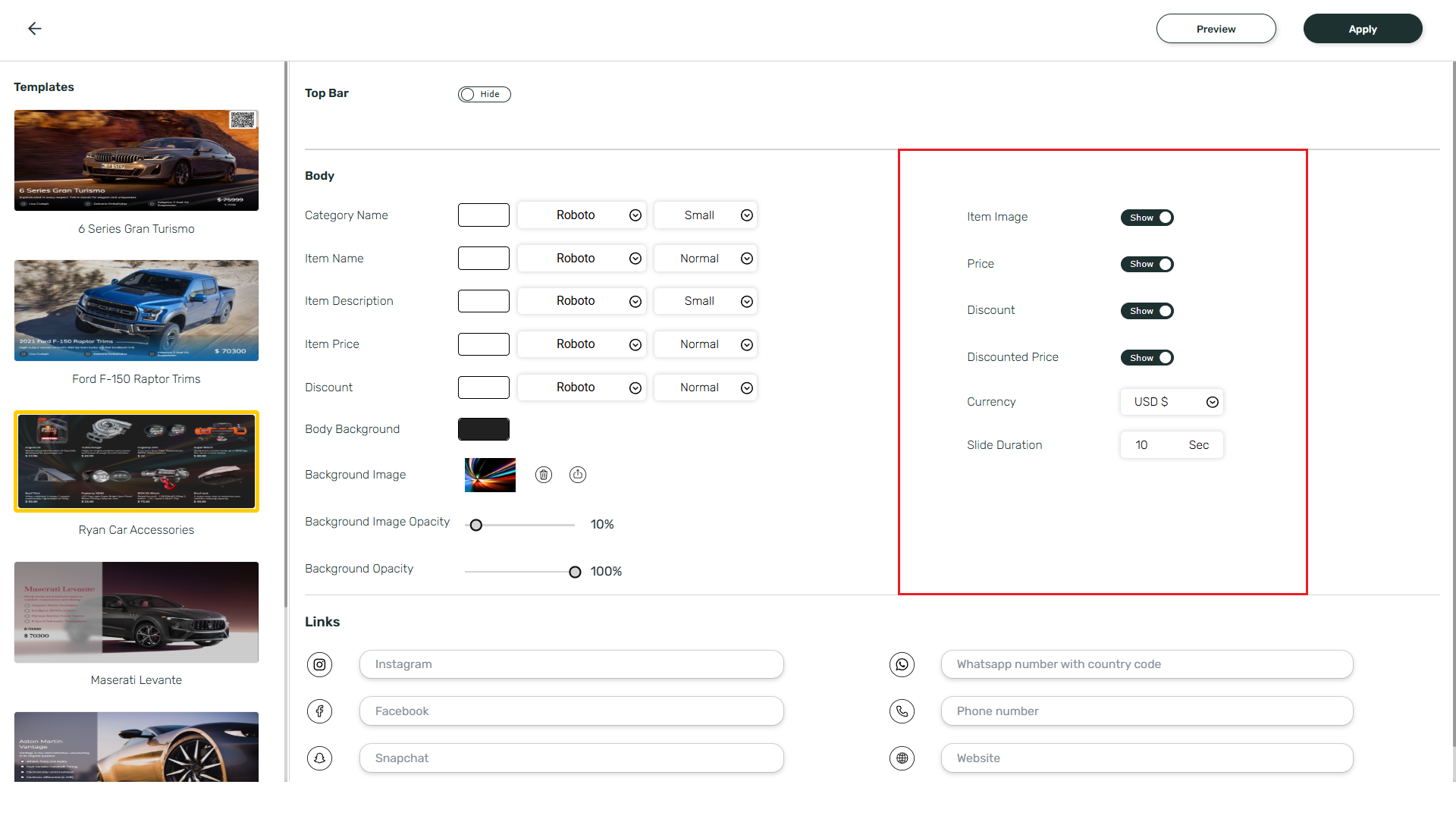
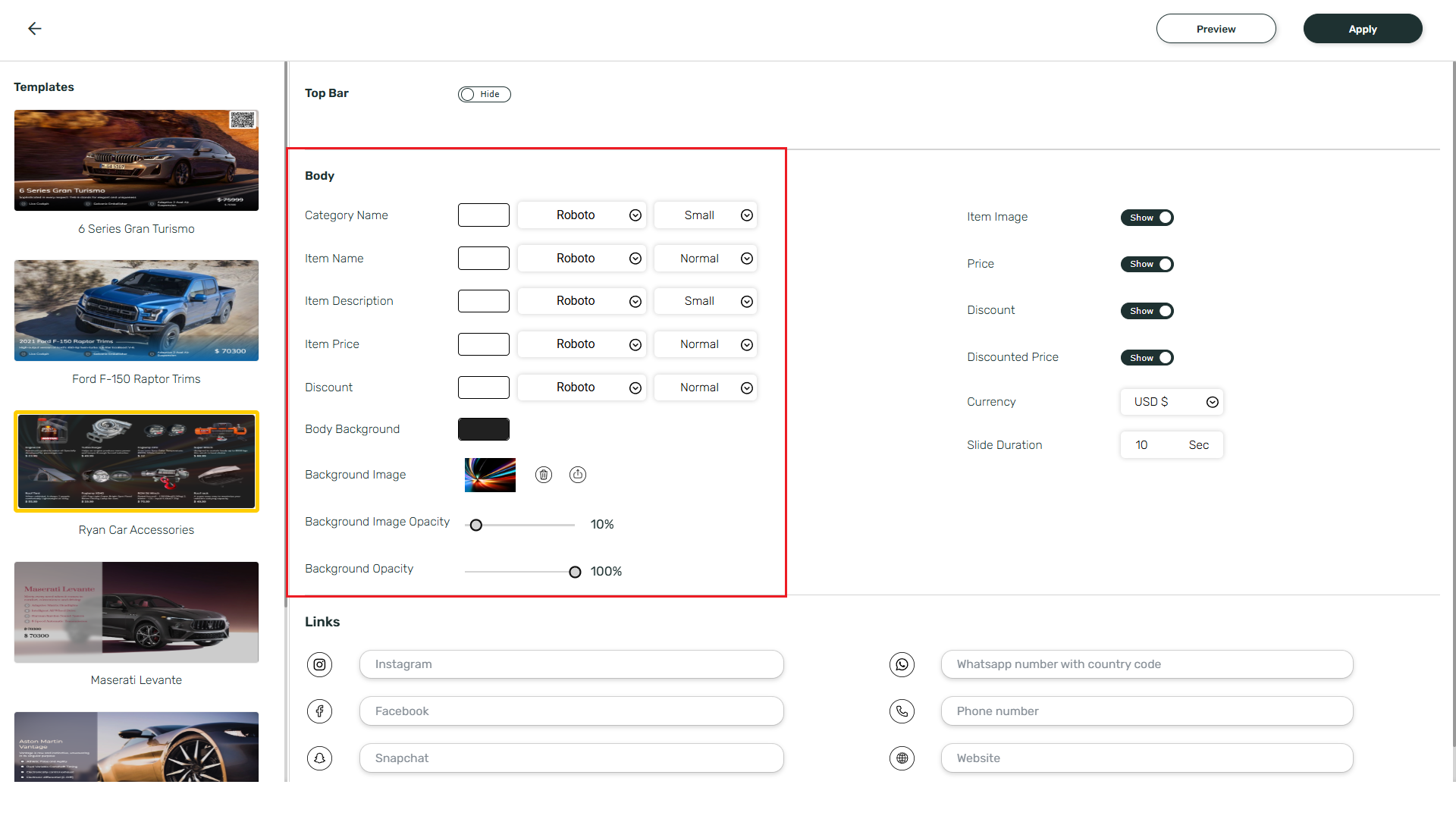 There are option for to Show/Hide Item Image, Price, Discount and the Discounted Price. You can also change the **Currency** and **Slide Duration**.
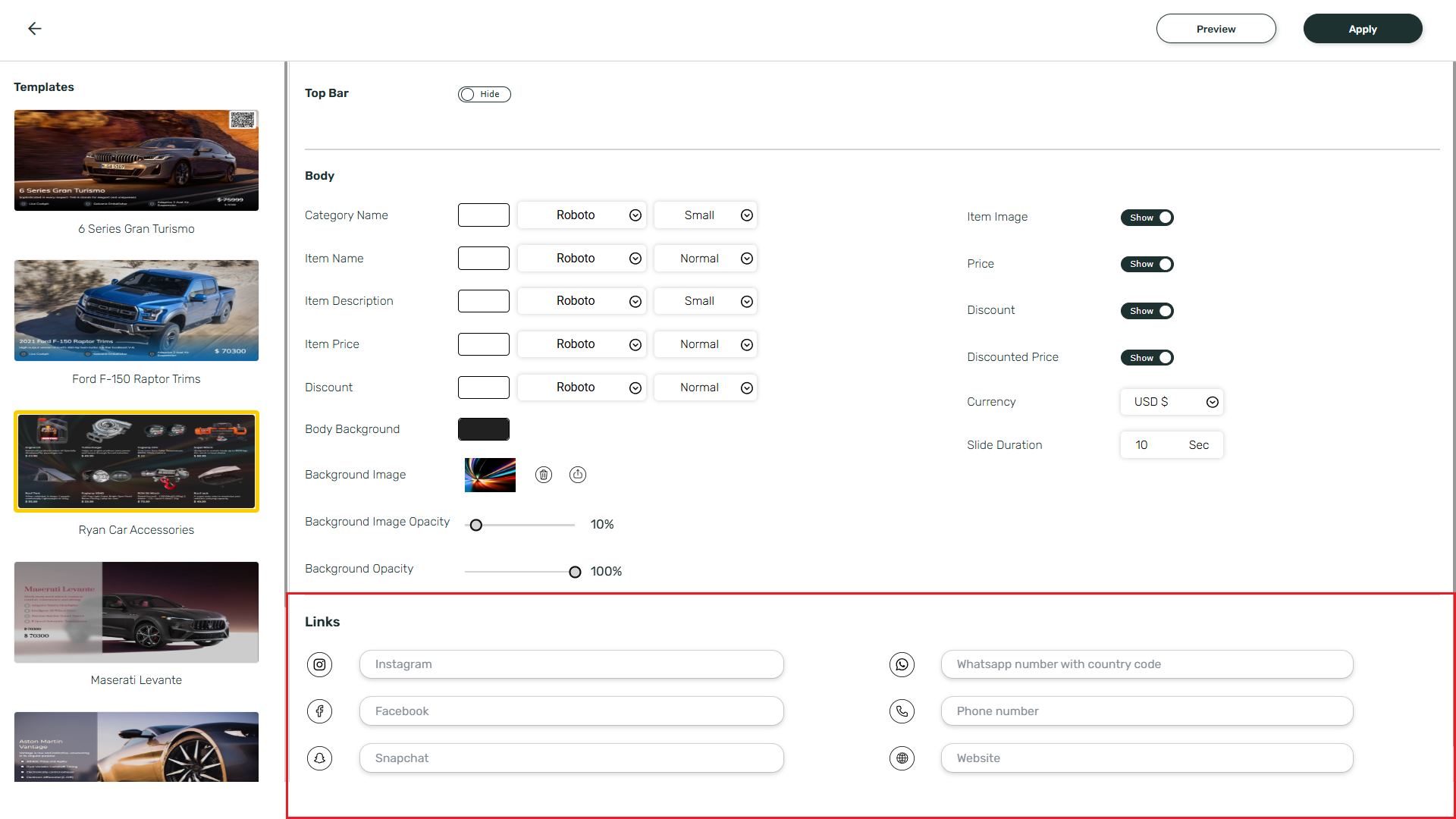
 You can also add Social Media Links below.
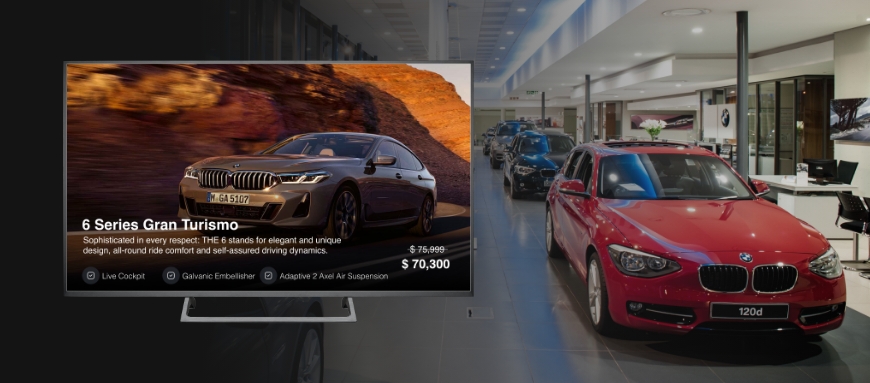
 You can see a preview by clicking on the **Preview** button.
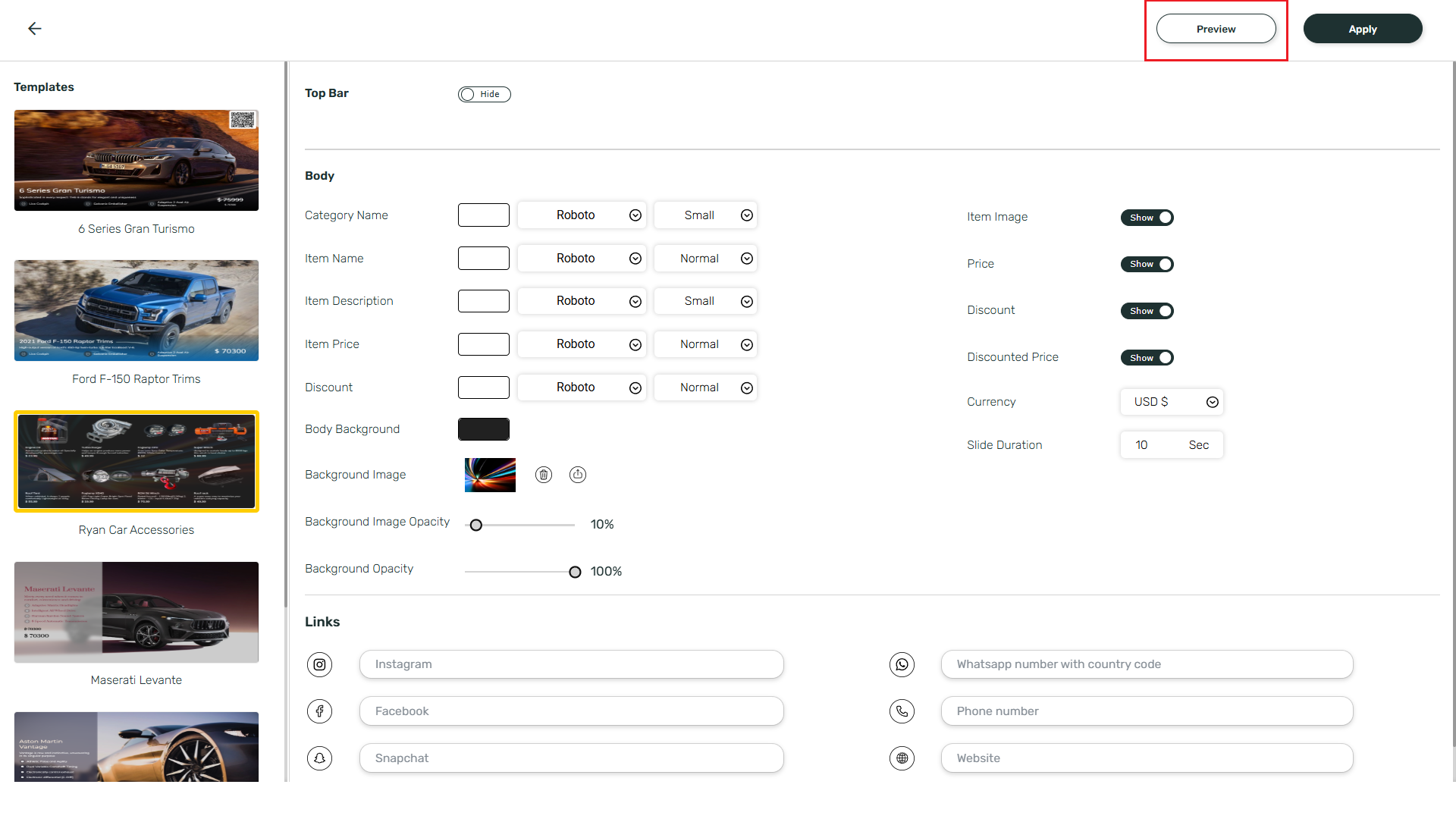 **Preview:**
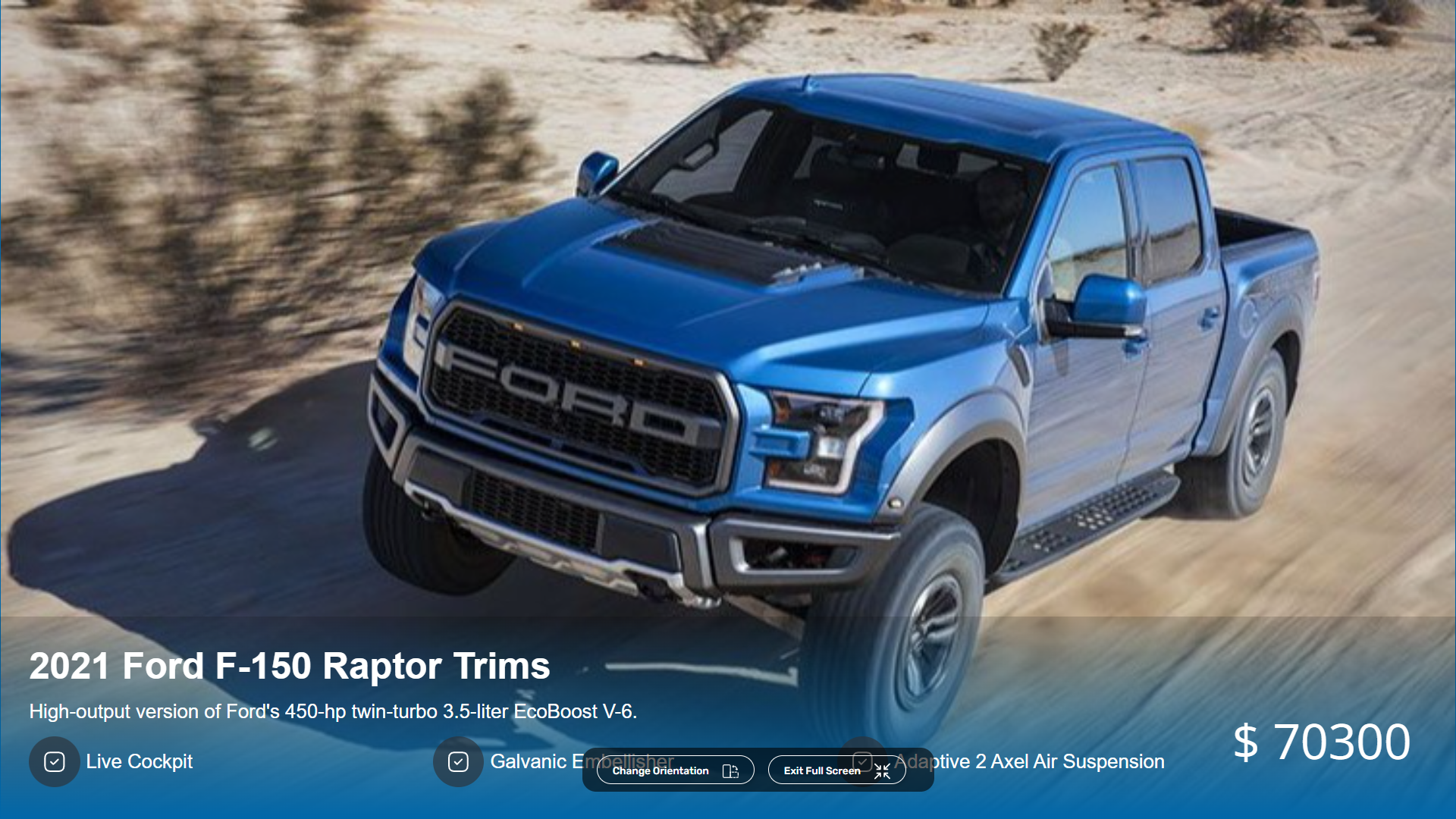 Finally, click on **Save** button to save your changes.