> ## Documentation Index
> Fetch the complete documentation index at: https://docs.pickcel.com/llms.txt
> Use this file to discover all available pages before exploring further.
# How to Display a Tableau Dashboard on Digital Signage?
This guide explains how to display your Tableau dashboards on signage screens, so you can share powerful data stories and business analytics with a wider audience.
## Prerequisites
Before you begin, make sure you have:
* A Tableau account with access to the target dashboard
* The full dashboard URL you plan to display
This integration requires a direct login with an email and password. Federated login methods, such as signing in through an SSO identity provider, are not compatible with this setup.
**Best Practice:** For enhanced security and easier management, create a dedicated Tableau user with a **"Viewer"** site role. Use this account's credentials to provide secure, read-only access to the dashboards you need to display.
***
## Step-by-Step Configuration
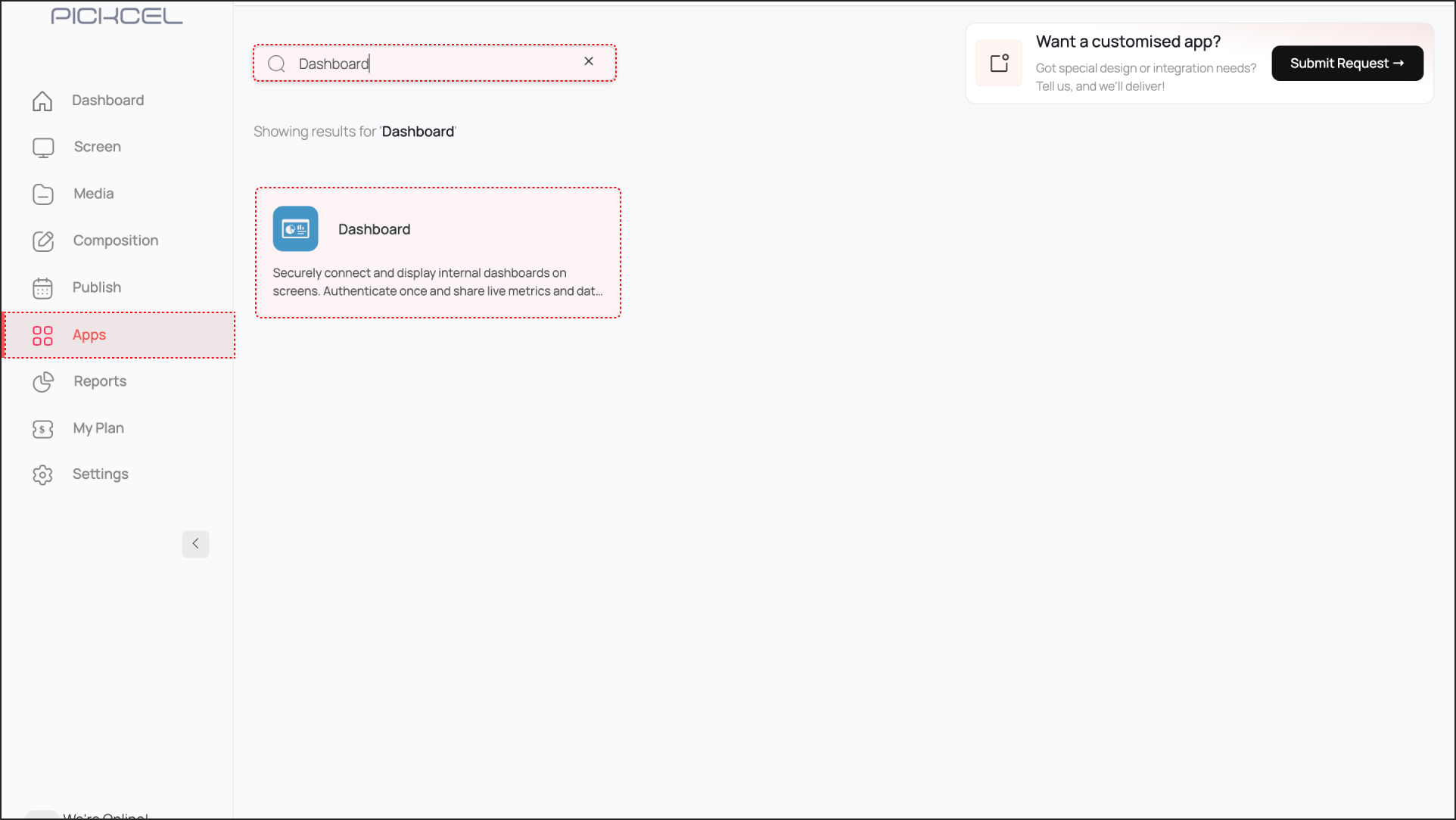
Log in to the Pickcel Console and navigate to **Apps**. Search for the **Dashboard** app and click on it. Then, click **Create App**.
* Give a name to the app instance based on the dashboard you are configuring (e.g., "Quarterly Review - Tableau").
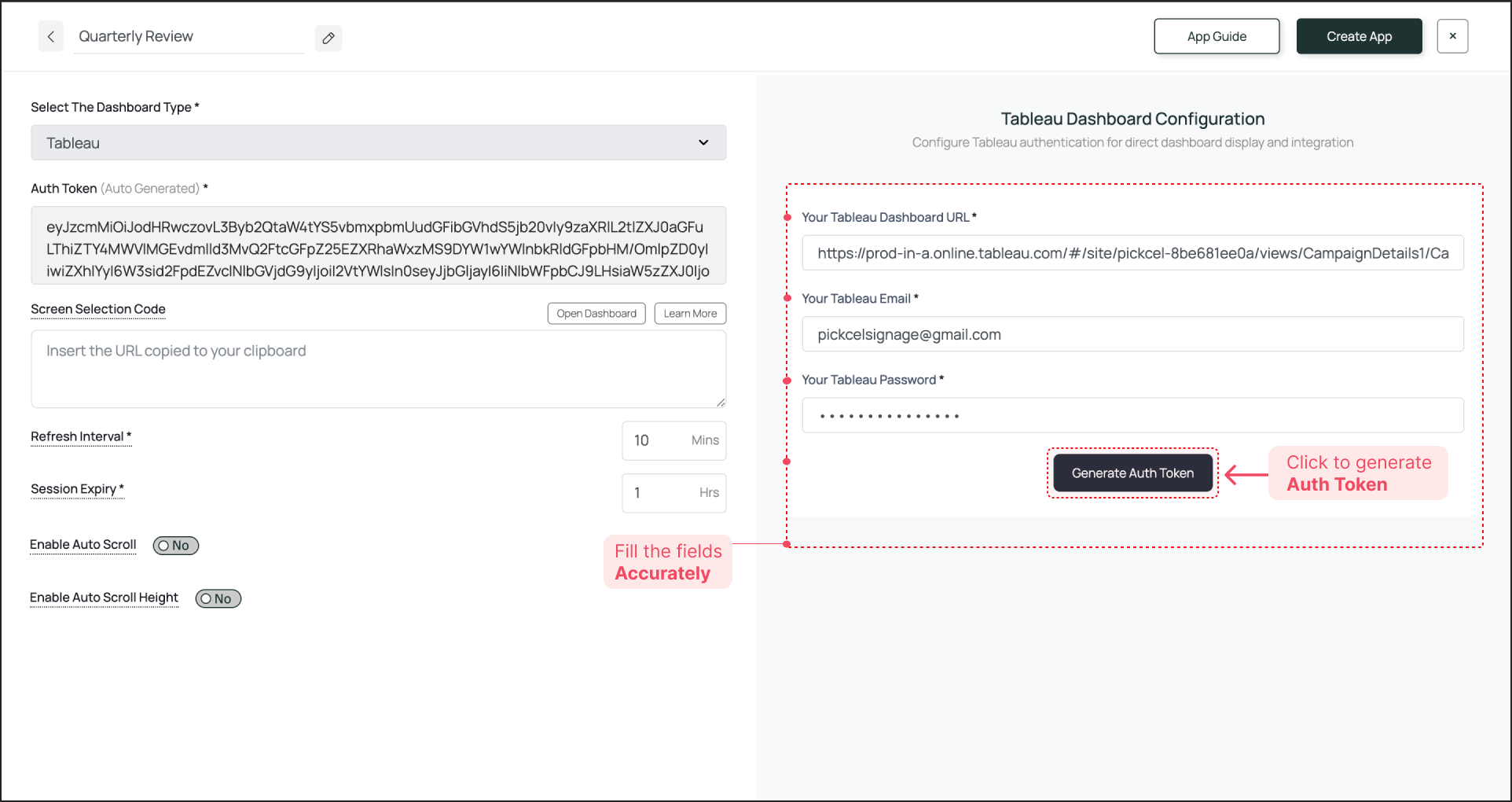
 Now, select **Tableau** from the dropdown menu. The fields required for configuring your Tableau Dashboard will open on the right-hand side.
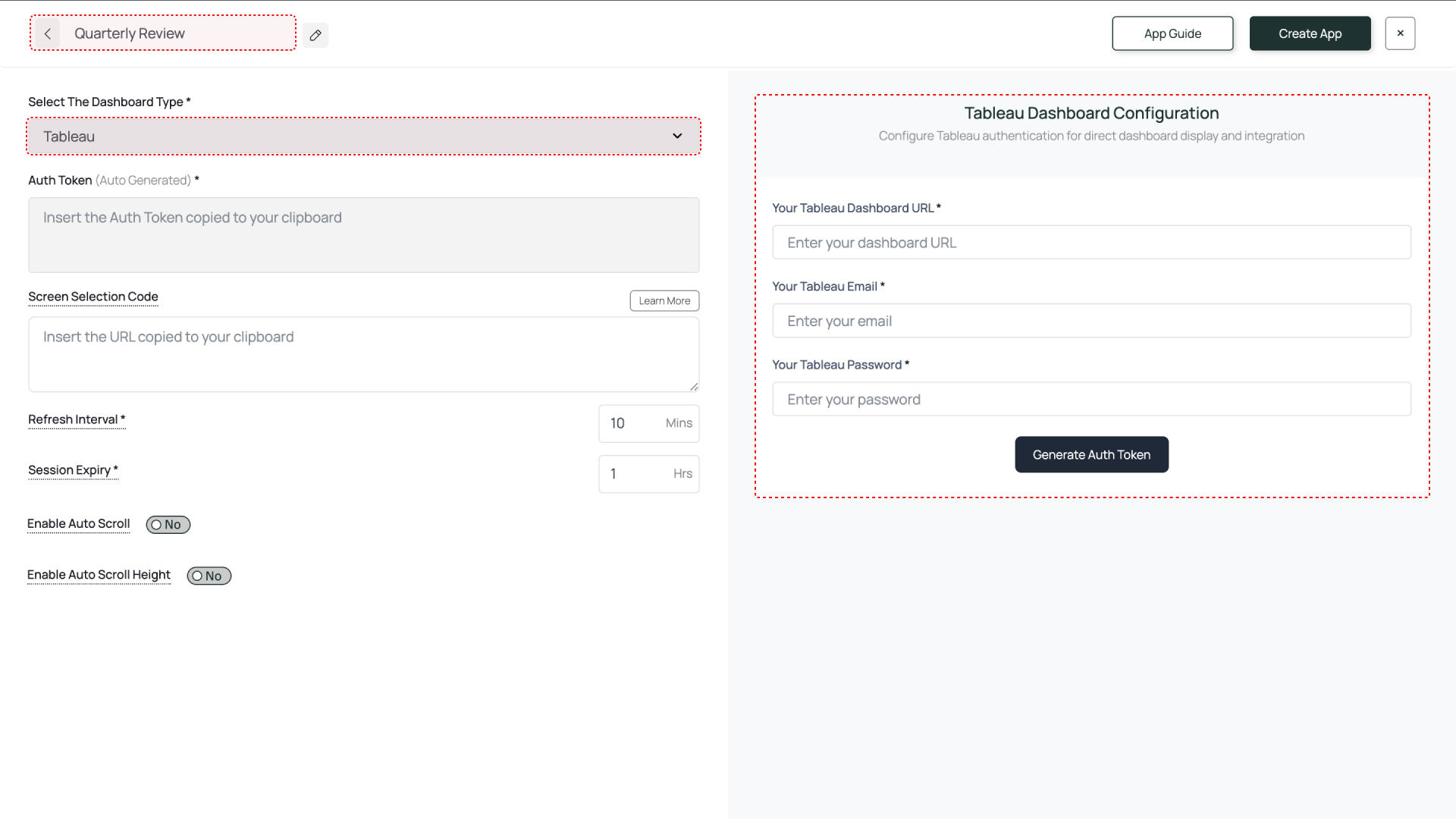 This section requires precise information to generate a correct and secure Auth Token.
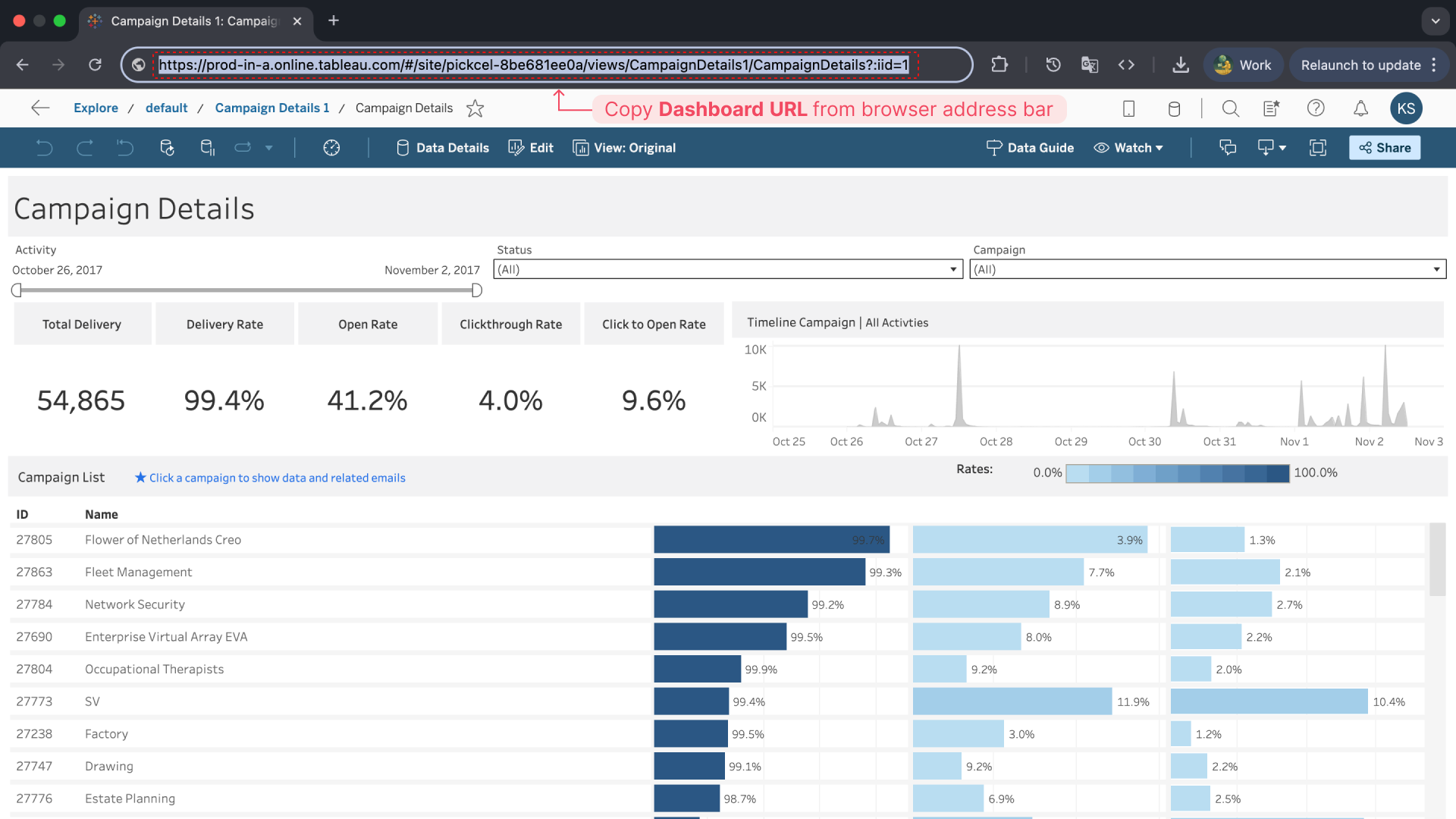
* **Tableau URL**: Log into your Tableau instance and navigate to the exact dashboard you want to display. Copy the entire URL from your browser's address bar and paste it here.
* **Tableau Email**: Enter the Email ID of your dedicated Tableau account.
* **Password**: Enter the password for that account.
This section requires precise information to generate a correct and secure Auth Token.
* **Tableau URL**: Log into your Tableau instance and navigate to the exact dashboard you want to display. Copy the entire URL from your browser's address bar and paste it here.
* **Tableau Email**: Enter the Email ID of your dedicated Tableau account.
* **Password**: Enter the password for that account.
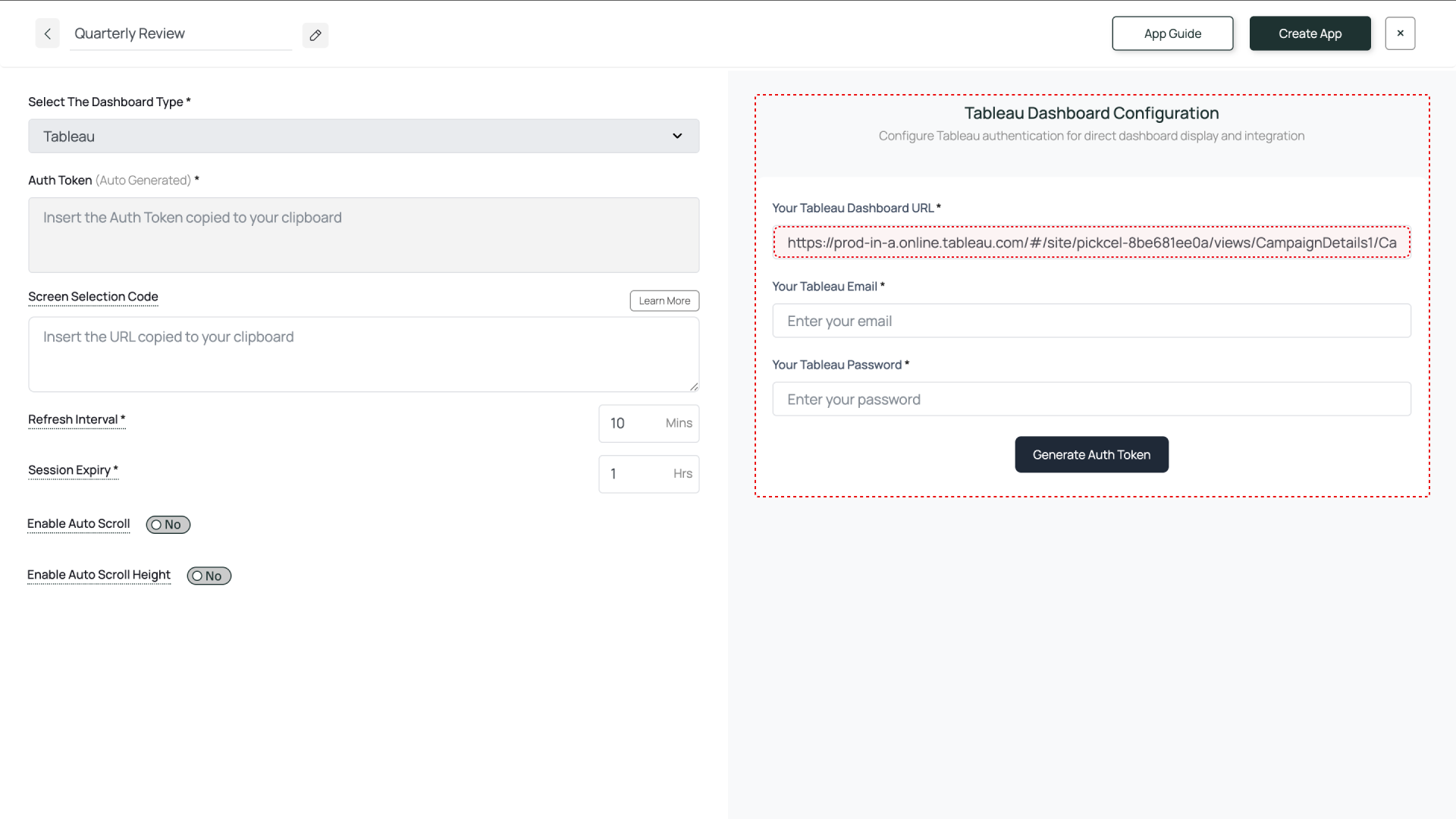 Click **Generate Auth Token**. The token will be generated and automatically pasted into the **Auth Token** field on the left.
 ### Enter Screen Selection Code (Optional)
If you want to display only a specific portion of the dashboard, use the Pickcel Dashboard Screen Mapper Extension. Select the area you want to display, and upon confirming the selection, the code will be copied to your clipboard. Paste this code into the **Screen Selection Code** field.
Check this guide for more info: [How to Use the Dashboard Screen Mapper Chrome Extension?](/apps/dashboard-apps/screen-mapper)
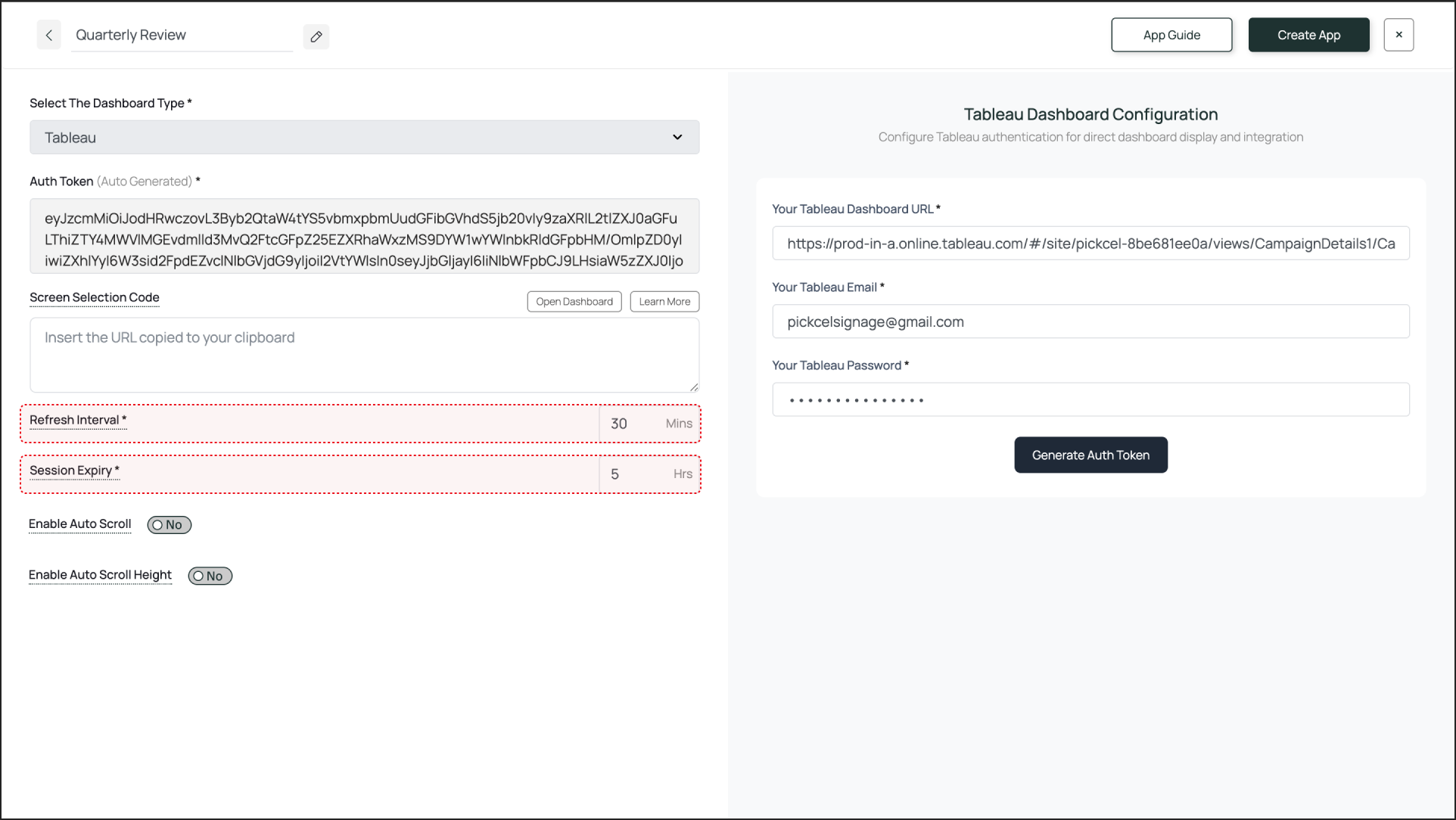
* **Refresh Interval**: This setting defines how often the dashboard screenshot is updated. An interval of **30-60 minutes** is sufficient for most dashboards. The signage screen will display a fresh view of your dashboard within that time frame.
* **Session Expiry**: This forces a fresh login to prevent session timeouts from the service provider. A value of **5-8 hours** is recommended to ensure the session stays active throughout a business day.
### Enter Screen Selection Code (Optional)
If you want to display only a specific portion of the dashboard, use the Pickcel Dashboard Screen Mapper Extension. Select the area you want to display, and upon confirming the selection, the code will be copied to your clipboard. Paste this code into the **Screen Selection Code** field.
Check this guide for more info: [How to Use the Dashboard Screen Mapper Chrome Extension?](/apps/dashboard-apps/screen-mapper)
* **Refresh Interval**: This setting defines how often the dashboard screenshot is updated. An interval of **30-60 minutes** is sufficient for most dashboards. The signage screen will display a fresh view of your dashboard within that time frame.
* **Session Expiry**: This forces a fresh login to prevent session timeouts from the service provider. A value of **5-8 hours** is recommended to ensure the session stays active throughout a business day.
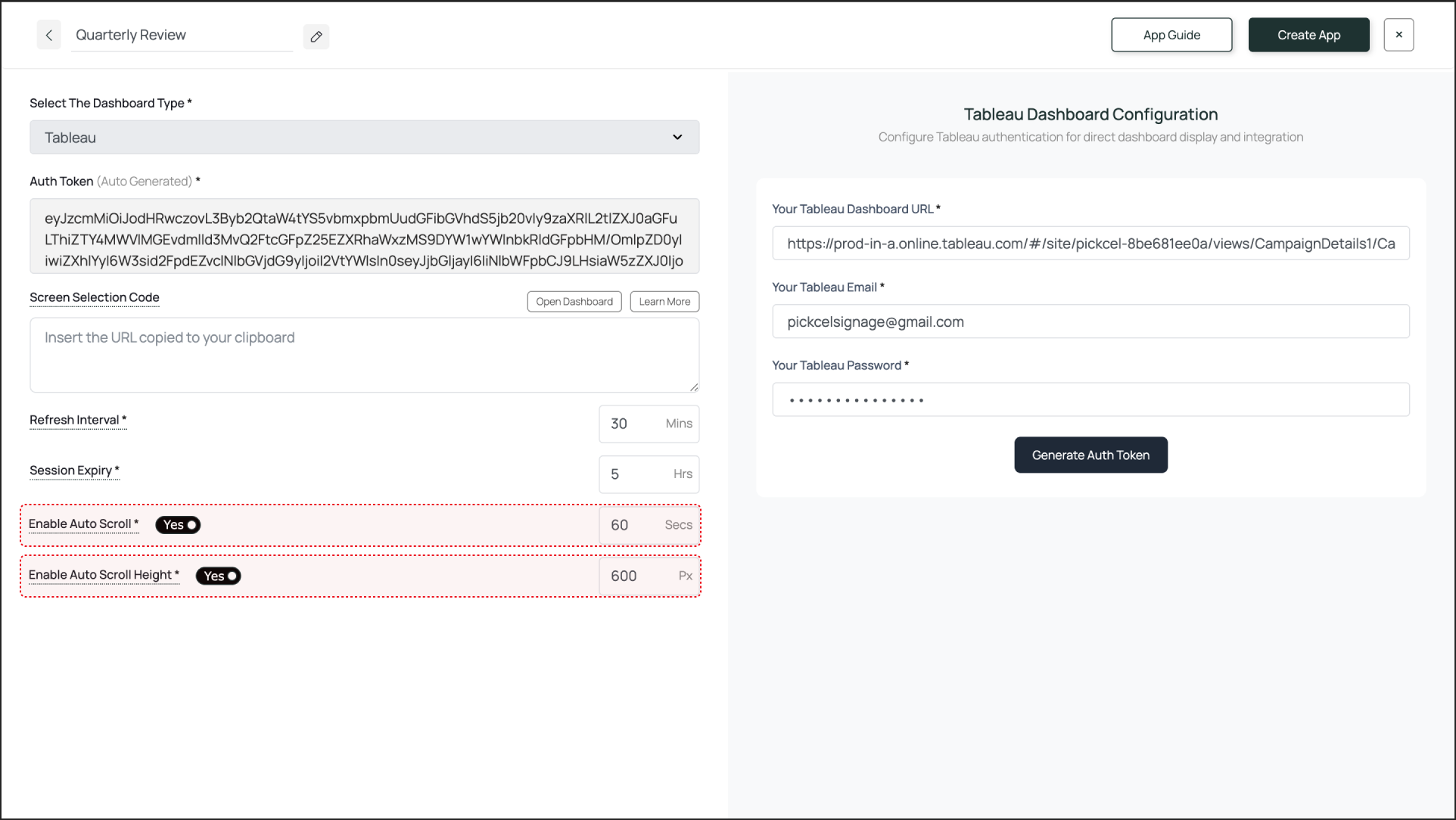
 If your dashboard content doesn't fit on the screen vertically, you can use one of the following two scrolling options:
* **Enable Auto Scroll**: This lets you set a scroll duration in seconds. For example, if you set it to 60 seconds, the entire dashboard will scroll from top to bottom over 60 seconds.
* **Enable Auto Scroll Height**: This lets you set a scroll height in pixels. The screen will scroll down by the defined pixel height.
If your dashboard content doesn't fit on the screen vertically, you can use one of the following two scrolling options:
* **Enable Auto Scroll**: This lets you set a scroll duration in seconds. For example, if you set it to 60 seconds, the entire dashboard will scroll from top to bottom over 60 seconds.
* **Enable Auto Scroll Height**: This lets you set a scroll height in pixels. The screen will scroll down by the defined pixel height.
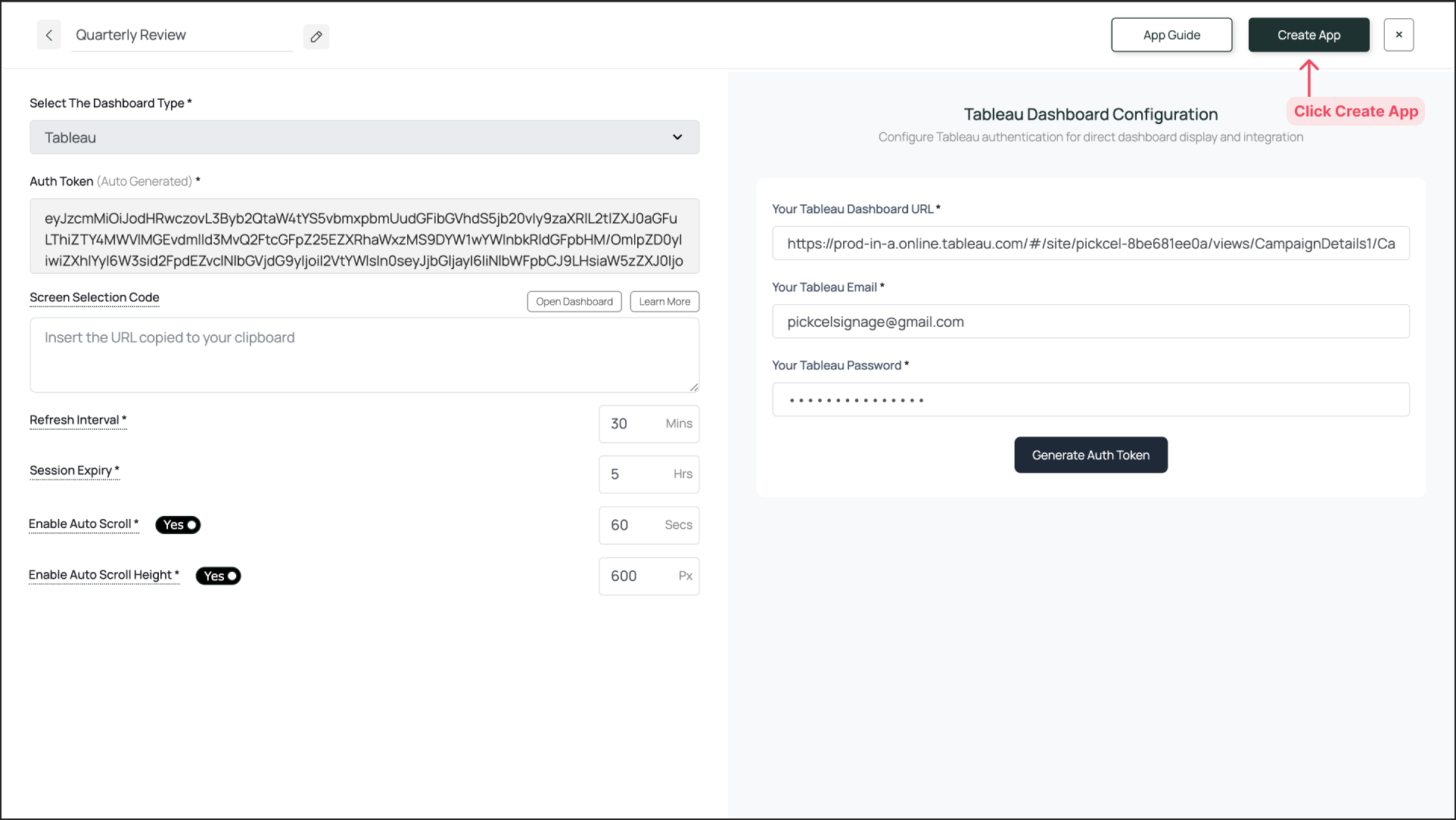
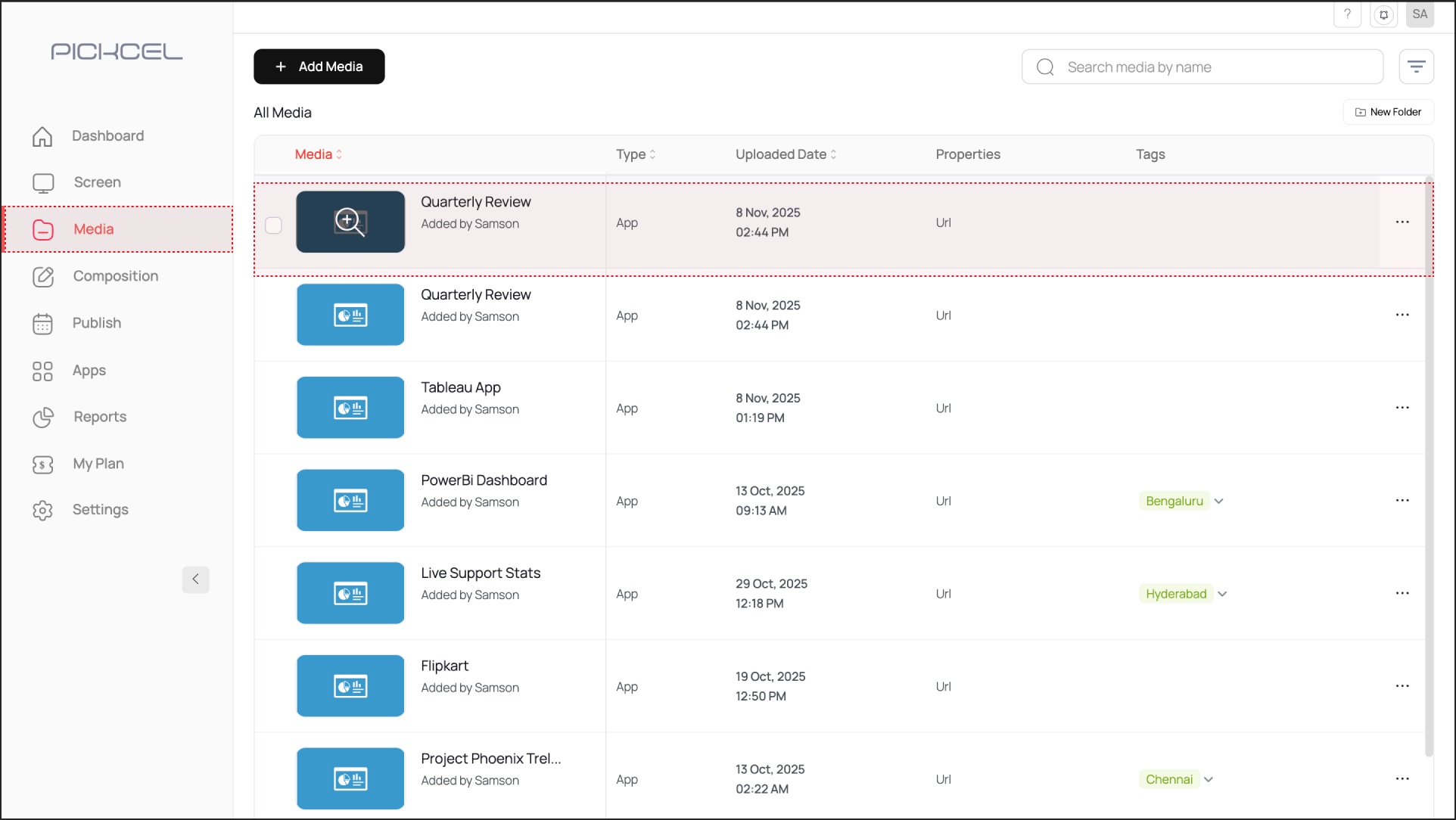
 Once you are done with the configuration, click **Create App**. This successfully creates the app instance, which will be available to view in the **Media** section.
 To preview the dashboard, go to **Media**, find the app instance by the name you created, and click on its thumbnail (magnifier icon). This will display a preview. If you are content with the result, assign it to your digital signage screens.
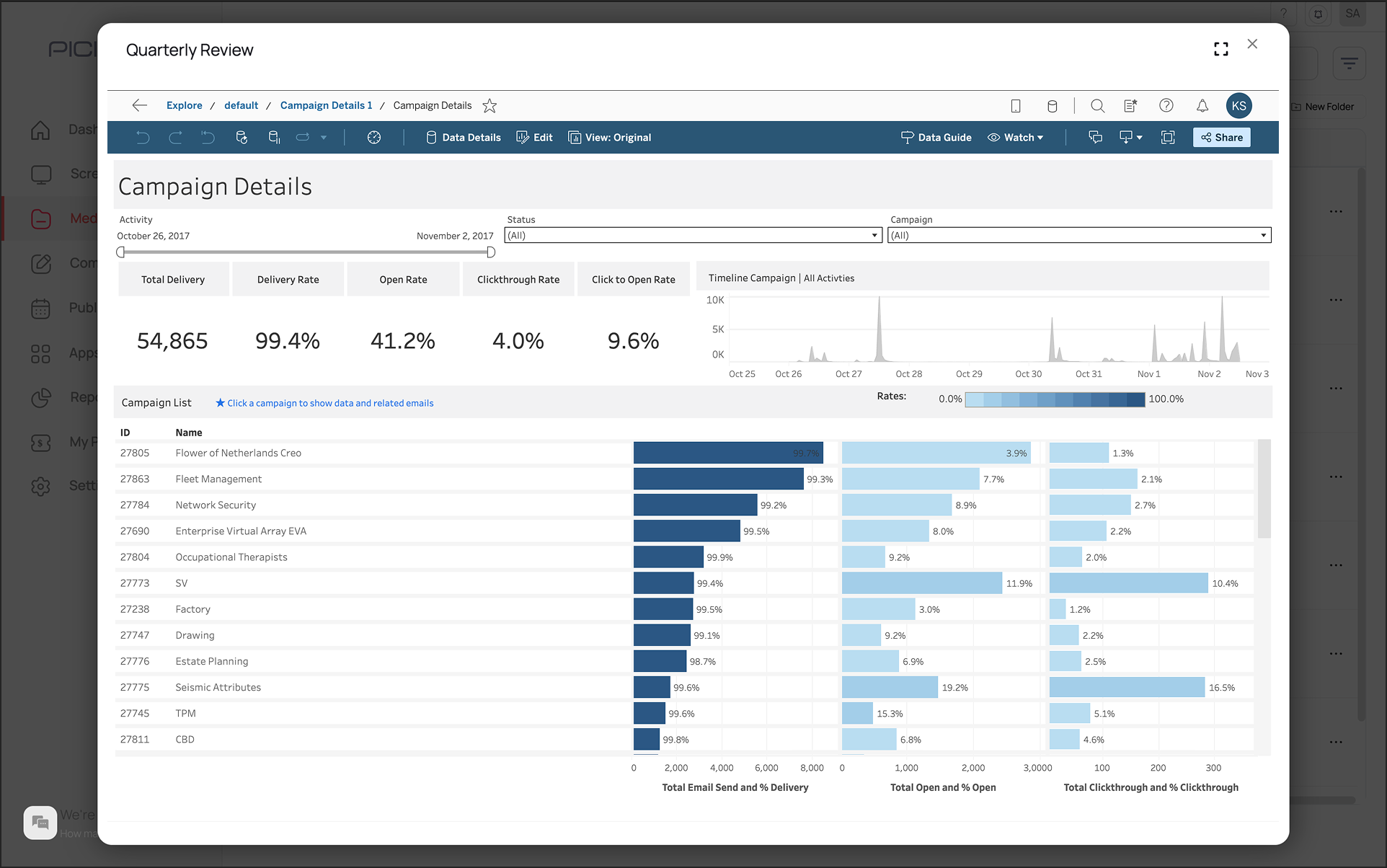 It may take some time for the dashboard screenshot to load, depending on the complexity of the configured dashboard.
If the username, password, or URL is incorrect, the process will stall, displaying the Tableau login screen instead of the dashboard.
***
## What's Next?
Your Tableau Dashboard App is now ready. For further reading:
* To create a multi-zone layout: Learn about [Compositions](/compositions/compositions)
* To send it to your screens: Learn how to [Publish or Schedule Content](/schedule-and-publish/publish-overview)
It may take some time for the dashboard screenshot to load, depending on the complexity of the configured dashboard.
If the username, password, or URL is incorrect, the process will stall, displaying the Tableau login screen instead of the dashboard.
***
## What's Next?
Your Tableau Dashboard App is now ready. For further reading:
* To create a multi-zone layout: Learn about [Compositions](/compositions/compositions)
* To send it to your screens: Learn how to [Publish or Schedule Content](/schedule-and-publish/publish-overview)