> ## Documentation Index
> Fetch the complete documentation index at: https://docs.pickcel.com/llms.txt
> Use this file to discover all available pages before exploring further.
# How to Set Up 2FA and Get a Secret Key for Dashboard Apps
This document explains how to configure 2-Factor Authentication (2FA) for services that require it and retrieve the necessary **Secret Key** for the Pickcel Dashboard App.
***
## Why do I need a Secret Key instead of a QR Code?
The Pickcel Dashboard App logs into your services automatically to capture and display your dashboards. To do this with 2FA-protected accounts, it needs the secret key instead of a QR code.
**In simple terms**
The secret key allows Pickcel to automatically generate the 6-digit 2FA codes that would normally appear in an authenticator app like Google Authenticator or Authy. This enables automatic login without manual intervention.
***
## General Steps to Get the Secret Key
When you enable 2FA in services like Atlassian (Jira/Trello), Microsoft (Power BI), Salesforce, or Zendesk, you will be presented with a QR code. Instead of scanning it, look for an option like: Manual setup, Can't scan the code?, Show secret key, Enter key manually.
This will reveal a long string of text (usually alphanumeric). **This is your Secret Key** (also sometimes called **Authenticator Secret** or **Auth Secret**).
**Important**
Store this key in a secure location. Treat it with the same level of security as your main password. Anyone with this key can generate valid 2FA codes for your account.
***
## Step-by-Step Instructions (Microsoft Account)
The screenshots below show the flow for a Microsoft account, which is required for Power BI. The same principle applies to other services — look for an equivalent path in their security settings.
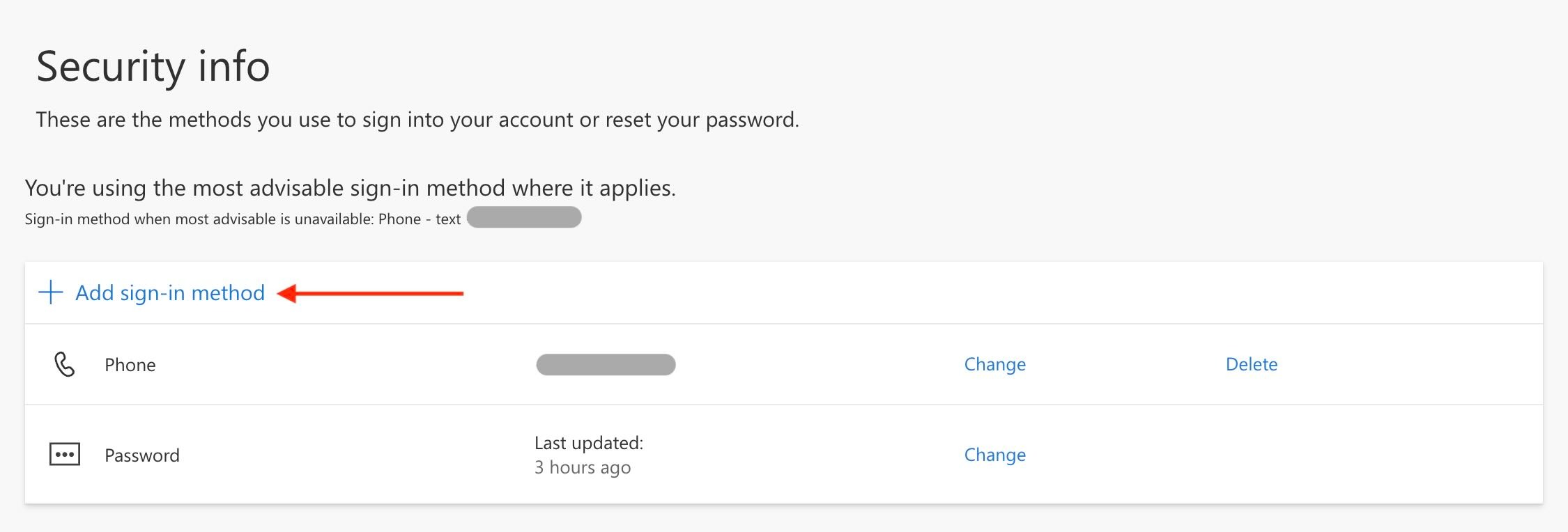
Go to [mysignins.microsoft.com](https://mysignins.microsoft.com) and sign in. Navigate to the **Security info** tab, then click **+ Add sign-in method**.
 For other services, navigate to their Account or Security settings and look for an option to enable Two-Factor Authentication, Two-Step Verification, or Multi-Factor Authentication.
From the sign-in method list, select **Microsoft Authenticator**.
For other services, navigate to their Account or Security settings and look for an option to enable Two-Factor Authentication, Two-Step Verification, or Multi-Factor Authentication.
From the sign-in method list, select **Microsoft Authenticator**.
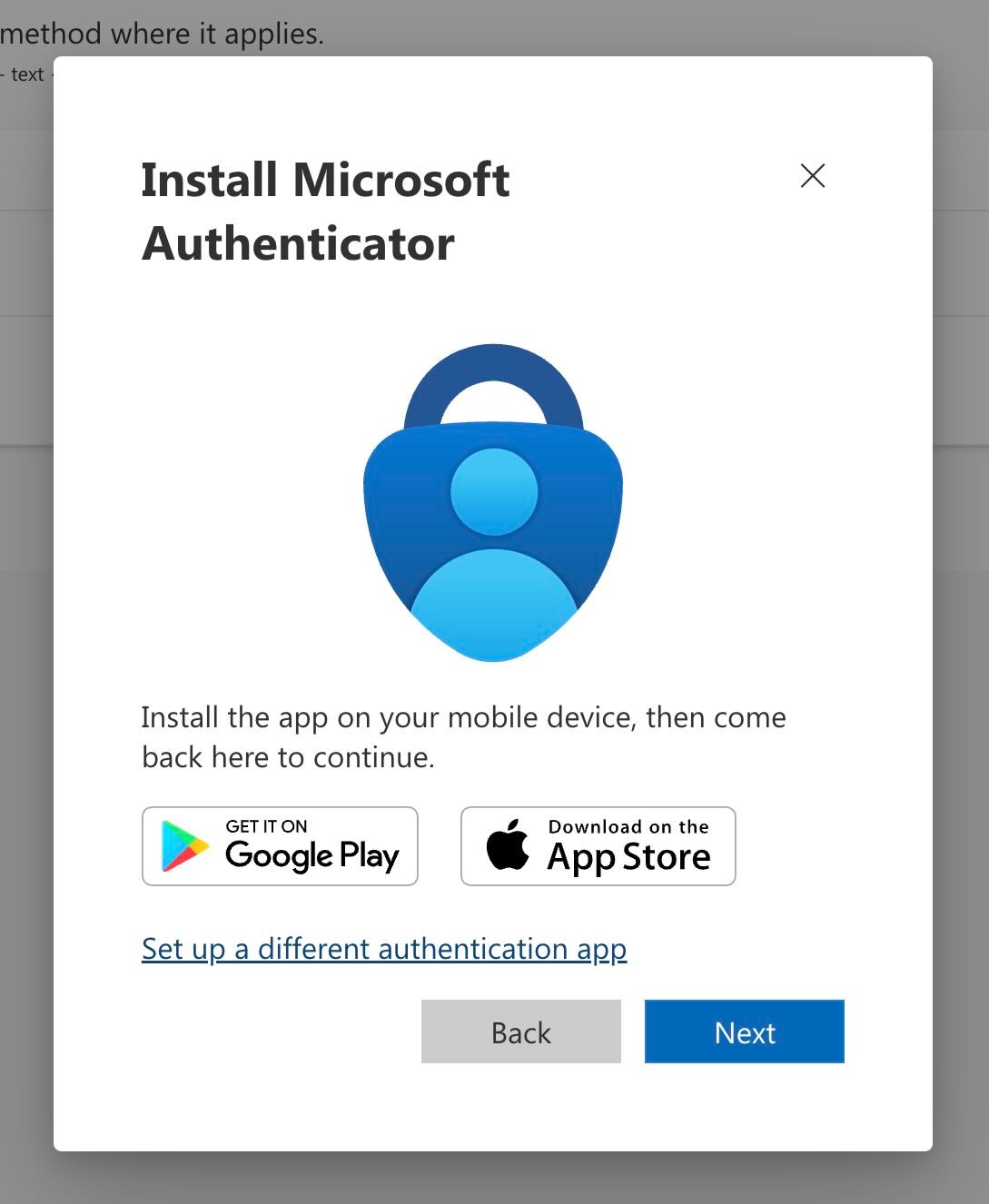
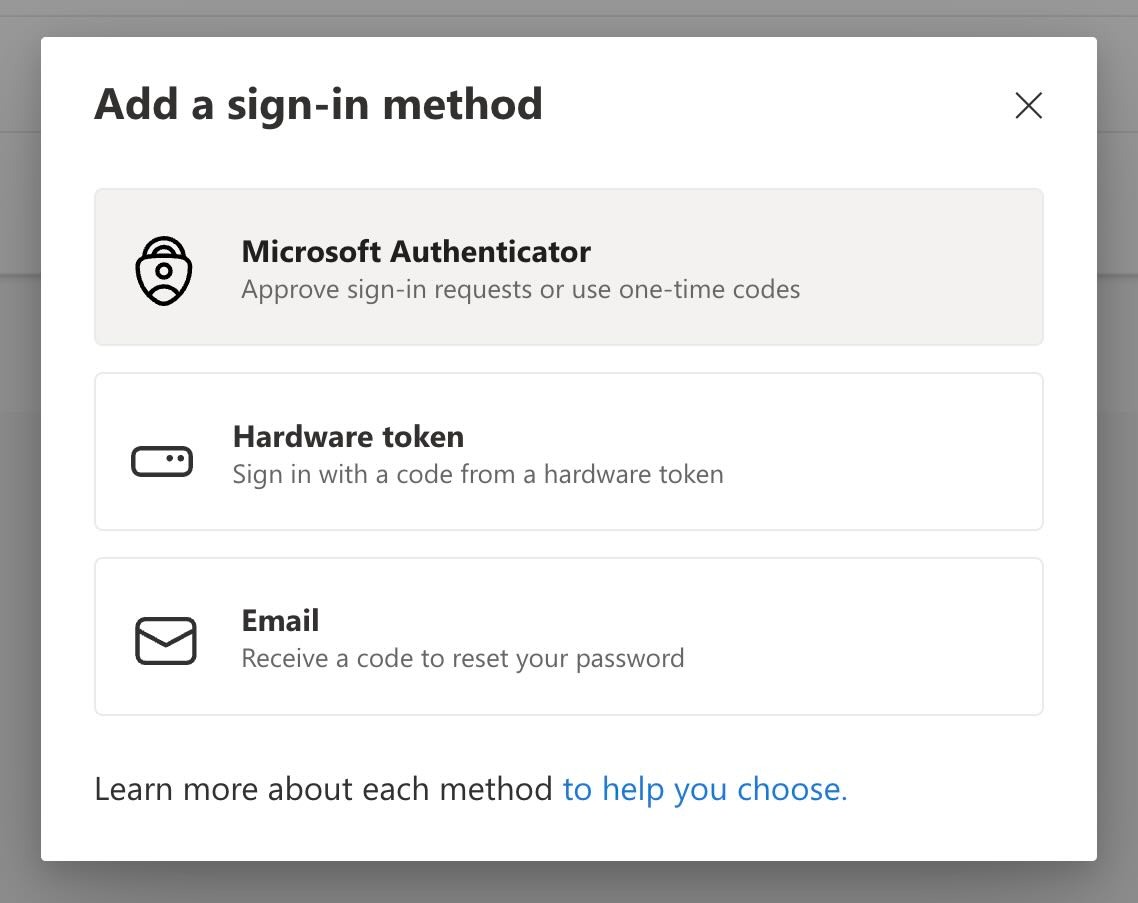 On the next screen, do not install the Microsoft Authenticator app. Instead, click **Set up a different authentication app** at the bottom of the dialog.
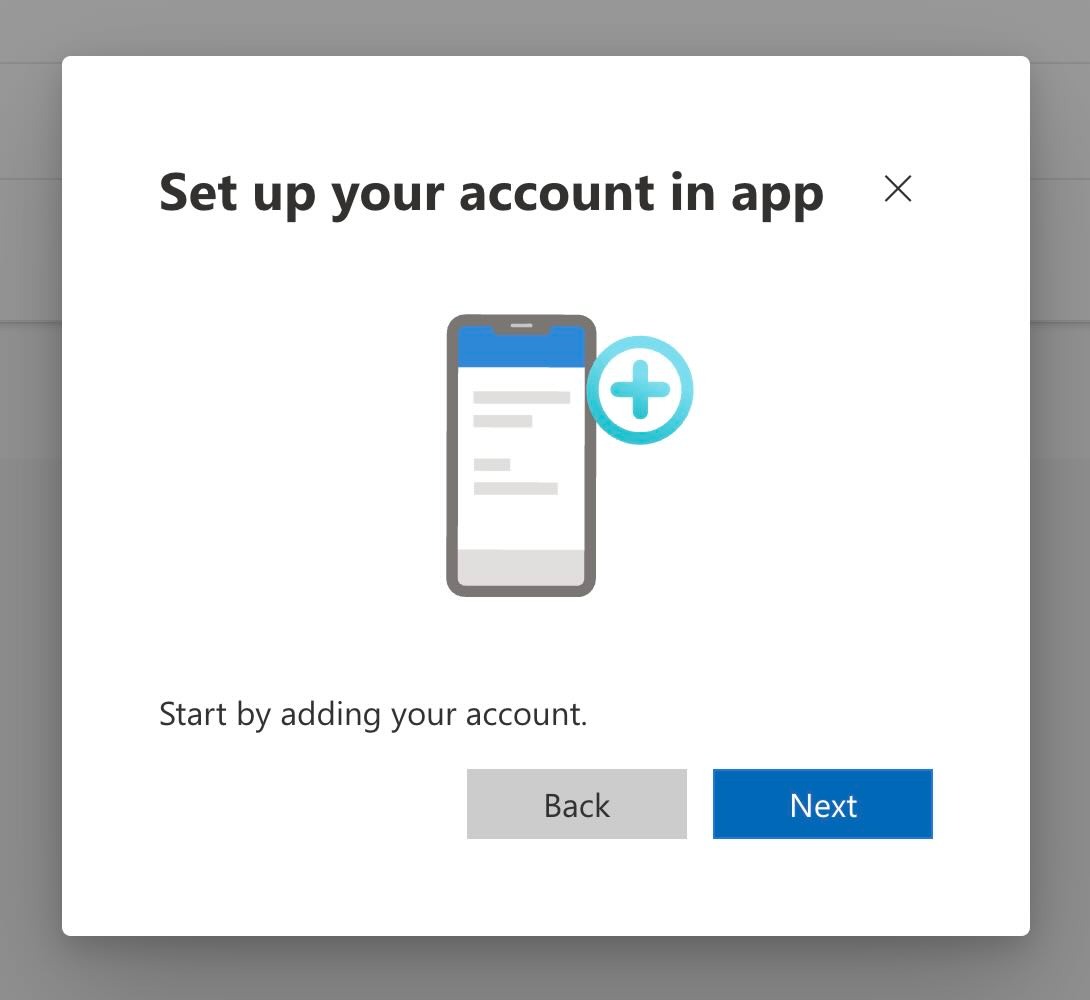
 A new screen confirms you are setting up a third-party authenticator app. Click **Next** to continue.
 A QR code will appear. Do not scan it. Instead, click **Can't scan the QR code?** below the QR code image.
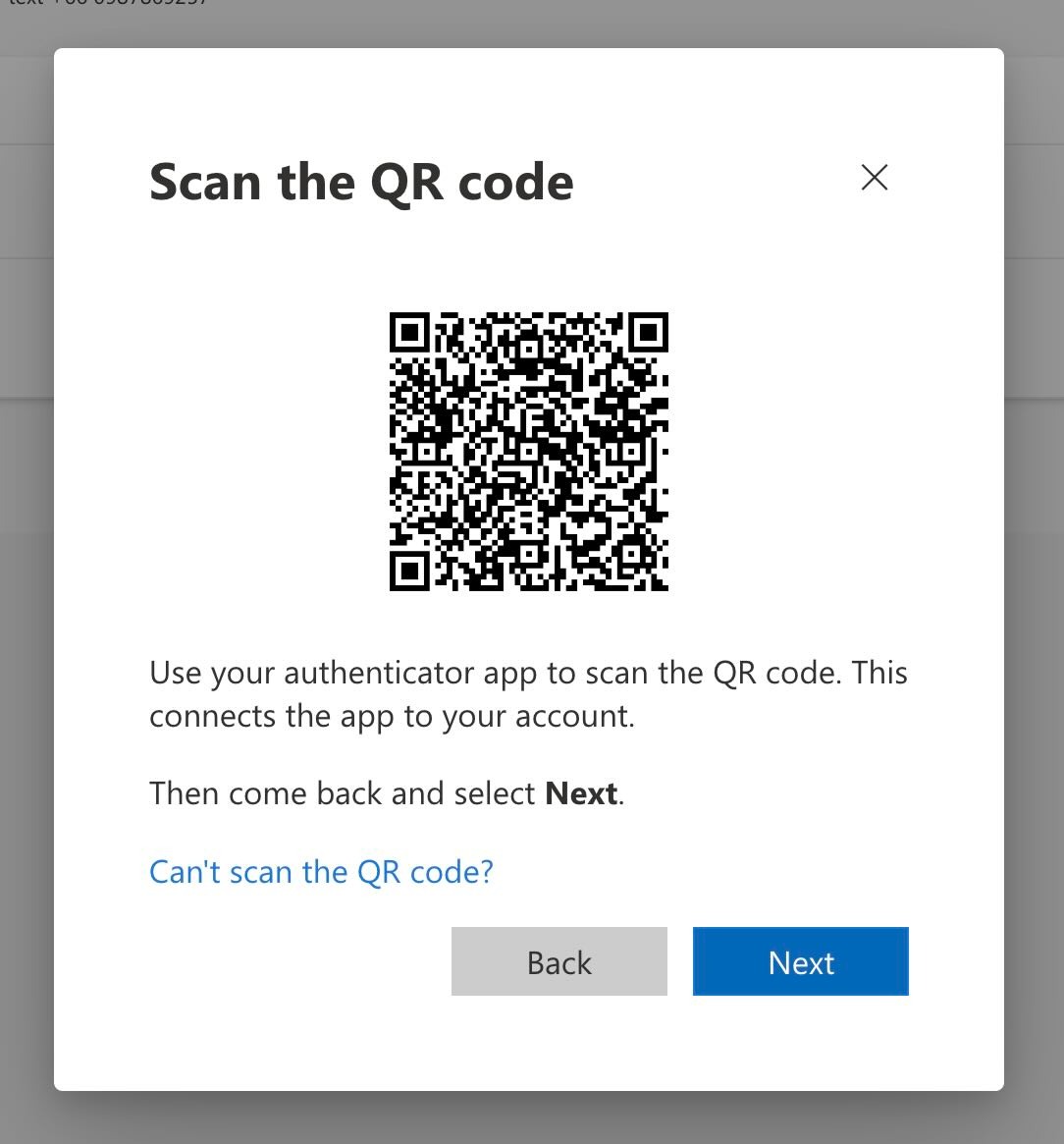 On other services this link may be labelled "Manual setup", "Show secret key", or "Enter a setup key" — it is always an alternative to scanning the QR code.
A new screen appears showing your **Account name** and **Secret key**. Click **Copy key** to copy it to your clipboard.
On other services this link may be labelled "Manual setup", "Show secret key", or "Enter a setup key" — it is always an alternative to scanning the QR code.
A new screen appears showing your **Account name** and **Secret key**. Click **Copy key** to copy it to your clipboard.
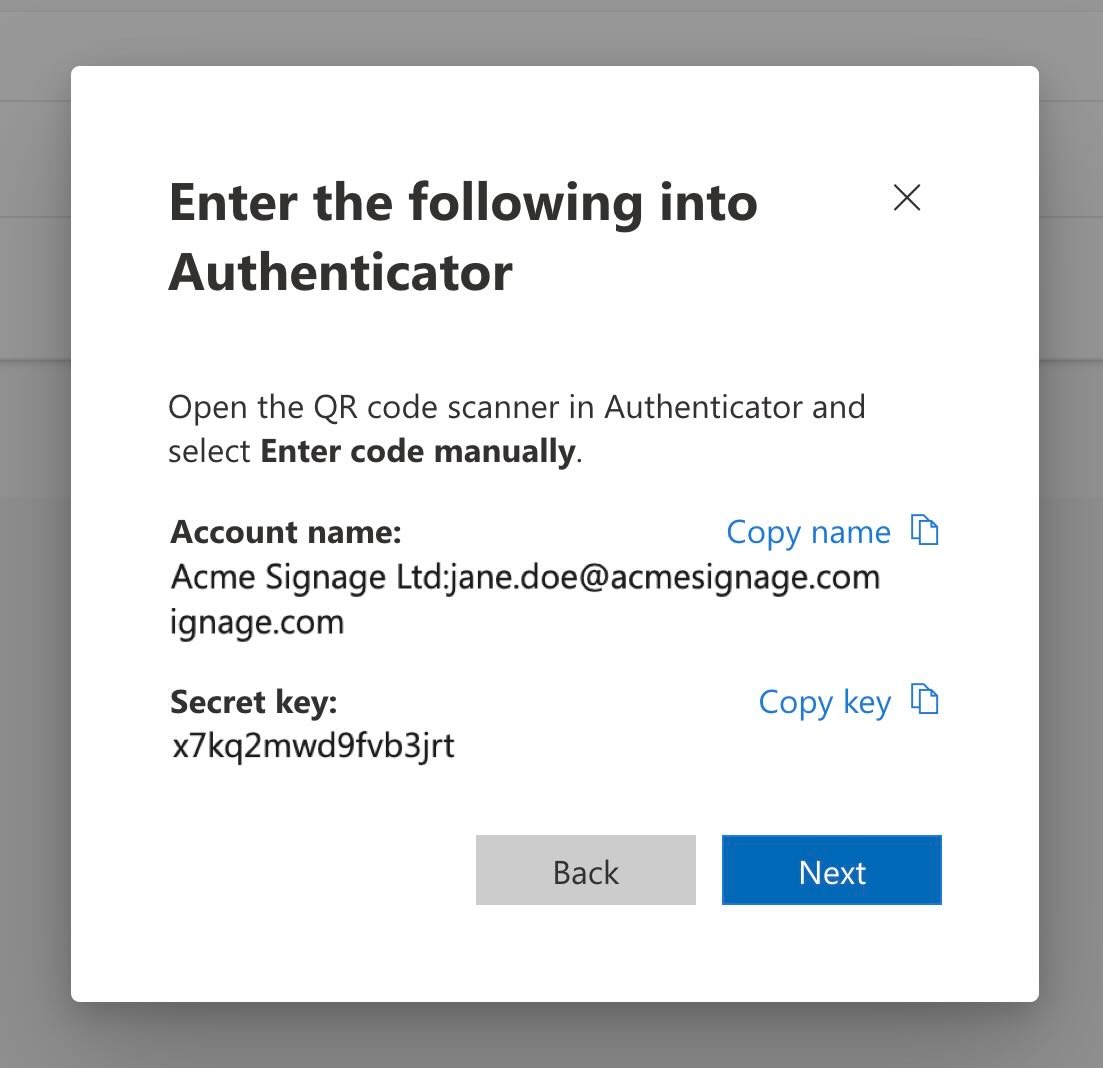 Save this key in a secure location such as a password manager, an encrypted note, or a secure company vault. You will need it when configuring the Pickcel Dashboard App.
Copy the **entire key** accurately. Even a single wrong character will prevent 2FA from working.
Also add the same secret key to your personal authenticator app (Google Authenticator, Authy, etc.) so you can still log in manually if needed.
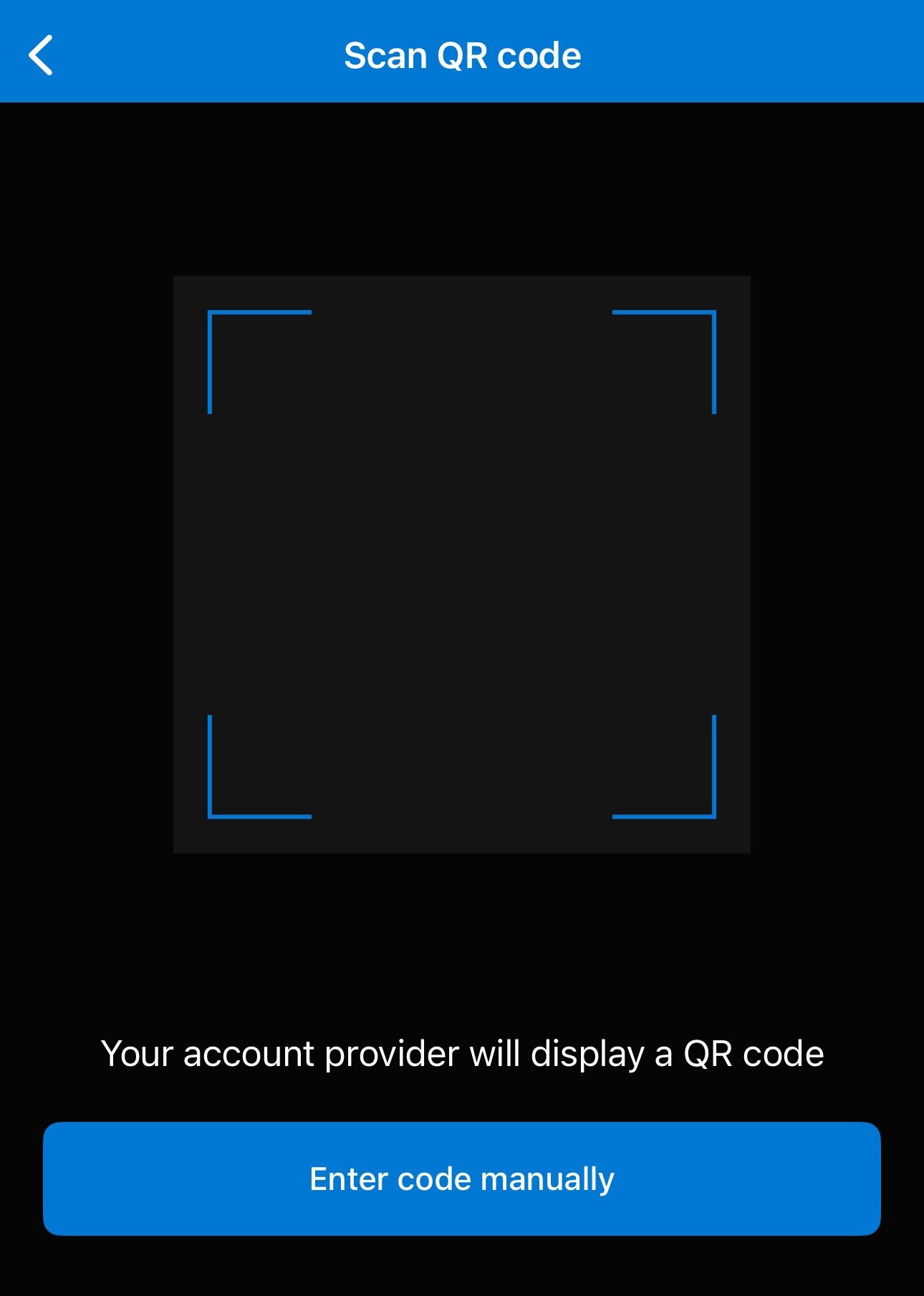
Microsoft requires you to verify the secret key works before 2FA is activated. Open the Microsoft Authenticator app (or any TOTP app — Google Authenticator and Authy work identically) and tap the **+** icon or **Scan QR code**.
Save this key in a secure location such as a password manager, an encrypted note, or a secure company vault. You will need it when configuring the Pickcel Dashboard App.
Copy the **entire key** accurately. Even a single wrong character will prevent 2FA from working.
Also add the same secret key to your personal authenticator app (Google Authenticator, Authy, etc.) so you can still log in manually if needed.
Microsoft requires you to verify the secret key works before 2FA is activated. Open the Microsoft Authenticator app (or any TOTP app — Google Authenticator and Authy work identically) and tap the **+** icon or **Scan QR code**.
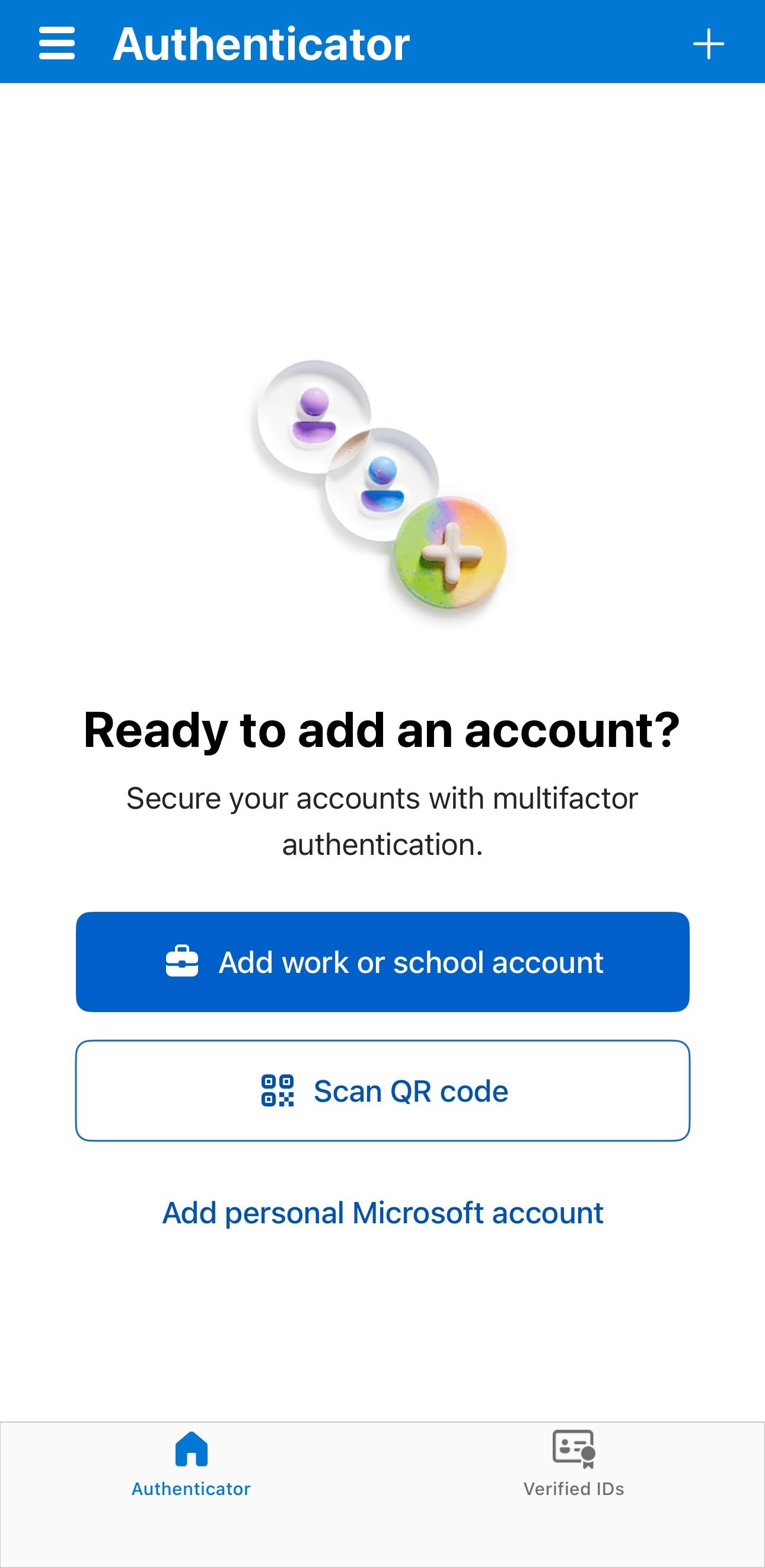 The camera opens to scan a QR code. Instead, tap **Enter code manually** at the bottom.
 Choose **Other (Google, Facebook, etc.)** as the account type.
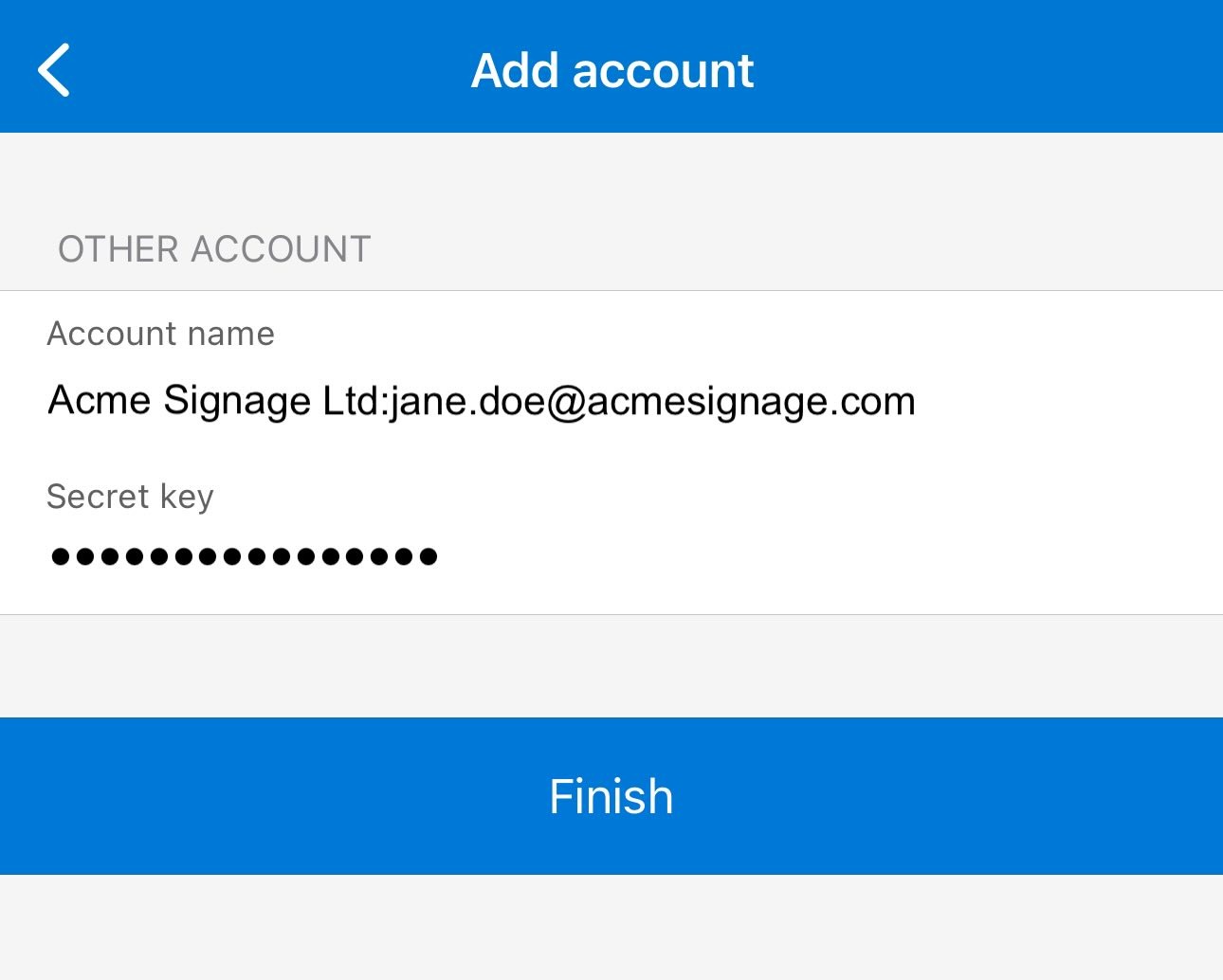
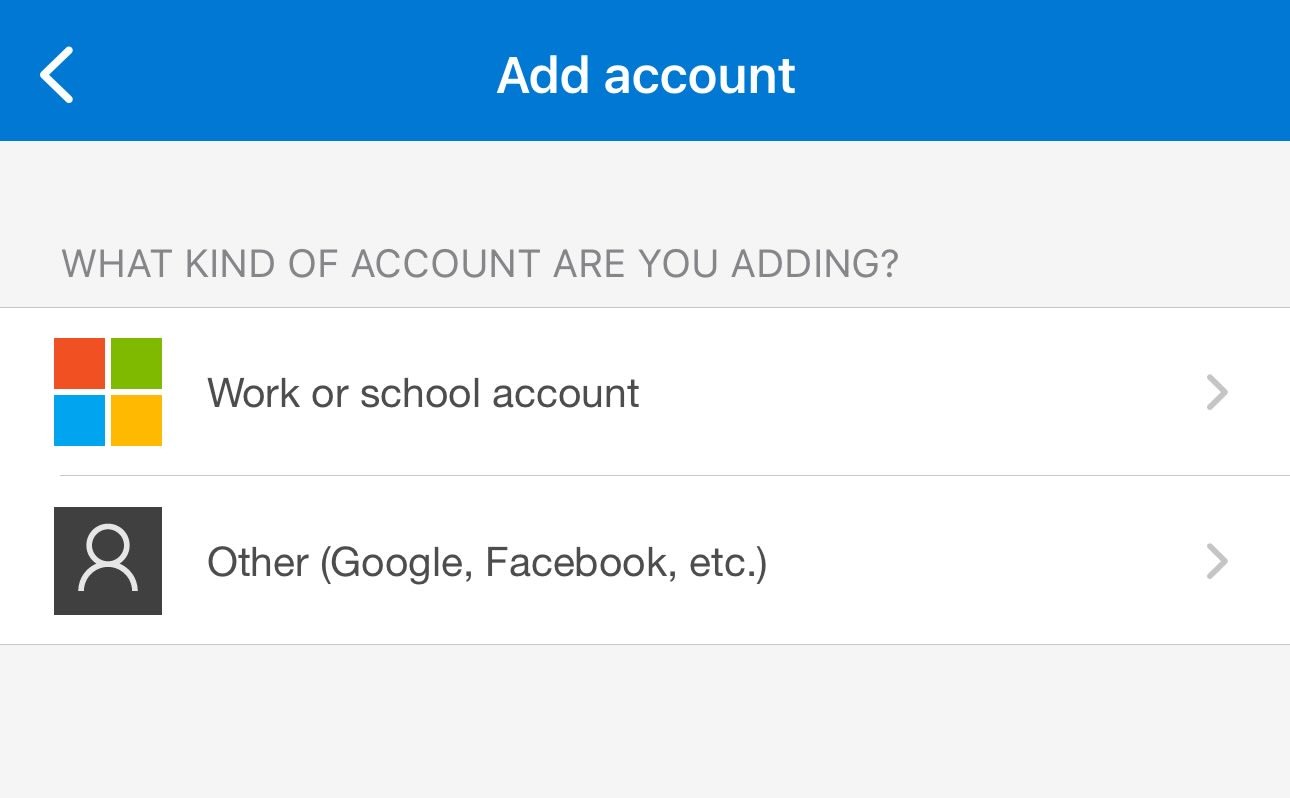 Paste the **Account name** and **Secret key** you copied from Microsoft into the fields, then tap **Finish**.
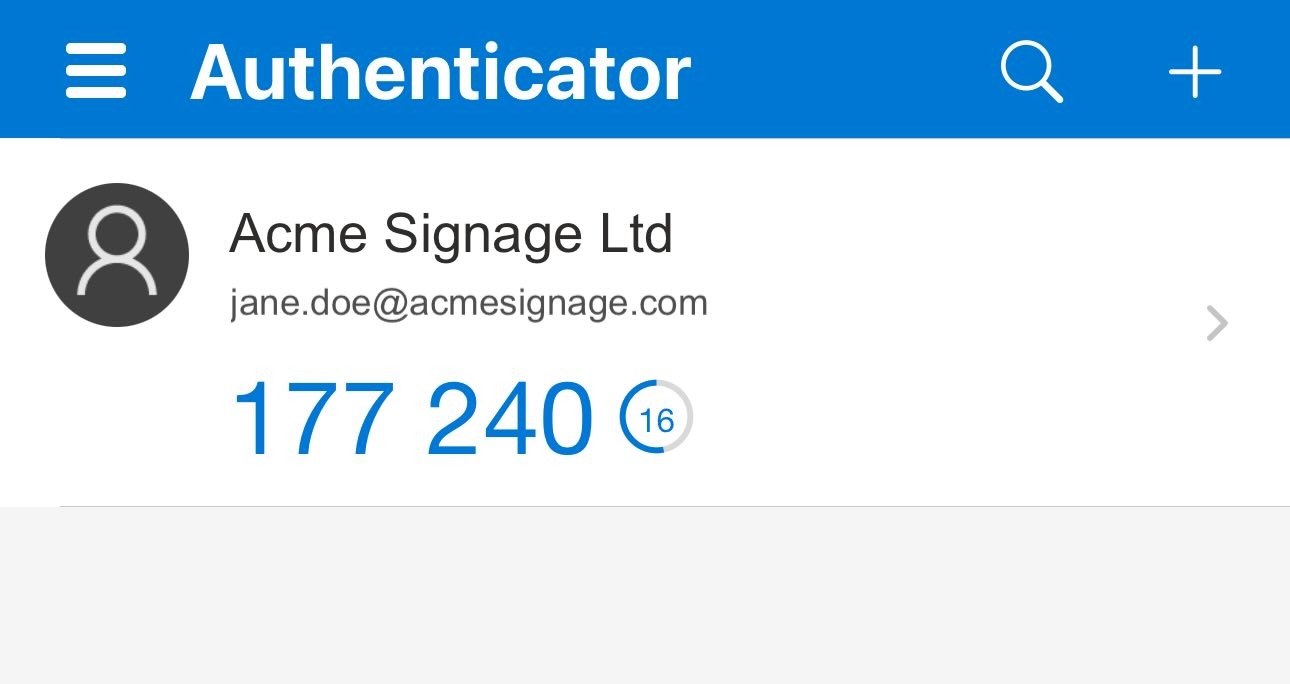
 The app immediately generates a 6-digit rotating code for your account.
 Return to the Microsoft 2FA setup page in your browser, click **Next**, enter the 6-digit code shown in the app, and click **Next** again. Click **Done** when Microsoft confirms the connection is established.
You will see the new Authenticator app entry listed under your Security info, confirming 2FA is active.
This verification step is what activates 2FA on your Microsoft account. Once complete, Pickcel uses the same secret key to generate these codes automatically — no phone needed during signage playback.
When configuring the Dashboard App in Pickcel, paste the secret key into the **Auth Secret** field. The exact label varies by dashboard type — it may appear as **Auth Secret Key**, **Authenticator Secret**, or **2FA Secret Key**.
Once entered, Pickcel will use this key to automatically generate the 6-digit codes during login.
***
## Official Documentation Links
For detailed, step-by-step instructions directly from the service providers, please refer to their official documentation:
How to set up two-step verification for Atlassian accounts
How to use two-step verification with your Microsoft account
Enable MFA for Your Salesforce Users
Enabling two-factor authentication in Zendesk
***
## Common Questions
Unfortunately, no. The Pickcel Dashboard App requires the text-based secret key to generate 2FA codes automatically. QR codes are designed for manual scanning with authenticator apps, which isn't compatible with our automated login system.
Yes. Pickcel stores your secret key securely and uses it only to generate time-based codes for logging into your dashboard. It is never shared with third parties. However, as a best practice, we recommend using a dedicated service account with limited permissions rather than your primary admin account.
You will need to disable 2FA on your account and then re-enable it to get a new secret key. Alternatively, some services allow you to regenerate the secret key from your security settings without fully disabling 2FA.
Yes! The same secret key can be used on multiple devices and applications. You can add it to your personal authenticator app and also provide it to Pickcel. Both will generate the same 6-digit codes at the same time.
If you believe your secret key has been compromised, immediately disable 2FA on your account, regenerate a new secret key, and update it in the Pickcel Dashboard App configuration. Also consider changing your account password.
Return to the Microsoft 2FA setup page in your browser, click **Next**, enter the 6-digit code shown in the app, and click **Next** again. Click **Done** when Microsoft confirms the connection is established.
You will see the new Authenticator app entry listed under your Security info, confirming 2FA is active.
This verification step is what activates 2FA on your Microsoft account. Once complete, Pickcel uses the same secret key to generate these codes automatically — no phone needed during signage playback.
When configuring the Dashboard App in Pickcel, paste the secret key into the **Auth Secret** field. The exact label varies by dashboard type — it may appear as **Auth Secret Key**, **Authenticator Secret**, or **2FA Secret Key**.
Once entered, Pickcel will use this key to automatically generate the 6-digit codes during login.
***
## Official Documentation Links
For detailed, step-by-step instructions directly from the service providers, please refer to their official documentation:
How to set up two-step verification for Atlassian accounts
How to use two-step verification with your Microsoft account
Enable MFA for Your Salesforce Users
Enabling two-factor authentication in Zendesk
***
## Common Questions
Unfortunately, no. The Pickcel Dashboard App requires the text-based secret key to generate 2FA codes automatically. QR codes are designed for manual scanning with authenticator apps, which isn't compatible with our automated login system.
Yes. Pickcel stores your secret key securely and uses it only to generate time-based codes for logging into your dashboard. It is never shared with third parties. However, as a best practice, we recommend using a dedicated service account with limited permissions rather than your primary admin account.
You will need to disable 2FA on your account and then re-enable it to get a new secret key. Alternatively, some services allow you to regenerate the secret key from your security settings without fully disabling 2FA.
Yes! The same secret key can be used on multiple devices and applications. You can add it to your personal authenticator app and also provide it to Pickcel. Both will generate the same 6-digit codes at the same time.
If you believe your secret key has been compromised, immediately disable 2FA on your account, regenerate a new secret key, and update it in the Pickcel Dashboard App configuration. Also consider changing your account password.