> ## Documentation Index
> Fetch the complete documentation index at: https://docs.pickcel.com/llms.txt
> Use this file to discover all available pages before exploring further.
# How to add the Currency Exchange Board app from the Pickcel App Store?
> Display live currency exchange rates on your digital signage screens with buy and sell rates for as many currencies as you need.
The Currency Exchange Board app displays buy and sell rates against a base currency of your choice. It's built for forex counters, hotel lobbies, and international venues that need to show rates at a glance and update them the moment they change.
In this guide we set up a board for a fictional forex desk, **Milan Forex Pvt Ltd**, quoting US Dollar and British Pound rates against the Euro.
## Prerequisites
* A [Pickcel account](https://console.pickcel.com/) with access to the **Content** module
* The buy and sell rate for each currency you want to display
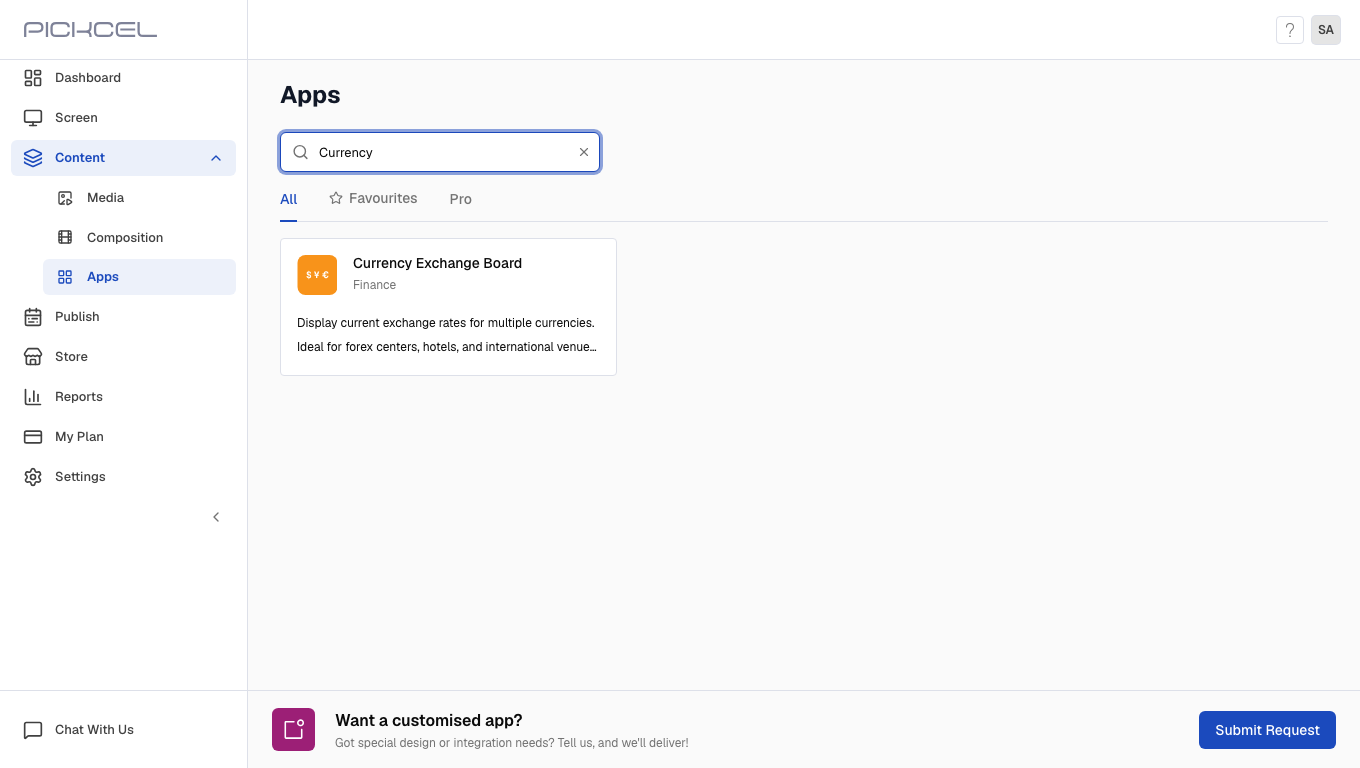
In the Pickcel console, expand **Content** in the left menu and select **Apps**. Search for **Currency** using the search field.
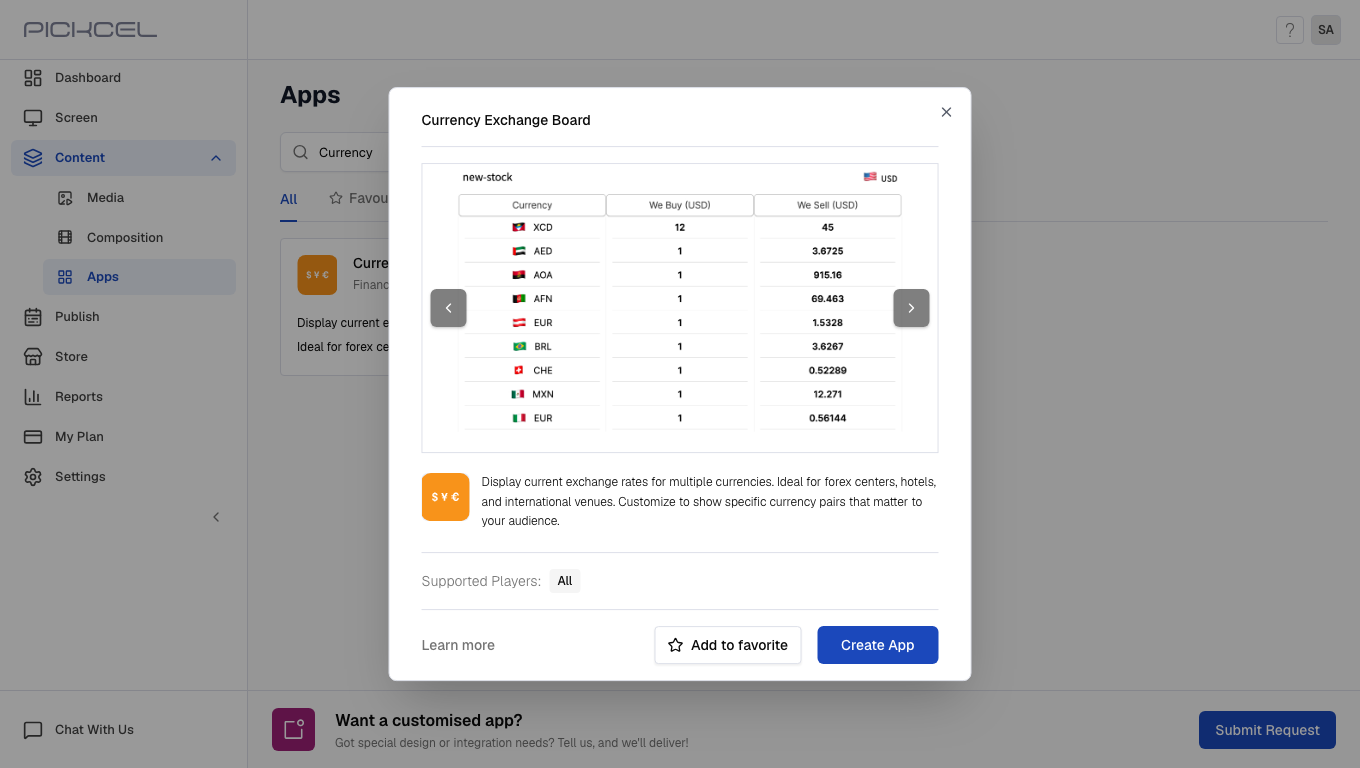
 Click the **Currency Exchange Board** card. A details panel opens with a preview of the app. Click **Create App** to open the editor.
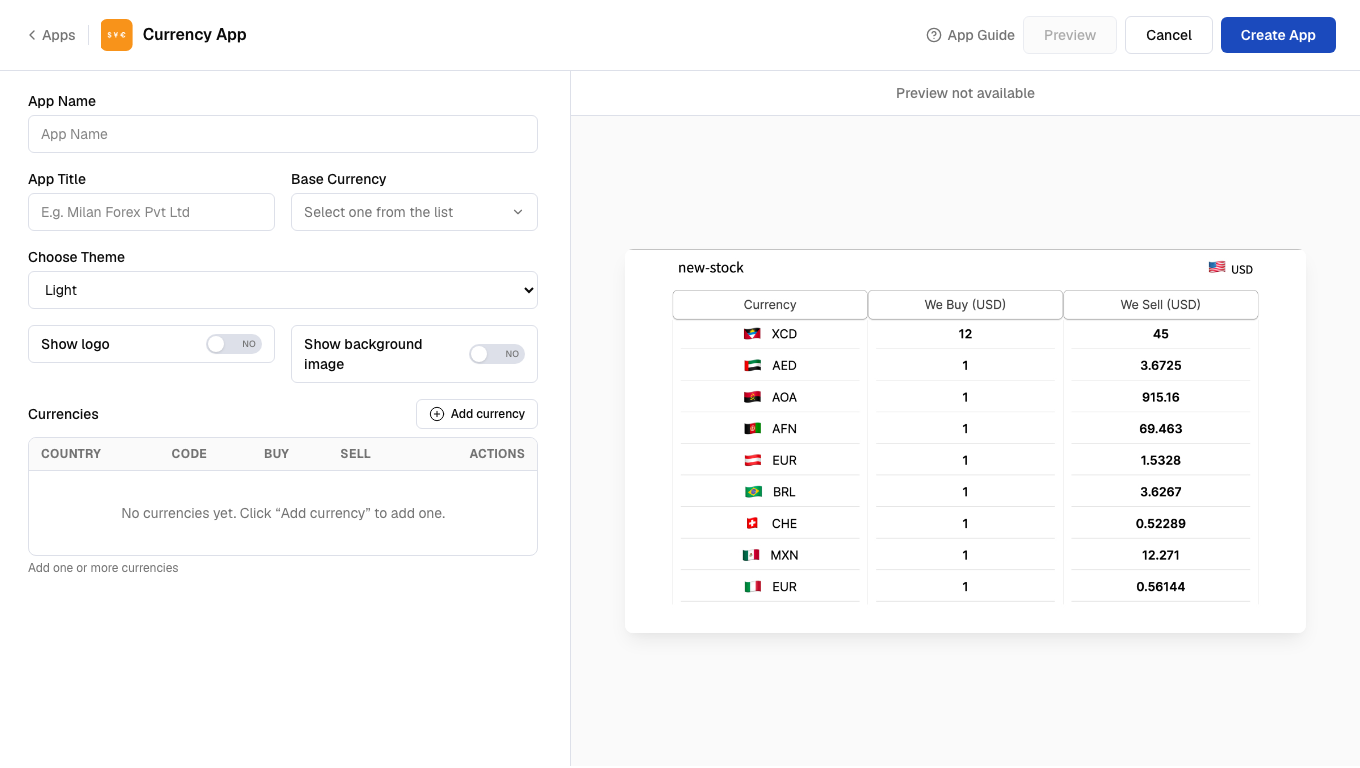
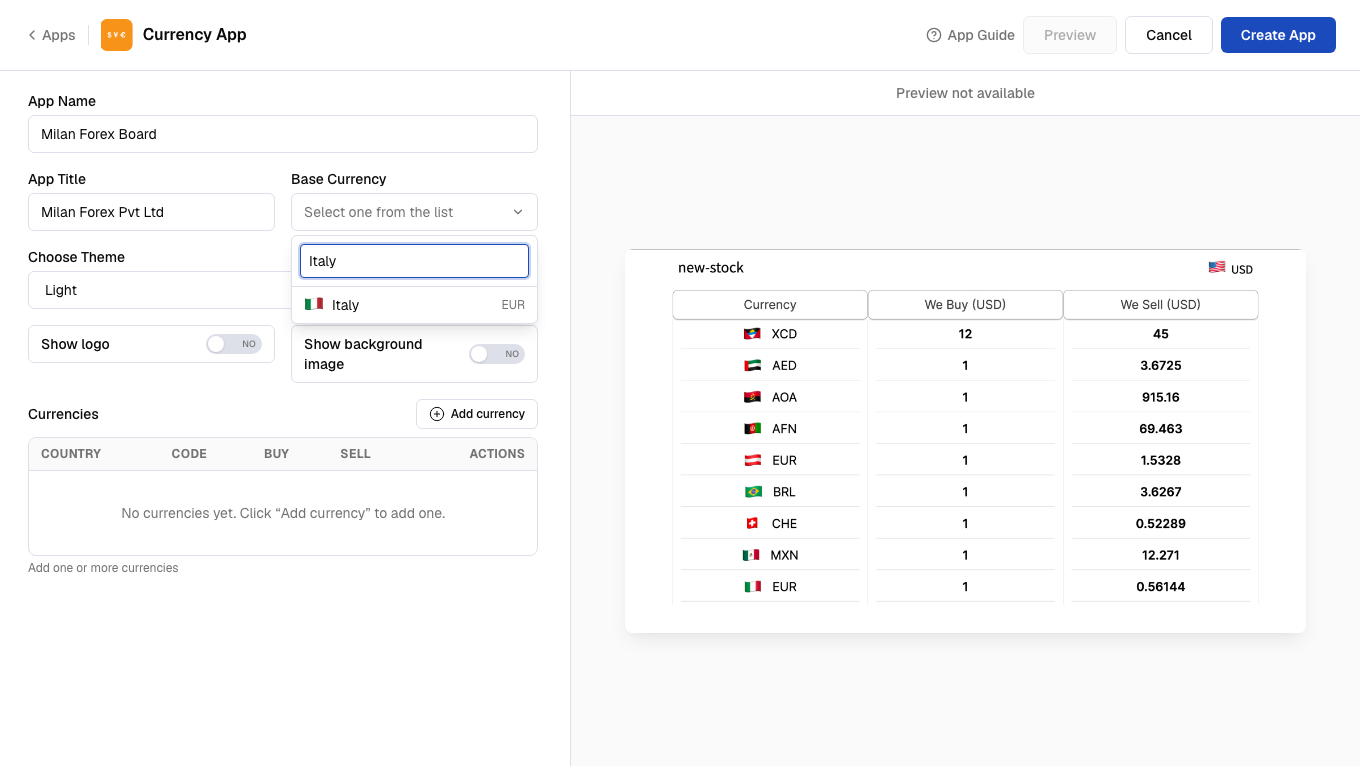
 Enter an **App Name** (how you'll find it later in **Media**) and an **App Title** to display on screen. Open **Base Currency** and search by country or currency code; every rate you add is quoted against this currency. We used **Milan Forex Pvt Ltd** as the title and **Italy (EUR)** as the base currency.
 Pick **Light**, **Dark**, or **Transparent** from **Choose Theme** to match your screen's background.
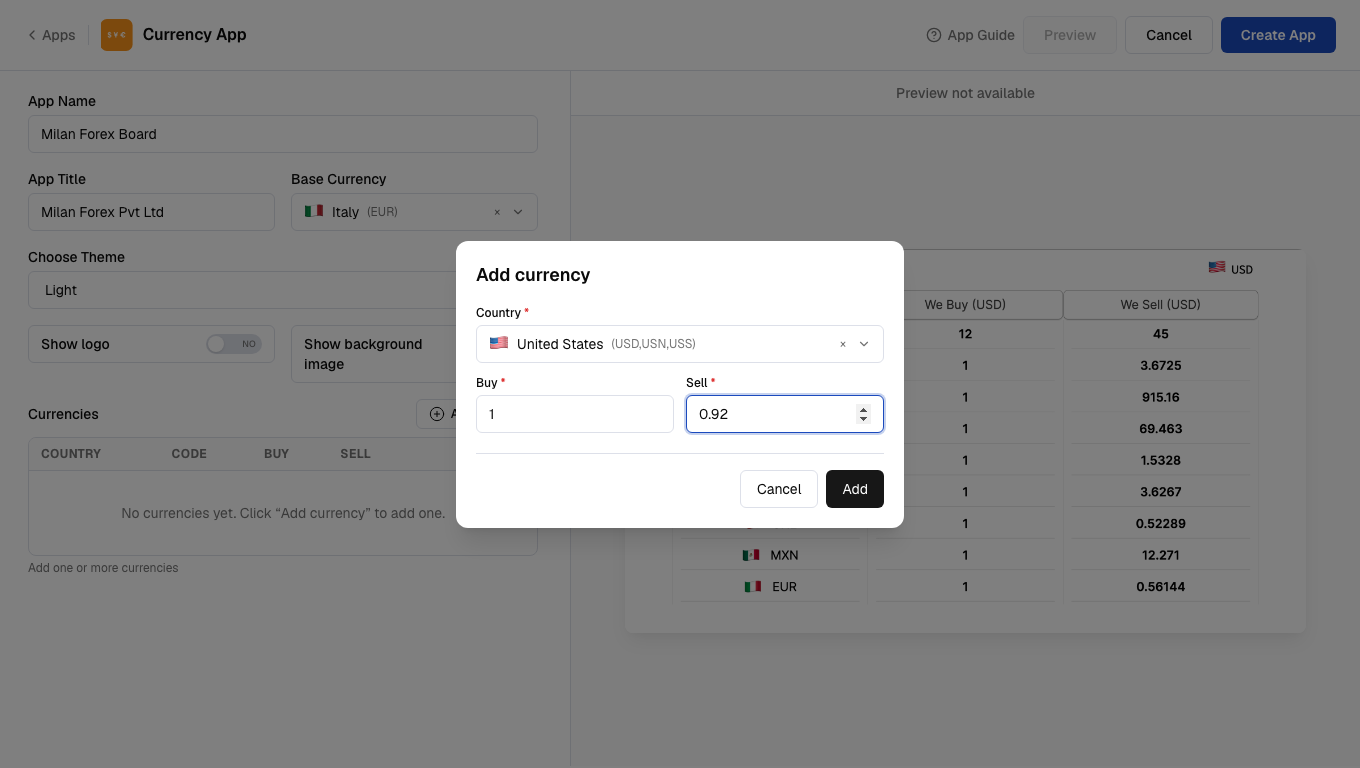
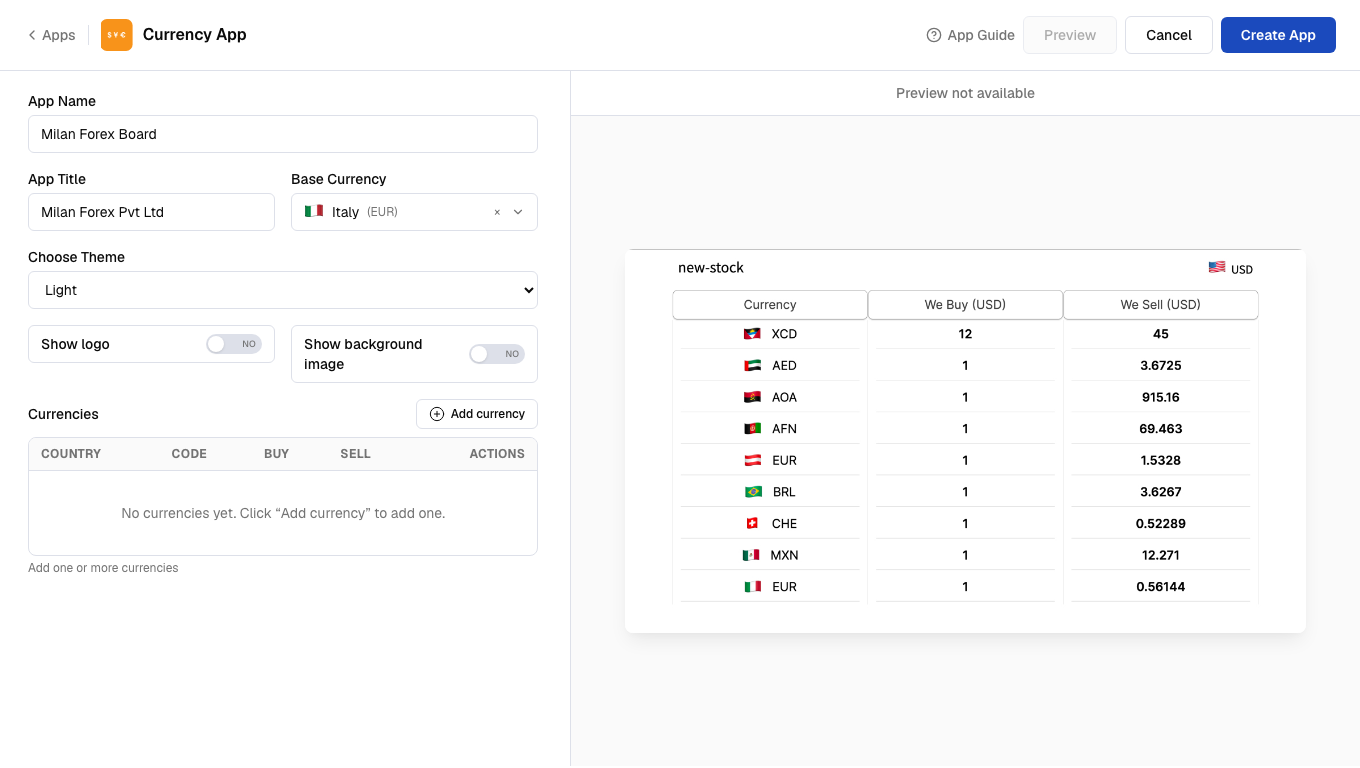 Click **Add currency**, search for a **Country**, then enter the **Buy** and **Sell** rates against your base currency. Click **Add** to save the row.
 Repeat for every currency you want on the board. Each row shows its country flag, currency code, and rates, with edit and delete icons on the right.
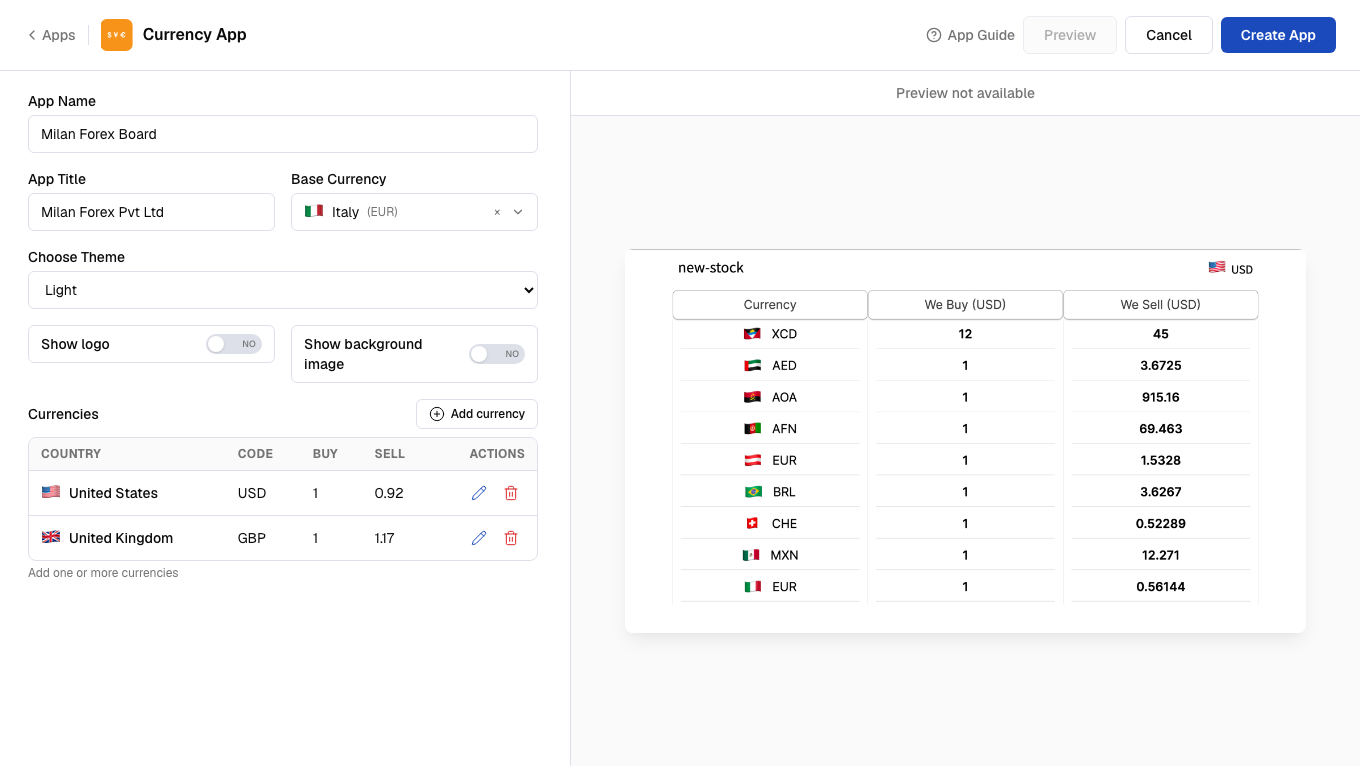 **Base Currency** stays fixed no matter how many rows you add; every **Buy**/**Sell** pair is always quoted against it.
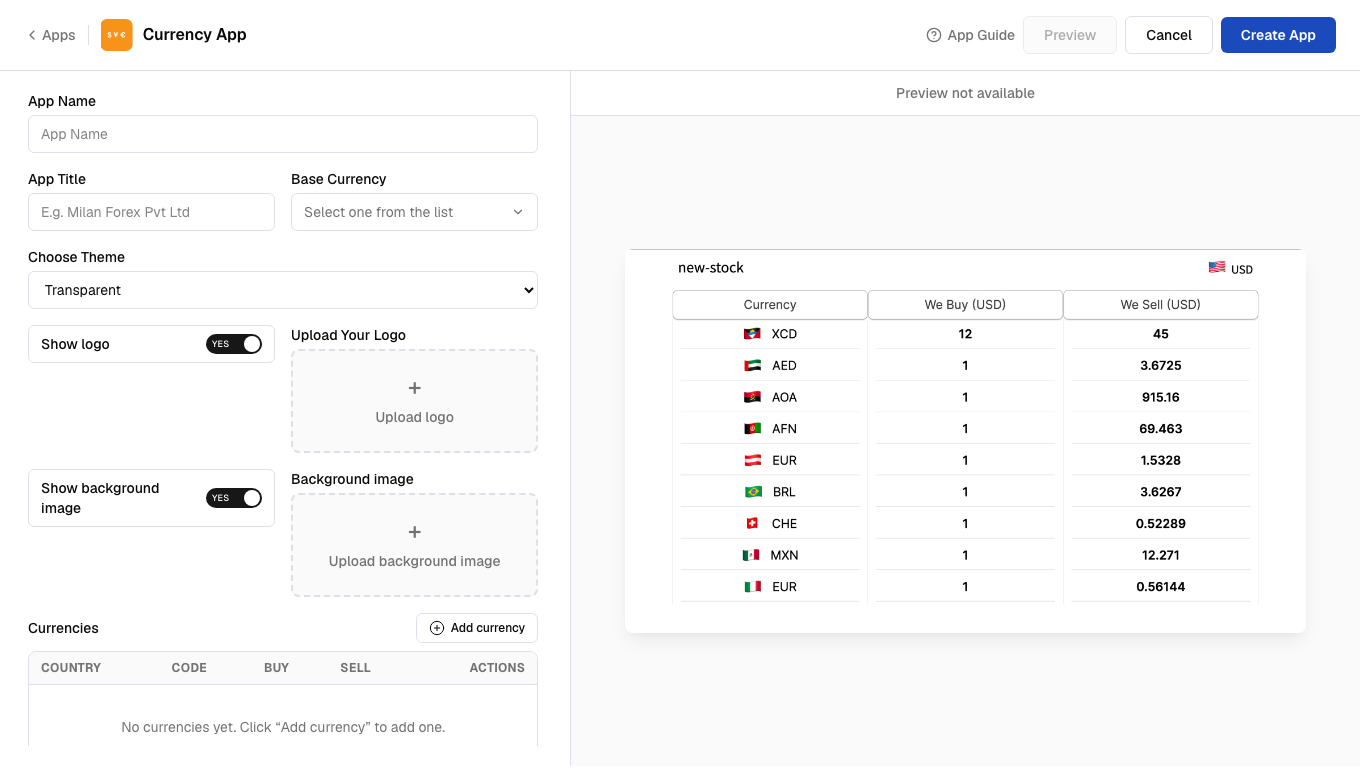
Toggle **Show logo** to upload a logo image, and **Show background image** to upload a custom background instead of a plain theme color. Both work with any of the three themes.
**Base Currency** stays fixed no matter how many rows you add; every **Buy**/**Sell** pair is always quoted against it.
Toggle **Show logo** to upload a logo image, and **Show background image** to upload a custom background instead of a plain theme color. Both work with any of the three themes.
 Click **Create App**. A success dialog confirms the board was created and offers to walk you through adding it to a composition.
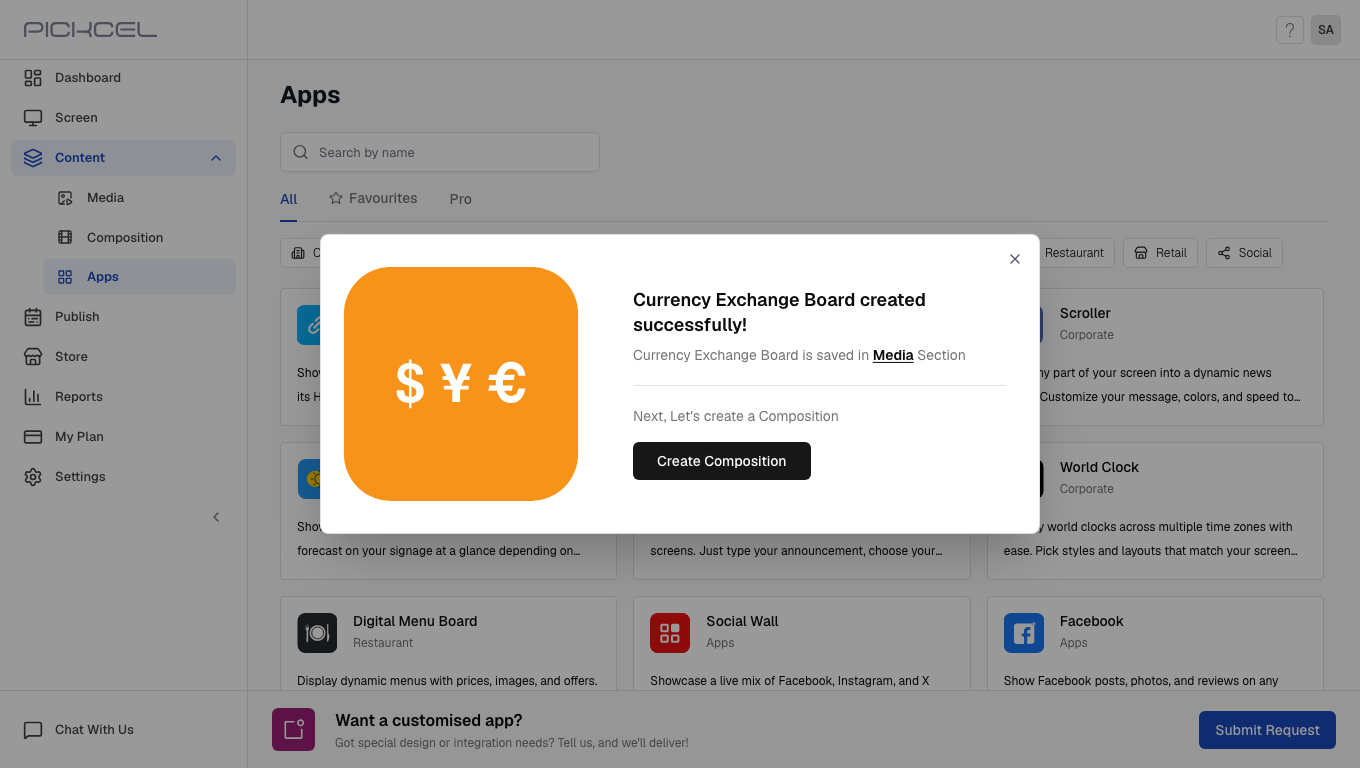 The app is stored in **Content > Media** under the App Name you gave it, with type **App**.
## What's Next?
* Add the board to a multi-zone layout: [Compositions](/compositions/compositions)
* Send it to your screens: [Publish or Schedule Content](/schedule-and-publish/publish-overview)
The app is stored in **Content > Media** under the App Name you gave it, with type **App**.
## What's Next?
* Add the board to a multi-zone layout: [Compositions](/compositions/compositions)
* Send it to your screens: [Publish or Schedule Content](/schedule-and-publish/publish-overview)