> ## Documentation Index
> Fetch the complete documentation index at: https://docs.pickcel.com/llms.txt
> Use this file to discover all available pages before exploring further.
# How to add the Countdown Timer app from the Pickcel App Store?
> Build excitement for a launch, sale, or event with a live countdown timer on your digital signage screens, in landscape, portrait, or footer layout.
The Countdown Timer app counts down to a date and time you set, then automatically switches to an end message once it hits zero. Use it for product launches, sales deadlines, event kickoffs, or any moment worth building anticipation for.
In this guide we build a countdown to a fictional **Product Launch Event**.
## Prerequisites
* A [Pickcel account](https://console.pickcel.com/) with access to the **Content** module
* The exact end date and time you're counting down to
In the Pickcel console, expand **Content** in the left menu and select **Apps**. Search for **Countdown** using the search field.
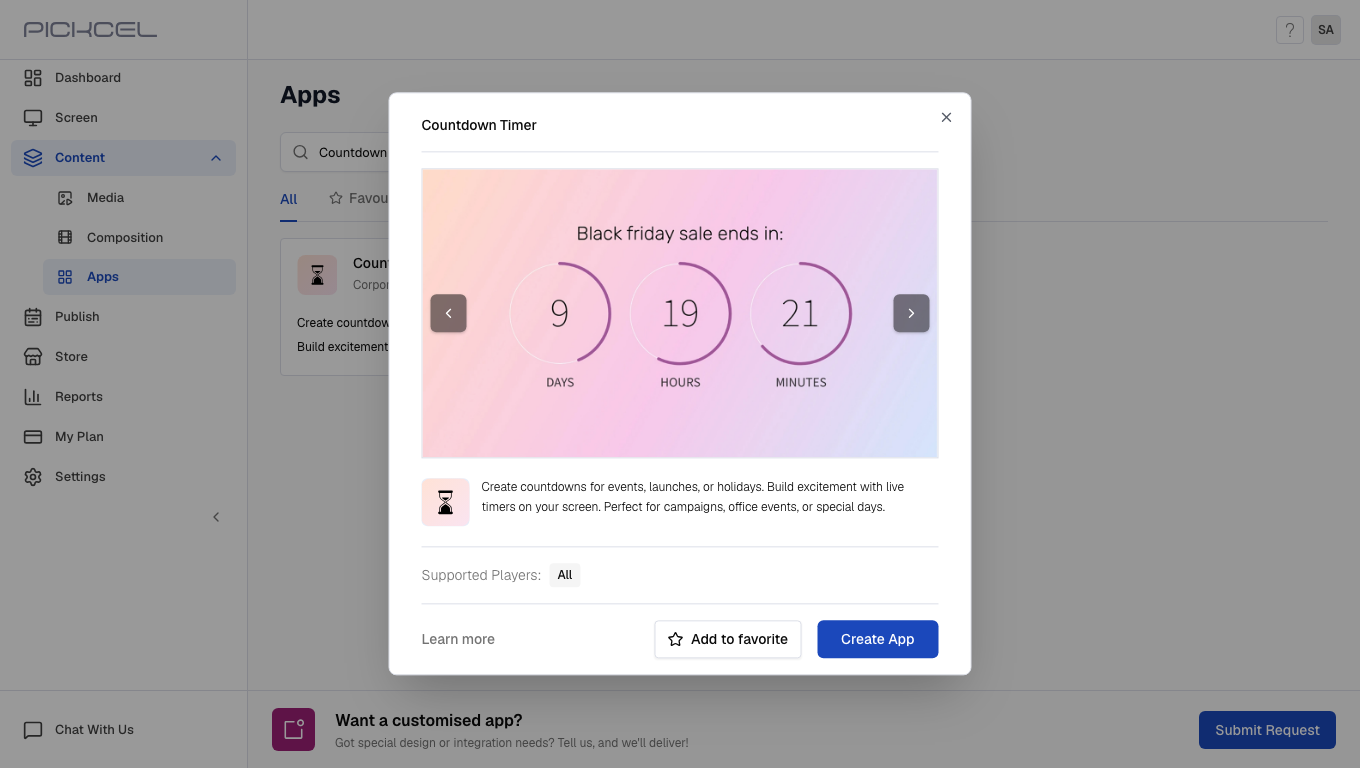
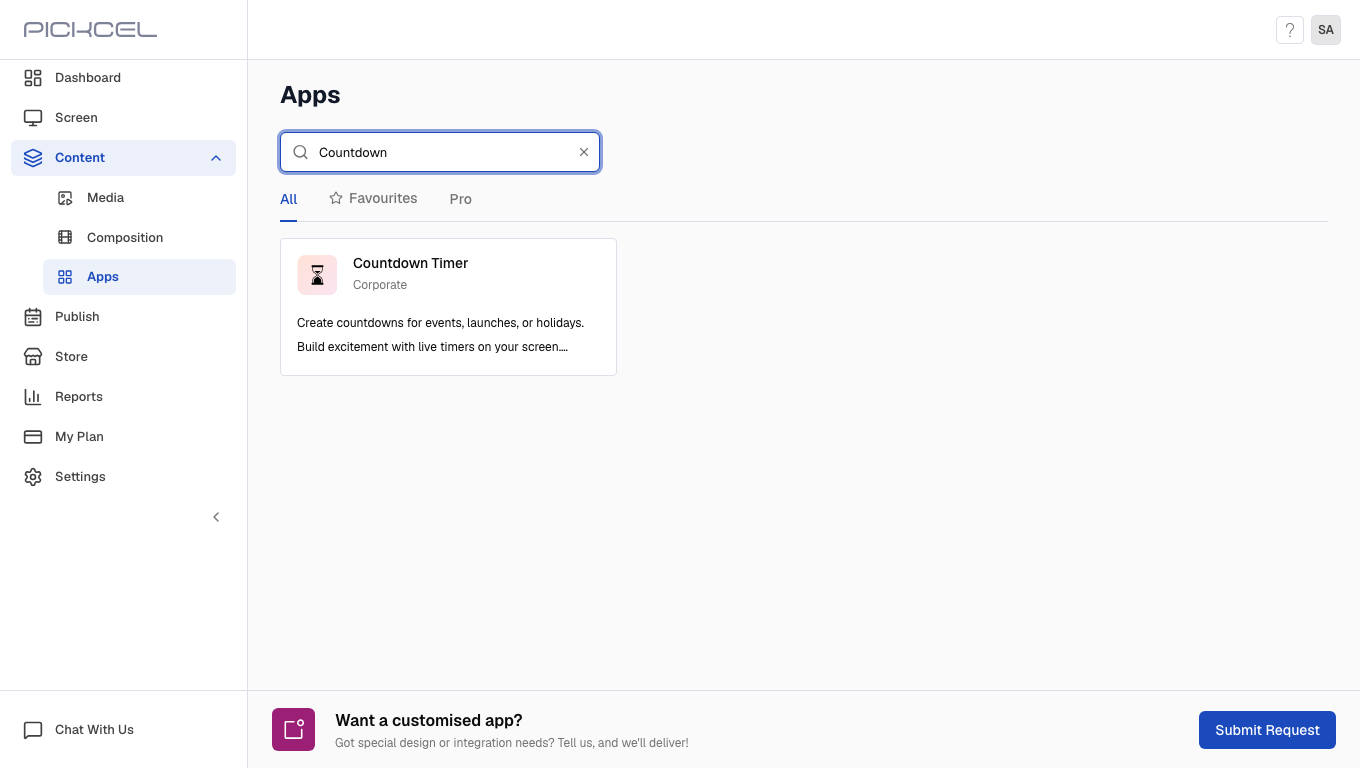 Click the **Countdown Timer** card. A details panel opens with a preview of the app. Click **Create App** to open the editor.
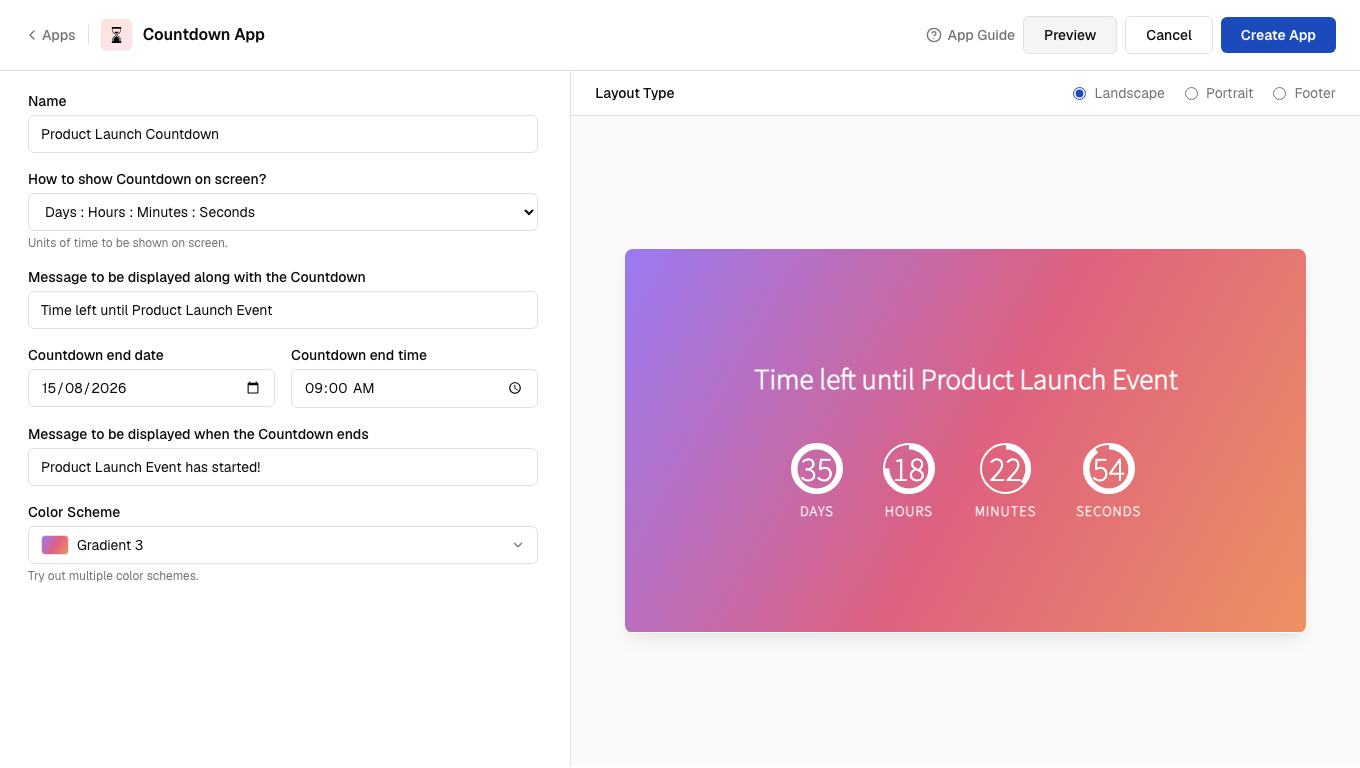
 Enter a **Name** for the app, then choose **How to show Countdown on screen?**: **Days**, **Days : Hours**, **Days : Hours : Minutes**, **Hours : Minutes : Seconds**, or **Days : Hours : Minutes : Seconds**. Type the **Message** to show while it's running, set the **Countdown end date** and **Countdown end time**, and write the **Message** to show once it ends.
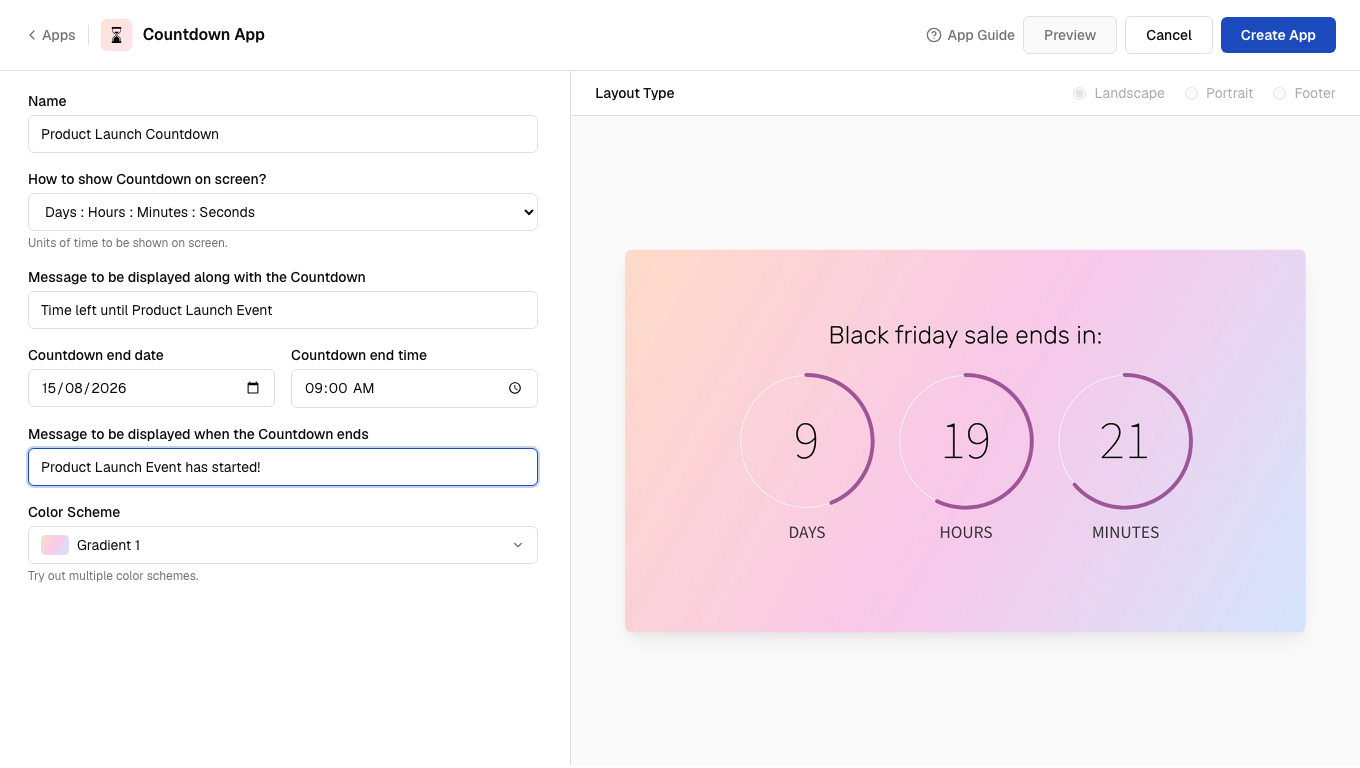 The end date defaults to today, so double-check it before moving on, especially if you picked a format without days.
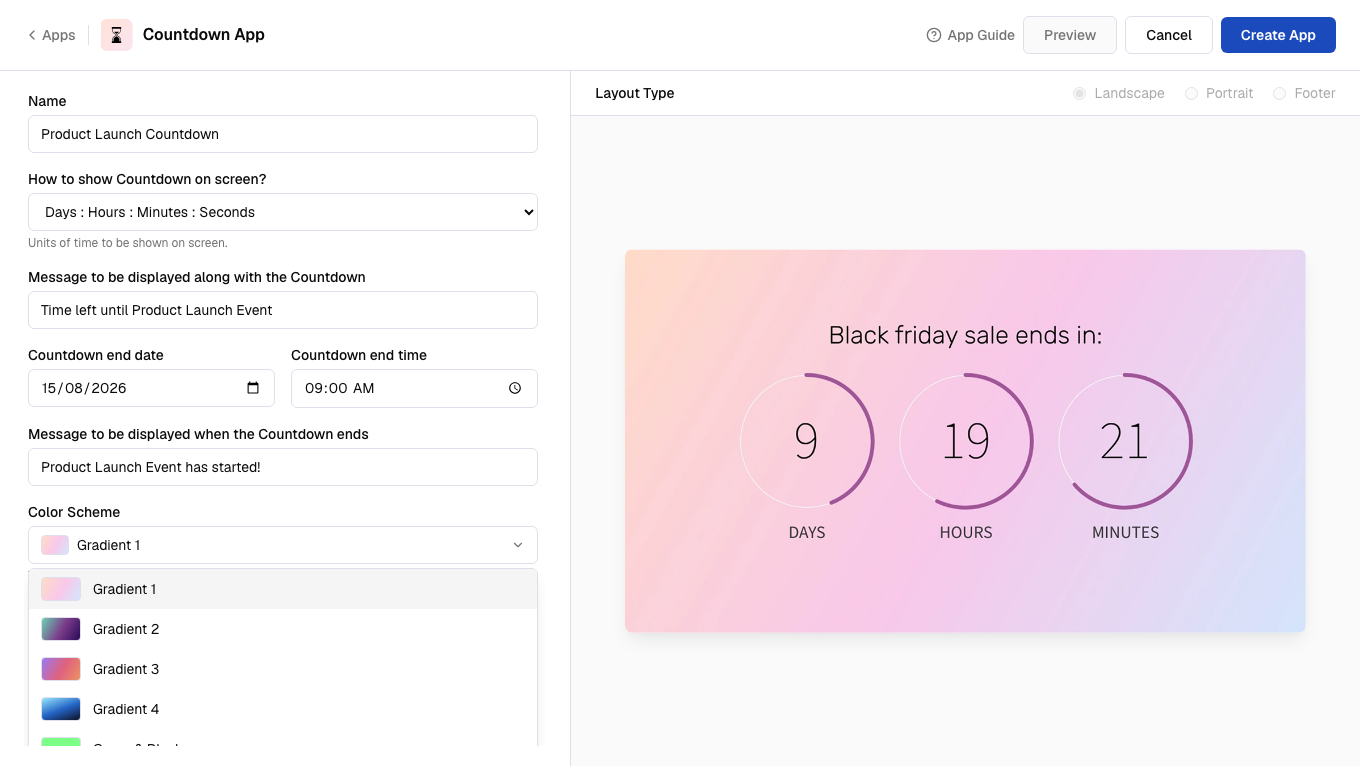
Open **Color Scheme** and choose from the gradient list. We picked **Gradient 3**, a pink-to-orange gradient.
The end date defaults to today, so double-check it before moving on, especially if you picked a format without days.
Open **Color Scheme** and choose from the gradient list. We picked **Gradient 3**, a pink-to-orange gradient.
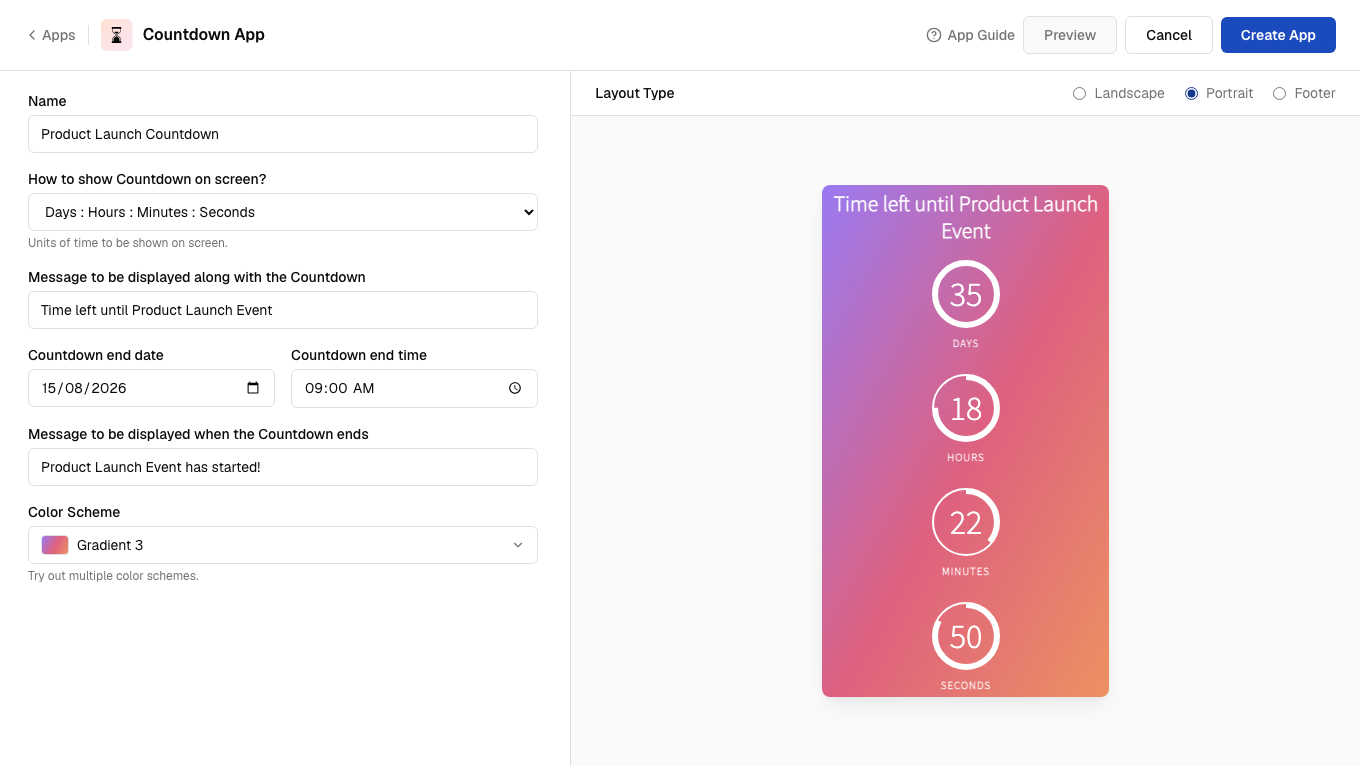
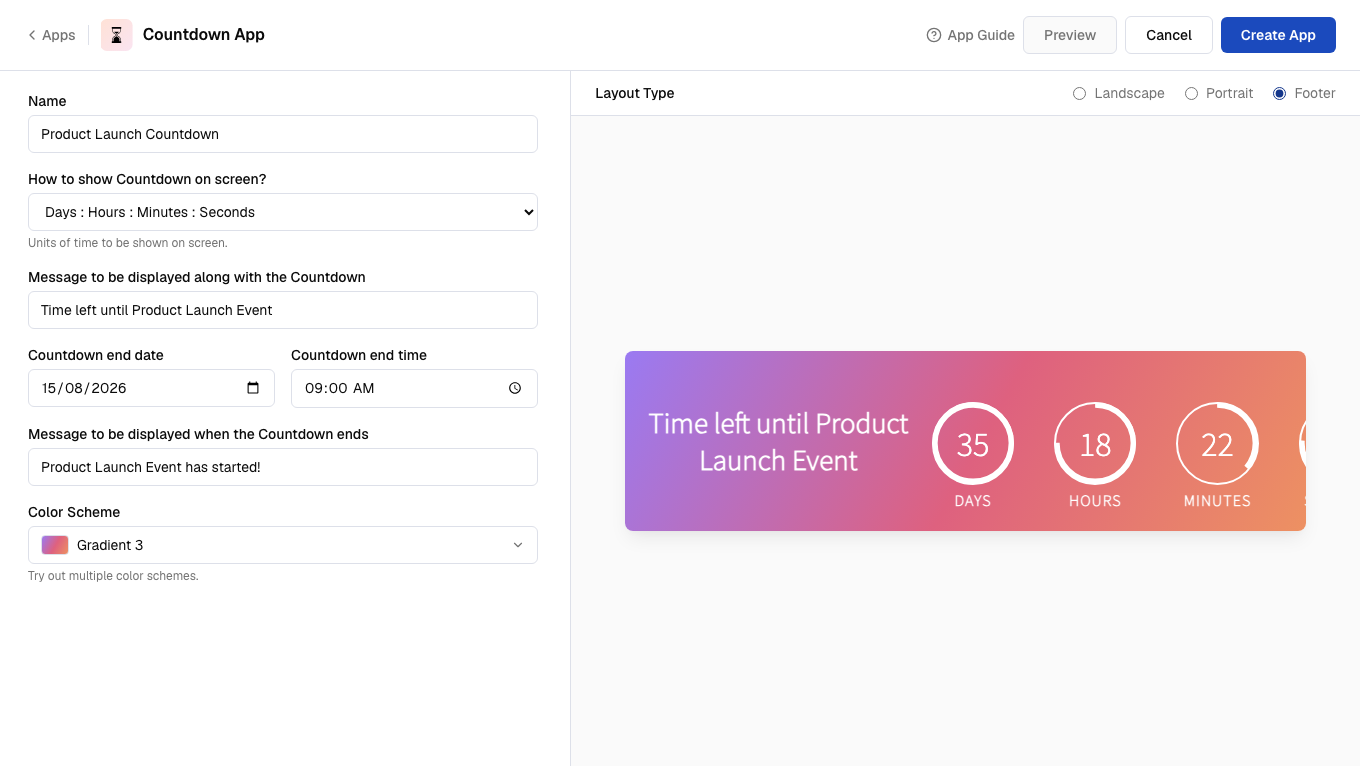
 Click **Preview** to render the countdown with your message, end date, and color scheme. Once the preview loads, **Layout Type** unlocks: **Landscape**, **Portrait**, or **Footer**, matching how the app will actually run on a screen of that orientation.
 Click **Create App**. A success dialog confirms the timer was created and offers to walk you through adding it to a composition.
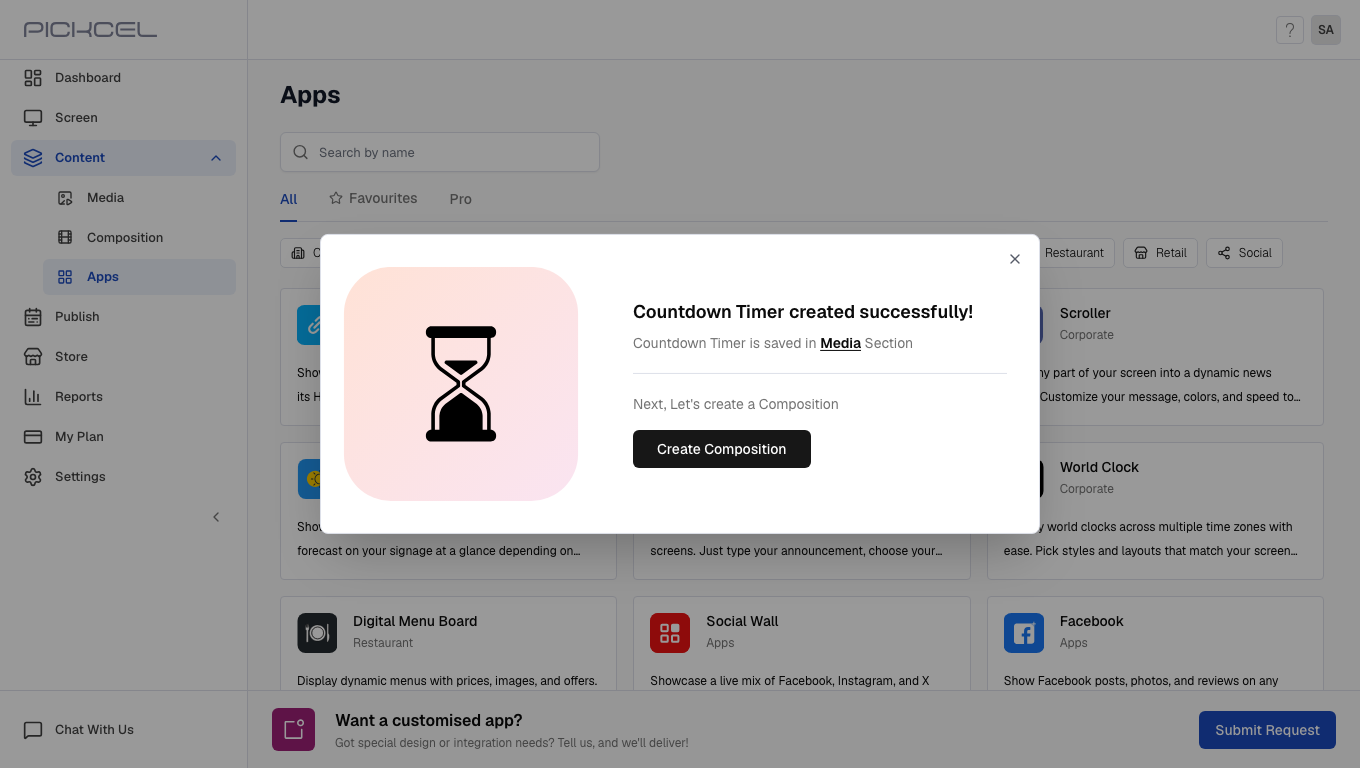 The app is stored in **Content > Media** under the name you gave it, with type **App**.
## What's Next?
* Add the timer to a multi-zone layout: [Compositions](/compositions/compositions)
* Send it to your screens: [Publish or Schedule Content](/schedule-and-publish/publish-overview)
The app is stored in **Content > Media** under the name you gave it, with type **App**.
## What's Next?
* Add the timer to a multi-zone layout: [Compositions](/compositions/compositions)
* Send it to your screens: [Publish or Schedule Content](/schedule-and-publish/publish-overview)