> ## Documentation Index
> Fetch the complete documentation index at: https://docs.pickcel.com/llms.txt
> Use this file to discover all available pages before exploring further.
# How to add the World Clock app from the Pickcel App Store?
> Learn how to add and configure the World Clock app to display time across different locations on your digital signage screens
 [Login to your Pickcel account](https://console.pickcel.com/). Go to the **Apps** module.
 Search for the **World Clock** app using the search field.
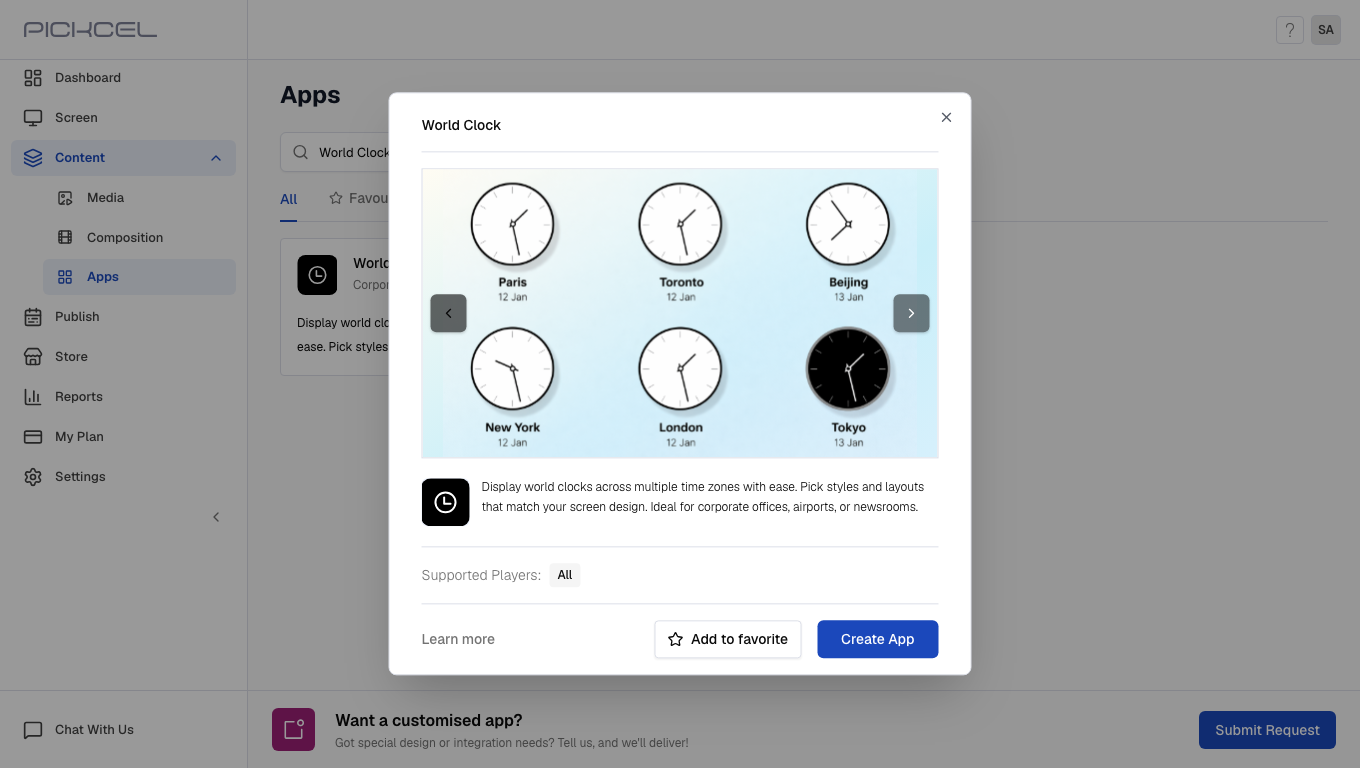
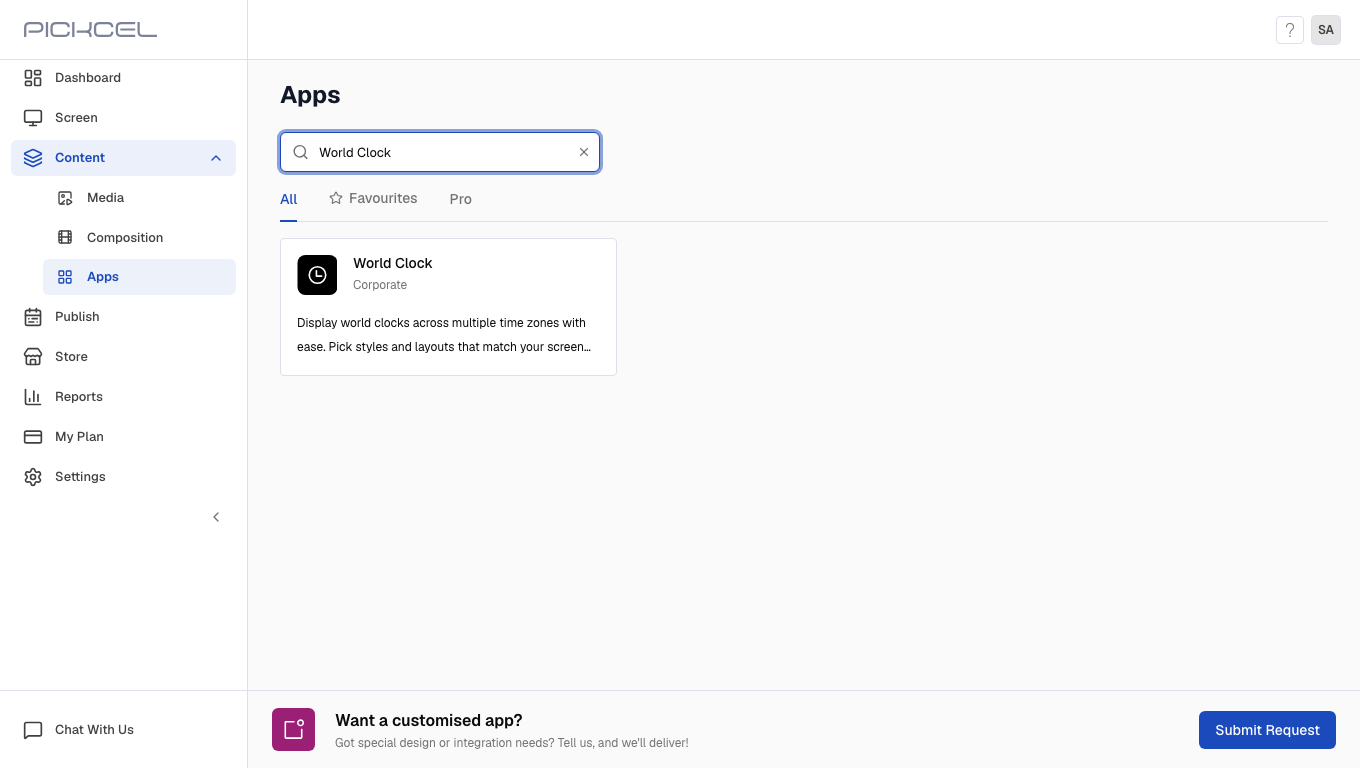 Click the **World Clock** app card, then click **Create App** in the app details panel.
Enter a **Name** for the app.
Click the **World Clock** app card, then click **Create App** in the app details panel.
Enter a **Name** for the app.
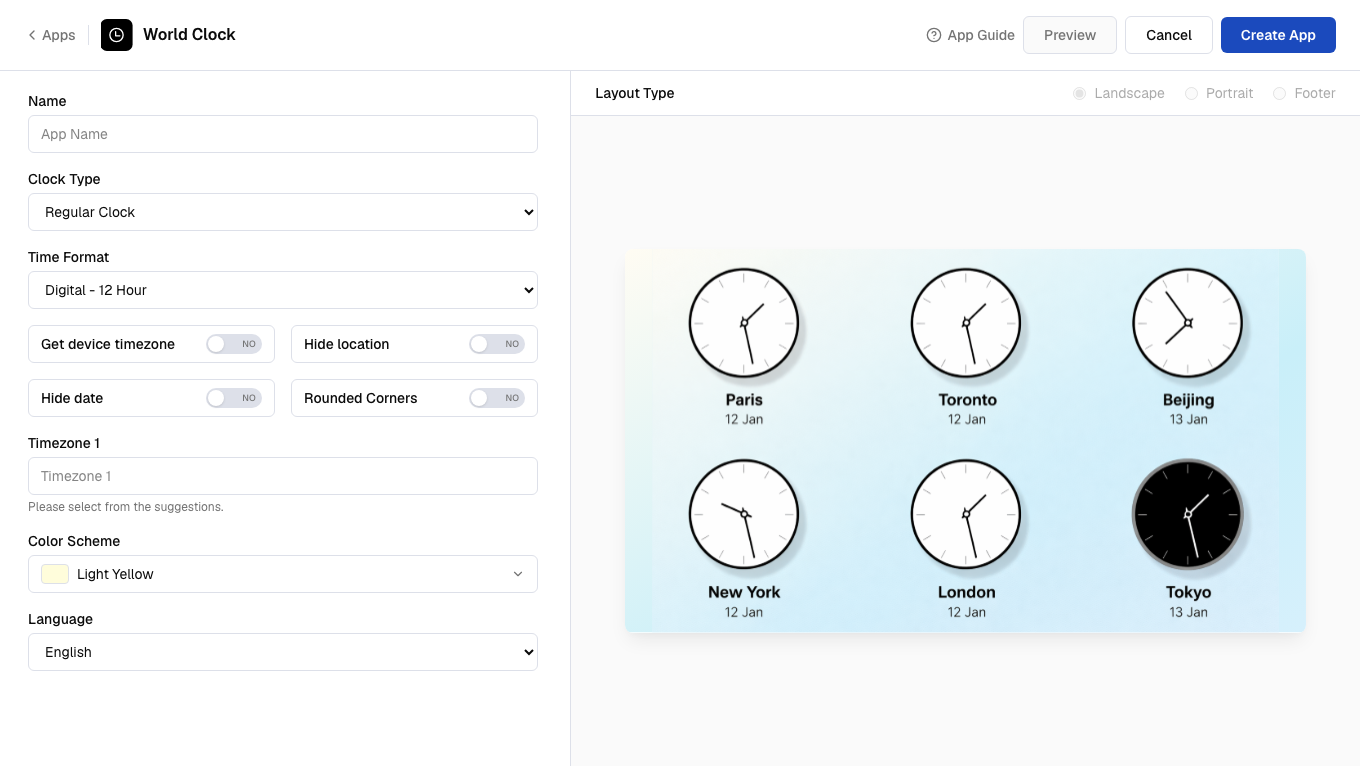 Select **Regular Clock** or **World Clock** from the **Clock Type** dropdown.
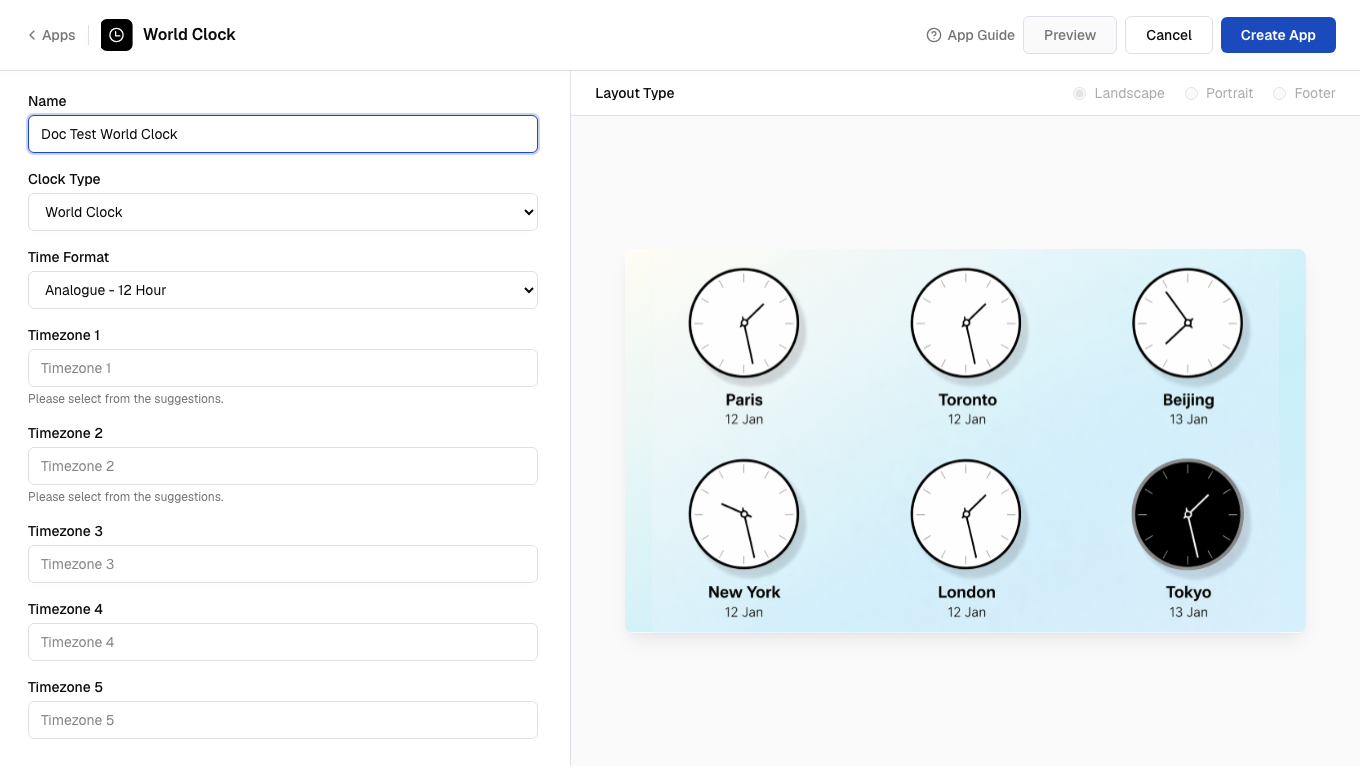
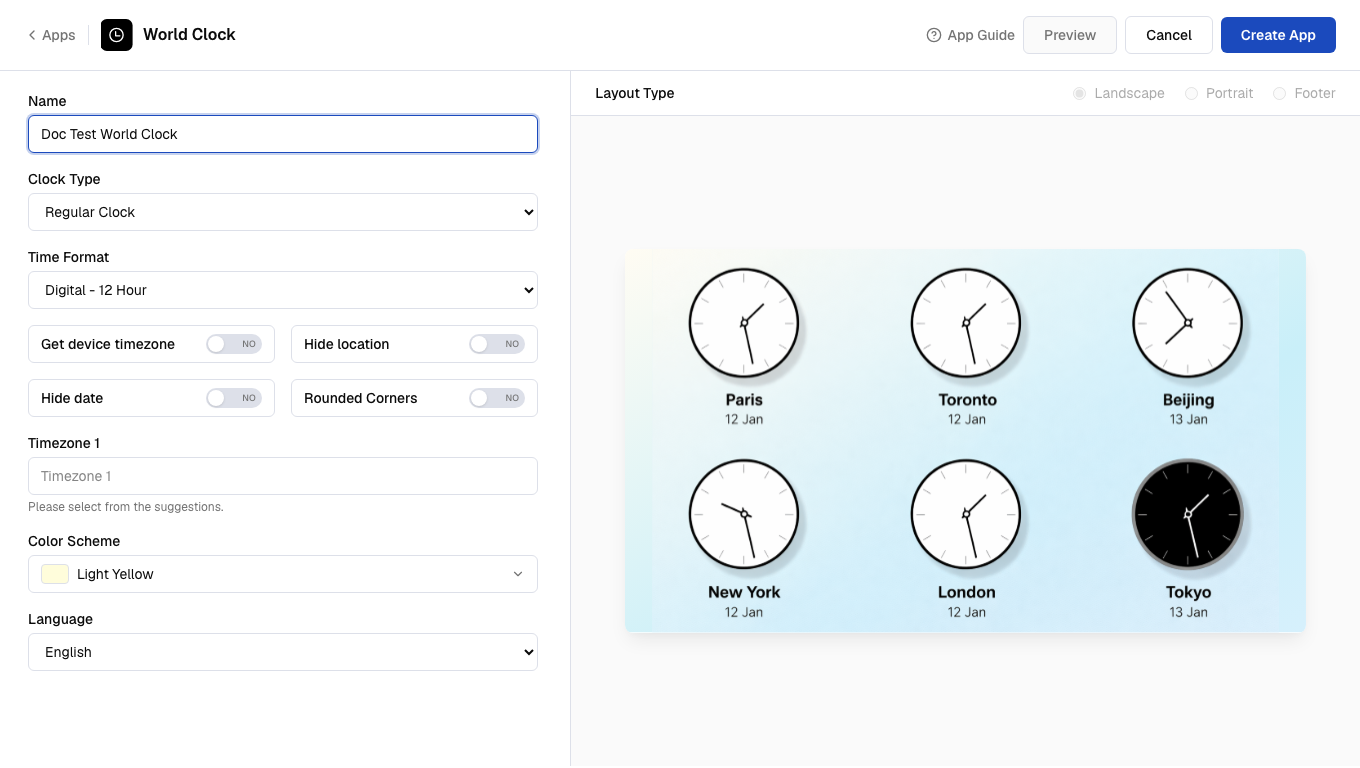 Select the **Time Format** (Analogue or Digital, 12-hour or 24-hour).
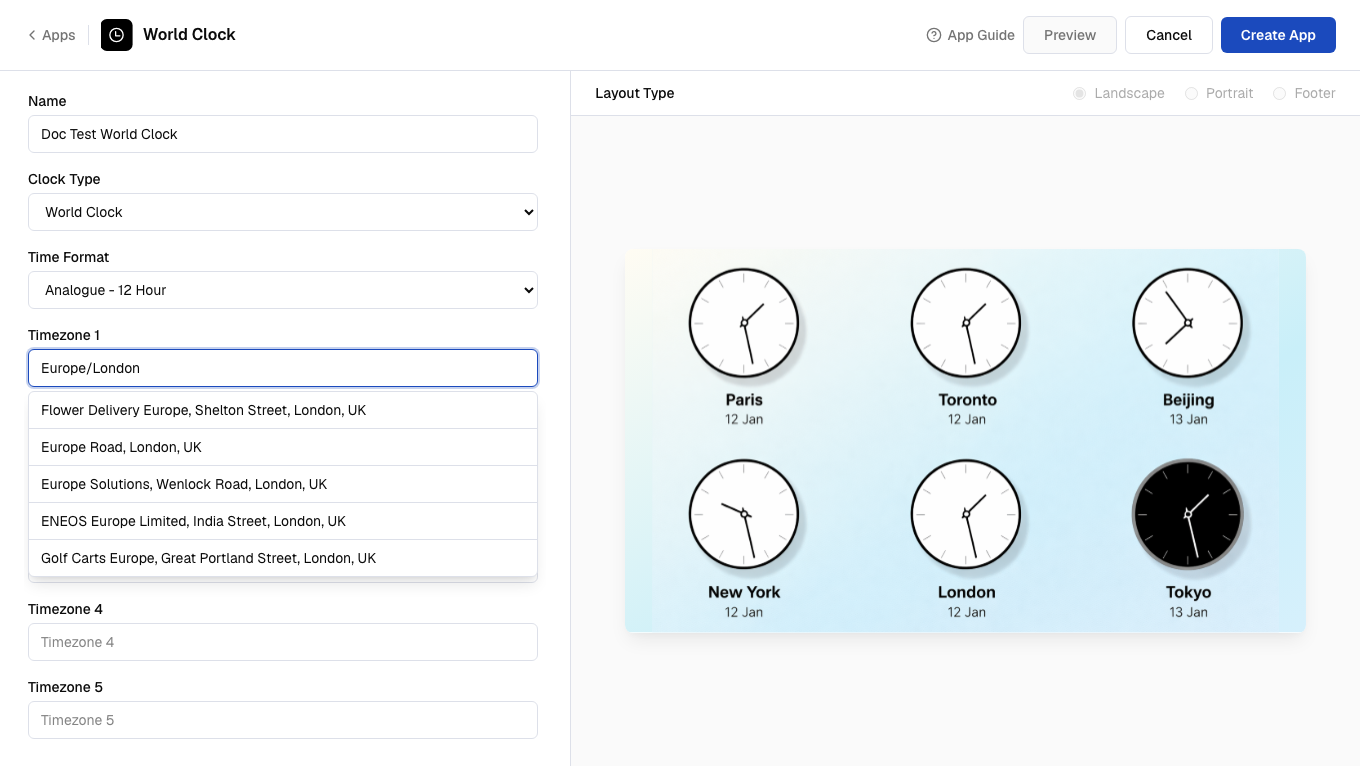
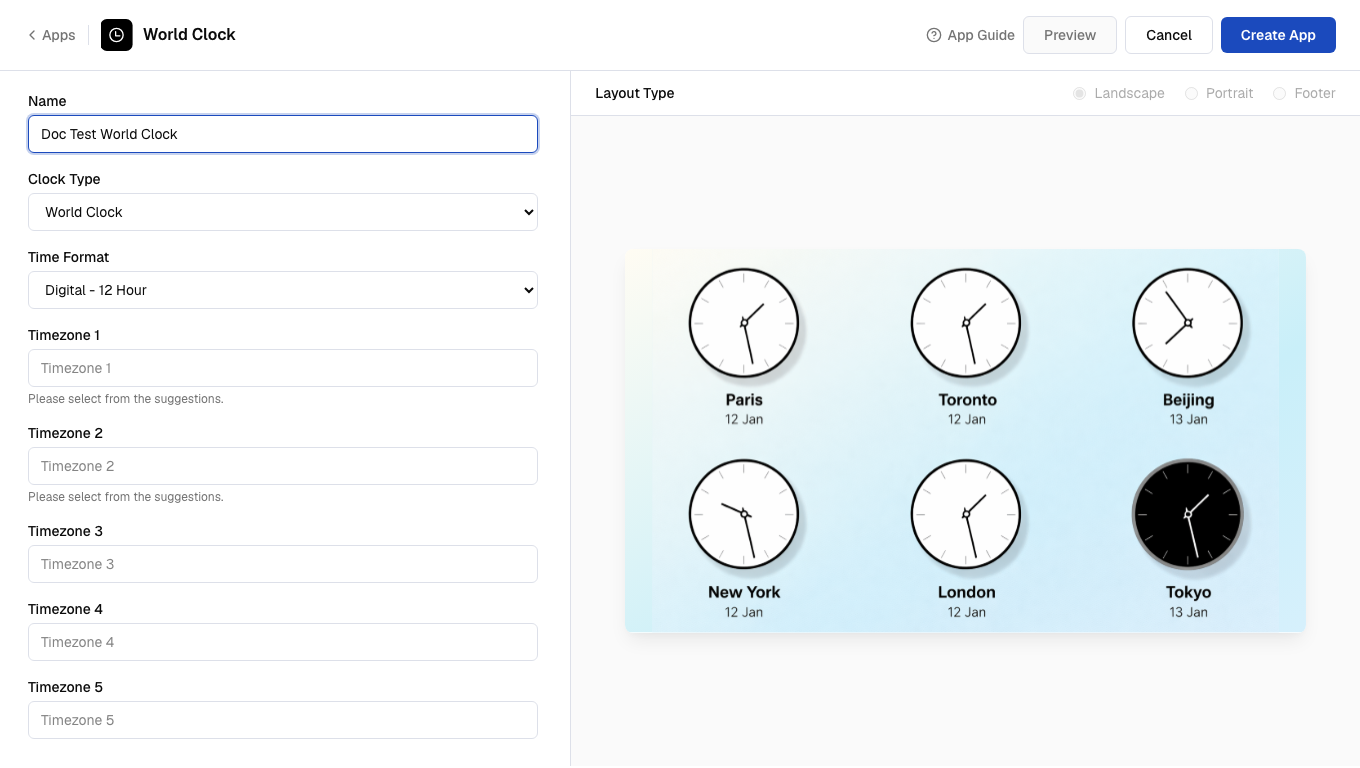 Enter up to six **Timezone** values for the locations you want to display.
 Select a **Language** from the dropdown list.
 Select a **Color Scheme** and click **Preview** to see the app preview.
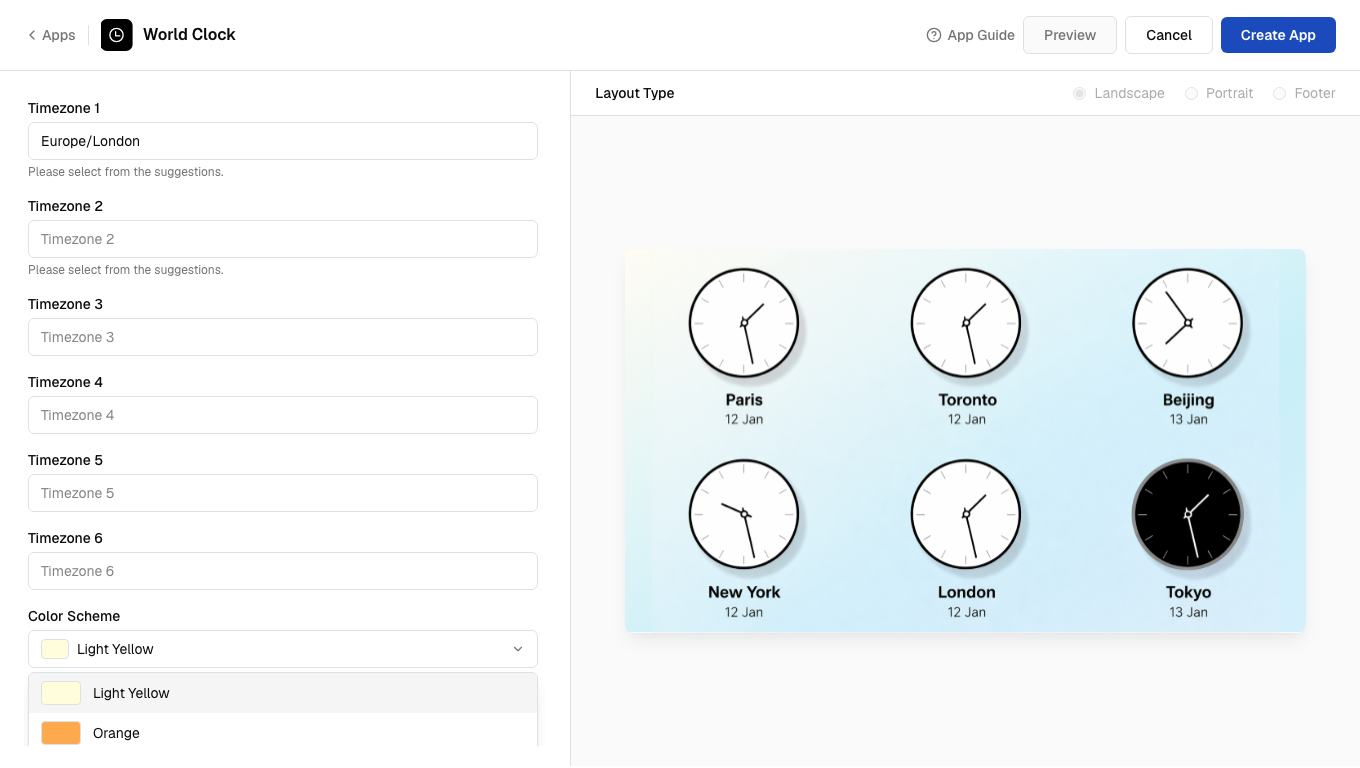 Click **Create App** to save the app.
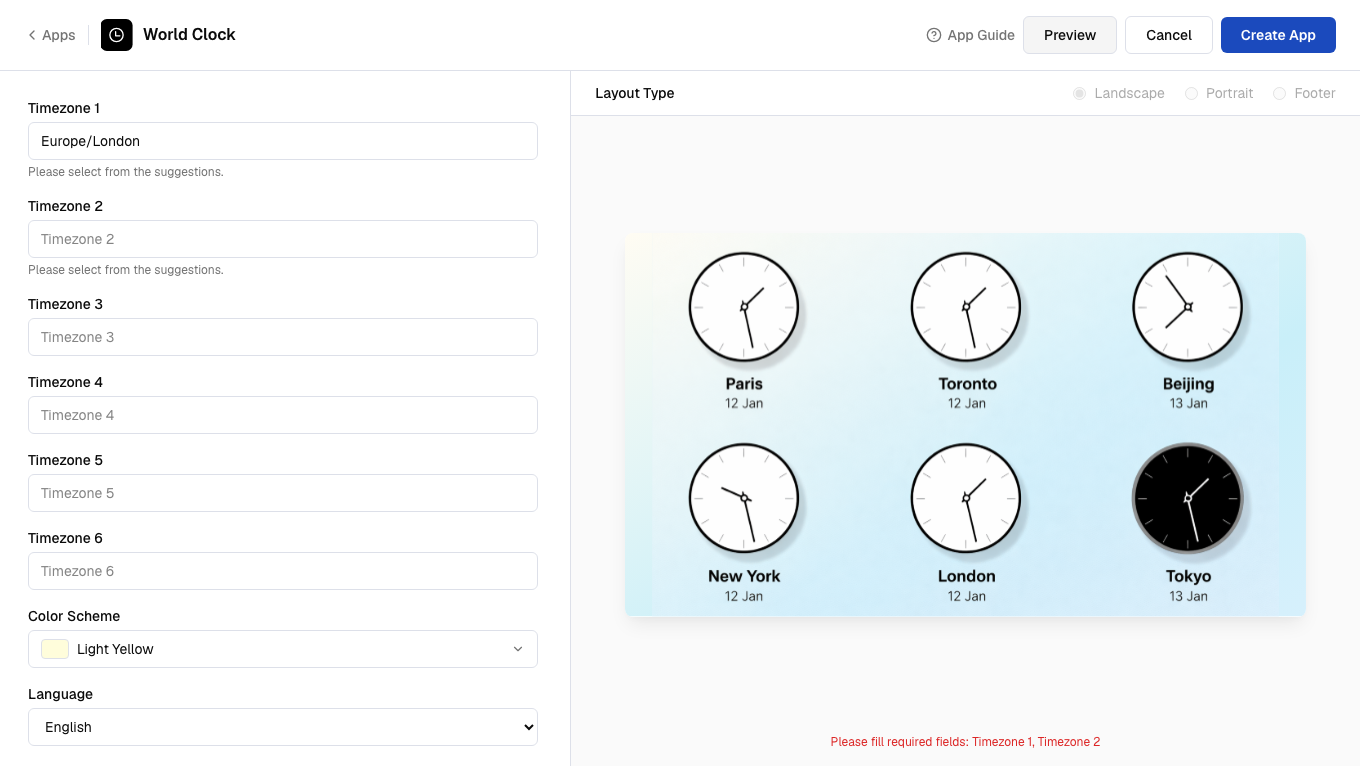 Minimum supported height/width for the clock app is 300. If the height or width is less than 300, the app may look distorted.